You access Google Cloud by signing in to the Google Cloud console at console.cloud.google.com with your Google Account, then choosing a project.
This guide covers creating the account, the console, the free tier, the gcloud CLI and Cloud Shell, APIs, access control, and what to do when sign-in or a project stops working.
Accessing Google Cloud console
The console is the web interface for every Google Cloud product. It runs in any current browser, so there is nothing to install.
- Open a browser and go to
console.cloud.google.com. - Sign in with the Google Account, or the work identity, that your Google Cloud projects use.
- Complete 2-Step Verification if Google asks for it.
- Use the resource selector at the top of the page to pick the project you want to work in.
- Open the product you need, such as Compute Engine, Cloud Storage or IAM, from the console.
If you have never used Google Cloud, the console offers the Free Trial sign-up at console.cloud.google.com/freetrial. A project named My First Project is created for you when the trial starts.
Is Google Cloud the same as Google Drive?
No. Many people say "my Google cloud" when they mean the storage that comes with a Google Account. That is Google Drive and Google One, not the Google Cloud platform.
| If you mean | What it is | Where to access it |
|---|---|---|
| Your files, photos and email storage | Up to 15 GB per Google Account, shared across Gmail, Google Drive and Google Photos | drive.google.com on a computer, or the Google Drive desktop app |
| More personal storage | A Google One membership adds to the storage quota where available | Google One |
| Virtual machines, databases, APIs and hosting | The Google Cloud platform | console.cloud.google.com |
The rest of this guide is about the Google Cloud platform. For personal files, sign in at drive.google.com and use New at the top left to upload or create files.
Creating a Google Cloud account
A Google Cloud account is your Google Account plus a billing account. New customers can start with the Free Trial, which needs a valid card or other payment method for identity checks.
- Sign in to the Google Account you want to use for Google Cloud, or create a Google Account first.
- Go to
console.cloud.google.com/freetrial. - Enter a credit card or other payment method, and verify your bank account if your country requires it.
- Wait for Google to verify your identity and payment method; the 90-day trial starts after that.
- Open the console and find My First Project and the My Billing Account billing account already set up.
Google places a temporary hold of between $0.00 and $1.00 USD to validate the card. It is not a charge and is usually released within a few days to a month.
You qualify for the Free Trial only if you have never been a paying user of Google Cloud, Google Maps Platform or Firebase, and have not signed up for the trial before.
Google Cloud free tier
Google Cloud has two free offers. The Free Trial gives new customers $300 in credit for 90 days, and the Free Tier gives free monthly usage of selected products with no end date.
| Product | Free Tier monthly limit (selected) |
|---|---|
| Compute Engine | 1 non-preemptible e2-micro VM in us-west1, us-central1 or us-east1, plus 30 GB-months standard persistent disk |
| Cloud Storage | 5 GB-months of regional storage in us-east1, us-west1 and us-central1 |
| BigQuery | 1 TiB of querying and 10 GiB of storage |
| Cloud Run | 2 million requests |
| Cloud Run functions | 2 million invocations |
| Cloud Shell | Free access with 5 GB of persistent disk storage |
| Firestore | 1 GiB of storage per project, 50,000 reads and 20,000 writes per day |
The Free Tier needs a billing account, and usage above the limits is billed at standard rates. During the Free Trial you cannot add GPUs, use Google Cloud Marketplace, create Windows Server VMs or request quota increases. Storage beyond the free amount is charged at Google Cloud Storage pricing rates, which vary by storage class and region.
Navigating the Google Cloud console
Everything in the console belongs to a project. A project holds your APIs, billing and permissions, and resources in one project cannot reach another project by default.
- Check the project name in the resource selector at the top of the console before you change anything.
- To start a new project, go to the Manage resources page and click Create project.
- In the New project window, enter a project name of 4 to 30 characters and, if offered, choose a billing account.
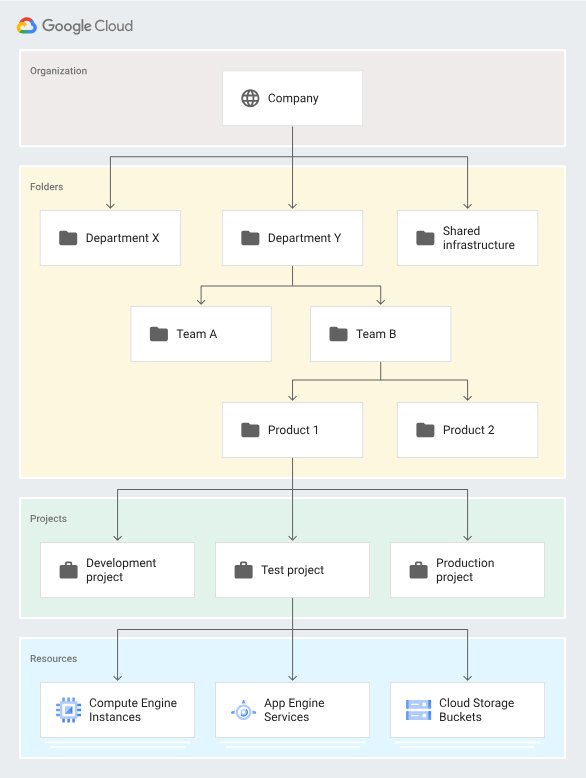
- In Parent resource, choose an organization or folder, or No organization for a personal project.
- Click Create, then select the new project in the resource selector.
- Open Activate Cloud Shell from the console header when you want a command line in the same window.
The console generates a project ID from the name. You can edit the ID during creation, but after that it is permanent and can never be reused, even if the project is deleted.
Using Google Cloud SDK (gcloud)
The gcloud CLI lets you manage Google Cloud from a terminal on Windows, macOS or Linux. Install the Google Cloud CLI first, then initialize it once.
gcloud initSigns you in with your user account, authorizes the CLI to act on your behalf, and creates a configuration with the active account, current project and, where relevant, a default Compute Engine region and zone. On a remote terminal, run gcloud init --console-only to get a sign-in URL instead of a browser window.
You should see: Run gcloud config list. The output shows your account under [core] and the project you chose.
To sign in again later without changing the configuration, run gcloud auth login. Running gcloud init a second time lets you re-initialize the active configuration, switch to another one, or create a new one.
How to access Google Cloud Shell
Cloud Shell is a browser terminal with the gcloud CLI, Docker and other tools already installed and signed in to your account. Use it when you cannot install anything on the computer in front of you.
- Sign in to the Google Cloud console.
- Click Activate Cloud Shell in the console header.
- Wait for the session to open in the bottom pane of the console.
- Click Open in new window if you want the terminal full screen.
- Or go straight to
shell.cloud.google.comfor a standalone terminal and the Cloud Shell Editor.
Cloud Shell is free and includes 5 GB of persistent disk storage for your home directory.
Utilizing Google Cloud API
To call a Google Cloud API from your own code, you need a user account, a project, the API enabled on that project and, for paid APIs, billing linked to the project.
- In the Google Cloud console, go to the API Library.
- From the projects list, select the project you want to use.
- Search for the API you need, or use the filters.
- Open the API page and click ENABLE.
- If the API charges for usage, link a billing account to the project from the console billing page.
- Set up Application Default Credentials, an API key, or an OAuth 2.0 client ID, depending on what the API supports.
From a terminal, gcloud services enable pubsub.googleapis.com enables an API, and gcloud services disable turns it off again. Enabling an API needs the serviceusage.services.enable permission on the project. Google recommends the Cloud Client Libraries, which handle authentication, retries and errors for you.
Exploring Google Cloud resources
Once you are in a project, these are the resources most people open first.
| Resource | What it is for | Free Trial note |
|---|---|---|
| Virtual machines with Compute Engine | Run your own Linux or Windows servers | One e2-micro VM is in the Free Tier; Windows Server images are blocked during the trial |
| Data storage with Google Cloud Storage | Store files and objects in buckets | 5 GB-months in three US regions is free |
| Databases with Cloud SQL | Managed relational databases | Paid from the $300 credit during the trial |
| Networking with Google Cloud VPC | Private networks, firewall rules and connections between resources | Network egress is billed beyond the free amounts |
| Leveraging Google Cloud Marketplace | Deploy prebuilt software from Google and partners | Not available until you upgrade to a Paid billing account |
Security and access management
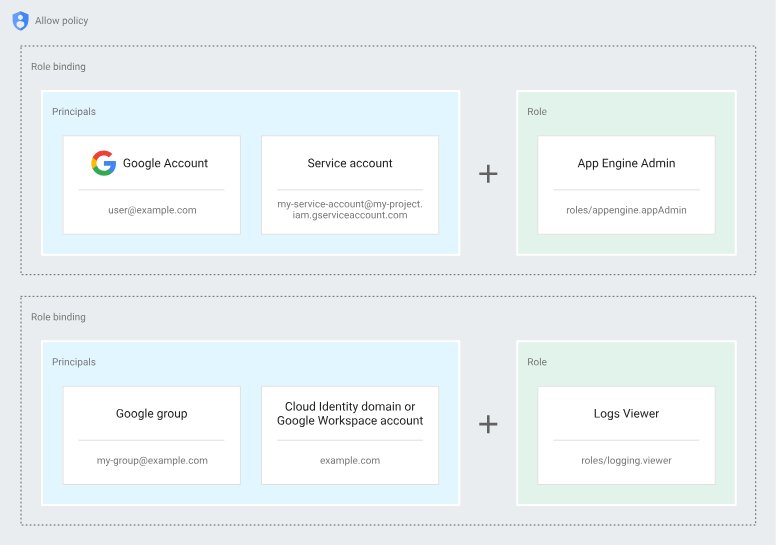
Access to a project is granted with IAM roles. When you create a project you get a role that lets you manage access to it; otherwise ask your administrator for the Project IAM Admin role.
- In the Google Cloud console, go to the IAM page.
- Select the project, folder or organization.
- Click Grant Access, then enter the person's email address.
- Click Select a role and search by role name, product or job function.
- Pick the role with only the permissions that person needs.
- Click Save.
To add a role for someone who already has access, click Edit principal in their row, then Add another role. Google is phasing in a 2-Step Verification requirement for every person who signs in to the Google Cloud console; check it under Security > How you sign in to Google in your Google Account.
How to check remaining Google Cloud free trial credit
- Sign in to the Google Cloud console.
- Go to
console.cloud.google.com/billing/reports. - Select the My Billing Account Free Trial billing account if more than one is listed.
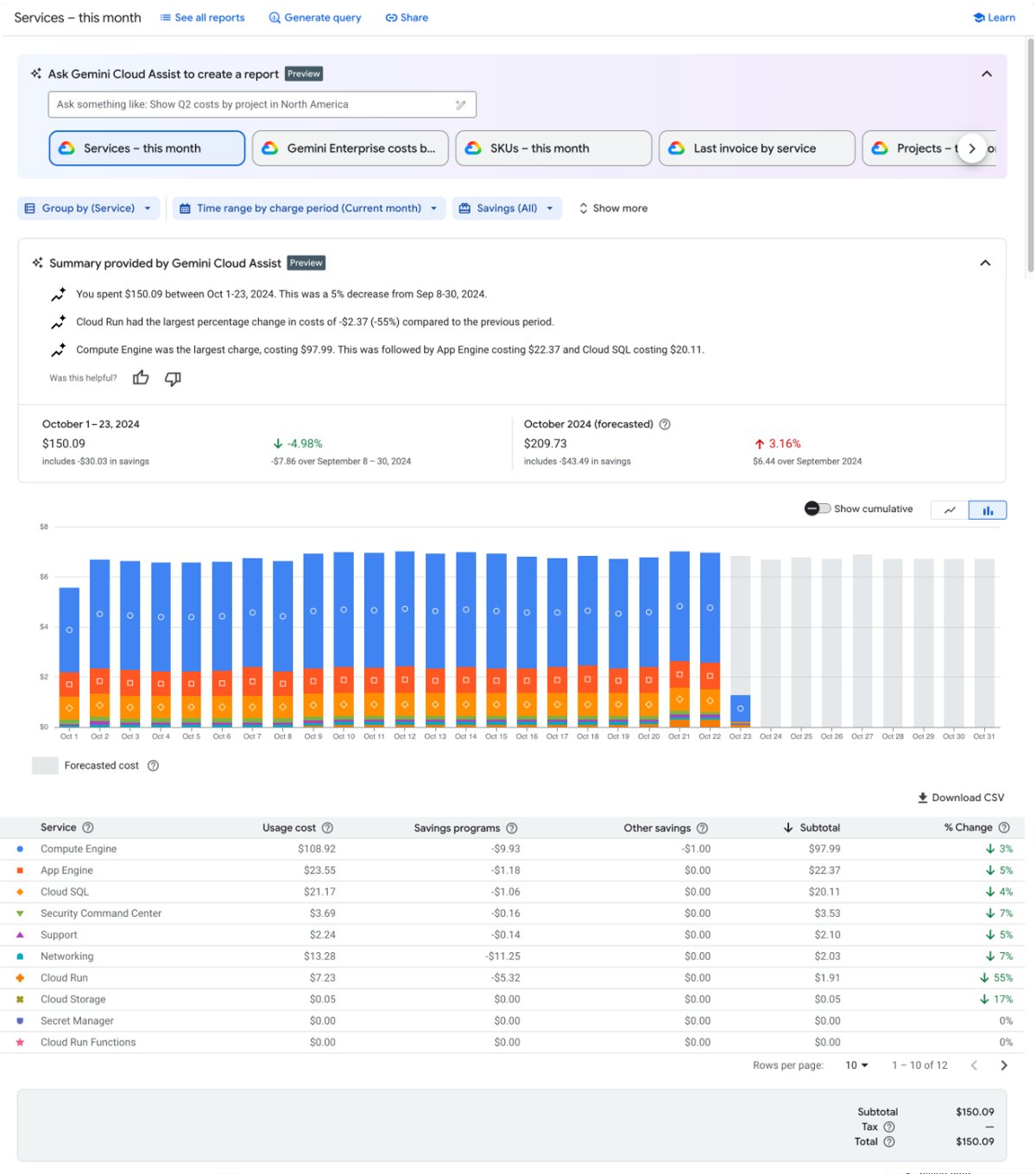
- Read the remaining credit and days left on the Cloud Billing report.
- Upgrade to a Paid billing account before the credit or the 90 days run out if you want your resources to keep running.
Upgrading ends the trial but keeps any unused credit until 90 days from sign-up, and you keep the Free Tier.
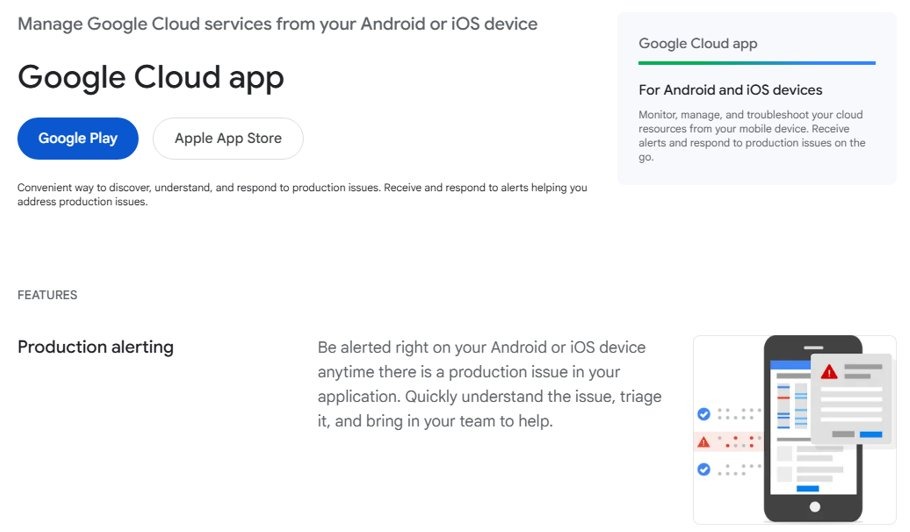
Google Cloud app for Android and iPhone
Google offers a Google Cloud app for Android and iOS. It signs in with your Google Cloud credentials and is available to all Google Cloud customers.
- Install the Google Cloud app from Google Play or the Apple App Store.
- Sign in with the account you use for the Google Cloud console.
- Pick a project to monitor its App Engine, Compute Engine, Cloud Storage and Cloud SQL resources.
- Open billing to check costs, budgets and credit use.
- Use the alerts and incidents views to respond to production issues from the phone.
The app can stop or restart a VM, search logs, run gcloud commands and connect to a VM over SSH.
Google Cloud console troubleshooting and support
Google asks you to set up 2-Step Verification before the console opens
Google Cloud requires 2SV for people who sign in to the console interactively.
- Open your Google Account settings and select Security.
- Under How you sign in to Google, turn on 2-Step Verification.
- Add a second factor, even if you already use a passkey.
- Sign in to the console again.
Your projects and VMs stopped after the free trial
The Free Trial billing account closes when the $300 is spent or 90 days pass without an upgrade.
- Sign in to the console and open billing.
- Upgrade to a Paid billing account within the 30-day grace period.
- Check your stopped resources; Google says you might be able to recover them and their data.
- After the grace period, trial resources are permanently deleted.
An API call fails because the API is not enabled
Many APIs are off by default and must be enabled per project.
- Open the API Library in the console.
- Select the correct project from the projects list.
- Open the API and click ENABLE.
- If you cannot enable it, ask an administrator for a role with
serviceusage.services.enable.
You cannot create a new project
You lack the Project Creator role, or you have reached your project quota.
- Ask your administrator for the Project Creator role if you are in an organization.
- Check the New Project page for a notice about projects left in your quota.
- Schedule unused projects for deletion on the Manage resources page, or request a project limit increase.
The Free Trial sign-up is refused
The account has already used the trial or has paid for Google Cloud, Google Maps Platform or Firebase before.
- Sign in with a Google Account that has never been a paying Google Cloud customer.
- Or create a Paid billing account and use the Free Tier limits.
- Contact Cloud Billing support if identity or payment verification fails.
For anything else, Cloud Customer Care handles support cases from the console; Google says Live chat is the quickest way to reach a support representative when you create a case.
Google Cloud access FAQ
How do I log in to Google Cloud?
Go to console.cloud.google.com and sign in with the Google Account or work identity your projects use. Complete 2-Step Verification if asked, then pick a project from the resource selector at the top of the console.
Is Google Cloud free?
New customers get a 90-day Free Trial with $300 in credit, and the Free Tier gives free monthly usage of 20+ products, such as one e2-micro VM and 5 GB-months of Cloud Storage, with no end date. Usage above the limits is billed.
Is Google Cloud the same as Google Drive?
No. Google Drive is personal file storage that shares up to 15 GB per Google Account with Gmail and Google Photos. Google Cloud is the platform for VMs, databases and APIs, managed in the Google Cloud console.
Do I need a credit card for Google Cloud?
Yes, for the Free Trial. Google asks for a valid card or other payment method to verify your identity and reduce fraud, then places a temporary hold of $0.00 to $1.00 USD that is not a charge.
What happens when the Google Cloud free trial ends?
If you have not upgraded, the Free Trial billing account closes and all its projects and resources stop. You have a 30-day grace period to upgrade and possibly recover them; after that, the trial resources are permanently deleted.
How do I access Google Cloud from the command line?
Install the Google Cloud CLI and run gcloud init to sign in and choose a project. Without installing anything, open Cloud Shell from the console header or go to shell.cloud.google.com for a terminal with gcloud ready.
How do I give someone access to my Google Cloud project?
In the console, open the IAM page, select the project, click Grant Access, enter the person's email, choose a role under Select a role and click Save. Pick the role with only the permissions they need.
Can I access Google Cloud on my phone?
Yes. Install the Google Cloud app for Android or iOS and sign in with your Google Cloud credentials. It shows resources, billing and alerts, and can restart VMs, search logs and run gcloud commands.