Run Invoke-Command -ComputerName Server01 -ScriptBlock { <command> } to execute a PowerShell command on a remote computer, or swap -ScriptBlock for -FilePath to run a local .ps1 script there.
This guide covers enabling PowerShell remoting (WinRM), running commands on one or many computers, persistent and disconnected sessions, TrustedHosts for workgroups, and the errors that stop a remote command.
How to run a PowerShell command on a remote computer
Remoting must be enabled on the computer that receives the command. Windows Server has it on by default; Windows 11 and Windows 10 need Enable-PSRemoting once.
- On the remote computer, open PowerShell with Run as administrator and run
Enable-PSRemoting -Force(skip this on Windows Server). - On your own computer, open PowerShell. You do not need to enable remoting on the computer that only sends commands.
- Run
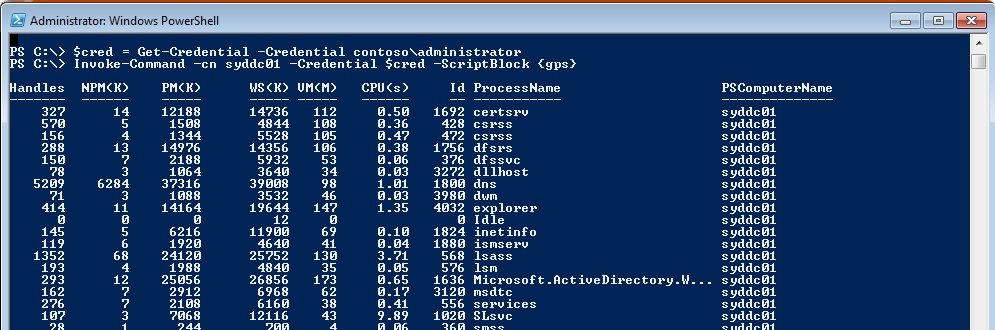
Invoke-Command -ComputerName Server01 -ScriptBlock { Get-Service WinRM }, replacingServer01with the remote computer's name. - Read the output. Each result carries a PSComputerName column that names the computer it came from.
- Add
-Credential Domain01\Admin01if your current account is not an administrator on the remote computer.
Invoke-Command vs Enter-PSSession
| Command | Connection | Use it for |
|---|---|---|
Invoke-Command -ComputerName |
Temporary; closes when the command ends | One command or script on one or many computers |
Invoke-Command -Session |
Persistent PSSession from New-PSSession |
A series of commands that share variables and functions |
Enter-PSSession -ComputerName |
Interactive, one computer at a time | Typing commands at a remote prompt; leave with Exit-PSSession |
Invoke-Command -AsJob |
Background job on your computer | Long commands while you keep working in the same window |
Invoke-Command -InDisconnectedSession |
Session that disconnects at once and keeps running remotely | Long tasks you collect later, even after closing PowerShell |
All five use WS-Management (WinRM) by default, on port 5985 for HTTP and 5986 for HTTPS. PowerShell 6 and later can also connect over SSH with -HostName instead of -ComputerName.
How to enable PowerShell remoting (WinRM) on Windows
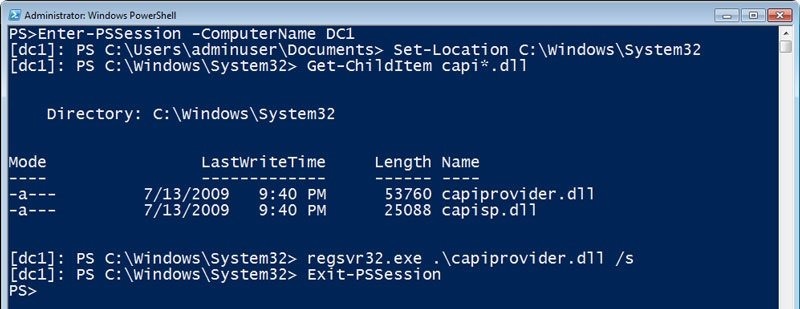
Enable-PSRemoting starts the WinRM service, sets it to start automatically, creates a listener on every IP address, adds the WS-Management firewall exception and opens the session configurations to remote access. Run it only on computers that must receive commands.
It needs an elevated window, so open PowerShell as administrator first.
- Right-click the PowerShell icon in the Start menu, select Run as administrator, then select Yes at the User Account Control prompt.
- Run
Enable-PSRemoting -Force. The Force switch skips the confirmation prompts. - If the network profile is Public on Windows 11 or Windows 10, the command fails with "Unable to check the status of the firewall". Run
Enable-PSRemoting -SkipNetworkProfileCheck -Forceto allow connections from the same local subnet. - If you use PowerShell 7 as well as Windows PowerShell 5.1, run the command in each one. Each run only configures endpoints for the edition it runs in.
- For many domain computers, enable the Allow automatic configuration of listeners policy under
Computer Configuration\Administrative Templates\Windows Components\Windows Remote Management (WinRM)\WinRM serviceinstead.
By default only members of the local Administrators group can connect. Members of Remote Management Users are also allowed by the default session configurations.
Using Invoke-Command to run commands on remote computers
The ScriptBlock holds the commands, inside braces. Everything in it runs on the remote computer, and only the results travel back.
Invoke-Command -ComputerName Server01 -Credential Domain01\Admin01 -ScriptBlock {
    Get-Service -Name WinRM
    Get-CimInstance -ClassName Win32_OperatingSystem | Select-Object Caption, LastBootUpTime
}
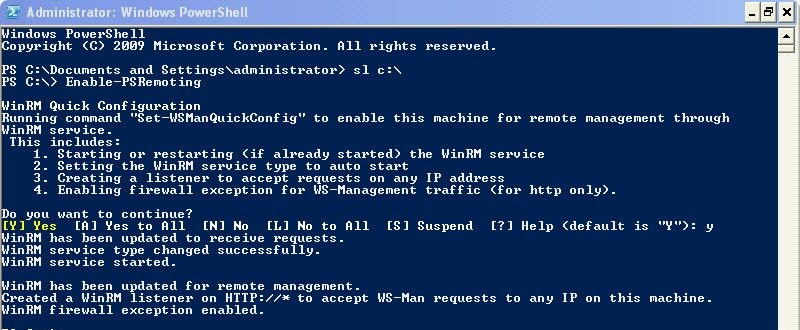
-ComputerName names the target, -Credential supplies an administrator account (PowerShell prompts for the password), and -ScriptBlock holds the commands to run there. Leave out -Credential when your own account has rights on the remote computer.
You should see: The service status and operating system details print with a PSComputerName value of Server01. Add -HideComputerName if you do not want that column shown.
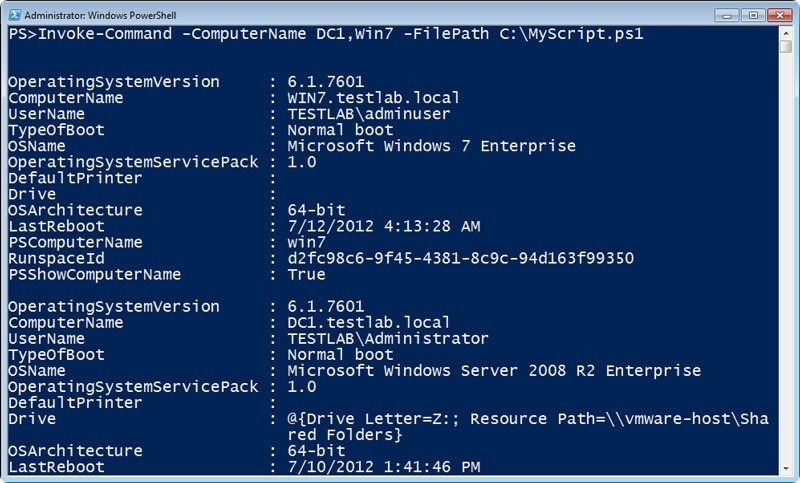
Run a PowerShell script on a remote computer with Invoke-Command
The script stays on your computer. PowerShell reads it, converts it to a script block and sends it, so the remote computer never needs access to the file.
Invoke-Command -ComputerName Server01 -FilePath C:\Scripts\Sample.ps1 -ArgumentList 'Process', 'Service'-FilePath points at a local script, or one on a share your computer can reach. -ArgumentList passes values to the script's parameters by position.
You should see: The script's output appears in your window, tagged with the remote computer's name.
Running commands on multiple computers with Invoke-Command
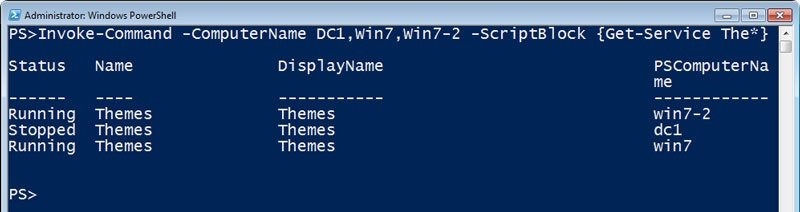
ComputerName takes a list, so one command reaches many computers at once. By default PowerShell keeps 32 connections open at a time; set -ThrottleLimit to change that for one command.
Invoke-Command -ComputerName (Get-Content C:\Scripts\Servers.txt) -ThrottleLimit 50 -ScriptBlock {
    Get-WinEvent -LogName System -MaxEvents 5
} | Sort-Object PSComputerName
Get-Content reads one computer name per line from Servers.txt. You can also type names directly: -ComputerName Server01, Server02, Server03.
You should see: Results from every reachable computer return, sorted by PSComputerName. Computers that fail show a red error naming that computer, and the others still run.
Pass local variables to Invoke-Command with -ArgumentList
Variables inside a script block are read on the remote computer, so a local $logName is empty there. Prefix it with $Using: or pass it through -ArgumentList and a param() block.
$logName = 'System'
Invoke-Command -ComputerName Server01 -ScriptBlock { Get-WinEvent -LogName $Using:logName -MaxEvents 5 }

Invoke-Command -ComputerName Server01 -ArgumentList 'a*', '*.pdf' -ScriptBlock {
    param ($Name, $Include)
    Get-ChildItem -Name $Name -Include $Include
}
$Using: sends the value of a local variable into the remote command. -ArgumentList passes values in order to the param() block.
You should see: The remote command uses your local values instead of empty variables.
PowerShell remoting persistent connections
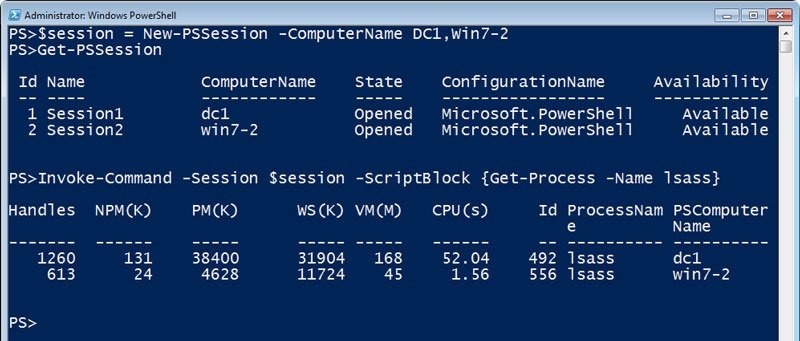
A PSSession keeps one connection open, so commands you run in it share variables, functions and loaded modules. With -ComputerName alone, anything you create disappears when the command ends.
- Create the session:
$s = New-PSSession -ComputerName Server01, Server02 -Credential Domain01\Admin01. - Run a command that sets a variable:
Invoke-Command -Session $s -ScriptBlock { $p = Get-Process }. - Use that variable in a later command:
Invoke-Command -Session $s -ScriptBlock { $p.Count }. - Work interactively on one computer with
Enter-PSSession -Session $s[0], and typeExit-PSSessionto return. - List open sessions with
Get-PSSession. - Close them when finished with
Remove-PSSession -Session $s, otherwise they stay open until they time out.
Run Invoke-Command as a background job or in a disconnected session
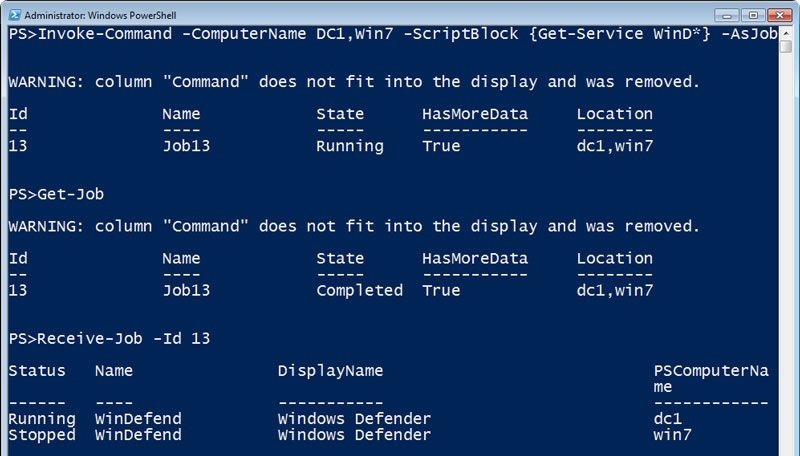
Use -AsJob to keep your window free while a command runs. Use -InDisconnectedSession for a task that should keep running on the remote computer even if you close PowerShell or shut down your PC.
Invoke-Command -ComputerName Server01, Server02 -ScriptBlock { Get-WinEvent -LogName System } -AsJob
Get-Job | Receive-Job

Invoke-Command -ComputerName Server02 -InDisconnectedSession -ScriptBlock { Get-WinEvent -LogName "*PowerShell*" }
Get-PSSession -ComputerName Server02
Receive-PSSession -ComputerName Server02 -Name Session3
-AsJob returns a job object on your computer; Receive-Job collects its output. -InDisconnectedSession starts the command and disconnects at once; Get-PSSession -ComputerName lists the waiting sessions and Receive-PSSession reconnects and returns the results.
You should see: Get-Job shows the job as Completed before you receive it. A disconnected session shows State Disconnected and Availability None until you collect it.
Disconnected sessions are Windows-only and stay on the remote computer until you remove them or their idle timeout expires. -InDisconnectedSession cannot be combined with -Session or -AsJob.
Add a computer to TrustedHosts for PowerShell remoting
Kerberos only works between domain computers addressed by name. When you connect by IP address or from a workgroup PC, Windows uses NTLM, which needs HTTPS or a TrustedHosts entry on your computer, plus -Credential on every command.
- Open PowerShell as administrator on the computer that sends the commands.
- View the current list:
Get-Item WSMan:\localhost\Client\TrustedHosts. - Set a single entry:
Set-Item WSMan:\localhost\Client\TrustedHosts -Value 192.168.1.20. - To keep existing entries, read the list first:
$cur = (Get-Item WSMan:\localhost\Client\TrustedHosts).Value, thenSet-Item WSMan:\localhost\Client\TrustedHosts -Value "$cur, Server01". - Connect with credentials:
Invoke-Command -ComputerName 192.168.1.20 -Credential Server01\Admin -ScriptBlock { hostname }.
The TrustedHosts value applies to every user of the computer. Avoid the * wildcard outside a test lab, since it trusts any computer.
Test-WSMan: check if PowerShell remoting is enabled
Test-WSMan -ComputerName Server01
Get-PSSessionConfiguration
Test-WSMan sends an identification request to the WinRM service on the remote computer. Get-PSSessionConfiguration, run as administrator on the remote computer, lists the endpoints and who may use them.
You should see: A reply showing wsmid, ProtocolVersion, ProductVendor and ProductVersion means WinRM is listening. An error means the service is stopped, blocked by the firewall or not configured.
Invoke-Command access is denied and WinRM connection errors
"Access is denied. You need to run this cmdlet from an elevated process"
Enable-PSRemoting and changes to the WSMan: drive need administrator rights.
- Close the window and reopen PowerShell with Run as administrator.
- Run the command again.
"Connecting to remote server failed… Access is denied"
Your account is not in the remote computer's Administrators or Remote Management Users group.
- Add
-Credential Domain01\Admin01with an account that is an administrator on the remote computer. - Or ask the remote computer's administrator to add your account to Remote Management Users.
"The connection to the remote host was refused" or "The client cannot connect to the destination"
Remoting is not enabled on the target, the WinRM service is stopped, or the firewall blocks the listener.
- Run
Test-WSMan -ComputerName Server01to see whether WinRM answers. - On the remote computer, run
Enable-PSRemoting -Forceas administrator. - If WinRM had stopped, run
Start-Service WinRMand retry. - Check that the network profile is not Public, or rerun with
-SkipNetworkProfileCheck.
"The WinRM client cannot process the request… must be added to the TrustedHosts configuration setting"
You connected by IP address or from a workgroup computer, so Kerberos cannot authenticate.
- Add the remote computer to TrustedHosts as shown above, or set up HTTPS.
- Use
-Credentialin the command, even for your own account. - Make sure the workgroup account has a password; blank passwords cannot run remote commands.
Local variables are empty inside the script block
Script block variables are evaluated on the remote computer.
- Change
$nameto$Using:nameinside the script block. - Or pass the value with
-ArgumentListand read it in aparam()block.
How to disable PowerShell remoting
Disable-PSRemoting blocks remote access to the session configurations but leaves WinRM running. Microsoft lists the extra steps to reverse everything Enable-PSRemoting changed.
- Open PowerShell as administrator and run
Disable-PSRemoting -Force. - Run it again in Windows PowerShell 5.1 if you also enabled remoting there, because each edition only disables its own endpoints.
- Stop and disable the WinRM service:
Stop-Service WinRMthenSet-Service WinRM -StartupType Disabled. - Delete the listener that accepts requests on any IP address and disable the WS-Management firewall exceptions.
- If you set LocalAccountTokenFilterPolicy to 1, set it back to 0.
Invoke-Command and PowerShell remoting FAQ
Does Invoke-Command need administrator rights?
On the remote computer, yes by default. Only members of the Administrators group, plus Remote Management Users, can use the default endpoints. Your own PowerShell window does not need to be elevated to send commands, only to run Enable-PSRemoting or change WSMan settings.
What port does Invoke-Command use?
WinRM listens on port 5985 for HTTP and 5986 for HTTPS. PowerShell still encrypts the content it sends over HTTP. Use -UseSSL and -Port only when the remote computer has an HTTPS listener configured.
Can Invoke-Command run a local script on a remote computer?
Yes. Use -FilePath with the path of a script on your computer. PowerShell converts the script to a script block and sends it, so the remote computer does not need access to the file.
How many computers can Invoke-Command run on at once?
As many as you list, with 32 connections active at a time by default. Raise or lower that with -ThrottleLimit for a single command. Read long lists from a text file with Get-Content.
What is the difference between Invoke-Command and Enter-PSSession?
Invoke-Command runs a command or script and returns the results, on one or many computers. Enter-PSSession opens an interactive prompt on a single remote computer until you type Exit-PSSession.
Does Invoke-Command work over SSH?
Yes, in PowerShell 6 and later. Use -HostName instead of -ComputerName, or -SSHConnection with a hashtable of hosts. SSH remoting is also the option for Linux and macOS computers.
Is PowerShell remoting the same as Remote Desktop?
No. PowerShell remoting runs commands over WinRM without a desktop session, while Remote Desktop shows the full screen. You can enable Remote Desktop from the command line separately if you need both.
Why does Invoke-Command fail with an IP address?
Kerberos does not support IP addresses, so PowerShell falls back to NTLM. Add the IP address to TrustedHosts on your computer or configure HTTPS, and include -Credential in the command.