To enable Remote Desktop from the command line, set the registry value fDenyTSConnections to 0 and turn on the Remote Desktop firewall rule group; set it to 1 to disable it again.
This guide gives the exact Command Prompt and PowerShell commands for both directions, how to do it on another PC, how to confirm the change and what to do when Remote Desktop refuses to turn on.
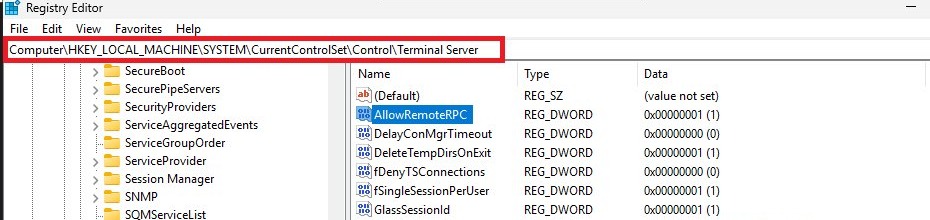
Enable Remote Desktop using command line
Run these two commands in an elevated Command Prompt. You need an account in the Administrators group, and the PC must run Windows Pro, Enterprise or Education, because Home editions cannot accept incoming Remote Desktop connections.
- Select Start, type
cmd, right-click Command Prompt and select Run as administrator. - Turn Remote Desktop on:
reg add "HKLM\SYSTEM\CurrentControlSet\Control\Terminal Server" /v fDenyTSConnections /t REG_DWORD /d 0 /f - Enable the RDP firewall rules:
netsh advfirewall firewall set rule group="remote desktop" new enable=yes - Read the output. The operation completed successfully confirms the registry change, and netsh reports how many rules it updated.
- Connect from another PC with Remote Desktop Connection using this PC's name or IP address.
Enabling Remote Desktop opens port 3389 to your network. Keep it on trusted networks only and give every account that can connect a strong password. Once it is on, you can connect to the PC with Remote Desktop from any Windows machine.
If you prefer the Settings toggle, enable Remote Desktop on Windows 11 without any commands.
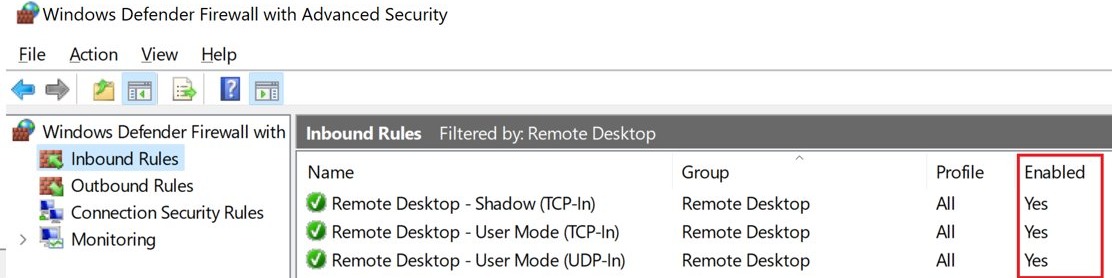
Enable RDP using Windows PowerShell
PowerShell does the same two jobs with Set-ItemProperty and Enable-NetFirewallRule. The commands work in Windows PowerShell and in Windows Terminal.
- Select Start, type
powershell, right-click Windows PowerShell and select Run as administrator. - Turn Remote Desktop on:
Set-ItemProperty -Path 'HKLM:\System\CurrentControlSet\Control\Terminal Server' -Name 'fDenyTSConnections' -Value 0 -Type DWord - Enable the firewall rules:
Enable-NetFirewallRule -DisplayGroup "Remote Desktop" - Confirm the value:
Get-ItemProperty -Path 'HKLM:\System\CurrentControlSet\Control\Terminal Server' -Name 'fDenyTSConnections'should show0.
Disable Remote Desktop using Command Prompt or PowerShell
Disabling reverses both changes: the registry value goes to 1 and the firewall rule group is switched off, so port 3389 is closed again.
- In an elevated Command Prompt, run
reg add "HKLM\SYSTEM\CurrentControlSet\Control\Terminal Server" /v fDenyTSConnections /t REG_DWORD /d 1 /f - Then run
netsh advfirewall firewall set rule group="remote desktop" new enable=no - In PowerShell instead, run
Set-ItemProperty -Path 'HKLM:\System\CurrentControlSet\Control\Terminal Server' -Name 'fDenyTSConnections' -Value 1 -Type DWord - Then run
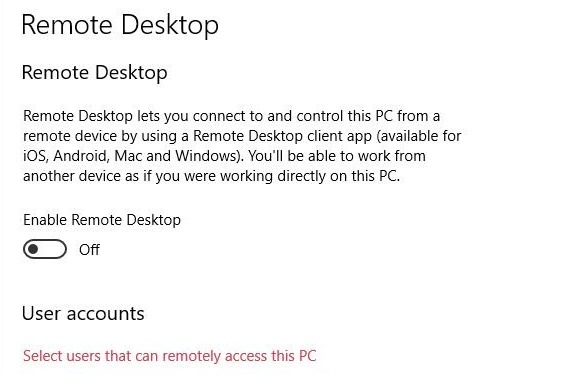
Disable-NetFirewallRule -DisplayGroup "Remote Desktop" - Open Settings > System > Remote Desktop and confirm the Remote Desktop toggle now shows Off.
Active sessions are not always dropped the moment the value changes. Sign the remote user out, or restart the PC, if you need every session closed immediately.
Remotely enable Remote Desktop with PowerShell
When you cannot sit at the PC, open a PowerShell remoting session to it and run the same commands there. Remote management over WinRM must already work on the target PC.
Enter-PSSession -ComputerName <computer name>
Set-ItemProperty -Path 'HKLM:\System\CurrentControlSet\Control\Terminal Server' -Name 'fDenyTSConnections' -Value 0 -Type DWord
Enable-NetFirewallRule -DisplayGroup "Remote Desktop"
Exit-PSSession
Enter-PSSession opens a shell on the remote PC, the next two lines turn on Remote Desktop and its firewall rules there, and Exit-PSSession returns you to your own PC.
You should see: The prompt changes to [computer name]: PS while you are connected, and the commands return without errors.
Without remoting, an administrator can also open Registry Editor, select File > Connect Network Registry, pick the remote PC and change fDenyTSConnections there.
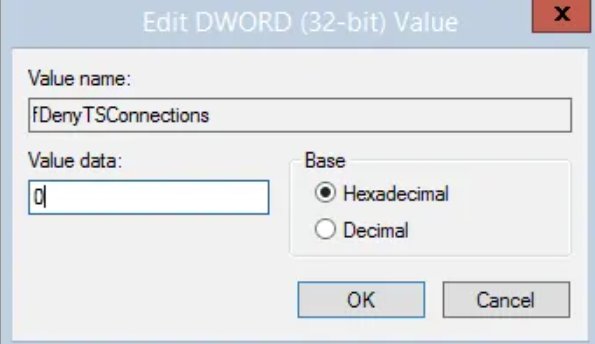
Remote Desktop registry keys and firewall rules
| Item | Location or name | What it controls |
|---|---|---|
| fDenyTSConnections | HKLM\SYSTEM\CurrentControlSet\Control\Terminal Server | 0 = Remote Desktop on, 1 = off |
| Policy copy of fDenyTSConnections | HKLM\SOFTWARE\Policies\Microsoft\Windows NT\Terminal Services | Exists only when Group Policy sets it, and overrides the value above |
| PortNumber | HKLM\SYSTEM\CurrentControlSet\Control\Terminal Server\WinStations\RDP-Tcp | Listening port, 3389 by default |
| Firewall rule group | Remote Desktop | Inbound rules such as Remote Desktop – User Mode (TCP-In) |
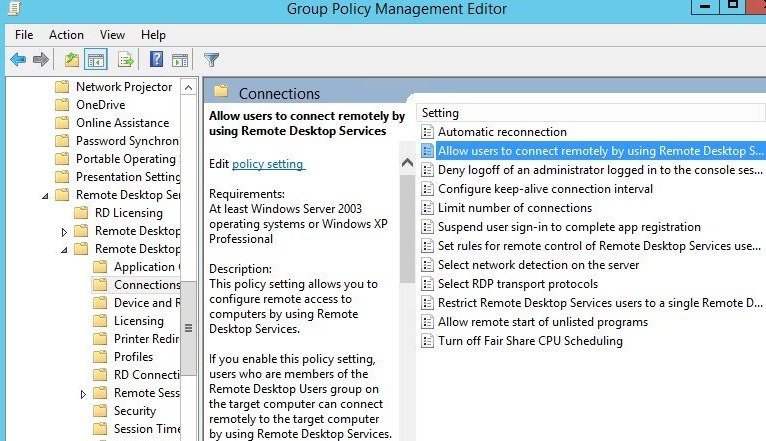
| Group Policy setting | Computer Configuration > Administrative Templates > Windows Components > Remote Desktop Services > Remote Desktop Session Host > Connections | Allow users to connect remotely by using Remote Desktop Services |
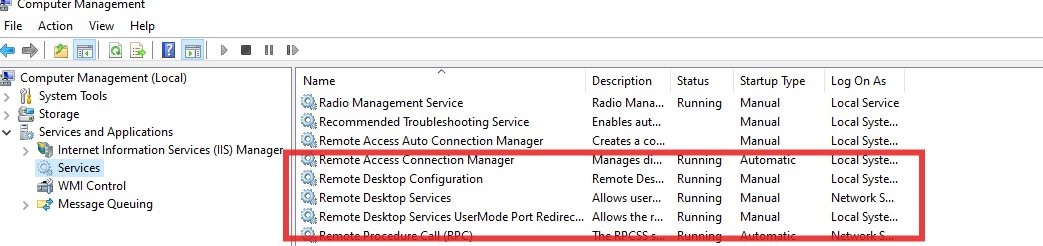
| Services | TermService and UmRdpService | Remote Desktop Services and its UserMode Port Redirector |
Check if RDP is enabled from command line
- Run
reg query "HKLM\SYSTEM\CurrentControlSet\Control\Terminal Server" /v fDenyTSConnectionsand look for0x0(enabled) or0x1(disabled). - Run
reg query "HKLM\SOFTWARE\Policies\Microsoft\Windows NT\Terminal Services" /v fDenyTSConnections. An error that the value cannot be found means no policy is overriding you. - Run
sc query termserviceand confirm STATE shows RUNNING. - Run
qwinstaand look forrdp-tcpwith the state Listen. - Run
netstat -ano | find "3389"and confirm a LISTENING entry on port 3389.
Remote Desktop won't enable: fixes
The enable Remote Desktop option is disabled or greyed out
A Group Policy Object controls the setting, so the Settings toggle and the registry value are locked.
- Open an elevated Command Prompt and run
gpresult /H c:\gpresult.html. - Open the file and find Allow users to connect remotely by using Remote Desktop Services.
- If it shows Disabled, note the Winning GPO and ask the administrator of that policy to change it.
- On a PC you manage yourself, set that policy to Enabled or Not configured in the Local Group Policy Editor, then run
gpupdate /force.
fDenyTSConnections keeps going back to 1
Group Policy rewrites the value at every refresh.
- Check the policy key with
reg query "HKLM\SOFTWARE\Policies\Microsoft\Windows NT\Terminal Services" /v fDenyTSConnections. - Change the policy itself rather than the registry value, as in the fix above.
- Run
gpupdate /forceand query the value again.
Can't enable Remote Desktop on Windows 11 Home or Windows 10 Home
Home editions cannot act as a Remote Desktop host, whatever the registry says.
- Open Settings > System > About and read the Edition line.
- Use the Home PC as a client to connect to other PCs, or upgrade it to Windows Pro to host connections.
Remote Desktop is enabled but connections fail
The Remote Desktop service is stopped, the listener is missing or another program owns port 3389.
- Start the service with
net start termserviceand accept the restart of the UserMode Port Redirector. - Run
netstat -ano | find "3389", thentasklist /svc | find "<PID>"to see which process holds the port. - If a program other than Remote Desktop Services owns it, move that program to another port.
- Run
netsh advfirewall firewall set rule group="remote desktop" new enable=yesagain in case the rules were switched off.
RDP error, the user account has been locked because there were too many logon attempts
This error means the account crossed the Account lockout threshold set in local or domain policy, usually after repeated wrong passwords over Remote Desktop. Opening RDP to a network makes this more likely, because anyone who can reach port 3389 can try passwords.
- Wait for the Account lockout duration to pass; the account unlocks itself after that many minutes.
- If the duration is set to
0, ask an administrator to unlock the account manually. - Review the policy at Computer Configuration > Windows Settings > Security Settings > Account Policies > Account Lockout Policy; about 15 minutes is the suggested duration.
- Check that the account is active with
net user <username>and read the Account active line. - Change the password if the failed attempts were not yours, and keep Remote Desktop off networks you do not trust.
Remote Desktop command line FAQ
How do I disable Remote Desktop in Windows 11?
Open Settings > System > Remote Desktop and turn the toggle Off, or run reg add "HKLM\SYSTEM\CurrentControlSet\Control\Terminal Server" /v fDenyTSConnections /t REG_DWORD /d 1 /f in an elevated Command Prompt. Both make the PC refuse new Remote Desktop connections.
How do I disable Remote Desktop on Windows 10?
The same commands work on Windows 10. Set fDenyTSConnections to 1 with reg add or Set-ItemProperty, then switch off the firewall group with netsh advfirewall firewall set rule group="remote desktop" new enable=no.
How do I enable Remote Desktop on Windows?
On Windows Pro, Enterprise or Education, open Settings > System > Remote Desktop, turn on Enable Remote Desktop and select Confirm. From the command line, set fDenyTSConnections to 0 and enable the Remote Desktop firewall rule group.
How do I remotely enable Remote Desktop?
Run Enter-PSSession -ComputerName <name> from an elevated PowerShell window, then set fDenyTSConnections to 0 and run Enable-NetFirewallRule -DisplayGroup "Remote Desktop". You can also edit the value through Connect Network Registry in Registry Editor.
How do I disable Remote Desktop access for everyone?
Set fDenyTSConnections to 1 and disable the Remote Desktop firewall rules. In a managed network, set Allow users to connect remotely by using Remote Desktop Services to Disabled in Group Policy so users cannot turn it back on.
How do I disable Remote Desktop Services?
Turning off Remote Desktop with fDenyTSConnections is enough to block connections. The Remote Desktop Services service (TermService) can be stopped with net stop termservice, but Windows may start it again, so the registry or policy setting is the reliable switch.
Why can't I enable Remote Desktop?
The usual causes are a Home edition of Windows, a Group Policy that disables connections, or a standard user account without admin rights. Run gpresult /H c:\gpresult.html to see whether a policy is blocking it.
What does fDenyTSConnections mean?
fDenyTSConnections is the registry value that decides whether Windows accepts Remote Desktop connections. A value of 0 allows them and 1 denies them. A copy under the Policies key, set by Group Policy, takes priority.
Does enabling Remote Desktop from the command line open the firewall?
No. The registry change only turns the feature on. You also need netsh advfirewall firewall set rule group="remote desktop" new enable=yes or Enable-NetFirewallRule -DisplayGroup "Remote Desktop" so connections on port 3389 get through.