Hyper-V shows this error when it cannot write a virtual hard disk (.vhd or .vhdx) to the destination during a move, an import or an export, and the usual fix is to correct the file permissions, merge leftover checkpoints and free space on the target drive before you retry.
The steps below cover Hyper-V Manager and PowerShell on Windows 11, Windows 10 and Windows Server, plus the related export error.
How to fix Hyper-V error while copying virtual hard disks
Work through these in order from an account in the local Administrators or Hyper-V Administrators group. Each step removes one documented cause.
- In Hyper-V Manager, select See details on the error and note the error code and the Virtual Machine ID it lists.
- Shut down the virtual machine. Shutting down also merges hidden differencing disks in many cases.
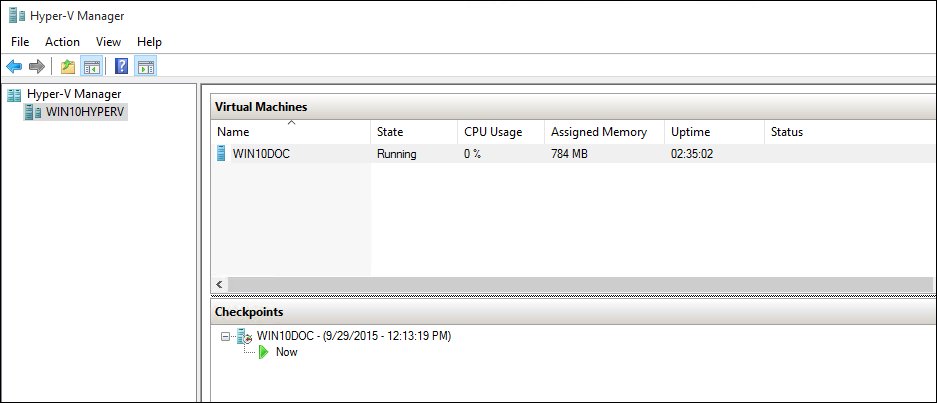
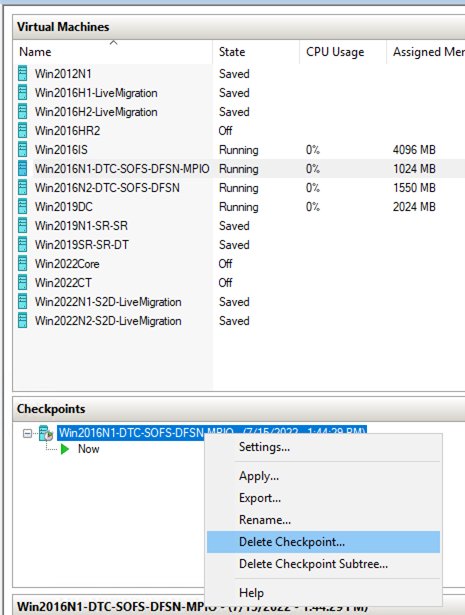
- Check the Checkpoints pane. Delete any checkpoint you no longer need so Hyper-V merges its .avhdx file into the parent disk.
- Check that the destination drive has more free space than the size of every .vhdx and .avhdx file in the virtual machine's folder.
- If the code is 0x80070005, grant the virtual machine's ID full control of the disk with
icacls(command below). - Close any program that has the .vhdx file open, such as a backup job or a disk mounted in File Explorer, then retry the move, import or export.
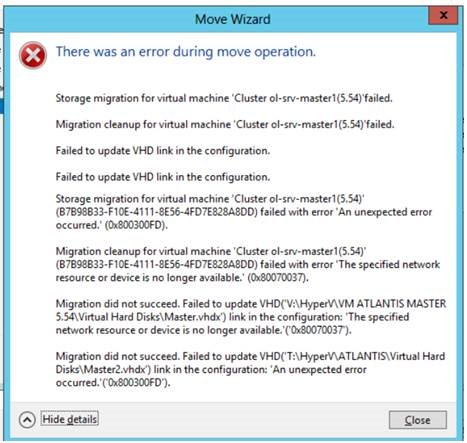
Hyper-V encountered an error while copying virtual hard disks to destination folder
Microsoft's Hyper-V storage troubleshooting guide lists the causes behind failed migration, export and import jobs. Match the code under See details to a group below.
General access denied error (0x80070005)
The Virtual Machine SID is missing from the permissions on the .vhd, .vhdx or .avhd file, or NTFS permissions on the folder are wrong.
- Copy the Virtual Machine ID from the error details.
- Open Command Prompt with Run as administrator.
- Run
icacls "<path to disk>" /grant "NT VIRTUAL MACHINE\<Virtual Machine ID>":(F). - Repeat for each .avhdx checkpoint file and for the configuration file if the error names it, then retry.
The process cannot access the file because it is being used by another process (0x80070020)
Another process holds the disk open, often a backup job that left a checkpoint behind.
- Let any running backup job finish, or stop it from the backup software.
- Run
vssadmin list writersfrom an elevated Command Prompt and look for writers in a failed state. - Restart the related services or the host to clear failed writers.
- Retry the copy.
The system cannot find the file specified (0x2)
A disk in the checkpoint chain is missing or the virtual machine points to a path that no longer exists.
- Open the virtual machine's Settings and select each hard drive to see the path it uses.
- Look in the disk folder for .avhdx files that Hyper-V Manager does not list.
- Merge orphaned .avhdx files into the parent with Edit Disk (steps below).
- Point the hard drive setting to the merged .vhdx, then retry.
The copy stops partway or the destination volume fills up
Large .avhdx checkpoint files take up more space than expected on the target drive.
- Delete checkpoints you no longer need so they merge into the parent disk.
- Free space on the destination drive, or choose a different destination.
- Retry the move.
Copy fails on a host with third-party antivirus
An antivirus filter driver blocks access to the disk files during the copy.
- Ask your antivirus vendor to apply Microsoft's recommended Hyper-V exclusions for .vhd, .vhdx, .avhd, .avhdx and .vmcx files and the vmms.exe and vmwp.exe processes.
- Microsoft notes that Microsoft Defender may not need extra exclusions, because it has automatic ones.
- Retry the copy.
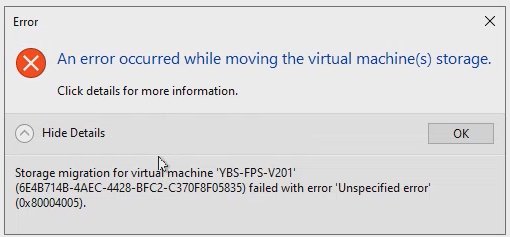
Hyper-V virtual hard disk permissions fix with icacls
Every virtual machine has its own SID, shown as the Virtual Machine ID in the error. Hyper-V needs that SID on the disk file, so add it back after copying a disk by hand.
icacls "E:\VMs\VMName\Disk0.vhdx" /grant "NT VIRTUAL MACHINE\5FC5C385-BD98-451F-B3F3-1E50E06EE663":(F)/grant adds a permission for the named account without removing existing ones. NT VIRTUAL MACHINE\<ID> is the virtual machine's own account, and (F) is full control. Replace the path and the ID with your own values.
You should see: The virtual machine then starts, or the move completes, without the 0x80070005 code.
If the error names the configuration file instead, run the same command against the virtual machine's .xml or .vmcx file. It also clears the access-denied fault behind the error applying hard drive changes.
How to merge Hyper-V checkpoints before copying a virtual hard disk
Checkpoints live as .avhdx files next to the .vhdx. Never delete an .avhdx file in File Explorer; delete the checkpoint in Hyper-V Manager so it merges first.
- In Hyper-V Manager, select the virtual machine.
- In the Checkpoints list, right-click the checkpoint and select Delete Checkpoint, or Delete Checkpoint Subtree to remove it and every later checkpoint.
- If those commands are missing, select the checkpoint and press Del.
- Confirm with Delete and wait for the merge to finish.
- For an .avhdx file that Hyper-V Manager does not list, select Actions > Edit Disk.
- On Locate Disk, select Browse, pick the .avhdx file, and select Next.
- On Choose Action, select Merge > To the parent virtual hard disk, then finish the wizard.
From PowerShell, Merge-VHD -Path <AVHDXPath> -DestinationPath <VHDXPath> merges a differencing disk into its parent. Back up the disk files before any manual merge.
Move Hyper-V virtual machine storage with PowerShell
When the Move wizard keeps failing, run the same move from PowerShell opened as administrator, where the error prints in the console.
- Run
(Get-VM -Name "Test VM").HardDrives.Pathto list every disk the virtual machine uses. - Confirm that each listed file exists and that the destination drive has room for all of them.
- Run
Move-VMStorage "Test VM" -DestinationStoragePath D:\TestVMto move every file of the virtual machine to D:\TestVM. - Read any error the cmdlet prints and match its code to the groups above.
- Run the first command again to check that the paths now point to D:\TestVM.
In Hyper-V Manager, the same job runs from the virtual machine's right-click menu: select Move, then pick the type of move and the destination in the Move Wizard.
How to copy a Hyper-V VM
An export gathers the virtual hard disks, configuration files and checkpoint files into one folder. It works on a running or stopped virtual machine, and the import can then copy it to any folder.
- In Hyper-V Manager, right-click the virtual machine and select Export.
- Choose where to store the exported files and select Export.
- From the Actions menu, select Import Virtual Machine, then Next.
- Select the folder with the exported files and select Next.
- Select the virtual machine to import.
- Choose Copy the virtual machine to get a new unique ID, or Restore the virtual machine to keep the same ID, then select Next.
- Pick the destination folders for the files and select Finish.
PowerShell equivalents are Export-VM -Name <vm name> -Path <path> and Import-VM -Path '<export path>\<ID>.vmcx' -Copy -GenerateNewId. A Restore import needs the original virtual machine deleted first if it is still registered on the host.
Hyper-V error occurred while attempting to export the virtual machine
An export copies the same disk files, so it fails for the same reasons as a move. Imports add one more failure point: the configuration version.
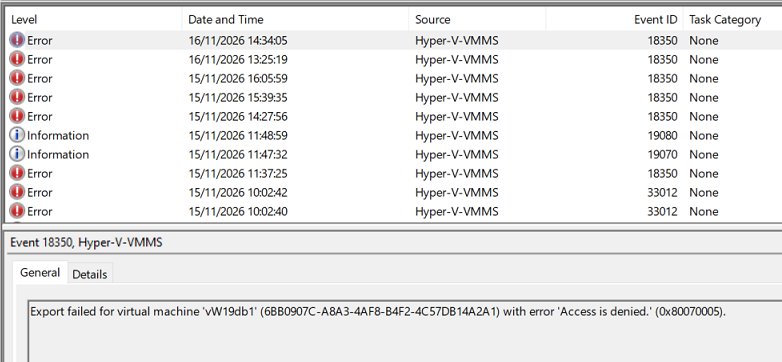
Export fails with access denied
Permissions on the source disk or the export folder do not allow the copy.
- Check the error details for the file path and the Virtual Machine ID.
- Grant the virtual machine's SID full control of that file with
icacls. - Export to an empty folder on a local drive, then retry.
Export fails because the file is in use (0x80070020)
A backup job or a mounted disk holds the .vhdx open.
- Wait for backup jobs to finish and stagger schedules so they do not overlap.
- Eject the disk if it is mounted in File Explorer.
- Retry the export.
Hyper-V encountered an error during import
The virtual machine was created on a newer version of Hyper-V than the host you are importing to, or the export files are incomplete.
- Import onto a host that runs the same or a newer version of Hyper-V.
- Check that the export folder still holds the virtual hard disk, configuration and checkpoint files.
- Use Copy the virtual machine if the original virtual machine is still registered on the same host.
How to test a Hyper-V virtual hard disk after copying
Test-VHD -Path "D:\TestVM\Disk1.vhdx"Test-VHD checks a virtual hard disk, and its whole differencing chain, for problems that would make it unusable. Point it at the copied file in the destination folder.
You should see: The cmdlet returns True when the disk is usable. False means the copy or its checkpoint chain is damaged, so copy it again from the source or restore from backup.
Hyper-V copy virtual hard disk error FAQ
How do I fix a Hyper-V error when copying virtual hard disks?
Open See details and read the error code. Access denied (0x80070005) needs the virtual machine's SID added with icacls, file in use (0x80070020) needs the locking job closed, and missing files need checkpoints merged before you retry.
How do I copy a Hyper-V VM?
Export it from Hyper-V Manager, then use Import Virtual Machine and choose Copy the virtual machine. That import type copies the files to a folder you pick and gives the copy a new unique ID, so it can sit on the same host as the original.
Can I copy a .vhdx file in File Explorer?
Yes, with the virtual machine shut down. If the virtual machine then reports access denied on the copied disk, add its SID with icacls, or use Export and Import, which gather the disks, checkpoints and configuration together.
Why does Hyper-V say access is denied on a virtual hard disk?
The disk file's permissions do not include the virtual machine's own SID. Microsoft's fix is to grant NT VIRTUAL MACHINE plus the Virtual Machine ID full control of the .vhd, .vhdx or .avhd file with icacls.
Can I delete .avhdx files to free space?
No. Microsoft says not to delete .avhdx files directly. Delete the checkpoint in Hyper-V Manager so Hyper-V merges the file into the parent disk, or merge an orphaned one with Edit Disk.
Why does a Hyper-V import fail on another PC?
You can only import a virtual machine if the host supports its configuration version. A virtual machine made on a newer version of Hyper-V will not import into an older one.
Do I need to shut down the VM to move its storage?
Not for an export, which Microsoft says works on a running or stopped virtual machine. Shutting down still helps when checkpoints need to merge, because differencing disks typically merge as part of the shutdown.