The Error Applying Hard Drive Changes message in Hyper-V Manager means Hyper-V could not attach or change the disk, usually because the VM is running on an IDE controller, the VHD or VHDX file is in use, or the VM account lacks permission on the file.
This guide matches the error details to the right fix, shows the icacls permission repair Microsoft documents, and covers resizing a virtual disk and extending the volume afterwards.
Fix Error applying Hard Drive changes in Hyper-V
Most cases clear with the same short sequence. Work through it in order and retry the change after each step.
- Select See details in the error dialog and note the file path, the controller (IDE or SCSI) and any error code.
- Shut down the virtual machine from inside the guest, or right-click it in Hyper-V Manager and select Shut Down.
- Close anything on the host that has the disk open, and dismount the file if you mounted it in File Explorer.
- Right-click the VM, select Settings, select the Hard Drive entry under its controller and apply the change again.
- If the details mention General access denied error (0x80070005), grant the VM access to the file with
icaclsas shown below. - Select Apply, then start the VM.
If Hyper-V is not installed or the Hyper-V Manager console is missing, enable Hyper-V in Windows 11 first.
Error applying hard drive changes causes and fixes
The text under See details tells you which cause you are dealing with. Match it to a row and go to that fix.
| What the details show | Likely cause | Fix |
|---|---|---|
| General access denied error (0x80070005), account does not have sufficient privilege to open attachment | The VM's security ID is missing from the permissions on the VHD, VHDX or AVHDX file | Grant the VM ID full control with icacls |
| The process cannot access the file because it is being used by another process (0x80070020) | The disk file is open on the host, mounted, attached to another VM or locked by a backup job | Dismount or detach the file, then retry |
| The VM is running and the disk sits on the IDE controller | IDE disks cannot be changed while a Generation 1 VM is on | Shut down the VM, or attach the disk to the SCSI controller |
| A physical disk cannot be selected or added | Pass-through disks must be offline on the host | Take the disk offline on the host first |
| The system cannot find the file specified (0x2) | The VHDX was moved, renamed or deleted | Point the Hard Drive setting at the file's current path |
| The resize option fails while the VM is running | Online resizing works only for VHDX files on the SCSI controller | Shut down the VM or move the disk to SCSI |
Grant the virtual machine access to the VHDX file with icacls
Every Hyper-V VM has its own ID, and the VM can only open a disk when that ID is in the file's permissions. Copying a VHDX from another folder or PC often drops it.
Take the Virtual Machine ID from the error details, then run the command from an elevated Command Prompt. Replace the path and the ID with your own.
icacls "E:\VMs\VMName\Disk0.vhdx" /grant "NT VIRTUAL MACHINE\5FC5C385-BD98-451F-B3F3-1E50E06EE663":(F)Adds the VM's security ID to the disk file with full control (F), so Hyper-V can open the file under that VM's account.
You should see: icacls reports Successfully processed 1 files; Failed processing 0 files. Apply the hard drive change again and start the VM.
Run the same command against any AVHDX checkpoint file named in the error. If the error says the VM failed to read or update its configuration, grant the same ID access to the VM's configuration file too.
On hosts where the problem keeps returning, also check that NT Virtual Machine\Virtual Machines still has the Log on as a service right in Local Security Policy or Group Policy.
Release a VHDX file that is in use by another process
Hyper-V needs exclusive use of a disk file. A copy mounted in File Explorer, a second VM pointing at the same file or a running backup all block the change.
- Open File Explorer and look for a drive letter that belongs to the VHDX. Right-click it and select Eject if it is mounted.
- Or open PowerShell as administrator and run
Dismount-VHD -Path "E:\VMs\VMName\Disk0.vhdx". - In Hyper-V Manager, open Settings on every other VM and check that none of them uses the same file under a Hard Drive entry.
- Wait for any backup or checkpoint job on the host to finish.
- Apply the hard drive change again.
If a backup left a checkpoint behind, Microsoft's fix is to shut down the VM and merge the orphaned AVHDX file through Edit Disk > Merge > To the parent virtual hard disk.
How to change the hard drive in Hyper-V
On a Generation 1 VM, disks on the IDE Controller can only be added, removed or swapped while the VM is off. Disks on the SCSI Controller support changes while a VM runs, and Generation 2 VMs use SCSI only.
- Open Hyper-V Manager, right-click the VM and select Settings.
- Select SCSI Controller in the left pane, select Hard Drive and select Add.
- Under Media, choose Virtual hard disk and select Browse to pick the VHDX file.
- To swap a disk, select its existing Hard Drive entry and browse to the new file instead.
- Select Apply, then OK.
PowerShell does the same job: Add-VMHardDiskDrive -VMName Test -ControllerType SCSI -ControllerNumber 0 -Path D:\VHDs\disk1.vhdx attaches the file to the first SCSI controller of a VM named Test.
How to use external hard drive in Hyper-V
An external or second internal drive can be handed to a VM as a pass-through disk. Hyper-V only lists it once the disk is offline on the host, and adding an online disk is a common cause of this error.
- On the host, open PowerShell as administrator and run
Get-Diskto find the drive's number. - Take it offline, for example
Set-Disk -Number 2 -IsOffline $True. - In Hyper-V Manager, open the VM's Settings, select SCSI Controller, then Hard Drive and Add.
- Under Media, choose Physical hard disk and pick the drive from the list.
- Select Apply. Or run
Get-Disk 2 | Add-VMHardDiskDrive -VMName Testinstead.
The host cannot use the drive while the VM owns it. Remove it from the VM and run Set-Disk -Number 2 -IsOffline $False to give it back to the host.
Unable to extend volume in Hyper-V
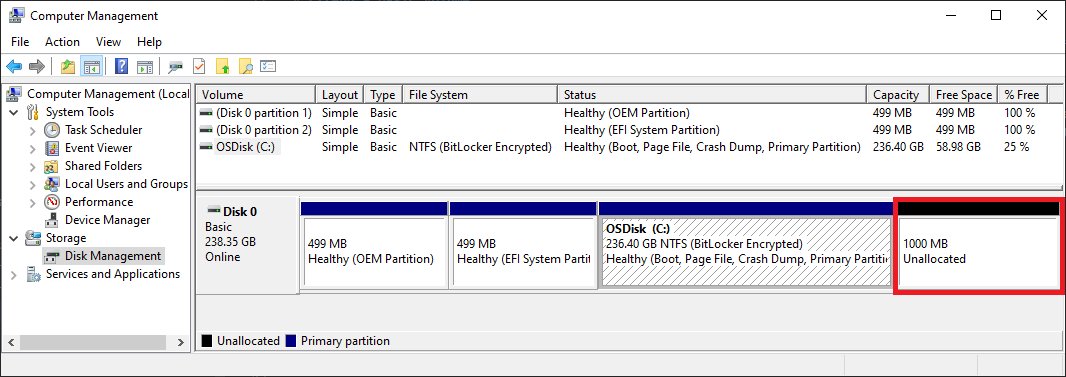
Extending space is two jobs: grow the virtual disk on the host, then grow the volume inside the guest. Skipping the second step leaves the new space unallocated.
Resize-VHD can expand VHD and VHDX files but can only shrink VHDX. A disk on the IDE chain cannot be resized while the VM is online; one on the SCSI chain can.
- Shut down the VM if the disk is on the IDE controller.
- On the host, open PowerShell as administrator and run
Resize-VHD -Path "E:\VMs\VMName\Disk0.vhdx" -SizeBytes 200GB. - Start the VM and sign in.
- Right-click Start inside the guest and select Disk Management.
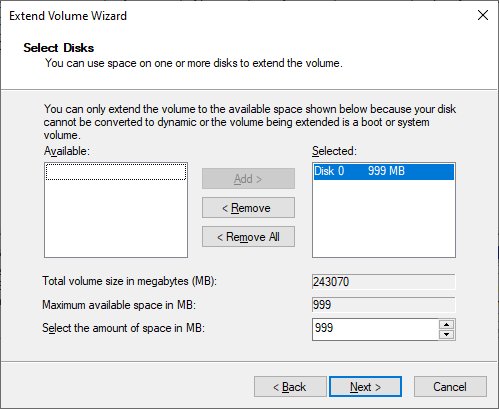
- Right-click the volume you want to grow and select Extend Volume.
- Select Next, keep Maximum available or enter a size, then select Next and Finish.
Extend Volume stays greyed out when the unallocated space is not directly after the volume, when the volume is not NTFS or ReFS, or when an MBR disk would go past 2 TB. A recovery partition between the volume and the new space is the usual blocker on Windows guests.
You can also open Disk Management with diskmgmt.msc if the Start menu shortcut is missing.
Check the Hyper-V hard drive change worked
- Open the VM's Settings and confirm the Hard Drive entry shows the right file or physical disk.
- In PowerShell on the host, run
Get-VMHardDiskDrive -VMName Testand check the controller type and path. - Start the VM and open Disk Management inside it.
- Confirm the new disk is listed, or that the extended volume shows the new size.
Hyper-V hard drive errors after the change
Hyper-V VM will not start after the hard drive change
The VM ID lost its permission on the VHDX or AVHDX file, often after a copy or move.
- Read the Virtual Machine ID from See details.
- Run
icaclswith/grant "NT VIRTUAL MACHINE\<VM ID>":(F)on each file named. - Start the VM again.
Why can't I initialize my hard drive in the VM
A new VHDX arrives blank and must be initialized and formatted in the guest.
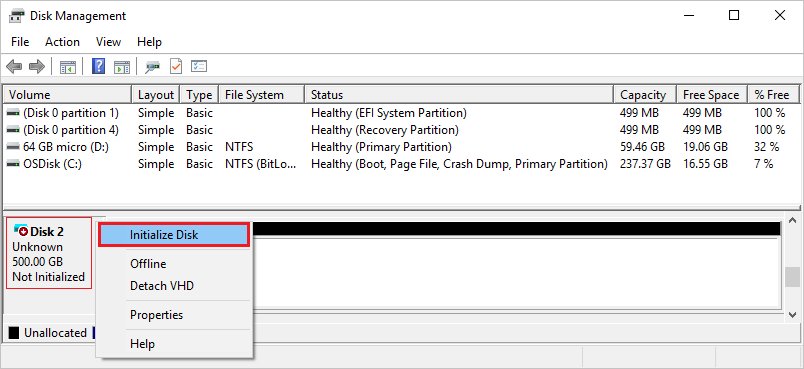
- Open Disk Management in the guest.
- Right-click the disk marked Not Initialized and select Initialize Disk.
- Choose GPT for disks larger than 2 TB.
- Right-click the unallocated space, select New Simple Volume and finish the wizard.
Hard drive not appearing inside the VM
The disk is offline in the guest, or it was attached to a controller the guest cannot see.
- Run
Get-VMHardDiskDrive -VMName Teston the host to confirm it is attached. - In the guest's Disk Management, right-click a disk marked Offline and select Online.
- Select Action > Rescan Disks.
Hard drive errors on the volume that stores the VHDX
File system corruption on the host volume blocks access to disk files.
- Shut down the VMs stored on that volume.
- Run
chkdsk E: /ffrom an elevated prompt, replacing E: with the right drive. - For a ReFS volume, run
Repair-Volume Ein PowerShell instead. - Restore the VHDX from backup if the file cannot be read.
Other CHKDSK switches such as /r also locate bad sectors on the host drive.
Hyper-V hard drive changes FAQ
What does Error applying Hard Drive changes mean in Hyper-V?
Hyper-V Manager could not attach, swap or resize the virtual disk you selected. The See details text names the cause: an access denied error on the file, a file in use by another process, a disk on the IDE controller of a running VM, or a missing file.
How do I change the hard drive in Hyper-V?
Open Hyper-V Manager, right-click the VM, select Settings, then select the Hard Drive entry under its controller. Browse to the new VHDX file and select Apply. Shut the VM down first if the disk sits on the IDE controller of a Generation 1 VM.
How to use external hard drive in Hyper-V?
Take the drive offline on the host with Set-Disk -IsOffline $True, then add it to the VM's SCSI controller as a Physical hard disk. The host cannot use the drive until you remove it from the VM and bring it back online.
Can I add a hard drive to a running Hyper-V VM?
Yes, when the disk goes on the SCSI controller. Generation 2 VMs use SCSI only, so they accept new disks while running. On Generation 1 VMs, disks on the IDE controller can only be changed with the VM shut down.
How do I fix error 0x80070005 on a Hyper-V virtual disk?
Grant the VM's ID access to the disk file. Note the Virtual Machine ID from the error, open an elevated Command Prompt and run icacls on the VHDX with /grant "NT VIRTUAL MACHINE\<ID>":(F). Then start the VM again.
Why can't I extend the volume in my Hyper-V VM?
The new space must sit directly after the volume, on the same disk, and the volume must use NTFS or ReFS. A recovery partition between the volume and the unallocated space blocks Extend Volume. Also check that you resized the VHDX on the host first.
Why can't I initialize my hard drive in a Hyper-V VM?
Run Disk Management as administrator in the guest and check the disk is online. A disk marked Offline must be brought online before Initialize Disk appears. Choose GPT for disks above 2 TB.
Why is my hard drive not appearing in Hyper-V?
A physical disk only appears in the Physical hard disk list when it is offline on the host. Inside a VM, a newly attached disk may appear as Offline in Disk Management; right-click it and select Online, then rescan disks.
How do I check a hard drive for errors before moving a VHDX?
Run chkdsk with the /f switch on the host volume from an elevated Command Prompt, or Repair-Volume for ReFS. Shut down the VMs stored on that volume first so their disk files are not in use.