To enable printer automatic driver installation in Windows 11 or 10, open Device Installation Settings from the Hardware tab of System Properties, choose Yes, and keep Windows Update allowed to deliver drivers.
This guide covers the Device Installation Settings dialog, Windows Update, the Group Policy and registry values that block driver downloads, how to connect a printer so Windows detects it, and what to do when the driver still does not install.
How to enable printer automatic driver installation in Windows 11 or 10
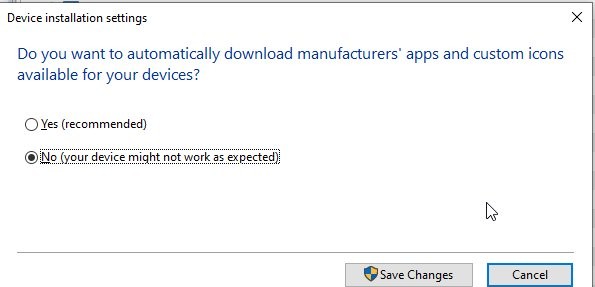
The Device Installation Settings dialog controls whether Windows downloads manufacturers' apps and device information when a printer is connected. It exists on both Windows 11 and Windows 10 and needs an administrator account.
- Press Windows + R, type
sysdm.cpland press Enter to open System Properties. You can also go to Control Panel > System and Security > System > Advanced system settings. - Select the Hardware tab.
- Select Device Installation Settings.
- Choose Yes when Windows asks whether to automatically download manufacturers' apps and custom icons for your devices.
- Select Save Changes, then select OK to close System Properties.
- Turn the printer off and on again, or unplug and reconnect its USB cable, so Windows detects it with the new setting.
If the option is greyed out or switches back to No, a Group Policy setting is overriding it. The Group Policy and registry sections below show which values to clear.
Windows 11 printer driver auto install settings by situation
| Your situation | Setting to change | Where it lives |
|---|---|---|
| New printer connects but shows only basic features | Device Installation Settings set to Yes | System Properties > Hardware tab |
| Windows Update never offers a printer driver | Receive updates for other Microsoft products turned on | Settings > Windows Update > Advanced options |
| PC is on a metered Wi-Fi or cellular connection | Download updates over metered connections turned on | Settings > Windows Update > Advanced options |
| Work or school PC refuses every driver download | Group Policy values for device installation and Windows Update drivers | Local Group Policy Editor, or ask the IT admin |
| Windows Home edition with a leftover policy value | Policy registry values removed | Registry Editor under HKEY_LOCAL_MACHINE\SOFTWARE\Policies |
| Network printer does not appear in the list at all | Network discovery and File and printer sharing turned on | Advanced sharing settings |
Enable automatic printer driver installation via Windows Update
Microsoft names Windows Update as the recommended way to download, install and update printer drivers. Recommended drivers install on their own, while optional driver updates wait until you pick them.
- Select Start > Settings > Windows Update > Advanced options.
- Turn on Receive updates for other Microsoft products.
- If the PC uses a metered connection, turn on Download updates over metered connections on the same page. On a metered network Windows Update downloads only priority updates.
- Under Additional options, select Optional updates and expand the driver updates list.
- Select the printer driver if one is listed, then select Download and install.
- Right-click Start and select Shut down or sign out > Restart once the updates finish, even if none asked for a restart.
Optional drivers never install automatically, so check this list after you connect a new printer and install optional printer drivers by hand if one is listed.
Enable printer driver installation using Group Policy Editor
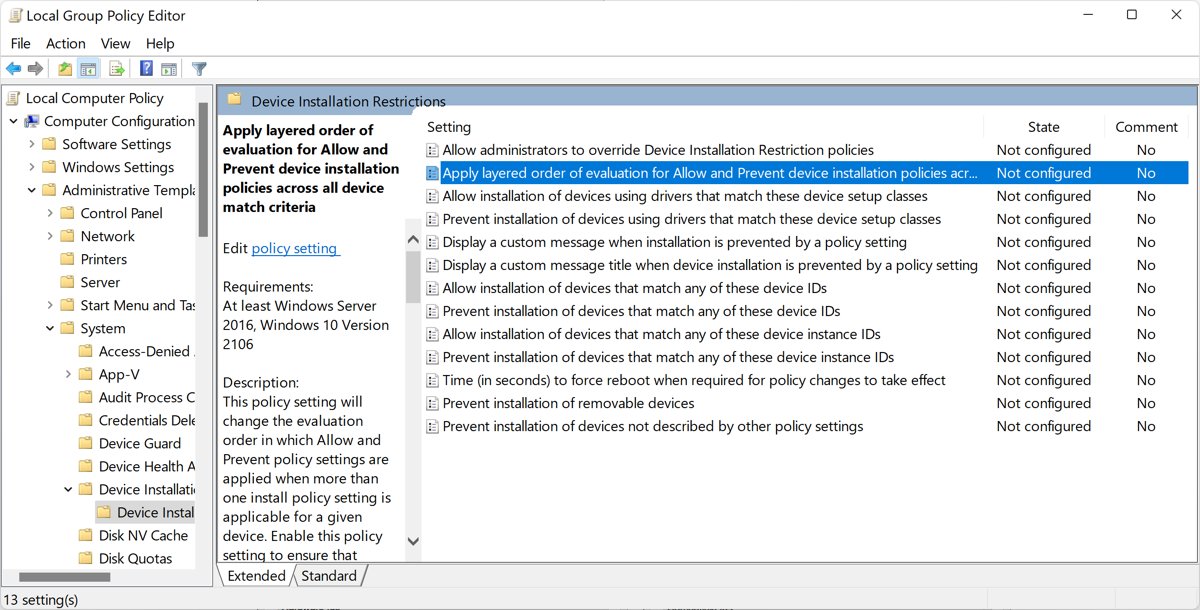
Local Group Policy Editor is available in Windows 11 and Windows 10 Pro, Enterprise and Education. Several policies can stop Windows from fetching printer drivers, and setting them back to Not Configured restores the default automatic behaviour.
- Press Windows + R, type
gpedit.mscand press Enter. - Go to Computer Configuration > Administrative Templates > System > Device Installation.
- Double-click Specify search order for device driver source locations. Set it to Not Configured, or select Enabled and pick the option that searches Windows Update. Select OK.
- Double-click Prevent automatic download of applications associated with device metadata (named Prevent device metadata retrieval from the Internet on some versions), set it to Not Configured and select OK.
- Open Device Installation Restrictions under the same folder and set any Prevent installation of devices… policy you did not add on purpose to Not Configured.
- Go to Computer Configuration > Administrative Templates > Windows Components > Windows Update > Manage updates offered from Windows Update, open Do not include drivers with Windows Updates, set it to Not Configured and select OK.
- Open Command Prompt as administrator and run
gpupdate /forceto apply the change, then reconnect the printer.
On a domain-joined PC these settings usually come from the organisation. A local change is overwritten at the next policy refresh, so ask the IT admin instead.
Enable automatic driver installation using Registry Editor
Each policy above writes a value under HKEY_LOCAL_MACHINE\SOFTWARE\Policies. Home editions have no Group Policy Editor, so a value left behind by old software or a previous work setup can only be removed here. Back up the key before you change it.
- Press Windows + R, type
regeditand press Enter, then select Yes in the User Account Control prompt. - Go to
HKEY_LOCAL_MACHINE\SOFTWARE\Policies\Microsoft\Windows\Device Metadata. - If PreventDeviceMetadataFromNetwork exists, right-click the key in the left pane, select Export to save a backup, then double-click the value and set Value data to
0, or delete the value. - Go to
HKEY_LOCAL_MACHINE\SOFTWARE\Policies\Microsoft\Windows\WindowsUpdate. - If ExcludeWUDriversInQualityUpdate exists, set it to
0or delete it. A value of1excludes Windows Update drivers. - Check
HKEY_LOCAL_MACHINE\SOFTWARE\Policies\Microsoft\Windows\DriverSearchingandHKEY_LOCAL_MACHINE\SOFTWARE\Policies\Microsoft\Windows\DeviceInstall\Restrictions. Delete values there only if you know no admin set them on purpose. - Close Registry Editor and restart the PC.
Check printer driver policy values with reg query
Run these two commands in an elevated Command Prompt to see whether a policy blocks driver downloads before you open Registry Editor.
reg query "HKLM\SOFTWARE\Policies\Microsoft\Windows\WindowsUpdate" /v ExcludeWUDriversInQualityUpdate
reg query "HKLM\SOFTWARE\Policies\Microsoft\Windows\Device Metadata" /v PreventDeviceMetadataFromNetwork
The first command reads the Do not include drivers with Windows Updates policy. The second reads the device metadata download policy behind the Device Installation Settings dialog.
You should see: "ERROR: The system was unable to find the specified registry key or value" means no policy is set, which is the default. A line ending in 0x1 means the policy is on and blocks automatic downloads.
Connect the printer properly for automatic detection
Windows can only fetch a driver for a printer it can see. A USB printer installs when it is plugged in and powered on, and you can only connect to a network printer that is on the same network as the PC.
- For a USB printer, plug the cable straight into the PC instead of a hub and turn the printer on.
- For a network or wireless printer, connect it to the same Wi-Fi network as the PC. Repeaters and routers with separate network names count as different networks.
- On a home Wi-Fi network, set the network profile to Private.
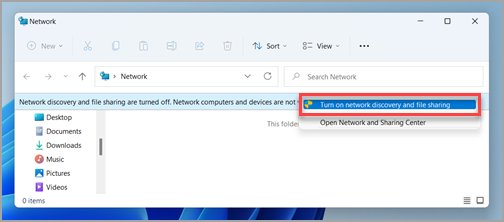
- Select Start > Settings, search for manage advanced sharing settings and open it. Under Private networks, turn on Network discovery and File and printer sharing.
- Go to Settings > Bluetooth & devices > Printers & scanners and select Add device next to Add a printer or scanner.
- Wait for the list to populate, then select Add device next to your printer. Windows downloads the driver as part of this step.
On Arm PCs such as Copilot+ PCs, Microsoft recommends this Add device route over the manufacturer's installer unless the manufacturer gives Arm-specific guidance.
Does Windows automatically install drivers for all printers?
Most printers install without a manufacturer driver because Windows includes the Microsoft IPP Class Driver for Mopria-compliant printers over network and USB, available since Windows 10 version 21H2. Microsoft is also ending new third-party printer drivers on Windows Update.
| Date | What changes for automatic printer drivers |
|---|---|
| Windows 10 version 21H2 | Inbox support for Mopria-compliant printers through the Microsoft IPP Class Driver |
| January 15, 2026 | No new printer drivers published to Windows Update for Windows 11 and Windows Server 2025 or later |
| July 1, 2026 | Windows always prefers the inbox IPP class driver in its driver ranking |
| July 1, 2027 | Third-party printer driver updates stop, apart from security fixes |
Existing drivers already on Windows Update can still install, and manufacturer installation packages keep working. A printer that is not Mopria-certified may still need the manufacturer's package, so you may need to install or update a printer driver by hand.
How to see which printer driver Windows installed
- Go to Settings > Bluetooth & devices > Printers & scanners.
- Look at your printer in the list. A Find drivers button next to it means the printer works with reduced features until a full driver set is installed.
- Under Related settings, select Print server properties.
- Select the Drivers tab and look for your printer model under Installed printer drivers.
- Print a test page from the printer's settings page to confirm the driver works.
How to disable automatic printer driver installation in Windows
- Open System Properties with
sysdm.cpl, select the Hardware tab and select Device Installation Settings. - Choose No and select Save Changes.
- On Pro, Enterprise or Education, enable Do not include drivers with Windows Updates under Windows Components > Windows Update > Manage updates offered from Windows Update to stop driver updates through Windows Update.
- Restart the PC so both settings apply.
Turning off driver updates also stops fixes for other hardware, so set the policy back to Not Configured once the problem printer is sorted.
Troubleshoot if automatic installation fails
Printer driver not installing automatically
Windows Update is not offering the driver, or a policy blocks driver downloads.
- Run the two
reg querycommands above to rule out a blocking policy. - Check Settings > Windows Update > Advanced options > Optional updates for a printer driver.
- If nothing is listed, get the driver package from the manufacturer's own support site, or install a printer driver without the printer through the Add Printer Driver Wizard.
Run printer troubleshooter
Windows 11 has an automated printer troubleshooter that runs diagnostics and fixes common faults.
- Open the Get Help app from Start.
- Search for the printer troubleshooter and run it.
- Follow the prompts, then reconnect the printer.
Restart services when the install hangs
A stuck Print Spooler or stopped discovery services stop Windows from finishing the install.
- Type services in the taskbar search box and open Services.
- Double-click Print Spooler, select Stop and select OK.
- Open
%WINDIR%\system32\spool\PRINTERSand delete the files inside. - Back in Services, open Print Spooler, select Start, set Startup type to Automatic and select OK.
- For network printers, also start Function Discovery Provider Host, Function Discovery Resource Publication, SSDP Discovery and UPnP Device Host and set them to Automatic.
Check internet connection
Windows downloads printer drivers from Windows Update, so an offline or metered connection stops the download.
- Open a website to confirm the PC is online.
- Go to Settings > Network & internet, open your Wi-Fi or Ethernet network and check whether Metered connection is on.
- Turn it off on an unlimited plan, or turn on Download updates over metered connections under Windows Update > Advanced options.
Reconnect the printer
A printer added before the settings changed keeps its basic driver until Windows sets it up again.
- Go to Settings > Bluetooth & devices > Printers & scanners, select the printer and select Remove.
- Turn the printer off, wait 30 seconds and turn it back on.
- Select Add device, then select Add device next to the printer when it appears.
- If it is not found, select Add manually next to The printer that I want isn't listed and follow the wizard.
Windows installed the wrong printer driver
Windows picked a generic or class driver, or an older driver was already on the PC.
- Remove the printer from Printers & scanners.
- In Print server properties > Drivers, select Add, choose the processor type, then select Windows Update to load the full printer list.
- Pick the manufacturer and exact model and select Finish, then add the printer again.
- If the printer installs but still will not print, work through these fixes for a printer that won't print.
Printer automatic driver installation FAQ
Why is my printer driver not installing automatically?
The usual causes are Device Installation Settings set to No, a policy that excludes Windows Update drivers, a metered connection, or a printer Windows cannot see on the network. Check each in that order, then remove and add the printer again.
Does Windows automatically install drivers for all printers?
No. Windows installs Mopria-compliant printers with its built-in IPP class driver, and older models through drivers already on Windows Update. From January 15, 2026, no new printer drivers are published to Windows Update for Windows 11, so some models need the manufacturer's package.
Is it safe to enable automatic driver installation?
Yes. Drivers delivered through Windows Update are signed through the Windows Hardware Compatibility Program, and Microsoft calls Windows Update the recommended source. Avoid driver sites other than the printer manufacturer's own.
What should I do if Windows installs the wrong driver?
Remove the printer in Printers & scanners, then use Print server properties > Drivers > Add and pick the exact model from the Windows Update list. You can also install the manufacturer's own package and add the printer again.
Can I disable automatic driver installation later?
Yes. Set Device Installation Settings to No, or enable the Do not include drivers with Windows Updates policy on Pro, Enterprise and Education. Both changes reverse by switching the option back.
Why does a Find drivers button appear next to my printer?
The button means Windows installed the printer with a basic driver and it may have reduced features. Windows Update is the best place to get the full driver, so check Optional updates under Advanced options.
Does Windows download printer drivers on a metered connection?
Not always. On a metered connection Windows Update downloads only priority updates. Turn on Download updates over metered connections in Windows Update > Advanced options, or set the network as unmetered.