When Spotify is not working, restart the app, update it and, if that fails, reinstall it, which are the three quick fixes Spotify itself recommends.
This guide covers each fix on Windows, Mac, iPhone and Android, plus offline mode, the cache, the firewall, startup and background settings, outage checks and the most common playback errors.
How to fix Spotify not working
These steps fix most cases where the app shows 'Something went wrong' or 'Page not available', or simply stops playing.
- Close Spotify completely and open it again.
- Update the app. On desktop, click your profile picture and select Update Spotify now if a blue dot shows next to it.
- Check that other apps and web pages load, so you know your internet connection works.
- Make sure Offline mode is switched off in Spotify.
- Reinstall Spotify if it still fails. Downloaded music and podcasts must be downloaded again afterwards.
If sign-in is the problem rather than playback, the fixes are different: Spotify login issues have their own causes, such as Facebook or Apple sign-in failing in offline mode.
Is Spotify down right now?
Before you reinstall anything, rule out a Spotify outage or a problem limited to one device.
- Check the @SpotifyStatus account for reported outages.
- Search the Spotify Community Ongoing Issues board for your problem, and select +VOTE on a report marked Under Investigation.
- Open the web player at
open.spotify.comin a browser and play a track. - Try the same track on a second device signed in to your account.
- If it plays everywhere except one device, the fault is on that device, so continue with the fixes below.
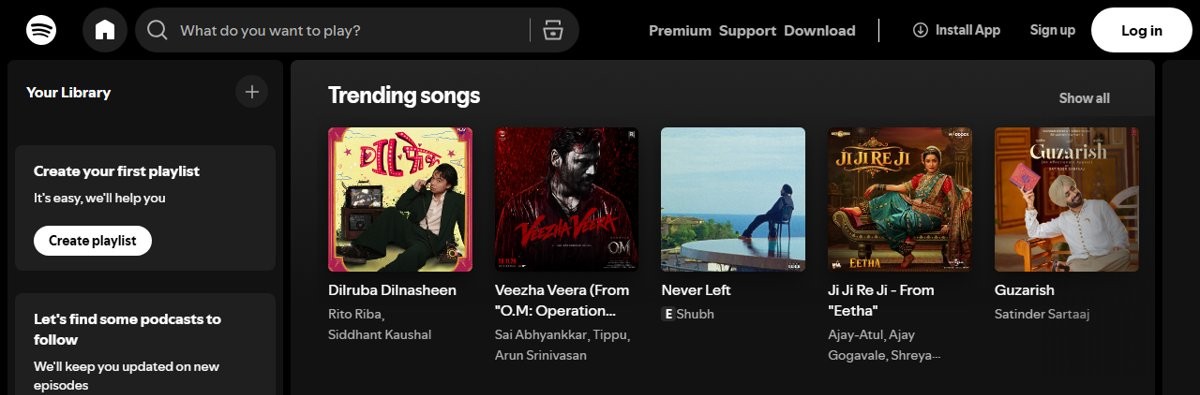
What to do if Spotify won’t open
When the Spotify window never appears, a stuck process or an outdated Windows install is the usual cause. Spotify supports Windows 10 (64-bit) and Windows 11 or later.
- Right-click Start and select Task Manager.
- Select Spotify in the list, then select End task.
- Close Task Manager and open Spotify again from the Start menu.
- If it still will not open, restart the PC to clear anything left running.
- Select Start > Settings > Windows Update > Check for Windows updates, then Download & install anything offered.
- Open Spotify again after the restart that the update asks for.
On a Mac, quit Spotify, then check that macOS is version 13.0 or later, which is the oldest Mac version Spotify supports.
How to update Spotify on Windows, Mac, iPhone and Android
| Your device | How to update Spotify | If there is no update |
|---|---|---|
| Windows or Mac desktop app | Click your profile picture when a blue dot appears next to it, then select Update Spotify now | No blue dot means the app is current |
| Windows, Microsoft Store version | Open Microsoft Store and select Library > Get updates | Spotify is already up to date |
| iPhone or iPad | Open the App Store, tap your Apple ID image, find Spotify and tap UPDATE | If Spotify is not listed, it is on the latest version |
| Android | Open Google Play Store, search Spotify and tap UPDATE | No update option means it is on the latest version |
| Any device | Reinstall the app | A fresh install is always the latest version |
To read the installed version on Windows, open the menu at the top of Spotify and select Help > About Spotify. On a Mac, click Spotify in the menu bar and select About Spotify.
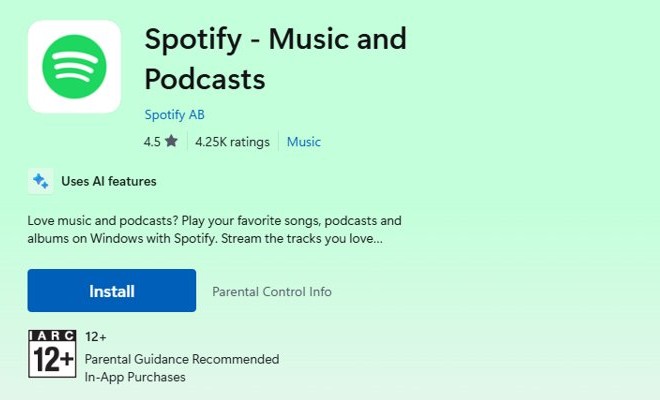
How to repair or reset Spotify in Windows 11
Windows can repair some apps without a reinstall. The Advanced options link appears only for some apps, usually the Microsoft Store version of Spotify.
- Select Start > Settings > Apps > Installed apps.
- Find Spotify and select the More icon next to it.
- Select Advanced options.
- Select Repair, then open Spotify to test it.
- If Repair is missing or does not help, return to the same page and select Reset.
Reset clears the app's data, so you sign in again afterwards. If the Store version still will not update, reset the Microsoft Store cache first. If there is no Advanced options link, use the clean reinstall below instead.
How to clean reinstall Spotify on Windows and Mac
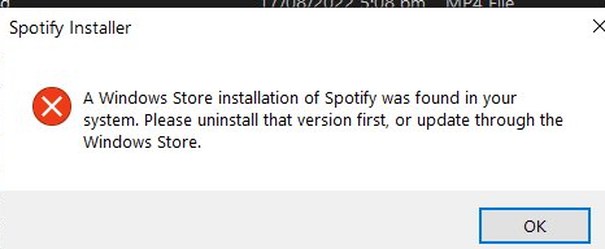
A clean reinstall removes leftover cache files that a normal uninstall leaves behind. Re-download any offline music afterwards.
- On Windows, close Spotify, then select Start > Settings > Apps and find Spotify in the apps list.
- Select Uninstall and follow the instructions on screen.
- Install Spotify again, either from the Microsoft Store or with the Spotify desktop installer for Windows.
- On a Mac, quit Spotify and open Finder.
- Click Go in the menu bar, hold the Option key and select Library.
- Open Caches and delete the
com.spotify.clientandcom.spotify.client.helperfolders. - Go back, open Application Support and delete the Spotify folder.
- Restart the Mac, then download and install Spotify again.
If you want Spotify gone for good rather than reinstalled, you can uninstall Spotify on Windows 11 and skip the reinstall step.
How to clean reinstall Spotify on iPhone and Android
| Phone | Clean reinstall steps | Then |
|---|---|---|
| iPhone or iPad | In Spotify, open Settings and privacy > Data-saving and offline and tap Clear next to Clear cache; then go to Settings > General > iPhone Storage > Spotify > Delete App | Turn the phone fully off for a few minutes, switch it on and install Spotify from the App Store |
| Android 6.0 and newer | Go to Settings > Apps > Spotify > Storage, tap Clear storage and Clear cache, then Uninstall; in the Files app, delete any com.spotify.music folder under Internal Storage > Android > data |
Restart the phone and install Spotify from Google Play |
| Android with an SD card | Also delete the com.spotify.music folder under SD Card > Android > data |
Restart and reinstall |
How to clear the Spotify cache
Spotify stores parts of tracks as cache so they play without lag. A corrupt or oversized cache can stall playback, and Spotify recommends at least 1 GB of free space on the device.
- On desktop, click your profile picture and select Settings.
- Scroll down to Storage and click Clear cache.
- Optionally click Change location to keep the cache on a drive with more space.
- On a phone, tap your profile picture, then Settings and privacy > Data-saving and offline.
- Under Storage, tap Clear next to Clear cache.
Clearing the cache does not remove your playlists. Downloads stay unless you remove them yourself to free space.
How to turn off offline mode on Spotify
With offline mode on, anything you have not downloaded is grayed out and the app behaves as if there is no internet. Facebook and Apple sign-in also fail in offline mode.
- On Windows, open the three-dot menu at the top of Spotify and select File.
- If Offline mode is switched on, switch it off.
- On a Mac, click Spotify in the Apple menu bar and switch off Offline mode if it is on.
- On a phone or tablet, tap your profile picture, then Settings and privacy > Data-saving and offline.
- Switch Offline mode off.
If offline mode is already off, restart your Wi-Fi or router, or try a different network. School and office networks sometimes block streaming services.
Check the firewall settings for Spotify
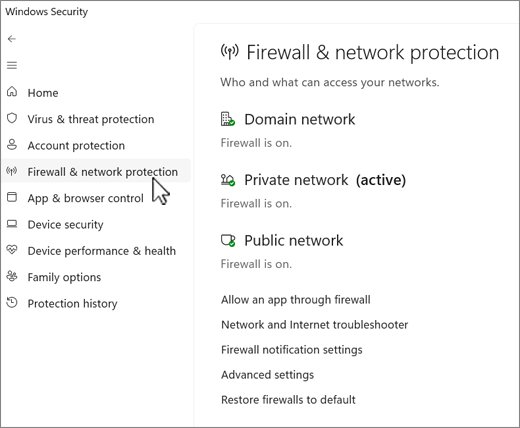
On desktop, Spotify lists a firewall blocking the app as one cause of playback failure. Allow the app through the firewall instead of turning the firewall off.
- Open the Windows Security app.
- Select Firewall & network protection.
- Select Allow an app through firewall.
- Add an exception for Spotify if it is not already allowed.
- Open Spotify and play a track to test the connection.
If you use a third-party firewall, check that Spotify is set as an exception there. The firewall's provider can show you where that setting lives.
Disable Spotify auto-start in Windows
Spotify can launch every time you sign in. Turning that off cuts the apps Windows loads at startup, and you open Spotify yourself when you want it.
| Where | Path | Action |
|---|---|---|
| Windows Settings | Start > Settings > Apps > Startup | Set the Spotify toggle to Off |
| Task Manager | Right-click Start > Task Manager > Startup apps | Select Spotify, then Disable |
| Turn it back on | Same pages as above | Set the toggle to On or select Enable |
Allow Spotify background activity on Windows 11
If Spotify stops when you switch apps or after the screen dims, Windows may be limiting its background activity to save power.
- Select Start > Settings > System > Power & battery > Battery usage.
- Find Spotify in the list and select More options > Manage background activity.
- Under Let this app run in the background, select Always.
- Play a track, switch to another app and check that playback continues.
The option appears only for apps that let Windows manage their background activity. Power optimized is the default, and it can limit apps that use more power.
Run Spotify in compatibility mode
Microsoft's Program Compatibility Troubleshooter applies compatibility settings for you. Use it when Spotify opens but flickers, freezes or warns that it might not work correctly.
- Select Start > Settings > System > Troubleshoot > Other troubleshooters.
- Find Program Compatibility Troubleshooter and select Run.
- Pick Spotify from the list of programs.
- Follow the on-screen instructions and test Spotify when it finishes.
For display glitches, also update the graphics driver. Windows Update delivers drivers for video cards, and the device maker's official site is the only other safe source.
Spotify not playing songs
Spotify says 'Something went wrong' or 'Page not available'
A temporary app fault or an outdated version.
- Restart the Spotify app.
- Update it to the latest version.
- Reinstall it if the error comes back.
Spotify songs are grayed out
Offline mode is on, the connection dropped, or the track is not available in your country.
- Switch off Offline mode.
- Check your connection or switch to a different network.
- If only some tracks stay gray, they are not available in your market.
Spotify is playing but there is no sound
The wrong audio output is selected, or Spotify is sending sound to another device.
- Check your device's sound settings and pick the right output, such as the laptop speakers.
- On a phone, raise the media volume, not the call volume.
- Play audio from another app to test the speakers.
- Check that Spotify Connect or Bluetooth is not sending playback to a different device.
Spotify keeps pausing when someone else listens
A Spotify account plays on one device at a time.
- Check which device is playing in Spotify Connect.
- Stop playback on the other device, or ask the other listener to use their own account.
Spotify web player says 'Playback of protected content is not enabled'
The browser's DRM setting is off.
- In Chrome, go to
chrome://settings/content, click open.spotify.com and set Protected content IDs to Allow or Default. - In Firefox, click Enable DRM in the yellow bar, or go to
about:preferences#contentand switch on Play DRM. - On an N edition of Windows 10, install the Media Feature Pack from Microsoft for Edge.
Spotify not working FAQ
Why is Spotify not working today?
It may be a Spotify outage or a fault on your device. Check @SpotifyStatus and the Community Ongoing Issues board, then test the web player. If the web player works, restart, update or reinstall the app.
Why won't Spotify open on my PC?
A stuck Spotify process or an outdated Windows install is the usual cause. End Spotify in Task Manager, restart the PC, install Windows updates, and repair, reset or reinstall the app if it still will not open.
Why are my Spotify songs grayed out?
Songs turn gray when offline mode is on, when the connection drops, or when a track is not available in your country. Switch off offline mode and check your network first.
Does reinstalling Spotify delete my downloads?
Yes. Downloaded music and podcasts must be downloaded again after a reinstall. Your playlists are saved to your Spotify account, so they return when you sign in again.
What Windows version does Spotify support?
The Spotify desktop app supports Windows 10 (64-bit) and Windows 11 or later. On a Mac it needs macOS 13.0 or later, and on phones iOS 16.1 or Android 7.0 or later.
How much free space does Spotify need?
Spotify recommends at least 1 GB of free memory for the app's cache and downloads. Playback can also fail if the device has less than 250 MB of available memory.
Why does Spotify stop when I play on another device?
One Spotify account can play on only one device at a time. Starting playback on a second device pauses the first, so use separate accounts or a Family or Duo plan for shared listening.
Can a firewall stop Spotify from working?
Yes, on desktop. Spotify lists a blocking firewall as a cause of playback problems. Add Spotify as an exception with Allow an app through firewall in Windows Security, or in your third-party firewall.