Sign in to your local account, plug in a USB flash drive, search Control Panel for create password reset and select Create a password reset disk; if you later forget the password, insert that drive at the sign-in screen and choose Use a password reset disk instead of answering your security questions.
This guide covers what the disk does and does not do, the prerequisites, how to create, store and test it, how to use it on Windows 10 and Windows 11, fixes for the common failures, and the alternatives for Microsoft accounts.
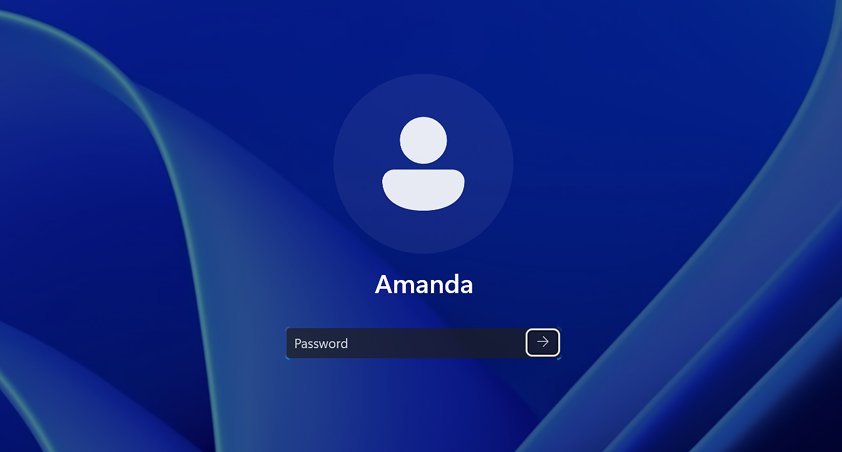
Create a password reset disk in Windows 10/11 and use it to regain local account access
The whole job takes two short visits: one while you still know the password, and one at the sign-in screen after you forget it.
- Sign in to Windows with the local account you want to protect.
- Plug a USB flash drive into the PC.
- Open Control Panel, type
create password resetin its search box, and select Create a password reset disk. - Follow the wizard to the end, then remove the drive and keep it somewhere safe.
- When you forget the password, type any password at the sign-in screen, select OK, then select Reset password.
- Insert the USB drive, select Use a password reset disk, and follow the instructions to set a new password.
Making the disk before you need it is the one requirement nobody can work around: once you are locked out, the tool cannot be opened.
What is a password reset disk in Windows 11/10?
A password reset disk is a USB flash drive that Windows prepares as a recovery key for one local account. Microsoft describes it as a precautionary measure for people who do not sign in with a Microsoft account, which can be reset online instead.
| Question | Answer |
|---|---|
| What media does it use? | A USB flash drive plugged into the PC |
| Which accounts does it work for? | Local accounts only; the option is not available for Microsoft accounts |
| When must it be made? | While you are signed in to that local account, before the password is forgotten |
| Where is it created? | Control Panel, through Create a password reset disk |
| Where is it used? | On the Windows sign-in screen, after a wrong password |
| Does it need replacing after a password change? | No, Microsoft states a new disk is not needed when you change your password |
What a password reset disk does
The disk lets you set a new password for the account without knowing the old one, so you regain access to your files and settings instead of resetting the PC.
| It does | It does not |
|---|---|
| Set a new password for the local account it was made from | Reveal or recover the old password |
| Work from the sign-in screen with no other account needed | Reset a Microsoft account password |
| Keep the account's files and settings in place | Reset a Windows Hello PIN directly |
| Stay valid after later password changes | Get created after you are already locked out |
Important limitations and security notes
The most important limitation is the account type: a Microsoft account never shows the reset disk option, so check your account type and sign-in method before relying on one.
| Limitation or risk | What it means for you |
|---|---|
| Local accounts only | If you sign in with an email address, that is a Microsoft account and it needs an online reset instead |
| Must exist in advance | There is no way to create the disk for an account you can no longer sign in to |
| One account per disk | The disk resets the local account that was signed in when it was created, not every user on the PC |
| Anyone holding it can reset the password | Treat the drive like a spare house key and keep it out of sight |
| USB drives fail | A drive that no longer mounts cannot be used, so test it from time to time |
Requirements before creating a password reset disk
The prerequisites are short. Good to know: the drive does not have to be dedicated to this job, but a small drive used for nothing else is easier to keep track of.
| What you'll need | Why |
|---|---|
| A local account you can sign in to now | The tool runs inside the account it protects |
| A USB flash drive | Windows writes the reset key to removable USB storage |
| Access to Control Panel | Create a password reset disk is a Control Panel tool, not a Settings page |
| The current password | You are already signed in with it, so the account is unlocked while the disk is made |
How to create a password reset disk in Windows 10/11 using Control Panel
These steps follow the route Microsoft documents for both Windows 10 and Windows 11. Control Panel lists the tool with the other User Accounts options.
- Sign in to your local account, not a Microsoft account.
- Insert a USB flash drive into the PC and wait for Windows to recognise it.
- Select the search box on the taskbar, type Control Panel, and open it from the results.
- Type
create password resetin the Control Panel search box at the top right. - Select Create a password reset disk in the results to start the wizard.
- Follow the remaining instructions in the wizard, picking the USB flash drive when it asks for the drive to use.
- Let Windows create the reset disk, then finish the wizard.
- Remove the USB flash drive and keep it in a safe place.
If the search returns nothing, the account you are signed in with is almost always a Microsoft account. The troubleshooting section below covers that case.
One reset disk per account: how to make a password reset disk for each user
A reset disk protects the local account that created it. A family PC with three local accounts needs the tool run three times, once from inside each account.
- Sign out of the current account from the Start menu.
- Sign in to the next local account you want to protect.
- Insert a USB flash drive and open Control Panel.
- Search for
create password resetand select Create a password reset disk. - Complete the wizard, then label the drive with the account name.
- Repeat for every local account that needs a reset disk.
How to store the password reset disk safely
Whoever has the drive can set a new password for the account, so storage matters as much as creation.
- Remove the drive from the PC as soon as the wizard finishes; never leave it plugged in.
- Label the drive with the PC name and the account name it belongs to.
- Store it away from the computer, such as in a locked drawer or a home safe.
- Avoid carrying it in the same laptop bag as the PC it unlocks.
- Write down where it is kept in the same place you keep other recovery details.
How to use the password reset disk if you forget your password
Start at the sign-in screen of the locked account. Windows only offers the reset options after a password attempt fails.
- Start at the sign-in screen and select the local account you are locked out of.
- Enter an incorrect password once and select the password entry arrow.
- Select OK on the incorrect-password message, then select Reset password.
- Insert the password reset USB drive.
- Select Use a password reset disk instead of answering the security questions.
- Follow the on-screen reset wizard and choose the USB drive that holds the reset disk.
- Create a new password when the wizard asks for one.
- Finish the wizard and sign in with the new password.
The same disk keeps working for future resets, so put it back in storage once you are signed in.
Tip: One disk can remain valid after password changes
Microsoft's own note on the tool says you don't have to create a new disk when you change your password.
Make the disk once per local account and keep it. Changing the password later in Settings > Accounts > Sign-in options > Password does not invalidate it; only a lost or unreadable drive means you need to run the wizard again while you can still sign in.
Tip: Test that the USB drive is still readable
A reset disk you never check is a backup you cannot trust. A quick look every few months confirms the drive still mounts.
- Sign in to Windows normally and plug in the reset drive.
- Open File Explorer and select This PC.
- Check that the drive appears under Devices and drives and opens without an error.
- If Windows asks to scan or format the drive, cancel and create a fresh reset disk on a different drive.
- Eject the drive and return it to storage.
Password reset disk tips and troubleshooting
Most failures come down to three things: the account type, a drive Windows cannot read, or skipping the wrong-password step.
| Symptom | Most likely cause | First thing to try |
|---|---|---|
| No Create a password reset disk result in Control Panel | Signed in with a Microsoft account | Reset that account online instead |
| The wizard will not accept the drive at sign-in | Wrong drive, or a drive made for another account | Insert the drive labelled for this account |
| No Reset password option on the sign-in screen | PIN sign-in shown, or no password attempt yet | Switch to the password field and enter a wrong password once |
| Drive not detected | Faulty drive or USB port | Try another USB port, then another drive if you have a second disk |
Troubleshooting: "Create a password reset disk" option is missing
Control Panel search shows no reset disk option
The option isn't available for Microsoft accounts, only for local accounts.
- Check how you sign in: an email address and its password means a Microsoft account, while a plain user name means a local account.
- For a Microsoft account, use I forgot my password at the sign-in screen when you need a reset.
- For a local account, sign out and back in to it, then search Control Panel again for
create password reset.
Searching Settings for the tool does nothing
The tool lives in Control Panel, not in the Settings app.
- Type Control Panel in the taskbar search box and open it.
- Use the Control Panel search box, not the Settings search, and type
create password reset. - Select Create a password reset disk from the results.
Troubleshooting: The reset disk does not work
The wizard rejects the USB drive
The drive was made for a different local account or PC, or it is not the reset disk at all.
- Check the label and insert the drive made from this exact account.
- Remove other USB storage so only the reset drive is attached.
- Restart the reset from the sign-in screen and select Use a password reset disk again.
The PC does not see the drive
A failing drive or a loose or disabled USB port.
- Unplug the drive, wait a few seconds, and insert it in a different USB port.
- On a desktop, use a port on the back of the PC rather than a front-panel or hub port.
- If it still does not appear, use another reset option from the alternatives table below.
Troubleshooting: No "Reset password" link appears
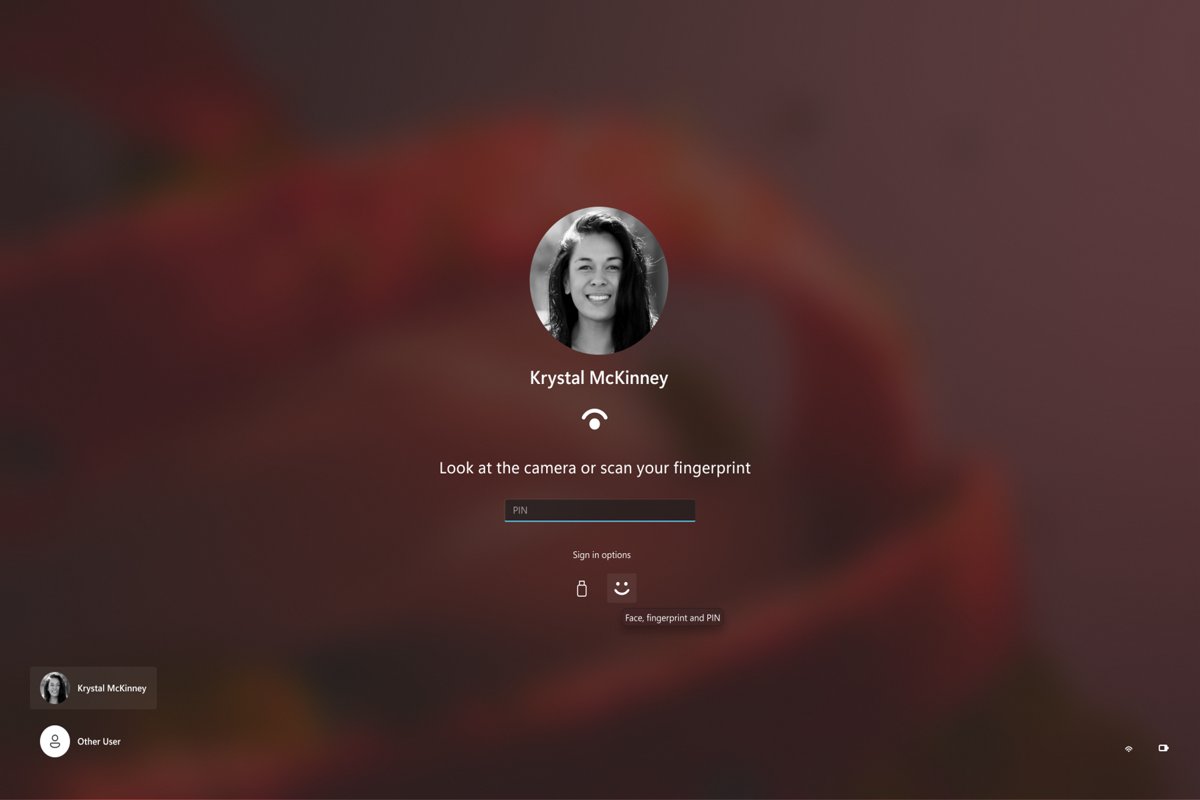
Only a PIN box is on the sign-in screen
Windows shows the Windows Hello PIN by default, and the reset disk belongs to the password.
- Select Sign-in options under the PIN box.
- Select Enter your password to show the password field.
- Enter a wrong password once, select OK, then select Reset password.
The link says I forgot my password instead
The account is a Microsoft account, which resets online rather than with a disk.
- Select I forgot my password on the sign-in screen.
- Follow the prompts to verify your identity with the Microsoft account.
- Create the new password and sign in with it.
Note about Windows Hello and the password reset disk
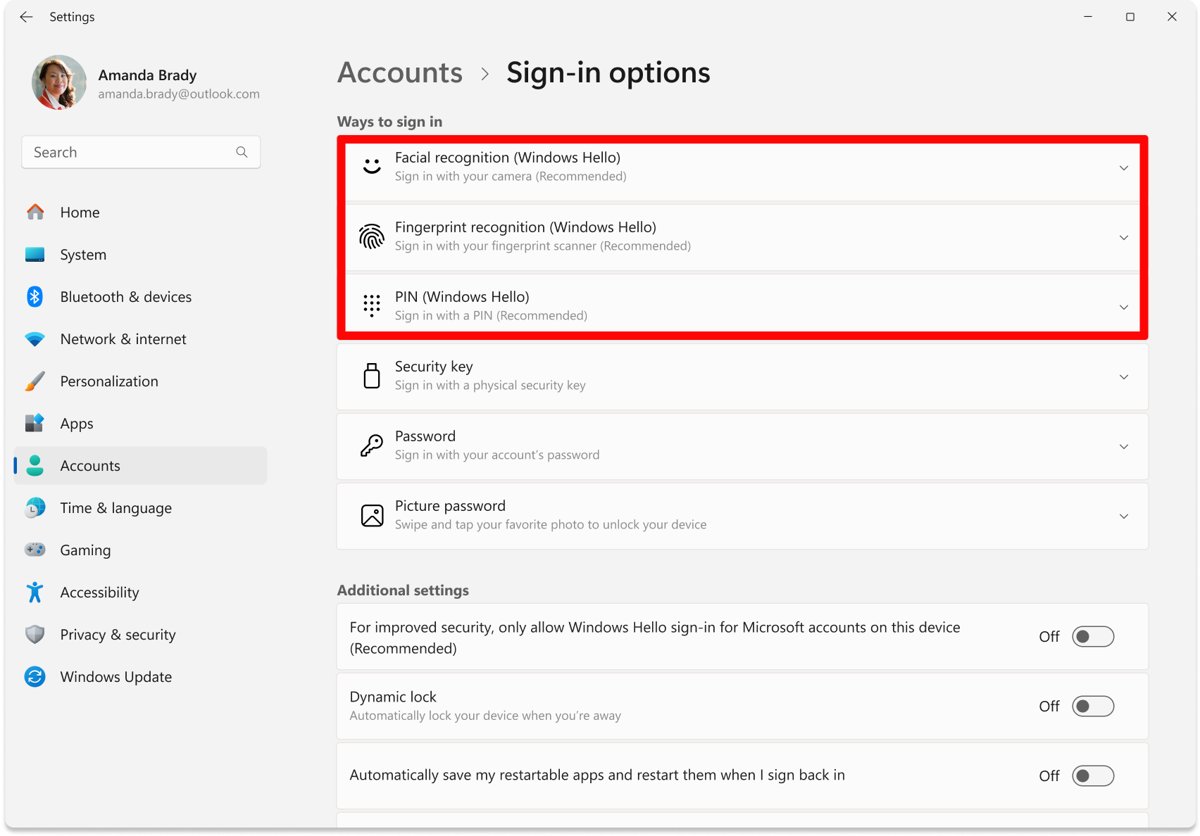
A Windows Hello PIN and the account password are separate. On a local account, the I forgot my PIN link is not offered, so the password is your way back to the PIN. If the PIN is the only thing failing, you can reset a Windows Hello PIN once you are signed in.
| Situation on a local account | What to do |
|---|---|
| Forgot the PIN, know the password | Select Sign-in options, enter the password, then change the PIN in Settings > Accounts > Sign-in options > PIN (Windows Hello) |
| Forgot the password, have the reset disk | Use the disk at the sign-in screen, then set up a new Windows Hello PIN in Settings |
| Forgot both, no disk | Answer the security questions, or use another administrator account |
Version information for Windows 10 and Windows 11
| Item | Windows 10 | Windows 11 |
|---|---|---|
| Tool available | Yes, for local accounts | Yes, for local accounts |
| Where to open it | Control Panel search: create password reset |
Control Panel search: create password reset |
| Media | USB flash drive | USB flash drive |
| Sign-in screen option | Reset password, then Use a password reset disk | Reset password, then Use a password reset disk |
| Microsoft account support | No, reset online | No, reset online |
When this method is most useful
| Your situation | Use this | Why |
|---|---|---|
| Offline PC with a single local account | Password reset disk | No other account or internet connection is needed |
| Local account with security questions you are unsure of | Password reset disk as a backup | The disk works even if the answers are lost |
| Shared family PC with several local accounts | One reset disk per account | Each disk only resets the account that made it |
| You sign in with a Microsoft account | Online password reset | The reset disk option is not available |
| Another administrator account exists | Computer Management, Set Password | An admin can reset the password without a disk |
Alternatives if you use a Microsoft account or do not have a reset disk
Without a disk you still have several ways to reset a forgotten Windows password, depending on the account type and what else is on the PC.
| Option | Account type | How |
|---|---|---|
| Security questions | Local | At the sign-in screen select OK, then Reset password, and answer the questions set up at account creation |
| Another administrator account | Local | Open Computer Management, expand Local Users and Groups > Users, right-click the user, select Set Password… |
| Sign-in screen reset | Microsoft account | Select I forgot my password and follow the verification prompts |
| Web sign-in | Microsoft account | Select Sign-in options > Web sign-in, sign in, then select Forgot my password |
| Any browser | Microsoft account | Open the Microsoft account Reset password page on another device |
| Reset your PC | Any, as a last resort | Microsoft's fallback when no administrator account is available; it is not a password reset and affects apps and settings |
Never lose access to your PC: backup sign-in options to set up today
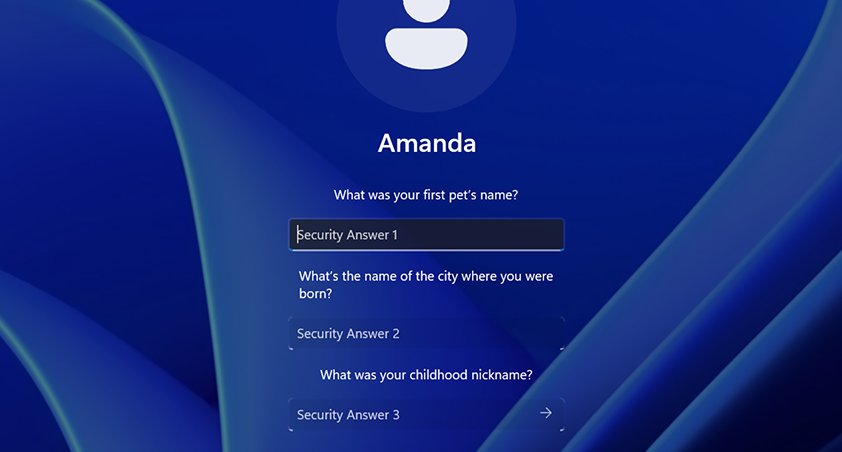
A reset disk works best as one layer of several. Setting up two of these while you can still sign in means a forgotten password is a five-minute problem.
| Backup | What it covers | Where to set it up |
|---|---|---|
| Password reset disk | Forgotten local account password | Control Panel, Create a password reset disk |
| Security questions | Forgotten local account password, no USB needed | Set during local account creation |
| Second administrator account | Any local account on the PC | An admin resets others through Local Users and Groups |
| Microsoft account recovery details | Forgotten Microsoft account password | Your Microsoft account security info |
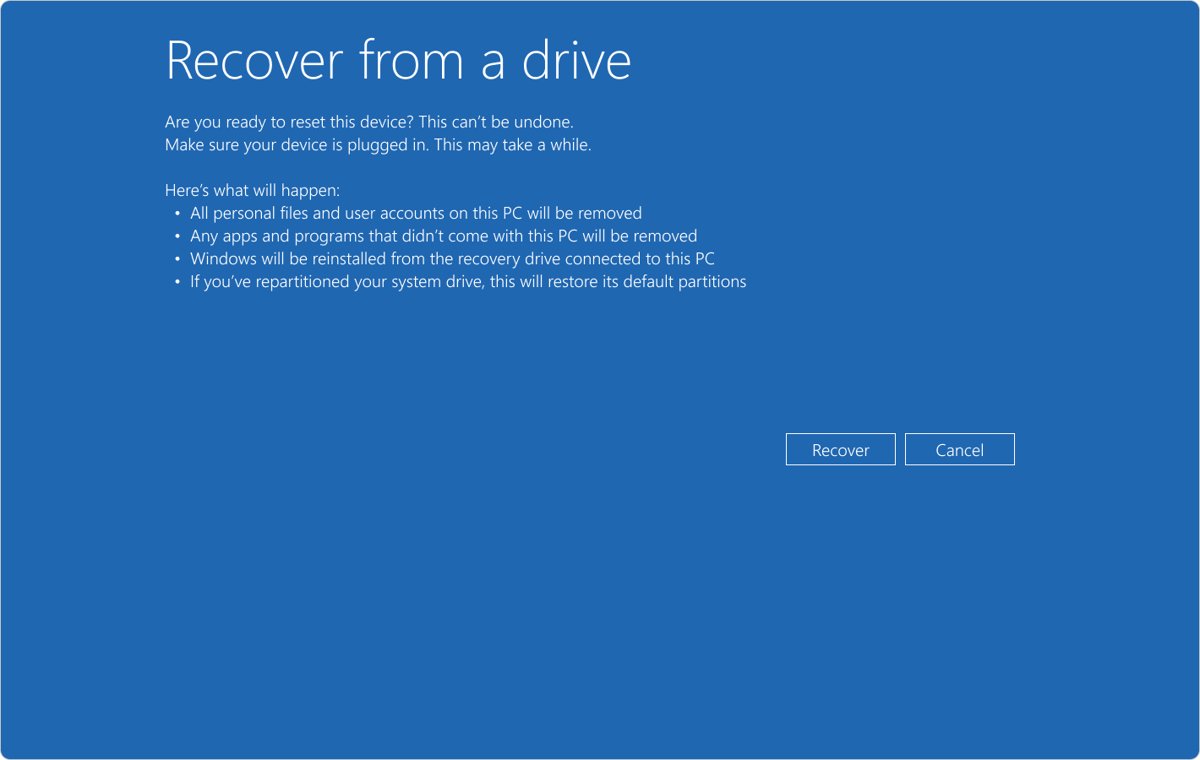
| Recovery Drive | A PC that will not start at all | The separate Recovery Drive tool; it does not reset passwords |
Windows 10 password reset disk: FAQs + additional info
Does a password reset disk work with a Microsoft account?
No. Microsoft states the option isn't available for Microsoft accounts. Reset a Microsoft account password with I forgot my password on the sign-in screen, Web sign-in, or the online Reset password page from any browser.
Do I need to make a new password reset disk after changing my password?
No. Microsoft's note on the tool says you don't have to create a new disk when you change your password. Only a lost, damaged or unreadable drive means you should run the wizard again while you can still sign in.
Can I create a password reset disk after I forget my password?
No. The wizard runs inside the local account it protects, so you must be signed in to that account to create it. If you are already locked out, use security questions or another administrator account instead.
Does a password reset disk work on Windows 11?
Yes. Windows 11 keeps the same Control Panel tool as Windows 10. Search Control Panel for create password reset, select Create a password reset disk, and use it later through Reset password on the sign-in screen.
Can one password reset disk unlock every account on the PC?
No. Each disk resets only the local account that was signed in when it was created. Sign in to each local account in turn and make a separate disk for it, labelling every drive with its account name.
Will using a password reset disk delete my files?
No. The purpose of the disk is to let you regain access to your files and settings. It sets a new password for the existing account, unlike a PC reset, which is the fallback when no other option exists.
Is a password reset disk the same as a recovery drive?
No. A recovery drive is a separate Windows tool that holds the system files needed to restore a PC that will not start. It does not include your personal files and does not reset an account password.
Can someone else use my password reset disk?
Yes. Anyone who holds the drive and reaches your sign-in screen can use it to set a new password for that account. Store it away from the PC, in a locked drawer or similar secure place.
Why does Control Panel not show Create a password reset disk?
The usual cause is signing in with a Microsoft account, which does not offer the tool. If you sign in with an email address, reset that password online instead; local accounts find the tool through the Control Panel search box.