To add someone to AirDrop Contacts Only, save that person in the Contacts app with the email address or phone number they use for their Apple Account.
This guide covers adding the contact on iPhone, iPad and Mac, turning on Contacts Only, sending to people who are not saved yet, and fixing a contact who still does not appear.
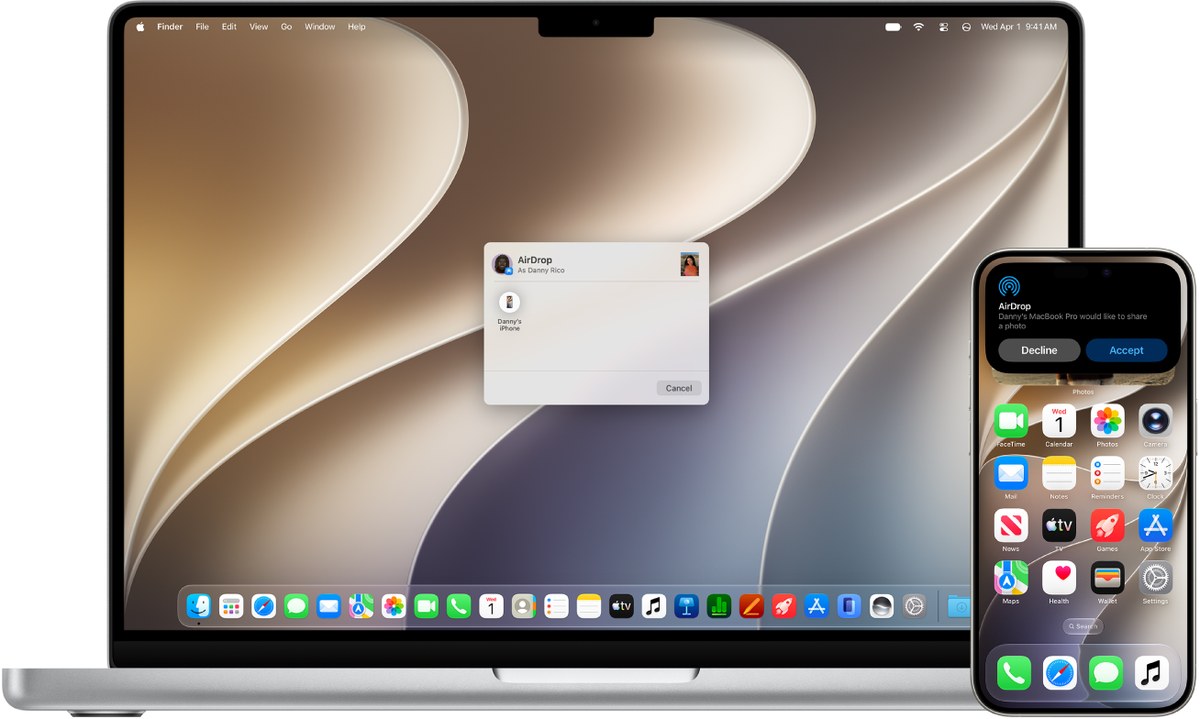
How to add someone to Contacts Only on AirDrop
There is no separate AirDrop list to edit. AirDrop Contacts Only reads the Contacts app, so the person has to be a saved contact with the right details on their card.
- Ask the other person which email address or phone number they use for their Apple Account.
- Open the Contacts app on your iPhone.
- Tap the + button to create a new contact, or tap their existing card and tap Edit.
- Enter their name, then add that Apple Account email address or phone number.
- Save the card.
- Ask them to do the same with your Apple Account email address or phone number on their device.
- Open the item you want to send, tap the Share button, tap AirDrop, and tap their name under People.
Each side needs the other saved because the receiving device decides who counts as a contact. A card with only a work email that is not on their Apple Account will not match.
How AirDrop Contacts Only decides who can send to you
Apple's rule is short: if the person you send to only accepts items from contacts, you must be in their contacts, and your card there must include your Apple Account email address or phone number.
| Condition | What has to be true | What happens if it is not |
|---|---|---|
| Saved contact | The sender is a card in the receiver's Contacts app | The sender cannot see the receiver under People |
| Matching detail | That card holds the sender's Apple Account email or phone number | The card exists but AirDrop still treats the sender as unknown |
| Apple Account | The receiver is signed in to an Apple Account | Everyone for 10 Minutes falls back to Receiving Off instead of Contacts Only |
| Wi-Fi and Bluetooth | Both are on, on both devices | Neither device can find the other |
| Distance | Within 30 feet (10 meters) | The other device drops out of the People row |
| Personal Hotspot | Turned off on both devices | AirDrop may not find nearby devices |
How to add a contact on iPhone for AirDrop
Use this when the person is not in your contacts at all.
- Open the Contacts app on your iPhone or iPad.
- Tap the + button.
- Enter the person's first and last name.
- Enter the phone number tied to their Apple Account.
- Enter their Apple Account email address if they sign in with one.
- Save the contact.
Siri may also suggest new contacts from Mail and Calendar. A suggested contact only helps AirDrop once it holds the Apple Account email or phone number.
How to add an Apple Account email to an existing contact
If the person is already saved but still missing from AirDrop, their card probably holds a different email or an old number.
- Open the Contacts app.
- Tap the person's name to open their card.
- Tap Edit.
- Add the email address or phone number they use for their Apple Account.
- Save the change.
- Send the item again from the Share sheet.
Keep the old details if you still use them. A card can hold several numbers and emails, and only one has to match the Apple Account.
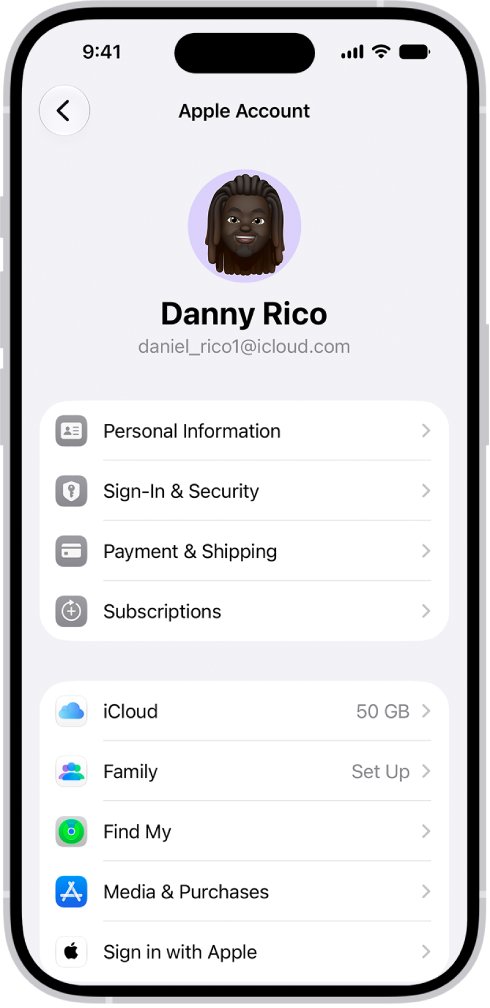
How to find your Apple Account email on iPhone
The other person needs your Apple Account email or phone number on their copy of your card. Check which ones your account uses before you share your contact card.
- Open the Settings app.
- Tap your name at the top.
- Tap Sign-In & Security.
- Note the emails and phone numbers listed for signing in.
- Give one of those to the other person for their contact card.
The same screen lets you update your Apple Account phone number or remove an email your account uses to sign in.
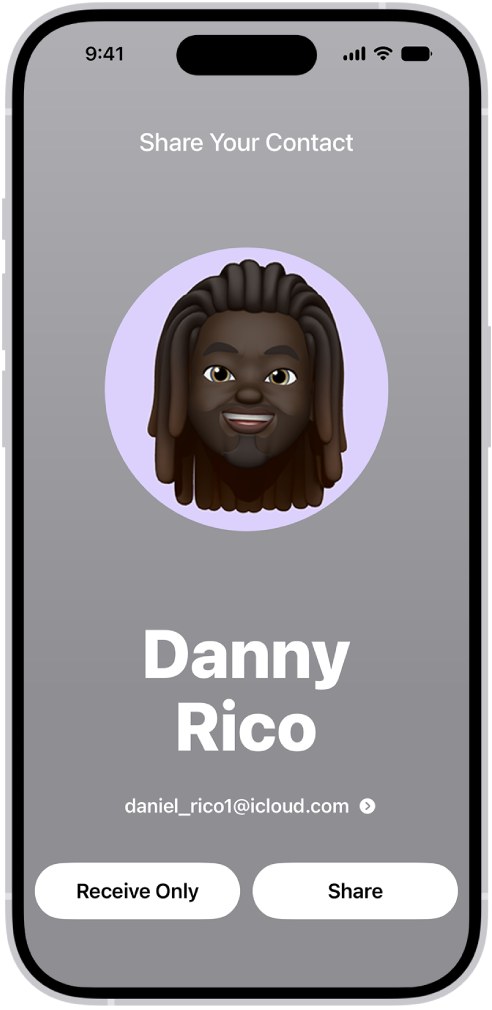
How to share contact info with NameDrop on iPhone
NameDrop swaps contact cards by holding two iPhones together. It works for new contact information only, not for updating a card you already have.
- Hold the top of your iPhone a few centimeters from the top of the other person's iPhone.
- Keep them together until NameDrop appears on both screens.
- Choose to share your contact card and receive theirs, or only receive theirs.
- If you share your card, select the fields to include, then tap Save.
- Open the new card in Contacts and check that it shows their Apple Account email or phone number.
NameDrop also works with an Apple Watch Ultra, Apple Watch Series 7 or later, and Apple Watch SE (2nd generation) or later.
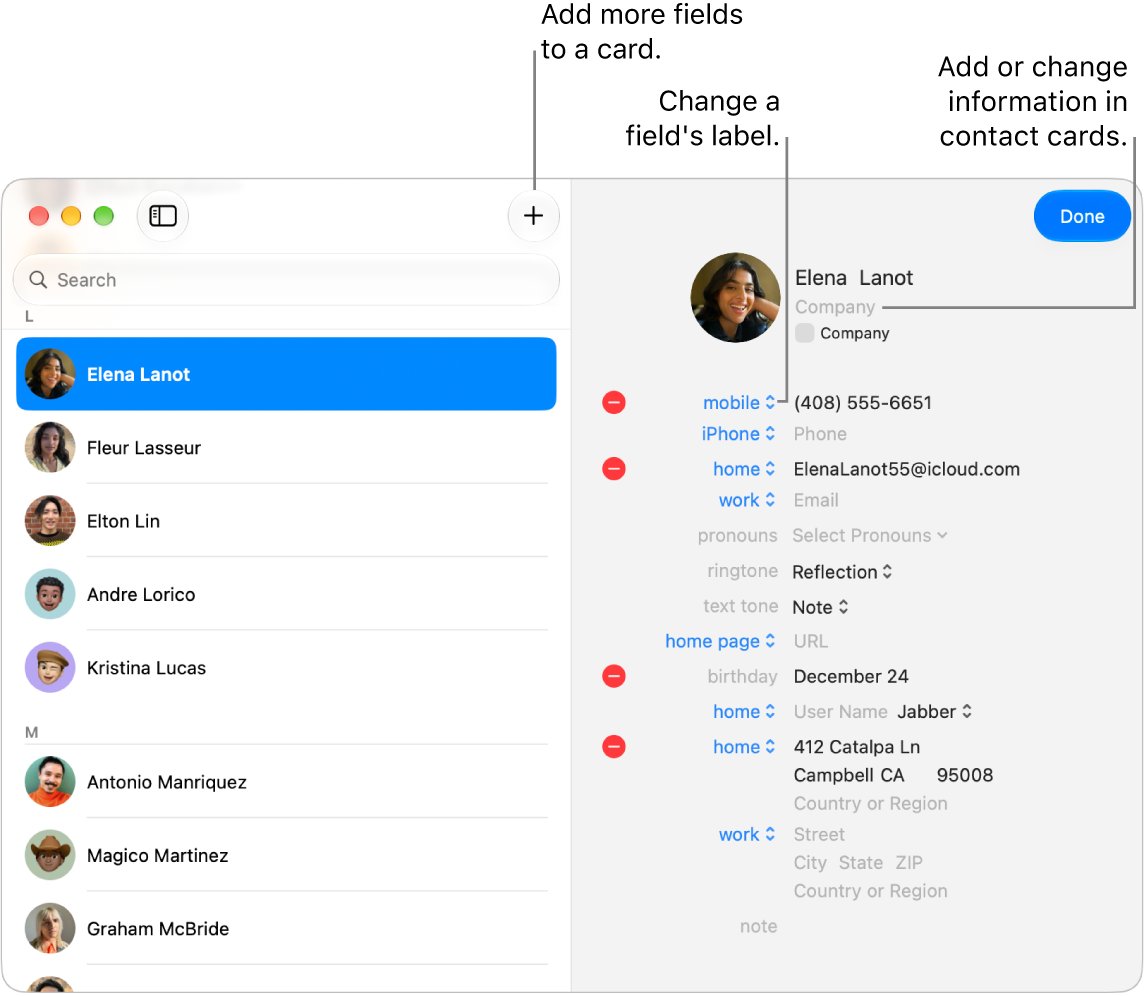
How to add a contact on Mac for AirDrop Contacts Only
A Mac set to Contacts Only checks the Contacts app on that Mac.
- Open the Contacts app on your Mac.
- Click the + button at the top of the window, then choose New Contact.
- Click the gray text next to each field label and enter the name.
- Enter the phone number or email address tied to the person's Apple Account.
- Click Done to save the card.
If you use more than one account in Contacts, new cards go to the default account chosen in Contacts General settings.
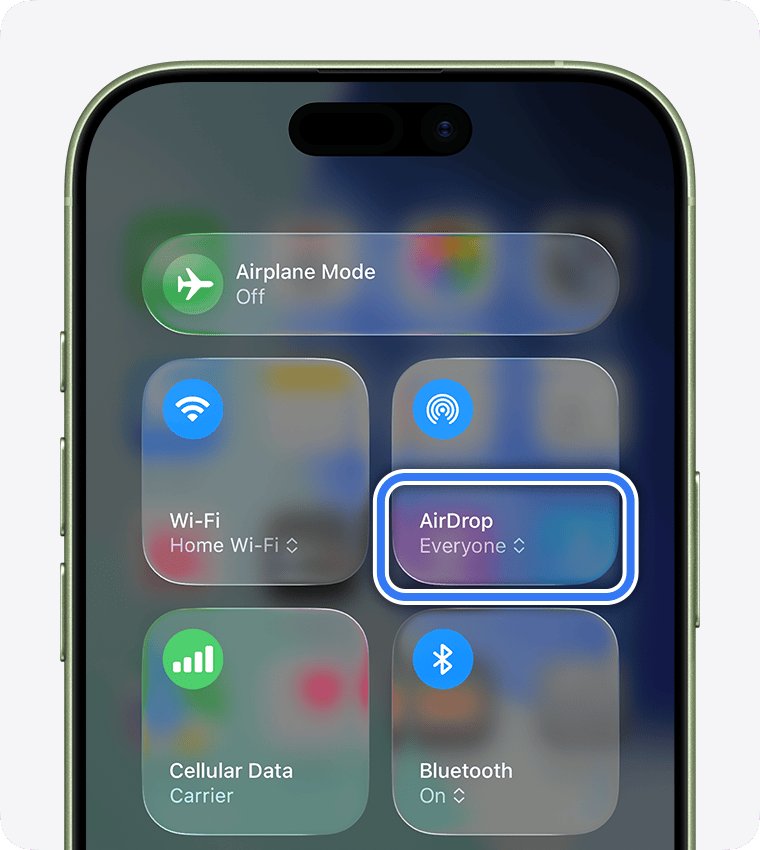
How to turn on AirDrop Contacts Only on iPhone
Contacts Only is a receiving setting. It controls who can send to your device, not who you can send to.
- Open Control Center.
- Touch and hold the top-left group of controls.
- Tap the AirDrop button.
- Tap Contacts Only.
On iOS 16.2 and later, Everyone for 10 Minutes switches back to Contacts Only after 10 minutes when you are signed in to your Apple Account. Older devices that do not meet the minimum system requirements may not offer either option.
How to set AirDrop to Contacts Only on Mac
- Click Control Center in the menu bar.
- Click AirDrop so it turns blue.
- Click the arrow next to AirDrop.
- Click Contacts Only.
You can also open Finder, click AirDrop in the sidebar, and drag a file onto a person to send it.
How to AirDrop to someone not in your contacts
When you cannot add the person first, the receiver can open AirDrop to everyone for a short time. With iOS 26.2, iPadOS 26.2, macOS 26.2 or later, an AirDrop code is also required.
- Ask the other person to open Control Center, touch and hold the connectivity controls, tap AirDrop, and tap Everyone for 10 Minutes.
- On your device, open the item, tap the Share button, then tap AirDrop.
- Tap the person under People.
- If they are prompted, ask them to tap Get AirDrop Code and read the code to you.
- Enter the code on your device to send the item.
After a code is used, that person goes on the Other Known list in Contacts for 30 days. During that time you can share with each other without a new code.
How to sync contacts with iCloud for AirDrop on all devices
A contact saved on your iPhone only helps your Mac if the Mac has the same card. iCloud Contacts keeps the list the same on every device signed in to your Apple Account.
- Open Settings on your iPhone and tap your name.
- Tap iCloud.
- Tap See All next to Saved to iCloud.
- Turn on Contacts.
- Sign in to the same Apple Account on your Mac and turn on Contacts in its iCloud settings.
If only some cards reach your other devices, a few may be stored in a non-iCloud account. That is the usual reason only some contacts are on iCloud.
How to test AirDrop Contacts Only with a new contact
- Set the receiving device to Contacts Only.
- Stand within 30 feet of each other with Wi-Fi and Bluetooth on.
- On the sending device, open a photo, tap the Share button, then tap AirDrop.
- Look for the person's name under People.
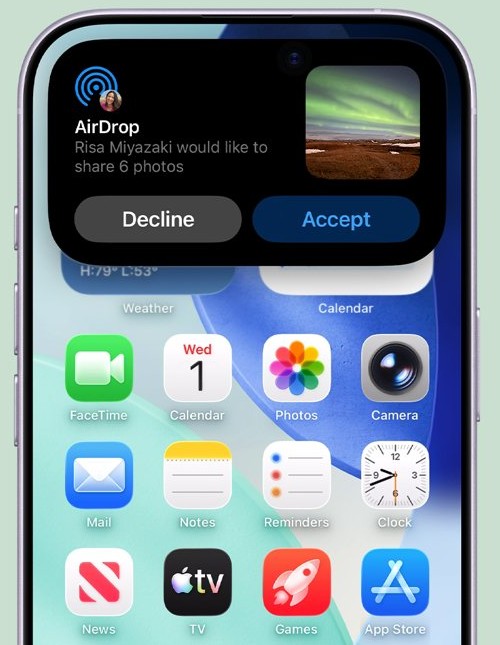
- Send the photo and ask them to tap Accept.
If the name appears and the transfer arrives without a code prompt, the contact card matches their Apple Account. Most received photos land in the Photos app.
How to remove someone from AirDrop Contacts Only
Removing a person from Contacts Only means removing the matching card, or the matching email or number on it.
- Open the Contacts app.
- Open the person's card and tap Edit.
- Delete the Apple Account email or phone number, or scroll down and tap Delete Contact.
- Tap Delete Contact again to confirm if you removed the whole card.
- For someone added by an AirDrop code, find them in the Other Known list and select Forget This Person.
AirDrop Contacts Only not working
A saved contact does not appear under People
The receiver's card for the sender lacks the sender's Apple Account email or phone number.
- Ask the sender which email or number their Apple Account uses.
- On the receiving device, open their card in Contacts and tap Edit.
- Add that email or number and save.
- Try the transfer again.
It works one way but not the other
Only one of you saved the other with the right details.
- Check the card on the device that cannot receive.
- Add the sender's Apple Account email or phone number to it.
- Set that device to Contacts Only and send again.
No nearby devices show up at all
Wi-Fi, Bluetooth, distance, Personal Hotspot or a VPN is blocking discovery.
- Turn on Wi-Fi and Bluetooth on both devices.
- Turn off Personal Hotspot on both devices.
- Move within 30 feet (10 meters).
- Check that a VPN is not set to block local networking.
- Restart both devices and try again.
AirDrop keeps asking for a code
On iOS 26.2 or later, the receiver does not see the sender as a contact.
- Add the sender to the receiver's contacts with their Apple Account email or phone number.
- Or use the AirDrop code, which covers that person for 30 days.
The setting switched from Everyone to Contacts Only
Everyone for 10 Minutes reverts on iOS 16.2 and later.
- Open Control Center and set Everyone for 10 Minutes again when you need it.
- Add regular senders as contacts so you can stay on Contacts Only.
When files start but never finish, the sending side is the usual cause, so fix AirDrop not sending files on that device first.
AirDrop Contacts Only FAQ
How do I add people to my Contacts Only on AirDrop?
Save the person in the Contacts app with the email address or phone number they use for their Apple Account. AirDrop Contacts Only checks that card, so there is no separate AirDrop list to edit.
Why can't my contact see me on AirDrop Contacts Only?
Your card on their device probably lacks your Apple Account email or phone number. Ask them to add one of those to your contact card, then try again with Wi-Fi and Bluetooth on.
Do both people need each other in their contacts for AirDrop?
The receiver must have the sender saved for Contacts Only to accept. To send files both ways, each person needs the other saved with an Apple Account email or phone number.
Does AirDrop Contacts Only need an Apple Account?
Yes. When you are not signed in to an Apple Account, Everyone for 10 Minutes reverts to Receiving Off instead of Contacts Only. Sign in from the Settings app to use Contacts Only.
What is the AirDrop code?
On iOS 26.2, iPadOS 26.2 and macOS 26.2 or later, a sender who is not in your contacts must enter a code shown on your device. After that, the person can share with you for 30 days.
What is the Other Known list in Contacts?
It holds people you shared with through an AirDrop code. They stay there for 30 days. Select Forget This Person to remove someone before then.
How far away can AirDrop find a contact?
Apple lists a range of 30 feet (10 meters). If a transfer starts and you move out of Bluetooth or Wi-Fi range, it continues over the internet, which can use cellular data.
Can NameDrop update a contact I already have?
No. NameDrop only shares new contact information. To fix an existing card, open it in Contacts, tap Edit, and add the Apple Account email or phone number yourself.