SATA power cables carry electricity from the power supply to SATA hard drives, 2.5-inch SSDs and optical drives, while a separate SATA data cable links each drive to the motherboard.
This guide explains both cables, the SATA power pinout, every common type from slimline adapters to eSATA, which cable to use for each drive, and how to add more ports and power connectors.
What is a SATA power cable used for
Every SATA drive inside a desktop PC takes two plugs: a wide power plug from the power supply and a narrow data plug from the motherboard. Neither cable can do the other one's job.
| Cable | Connects | Carries |
|---|---|---|
| SATA power cable | Power supply to the drive's wide 15-pin power socket | +12V, +5V and +3.3V DC plus ground, no data |
| SATA data cable | Motherboard SATA port to the drive's narrow L-keyed data socket | Data at up to 6 Gb/s on SATA revision 3.0, no power |
A drive with only the data cable plugged in gets no power and never appears in the BIOS or Windows. A drive with only the power cable spins up or powers on, but the PC cannot read or write to it.
What is a SATA cable?
SATA, short for Serial ATA, is the storage interface that connects hard disks and DVD and CD drives to the motherboard. Intel and its working group partners introduced it as the replacement for Parallel ATA, with thinner cables and smaller connectors.
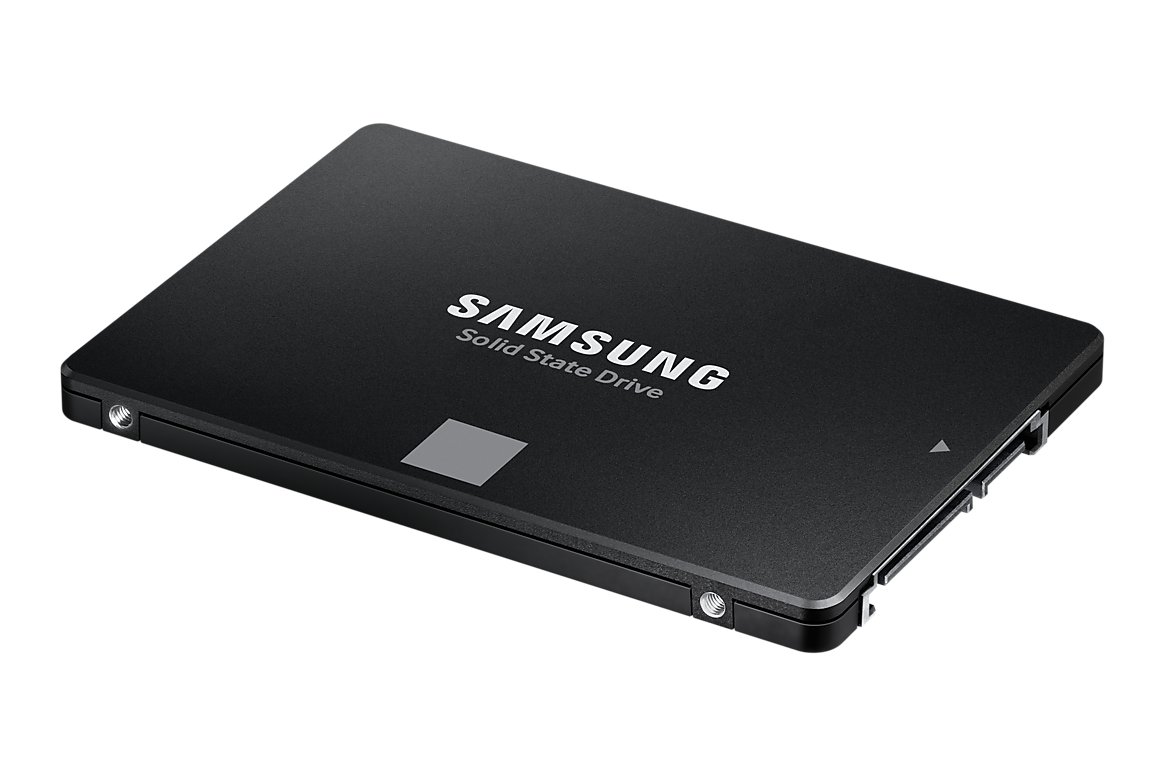
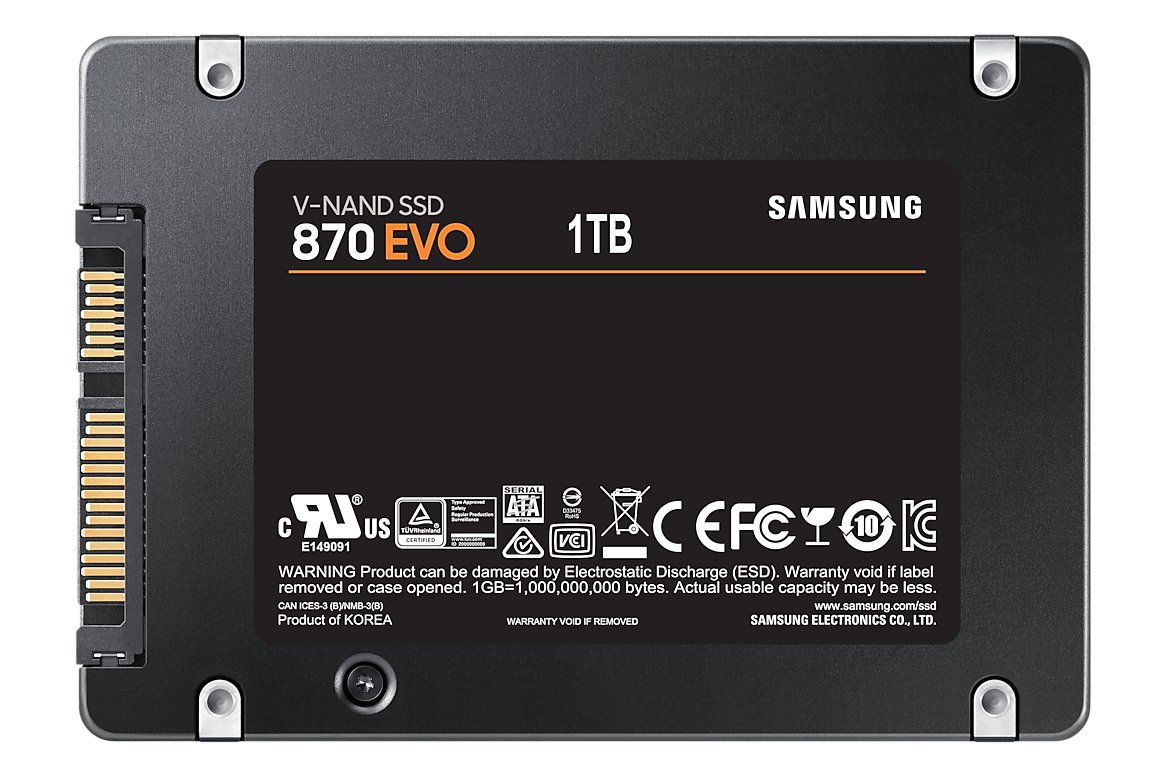
The word covers two different cables, and SATA SSDs use the same pair as hard drives. Samsung's 870 EVO, for example, uses the SATA 6 Gb/s interface and works with SATA 3 Gb/s and 1.5 Gb/s ports.
| Feature | SATA data cable | SATA power cable |
|---|---|---|
| Starts at | A SATA port on the motherboard or a controller card | The power supply, or a modular power supply socket |
| Plugs per cable | One drive per cable, one plug at each end | Often several drive plugs on one cable |
| Connector shape | Narrow plug with an L-shaped key | Wider 15-pin plug |
| Wires | Thin, flexible data cable | Yellow, red, orange and black power wires |
| Usually supplied with | The motherboard | The power supply |
SATA power cable pinout: 3.3V, 5V and 12V wires
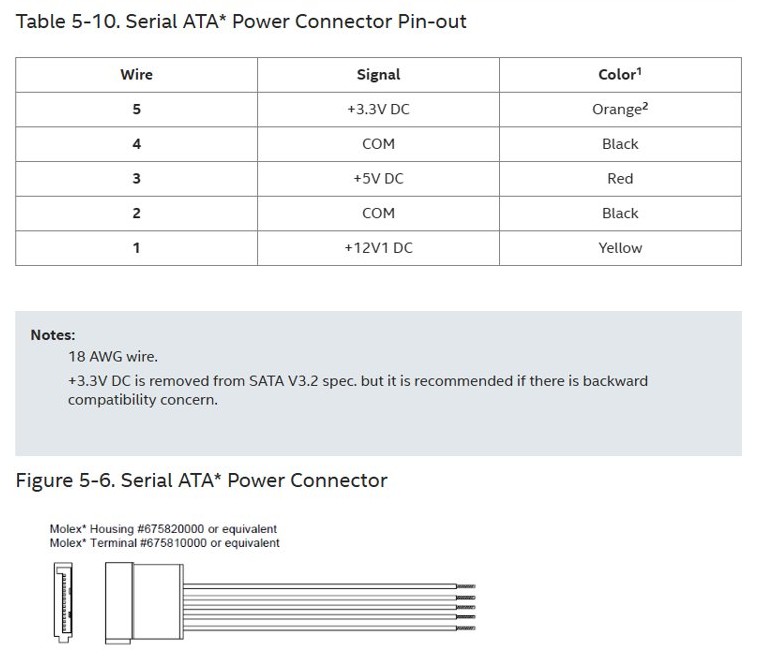
Intel's ATX power supply design guide lists the SATA power connector as required for any system with Serial ATA devices and gives the wire colors below. The pins inside the plug and the wires are not numbered one-to-one, so go by voltage and color, not by position.
| Wire color | Voltage | Notes |
|---|---|---|
| Yellow | +12V DC | Intel specifies 18 AWG wire for the 12V line |
| Red | +5V DC | The only rail some 2.5-inch SATA SSDs use, such as the Samsung 870 EVO |
| Orange | +3.3V DC | Removed from the SATA 3.2 specification, still recommended for backward compatibility |
| Black (two wires) | Ground (COM) | Return path for all three voltages |
Intel's guide notes that the 3.3V wire was removed from the SATA 3.2 specification, but it still recommends keeping it where backward compatibility matters. A drive built to an older revision may expect that 3.3V line, so a power supply that keeps it suits the widest range of drives.
What are the types of SATA cables?
SATA cables split into power cables, power adapters and data cables. The table lists the common types and the drive each one suits.
| Type | Connectors | Used for |
|---|---|---|
| Standard SATA power cable | Power supply to one or more 15-pin SATA power plugs | 3.5-inch hard drives, 2.5-inch SSDs and full-size optical drives |
| Modular SATA power cable | Modular PSU socket to several SATA plugs; Corsair's Type 4 cable carries four on 750 mm | Adding or replacing SATA power on a modular power supply of the same make and type |
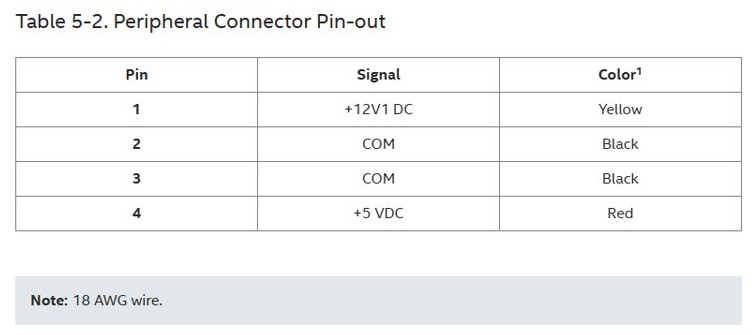
| 4-pin peripheral (Molex) to SATA adapter | 4-pin peripheral plug to a SATA power plug | Power supplies with spare peripheral plugs but no free SATA plugs; supplies only 12V and 5V |
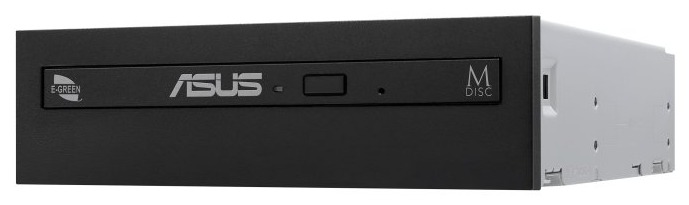
| SATA 15-pin to 6-pin slimline power cable | 15-pin SATA power to the 6-pin slimline socket | Slim optical drives, such as the ASUS DRW-08D6MT, which ships with this cable |
| Internal SATA data cable | SATA port to drive, L-keyed plugs at both ends | Every internal SATA drive, one cable per drive |
| Internal slimline SATA cable | Slimline connector added in SATA revision 2.6 | Slim optical drives in compact PCs and laptops |
| Micro SATA connector | Internal connector for 1.8-inch drives, added in SATA revision 2.6 | 1.8-inch hard drives |
| eSATA cable | Shielded external cable up to 2 meters, no L-shaped key | External SATA drives and docks connected outside the PC |
SATA-IO rates the eSATA connector for over five thousand insertions and removals, while the internal connector is specified for about fifty. Its shielding and keying also stop an unshielded internal cable from being used outside the case.
SATA cable vs PATA cable
PATA, or Parallel ATA, is the older interface that SATA replaced. Intel's announcements for Serial ATA promised thinner, more flexible cables, lower pin counts, smaller connectors and lower voltages than Parallel ATA.
| Feature | SATA | PATA |
|---|---|---|
| Data cable | Thin, flexible cable with a small plug | Wide cable with larger connectors and more pins |
| Power plug | 15-pin SATA power connector | 4-pin peripheral connector, which Corsair still labels PATA on its power supplies |
| Voltages on the power plug | +12V, +5V and +3.3V | +12V and +5V only |
| Speed | 1.5 Gb/s in 2003, 3 Gb/s in 2004, 6 Gb/s since 2008 | Replaced by SATA from 2003 onward |
| Software | Compatible with existing ATA software and drivers | The original ATA protocol |
| Found on | Every current desktop motherboard with SATA ports | Older PCs; current PSUs keep the 4-pin plug for fans and accessories |
Corsair's RM1000x, for example, ships three SATA cables with four connectors each and two PATA cables with three connectors each. The PATA cables carry the 4-pin peripheral plug, not a data connection.
Which SATA cable to use?
| Your situation | Use this | Why |
|---|---|---|
| New 3.5-inch hard drive or 2.5-inch SSD in a desktop | One SATA data cable plus a SATA power plug from the PSU | The standard pairing every SATA drive expects |
| Modular PSU with no SATA cable fitted | The SATA cable that came with that power supply | Corsair warns never to mix cables from different PSU brands or connector types |
| Lost the modular cable | A replacement cable for the same make and pinout type | Corsair designs its Type 4 cables for power supplies with the Type 4 pinout |
| Slim DVD or Blu-ray drive | SATA 15-pin to 6-pin slimline power cable | Slim drives use a 6-pin power socket, not the 15-pin one |
| No free SATA power plug, spare 4-pin peripheral plug | 4-pin peripheral to SATA adapter | Works for drives that need only 12V and 5V |
| External drive or dock with an eSATA port | Shielded eSATA cable | Internal SATA cables are not built for use outside the case |
| M.2 SSD | No cable | The M.2 slot carries power and data |
SATA connections and power requirements
A single SATA drive draws little power, so the number of free plugs matters more than the wattage of the power supply. Check the drive's spec sheet for the voltage it uses.
| Item | Requirement | Example |
|---|---|---|
| 2.5-inch SATA SSD voltage | +5V only on many models | Samsung 870 EVO: 5V ± 5% |
| 2.5-inch SATA SSD power draw | A few watts | Samsung 870 EVO: 2.5 W average, 4.0 W maximum in burst mode, 30 mW maximum idle |
| 3.3V rail | Not required by the SATA 3.2 specification | Intel still recommends supplying it for backward compatibility |
| SATA power plugs | One per drive | Corsair RM1000x: 12 SATA plugs across three cables |
| Motherboard SATA ports | One per drive, unless a port multiplier is used | ASUS TUF Gaming B860M-Plus WiFi: four SATA 6 Gb/s ports |
| Interface speed | Newer drives work on older SATA ports | SATA 6 Gb/s drives work on 3 Gb/s and 1.5 Gb/s ports |
What types of drives need SATA power and data cables?
| Drive | SATA power cable | SATA data cable |
|---|---|---|
| 3.5-inch desktop hard drive | Yes, 15-pin | Yes |
| 2.5-inch SATA SSD or laptop hard drive in a desktop | Yes, 15-pin | Yes |
| Full-size DVD or Blu-ray drive | Yes, 15-pin | Yes |
| Slim optical drive | Yes, through a 15-pin to 6-pin slimline adapter | Yes, or a slimline SATA connector |
| M.2 SATA or M.2 NVMe SSD | No | No, the M.2 slot carries both |
| External drive in an eSATA enclosure | Powered by the enclosure | Shielded eSATA cable instead |
Samsung's own install steps show the difference: for a SATA SSD in a PC, the last step is to connect the SATA cable and power, while an NVMe M.2 SSD simply fits into its slot and is secured with a screw.
How many SATA cables do you need?
Count your SATA drives. Each one needs its own data cable to its own SATA port, but power plugs share cables, so one power cable can feed several drives.
| Drives in the PC | SATA data cables | SATA power plugs |
|---|---|---|
| 1 SSD or hard drive | 1 | 1, usually on the PSU's first SATA cable |
| 2 drives | 2, which many motherboards include in the box | 2, often on the same power cable |
| 4 drives | 4, so buy two more if your board shipped with two | 4, one full four-plug cable on many PSUs |
| M.2 SSDs only | 0 | 0 |
The ASUS TUF Gaming B860M-Plus WiFi shows the usual gap: it has four SATA ports but ships with two SATA 6 Gb/s cables. Plan to buy extra data cables when you fill every port.
How to add additional SATA ports to your system?
Start by finding the SATA ports on your motherboard, because many boards have more than the case fills. When every port is in use, a controller card or a port multiplier adds more.
- Open the motherboard's tech specs page or manual and note the number of SATA ports, such as 4 x SATA 6Gb/s ports.
- Shut down the PC, switch off the power supply and count the SATA ports with no cable attached.
- Move M.2-capable drives to an M.2 slot to free a SATA port, since M.2 SSDs need no SATA cable.
- If you still need ports, fit a SATA controller card in a free PCI Express slot and connect the extra drives to it.
- For many drives on one port, use a SATA port multiplier, but first confirm in the manual that your SATA controller supports command-based or FIS-based switching.
- Connect a SATA data cable from each new port to a drive, and a SATA power plug to the same drive.
- Start the PC and check that the BIOS or UEFI storage page lists every drive.
SATA-IO notes that command-based switching lets the host talk to only one drive at a time, while FIS-based switching serves several drives at once. Pick FIS-based hardware when the drives will be busy together.
How to attach more SATA power connectors to a system?
Use the power supply's own cables first. A modular power supply often has spare SATA cables in its box, and they are the safest way to add plugs.
- Check the power supply's box or spec page for its SATA cable count; Corsair's RM1000x, for example, includes three SATA cables with four plugs each.
- On a modular supply, plug a spare SATA cable into the free modular socket that the PSU manual assigns to SATA cables, using only cables made for that model.
- If you need a replacement, buy one for the same brand and pinout type, such as Corsair Type 4 for a Type 4 PSU.
- On a non-modular supply with free 4-pin peripheral plugs, use a 4-pin peripheral to SATA adapter for drives that need only 12V and 5V.
- Connect one SATA power plug to each drive and route the cable so it does not pull on the drive's connector.
- If the supply has run out of both SATA and peripheral plugs, replace it with a model that has enough SATA connectors.
Corsair states plainly that mixing cables from different PSU brands or connector types can damage components. Two modular cables that fit the same socket can still carry the voltages on different pins.
What are SATA cables used for power supply?
On the power supply, SATA cables are the leads that end in flat 15-pin plugs. They power hard drives, SATA SSDs and optical drives, and they are the only power supply leads a SATA drive accepts.
| Power supply cable | End connector | Typical use |
|---|---|---|
| SATA cable | 15-pin SATA power plugs, often four per cable | Hard drives, SATA SSDs and optical drives |
| 4-pin peripheral cable | 4-pin peripheral plug with 12V and 5V | Older devices and accessories; labeled PATA on Corsair supplies |
| Motherboard and CPU cables | 24-pin and 8-pin plugs | Motherboard and processor power, never drives |
| PCI Express cables | 8-pin or 12V-2×6 plugs | Graphics cards, never drives |
Corsair notes that small SFX power supplies use the same types of cables as ATX ones, with shorter lengths, so the SATA plugs are the same on both.
How to connect SATA power and data cable to an SSD
- Shut down the PC, switch off the power supply and unplug the power cord.
- Open the PC case and fit the 2.5-inch SSD or 3.5-inch drive into a drive bay or mount, then tighten its screws.
- Plug one end of the SATA data cable into a free SATA port on the motherboard.
- Plug the other end into the narrow L-shaped socket on the drive, matching the L shape so it goes in without force.
- Plug a SATA power plug from the power supply into the wide L-shaped socket next to it.
- Close the case, reconnect power and start the PC.
- Open the BIOS or UEFI storage page to see the new drive listed, then initialize it in Windows Disk Management.
Does SATA cable come with SSD?
Usually not. Samsung's 870 EVO SATA SSD, for example, lists its installation kit as Not Available, so the box holds the drive and no cables.
Use a SATA data cable from your motherboard box and a SATA power plug from your power supply, and buy extra data cables only when you run out. Motherboards ship with SATA data cables, two on the ASUS TUF Gaming B860M-Plus WiFi, and the power supply already carries the SATA power plugs. M.2 SSDs need no cable at all, only the slot's screw.
SATA power cable FAQ
What is SATA cable in computer?
A SATA cable connects a storage drive inside a computer. The SATA data cable links the drive to a motherboard SATA port, and the SATA power cable brings 12V, 5V and 3.3V from the power supply. Hard drives, 2.5-inch SSDs and optical drives use both.
Do SATA cables provide power?
Only the SATA power cable does. The SATA data cable carries data only, so a drive needs both plugs. The power cable comes from the power supply and ends in a wide 15-pin plug, while the data cable comes from the motherboard.
What is SATA power cable?
A SATA power cable is the power supply lead that ends in flat 15-pin SATA plugs. Its yellow wire carries 12V, red carries 5V, orange carries 3.3V and black wires are ground. One cable often has several plugs for several drives.
What does the SATA cable connect to?
The SATA data cable connects a SATA port on the motherboard, or on a controller card, to the data socket on a drive. The SATA power cable connects the power supply to the power socket on the same drive.
What is a SATA data cable?
A SATA data cable is the thin cable with small L-keyed plugs that links one drive to one motherboard SATA port. It carries data at up to 6 Gb/s on SATA revision 3.0 and supplies no power. Most motherboards include two in the box.
Are SATA power cables universal?
The SATA plug at the drive end follows one standard, so any SATA power plug fits any SATA drive. The power supply end of a modular cable is not universal. Corsair warns never to mix cables from different PSU brands or connector types.
What is a SATA cable for PC?
In a desktop PC, SATA cables connect hard drives, 2.5-inch SSDs and DVD or Blu-ray drives. Each drive needs one data cable to the motherboard and one power plug from the power supply. M.2 SSDs plug into the motherboard and need neither.
What is the function of SATA cable?
A SATA data cable moves data between the drive and the motherboard's SATA controller, and a SATA power cable supplies the voltages the drive runs on. Together they let the PC boot from, read from and write to the drive.
Can a 4-pin peripheral to SATA adapter power an SSD?
It can power drives that need only 12V and 5V, such as many 2.5-inch SSDs that run on 5V. The 4-pin peripheral connector has no 3.3V wire, so a drive that needs 3.3V will not get it through the adapter.