Sihost.exe is the Shell Infrastructure Host, a Windows system process that supports the Windows shell, the layer that gives you the Start menu, taskbar, File Explorer windows and the Settings app.
This guide explains what sihost.exe does in Windows 11 and Windows 10, how to tell the real file from malware, whether you can end it, and how to fix sihost.exe errors and crashes.
What is Sihost.exe in Windows 11/10?
Sihost.exe ships with Windows and belongs to the shell. Microsoft's own repair steps for a broken Start menu and taskbar end with the instruction to restart SiHost, so Immersive Shell and the components around it pick up their packages again.
Leave sihost.exe running. It is a normal part of Windows 11 and Windows 10, and the only copy worth worrying about is one with an invalid signature or a home in a user folder. The Windows shell depends on it, so ending or removing it breaks the desktop experience, while a quick signature check separates the genuine process from malware that borrows its name.
What does sihost.exe do in Windows 11?
Microsoft documents sihost.exe through the shell problems it is tied to. When the shell's XAML packages fail to register after an update, Microsoft lists the parts that break and tells administrators to restart SiHost once the packages are registered again.
| Shell part | What you see when the shell layer fails |
|---|---|
| File Explorer (explorer.exe) | A black screen after sign-in, Explorer crashing on start, or a taskbar that never appears |
| Start menu (StartMenuExperienceHost) | The Start menu fails to open, often with a critical error message |
| ShellHost.exe | The ShellHost.exe process crashes |
| Settings app | Start > Settings > System silently fails to open |
| User Account Control prompt (Consent.exe) | The prompt that asks for permission fails to start |
| Windows Search and other XAML apps | Apps crash on start or their views fail to load |
These symptoms are why a damaged or stuck shell often shows up as a sihost.exe error, and why problems such as Start menu or taskbar search not working can point back to it. The process itself is the host; the visible failures land in the parts it serves.
How to check if Sihost.exe is a virus?
A digital signature check proves the file was signed and has not been changed since. Use the 64-bit PowerShell or Terminal window, because the 32-bit PowerShell returns an empty Path for 64-bit processes.
- Right-click Start and select Terminal or Windows PowerShell.
- Run
Get-Process -Name sihost -FileVersionInfo | Format-List FileName, FileDescriptionand note the file path and description. - Run
Get-Process -Name sihost | ForEach-Object { Get-AuthenticodeSignature -FilePath $_.Path }to check the signature of every running copy. - Check that the Status column reads Valid for each line.
- Treat any copy whose status is not Valid, or whose path sits in a user folder such as AppData, Temp or Downloads, as suspicious.
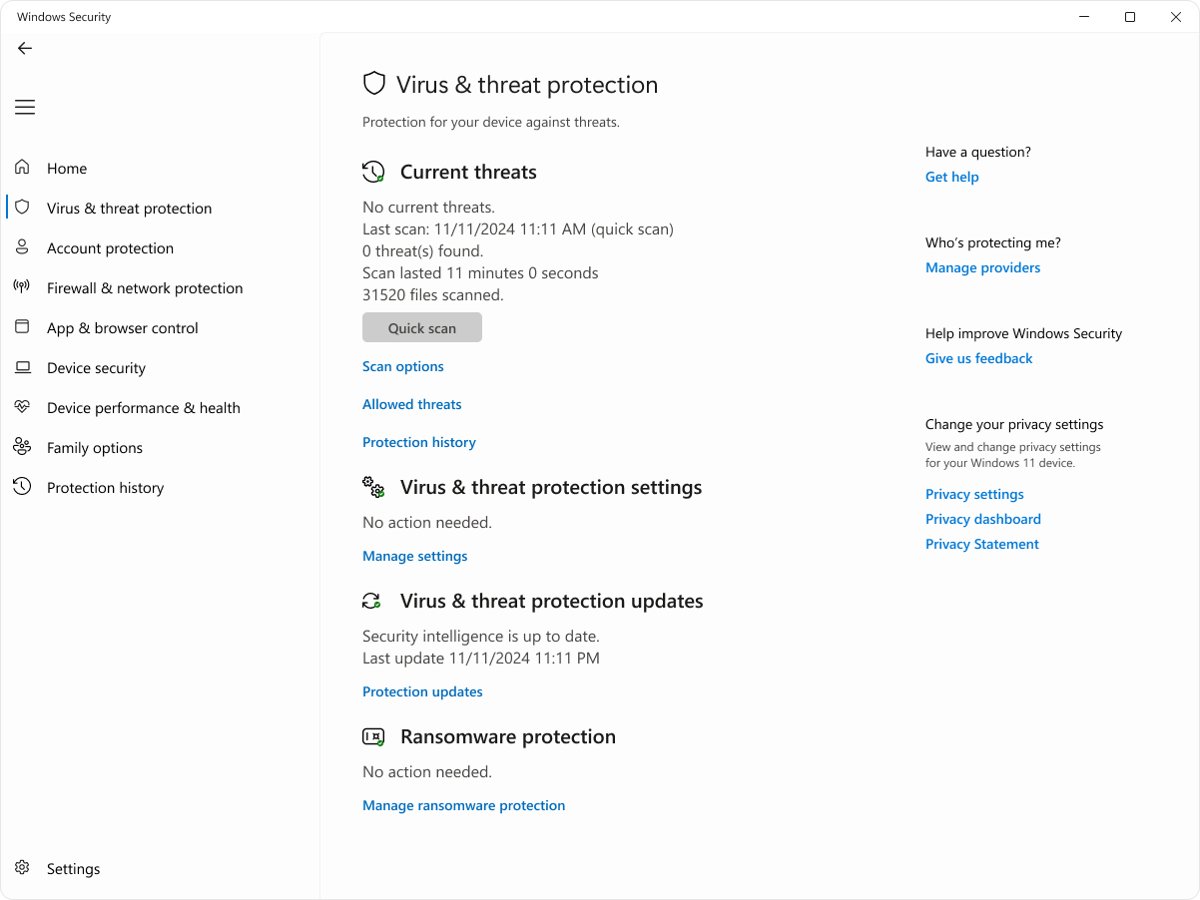
- Open Windows Security, select Virus & threat protection, then Scan options, choose Full scan and select Scan now if any copy fails the check.
If the full scan finds nothing but you still doubt the file, run Microsoft Defender Antivirus (offline scan) from the same Scan options page. It restarts the PC and scans before Windows loads, then shows its results under Protection history.
Can you disable or terminate the Sihost.exe process?
| Action | What it does | Should you do it? |
|---|---|---|
| Delete sihost.exe | Removes a protected Windows system file the shell depends on | No. The shell needs it, and a missing system file leaves Windows features not working properly |
| Disable it at startup | There is no startup entry or service switch for it in Settings or Task Manager | No. It is part of Windows, not a startup app |
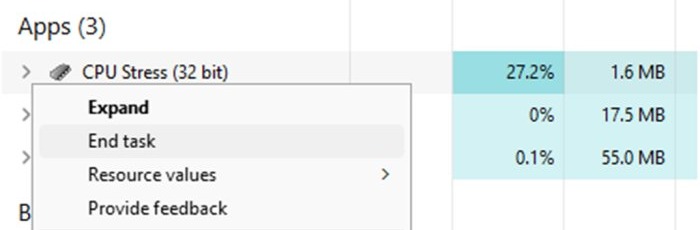
| End task in Task Manager | Stops the running copy and the shell parts that rely on it until it starts again | Only as a last resort for a frozen shell; restarting the PC is the cleaner route |
| Restart the PC | Starts a fresh shell session with a fresh sihost.exe | Yes. Microsoft's own workaround ends with restarting SiHost or the device |
What happens if Sihost.exe gets corrupted?
Microsoft lists the general signs of damaged system files as features not working properly, system errors, and Windows becoming unresponsive or freezing. For the shell host, that usually means the desktop parts listed above.
| Sign | Likely cause | Fix |
|---|---|---|
| A sihost.exe application error or unknown hard error at sign-in | A damaged shell file or a broken shell package registration | Run DISM, then SFC, as shown below |
| Black screen, missing taskbar or a Start menu that will not open after an update | Shell XAML packages did not register in time after the update | Install the latest Windows update; managed PCs can re-register the packages |
| Errors that start right after installing an app | A third-party program hooking into the shell | Clean boot to find the program, then update or remove it |
| Security warnings about sihost.exe | A fake file using the same name | Run the signature check and a Windows Security full scan |
Repair sihost.exe with DISM and SFC
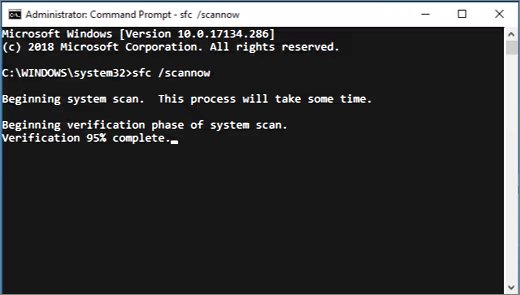
The DISM image repair command fetches the files needed for the repair and should run first. Open Command Prompt as administrator by typing cmd in Search, right-clicking Command Prompt and selecting Run as administrator, then run DISM.exe /Online /Cleanup-image /Restorehealth. When it finishes, run the command below.
sfc /scannowScans every protected Windows system file, including the shell files sihost.exe relies on, and replaces any damaged file with a cached copy. Keep the window open until verification reaches 100%.
You should see: "Windows Resource Protection did not find any integrity violations" or "Windows Resource Protection found corrupt files and successfully repaired them." Restart the PC after a repair.
If SFC reports "Windows Resource Protection could not perform the requested operation", run the same scan in Safe Mode. DISM uses Windows Update as its repair source, so connect to the internet before running it.
How to fix Sihost.exe unknown hard error?
"sihost.exe – Unknown Hard Error" appears at sign-in
A damaged system file, a pending update, or a program that loads into the shell at sign-in.
- Open Settings, select Windows Update and select Check for updates, then install everything offered and restart.
- Run
DISM.exe /Online /Cleanup-image /Restorehealthand thensfc /scannowfrom an administrator Command Prompt. - Restart the PC and sign in again.
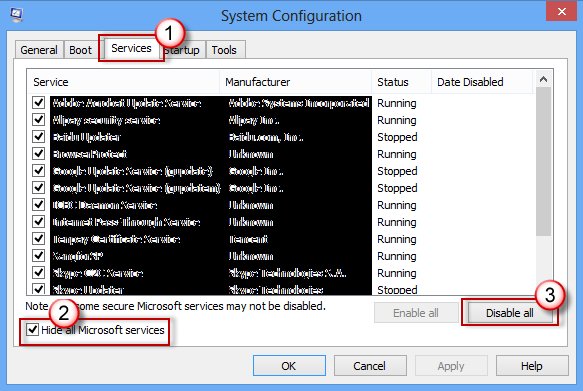
- If the error returns, perform a clean boot: open System Configuration (
msconfig), select Hide all Microsoft services on the Services tab, then Disable all and Apply. - On the Startup tab select Open Task Manager, disable each enabled startup app, close Task Manager and select OK, then restart.
- If the error is gone in the clean boot, turn services and startup apps back on in small groups until it returns, then update or remove that program.
Sihost.exe application error with an event in Reliability Monitor
A specific module crashed inside the shell process.
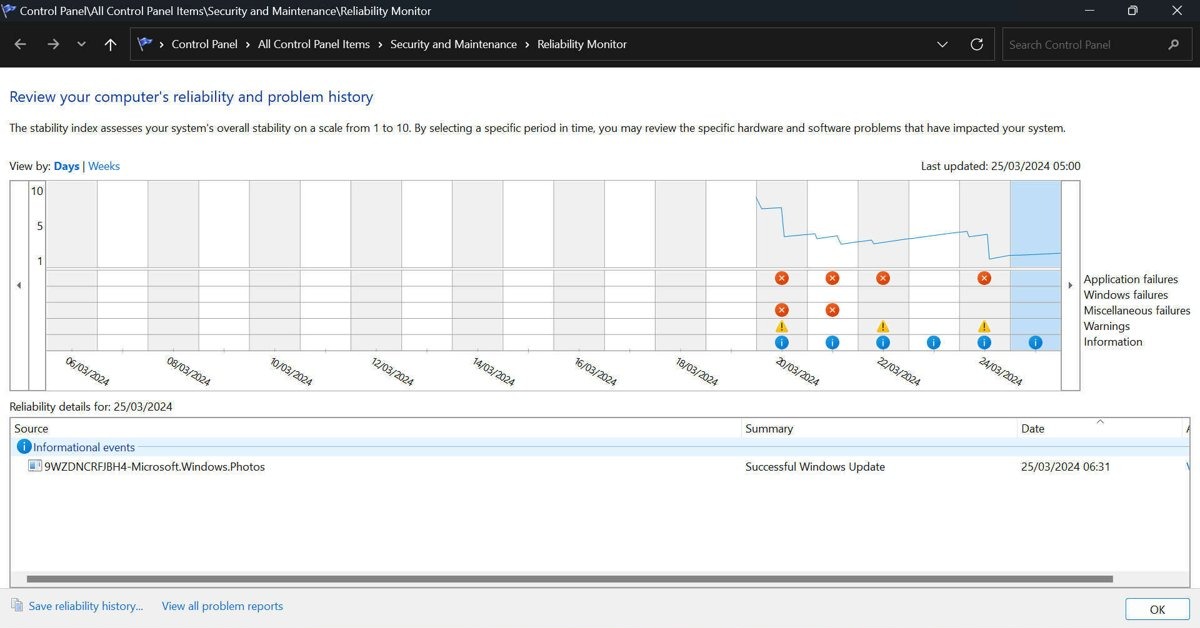
- Press Win + R, type
perfmon /reland press Enter to open Reliability Monitor. - Select the day the error appeared and open the sihost.exe entry in the details list.
- Note the faulting module name that the entry lists.
- Update or uninstall the app or driver that owns that module, then restart.
Why does sihost.exe crash?
Black screen, no taskbar or a crashing Start menu on a work PC after an update
On some managed Windows 11 24H2 and 25H2 devices, shell XAML packages did not register in time after a cumulative update. Microsoft addressed it starting with the June 23, 2026 update (KB5095093).
- Install the latest Windows update from Settings > Windows Update and restart.
- If you manage the PC and the update is not yet available, open PowerShell in the affected user's session.
- Run
Add-AppxPackage -Register -Path "C:\Windows\SystemApps\MicrosoftWindows.Client.CBS_cw5n1h2txyewy\appxmanifest.xml" -DisableDevelopmentMode. - Run
Add-AppxPackage -Register -Path "C:\Windows\SystemApps\Microsoft.UI.Xaml.CBS_8wekyb3d8bbwe\appxmanifest.xml" -DisableDevelopmentMode. - Run
Add-AppxPackage -Register -Path "C:\Windows\SystemApps\MicrosoftWindows.Client.Core_cw5n1h2txyewy\appxmanifest.xml" -DisableDevelopmentMode. - Restart the PC so SiHost and the shell pick up the registered packages.
Sihost.exe hangs or the desktop stays black on a virtual desktop with FSLogix profiles
FSLogix 2210 (2.9.8361.52326) emptied the recycle bin for every user during sign-in when RoamRecycleBin was on.
- Check the FSLogix version installed on the session host.
- Install the latest FSLogix release, which fixes this issue.
- Sign the affected user out and back in.
Sihost.exe crashes only after a program was installed
Shell extensions and overlay tools load into the shell and can take it down.
- Open Reliability Monitor with
perfmon /reland note the faulting module. - Uninstall or update the program that installed that module.
- Use a clean boot to confirm the crash stops without third-party services.
How to tell if sihost.exe errors have stopped in Reliability Monitor
- Restart the PC after the fix and use it normally for a day.
- Press Win + R, type
perfmon /reland press Enter. - Select each day since the fix: no new sihost.exe entry in the details list means the crash has stopped.
- Run
sfc /scannowagain; "Windows Resource Protection did not find any integrity violations" confirms the system files are intact.
Sihost.exe FAQ
What is sihost.exe in Windows 10?
Sihost.exe is the Shell Infrastructure Host in Windows 10, the same system process Windows 11 uses. It supports the shell parts of the desktop, such as the Start menu, taskbar and File Explorer, and it starts with Windows.
Why does sihost.exe crash?
Sihost.exe usually crashes because of damaged system files, shell packages that did not register after an update, or a third-party program that loads into the shell. Install the latest update, run DISM and SFC, and use Reliability Monitor to find the faulting module.
What does a sihost.exe application error mean?
A sihost.exe application error means the shell host process stopped unexpectedly. The cause is in the error details: Reliability Monitor (perfmon /rel) shows the faulting module, which points to the file, app or driver that needs repair or removal.
Is sihost.exe a virus?
No, the genuine sihost.exe is a signed Windows system file. Malware can copy the name, so check that Get-AuthenticodeSignature reports Valid for the running copy and scan any copy in a user folder with Windows Security.
Can I end sihost.exe in Task Manager?
You can, but the Start menu, taskbar and other shell parts stop working until it runs again. Restarting the PC is the safer way to give the shell a fresh copy of the process.
Can I delete sihost.exe?
No. Sihost.exe is a Windows system file and the shell depends on it. If the file is damaged, repair it with DISM and System File Checker rather than deleting or replacing it by hand.
Does Windows 11 still use sihost.exe?
Yes. Microsoft's Windows 11 version 24H2 and 25H2 shell repair steps tell administrators to restart SiHost after re-registering the shell packages, so the process is still part of Windows 11.
Task Manager shows several other Windows processes that raise the same doubts, including the Conhost.exe console host and the WmiPrvSE.exe WMI provider host.