To change your name in Steam, open your Steam profile, select Edit Profile, type a new profile name and save the page; the new name shows to friends and in games straight away.
This guide covers the Steam app and the Steam website, the difference between the profile name you can change and the account name you cannot, and what to do when the old name keeps showing.
Step-by-step guide to changing your Steam name
These five steps work in the Steam desktop app on Windows and Mac, and in any web browser on steamcommunity.com.
- Log into your Steam account in the Steam app, or at steamcommunity.com in a browser.
- Access your profile: select your profile name at the top right, then open your profile page.
- Edit your profile: select Edit Profile, under the badge shown on your profile.
- Change your profile name: in the general profile settings, delete the old name in the name box and type the new one.
- Save your changes with the save button at the bottom of the page, then reopen your profile to see the new name.
Valve states that your player name can be changed at any time from the Edit Profile page. Nothing else about your account changes when you do it.
Steam account name vs profile name
Steam gives every account three identifiers, and only one of them is the name people see. Knowing which is which saves a support ticket.
| Identifier | What it is | Can you change it? |
|---|---|---|
| Profile name (persona or display name) | The name friends, chat and games show | Yes, at any time, from Edit Profile |
| Account name | The login name you type to sign in | No. Valve says even Steam Support cannot change it |
| SteamID | A unique 17-digit number that identifies the account | No, it is permanent |
| Custom URL | The optional text in your profile web address | Yes, in the Custom URL box on Edit Profile |
Prerequisites for changing your Steam name
| You need | Why |
|---|---|
| Your Steam account name and password | The profile editor only opens for the signed-in owner |
| Access to Steam Guard (email or the Steam Mobile app) | Steam may ask for a Steam Guard code when you sign in on a new device |
| The Steam desktop app, or a web browser | The name can be edited in either; both save to the same profile |
| A name that follows Steam's rules | Content that breaks Steam's online conduct rules can be removed by moderators |
| A new name within the length limit | Steamworks caps the display name at 32 characters |
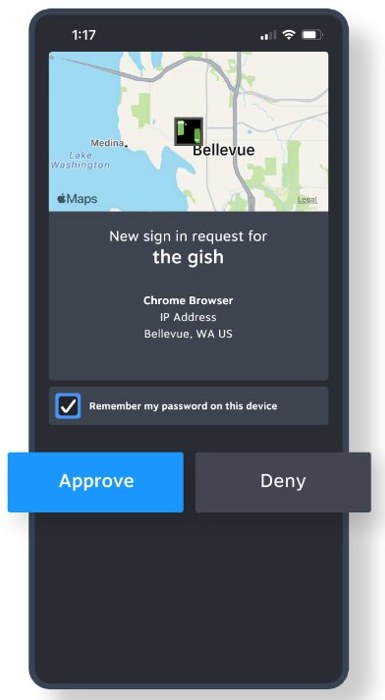
Logging into your Steam account
- Open the Steam app on your PC or Mac, or go to steamcommunity.com in a browser and select sign in.
- Enter your Steam account name, not your profile name or email nickname, and your password.
- Approve the sign-in in the Steam Mobile app, or type the Steam Guard code sent to your email, if Steam asks for one.
- Wait for your library or community home page to load before you continue.
If you cannot sign in, use the Help, I can't sign in option on help.steampowered.com before you try to change anything.
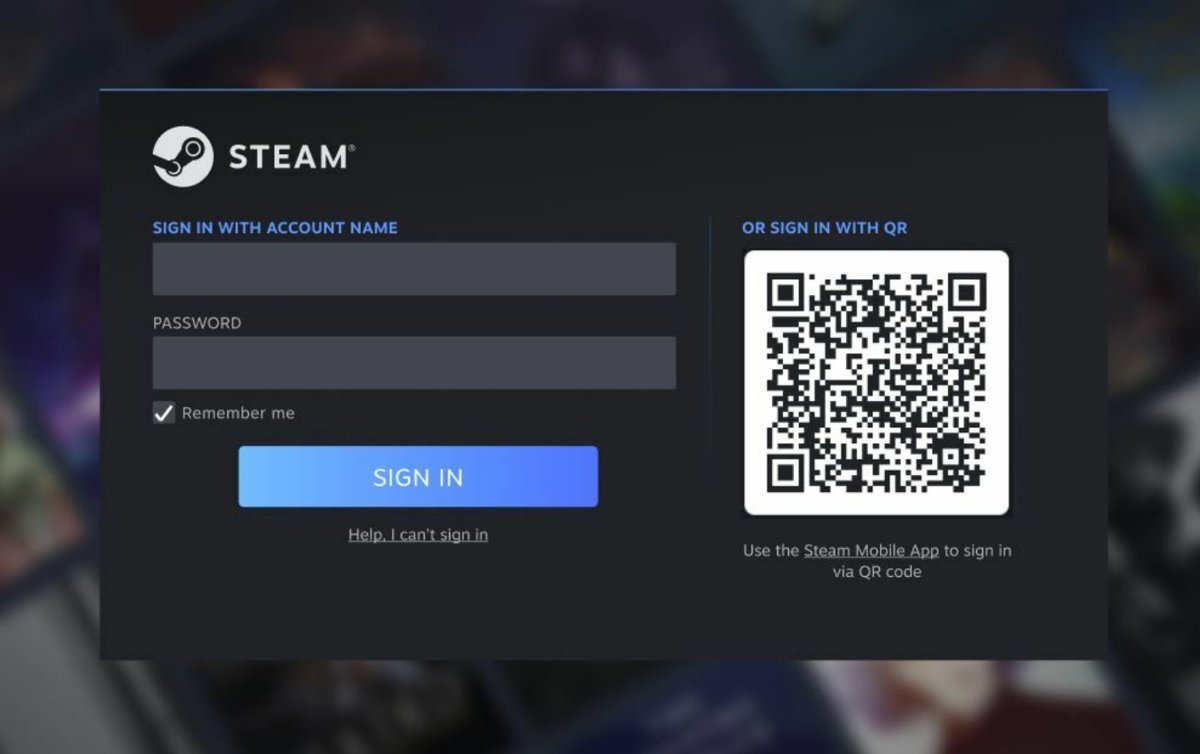
Accessing your profile settings
- In the Steam app, select your profile name in the top-right corner to open the account menu.
- Choose the option to view your profile from that menu.
- On your profile page, find the Edit Profile link under your displayed badge.
- Select Edit Profile to open your profile settings.
The same page holds your Privacy Settings tab, your avatar, your summary and your custom URL.
Editing your profile name on Steam
- On the Edit Profile page, stay in the general settings section that opens first.
- Click into the profile name box at the top of the form.
- Delete the old name and type the new one.
- Keep the name to 32 characters or fewer, the display-name limit in the Steamworks documentation.
- Leave the Custom URL box alone unless you also want a new profile web address.
- Select the save button at the bottom of the page.
Change Steam name on the website: step-by-step guide
The website route is the quickest way to change your Steam name from a phone or a computer without the Steam app.
- Open a browser and go to
steamcommunity.com/my/edit/info. - Sign in with your Steam account name and password if the sign-in page appears.
- Replace the text in the profile name box with your new name.
- Scroll down and save the page.
- Open
steamcommunity.com/myto view your profile with the new name.
Saving changes and confirming the update
- After you save, open your profile page and check that the new name sits at the top.
- Open the friends list in the Steam app and check the name next to your avatar.
- Launch a game that shows Steam names and look at your name in its lobby or scoreboard.
- If any of these still show the old name, restart the Steam app and check again.
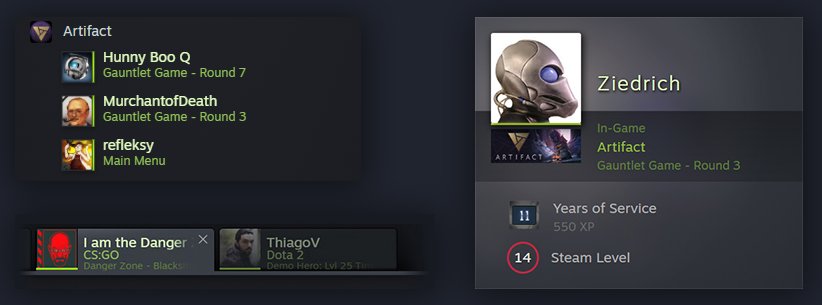
Tips for choosing a new Steam name
| Tip | Why it helps |
|---|---|
| Keep it short and easy to spell | Friends can find you in search and recognise you in game lobbies |
| Stay under 32 characters | Longer names cannot be stored as a Steam display name |
| Avoid personal details such as your real name or birthday | Your profile name is visible to anyone who can see your profile |
| Never imitate Steam staff or another player | Impersonation and abusive names break Steam's conduct rules and can be removed |
| Pick something you will keep | Friends who see your past names may still remember the old one |
| Match the custom URL if you want a clean link | A matching URL makes your profile easier to share |
Additional tips for your Steam profile name
| Situation | What to do |
|---|---|
| You want a new profile link too | Type a new value in the Custom URL box on Edit Profile; clearing it shows your 64-bit SteamID in the address |
| You only want a friend to show under a different name | Set a nickname for that friend in your friends list; only you see it |
| You want fewer people to see your name and profile | Open Edit Profile > Privacy Settings and choose Friends Only or Private |
| You want a different login name | That needs a new Steam account; account names cannot be changed |
If you are also moving country, change your Steam region separately; the profile name has no effect on store currency or region.
Common issues and troubleshooting when changing your name in Steam
Most problems after a Steam name change fall into four groups. Match yours to a row, then use the fix below it.
| Issue | Usual cause | Where to fix it |
|---|---|---|
| Old name still showing | The Steam app or game has not refreshed | Issue 1 |
| You cannot change the name you sign in with | Account names are permanent | Issue 2 |
| Wrong name in a game or friends list | A friend's nickname, or the game's own player name | Issue 3 |
| Edit Profile fails or the name is removed | A moderation action, cooldown or sign-in problem | Issue 4 |
Issue 1: Name change not reflecting immediately
Your profile shows the new name but the Steam app or a game still shows the old one
The app or game is still using the name it loaded when it started.
- Reload your profile page to confirm the change saved.
- Close any running game, then exit the Steam app completely and reopen it.
- Launch the game again and check the name in its menu or lobby.
The profile page itself still shows the old name
The change was not saved, usually because the page was closed before saving.
- Open Edit Profile again and check the name box.
- Type the new name again and select the save button at the bottom of the page.
- Wait for the page to confirm the save before you close it.
Issue 2: Name change limitations
You want to change the name you type when you sign in
Valve states that the Steam account name and SteamID cannot be changed, even by Steam Support.
- Change your profile name instead; it is the name other players see.
- If you must have a new login name, create a new Steam account, knowing games cannot be moved or merged between accounts.
- Keep your old account if it holds games you still want to play.
The new name is cut short or will not fit
Steam display names have a 32-character limit.
- Shorten the name to 32 characters or fewer.
- Remove decorative symbols, which can count for more than one character.
- Save the page again.
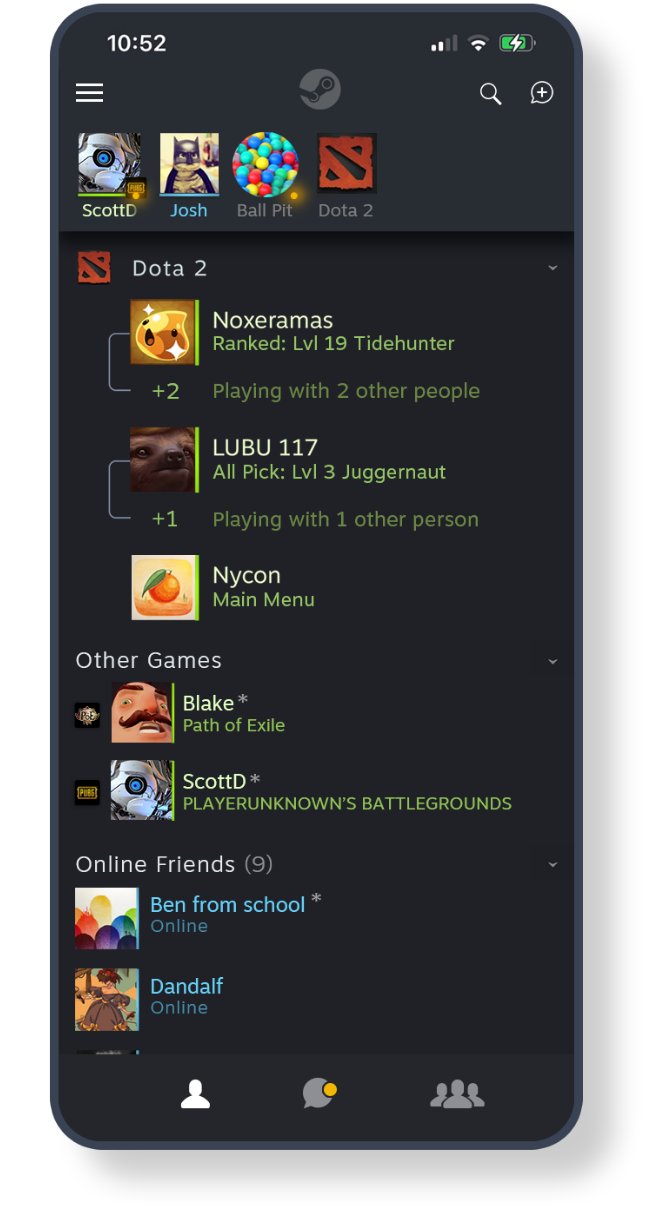
Issue 3: Incorrect name displayed in games or friend list
A friend still sees your old name
Steam lets each user set a private nickname for a friend, which shows instead of the profile name.
- Ask the friend to check whether they set a nickname for you.
- Have them remove the nickname from your entry in their friends list.
- Ask them to restart the Steam app if the old name stays.
A game shows a different name from your Steam profile
Some games keep their own player or character name, separate from your Steam name.
- Look for a player name or profile option in the game's own settings.
- Change the name there if the game allows it.
- Check the game's own support pages if it has no rename option.
Issue 4: Account restrictions or errors
Your name or profile content was removed after a change
Moderators remove content that breaks Steam's online conduct rules and can add a cooldown on that feature.
- Read the moderation notice Steam sent you; it explains the removal.
- Pick a name that follows Steam's rules once any cooldown ends.
- Use the appeal link in the notice, or contact Steam Support, if you think it was a mistake.
The Edit Profile page will not open or will not save
You are signed out, or the session expired.
- Sign out of Steam and sign back in.
- Try the website route at
steamcommunity.com/my/edit/infoinstead of the app. - Contact Steam Support through help.steampowered.com if the page still fails.
Additional considerations: Name changes and community settings
| Setting | What it means for your name |
|---|---|
| Profile privacy: Public | Anyone can see your profile name and profile |
| Profile privacy: Friends Only | Only friends see your full profile |
| Profile privacy: Private | Your profile details are hidden from everyone except you |
| Past names | Steam keeps a history of previous profile names, which friends and games can read |
| Limited account | Accounts that have not spent $5 USD cannot make their profile visible to non-friends |
| Custom URL | Changing it breaks any old link you shared to your profile |
Privacy states save automatically on the Privacy Settings tab. You can also appear offline on Steam if you want friends to see less of you.
Frequently asked questions about changing Steam names
Can I change my Steam name as often as I want?
Yes. Valve says your player name can be changed at any time from the Edit Profile page. Steam's support pages list no limit on how often, but past names stay in your name history.
Will changing my Steam name affect my game saves or progress?
No. Your games, saves and achievements belong to your Steam account and SteamID, which never change. The profile name is only a label, so changing it does not touch your library or progress.
Is there a way to change my Steam username permanently?
No. Valve states that the Steam account name you sign in with cannot be changed, even by Steam Support. The only way to get a new one is a new account, and games cannot be moved between accounts.
How do I change my Steam display name?
Open your Steam profile, select Edit Profile, type the new name in the profile name box and save the page. The display name and the profile name are the same thing.
Will my new Steam name be visible immediately?
Yes, on your profile it shows as soon as you save. A running game or the Steam app may keep the old name until you restart it, and friends who set a nickname for you see that instead.
What is the difference between a Steam account name and a profile name?
The account name is the login you type to sign in and is permanent. The profile name is the public name friends and games show, and you can change it at any time.
How long can a Steam name be?
A Steam display name can be up to 32 characters. The Steamworks documentation sets that limit, along with a maximum of 128 bytes in UTF-8, so some symbols use up more room than plain letters.
Can my friends see my old Steam names?
Yes. Steam keeps a history of your previous profile names, and friends and games can read it. Pick a new name you are happy to keep, because the old one stays on record.
Can I change my Steam custom URL?
Yes. On the Edit Profile page, change the text in the Custom URL box and save. Old links to your profile stop working, and clearing the box makes your profile address show your 64-bit SteamID.
If you no longer want the account at all, you can delete your Steam account after proving ownership.