Enable dark mode in Google Sheets from the mobile app: tap Menu > Settings > Choose theme and pick Dark on Android, with the same dark theme documented for iPhone and iPad.
On a computer, Google documents no dark theme for the Sheets editor, so this guide also covers what Chrome and Windows or macOS dark mode change, a dark-colored sheet you can build yourself, and fixes when the grid stays white.
Step-by-step guide to enable dark mode in Google Sheets
| Your device | Do this | What turns dark |
|---|---|---|
| Android phone or tablet | In the Sheets app, tap Menu > Settings > Choose theme > Dark | The Sheets app, including your spreadsheets |
| iPhone or iPad | Turn on iPhone Dark Mode, then check the Sheets app theme option Google documents for iPhone and iPad | The Sheets app |
| Windows PC or Mac in Chrome | Set Chrome Appearance to Dark and the system to Dark | Chrome's toolbar, tabs and settings, not the spreadsheet grid |
| Any computer, a sheet that must look dark | Fill the cells with a dark color and set the text to white | The spreadsheet itself, for everyone who opens it |
Choose System default instead of Dark if you want the Sheets app to follow your phone's own dark theme schedule.
What is dark mode in Google Sheets?
Dark mode in Google Sheets is a theme setting in the Sheets mobile app that shows spreadsheets with a dark background and light text. Google's help article for it covers Android phones and tablets and iPhone and iPad, with no computer version.
| Setting | Where it lives | What it changes |
|---|---|---|
| Sheets app theme | Sheets app > Menu > Settings > Choose theme | Dark, Light or System default for the Sheets app |
| View in light theme | Inside an open sheet > More | Previews one sheet in light colors while dark theme stays on |
| Google Drive Appearance | drive.google.com > Settings > Appearance | Light, Dark or Device default for Drive |
| Chrome Appearance | New Tab page > Customize Chrome > Appearance | Chrome's homepage, toolbar, settings and some other pages |
| Windows or macOS color mode | Windows Settings or macOS System Settings | System menus, windows and apps that follow the system |
Google says dark theme automatically adjusts documents and sheets to fit the theme. Collaborators can't see the theme you choose, so your setting never changes the file for anyone else.
Can I enable dark mode directly within Google Sheets?
Yes on a phone or tablet, no on a computer: set the Sheets app theme to Dark, and on a PC or Mac use Chrome and system dark mode for the browser plus a dark fill color for the cells. Google's dark theme article for Docs, Sheets and Slides covers only Android phones and tablets and iPhone and iPad. Chrome's Dark mode darkens the browser's own pages and toolbar, not web content such as a spreadsheet grid.
Benefits of using dark mode
| Benefit | What the platform says |
|---|---|
| Easier viewing | Google: the theme setting makes documents, presentations and spreadsheets easier to view on a mobile device |
| Battery saving | Google: dark theme can save battery on some screens; Drive's Dark Mode can help save battery life |
| Low-light comfort | Apple: Dark Mode is designed for viewing in low-light environments |
| Less eye strain | Microsoft: dark mode is easier on the eyes in low-light conditions |
| Content stands out | Apple: windows and controls recede so the content you are working on stands out |
Does enabling dark mode impact my Google Sheets functionality?
| Area | Effect of the app's dark theme |
|---|---|
| Formulas, data and sharing | No change: the theme is a display setting on your device |
| What collaborators see | No change: collaborators can't see the theme you choose |
| On-screen cell colors | Adjusted automatically to fit the dark theme |
| Checking true colors | Open the sheet, tap More and tap View in light theme |
| Fill color workaround on a computer | Changes the file itself, so everyone sees the dark cells |
Prerequisites for enabling dark mode in Google Sheets
| Platform | What you need |
|---|---|
| Android | The Google Sheets app; system dark theme sits in Settings > Display |
| iPhone or iPad | The Google Sheets app; iOS Dark Mode sits in Settings > Appearance, or Display & Brightness on iOS 26 and earlier |
| Windows | Settings > Personalization > Colors for the Dark color mode |
| Mac | System Settings > Appearance for Light, Dark or Auto |
| Chrome on a computer | A New Tab page with the Customize Chrome button for the Appearance setting |
Some of the Android dark theme steps work only on Android 13 and later.
Enabling dark mode on mobile devices (Android & iOS)
| You want | Use | Why |
|---|---|---|
| Only Google Sheets dark | The Sheets app theme set to Dark | The app stays dark even when the phone is light |
| Sheets dark only when the phone is dark | The Sheets app theme set to System default | The app follows the device theme |
| Every supported app dark | The phone's own dark theme or Dark Mode | Many apps follow the system setting |
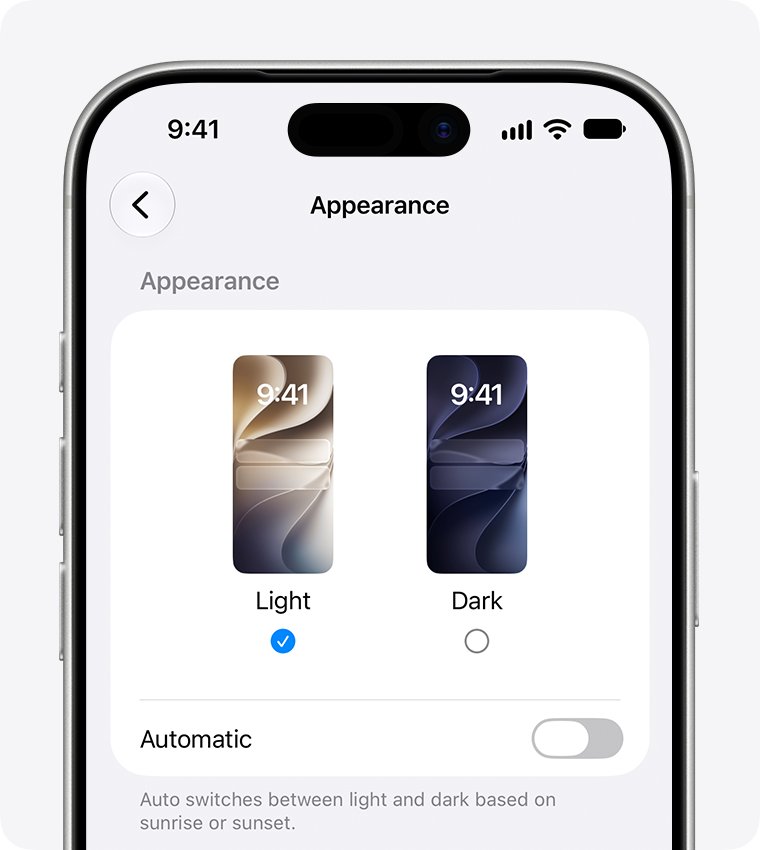
| Dark at night, light by day | iPhone Automatic appearance with a schedule | Switches without you touching it |
Google Sheets dark theme for Android devices
- Open the Google Sheets app on your Android phone or tablet.
- Tap Menu at the top left.
- Tap Settings.
- Tap Choose theme.
- Select Dark, or System default to match the phone's theme.
To turn on the phone's own dark theme, open Settings, tap Display and turn on Dark theme. The Quick Settings dark theme tile switches it in one tap.
Google Sheets dark mode for iOS devices
Google documents its Sheets dark theme for iPhone and iPad as well as Android. Turn on the system Dark Mode first, then check the theme option in the Sheets app.
- Open the Settings app on your iPhone or iPad.
- Tap Appearance. On iOS 26 and earlier, tap Display & Brightness.
- Select Dark.
- Open the Google Sheets app and open a spreadsheet to see the dark theme.
For a faster switch, open Control Center, touch and hold the brightness bar and select Dark Mode.
Enabling dark mode on desktop
These five steps darken everything around a spreadsheet on a Windows PC or Mac. Google documents no dark theme for the Sheets editor on a computer, so the grid itself stays light.
- Use Google Sheets on a compatible browser, such as Chrome, where Google's own appearance setting is available.
- Enable system-wide dark mode (Windows & macOS): set Windows to Dark under Personalization > Colors, or select Dark under Appearance on a Mac.
- Enable dark mode in Google Chrome (optional): on a New Tab page, select Customize Chrome and choose Dark or Device under Appearance.
- Use Google Sheets in dark mode: open sheets.google.com in that browser window.
- Confirm dark mode activation: the Chrome toolbar, tabs and settings turn dark, while the cells keep their own colors.
For a dark spreadsheet on a computer, color the cells yourself with the steps under the fill color workaround below.
Using operating system dark mode
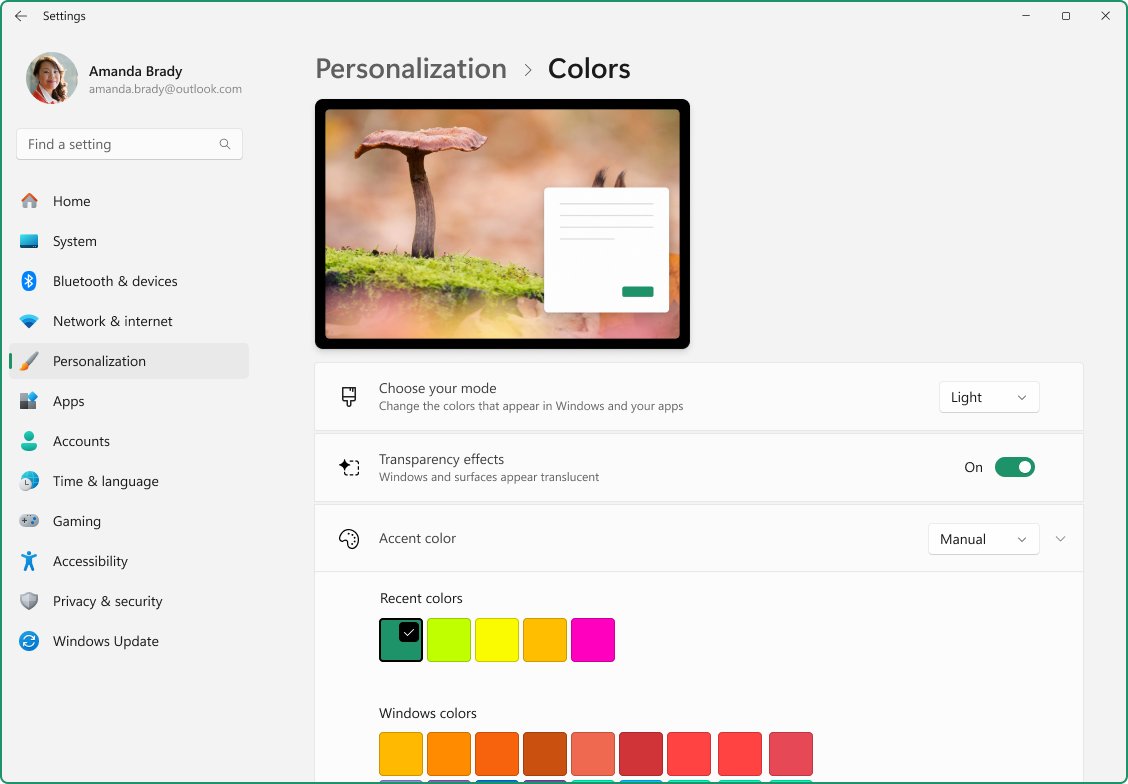
System dark mode changes menus, windows and the apps that follow it. Microsoft notes that some apps set their own mode and not all apps support dark mode. On Windows 11, turn on Windows dark mode once and Chrome can follow it.
| System | Path | Options |
|---|---|---|
| Windows 11 and Windows 10 | Settings > Personalization > Colors > Choose your mode | Light, Dark or Custom |
| macOS | System Settings > Appearance | Light, Dark or Auto |
| macOS shortcut | Control Center > Display > Dark Mode | On or off |
| Android | Settings > Display > Dark theme | On or off, plus an expanded option on supported devices |
| iPhone and iPad | Settings > Appearance, or Display & Brightness on iOS 26 and earlier | Light, Dark or Automatic |
On a Mac, Auto follows your Night Shift schedule and waits until the Mac has been idle for at least a minute before it switches.
Using browser dark mode features
Chrome calls this Dark mode on desktop and iOS and Dark theme on Android. It changes the browser around the page, much like the dark mode in Google Search changes only Google's own pages.
- Open a New Tab page in Chrome.
- Select Customize Chrome at the bottom right.
- Under Appearance, select Dark.
- Select Device instead if Chrome should follow the Windows or macOS setting.
Chrome's Dark mode darkens the homepage, toolbar, settings and some other pages. A Google Sheets spreadsheet is web content, so its cells keep their own colors.
Can I use a browser extension to enable dark mode in Google Sheets?
You can, but treat it as a third-party tool: install a dark mode extension only from the Chrome Web Store, check the permissions it asks for, and remove it if a sheet's colors look wrong. Google documents no extension or computer dark theme for Sheets. Extensions that repaint pages need access to the sites they change, which includes the contents of your spreadsheets.
How to make a Google Sheets spreadsheet dark with fill color
Coloring the cells with the basic Google Sheets formatting tools is the one way to get a dark sheet in a browser. It changes the file, so every collaborator sees the dark cells too.
- Open the spreadsheet in Google Sheets on your computer.
- Press Ctrl + A on Windows or Cmd + A on a Mac to select the cells.
- In the toolbar, click Fill color and pick black or a dark gray.
- In the toolbar, click Text color and pick white or a light gray.
- For charts and pivot tables, click Format > Theme, then Customize to create a theme with dark colors.
Make a copy of a shared sheet before you recolor it if your team expects the original look.
Can I switch back to light mode easily?
Yes. Each dark setting has a one-tap way back, and the Sheets app also lets you preview one sheet in light colors.
- In the Sheets app, tap Menu > Settings > Choose theme and select Light.
- To check one sheet in light colors without changing the theme, open it, tap More at the top right and tap View in light theme.
- In Chrome, open Customize Chrome and select Light under Appearance.
- On a recolored sheet, select the cells and set Fill color to white and Text color to black.
Troubleshooting common issues when enabling dark mode in Google Sheets
The phone is dark but the Sheets app is light
The Sheets app theme is set to Light, which overrides the device theme.
- Open the Sheets app and tap Menu > Settings > Choose theme.
- Select Dark or System default.
The Sheets app is dark but the phone is light
Dark theme is on for the app but not for the whole device.
- Leave the app on Dark if that is what you want.
- Otherwise choose System default in Choose theme so the app follows the phone.
Dark mode not appearing despite settings
Windows or macOS is dark but Chrome stays light
Chrome's Appearance is set to Light instead of following the device.
- Open a New Tab page and select Customize Chrome.
- Under Appearance, select Device or Dark.
Chrome is dark but the spreadsheet grid is white
Chrome's Dark mode covers the browser's own pages and toolbar, not web content, and Sheets on a computer has no dark theme.
- Use the Sheets app on a phone or tablet for a true dark theme.
- On a computer, apply a dark Fill color and light Text color to the cells.
Dark mode still not visible in Google Sheets
Android dark theme is on but Sheets looks odd or light
The expanded dark theme option can alter app colors, or the app can be excluded from it.
- Open Settings > Display > Dark theme.
- Next to the expanded option, tap Settings and check the toggle for Google Sheets.
- Select Standard to stop using the expanded option for all apps.
Cell colors look different in dark theme
Dark theme automatically adjusts documents and sheets to fit the theme.
- Open the sheet and tap More at the top right.
- Tap View in light theme to see the real colors.
Additional tips for a better dark mode experience
| Tip | How |
|---|---|
| Schedule dark mode on iPhone | Settings > Appearance > Automatic, then tap Options to set a schedule |
| Schedule dark mode on a Mac | System Settings > Appearance > Auto, which follows Night Shift |
| Switch fast on Android | Use the Quick Settings dark theme tile; touch and hold it to pick standard or expanded |
| Check colors before sharing | Use View in light theme so charts and highlights look the way collaborators will see them |
| Darken Drive too | drive.google.com > Settings > Appearance > Dark |
Google Sheets dark mode FAQ
How do I enable Dark Mode on my web browser?
In Chrome, open a New Tab page, select Customize Chrome and choose Dark under Appearance, or Device to follow your system. This darkens Chrome's toolbar, settings and some pages, but not the cells of a Google Sheets spreadsheet.
Are there any limitations to using Dark Mode in Google Sheets?
Yes. The dark theme exists only in the Android and iPhone or iPad apps. On a computer, Chrome and system dark mode leave the grid light, and recoloring cells changes the file for everyone.
Does Google Sheets have dark mode on PC?
Not as a Sheets setting. Google documents dark theme for the Sheets app on Android, iPhone and iPad only. On a PC, Chrome and Windows dark mode darken the browser, and a dark fill color darkens the cells.
Does Google Drive dark mode change Google Sheets?
Google documents Drive's Appearance setting for Drive itself: on a computer, open Drive, click Settings and choose Light, Dark or Device default. Sheets has its own theme setting in the mobile app.
Why is my Google Sheets in dark mode?
The Sheets app theme is set to Dark, or to System default while your phone uses its dark theme. Open the app, tap Menu, Settings, Choose theme and select Light to switch it off.
Can collaborators see my dark theme in Google Sheets?
No. Collaborators can't see the theme you choose in the Sheets app, so the spreadsheet looks normal on their devices. Only colors you apply to the cells, such as a dark fill, show up for everyone.