The newest software update for an iMac 21.5-inch, 2017 is macOS Ventura, and an iMac still on macOS Sierra gets it from the macOS Ventura page in the App Store.
This guide covers how to tell which 2017 model you have, two ways to install Ventura from macOS Sierra 10.12.6, how to keep it updated afterwards, and what to do when the installer fails.
How to update a 21.5-inch 2017 iMac to macOS Ventura
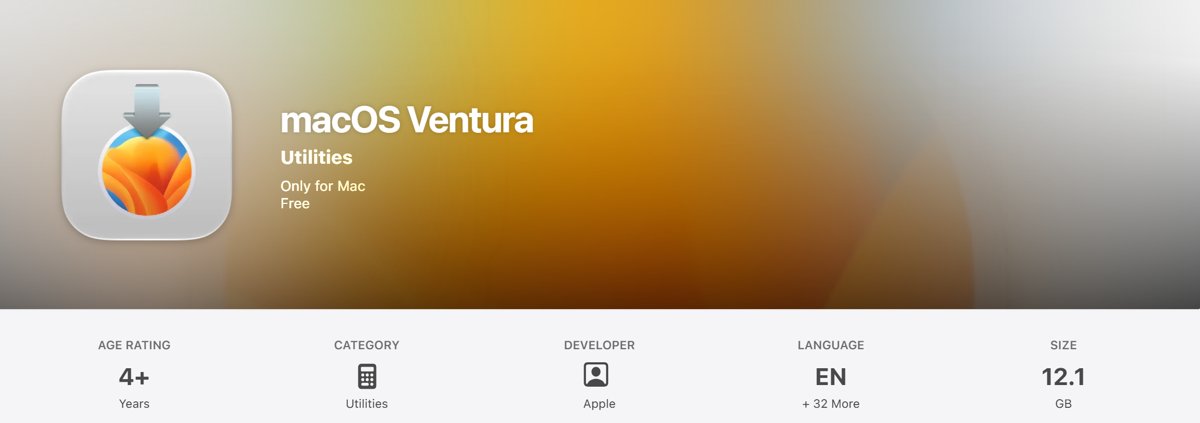
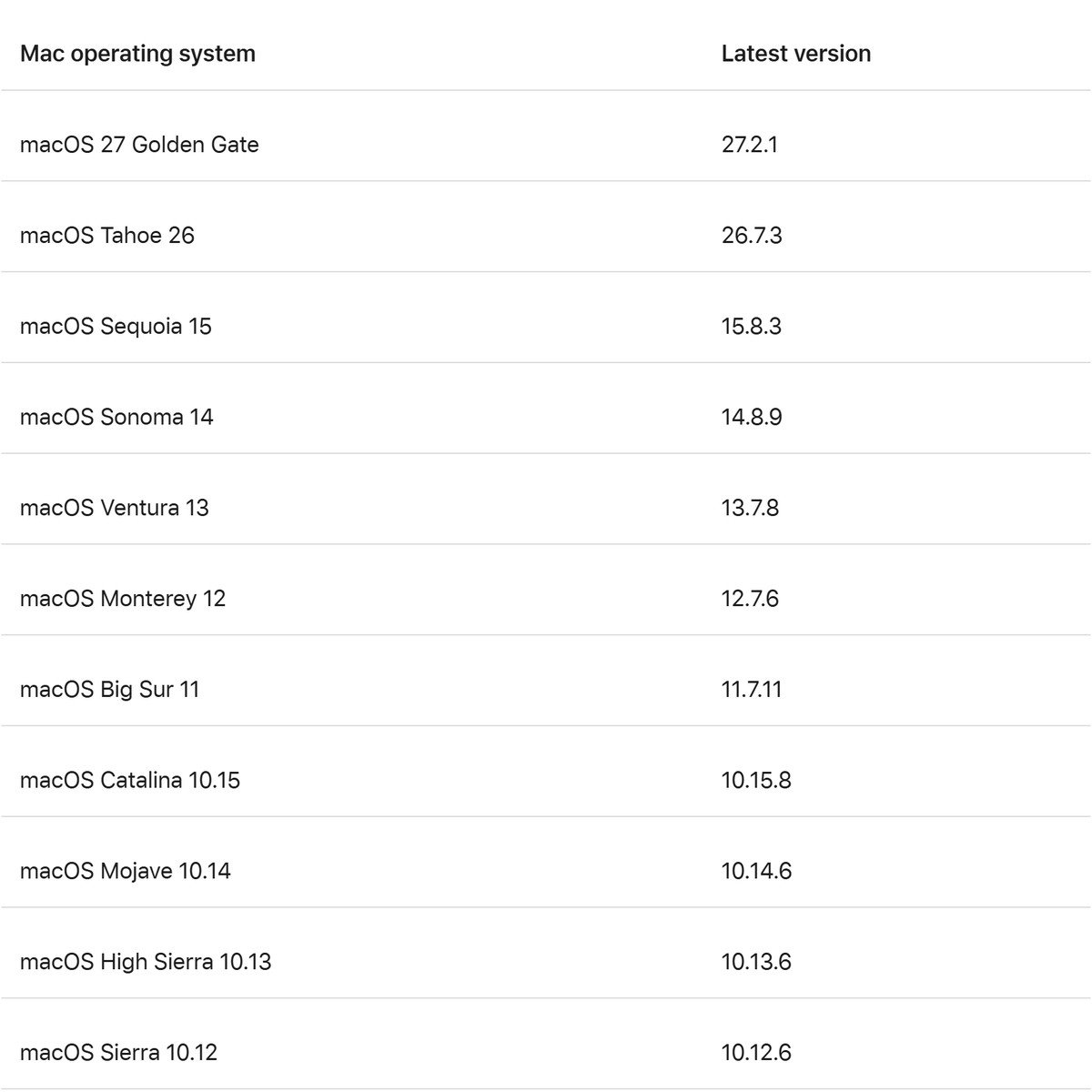
The App Store listing for macOS Ventura requires macOS 10.12 or later, so an iMac still on macOS Sierra can upgrade straight to Ventura without stopping at the versions in between.
- Back up the iMac with Time Machine or another backup method.
- Open Safari on the iMac and go to Apple's article How to download and install macOS at support.apple.com.
- Under Download via the App Store, click the macOS Ventura 13 link to open its App Store page.
- Click Get in the App Store to start the download.
- If Software Update opens and asks whether you want to download macOS, allow the download there.
- When the installer opens from the Applications folder, follow the onscreen instructions and enter your administrator password.
- Leave the iMac awake and plugged in while it restarts and shows a progress bar or blank screen several times.
The App Store lists the Ventura download at 12.1 GB. Free up space first if the startup disk is nearly full, because low storage is one of the errors that stops the installer.
Which macOS can a 21.5-inch 2017 iMac run?
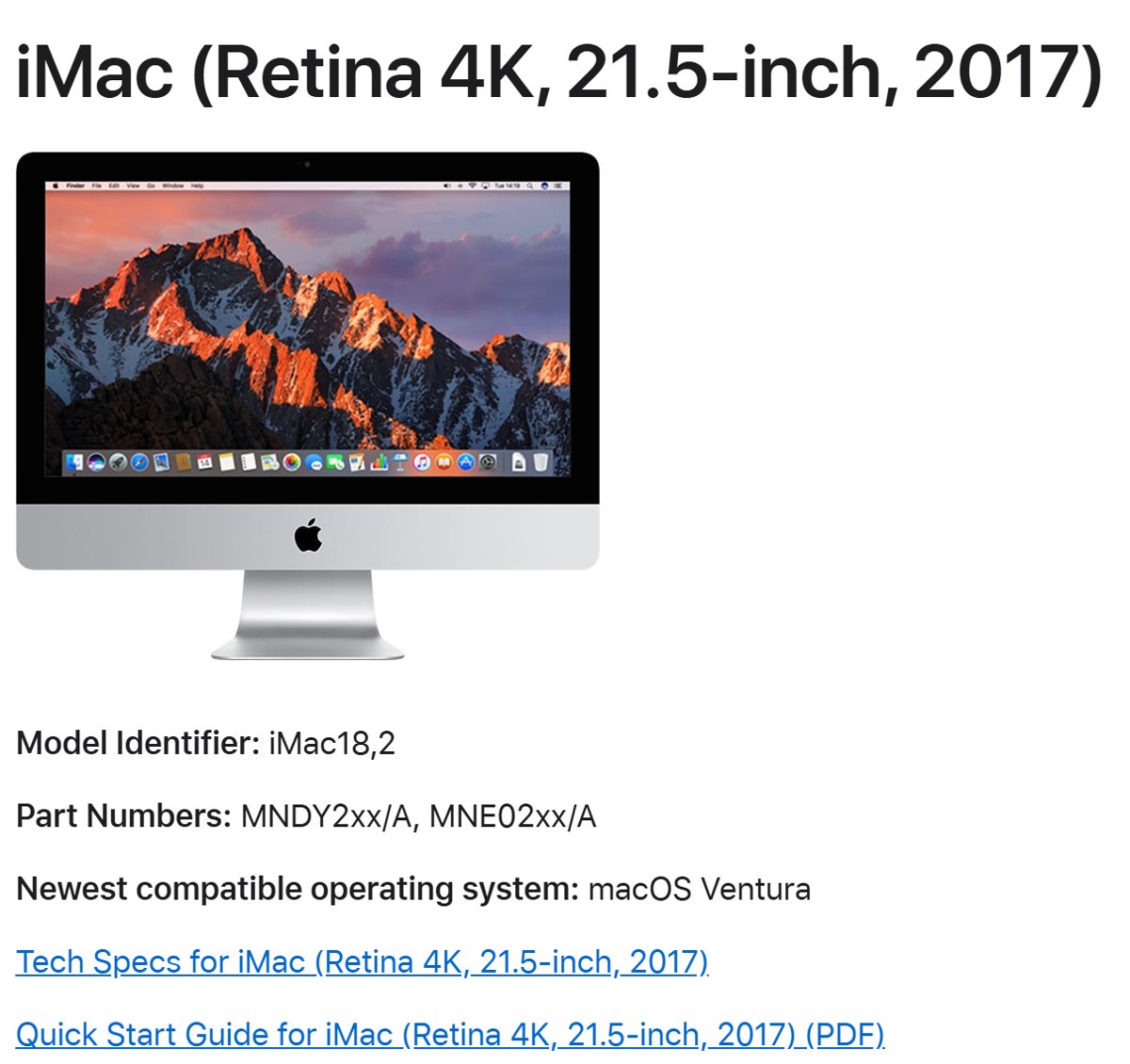
Apple made two 21.5-inch iMacs in 2017, and both stop at the same release. macOS Sonoma, Sequoia and later releases are not offered to either of them.
| Model name | Model identifier | Part numbers | Newest compatible macOS |
|---|---|---|---|
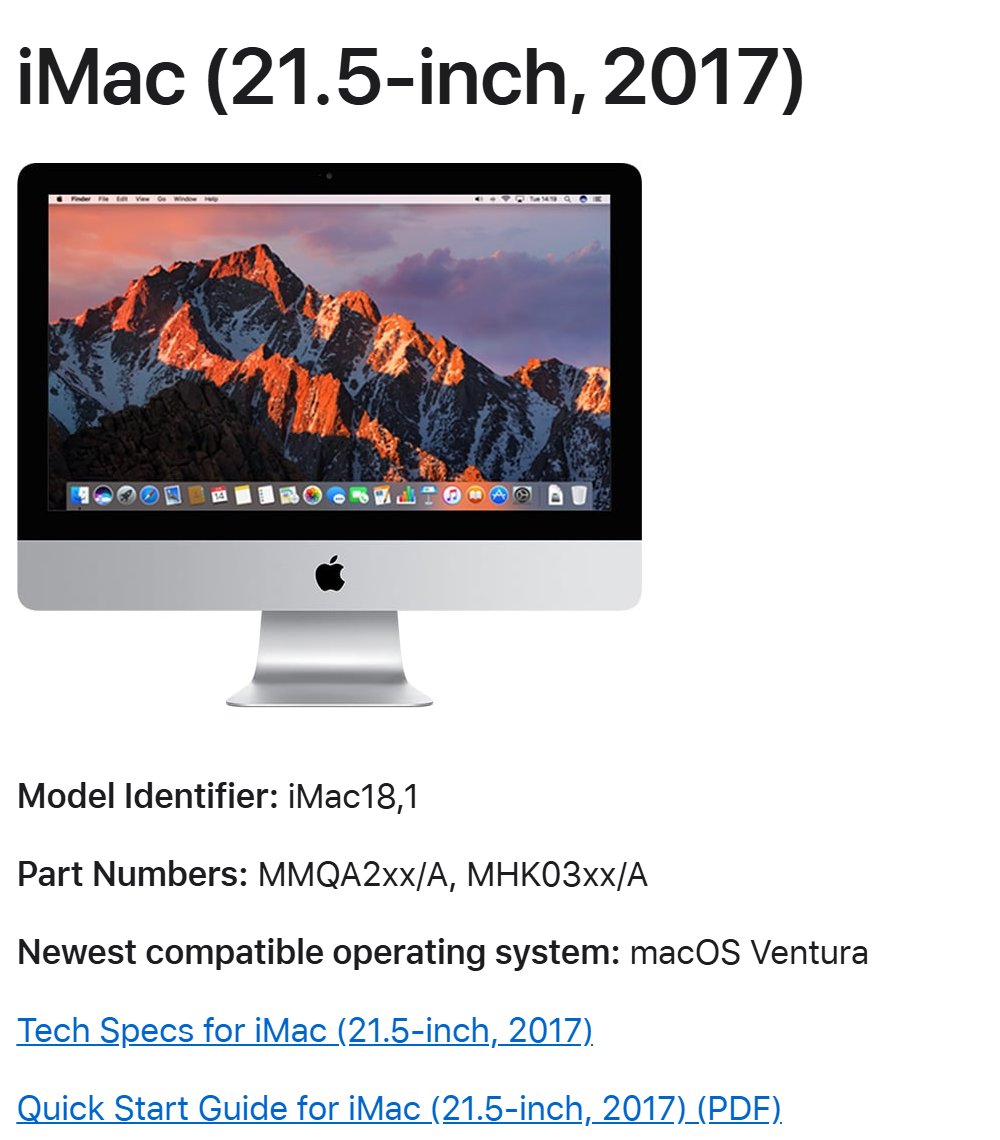
| iMac (21.5-inch, 2017) | iMac18,1 | MMQA2xx/A, MHK03xx/A | macOS Ventura |
| iMac (Retina 4K, 21.5-inch, 2017) | iMac18,2 | MNDY2xx/A, MNE02xx/A | macOS Ventura |
| iMac (Retina 5K, 27-inch, 2017), for comparison | iMac18,3 | MNE92xx/A, MNEA2xx/A, MNED2xx/A | macOS Ventura |
Software Update only shows updates that are compatible with the Mac model. When a 2017 iMac on Ventura says it is up to date, that is the expected result, not a fault.
How to tell which iMac 21.5-inch 2017 model you have
Check the model before you download anything, because a 21.5-inch iMac from 2015 or earlier has a different newest macOS.
- Click the Apple menu in the top-left corner of the screen.
- Choose About This Mac.
- Read the model name under the macOS version, for example iMac (Retina 4K, 21.5-inch, 2017).
- Note the macOS version shown in the same window, such as macOS Sierra with version 10.12.6.
- Match the model name to the table above to confirm that macOS Ventura is your target.
Best way to update an old iMac to macOS Ventura
Apple offers several ways to download and install macOS, but not all of them work from macOS Sierra.
| Your situation | Use this | Why |
|---|---|---|
| iMac starts normally on macOS Sierra | The macOS Ventura App Store link | Ventura requires macOS 10.12 or later, which Sierra meets |
| App Store download fails or the iMac will not start up all the way | Internet Recovery with Option-Command-R | It might install the latest macOS compatible with the iMac |
| iMac is already on macOS Catalina or later | Software Update or Terminal | The Terminal installer download needs macOS Catalina 10.15 or later |
| You want to install on several Macs | A bootable installer | Download once and install without downloading again on each Mac |
How to install macOS Ventura on iMac from Internet Recovery
Internet Recovery downloads macOS from Apple instead of using the App Store. It is the fallback when the App Store route fails or when the installed system is damaged.
- Back up the iMac if it still starts up.
- Connect it to the internet over Wi-Fi or Ethernet with DHCP. Captive-network logins, 802.1X security and PPPoE without a router can block installation from Recovery.
- Shut down the iMac.
- Turn it on and immediately press and hold Option-Command-R.
- When the list of macOS Recovery options appears, select the option to install or reinstall macOS, then click Continue.
- If the installer offers Macintosh HD or Macintosh HD – Data, choose Macintosh HD.
- Follow the onscreen instructions and let the installation finish without putting the iMac to sleep.
Command-R reinstalls the most recently installed macOS, which on an untouched 2017 iMac is still Sierra. Shift-Option-Command-R might install the macOS that came with the iMac. Only Option-Command-R aims at the latest compatible version. Reinstalling macOS from Recovery does not remove apps or personal data.
How to use Software Update on iMac after macOS Ventura
Once Ventura is installed, later Ventura updates arrive through Software Update in System Settings rather than the App Store.
- Choose Apple menu > System Settings.
- Click General in the sidebar, then click Software Update on the right.
- Wait while Software Update checks for new Apple software for your iMac.
- If an update is listed, click the button to update or restart now.
- Enter your administrator password when asked.
- If it says the Mac is up to date, click Check for Updates or press Command-R to check again later.
The same Software Update pane is how you update a newer Mac to the latest macOS, so these steps carry over if you replace the iMac later.
How to check macOS version on iMac 2017
- Click the Apple menu and choose About This Mac.
- Check that the window now names macOS Ventura with a version number that starts with 13.
- Open System Settings > General > Software Update and confirm it reports the Mac as up to date or offers only Ventura updates.
iMac 2017 macOS Ventura update not installing
The Get button is dimmed or the App Store says macOS is not compatible
The Mac running the App Store is not compatible with that macOS, or the version is not available for it.
- Confirm the model under Apple menu > About This Mac is a 2017 or later iMac.
- Open the Ventura link again in Safari instead of another browser.
- Download on the 2017 iMac itself, because the Mac doing the download must be compatible with that macOS.
An error occurred while downloading, preparing or installing macOS
Low storage, an unstable connection or other software can interrupt the installer.
- Free up storage space if the message mentions it.
- Check that the iMac has a stable internet connection, since the installer also downloads firmware for the model.
- Start up in safe mode and run the installer again.
- Install from macOS Recovery instead of the App Store.
The installer says it is damaged or can't be verified
A previously downloaded installer or the startup disk has a problem.
- Start up from macOS Recovery and repair the startup disk with Disk Utility.
- Delete the old Install macOS Ventura app from the Applications folder.
- Download the installer from Apple again and run it.
Software Update says the iMac is up to date but there is no newer macOS
Software Update shows only versions compatible with the model, and Ventura is the newest for a 2017 iMac.
- Check About This Mac to confirm the iMac is already on macOS Ventura.
- Use Check for Updates to look for Ventura security and bug-fix updates.
- Stop looking for macOS Sonoma or later, which Apple does not offer for this model.
If none of these work, erase the iMac and reset it to factory settings, or contact Apple Support.
iMac 21.5-inch 2017 software update FAQ
What is the latest macOS for an iMac 21.5-inch 2017?
macOS Ventura is the latest macOS for both the iMac (21.5-inch, 2017) and the iMac (Retina 4K, 21.5-inch, 2017). Apple lists Ventura as the newest compatible operating system for model identifiers iMac18,1 and iMac18,2.
Can a 2017 iMac run macOS Sonoma?
No. A 21.5-inch 2017 iMac cannot run macOS Sonoma, Sequoia or later versions, because Apple stops its support at macOS Ventura. Software Update does not offer those releases to the model.
Can I upgrade from macOS Sierra directly to Ventura?
Yes. The macOS Ventura App Store listing requires macOS 10.12 or later, and macOS Sierra is version 10.12. An iMac on Sierra 10.12.6 can download Ventura from the App Store and install it in one step.
How big is the macOS Ventura download?
The App Store lists macOS Ventura at 12.1 GB. If the startup disk is close to full, clear room before you start, because a lack of storage space is a common reason the installation stops with an error.
Will updating my iMac delete my files?
Reinstalling macOS from macOS Recovery does not remove apps or personal data, according to Apple. Apple still recommends backing up the Mac before installing new software, so make a Time Machine or other backup before the Ventura upgrade.
Why doesn't Software Update show macOS Ventura on my iMac?
macOS Sierra has no Software Update pane in System Settings, and Apple says older Macs without Software Update should use other ways to install macOS. Use the macOS Ventura App Store link from Apple's download article, or Internet Recovery with Option-Command-R.
Does Option-Command-R install the newest macOS on an iMac?
Option-Command-R starts Internet Recovery, which might install the latest macOS compatible with the iMac. Command-R reinstalls the most recently installed macOS, and Shift-Option-Command-R might install the macOS that came with the Mac.