Amazon Kindle Cloud Reader, now called Kindle for Web, is Amazon's browser-based reader at read.amazon.com that opens the Kindle books in your library without installing an app.
This guide covers what it can and cannot do, how to open it, read, buy and annotate books, which devices and browsers it supports, and how to fix the problems readers hit most.
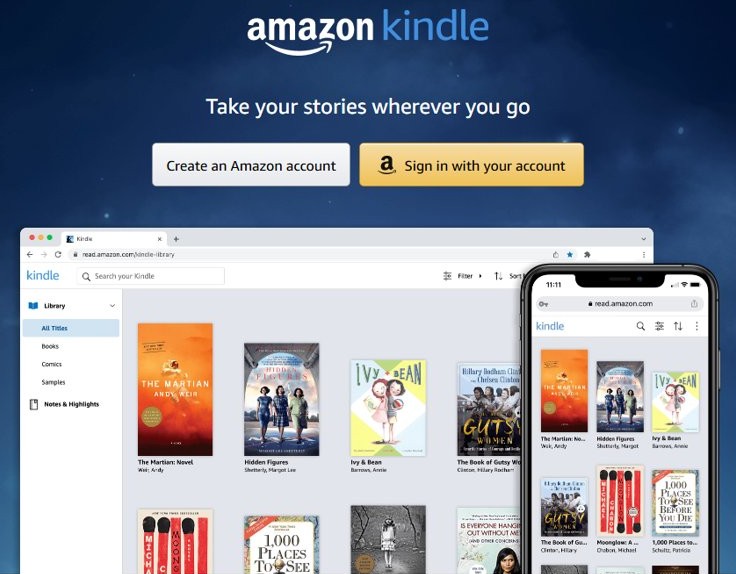
How to open Kindle Cloud Reader
The old Cloud Reader address still leads to the same place, but the current home is read.amazon.com.
- Open a supported browser such as Chrome, Edge, Firefox or Safari.
- Go to
read.amazon.com. - Select Sign in with your account and enter the email and password of the Amazon account that bought your books.
- Wait for your Library to load, then select a book cover to open it.
No Amazon account yet? Select Create an Amazon account on the same page. Kindle for Web only shows books bought or borrowed with the account you sign in with.
What is Amazon Kindle Cloud Reader?
Amazon renamed the service: its landing page states that Kindle Cloud Reader is now known as Kindle for Web. It is aimed at readers who do not have a Kindle e-reader or the Kindle app.
| Question | Answer |
|---|---|
| Current name | Kindle for Web (formerly Kindle Cloud Reader) |
| Web address | read.amazon.com |
| Where it runs | Desktop and mobile browsers |
| What you read | Kindle books in your Amazon library |
| Install needed | No, books open in the browser and are not downloaded to the computer |
| Account needed | Yes, an Amazon account |
Understanding the Amazon Kindle ecosystem
Kindle for Web is one of several ways to reach the same library. Your purchases, highlights and reading position live on your Amazon account, not on a single device.
| Part | What it is | Status in late 2026 |
|---|---|---|
| Kindle for Web | Browser reader at read.amazon.com | Current; Amazon's fallback when an app or device is not supported |
| Kindle app for desktop | Kindle app for Windows 11 and macOS 10.14 or later | Current |
| Legacy Kindle for PC | The older Windows app | Not supported as of June 30, 2026 |
| Kindle apps for iOS and Android | Phone and tablet apps | Current |
| Kindle e-readers | Amazon's dedicated reading devices | Models released in 2012 or earlier lost support on May 20, 2026 |
| Manage Your Content and Devices | Account page for devices, apps and preferences | Where Sync and registered devices are managed |
What you can do with Kindle Cloud Reader
| Feature | What it does |
|---|---|
| Read Kindle books in a browser | Open any supported title from your library on a desktop or phone browser |
| Access your Kindle library | See the books bought or borrowed with your Amazon account |
| Sync your reading position | Pick up where you stopped on other Kindle apps and devices while Sync is on |
| Highlight passages and add notes | Highlights and notes sync to all your Kindle apps and devices |
| Search inside a book | Find words, phrases or names and jump to where they are mentioned |
| Look up words | Press and hold a word, then release, to see a dictionary definition |
| Customize the reading view | Change font, size, page color, columns, margins and the progress display |
| Buy books | Shop from the Cart icon inside the app |
What you cannot do with Kindle Cloud Reader
| Limit | What it means | Use instead |
|---|---|---|
| It does not replace every Kindle app feature | Kindle for Web is a reader, not a full library manager | The Kindle app for Windows, Mac, iOS or Android |
| Not every Kindle title works in the browser | Amazon says some titles cannot be read with Kindle for Web | The Kindle app or a Kindle e-reader |
| Offline reading is limited | Books are not downloaded to the computer | Download the book in a Kindle app |
| There is nothing to remove from the device | Books stay online, so no local copy needs deleting | Remove downloads in the desktop or mobile app |
Limitations and considerations
A few practical facts decide whether the browser reader suits you.
| Consideration | Detail |
|---|---|
| Internet connection | Kindle for Web reads books online, and Sync needs an internet connection |
| Browser version | Desktop needs at least Chrome 87, Firefox 78, Safari 11 or Edge 87 |
| Phone version | iPhone needs iOS 13 or later; Android phones need Android 10 or later |
| Title support | Some titles open only in the Kindle app or on an e-reader |
| Shared computers | Your library stays signed in until you select Sign Out |
| Sync turned off | Kindle for Web still saves notes to Amazon's servers, but they do not reach your other devices |
How to read a book in Kindle Cloud Reader
- Sign in at
read.amazon.comand open your Library. - Select the book cover. The book opens in the browser tab.
- Move the mouse to the top of the page to show the menu bar. On a phone, scroll to the top of the book.
- Select Aa in the menu bar to change the font, text size, page color or layout, then select X to close it.
- Press and hold a word, then release, to see its dictionary definition.
- Use the search option to find a word, phrase or name and jump to that page.
- Close the tab when you finish. With Sync on, your place is saved to your account.
How to find books in your Kindle Cloud Reader library
The library shows what your signed-in account owns, so a missing book is usually an account mismatch or a title the browser cannot open.
- Open
read.amazon.comand check that you signed in with the account that bought the book. - Scroll the Library and select the book cover you want.
- Refresh the browser if a book you just bought is not listed yet.
- If the account is wrong, select the three-dot menu at the top right, select Sign Out, and sign in with the correct account.
- If the book still does not open, read it in the Kindle app, because some titles are not available in Kindle for Web.
How to buy a Kindle book and read it in Cloud Reader
- Open Kindle for Web at
read.amazon.comand sign in. - Select the Cart icon in the upper-right corner of the app.
- Search for the book you want and open its page.
- Complete the purchase with your preferred payment option.
- Go back to your Library. The book appears there after a successful purchase.
- Refresh the browser if the new book does not show straight away, then select it to start reading.
You can also browse the Kindle Store and read a free sample before you buy, which helps check that a title opens well in the browser.
How to highlight and add notes in Kindle Cloud Reader
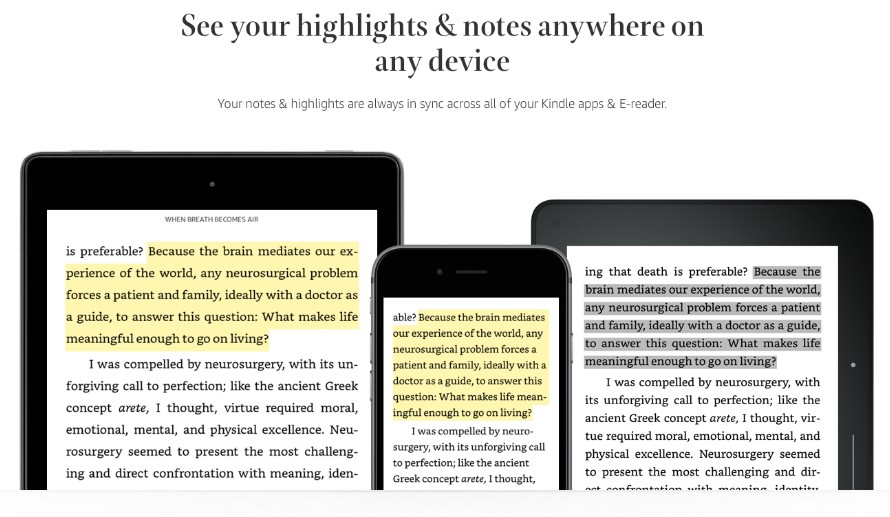
Highlights and notes sync to all your Kindle apps and devices. A Kindle e-reader shows web highlights in gray.
- Select the text you want to mark.
- Choose a color in the pop-up to highlight it.
- To add a note instead, select the text and then the Note icon in the pop-up.
- Type your note in the Note window and select Save. A note icon appears at the end of the text.
- To remove a highlight, select it and then the colored circle with an X.
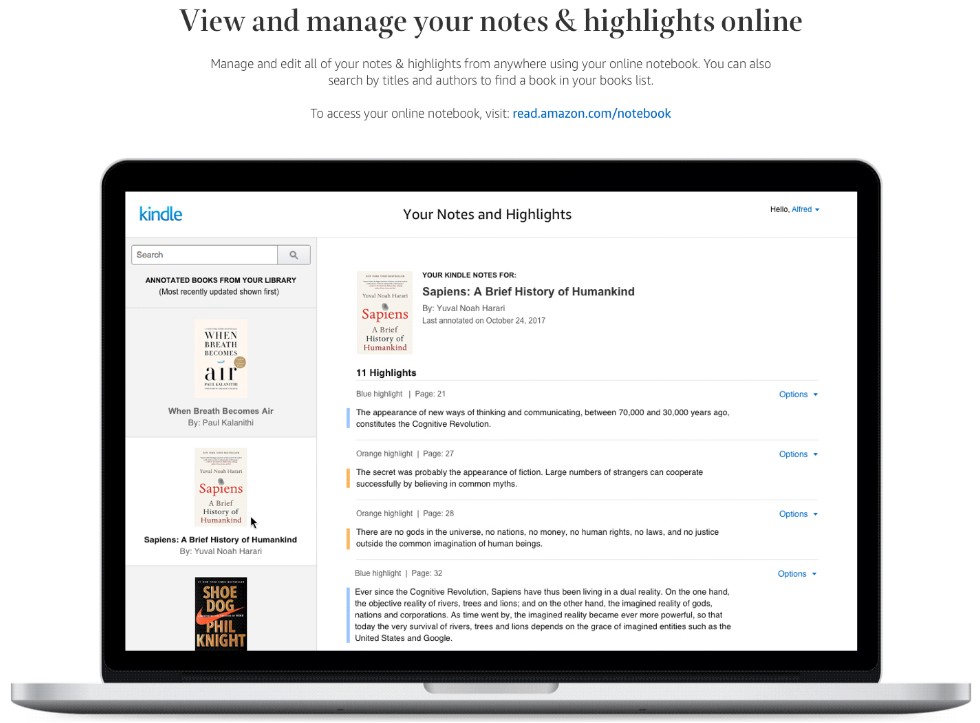
- Open the Notebook icon in the menu bar to see every highlight, note and bookmark in one list, and select one to jump to its page.
Deleting a highlight in Kindle for Web removes it from all your Kindle apps and devices, not only the browser.
How to use Kindle Cloud Reader on different devices
Kindle for Web runs in desktop and mobile browsers. Amazon lists these minimum versions.
| Device | Supported browsers (minimum) | Notes |
|---|---|---|
| Windows PC or Mac | Chrome 87, Firefox 78, Safari 11, Edge 87 | Use it when the Kindle desktop app does not support your system |
| iPhone | Safari 11, Chrome 87, Firefox 78, Opera 61 | Requires iOS 13 or later |
| Android phone | Chrome 87, Firefox 78, Opera 61, Samsung browser 12.0, UC Browser 10.0 | Requires Android 10 or later |
| Older Kindle e-reader owner | Any supported browser above | Amazon points 2012-or-earlier e-reader owners to Kindle for Web |
How to create a desktop shortcut for Kindle Cloud Reader
Installing the site as an app gives Kindle for Web its own window, taskbar icon and desktop shortcut. These steps use Microsoft Edge.
- Open
read.amazon.comin Microsoft Edge and sign in. - Select Settings and more (the three dots), then More tools > Apps > Install this site as an app.
- Go to
edge://appsin the address bar. - Select Details on the Kindle card.
- Select Create Desktop shortcut, or Pin to taskbar or Pin to Start.
In Google Chrome, select More > Cast, save, and share > Install page as app. Then open chrome://apps, right-click the app, select Create shortcut, choose where it goes and select Create.
How to use Kindle Cloud Reader offline if the option is available
Kindle for Web reads books online and does not download them to the computer, and Amazon documents no offline mode for it. For reading without a connection, download the book in a Kindle app.
- Install the Kindle app for Windows 11, Mac, iPhone, iPad or Android.
- Sign in with the same Amazon account you use on read.amazon.com.
- Open your Library in the app.
- Double-click the book cover on a computer, or tap it on a phone or tablet.
- Wait for the progress bar to finish. The book opens automatically after the download.
Offline reading and download management
| Reader | Downloads books | Removing books |
|---|---|---|
| Kindle for Web | No, books stay online | Nothing to remove; close the tab or sign out |
| Kindle app for Windows or Mac | Yes, double-click a cover in the library | Remove the download in the desktop app |
| Kindle app for iOS or Android | Yes, tap a cover in the library | Remove the download in the mobile app |
| Kindle e-reader | Yes, books download to the device | Remove the book on the e-reader |
Reading progress, notes and highlights move between these readers through Sync, which is on by default and needs an internet connection.
Privacy and security tips
Signing out of Kindle for Web deregisters the browser from your account, which matters on shared or public computers.
- Type
read.amazon.comyourself or use a saved bookmark, rather than following links in emails. - When you finish on a shared computer, select the three-dot menu at the top right of Kindle for Web.
- Select Sign Out.
- To remove a browser you can no longer reach, open Manage Your Content and Devices on Amazon's website.
- Select the Devices tab and deregister the Kindle for Web entry.
- If you do not want reading data shared between devices, open the Preferences tab, select Sync Settings and turn Sync off.
Kindle Cloud Reader vs. Kindle app vs. Kindle e-reader
| Kindle Cloud Reader (Kindle for Web) | Kindle app | Kindle e-reader | |
|---|---|---|---|
| Install needed | No | Yes | Dedicated device |
| Works offline | No | Yes, after download | Yes, after download |
| Every Kindle title | No, some titles are not available | Yes | Yes |
| Highlights and notes | Yes, synced | Yes, synced | Yes, synced |
| Runs on | Desktop and mobile browsers | Windows 11, macOS, iOS, Android | Kindle hardware |
| Best for | Quick reading on any computer | Regular reading on your own devices | Long reading sessions |
Tips for a better Kindle Cloud Reader experience
All reading settings sit behind the Aa icon at the top of an open book, and they sync to your other Kindle for Web sessions.
| Setting | Choices | Tip |
|---|---|---|
| Font | Bookerly, Amazon Ember, OpenDyslexic | Try each font at your usual size before settling on one |
| Font size | 14 sizes | Raise the size on high-resolution laptop screens |
| Page color | Four text and background combinations | A dark page is easier at night |
| Layout | One or two columns | Two columns suit wide monitors |
| Margins | Narrow, medium or wide | Wide margins shorten long lines of text |
| Reading progress | Time left in chapter, page in book, time left in book | Pick one so the footer stays uncluttered |
Additional tips for optimal use
| Tip | Why it helps |
|---|---|
| Install read.amazon.com as an app in Edge or Chrome | It opens in its own window without browser tabs |
| Use the Notebook to jump around | Every highlight, note and bookmark links straight to its page |
| Read a free sample first | Shows whether a title opens well in the browser before you pay |
| Keep Sync on | Your place carries over to the Kindle app and e-reader |
| Keep the browser updated | Older versions below Amazon's minimums are not supported |
| Use the Kindle app for travel | Kindle for Web needs a connection; downloaded books do not |
Troubleshooting common Kindle Cloud Reader problems
Kindle books are not showing in the Cloud Reader library
You are signed in with a different Amazon account, or a new purchase has not loaded yet.
- Refresh the browser tab.
- Select the three-dot menu at the top right and select Sign Out.
- Sign in again with the account that bought or borrowed the book.
A book will not open in Kindle for Web
Not all titles are available to read with Kindle for Web.
- Open the same book in the Kindle app for Windows, Mac, iOS or Android.
- Or send it to a Kindle e-reader registered to your account.
read.amazon.com does not load or looks broken
The browser is older than Amazon's minimum version, or the phone's system is too old.
- Update the browser to at least Chrome 87, Firefox 78, Safari 11 or Edge 87.
- On a phone, check that it runs iOS 13 or Android 10 or later.
- Try another supported browser to rule out a problem with one browser.
Reading position or notes do not sync
Sync is off for the account, or the device is offline.
- Check the internet connection.
- Open Manage Your Content and Devices, select the Preferences tab and then Sync Settings.
- Turn Sync on and reopen the book.
Troubleshooting common issues
The menu bar and Aa button are missing
The toolbar hides while you read.
- Move the mouse to the top of the page.
- On a phone or tablet, scroll to the top of the book to reveal the menu bar.
Kindle for PC stopped working on Windows
The Legacy Kindle app, previously called Kindle for PC, is not supported as of June 30, 2026.
- Install the current Kindle app on Windows 11.
- On Windows 10 or another unsupported system, read at
read.amazon.cominstead.
An old Kindle e-reader can no longer get books
Amazon ended support for Kindle e-readers released in 2012 or earlier on May 20, 2026.
- Sign in at
read.amazon.comwith the same account. - Read the same library in the browser, or install a Kindle app.
A highlight disappeared from every device
Removing a highlight in Kindle for Web deletes it from all Kindle apps and devices.
- Select the text again and choose a highlight color to restore it.
- Use the Notebook to check what remains before deleting more.
Kindle Cloud Reader FAQ
Is Kindle Cloud Reader still available?
Yes, under a new name. Amazon now calls it Kindle for Web, and it runs at read.amazon.com. Sign in with your Amazon account to read the books in your library in a desktop or mobile browser.
Is Kindle Cloud Reader free?
Yes. Kindle for Web costs nothing to use; you only need an Amazon account. You still pay for the books you buy, while free samples and any free or borrowed titles in your library open at no cost.
Can I read Kindle books offline in Kindle Cloud Reader?
No. Kindle for Web reads books online and does not download them to the computer. To read without a connection, download the book in the Kindle app for Windows, Mac, iOS or Android, or use a Kindle e-reader.
Which browsers work with Kindle Cloud Reader?
On desktop, Amazon supports Chrome 87, Firefox 78, Safari 11 and Edge 87 or later. On phones it also supports Opera 61, Samsung browser 12.0 and UC Browser 10.0, on iOS 13 or Android 10 and later.
Can I use Kindle Cloud Reader on an iPhone or Android phone?
Yes. Open read.amazon.com in a supported mobile browser on an iPhone running iOS 13 or later, or an Android phone running Android 10 or later. The Kindle app is the alternative if you want offline reading.
Why can't I read some books in Kindle Cloud Reader?
Amazon states that not all titles are available to read with Kindle for Web. Open those books in the Kindle app or on a Kindle e-reader instead. Also check that you are signed in with the account that bought them.
Do highlights and notes from Kindle Cloud Reader sync to my Kindle?
Yes. Highlights and notes made in Kindle for Web sync to all your Kindle apps and devices while Sync is on. A Kindle e-reader shows web highlights in gray, and the Notebook icon lists all of them.
Can I buy books inside Kindle Cloud Reader?
Yes. Select the Cart icon in the upper-right corner of Kindle for Web, find the book and complete the purchase. The book then appears in your library; refresh the browser if it does not show at once.
How do I sign out of Kindle Cloud Reader?
Select the three-dot menu at the top right of Kindle for Web and choose Sign Out. That deregisters the browser from your account. You can also remove it from the Devices tab in Manage Your Content and Devices.
Who should use Kindle Cloud Reader?
Use Kindle Cloud Reader on shared or work computers, Chromebooks, Windows 10 PCs that cannot run the current Kindle app, and old e-reader owners who lost support; install the Kindle app when you read regularly on your own devices. Kindle for Web needs only a browser and an Amazon account, and it keeps highlights and reading position in sync. It cannot read offline and some titles do not open in it, which the Kindle app and e-readers handle.