Hyper-V is the full Microsoft virtualization product for creating and managing your own virtual machines, Virtual Machine Platform is the smaller subset of Hyper-V that WSL 2 uses, and Windows Hypervisor Platform is an API that lets third-party apps such as the Android Emulator and VirtualBox run on the Windows hypervisor.
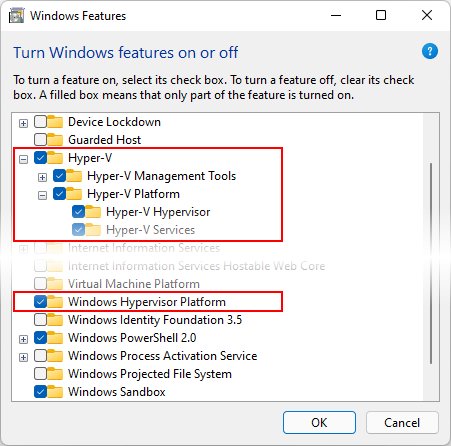
All three sit in Turn Windows features on or off, and this guide shows what each one includes, which apps need which feature, how to enable or disable each, and how to fix the errors that appear when the wrong one is off.
Hyper-V vs. Virtual Machine Platform vs. Windows Hypervisor Platform
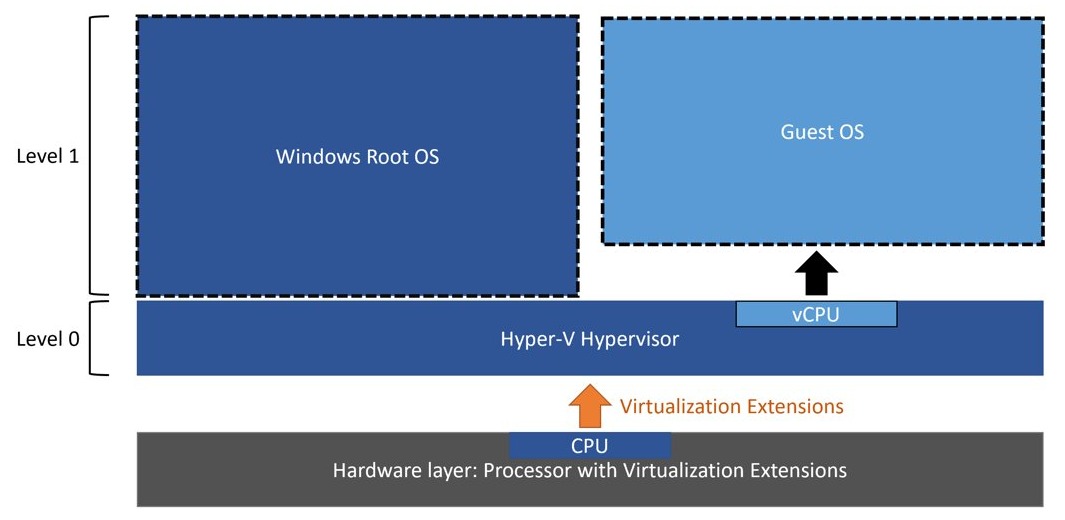
All three features load the same Windows hypervisor underneath. They differ in what sits on top of it and who is meant to use it.
| Feature | What it gives you | Who uses it | Windows editions |
|---|---|---|---|
| Hyper-V | The hypervisor plus Hyper-V Manager, Virtual Machine Connection and the Hyper-V PowerShell cmdlets, so you can build and run your own virtual machines | You, directly, and tools such as the Docker Desktop Hyper-V backend | Windows 11 and Windows 10 Pro or Enterprise; it can't be installed on Home |
| Virtual Machine Platform | A subset of Hyper-V with no management console; Windows apps use it to run lightweight utility VMs | WSL 2 (Windows Subsystem for Linux) | All desktop editions, including Home |
| Windows Hypervisor Platform | A user-mode API (WinHvPlatform.dll) that lets a third-party virtualization app create partitions on the Windows hypervisor | Android Emulator (WHPX), VirtualBox 6 and later, QEMU | Windows 10 version 1803 (April 2018 Update) and later |
If you only want to make virtual machines with Microsoft's own tools, turn on Hyper-V. If an app asks for one of the other two by name, turn on exactly that one.
Windows features needed for WSL 2, Docker, Android Emulator and VirtualBox
Match the app you want to run to the feature it depends on. Turning on more than you need does no harm, but every one of them starts the hypervisor at boot.
| You want to run | Turn on | Why |
|---|---|---|
| Your own Windows or Linux VMs in Hyper-V Manager | Hyper-V | Only Hyper-V includes Hyper-V Manager and the VM management tools |
| WSL 2 Linux distributions | Virtual Machine Platform and Windows Subsystem for Linux | Microsoft lists these two features as the requirement to install WSL 2 on Windows; full Hyper-V is not needed |
| Docker Desktop with the WSL 2 backend | WSL 2 (Virtual Machine Platform and Windows Subsystem for Linux) | Docker's WSL 2 backend runs inside WSL 2 |
| Docker Desktop with the Hyper-V backend | Hyper-V and Containers | Docker lists both Windows features for this backend |
| Android Emulator in Android Studio | Windows Hypervisor Platform | Google recommends WHPX on Windows, and its older AEHD driver is sunset on December 31, 2026 |
| VirtualBox or QEMU while Hyper-V or WSL 2 is on | Windows Hypervisor Platform | These apps use the WHP API to run on the Windows hypervisor alongside Hyper-V |
What is Hyper-V in Windows 11?
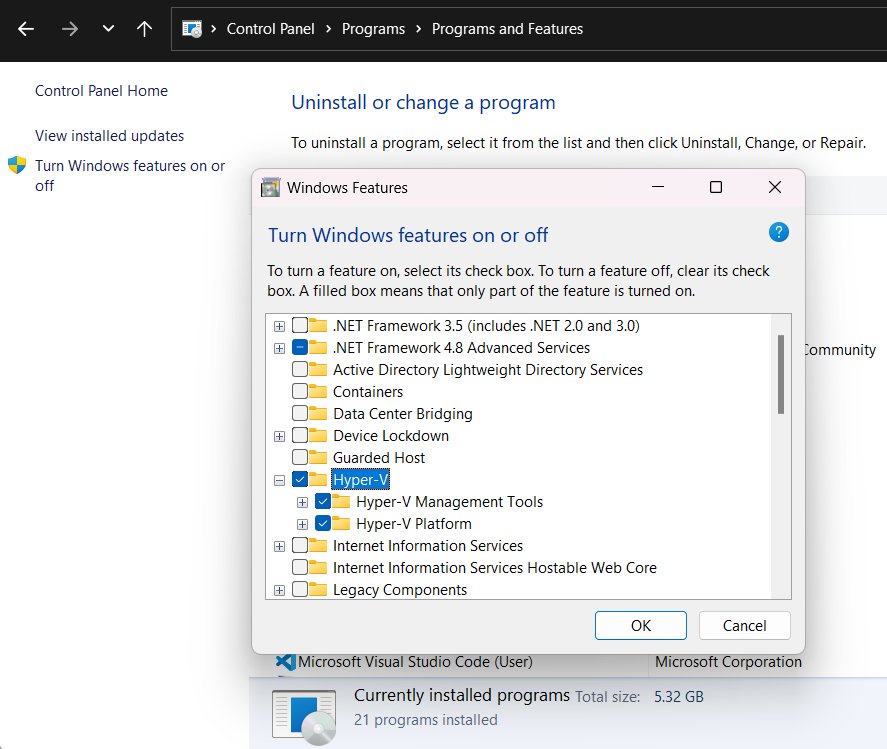
Hyper-V is built into Windows as an optional Windows feature, so there is no Hyper-V download. When the hardware qualifies, its entry in Windows Features expands into two parts.
| Hyper-V part | What it contains | Needs SLAT? |
|---|---|---|
| Hyper-V Platform | The Windows hypervisor and the services that run virtual machines | Yes |
| Hyper-V Management Tools | Hyper-V Manager, Virtual Machine Connection (VMConnect) and the Hyper-V module for Windows PowerShell | No; you can install the tools alone to manage another Hyper-V host |
Hyper-V suits anyone who wants to run a virtual machine on Windows 11 with Microsoft's own console and PowerShell tools.
What is Virtual Machine Platform in Windows 11?
Microsoft describes Virtual Machine Platform as a subset of Hyper-V architecture, offered as an optional component on every desktop edition. It exists so features such as WSL 2 can start a lightweight utility VM without the full Hyper-V product.
| Question | Virtual Machine Platform |
|---|---|
| Can you create your own VMs with it? | No. It has no Hyper-V Manager and no VM settings of its own |
| Which feature depends on it? | WSL 2, together with the Windows Subsystem for Linux feature |
| Does it work on Windows 11 Home? | Yes. WSL 2 runs on Windows 10 Home and Windows 11 Home |
| DISM feature name | VirtualMachinePlatform |
| Hardware it needs | A CPU with virtualization turned on in firmware and Second Level Address Translation (SLAT) |
What is Windows Hypervisor Platform?
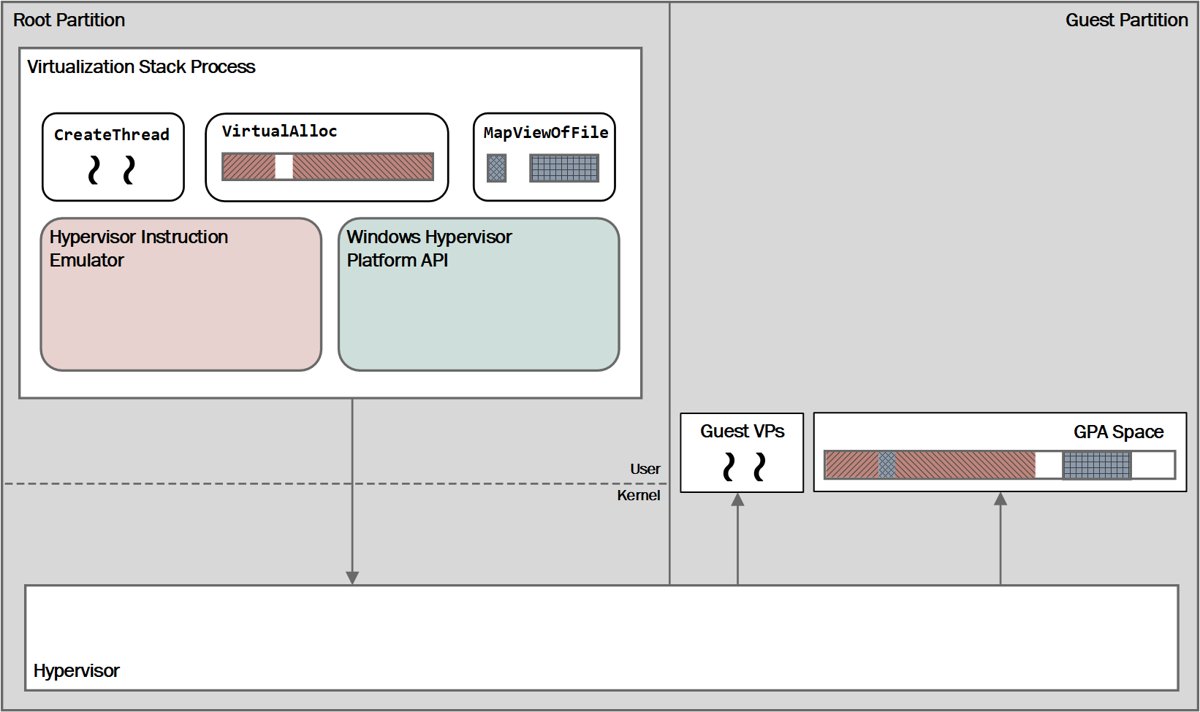
Windows Hypervisor Platform (WHP, or WHPX in the Android Emulator) adds an API for third-party virtualization software. The app keeps its own management, devices and guest drivers, while the Windows hypervisor schedules its virtual processors.
| Question | Windows Hypervisor Platform |
|---|---|
| What is it? | An extended user-mode API for third-party virtualization stacks to create and manage partitions, map memory and run virtual processors on the Windows hypervisor |
| Where does it live? | WinHvPlatform.dll in the System32 folder; developers get the headers from the Windows SDK |
| First available in | Windows 10 April 2018 Update (version 1803) |
| Does it run VMs by itself? | No. It needs a third-party app such as the Android Emulator, VirtualBox or QEMU to do the work |
| Can it run alongside Hyper-V? | Yes. A WHP app can run next to Hyper-V managed VMs on the same hypervisor |
Hyper-V system requirements for Windows 11 and Windows 10
Hyper-V has the strictest requirements of the three. Virtual Machine Platform and Windows Hypervisor Platform still need virtualization turned on in the BIOS or UEFI.
| Requirement | Hyper-V | Virtual Machine Platform | Windows Hypervisor Platform |
|---|---|---|---|
| Windows edition | Windows 10 or 11 Pro or Enterprise | All desktop editions, Home included | Windows 10 version 1803 or later |
| 64-bit CPU with SLAT | Required | Required by WSL 2 | Required by the Android Emulator (Intel EPT or AMD RVI) |
| Virtualization on in firmware | Intel VT or AMD-V | Required | Intel VT-x or AMD SVM |
| Other | VM Monitor Mode Extensions, hardware DEP (XD or NX bit) and at least 4 GB of RAM | Windows Subsystem for Linux feature for WSL 2 | Intel CPUs also need Unrestricted Guest support for the Android Emulator |
How to enable Hyper-V in Windows 11
Use this route on Windows 11 Pro or Enterprise. Sign in with an administrator account first.
- Select Start, search for Control Panel and open it.
- Select Programs, then Programs and Features.
- Select Turn Windows features on or off.
- Check Hyper-V and select OK.
- Restart the PC when Windows asks you to.
On Windows 10, open Settings, select Apps & features, then Programs and Features, and continue from Turn Windows features on or off.
Enable Hyper-V with PowerShell (Enable-WindowsOptionalFeature)
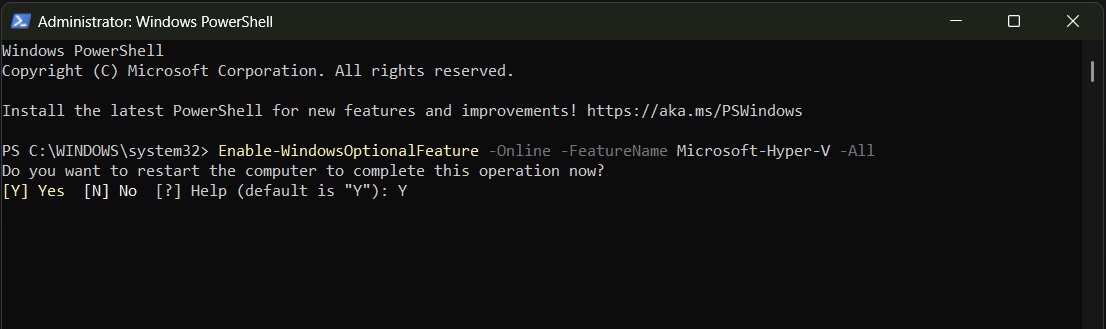
Open Windows PowerShell as administrator by right-clicking it in Start and selecting Run as Administrator. The command fails in a normal window.
Enable-WindowsOptionalFeature -Online -FeatureName Microsoft-Hyper-V -AllTurns on Hyper-V and all of its parent and child features in the running copy of Windows. The DISM equivalent is DISM /Online /Enable-Feature /All /FeatureName:Microsoft-Hyper-V.
You should see: PowerShell asks to restart the computer; enter Y. DISM reports "The operation completed successfully."
How to enable Virtual Machine Platform in Windows 11
These steps work on Home, Pro and Enterprise. WSL 2 also needs the Windows Subsystem for Linux feature, which the same dialog and DISM can turn on.
- Select Start, type Turn Windows features on or off and press Enter.
- Check Virtual Machine Platform.
- Check Windows Subsystem for Linux as well if you plan to run WSL 2.
- Select OK and wait for Windows to apply the changes.
- Restart the PC.
- To do the same from an elevated PowerShell window, run
dism.exe /online /enable-feature /featurename:VirtualMachinePlatform /all /norestart, then restart.
How to enable Windows Hypervisor Platform for the Android Emulator
Turn this on when the Android Emulator, VirtualBox or another third-party app asks for it. Virtualization must already be on in the BIOS.
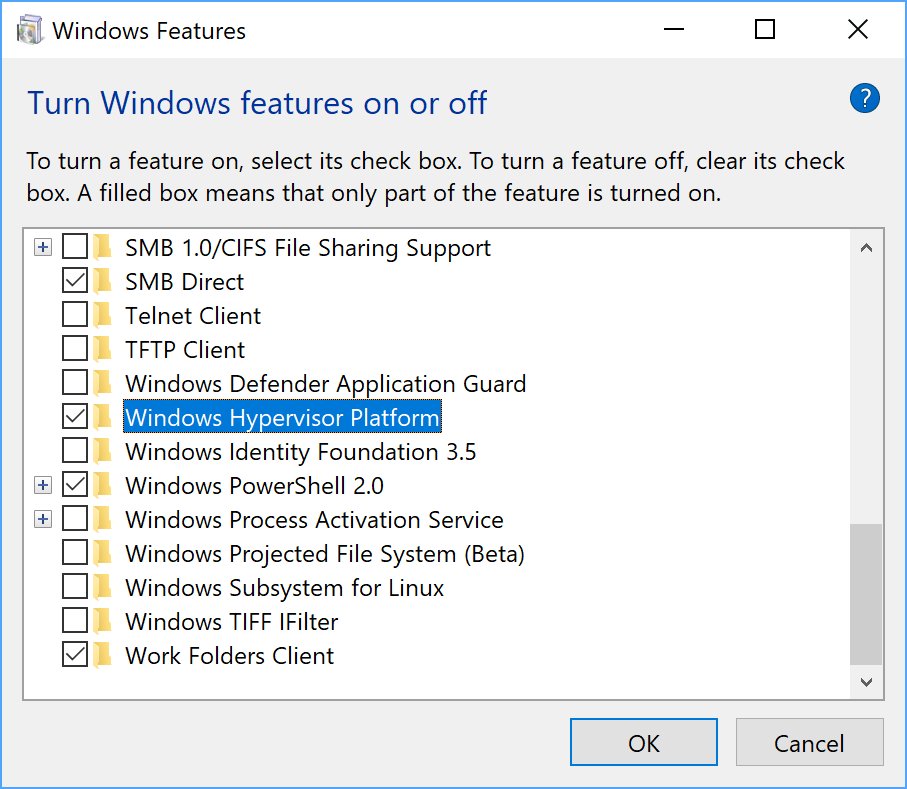
- Select Start and type Turn Windows features on or off in the search bar.
- Press Enter to open the Windows Features dialog.
- Check the box next to Windows Hypervisor Platform.
- Select OK.
- Restart the computer when the installation finishes.
In Android Studio, run emulator -accel-check from the SDK folder afterwards. A line such as WHPX(10.0.22631) is installed and usable. shows the emulator found it.
How to check if Hyper-V is enabled with systeminfo
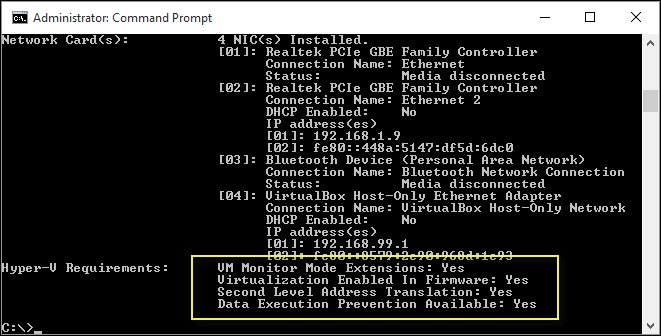
The systeminfo report shows whether a PC can run Hyper-V and whether the hypervisor is already running.
- Open Windows PowerShell or Command Prompt.
- Type
Systeminfo.exeand press Enter. - Scroll to the Hyper-V Requirements section at the end of the report.
- If every item reads Yes, the PC can run Hyper-V but no hypervisor is running yet.
- If it reads A hypervisor has been detected. Features required for Hyper-V will not be displayed., Hyper-V, Virtual Machine Platform or another hypervisor-based feature is already running.
- For WSL 2 specifically, run
bcdedit /enum | findstr -i hypervisorlaunchtypein an elevated window;Automeans the hypervisor starts at boot.
How to disable Hyper-V, Virtual Machine Platform and Windows Hypervisor Platform
Turning these off frees the CPU's virtualization extensions for apps that can't share them. Other Windows features, such as Core Isolation, also start the Windows hypervisor, so unchecking these three does not always stop it.
- Select Start, type Turn Windows features on or off and press Enter.
- Clear Hyper-V, Virtual Machine Platform and Windows Hypervisor Platform, or only the ones you no longer need.
- Select OK.
- Restart the PC.
- Run
Systeminfo.exeagain and check that the Hyper-V Requirements section lists items instead of the "hypervisor has been detected" line.
Clearing Virtual Machine Platform stops WSL 2 distributions from starting, and clearing Windows Hypervisor Platform stops the Android Emulator's WHPX acceleration.
Please enable the Virtual Machine Platform Windows feature error and other fixes
"Error: 0x80370102 The virtual machine could not be started because a required feature is not installed"
Virtual Machine Platform is off, virtualization is off in the BIOS, or the hypervisor is set not to launch.
- Turn on Virtual Machine Platform in Turn Windows features on or off and restart.
- Turn on virtualization in the PC's BIOS or UEFI using the manufacturer's instructions; it is usually under the CPU options.
- Open PowerShell as administrator and run
bcdedit /enum | findstr -i hypervisorlaunchtype. - If it shows
hypervisorlaunchtype Off, runbcdedit /set hypervisorlaunchtype Autoand restart. - If Windows itself runs in a VM, enable nested virtualization on the host with
Set-VMProcessor -VMName <VMName> -ExposeVirtualizationExtensions $true.
Hyper-V is missing from Turn Windows features on or off
The PC runs Windows 11 Home or Windows 10 Home, or the hardware fails a Hyper-V requirement.
- Check whether the PC runs a Home edition; Windows 11 Home and Windows 10 Home can't install Hyper-V.
- Run
Systeminfo.exeand look for any No in the Hyper-V Requirements section. - If you see Windows Hypervisor Platform but no Hyper-V, the CPU or firmware is the likely gap; turn on virtualization and hardware DEP in the BIOS.
- On Home, use Virtual Machine Platform with WSL 2, or a third-party app that supports Windows Hypervisor Platform.
VMware Workstation or VirtualBox won't start VMs after enabling Hyper-V or WSL 2
Older third-party hypervisors can't run while the Windows hypervisor holds the CPU's virtualization extensions.
- Update to a release that supports Hyper-V: VMware Workstation 15.5.5 or later, or VirtualBox 6 or later.
- Turn on Windows Hypervisor Platform if VirtualBox asks for it, then restart.
- If the app still fails, clear Hyper-V and Virtual Machine Platform in Windows Features and restart while you use it.
WSL 2 fails on an older PC even with Virtual Machine Platform installed
WSL 2 needs a CPU with SLAT, which processors older than Intel Nehalem (first-generation Core) lack.
- Run
Systeminfo.exeand look for a No next to the second-level address translation item under Hyper-V Requirements. - If it reads No, keep the distribution on WSL 1 with
wsl --set-version <Distro> 1, which does not need Virtual Machine Platform.
Hyper-V vs Virtual Machine Platform FAQ
Does WSL 2 need Hyper-V?
No. WSL 2 needs the Virtual Machine Platform and Windows Subsystem for Linux features. Virtual Machine Platform is a subset of Hyper-V architecture, so WSL 2 runs on the same hypervisor without the full Hyper-V product or Hyper-V Manager.
Is Virtual Machine Platform available on Windows 11 Home?
Yes. Microsoft offers Virtual Machine Platform on all desktop editions, and WSL 2 runs on Windows 10 Home and Windows 11 Home. Full Hyper-V can't be installed on Home editions.
Is Virtual Machine Platform the same as Hyper-V?
No. Virtual Machine Platform contains only the part of Hyper-V that Windows features such as WSL 2 need to start a lightweight VM. Hyper-V adds Hyper-V Manager, VMConnect and the PowerShell cmdlets for building your own virtual machines.
Do I need Windows Hypervisor Platform for the Android Emulator?
Yes, for hardware acceleration on Windows going forward. Google recommends Windows Hypervisor Platform (WHPX) and is sunsetting its Android Emulator hypervisor driver on December 31, 2026, so enable WHP and restart.
Can I run VirtualBox or VMware with Hyper-V enabled?
Yes, with current versions. VirtualBox 6 and later can run on the Windows hypervisor through the Hypervisor Platform API, and VMware Workstation 15.5.5 and later supports Hyper-V. Older releases fail or run unreliably while Hyper-V or WSL 2 is on.
Can I run WSL 2 inside a Hyper-V virtual machine?
Yes, if nested virtualization is on. On the Hyper-V host, run Set-VMProcessor -VMName <VMName> -ExposeVirtualizationExtensions $true in an elevated PowerShell window, then enable Virtual Machine Platform inside the VM.
Is there a Hyper-V download?
No. Hyper-V is built into Windows 11 and Windows 10 Pro and Enterprise as an optional feature. Turn it on from Turn Windows features on or off, PowerShell or DISM, then restart.
Should you enable Hyper-V or Virtual Machine Platform?
Enable Virtual Machine Platform for WSL 2, Windows Hypervisor Platform for the Android Emulator or VirtualBox, and full Hyper-V only when you want to build and manage your own VMs on Windows 11 Pro or Enterprise. All three run on the same hypervisor, so the right choice is the one the app names. Hyper-V adds the management tools, the other two add only what WSL 2 or a third-party app needs, and Home editions can use only those two.
If you have not picked a VM app yet, weigh up Hyper-V against VirtualBox and VMware on Windows 11 before you install one.