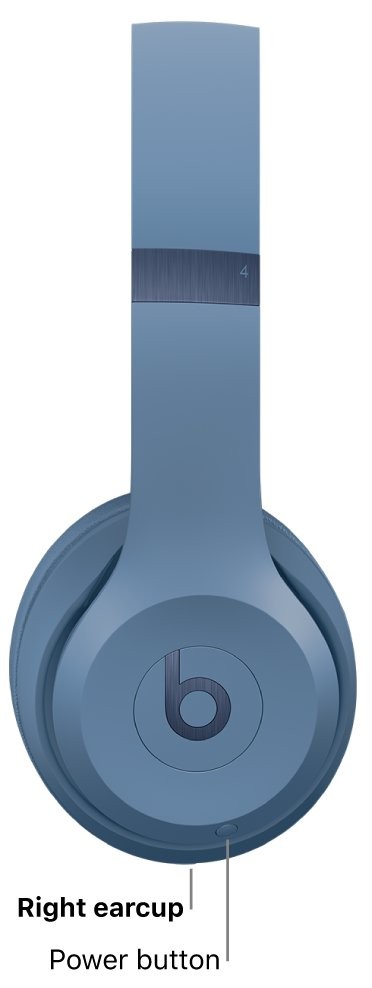
To connect Beats Solo 4 to a Fire tablet, press and hold the power button on the right earcup until the light flashes, then open Bluetooth on the tablet, tap Pair new device and select your Beats.
This guide covers Bluetooth pairing, child profiles, the wired 3.5 mm route, charging, controls, resetting the headphones and what to do when they will not connect.
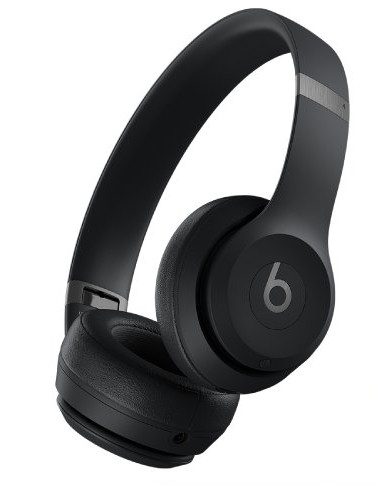
How to connect Beats to Amazon Fire tablet with Bluetooth
Fire tablets pair Beats Solo 4 like any other Bluetooth headphones. Keep the headphones and the tablet close together while you pair them.
- Make sure Beats Solo 4 are charged and switched on.
- Press and hold the power button on the right earcup until the light flashes. The headphones are now in pairing mode.
- On the Fire tablet, swipe down from the top of the screen to open Quick Settings.
- Press and hold the Bluetooth icon to open the Bluetooth settings.
- Turn Bluetooth on if it is off.
- Tap Pair new device.
- Tap Beats Solo 4 when it appears in the list and wait for it to connect.
- Play a song or video to check that the sound comes through the headphones.
Once the pairing is done, the Fire tablet reconnects to Beats Solo 4 on its own whenever the headphones are on and in range. You only need pairing mode again for a new device, or after a reset.
Beats Solo 4 Bluetooth vs cable on a Fire tablet
| Your situation | Use this | Why |
|---|---|---|
| You want wireless listening | Bluetooth pairing | Works on every Fire tablet with Bluetooth, no cable needed |
| The headphone battery is flat | Included 3.5 mm audio cable | Beats Solo 4 play over the 3.5 mm cable without battery power |
| Your tablet has a headphone jack and you want no pairing at all | Included 3.5 mm audio cable | Plug in and play; nothing to set up |
| Your child uses a Kids profile | Bluetooth with an adult PIN | A child profile asks for an adult PIN before Bluetooth settings open |
| You also use the headphones with an iPhone, Mac or PC | Bluetooth pairing on each device | Beats Solo 4 can be paired with several devices and connect to whichever you pick |
Apple lists USB-C audio for Beats Solo 4 with supported iPhone, iPad, Mac and Android devices. Fire tablets are not named in that list, so Bluetooth or the 3.5 mm cable are the dependable routes.
How to turn on Beats Solo 4
Beats Solo 4 have one power button, on the right earcup next to the status light. The same button turns them on, turns them off and starts pairing.
- Press and hold the power button for one second to turn Beats Solo 4 on.
- Watch the status light come on, which shows the headphones are powered.
- To shut off Beats Solo 4, press and hold the power button for one second again.
- If nothing happens, charge the headphones for at least 10 minutes and try again.
Beats Solo 4 also switch themselves off when you unplug the USB-C cable after listening through it.
How to put Beats Solo 4 in pairing mode
Pairing mode (Apple calls it discovery mode) makes Beats Solo 4 visible to a Fire tablet, Android phone or Windows PC that has never connected to them before.
- Turn Beats Solo 4 on and hold them near the Fire tablet.
- Press and hold the power button on the right earcup.
- Release the button when the light flashes. The flashing light means the headphones are ready to pair.
- Open the Bluetooth list on the tablet and tap Beats Solo 4.
- If the light stops flashing before you pair, hold the power button again to restart pairing mode.
How to connect Beats Solo 4 to a Fire tablet in a child profile
Amazon locks Bluetooth inside child profiles, so a parent has to approve the pairing. A Bluetooth connection also does not carry over when you switch profiles, so the child profile needs its own pairing.
- Put Beats Solo 4 in pairing mode by holding the power button on the right earcup until the light flashes.
- In the child profile, swipe down from the top of the screen to open Quick Settings.
- Press and hold the Bluetooth icon until the list of adult profiles appears.
- Choose an adult profile and enter its PIN.
- Turn Bluetooth on.
- Tap Pair new device, then tap Beats Solo 4.
- Play something in a kids app to check that the sound plays through the headphones.
Volume limits for a child profile are set separately, in the Grownups menu under Settings.
How to connect Beats Solo 4 to Fire tablet with the 3.5 mm cable
Beats Solo 4 ship with a 3.5 mm audio cable. Over that cable the headphones need no battery power at all, which makes it the fallback when the battery is empty.
- Check that your Fire tablet has a 3.5 mm headphone jack.
- Plug one end of the included 3.5 mm audio cable into the headphone jack on Beats Solo 4.
- Plug the other end into the headphone jack on the Fire tablet.
- Start playback on the tablet and set the volume with the tablet's volume buttons.
- Unplug the cable when you want to go back to Bluetooth.
If your tablet has no headphone jack, use Bluetooth pairing instead.
Beats Solo 4 controls
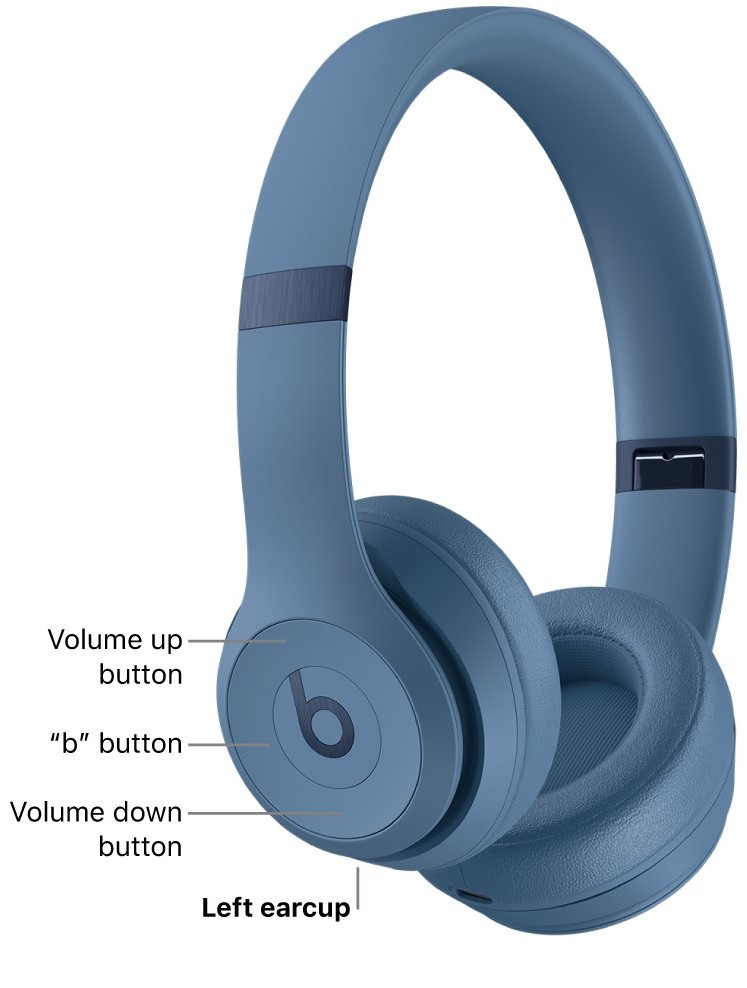
The playback and volume controls sit on the left earcup. They work with music, video and audiobook apps on a Fire tablet once the headphones are connected.
| To do this | On the left earcup |
|---|---|
| Play or pause | Press the b button once |
| Next track | Double-press the b button |
| Previous track | Triple-press the b button |
| Fast-forward | Double-press and hold on the second press |
| Rewind | Triple-press and hold on the third press |
| Volume up or down | Press, or press and hold, above or below the b button |
| Answer or end a call | Press the b button |
| Decline a call | Double-press the b button |
How to charge Beats Solo 4
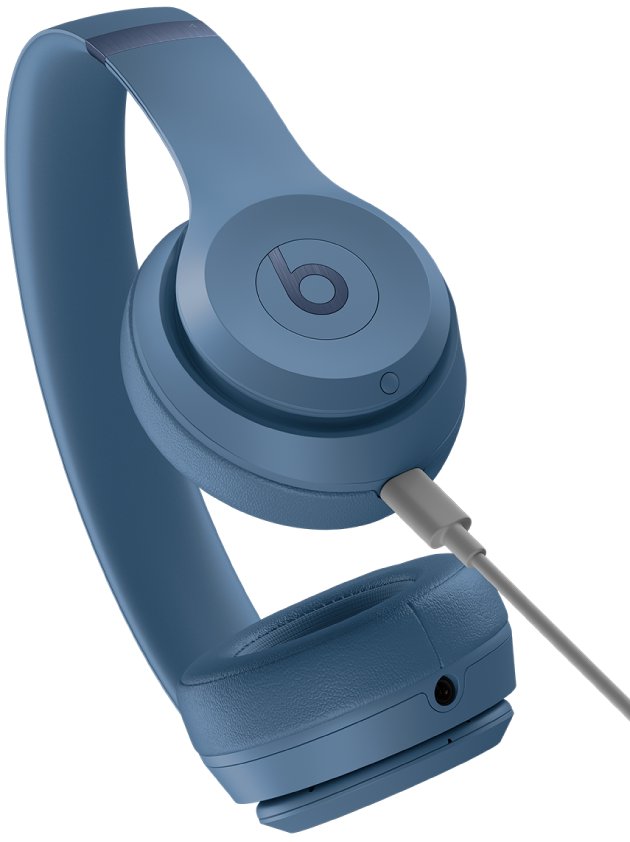
A full charge takes about 2 hours and 15 minutes and gives up to 50 hours of playback. A 10-minute charge gives up to 5 hours.
- Connect the USB-C cable to the port on Beats Solo 4.
- Plug the other end into a compatible USB power adapter in a wall outlet.
- Check the light on the right earcup: it pulses red while charging.
- Unplug when the light turns white, which means the battery is at least 95 percent full.
Battery life depends on volume, settings and how you use the headphones, so real-world hours vary.
Can Beats Solo 4 connect to PC, laptop or iPhone?
Yes. Beats Solo 4 work with Apple devices, Android devices and any other Bluetooth device, including Windows laptops and desktops.
| Device | How Beats Solo 4 connect |
|---|---|
| iPhone or iPad | Turn the headphones on near the device and follow the setup animation |
| Android phone | Fast Pair animation, or Settings > Bluetooth and tap the Beats |
| Fire tablet | Pairing mode, then Pair new device in Bluetooth settings |
| Mac | System Settings > Bluetooth, select the Beats, click Connect |
| Windows PC or laptop | Pairing mode, then add a Bluetooth device in Windows settings |
On a Windows laptop, the steps to pair Bluetooth headphones in Windows 11 are the same for Beats as for any other headset.
How to reset Beats Solo 4
A reset clears pairing, sound and charging glitches. Update the Fire tablet first, then reset if the headphones still misbehave.
- Press and hold the volume down button on the left earcup and the power button on the right earcup together.
- Keep holding for 10 seconds.
- Release both buttons when the light flashes red and white.
- Remove Beats Solo 4 from the tablet's list of paired Bluetooth devices.
- Put the headphones in pairing mode and tap Pair new device on the Fire tablet again.
Beats Solo 4 not connecting to Fire tablet
Beats Solo 4 do not show up in Pair new device
The headphones are not in pairing mode, or they are out of range.
- Hold the power button on the right earcup until the light flashes.
- Keep the headphones within 30 feet of the tablet.
- Move away from microwaves, Wi-Fi routers and other Bluetooth devices.
- Turn Bluetooth off and on again in Quick Settings, then tap Pair new device.
Beats Solo 4 connected but no sound
Volume is low on one side, or a stream is buffering.
- Raise the volume on the headphones and on the Fire tablet.
- Play a song or video that is downloaded to the tablet instead of a stream.
- Check that both the tablet and the headphones are charged and switched on.
Beats Solo 4 keep disconnecting
Distance, interference or a stale pairing record.
- Stay within 30 feet of the tablet and away from other wireless gear.
- Remove Beats Solo 4 from the tablet's paired devices and pair them again.
- Reset the headphones if the drops continue, then pair once more.
Beats Solo 4 stopped working after switching profiles
Fire tablets do not carry a Bluetooth connection over to another profile.
- Open Quick Settings in the profile you are now using.
- Pair Beats Solo 4 again from the Bluetooth settings.
- In a child profile, enter an adult PIN when asked.
Beats Solo 4 not charging
A loose cable or a low-power port.
- Use a USB-C cable and a compatible power adapter plugged into a wall outlet.
- Look for the red pulsing light on the right earcup once plugged in.
- Reset the headphones if the light never appears.
Beats Solo 4 still will not connect
Firmware or pairing data on the headphones is stuck.
- Restart the Fire tablet and install any pending Fire OS update.
- Reset Beats Solo 4 with volume down and power for 10 seconds.
- Pair them again. If a reset fails, contact Apple Support, which handles Beats repairs.
Beats Solo 4 and Fire tablet FAQ
How do I connect Beats to an Amazon Fire tablet?
Hold the Beats power button until the light flashes, swipe down on the Fire tablet, press and hold the Bluetooth icon, then tap Pair new device and select your Beats. The same steps work for Beats Solo 4 and other Beats headphones.
How do I pair Beats Solo 4?
Turn the headphones on, then press and hold the power button on the right earcup until the light flashes. Select Beats Solo 4 in the Bluetooth list of your tablet, phone or computer to finish pairing.
How do I turn on Beats Solo 4?
Press and hold the power button for one second. The status light comes on to show they are powered. If they stay dark, charge them for 10 minutes, which gives up to 5 hours of listening.
How do I shut off Beats Solo 4?
Press and hold the power button for one second, the same press that turns them on. They also turn off by themselves when you unplug the USB-C cable after listening through it.
How do I charge Beats Solo 4?
Plug the USB-C cable into the headphones and a compatible power adapter. The right earcup light pulses red while charging and turns white at 95 percent or more. A full charge takes about 2 hours and 15 minutes.
Can Beats Solo 4 connect to a PC or laptop?
Yes. Put Beats Solo 4 in pairing mode, then add them as a Bluetooth device in Windows or macOS settings. On a Mac, open System Settings, click Bluetooth, select the Beats and click Connect.
What comes with the Beats Solo 4?
Beats Solo 4 come with a USB-C cable for charging and a 3.5 mm audio cable for wired listening. The 3.5 mm cable plays audio without using the battery.
Do I need the Beats app on a Fire tablet?
No. Pairing and playback work through the Fire tablet's own Bluetooth settings. The Beats app for Android comes from Google Play, while Fire tablets install apps from the Amazon Appstore.
How do I fix Beats Solo 4 that will not work?
Update the device they are paired with, then reset the headphones: hold volume down and the power button for 10 seconds until the light flashes red and white. Pair them again afterwards.