To fix Netflix error code NW-2-5, check the device's connection with More Details > Check your network, then restart the device and your modem and router, because the code means the device took too long to connect to Netflix.
This guide covers what the code means, the order to try each fix, the DNS settings for PlayStation and Xbox, the smart TV sign-out sequence, and what to ask your internet provider if the error keeps returning.
How to fix Netflix error code NW-2-5
These four steps clear most NW-2-5 errors on TVs, streaming sticks and game consoles. Try Netflix again after each one.
- On the error screen, select More Details > Check your network. A red X means the device is not connected to the internet.
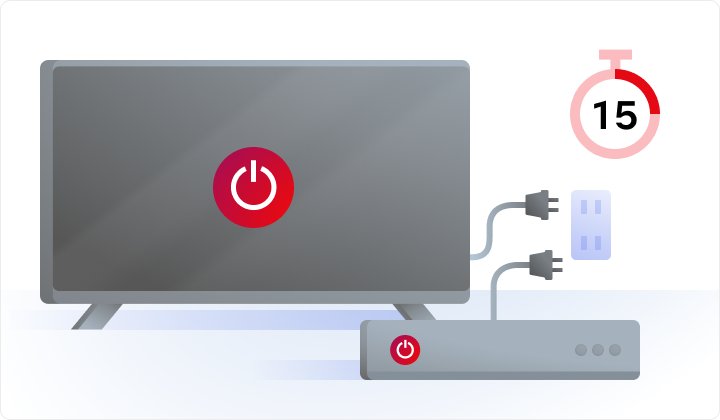
- Unplug the device from power, wait at least 15 seconds (3 minutes for a cable box), then plug it back in and turn it on.
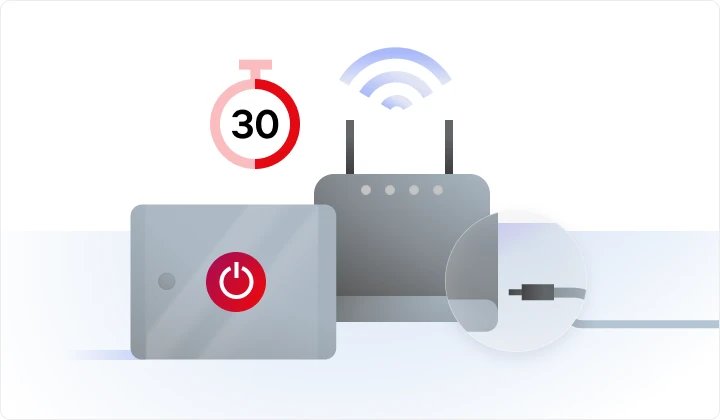
- Turn the device off, unplug the modem and router, and wait 30 seconds.
- Plug the modem and router back in, wait 1 minute, then turn the device on.
- Open Netflix and play a title.
Some modems and routers take longer than a minute to reconnect, so give them extra time before you judge the result.
What does Netflix error code NW-2-5 mean?
NW-2-5 is a network error. Netflix says it means the device took too long to connect to the Netflix service, usually because of an internet problem on the device or the home network.
| Part of the message | What it tells you |
|---|---|
| "Netflix has encountered an error." | The app reached a point where it could not talk to Netflix |
| "Retrying in X seconds." | The app will try the connection again by itself |
| "Code: NW-2-5" | The device timed out before it reached Netflix, a network fault rather than an account fault |
| Red X under Check your network | The device itself has no working internet connection |
Because the cause sits on the network side, the fix is almost always on your device, router or internet connection rather than in your Netflix account.
Which fix should you try first?
| Your situation | Try this first | Why |
|---|---|---|
| Other apps on the same device also fail | Restart the modem and router | The whole connection is down, not just Netflix |
| Netflix works on your phone but not the TV | Restart the TV, then move the router or improve Wi-Fi | The TV has the weak link |
| PlayStation or Xbox shows NW-2-5 | Set DNS to automatic | A manual DNS entry can stop the console reaching Netflix |
| You are on hotel, dorm or apartment Wi-Fi | Ask the network owner | Shared networks can be overloaded or block streaming |
| You use cellular, satellite or a hotspot | Ask your provider about streaming | These links can be too slow for video |
| Every device at home fails | Contact your internet provider | There may be a local outage or a modem fault |
How to run the Netflix Check your network test
TVs and streaming devices have a built-in network test inside the Netflix app. Phones, tablets and computers can use fast.com instead.
- When the NW-2-5 screen appears, select More Details.
- Select Check your network and wait for the result.
- If you see a red X, open the device's own network settings and reconnect to your Wi-Fi.
- If the device has a network test in its settings menu, run it as a second check.
- Open another app that needs the internet to confirm the connection is back.
Netflix support does not set up a device's first internet connection. If the device never connected, use its manual or contact its manufacturer.
How to check if Netflix is down
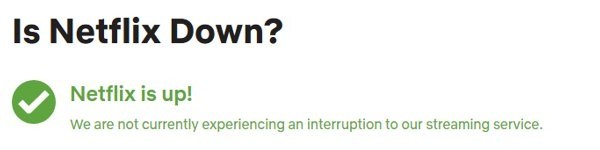
- On a phone or computer, open help.netflix.com/is-netflix-down in a browser.
- Read the status message at the top of the page.
- If it describes an outage, wait and try again later.
- If it shows no problem, go back to the network fixes on this page.
Netflix outages are rare, and the status page is updated with a description when one happens. If Netflix plays on other devices in the house, the service is up.
Netflix error code NW-2-5 on smart TV
Signing out resets the Netflix app's session on the TV. Use it after a restart if the error returns.
- On the Netflix home screen, press Back on the remote to open the menu.
- If the menu is at the top, select your profile icon; if it is on the left, go to the bottom of the menu.
- Select Get Help > Sign out > Yes.
- On an error screen instead, select More Details, then Sign out or Reset.
- If you cannot find Get Help, press Up, Up, Down, Down, Left, Right, Left, Right, Up, Up, Up, Up on the remote, then choose Sign out, Reset or Deactivate.
- Sign back in and play a title.
Apple TV uses a separate sign-out method in the tvOS Netflix app.
Move your Wi-Fi router to fix Netflix NW-2-5
Skip this if the device uses an Ethernet cable. A weak Wi-Fi signal is a common reason the device times out.
- Move the router closer to the streaming device, or to a central spot in the home.
- Raise the router off the floor.
- Keep it away from other wireless devices and from metal appliances such as refrigerators and microwaves.
- Add a wireless repeater in the same room as the device if the router cannot move.
- Ask your provider to update the router firmware or supply a newer model.
If you manage the router yourself, you can open your Wi-Fi router settings to check for a firmware update.
Netflix NW-2-5 on PlayStation: set DNS to automatic
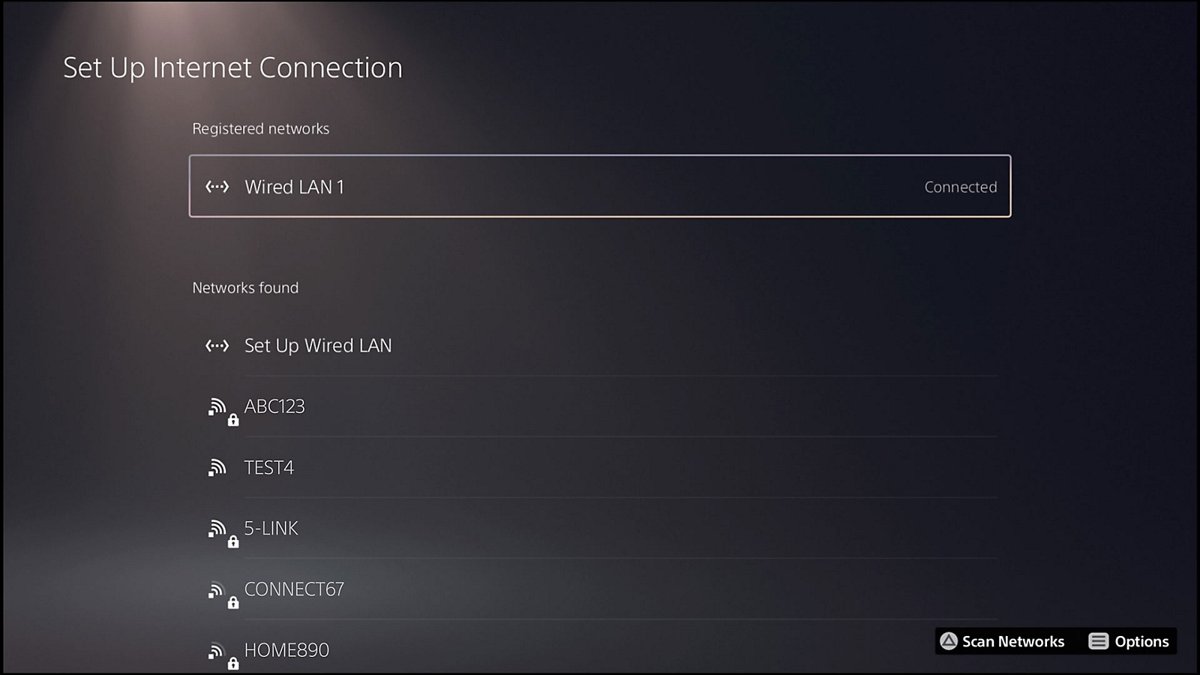
- From the PS4 or PS5 main menu, select Settings > Network > Set Up Internet Connection.
- For Wi-Fi, select Custom, then your network. For a LAN cable, select Custom > Operation mode.
- Set IP Address Settings to Automatic and DHCP Host to Don't Specify.
- Set DNS Settings to Automatic, Proxy Server to Don't Use and MTU Settings to Automatic.
- Select Test Connection, then open Netflix.
Netflix NW-2-5 on Xbox: set DNS to automatic
- On Xbox One or Xbox Series X|S, press the Xbox button to open the guide.
- Select Profile & system > Settings.
- Select General > Network Settings > Advanced Settings > DNS Settings.
- Select Automatic, then open Netflix.
- On Xbox 360, open Settings > System Settings > Network Settings, choose your network, select Configure Network > DNS Settings > Automatic, then turn the console off and on.
If DNS is already automatic, ask your provider whether the device can reach secure.netflix.com, appboot.netflix.com, uiboot.netflix.com and fast.com, and whether a different DNS server helps. You can also find your primary and secondary DNS before you call.
Other fixes worth trying
- Turn off any VPN or proxy on the device or router, including a VPN built into antivirus software, then retry Netflix.
- Reinstall the Netflix app: delete it, then download it again from the device's app store. On iPhone or iPad this deletes saved downloads and signs you out.
- Update the Netflix app from the device's app store, for example My Apps in the Play Store on a Sony TV.
- Try Netflix on another device on the same network to see whether the fault is the device or the connection.
- If the device has an Ethernet port, connect it to the router with a cable to rule out Wi-Fi.
On a shared or public network, the owner may block streaming. Only the network administrator can lift that block.
How to test your internet speed for Netflix
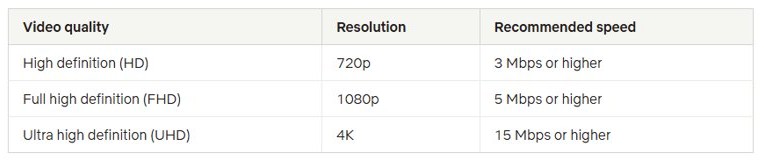
Netflix lists minimum speeds for each quality level. A connection below these numbers can trigger NW-2-5 or constant buffering.
- On a phone, tablet or computer on the same network, open fast.com.
- Wait for the speed result.
- Compare it with 3 Mbps for HD (720p), 5 Mbps for Full HD (1080p) or 15 Mbps for 4K UHD.
- On a TV, run More Details > Check your network in the Netflix app instead.
- Play a title for a few minutes; no NW-2-5 screen means the connection is holding.
How I keep NW-2-5 from coming back
| Habit | What it prevents |
|---|---|
| Keep the router central, raised and away from metal appliances | Weak Wi-Fi that makes the TV time out |
| Leave DNS on automatic on consoles | A manual DNS server that cannot reach Netflix |
| Switch off a VPN before streaming | Netflix's VPN or proxy error |
| Lower video quality on a slow or capped plan | Buffering when your provider throttles speed |
| Restart the modem and router when several apps slow down | Stale connections that block every streaming app |
Still seeing NW-2-5? Try these last
NW-2-5 returns on every device in the house
The internet connection itself has a fault or a local outage.
- Call your internet provider and ask them to check for local outages.
- Ask them to fix modem or router faults and reset the connection.
- Tell them whether one device or every device fails, and whether it uses Wi-Fi or a cable.
- Before you hang up, run fast.com and try Netflix again.
Check your network shows a red X
The device has no internet connection at all.
- Reconnect the device to Wi-Fi in its own network settings.
- Restart the modem and router.
- Contact the device manufacturer if it will not connect to any network.
NW-2-5 only on hotel, dorm or apartment Wi-Fi
The shared network is overloaded or blocks streaming.
- Ask the network owner or administrator whether streaming is allowed.
- Try Netflix on another network to confirm the block.
NW-2-5 continues after every fix
A device-specific fault the general steps do not cover.
- Search the Netflix Help Center for your device and error code.
- Contact Netflix customer service through the Help Center if nothing matches.
Netflix error code NW-2-5 FAQ
What is Netflix error code NW-2-5?
NW-2-5 is a Netflix network error. It appears when your TV, streaming stick or console takes too long to connect to Netflix, usually because of a problem with the device's internet connection or your home network.
What does "Netflix has encountered an error" NW-2-5 mean?
The full message reads "Netflix has encountered an error. Retrying in X seconds. Code: NW-2-5." It means the app could not reach Netflix in time and will retry. Restart the device and your modem and router if the retry fails.
Why do I get NW-2-5 on my smart TV but Netflix works on my phone?
The TV has a weaker connection than the phone, often because it sits farther from the router or has its own network fault. Restart the TV, move the router closer or raise it, and run Check your network from the error screen.
Does error code NW-2-5 mean Netflix is down?
No. NW-2-5 points to your device or network, not a Netflix outage. To be sure, open help.netflix.com/is-netflix-down on another device, which describes any outage in progress.
Will reinstalling Netflix delete my profile or watchlist?
Reinstalling deletes any downloads stored on the device and signs you out. Your profiles belong to your Netflix account rather than the app, so they return when you sign back in.
What internet speed do I need to stop NW-2-5?
Netflix recommends at least 3 Mbps for HD, 5 Mbps for Full HD and 15 Mbps for 4K. Test with fast.com on a phone or computer, or with Check your network on a TV.
How do I fix Netflix NW-2-5 on PlayStation or Xbox?
Set the console's DNS to automatic. On PlayStation, use Settings > Network > Set Up Internet Connection > Custom. On Xbox, use Profile & system > Settings > General > Network Settings > Advanced Settings > DNS Settings.
Can a VPN cause Netflix connection errors?
Yes. A VPN or proxy can route traffic in a way Netflix rejects, and Netflix asks you to turn it off. Check antivirus software too, since some include a VPN that is switched on.