To allow Easy Anti-Cheat through the firewall, open Windows Security > Firewall & network protection > Allow an app through firewall, select Change settings, and tick the game and its anti-cheat launcher for the network type you use.
This guide covers adding the files by hand, choosing the right firewall profile, whether a port is needed, a PowerShell rule check, and fixes when the game still will not connect.
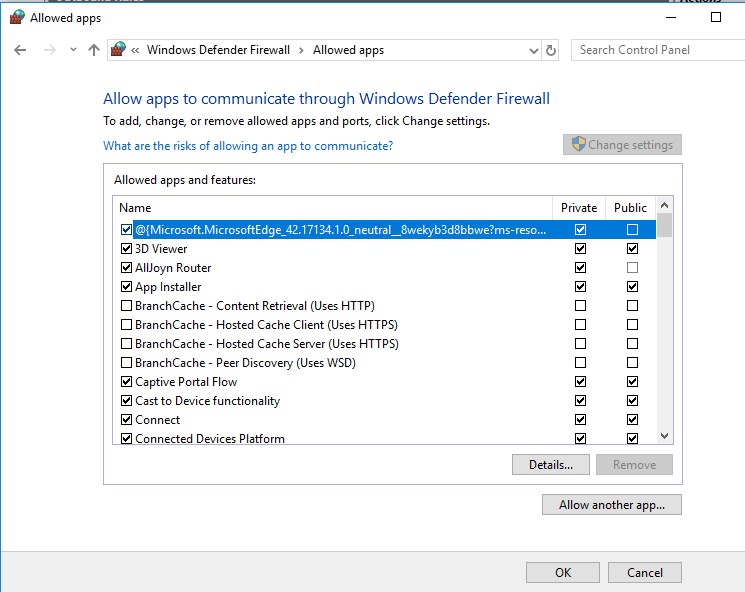
Allow Easy Anti-Cheat through Windows Firewall
- Open Start, type Windows Security and open it.
- Select Firewall & network protection, then Allow an app through firewall.
- Select Change settings and confirm the administrator prompt.
- Find the game and its Easy Anti-Cheat launcher in the list; a program appears there only if a rule for it already exists.
- Tick Private for a home network, and Public too if Windows treats your connection as public.
- Select OK, then restart the game from Steam, the Epic Games Launcher or its own launcher.
Microsoft rates an allowed-app entry as less risky than an open port, because the app opens the ports it needs only while it runs. This works the same on Windows 11 and Windows 10.
What is Easy Anti-Cheat and how does it work
Easy Anti-Cheat is Epic Games' free anti-cheat service, documented by Epic as the Anti-Cheat Interfaces of Epic Online Services. Each protected game ships three Windows components, and the firewall must not stop them from reaching Epic's servers.
| File | What it does | Why the firewall matters |
|---|---|---|
| start_protected_game.exe (the bootstrapper) | Starts the game with protection and downloads the latest anti-cheat client module at every launch | If it cannot download the module, the game falls back to an unprotected null client and cannot join protected matches |
| EasyAntiCheat_EOS.exe | The Windows service; starts when the game starts and stops when it exits | Runs alongside the game while you play online |
| EasyAntiCheat_EOS_Setup.exe | Installs, repairs or uninstalls the service; lives in the game's EasyAntiCheat folder | Only needs admin rights at install time, not for each launch |
| The game executable | The program listed in the game's EasyAntiCheat\Settings.json file | Carries the actual multiplayer traffic |
The Easy Anti-Cheat client runs only on 64-bit Windows and does not support virtual machines.
If Easy Anti-Cheat is not in the list
Windows lists only programs that already have a rule. Add the files by path; wildcard paths are not supported, so each rule needs the full path.
- In Allow an app through firewall, select Change settings, then Allow another app.
- Enter the full path to the bootstrapper, usually start_protected_game.exe in the game's root folder, and add it.
- Repeat for the game executable; Unreal Engine games often keep it in a subfolder such as Binaries\Win64.
- Back in the list, tick Private and Public next to each new entry as needed.
- Select OK to save the list.
Open the game's EasyAntiCheat folder and check Settings.json in Notepad if you are unsure which executable the anti-cheat protects; it is named there.
Check the active firewall profile
An exception only works for the profile it is ticked under. Unidentified networks get the Public profile by default.
- Open Windows Security > Firewall & network protection.
- Note which profile Windows Security shows you are connected to: Domain network, Private network or Public network.
- Or run
Get-NetConnectionProfilein PowerShell and read the NetworkCategory value. - Make sure the Easy Anti-Cheat and game entries are ticked under that same profile.
On a home network you trust, switching the category to Private with Set-NetConnectionProfile -NetworkCategory Private is an alternative to ticking Public.
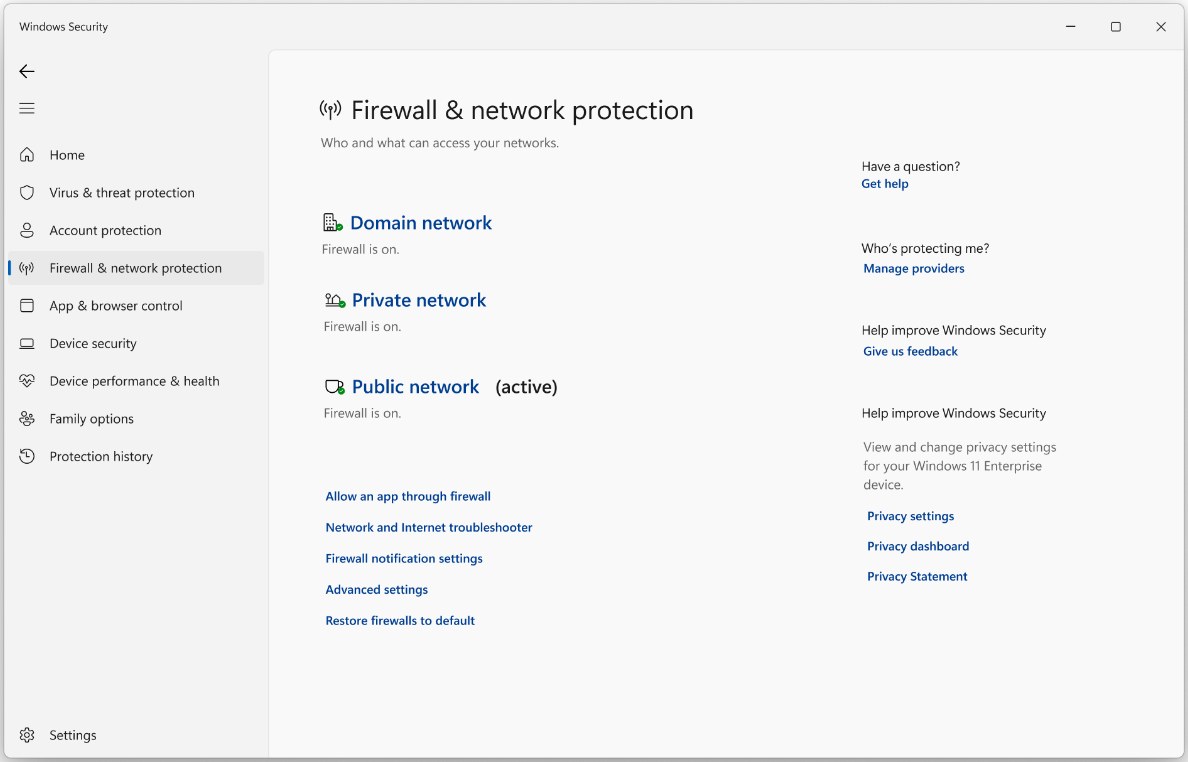
Check whether all incoming connections are blocked
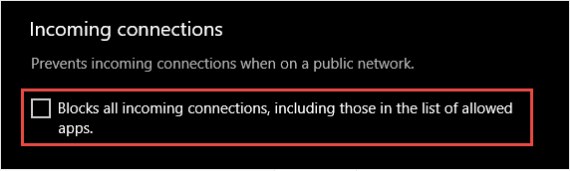
Windows Security has a switch that ignores the allowed-apps list completely, so a correct exception still does nothing while it is on.
- Open Windows Security > Firewall & network protection.
- Select the active network profile.
- Under Incoming connections, find Blocks all incoming connections, including those in the list of allowed apps.
- Clear the check box if you want the allowed-app list, including Easy Anti-Cheat, to apply again.
If the setting is greyed out, your organization manages the firewall through policy and only an administrator can change it.
Should you open a port instead?
Usually not. Epic documents its online services over HTTPS on port 443, and Windows Firewall allows outgoing traffic by default, so Easy Anti-Cheat has no extra port to open.
| Your situation | Do this | Why |
|---|---|---|
| Game launches but cannot connect | Allow the game and bootstrapper as apps | An allowed app opens ports only while it runs |
| The game's publisher lists inbound ports for hosting a server | Create a publisher-specified inbound port rule in Advanced settings > Inbound Rules > New Rule | Only the publisher knows which ports its servers use |
| A strict outbound policy blocks HTTPS | Allow outbound HTTPS for the game | Epic services connect over port 443 |
| You opened a port only to test | Disable a port rule after testing with Disable Rule | An open port stays open until you close it |
If a corporate or school firewall filters outbound traffic, allow port 443 in Windows Firewall or ask the network admin to allow Epic's hosts, such as api.epicgames.dev.
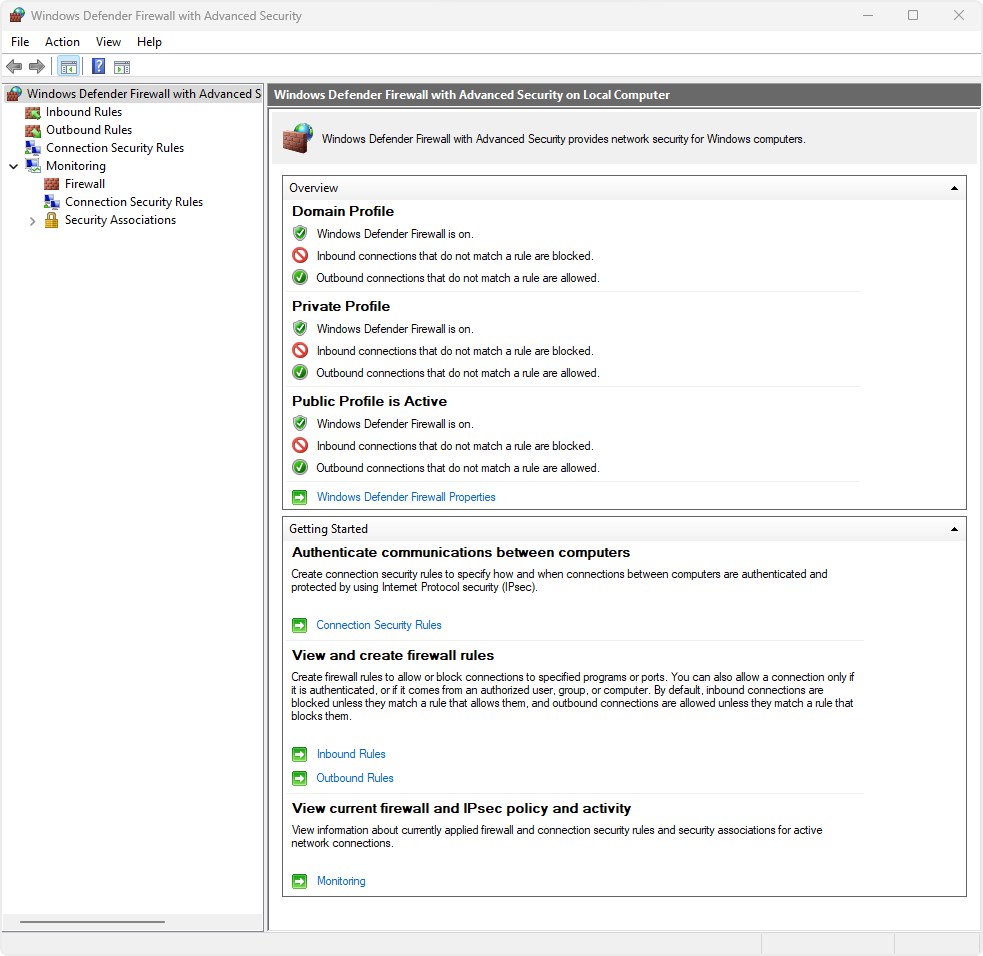
How to tell if Windows Firewall is blocking Easy Anti-Cheat
Run this in PowerShell as administrator. It lists every rule tied to the anti-cheat bootstrapper, including hidden block rules.
Get-NetFirewallApplicationFilter -Program "*start_protected_game*" | Get-NetFirewallRule | Format-Table DisplayName, Direction, Action, Enabled, ProfileGet-NetFirewallApplicationFilter finds rules whose program path matches the pattern, and Get-NetFirewallRule shows each rule's direction, action, state and profile.
You should see: Rules with Action Allow and Enabled True for your active profile. Any Action Block row is what stops the game, because explicit block rules beat allow rules.
Repeat the command with part of the game's executable name in place of start_protected_game. To add an allow rule from PowerShell instead of the dialog, use New-NetFirewallRule -DisplayName "Easy Anti-Cheat launcher" -Direction Inbound -Program "<full path>\start_protected_game.exe" -Action Allow with the real path.
Easy Anti-Cheat firewall: what not to do
| Do not | Why | Do this instead |
|---|---|---|
| Turn Windows Firewall off | Microsoft warns it leaves the PC open to unauthorized access | Allow the specific game files |
| Open wide port ranges copied from a forum | Open ports stay open for anything listening | Use allowed apps, or only ports the publisher documents |
| Allow an executable you do not recognize | Malware can hide under anti-cheat names | Browse to files inside the game's own install folder |
| Download Easy Anti-Cheat from a third-party site | The service installs with the game itself | Repair the game through its launcher |
| Run the game in a virtual machine | The Easy Anti-Cheat client does not support VMs | Play on the host Windows installation |
Fixes when the exception does not solve the problem
Game still blocked when it is on the allowed-app list
A block rule created when someone dismissed the firewall prompt overrides the allow entry.
- Run the PowerShell check above to find rules with Action Block.
- Open Windows Security > Firewall & network protection > Advanced settings.
- Select Inbound Rules, find the game's block rules (usually one TCP and one UDP), and delete them.
- Repeat in Outbound Rules, then relaunch the game and allow it if prompted.
Easy Anti-Cheat not working or not launching online
The bootstrapper could not download the anti-cheat module because of a connection problem or a firewall.
- Confirm the internet connection works in a browser.
- Open
%AppData%\EasyAntiCheatand read anticheatlauncher.log for the download error. - Check that the bootstrapper is allowed under the active profile.
- Allow the game in any third-party security suite's own firewall, which filters separately from Windows.
"Easy Anti-Cheat is not installed" error
The anti-cheat service is missing, often after a reinstall.
- Repair Easy Anti-Cheat on Steam by verifying the game's files.
- Launch the game once so its installer can recreate the service.
- Re-add the game to the firewall list if its path changed.
Firewall changes do not stick
Organization policy or a damaged rule set overrides local changes.
- Ask your administrator if the PC is managed for work or school.
- On a personal PC, select Restore firewalls to default in Firewall & network protection.
- Run the Network and Internet troubleshooter from the same page.
- Add the game and bootstrapper again.
Easy Anti-Cheat not working on Linux, Steam Deck or a VM
Wine and Proton need the developer to activate a Linux module, and VMs are not supported.
- Check the game's store page or publisher for Linux or Steam Deck support.
- Play on a physical 64-bit Windows PC if the game does not support your platform.
How to remove Easy Anti-Cheat from Windows Firewall
- Open Windows Security > Firewall & network protection > Allow an app through firewall.
- Select Change settings.
- Clear the check boxes next to the game and its anti-cheat launcher.
- Select OK.
- For a rule you made in PowerShell, run
Remove-NetFirewallRule -DisplayName "Easy Anti-Cheat launcher"as administrator.
Easy Anti-Cheat firewall FAQ
Do I need to disable Windows Firewall for Easy Anti-Cheat?
No. Allow the game and its start_protected_game.exe launcher under Allow an app through firewall instead. Microsoft advises allowing a blocked app rather than turning the firewall off, which leaves the PC open to unauthorized access.
Which Easy Anti-Cheat executable should I allow?
Allow the bootstrapper, usually start_protected_game.exe in the game's root folder, and the game executable named in the EasyAntiCheat\Settings.json file. The bootstrapper downloads the anti-cheat module at every launch.
Which firewall profile should I select for Easy Anti-Cheat?
Tick the profile Windows marks as active in Firewall & network protection. Home networks are usually Private, while unidentified networks default to Public. Ticking both covers you if the category changes.
Does Easy Anti-Cheat require specific firewall ports?
Epic does not list a separate port for Easy Anti-Cheat. Its online services connect over HTTPS on port 443, which Windows Firewall allows outbound by default, so an allowed-app entry is enough.
Why is Easy Anti-Cheat not working even with an exception?
An explicit block rule beats any allow rule, so check Inbound Rules and Outbound Rules for block entries. The Blocks all incoming connections setting, a third-party firewall, or organization policy can also override the exception.
How do I enable Easy Anti-Cheat?
Launch the game the normal way from Steam, the Epic Games Launcher or its own launcher. The anti-cheat bootstrapper starts the Easy Anti-Cheat service automatically, and the service stops when the game exits.
Where do I download Easy Anti-Cheat?
There is no separate download for players. Each protected game installs Easy Anti-Cheat with its own installer and ships EasyAntiCheat_EOS_Setup.exe in its EasyAntiCheat folder, so repair the game rather than downloading the service elsewhere.
Can I use a netsh or PowerShell command instead?
Yes. New-NetFirewallRule with -Program set to the full path of start_protected_game.exe and -Action Allow creates the rule. Wildcard paths are not supported, so type the exact path.
Should I allow Easy Anti-Cheat through the firewall?
The bottom line: yes, allow the game and its Easy Anti-Cheat launcher as apps in Windows Firewall, under the active profile, and leave the firewall itself on. A protected game cannot download its anti-cheat module or join protected matches when blocked, and an allowed-app entry is the lower-risk option Microsoft recommends over open ports.