Download BSG Launcher by signing in at escapefromtarkov.com, opening your profile page, and selecting the Install button at the bottom of the page.
This guide covers the account and purchase you need first, installing the launcher and the game on Windows, the launcher and in-game settings worth changing, updates, and fixes for downloads that stall or fail.
How to download BSG Launcher from your Escape from Tarkov profile
Battlestate Games does not offer a public download page. The installer sits on the profile page of an account that owns the game.
- Go to escapefromtarkov.com and sign in with the account that bought the game.
- Open your profile page.
- Scroll to the bottom and select Install to download the launcher installer.
- Run the installer and choose a folder for the launcher, separate from the folder you will use for the game.
- Open BSG Launcher and sign in with the same email and password.
- Select Install in the launcher to download Escape from Tarkov.
Understanding the need for BSG Launcher
BSG Launcher is the Battlestate Games program that downloads, updates and runs Escape from Tarkov for copies bought on the official website.
| What the launcher does | Why it matters |
|---|---|
| Downloads and installs the game | Website copies cannot be installed any other way |
| Installs patches | Game updates arrive through the launcher before you can play the new version |
| Runs the game | You start Escape from Tarkov with the Play button |
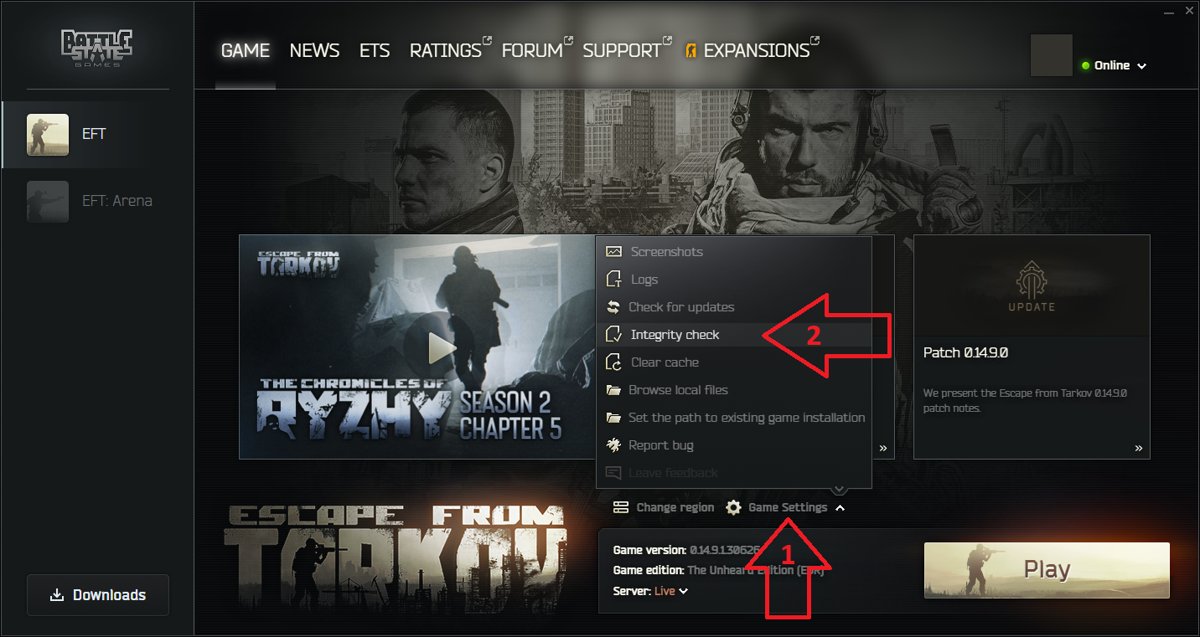
| Checks game files | Game Settings > Integrity Check repairs damaged files |
| Picks game servers | Server selection in the launcher affects raid connection quality |
| Sends bug reports | The Report bug option attaches logs for support |
| Gives access to ETS | Apply for the Early test server from the ETS tab |
Copies bought on Steam are a separate purchase that you launch through Steam. If that is your route, you can buy and install Escape from Tarkov on Steam.
Prerequisites for downloading BSG Launcher
| Requirement | Detail |
|---|---|
| A registered escapefromtarkov.com account | One account covers escapefromtarkov.com and arena.tarkov.com, and it must be verified by email |
| A purchased game package | Without one, the launcher shows Buy instead of Install |
| The right region | Purchases are region-locked; launching outside the purchase region gives error 208 (Europe copies run anywhere) |
| A Windows PC | Windows 10 minimum, Windows 11 recommended, 64-bit |
| Minimum hardware | AMD Ryzen 5 3600, 16 GB RAM, GTX 1660, DirectX 11 |
| Recommended hardware | Intel Core i7-14700F, 64 GB RAM, RTX 4070 |
| Free disk space | 80 GB for the game, plus room for the download in the launcher's Temp folder |
Step-by-step guide to download BSG Launcher
Starting from scratch, the full route runs from account to first install. Skip the steps you have already done.
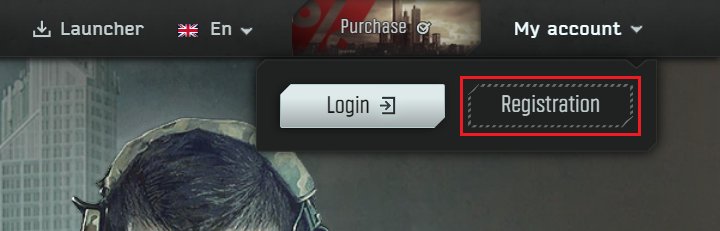
- Visit the official website, escapefromtarkov.com, and select Registration in the top-right corner.
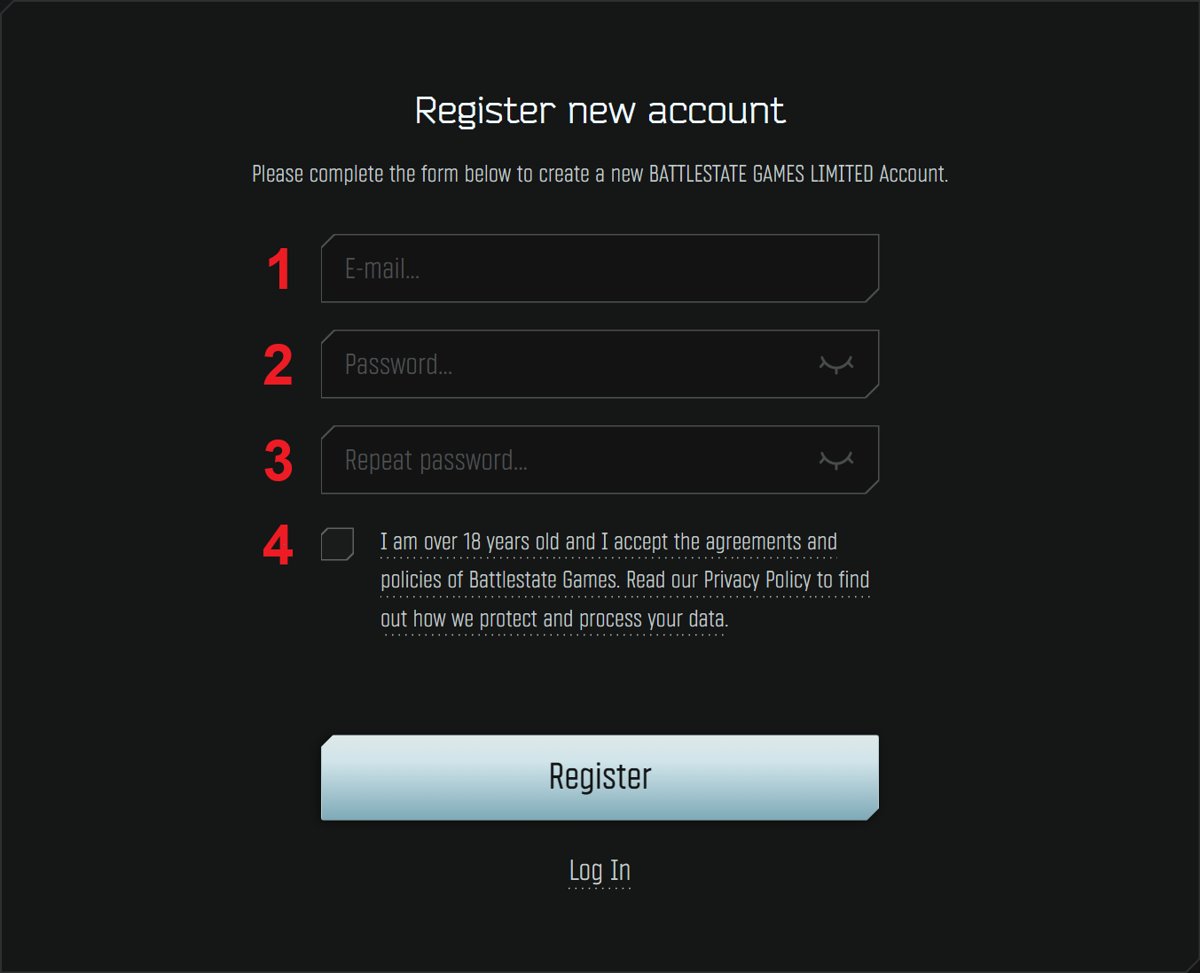
- Enter your email, a password of at least 8 characters with a number, an uppercase and a lowercase letter, confirm your age and the agreements, then select Register.
- Open the verification link Battlestate Games emails you.
- Buy a game edition on the Purchase page, with any VPN turned off so the correct region is applied.
- Open your profile page and locate the download section: the Install button at the bottom. Select it to initiate the download of the launcher.
- Run the downloaded installer and install the launcher, for example in
C:\Battlestate games\BsgLauncher. - Launch BSG Launcher, sign in, and select Install to download the game into a different folder, for example
C:\Battlestate games\Escape from Tarkov.
There is only one launcher, so there is no version to choose. Get it only from your own profile page, which also verifies the download comes from Battlestate Games.
Installing BSG Launcher on your device
BSG Launcher is a Windows PC program. There is no BSG Launcher APK for Android, so ignore pages that tell you to enable unknown sources or install an APK file.
- Check device compatibility: a 64-bit Windows 10 or Windows 11 PC that meets the hardware table above.
- Double-click the installer you downloaded from your profile page.
- Accept the Windows permission prompt if one appears.
- Choose the launcher folder; keep it separate from the game folder.
- Finish setup and launch BSG Launcher from the desktop or Start menu shortcut.
- Sign in with your escapefromtarkov.com email and password.
If Windows blocks a step, right-click the launcher shortcut and select Run as administrator, then grant the permission prompt.
Is there a BSG Launcher for Mac or Android?
| Platform | Status |
|---|---|
| Windows PC | Supported through BSG Launcher or Steam |
| Mac | No version; Battlestate Games says Mac support is still under consideration |
| Consoles | A console release is planned but not out |
| Android or iPhone | No launcher or game app; any APK claiming to be BSG Launcher is not from Battlestate Games |
Configuring BSG Launcher settings
Most launcher settings are set once. Change them, then restart the download or the game to test the result.
| Setting | Where | When to change it |
|---|---|---|
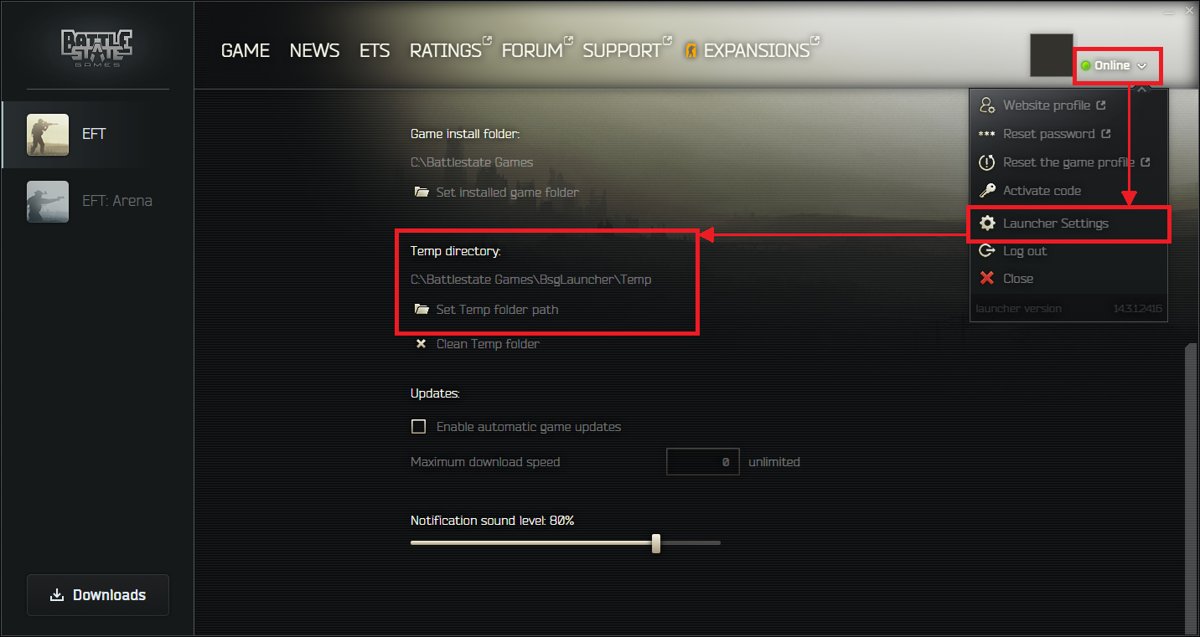
| Temporary download folder | Launcher settings | Move it off C: when that drive is short of space |
| Game install path | Chosen when you select Install | Pick a drive with 80 GB free |
| Game server selection | Launcher server list | Leave automatic, or choose the servers with the lowest ping |
| Integrity Check | Game Settings button above Play | After a crash, failed patch or missing file error |
| Report bug | Launcher menu | Send logs to support when a fix does not work |
| Early test server | ETS tab | Apply to test upcoming changes |
Accessing settings is done inside the launcher after you sign in. Saving and testing configurations is simple: make one change, launch a raid or restart the download, and check whether the problem is gone before changing the next setting.
Adjusting graphics settings in Escape from Tarkov
Graphics options live in the game, not the launcher. Battlestate Games suggests trying several profiles until one suits your PC.
| Setting | Effect |
|---|---|
| Texture quality | Lower resolution textures reduce RAM use |
| Mip Streaming | Turn off if returning to the menu after a raid is slow or the Hideout will not load |
| Resampling | 0.75 or 0.5 improves performance but makes the image softer |
| PostFX | Adds render time per frame; leave off on a weak PC |
Configuring performance options in Escape from Tarkov
| Option | What to do | Why |
|---|---|---|
| Use only physical cores | Try it on | Excludes virtual cores, which helps on some processors |
| Preload Hideout | Turn off for faster game start | The Hideout then takes longer to open |
| Background apps | Close CPU- and RAM-heavy programs | The game is CPU-demanding |
| Page file | Keep it on an SSD, not a hard drive | Hard-drive paging causes freezes |
| Overclocks | Remove CPU, GPU and RAM overclocks if the game crashes | Unstable overclocks cause Unity errors and BSODs |
Network and connectivity settings for BSG Launcher
Battlestate Games recommends changing DNS servers in Windows when the launcher shows SSL or file-download errors. These steps are in Windows, not the launcher.
- Press Win + R, type
control.exe /name Microsoft.NetworkandSharingCenter, and select OK. - Select Change adapter settings on the left.
- Right-click your current network and select Properties.
- Select Internet Protocol Version 4 (TCP/IPv4) and select Properties.
- Select Use the following DNS server addresses, enter
208.67.222.222and208.67.220.220, and select OK. - Open Command Prompt, run
ipconfig /flushdns, and restart the PC.
For raids, use automatic server selection in the launcher, play on a wired connection if Wi-Fi is weak, and turn off programs that reroute your network traffic.
Check storage space for BSG Launcher and Escape from Tarkov
The launcher downloads the game archive into \BsgLauncher\Temp first, then unpacks it into the game folder. Both locations need space at the same time.
| Location | Space needed | Fix if it is full |
|---|---|---|
| Game install drive | 80 GB | Pick another drive when you select Install |
| Launcher Temp folder (C: by default) | The size of the download shown in the launcher | Move the Temp folder in launcher settings |
| Single-drive PC | Download size plus unpacked size | Free up storage space on C: before installing |
How to tell if BSG Launcher can install Escape from Tarkov
- Open BSG Launcher and sign in.
- Look for the Install button on the launcher screen; it means the account owns the game.
- If you see Buy instead, sign out and sign in with the account that made the purchase.
- After installing, look for the Play button and the Game Settings button above it.
- Run Game Settings > Integrity Check once to confirm the files are complete.
If the account is correct but there is still no Install button, contact support at escapefromtarkov.com/support.
Troubleshooting common download issues
Game download stuck at 0/0
The launcher cannot reach the download server.
- Wait 3 to 5 minutes.
- Stop the download and start it again.
- Check the server status from the Services button on escapefromtarkov.com.
"There is not enough space on disk"
The Temp folder drive, usually C:, is full even if the game drive has space.
- Free up space on the drive that holds
\BsgLauncher\Temp. - Or move the Temp folder to a larger drive in launcher settings.
- Restart the download.
Can't choose the installation path
The launcher lacks permissions, or security software blocks its file operations.
- Right-click the launcher and select Run as administrator.
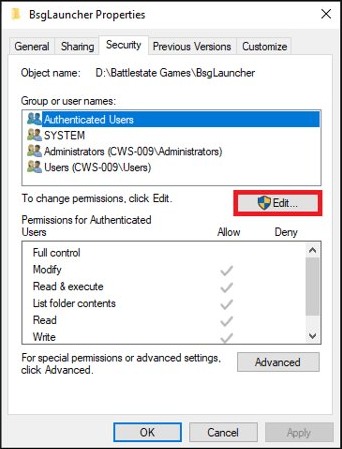
- Right-click the launcher and game folders, select Properties > Security > Edit, and give your user full control.
- Rather than disabling antivirus and firewall protection, even temporarily, add the launcher and game folders under
C:\Battlestate gamesto your antivirus exclusion list.
"Cannot load the file ConsistencyInfo" or the launcher will not download from the site
Your DNS server cannot resolve Battlestate's download servers.
- Change the IPv4 DNS servers to
8.8.8.8and8.8.4.4using the network steps above. - Run
ipconfig /flushdns. - Restart the PC and try the download again.
"Unable to complete SSL connection" or "SSL CA certificate error"
A DNS server returns wrong answers and sends the launcher to unrelated servers.
- Switch DNS to
208.67.222.222and208.67.220.220. - Flush DNS and restart.
- If it continues, set the same DNS servers in your router.
Check your internet connection for BSG Launcher downloads
Download is slow or keeps dropping
Weak Wi-Fi or other downloads saturating the connection.
- Connect the PC to the router with a network cable.
- Pause streaming, torrents and other game downloads.
- Turn off programs that change your network route.
Launcher cannot connect at all
Server maintenance or a service outage.
- Read the news channels and the messages in the launcher for maintenance notices.
- Select Services on escapefromtarkov.com and check that every indicator is green.
- Try again once the services recover.
The launcher is its own download manager: it downloads, unpacks and installs the game, so a third-party download manager adds nothing.
Clear browser cache and cookies for escapefromtarkov.com
403 error on escapefromtarkov.com
Stored site data or an access restriction on your connection.
- Clear the cache and cookies in your browser.
- Reload the profile page.
- If it persists, open a support ticket from another connection, such as a phone hotspot, or email [email protected] with your public IP address and a screenshot.
404 error on the profile or forum page
Some pages only open for an account with active game access.
- Sign in with the account that owns the game.
- Open the profile page after signing in rather than from a saved direct link.
- Reload the page.
Update system software for Escape from Tarkov
Battlestate Games lists out-of-date Windows components among the causes of launcher and game crashes.
- Open Settings > Windows Update and install every available update.
- Install the latest drivers for your graphics card and other devices from their makers.
- Install the latest Microsoft .NET Framework from Microsoft.
- Restart the PC.
- Open BSG Launcher and run Game Settings > Integrity Check.
Updating BSG Launcher
Game patches come through the launcher, so keeping it installed and signed in is how you stay up to date.
- Open BSG Launcher and sign in.
- Let the launcher download and install the latest version when a patch is available.
- If the update download sits at 0/0 for 3 to 5 minutes, stop it and start it again.
- Make sure the Temp folder drive has space for the patch.
- After the update, run Game Settings > Integrity Check if the game misbehaves.
- If the launcher itself is damaged, download a fresh installer from Install on your profile page and reinstall it.
To automate future updates, simply leave the launcher installed and open it before you play; it is the program that delivers each patch.
Check for official updates
| Where to look | What you learn |
|---|---|
| News on escapefromtarkov.com | Patch notes, such as the latest numbered patch |
| Messages in BSG Launcher | Maintenance and update notices |
| Services button on the website | Live status of core game services |
| Launcher download progress | Whether a patch is downloading or installed |
Safety tips and best practices for downloading BSG Launcher
| Tip | Why |
|---|---|
| Verify the official source: download only from your escapefromtarkov.com profile page | Battlestate Games publishes the installer nowhere else |
| Use reliable security software and keep it on | If it blocks the launcher, add an exclusion for the Battlestate games folders instead of turning protection off |
| Verify file integrity with Game Settings > Integrity Check | Repairs damaged or missing game files |
| Practice safe download habits: no APKs, cracked launchers or mirror sites | There is no mobile version, and third-party copies are not from Battlestate Games |
| Keep your system updated | Windows updates, drivers and .NET Framework fix many crashes |
| Buy without a VPN | A VPN can lock your copy to the wrong region |
BSG Launcher FAQ
Where do I download BSG Launcher?
Sign in at escapefromtarkov.com, open your profile page, and select the Install button at the bottom. That button downloads the launcher installer. Battlestate Games does not offer the launcher on a public download page or through third-party sites.
Is BSG Launcher free?
The launcher costs nothing to download from your profile page, but it only installs games your account owns. Escape from Tarkov is not free-to-play, so the launcher shows a Buy button until you purchase an edition on the official website.
Why does BSG Launcher show Buy instead of Install?
The account you signed in with does not own the game. Sign out and sign in with the account that made the purchase. If that account is correct and the Install button is still missing, contact support through escapefromtarkov.com/support.
Do I need BSG Launcher for the Steam version of Escape from Tarkov?
No for buying it: the Steam version is a separate purchase on Steam and launches through Steam. It still needs a Battlestate Games account, which you can link to your Steam profile. Website copies install through BSG Launcher.
Where does BSG Launcher install?
You choose the folder during setup. Battlestate's examples are C:\Battlestate games\BsgLauncher for the launcher and C:\Battlestate games\Escape from Tarkov for the game. The launcher and the game must be installed in different folders.
Can I install Escape from Tarkov on a different drive?
Yes. Choose another drive when you select Install in the launcher. Downloads still pass through the launcher's Temp folder, on C: by default, so move that folder in launcher settings if C: is short of space.
Is there a BSG Launcher for Mac?
No. Escape from Tarkov runs on Windows PCs through BSG Launcher or Steam. Battlestate Games says Mac support is still under consideration, and a console release is planned for the future.
How do I report a bug in BSG Launcher?
Use the Report bug option in the launcher menu. It creates a support ticket and can attach the logs Battlestate Games needs, such as crash logs from the Battlestate Games folder under %LocalAppData%\Temp.