To import Chrome data to Edge without installing Chrome, sign in to your Google account inside Edge and let it pull in the passwords, bookmarks, history and autofill data saved to that account.
This guide covers the Google account import at setup and in Settings, the bookmark HTML and password CSV routes from another PC, and fixes when nothing arrives.
Import Chrome data to Microsoft Edge without installing Google Chrome
Edge's Import data from Google Chrome option reads the Chrome copy installed on the same PC. Without Chrome, the data comes from your Google account instead, and Edge's first-run setup is the place it has always offered that import.
This only brings over what Chrome saved to your Google account, so the old browser needs to have been signed in and saving data there.
- Open Microsoft Edge for the first time on the PC so the setup screens appear.
- Sign in to your Google account when Edge offers to bring in your data from Google.
- Enter your Google email address, password and any two-step verification code.
- Allow Edge to import browser data by approving the request and choosing what to bring over.
- Wait for the import to finish.
- Choose a theme and finish setup to reach the new tab page.
If Chrome is installed on the same PC after all, the simpler route is to import bookmarks from Chrome to Edge directly from Edge's import page.
How to import Google account data to Edge from Settings
Microsoft has added a Google account import to Edge Settings, so you no longer have to catch it during setup. It brings passwords, bookmarks, history and autofill data, and it sits in the same import entry point as the Chrome import.
The feature arrived in the Edge Beta channel in version 152 as a controlled rollout and is listed again for version 158, so some PCs see it before others.
- In Edge, select Settings and more (the three dots at the top right), then Settings.
- Select Profiles.
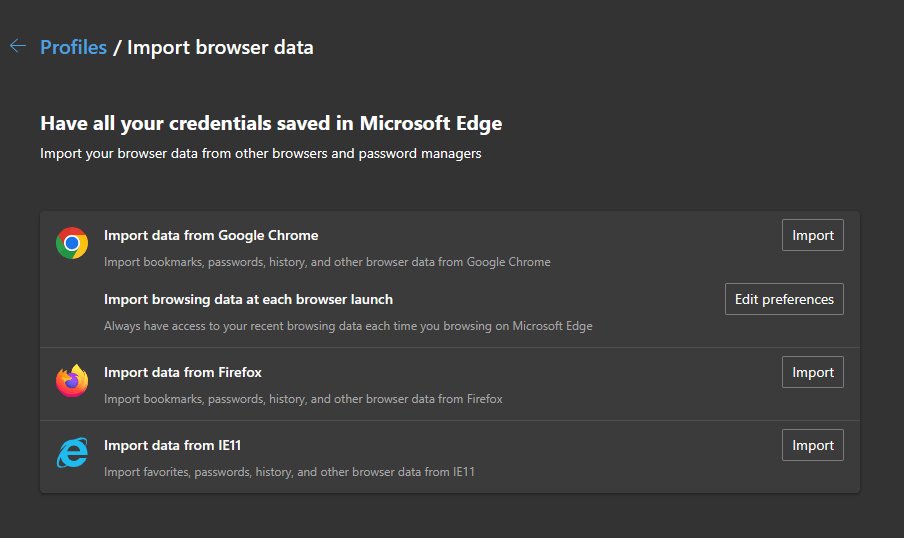
- Select Import browser data.
- Choose the option to import from your Google account.
- Sign in to the Google account that Chrome used.
- Choose the data you want, such as passwords, bookmarks, history and autofill data.
- Select Import, then Done when the import finishes.
If the page shows only Import data from Google Chrome and the file options, the Google account entry has not reached your copy of Edge yet. Use the file routes below in the meantime.
How to export Chrome bookmarks to Edge from another computer
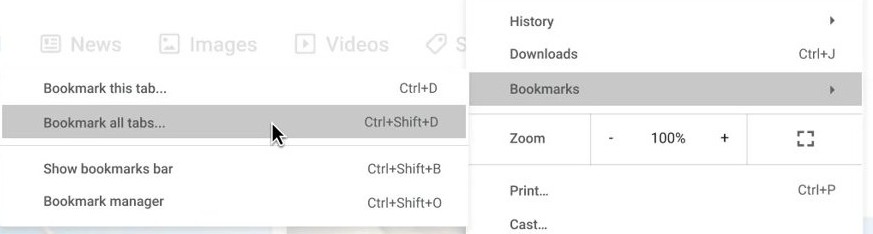
When the old PC still has Chrome, export the Chrome bookmarks to an HTML file there and carry the file to the new PC on a USB drive, OneDrive or email.
- On the old computer, open Chrome and select More > Bookmarks and lists > Bookmark Manager.
- At the top of the Bookmark Manager, select More > Export Bookmarks and save the HTML file.
- Copy the HTML file to the new PC.
- In Edge on the new PC, open Settings and more > Settings > Profiles > Import browser data.
- Next to Import browser data now under Other import locations, select Import.
- In the Import from list, select Favorites or bookmarks HTML file.
- Select Choose file, pick the HTML file, select Open, then Done.
Chrome exports bookmarks only in this HTML form, so this route moves favorites and nothing else.
How to import Chrome passwords to Edge with a CSV file
Passwords move as a .csv file. Export it from Google Password Manager, bring it in with the native password import in Edge, then delete the file, because anyone who opens it can read every password in it.
- On a computer with Chrome, select More > Passwords and autofill > Google Password Manager, then Settings.
- Scroll to Export passwords, and select Download file.
- Move the .csv file to the new PC.
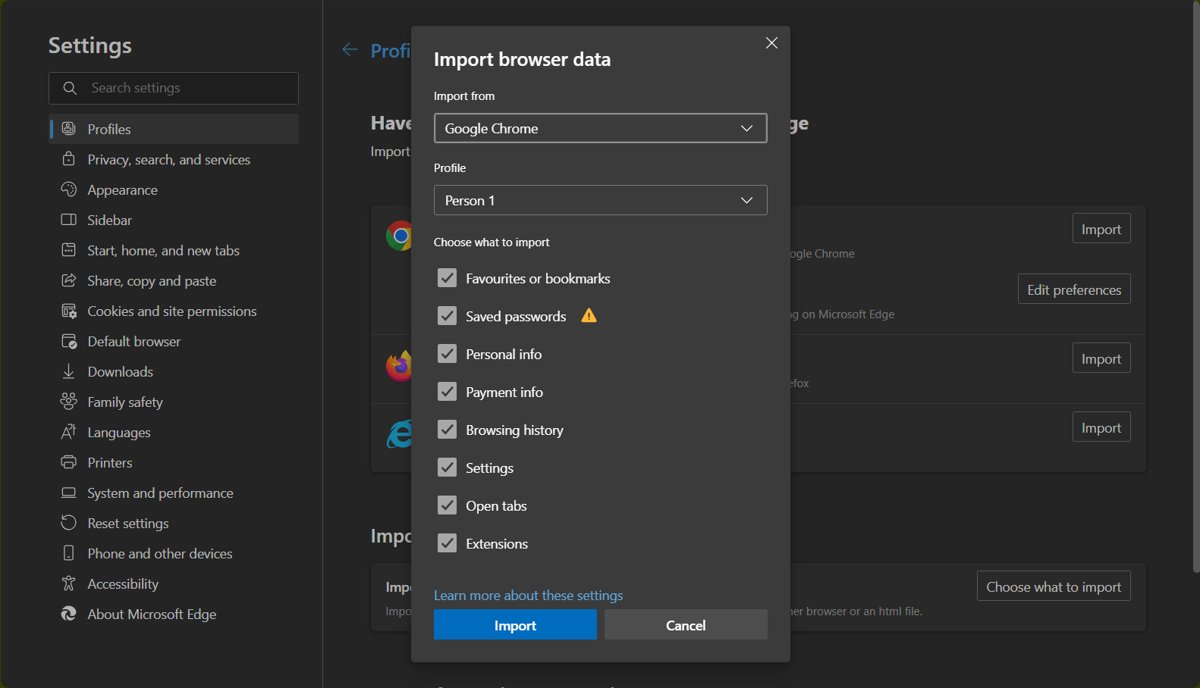
- In Edge, open Settings and more > Settings > Profiles > Import browser data.
- Next to Import passwords now under Other import locations, select Import.
- In the Import from menu, select Passwords CSV file.
- Select Choose file, pick the .csv file, select Open, then Done.
- Delete the .csv file and empty the Recycle Bin.
Passwords saved to your Google account can also be viewed and managed in any browser at passwords.google.com, including Edge, if you only need a few of them.
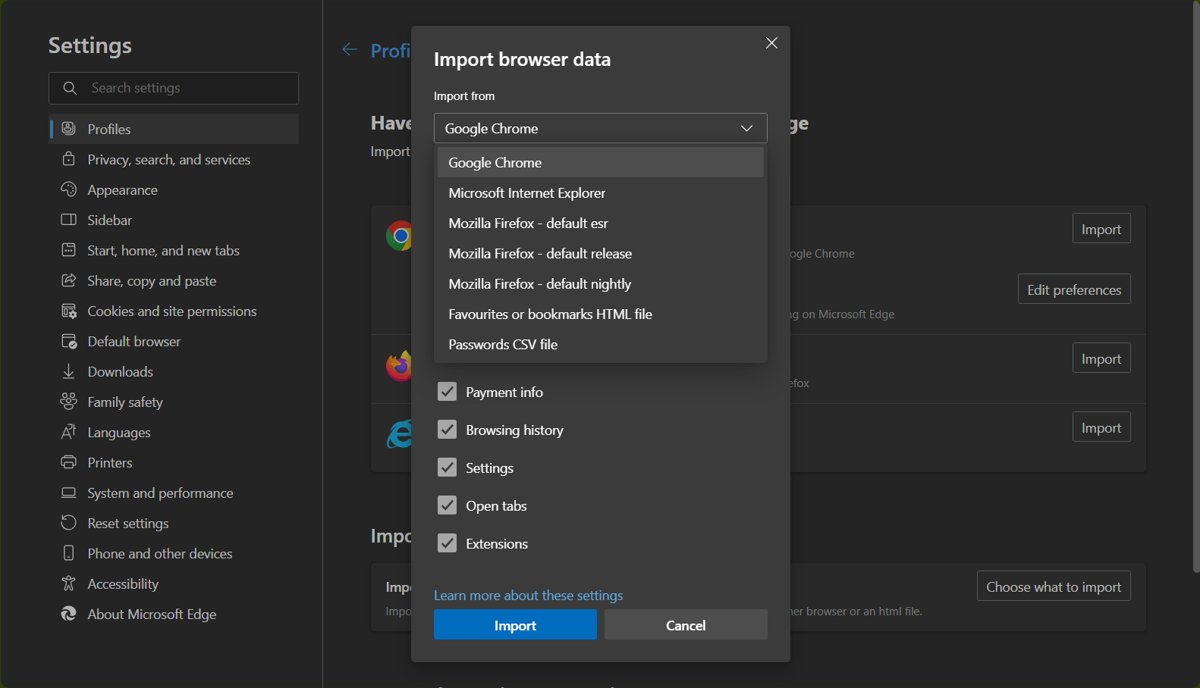
What Chrome data can Edge import without Chrome?
Each route carries a different set of data, so match the route to what you want to keep.
| Route | Needs | What it brings to Edge |
|---|---|---|
| Google account import at Edge setup | A Google account that Chrome saved data to | Passwords, bookmarks, history and autofill data |
| Google account import in Settings | An Edge version that has the feature | Passwords, bookmarks, history and autofill data |
| Bookmarks HTML file | Chrome on another computer | Bookmarks only |
| Passwords CSV file | Google Password Manager in Chrome | Saved passwords only |
| Import data from Google Chrome | Chrome installed on the same PC | Favorites and the other items Edge lists under Choose what to import |
Google Takeout can also export the personal information Chrome stores in your Google account, but it delivers an archive for keeping, not a one-click import into Edge.
How to save Chrome data to your Google account before switching
The Google account routes find nothing if Chrome only kept data on the old device. While the old PC still works, sign in to Chrome with your Google account and move that data into the account first.
| Step on the old PC | Where in Chrome | Result |
|---|---|---|
| Sign in to Chrome | Profile icon at the top right | Bookmarks, passwords and more follow your Google account |
| Save local items to the account | Profile > Save x items in Account | Choose what info to save, then select Save in account |
| Check saved passwords | passwords.google.com in any browser | Shows which passwords Edge can import from the account |
Where to find imported Chrome bookmarks in Edge
Imported data lands in predictable places, so a quick look shows whether everything came across.
- Press Ctrl + Shift + B if the Favorites bar is hidden.
- Look for a new folder on the Favorites bar; Edge may name it Imported.
- Open the folder and test a few bookmarks.
- Open Settings and more > Settings and go to your saved passwords to see the imported entries.
- Visit a site you saved a password for and check that Edge offers to fill it.
Edge not importing Chrome data
Import data from Google Chrome finds nothing
That option reads a Chrome installation on the same PC, and there is none.
- Use the Google account import at setup or in Settings > Profiles > Import browser data instead.
- Or export bookmarks and passwords from Chrome on another computer and import the files.
No Google account option on the Import browser data page
The Settings import from a Google account is still rolling out.
- Select Settings and more > Help and feedback > About Microsoft Edge, install any update offered, and select Restart.
- Check Import browser data again.
- If it is still missing, use the bookmarks HTML and passwords CSV routes.
The Google account import brings over no bookmarks or passwords
Chrome stored that data on the old device instead of in the Google account.
- On the old PC, sign in to Chrome with the same Google account.
- Select Profile > Save x items in Account, choose the data, and select Save in account.
- Run the import in Edge again.
Imported bookmarks seem to be missing
Edge places imported favorites in their own folder instead of mixing them with yours.
- Show the Favorites bar with Ctrl + Shift + B.
- Open the folder that may be named Imported.
- Drag the bookmarks where you want them.
If you would rather have Chrome on a Windows 11 PC in S mode after all, leave S mode first and then install Chrome on Windows 11 S mode.
Import Chrome data to Edge FAQ
Can I import Chrome data to Edge without Chrome installed?
Yes. Sign in to your Google account when Edge offers it during setup, or in Settings where the Google account import has rolled out. Edge then imports the passwords, bookmarks, history and autofill data saved to that account.
How do I import all data from Chrome to Edge?
The Google account import is the broadest route without Chrome: it covers passwords, bookmarks, history and autofill data. The file routes are narrower, with bookmarks moving as an HTML file and passwords as a CSV file.
How do I export Chrome data to Edge?
In Chrome, export bookmarks from Bookmark Manager with More > Export Bookmarks, and passwords from Google Password Manager settings with Export passwords. In Edge, import each file from Settings > Profiles > Import browser data.
Can you transfer Chrome passwords to Edge?
Yes. Import them from your Google account, or export a CSV file from Google Password Manager and import it in Edge with Import passwords now and Passwords CSV file. Delete the CSV file afterwards, because it stores passwords as plain text.
How do I export Chrome data to another computer?
Sign in to Chrome with your Google account and save your data to the account, then sign in on the other computer. To move files instead, export bookmarks as HTML and passwords as CSV, and copy both files across.
How do I export Google Chrome data for a backup?
Use Google Takeout while signed in to your Google account. Select the products to include, choose a delivery method such as an email link or OneDrive, and pick a zip or tgz archive. Most archives are ready the same day.
Where do imported Chrome bookmarks go in Edge?
Edge puts imported favorites in a folder on the Favorites bar, which may be named Imported. Press Ctrl + Shift + B to show the bar if it is hidden, then move the bookmarks into your own folders.