An App Store Connect login loop after authentication usually ends once you remove the stored apple.com cookies, sign in once with two-factor authentication, and confirm your Apple Account actually has App Store Connect access.
This guide covers the browser fixes for Safari and Chrome, the account checks Apple documents for two-factor authentication, invitations, teams and Managed Apple Accounts, and what to do when the loop happens in every browser.
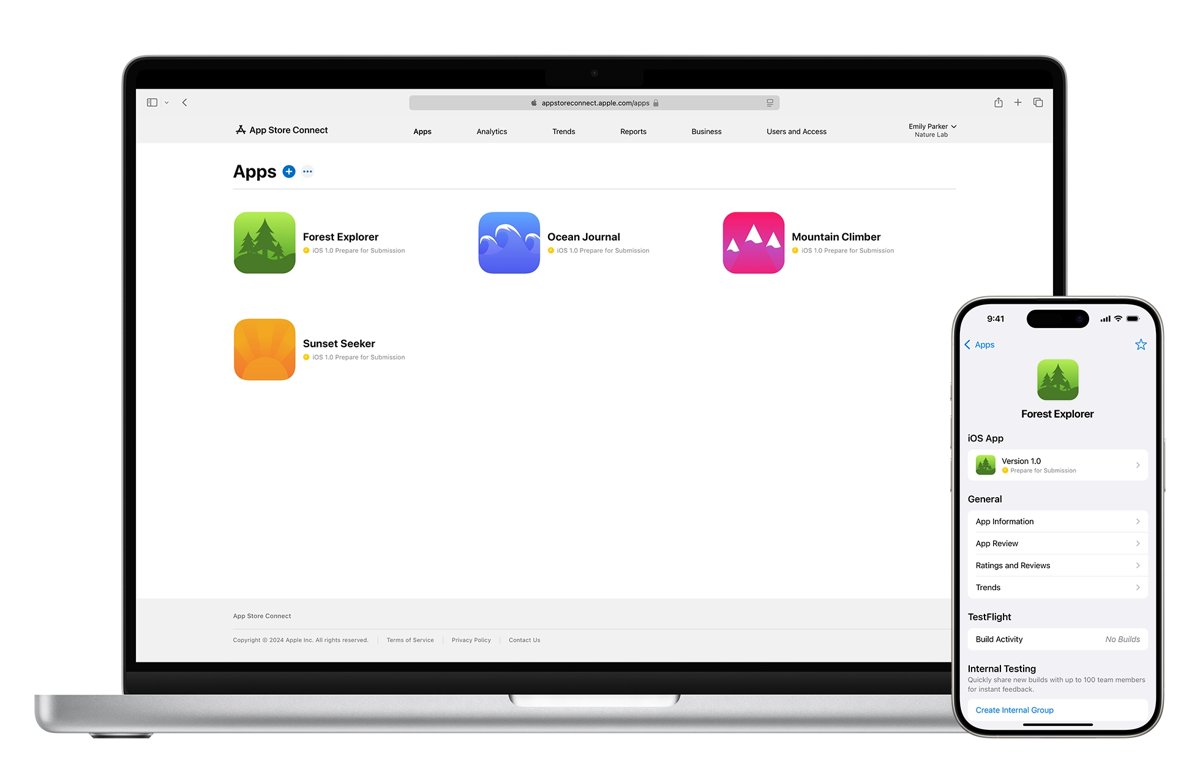
How to fix the App Store Connect login loop
Work through these in order. The first three steps reset the browser session, and the later steps catch the account problems a browser fix cannot solve.
- Close every App Store Connect and Apple Developer tab.
- Delete the cookies and website data for apple.com in your browser (Safari and Chrome steps are below).
- Open a fresh window, go to
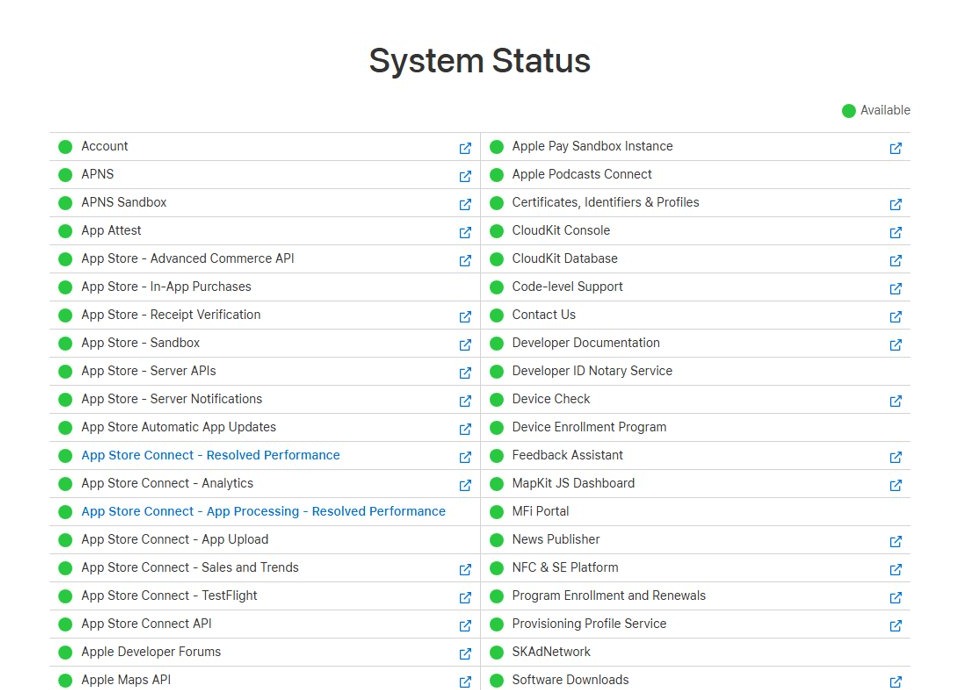
appstoreconnect.apple.com, sign in and enter the six-digit verification code. - If the page returns to sign-in again, open the Apple Developer System Status page and check that App Store Connect is available.
- Sign in on the Apple Developer website by clicking Account at the top right; if that works, your Apple Account and code are fine and the problem is App Store Connect access.
- Ask your team's Account Holder or Admin to confirm you are listed in Users and Access with a role, and that your invitation has not expired.
- If the loop continues on every browser and device, use Contact Apple Developer Support at the bottom of any Apple Developer help page.
Why App Store Connect keeps returning to the sign-in page
The loop happens after Apple accepts your password and code, so the cause is either the session the browser stores or the access your Apple Account has.
| Cause | What Apple documents | Fix |
|---|---|---|
| Old or blocked apple.com cookies | Removing website data signs you out; blocking all cookies may stop some websites working | Remove apple.com website data and allow cookies |
| No two-factor authentication or two-step verification | One of the two is required for all users to sign in to App Store Connect | Turn on two-factor authentication in Sign-In & Security |
| Invitation not accepted or expired | Invitations expire 3 days after they are sent and can be resent | Ask an Admin to resend it, then activate from the email link |
| Signed in to the wrong team | One Apple Account can be linked to more than one App Store Connect account | Click your name at the top right and choose the other account |
| Managed Apple Account | Managed Apple Accounts have no Apple Developer Program access by default | Your organisation enables access in Apple Business Manager or Apple School Manager |
| Removed from the team | Revoking access can take up to 10 minutes because of caching | Ask the Account Holder or Admin to add you again |
| Service problem at Apple | The System Status page lists App Store Connect services | Wait for the status to show available, then sign in again |
Clear apple.com cookies in Safari for App Store Connect
Removing only apple.com data keeps you signed in to every other website.
- Open Safari on your Mac.
- Choose Safari > Settings, then click Privacy.
- Click Manage Website Data.
- Type
apple.comin the search field, select the apple.com entries, then click Remove. - Click Advanced and make sure Block all cookies is not selected.
- Quit and reopen Safari, then sign in to App Store Connect again.
Apple notes that removing cookies and website data in Safari may also change or remove them in other apps, so you may need to sign in to other Apple sites again.
Delete App Store Connect cookies in Chrome
- Open Chrome on your computer.
- At the top right, select More > Settings.
- Select Privacy and security > Third-party cookies.
- Select See all site data and permissions.
- Search for
apple.comat the top right. - Select Delete next to each apple.com entry, then confirm with Delete.
- Restart Chrome and sign in at
appstoreconnect.apple.comagain.
If deleting site data alone does not help, use More > Delete browsing data, choose All time, select Cookies and other site data, and select Delete data. That signs you out of most websites.
App Store Connect login with two-factor authentication
Two-factor authentication or two-step verification is required for every App Store Connect user, and two-factor authentication is required for program Account Holders.
- On a Mac, open System Settings; on iPhone or iPad, open Settings.
- Choose your name, then Sign-In & Security.
- Turn on Two-Factor Authentication if it is off and follow the onscreen instructions.
- On the web, go to
account.apple.com, sign in and select Upgrade Account Security instead. - When App Store Connect asks for a code, choose Allow on the sign-in notification on a trusted device and enter the six-digit code.
- If no trusted device is nearby, select Didn't Get a Code? and have the code sent to your trusted phone number.
After the first sign-in, a browser does not ask for a code again unless you sign out of your Apple Account completely, erase the device or reset your Apple Account password. A code request on every attempt means the browser is not keeping the session, which points back to cookies.
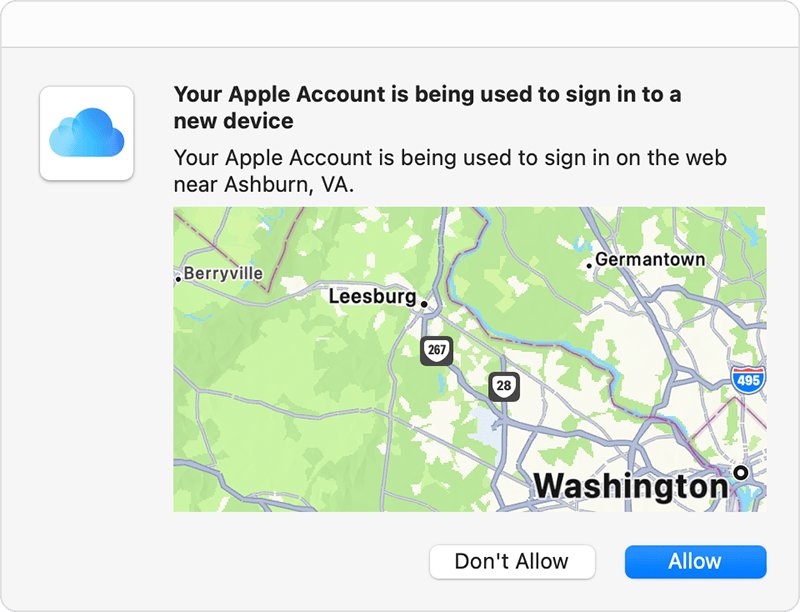
Accept an App Store Connect invitation before you sign in
A new user cannot reach App Store Connect content until the invitation is activated, even with a working Apple Account.
- Open the App Store Connect invitation email and select the activation link.
- Sign in with an existing Apple Account, or create a new Apple Account if the invited email address is not an Apple Account yet.
- Complete the two-factor authentication prompt.
- If the invitation is more than 3 days old, ask the Account Holder, Admin or App Manager to resend it from Users and Access.
- After activation, sign in at
appstoreconnect.apple.comwith the same Apple Account you used to accept.
Switch App Store Connect accounts or teams
If your Apple Account belongs to several App Store Connect or developer teams, the loop can be a team you no longer belong to opening first.
- Sign in to App Store Connect and wait for any page to load.
- Click your name at the top right of the page.
- Choose a different account from the list.
- On the Apple Developer website, click your team name at the top right and choose a team to switch there too.
- To leave a team you no longer need, click your name, then Edit Profile, then Leave Team.
An Account Holder cannot leave a team until the Account Holder role is transferred to someone else.
How to tell if your Apple Account can sign in to Apple Developer
This test separates an Apple Account problem from an App Store Connect access problem.
- Go to
developer.apple.comand click Account at the top right. - Sign in with the Apple Account you use for App Store Connect and enter the verification code.
- If your account page and team name appear, your password, code and session are working.
- Open the Apple Developer System Status page and confirm App Store Connect shows as available.
- Ask an Admin to check Users and Access > People in App Store Connect for your name and roles.
If the developer website also loops, fix cookies and two-factor authentication first. If only App Store Connect loops, the cause is the team, role or invitation. The same pattern of a working password and a looping page appears in the iCloud login loop on Windows, where stored session data is the usual cause too.
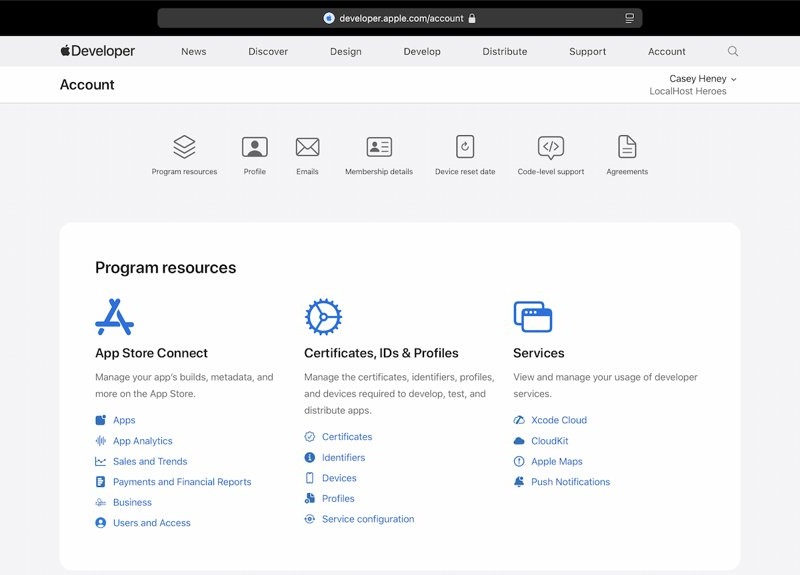
App Store Connect login not working
App Store Connect login loop in Chrome, Firefox and Edge
The same account problem follows you to every browser, so browser data is not the cause.
- Run the Apple Developer website test above.
- Ask an Admin to confirm you have a role in Users and Access and resend your invitation if needed.
- Check the System Status page for App Store Connect.
- Contact Apple Developer Support if your account and roles are correct.
App Store Connect login loop with a work or school Managed Apple Account
Managed Apple Accounts have no Apple Developer Program access by default.
- Ask your organisation's IT administrator to modify your access in Apple Business Manager or Apple School Manager.
- Sign in again after the change is saved.
App Store Connect asks for a verification code on every attempt
The browser is discarding the session after sign-in.
- In Safari, deselect Block all cookies in Settings > Advanced.
- In Chrome, delete the apple.com site data and sign in again.
- Test once in a private window to rule out extensions.
App Store Connect login stopped working after you were removed from a team
Your access was revoked, which can take up to 10 minutes to apply fully.
- Click your name and switch to another account if you belong to more than one.
- Ask the Account Holder or Admin to invite you again if you still need access.
Login works but the Mac App Store or other apps report authentication errors
A separate Apple Account sign-in problem on the Mac itself.
- Sign out and back in to the affected app.
- Fix the Mac-side App Store authentication error separately from App Store Connect.
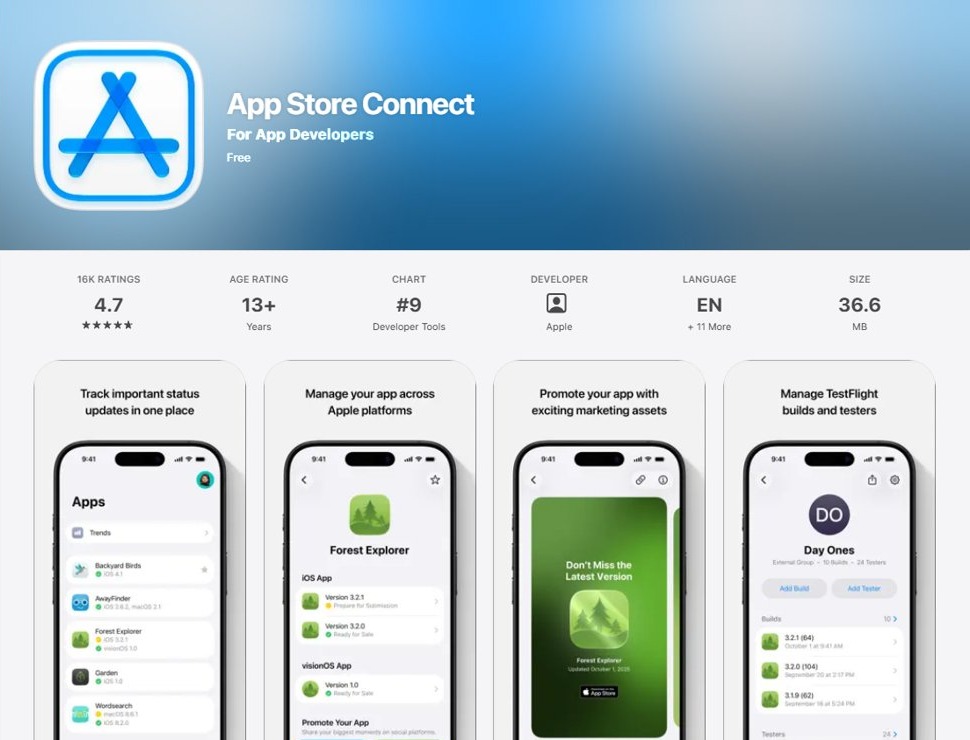
App Store Connect app for iPhone and iPad
When the website keeps looping, the App Store Connect app on iPhone or iPad covers the most urgent tasks while you sort out the browser.
| Task | Available in the App Store Connect app? |
|---|---|
| Check app status and manage App Store submissions | Yes |
| Add TestFlight builds and testers, view feedback | Yes |
| Monitor app performance and sales | Yes |
| View and respond to customer reviews | Yes |
| Push notifications for status changes and reviews | Yes |
| Access for newly added users | May take up to 24 hours after being added |
App Store Connect login FAQ
What is App Store Connect?
App Store Connect is Apple's website and app for developers to manage apps on the App Store. You use it to create app records, upload builds, run TestFlight betas, submit for review, set prices, view sales and manage team members in Users and Access.
How do I log in to App Store Connect?
Go to appstoreconnect.apple.com and sign in with the Apple Account linked to your developer team. Enter the six-digit code from a trusted device or phone number, because two-factor authentication or two-step verification is required for every App Store Connect user.
Why does App Store Connect keep logging me out?
The browser is usually not keeping the apple.com session. Remove apple.com cookies and website data, make sure cookies are not blocked, and sign in again. If the problem continues in every browser, check your team role and invitation with an Admin.
How do I log out of the Apple Developer website?
Click your team name at the top right of the Apple Developer website to open the menu, then choose Sign Out. To clear an App Store Connect session completely, also remove the apple.com cookies and website data in your browser.
How do I log out from the App Store on a Mac?
Open the App Store app, choose Store in the menu bar, then choose Sign Out. That signs you out of the Mac App Store only and does not affect your App Store Connect session in a web browser.
Do I need two-factor authentication for App Store Connect?
Yes. Apple requires two-factor authentication or two-step verification for all users to sign in to App Store Connect, and two-factor authentication for program Account Holders. Turn it on in Sign-In & Security in Settings or System Settings.
How do I sign up for App Store Connect?
Enroll in the Apple Developer Program with your Apple Account, or accept an invitation from a team's Account Holder, Admin or App Manager. Invited users activate access from the email link and can create an Apple Account during activation if needed.
Is there an App Store Connect app?
Yes. The App Store Connect app for iPhone and iPad lets you check app status, manage submissions and TestFlight, view sales and respond to reviews. Newly added users may need to wait up to 24 hours to access it.
Where can I get App Store Connect help?
Apple publishes App Store Connect Help on developer.apple.com, and every help page links to Contact Apple Developer Support. Check the Apple Developer System Status page first to see whether App Store Connect has a known problem.