To sign out of Netflix on a TV, open the Netflix home screen, press the back button on your remote, select your profile icon, then choose Get Help > Sign out > Yes.
This guide covers smart TVs, Roku, Apple TV and streaming sticks, the remote code for when the menu has no sign-out option, signing a TV out from your phone or laptop, and hotel TVs.
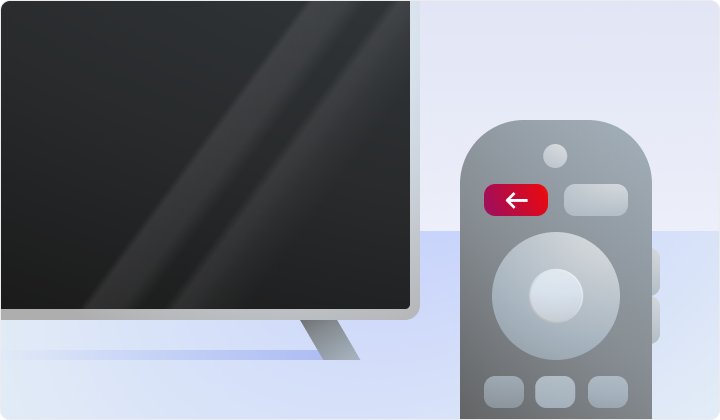
Step by step tutorial: How to sign out of Netflix on TV
Netflix uses the same menu on smart TVs, streaming media players and Roku. The menu sits either across the top of the screen or down the left side, depending on your TV.
- Open the Netflix app on your TV and wait for the home screen to load.
- Press the Back button on your remote to open the menu.
- If the menu runs across the top, move left to your profile icon. If the menu is on the left, move down to the bottom of it.
- Select Get Help.
- Select Sign out.
- Select Yes to confirm.
The TV returns to the Netflix welcome screen with a Sign In option. Your account, profiles and viewing activity stay with the account, not with the TV.
How to sign out of Netflix on Samsung TV, Roku, Firestick and Apple TV
Netflix groups devices by type rather than by brand. A Samsung or LG set counts as a smart TV, and a Fire TV Stick counts as a streaming media player.
| Your device | Sign-out route | Key to open the menu |
|---|---|---|
| Samsung, LG or another smart TV | Profile icon > Get Help > Sign out > Yes | Back on the TV remote |
| Roku | Profile icon > Get Help > Sign out > Yes | Back on the Roku remote |
| Amazon Fire TV Stick or other streaming stick | Profile icon > Get Help > Sign out > Yes | Back on the stick's remote |
| Apple TV HD or Apple TV 4K | Profile icon > Get Help > Sign out > Yes | Back, or Menu on an Apple TV remote |
| Blu-ray player or media box | Profile icon > Get Help > Sign out > Yes | Back on the player's remote |
| Any TV whose menu has no Sign out | Remote code: Up, Up, Down, Down, Left, Right, Left, Right, Up, Up, Up, Up | Press the code on the Netflix home screen |
| A TV you can no longer reach | Manage Access & Devices page in a browser | No remote needed |
Netflix needs an Apple TV HD (4th generation) or later, so older Apple TV models do not run the current app.
How to sign out of Netflix on TV when there is no Sign out option
Some TVs, especially older smart TVs, hide Get Help or leave Sign out off the menu. Netflix publishes a remote-control sequence that opens a hidden menu with the sign-out option.
- Open Netflix and stay on the home screen or the error screen.
- Press, in order: Up, Up, Down, Down, Left, Right, Left, Right, Up, Up, Up, Up.
- When the menu appears, select Sign out.
- If Sign out is not listed, select Reset or Deactivate instead.
- Confirm your choice and wait for the Netflix welcome screen.
If an error screen is showing, look for More Details first. Netflix lists Sign out or Reset on that screen for many error codes.
How to sign out of Netflix remotely
You can sign a TV out from a phone, tablet or laptop when the TV is in another room, another home or a hotel. Netflix lists every device with recent streaming activity on its Manage Access & Devices page.
- Open a web browser on your phone or computer.
- Go to
netflix.com/manageaccountaccessand sign in with your Netflix email and password. - Find the TV in the list of devices with recent streaming activity.
- Choose to sign out that device.
- To remove every device at once, select Sign out of All Devices instead.
Sign out of All Devices also signs out your own phone, laptop and other TVs, so you need to sign in again on each of them.
How to sign out of Netflix on hotel TV
Netflix supports signing in to a new TV while you travel, such as a hotel or holiday rental TV. A hotel TV left signed in keeps your account open to the next guest and can confuse your Netflix Household.
- Before you check out, open Netflix on the hotel TV.
- Press Back on the remote and go to your profile icon.
- Select Get Help > Sign out > Yes.
- If the menu has no sign-out option, use the remote code in the section above.
- If you already left, sign the TV out from
netflix.com/manageaccountaccesson your phone.
Netflix notes that a device still signed in from a recent hotel stay can stop your home TV from updating its Netflix Household.

How to see which devices are signed in to Netflix
- Open
netflix.com/manageaccountaccessin a browser and sign in. - Look through the list of devices with recent streaming activity.
- Check that the TV you signed out of no longer shows new activity.
- Sign out any device you do not recognize.
- On the TV itself, confirm the app shows the Netflix welcome screen with a Sign In button.
If an unknown device keeps reappearing after you sign it out, change your password from the Change password page so it cannot sign back in.
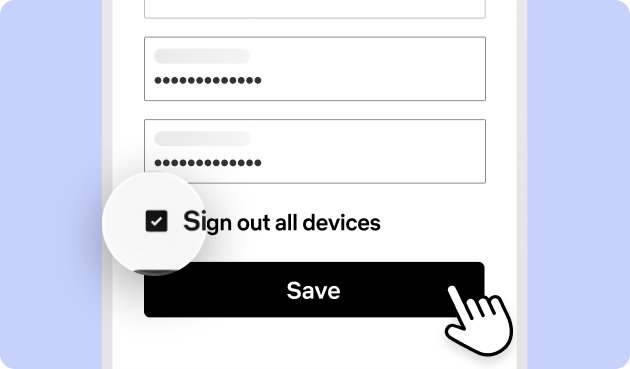
What happens when you sign out of Netflix on TV
| Item | After you sign out of the TV |
|---|---|
| Your Netflix account and plan | Unchanged. Signing out does not pause or cancel the Netflix membership. |
| Profiles, My List and viewing activity | Kept with the account and available on every other signed-in device. |
| Recommendations | Kept, because they follow the profile rather than the TV. |
| Other devices | Stay signed in, unless you used Sign out of All Devices. |
| The TV's Netflix app | Stays installed and opens to the welcome screen. |
| Netflix Household | Still based on the internet connection where you watch most; you can update it from a signed-in TV. |
How to sign back in to Netflix on TV
- Open the Netflix app on the TV.
- Select Sign In.
- Enter the email address and password for the Netflix account.
- Choose your profile to reach the home screen.
- If the TV says it is not part of your Netflix Household, follow the on-screen option to update or confirm the device.
Forgot the password? Request a reset link by email or text from netflix.com/loginhelp on your phone, then sign in on the TV with the new password.
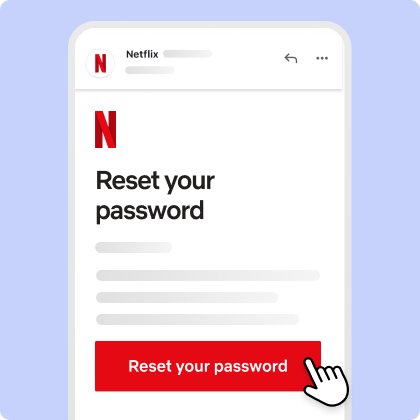
Why is Netflix signing me out on TV
Netflix signed me out on every TV at once
Someone with access to the account selected Sign out of All Devices, which ends every session.
- Sign in again on the TV.
- Open
netflix.com/manageaccountaccessand review the devices listed. - If you did not sign everyone out yourself, change your password from the Change password page.
- Sign in again on your other devices with the new password.
TV says it isn't part of the Netflix Household
Netflix could not link the TV to the internet connection where the account is mainly used.
- On the message screen, pick Update Netflix Household, I'm Traveling or Confirm Device, whichever matches your situation.
- To update it later, press Back, go to your profile icon and select Get Help or Settings > Manage Netflix Household.
- Select Update Netflix Household, then Send Email.
- Open the email within 15 minutes, select Yes, This Was Me, then Confirm Update.
Netflix error screen asks you to sign out or reset
Data stored on the TV is stopping Netflix from loading or playing.
- Select More Details on the error screen.
- Select Sign out or Reset.
- Sign back in and try the title again.
- If the error returns, unplug the TV, press its power button once and wait one minute before plugging it back in.
Can't sign out of Netflix on Roku
The Netflix menu on the Roku is not responding or has no Sign out option.
- Press the remote code: Up, Up, Down, Down, Left, Right, Left, Right, Up, Up, Up, Up, then select Sign out.
- If that fails, press Home on the Roku remote and highlight Netflix in your app list.
- Press the Star button and select Remove app > Remove.
- Press the Netflix button on the remote, select Add channel > OK > Go to channel, and open the app again.
TV remote is lost or not working
Without a remote you cannot reach the Netflix menu on the TV.
- On your phone or computer, open
netflix.com/manageaccountaccess. - Sign out the TV from the device list.
- If you cannot tell which entry is the TV, select Sign out of All Devices.
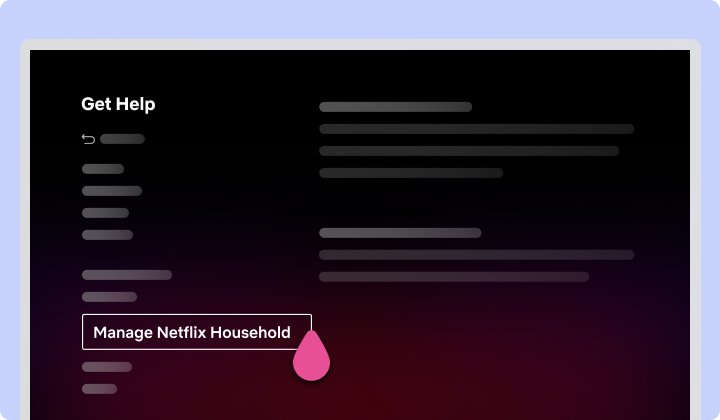
Tips: Making the most of Netflix on your TV
| Tip | Why it helps |
|---|---|
| Sign out of shared or public TVs after each session | Netflix recommends it for hotel, rental and shared TVs so the next person cannot use your account. |
| Sign out before you sell or give away a TV or streaming stick | The new owner would otherwise open Netflix straight into your profiles. |
| Update the Netflix Household from the TV you watch most | Netflix sets the household from the internet connection used by your main TV. |
| Check Manage Access & Devices every few months | Old TVs and forgotten devices show up there and can be signed out in one place. |
| Use a password you do not use anywhere else | If another site leaks your password, a unique Netflix password keeps the account safe. |
| Give each viewer a separate profile | Profiles keep viewing activity and recommendations apart on one shared TV. |
Once you are signed back in, you can browse every Netflix movie and TV show by genre from the TV or a browser. A TV without the Netflix app can still show it when you cast a laptop to the TV.
Sign out of Netflix on TV FAQ
How do I sign out of Netflix on my TV from my phone?
Open netflix.com/manageaccountaccess in your phone's browser and sign in. Find the TV in the list of devices with recent streaming activity and sign it out, or select Sign out of All Devices to end every session on the account at once.
How do I sign out of Netflix on Samsung TV?
Open Netflix on the Samsung TV, press Back on the remote, go to your profile icon and select Get Help, then Sign out, then Yes. Samsung sets use the same Netflix smart TV menu as other brands, including the hidden remote code if Sign out is missing.
How do I sign out of Netflix on Firestick?
On the Netflix home screen, press Back on the Fire TV remote, move to your profile icon and select Get Help, then Sign out, then Yes. A Fire TV Stick follows the Netflix steps for streaming media players.
How do I sign out of Netflix on Apple TV?
Open Netflix, press the Back or Menu button on the Apple TV remote, go left to your profile icon and select Get Help, then Sign out, then Yes. Netflix runs on Apple TV HD (4th generation) and every Apple TV 4K.
How do I sign out of Netflix on Roku?
Open Netflix on the Roku, press Back, select your profile icon, then Get Help, Sign out and Yes. If the menu has no Sign out option, press Up, Up, Down, Down, Left, Right, Left, Right, Up, Up, Up, Up on the remote and choose Sign out.
How do I sign out of Netflix on a hotel TV?
Before checkout, open Netflix on the hotel TV and select Get Help, then Sign out, from the profile menu. If you already left, sign that TV out from netflix.com/manageaccountaccess on your phone so the next guest cannot use your account.
How do I sign out of Netflix on all devices?
Go to netflix.com/manageaccountaccess in a browser, sign in and select Sign out of All Devices. Every TV, phone, tablet and computer on the account is signed out, including the one you are using, so each needs a fresh sign-in.
How do I sign out of Netflix on a laptop?
On a laptop, open netflix.com/manageaccountaccess in your browser to sign out a single device or every device on the account. The same page lets you sign out a TV from the laptop without touching the TV remote.
Why does Netflix sign me out on my TV?
The usual causes are someone selecting Sign out of All Devices, the TV not matching your Netflix Household, or stored app data triggering an error that offers Sign out or Reset. Changing your password stops anyone else from signing back in.
Will signing out of Netflix on my TV affect my recommendations and watch history?
No. Recommendations, My List and viewing activity belong to the profile on your Netflix account, not to the TV. They appear again as soon as you sign back in on that TV or any other device.
What if the Sign out option isn't available in the menu?
Press Up, Up, Down, Down, Left, Right, Left, Right, Up, Up, Up, Up on the remote from the Netflix screen. A hidden menu opens with Sign out, Reset or Deactivate. If that fails, sign the TV out from the Manage Access & Devices page.
Does Netflix sign out of a TV automatically after a while?
Netflix does not document an automatic sign-out timer for TVs. A TV stays signed in until someone signs it out on the TV, signs it out remotely from Manage Access & Devices, or uses Sign out of All Devices.