Most iPhone 17 Pro Max connectivity issues on iOS 26.0 are fixed by installing iOS 26.0.1 or any later update, because Apple confirmed that release fixes Wi-Fi and Bluetooth dropouts on iPhone 17 Pro models and a cellular bug that appeared after updating to iOS 26.
This guide covers the update itself, how to install it when Wi-Fi is the broken part, Bluetooth re-pairing, signal and No Service fixes, Reset Network Settings, and when the fault belongs to your carrier or to Apple.
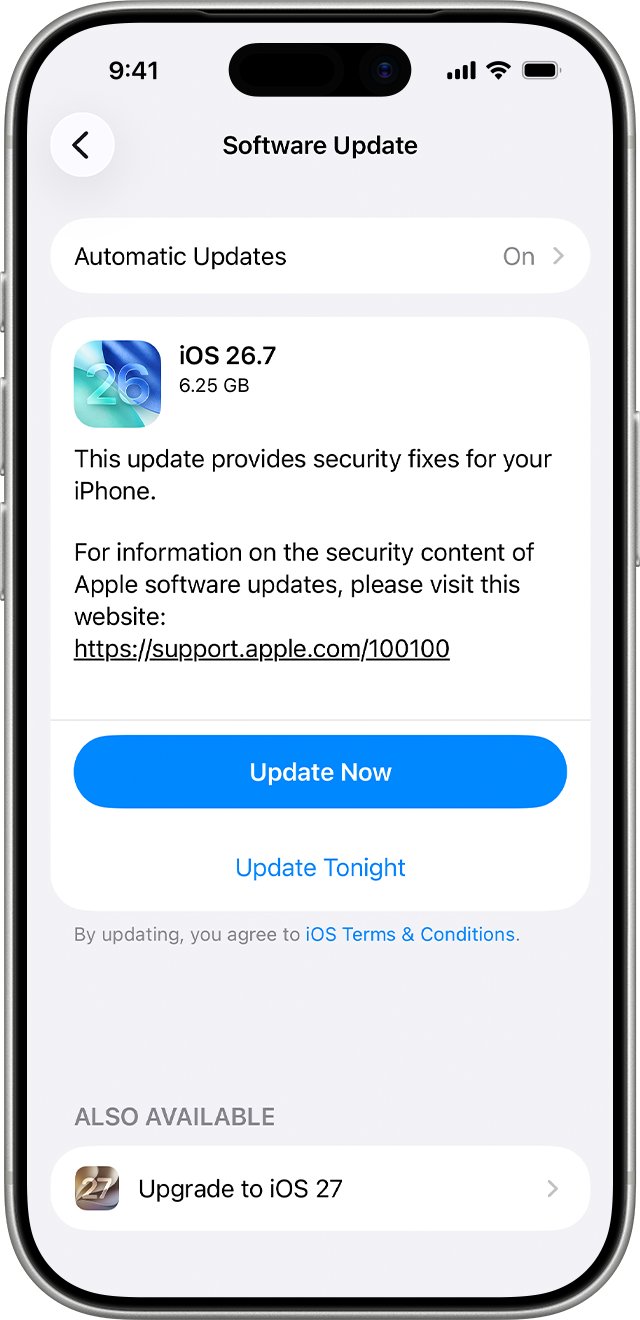
Fix iPhone 17 Pro Max connectivity issues with iOS 26.0
If your phone still runs iOS 26.0, the update below is the first fix to try. It replaces the release that carried the dropout bug.
- Back up the iPhone with iCloud or a computer.
- Plug the phone into power and connect to a working Wi-Fi network.
- Open Settings and tap General.
- Tap Software Update to see the installed iOS version and any available update.
- Tap Download and Install and follow the onscreen prompts.
- After the restart, rejoin your Wi-Fi network and reconnect your Bluetooth accessories.
If Software Update offers a later iOS 26 release or a newer major version, install that instead. Each later release includes the iOS 26.0.1 fixes.
iOS 26.0 Wi-Fi and Bluetooth disconnect bug on iPhone 17 Pro Max
Apple's iOS 26 release notes list the connectivity faults that iOS 26.0.1 repairs. Two of them match what iPhone 17 Pro Max owners reported on iOS 26.0.
| iOS 26.0.1 fix | Who it affects | What you notice on iOS 26.0 |
|---|---|---|
| Wi-Fi and Bluetooth may occasionally disconnect | iPhone 17, iPhone Air and iPhone 17 Pro models, which includes the Pro Max | Wi-Fi drops and rejoins, AirPods or car audio cut out, accessories disconnect |
| Some users may be unable to connect to a cellular network after updating to iOS 26 | A small number of iPhone users on any supported model | No Service, Searching or SOS in the status bar where coverage is normal |
| Photos may include unexpected artifacts in certain lighting | iPhone 17, iPhone Air and iPhone 17 Pro models | Not a connectivity issue, fixed in the same update |
Because the fault sits in the software, a router change or a new accessory will not cure it on iOS 26.0. Update first, then troubleshoot whatever remains.
iPhone 17 Pro Max connection problems: Wi-Fi, Bluetooth or cellular
Find the line that matches your phone after the update, then go to that section.
| What you see | Likely cause | Fix to try |
|---|---|---|
| Wi-Fi and Bluetooth both drop on iOS 26.0 | The bug fixed in iOS 26.0.1 | Update iOS, using a computer if Wi-Fi will not hold |
| One Bluetooth accessory keeps disconnecting | A stale pairing record or interference | Forget the device and pair it again |
| Wi-Fi joins but shows No Internet Connection | Router, VPN or network setting | Check the router, remove VPN apps, rejoin the network |
| No Service, Searching or SOS | Cellular line, carrier settings or account | Airplane Mode toggle, carrier settings update, line check |
| Everything still drops after the update | Corrupt saved network settings | Reset Network Settings, then contact Apple |
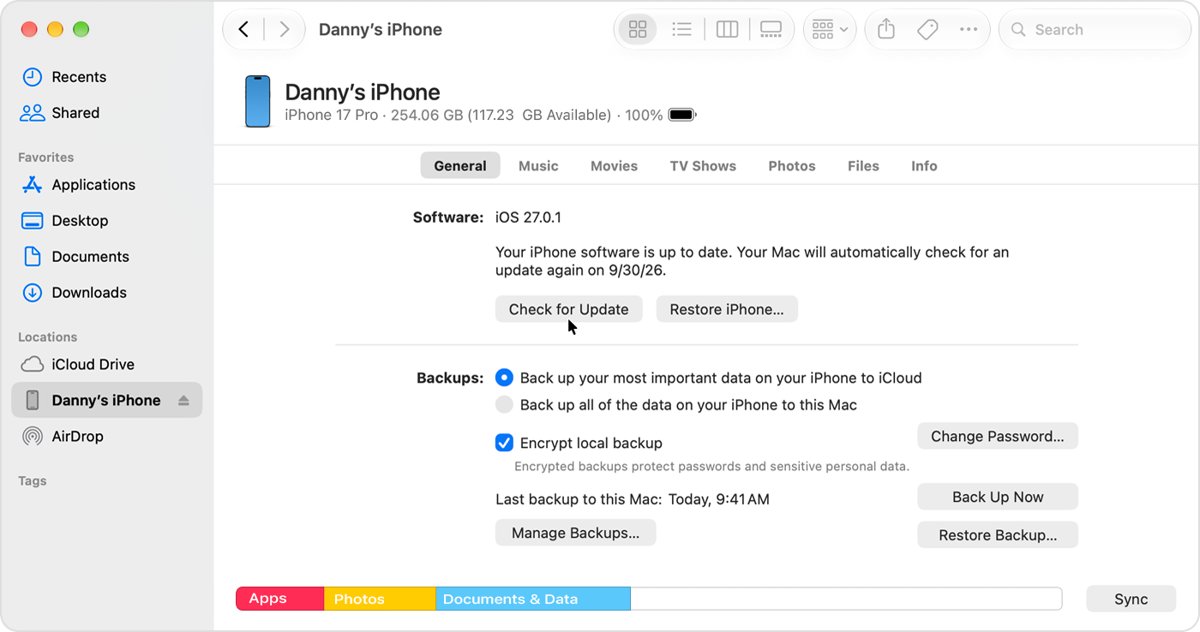
Update iPhone 17 Pro Max to iOS 26.0.1 with a computer when Wi-Fi keeps dropping
A wireless update needs a stable internet connection. If Wi-Fi keeps disconnecting mid-download or the update stalls at Update Requested, update through a computer instead.
- Back up the iPhone first so nothing is lost if the update stops.
- Connect the iPhone 17 Pro Max to your computer with a cable.
- On a Mac with macOS 10.15 or later, select the iPhone in the Finder sidebar, then click General at the top of the window.
- On a Windows PC or a Mac with macOS 10.14 or earlier, open iTunes, click the iPhone button near the top left, then click Summary.
- Click Check for Update.
- Click Update to install the latest iOS version offered.
- Keep the cable connected until the iPhone restarts and shows the Lock Screen.
Turn off any VPN or proxy before a wireless retry. Apple notes these connections can stop the phone from reaching its update servers.
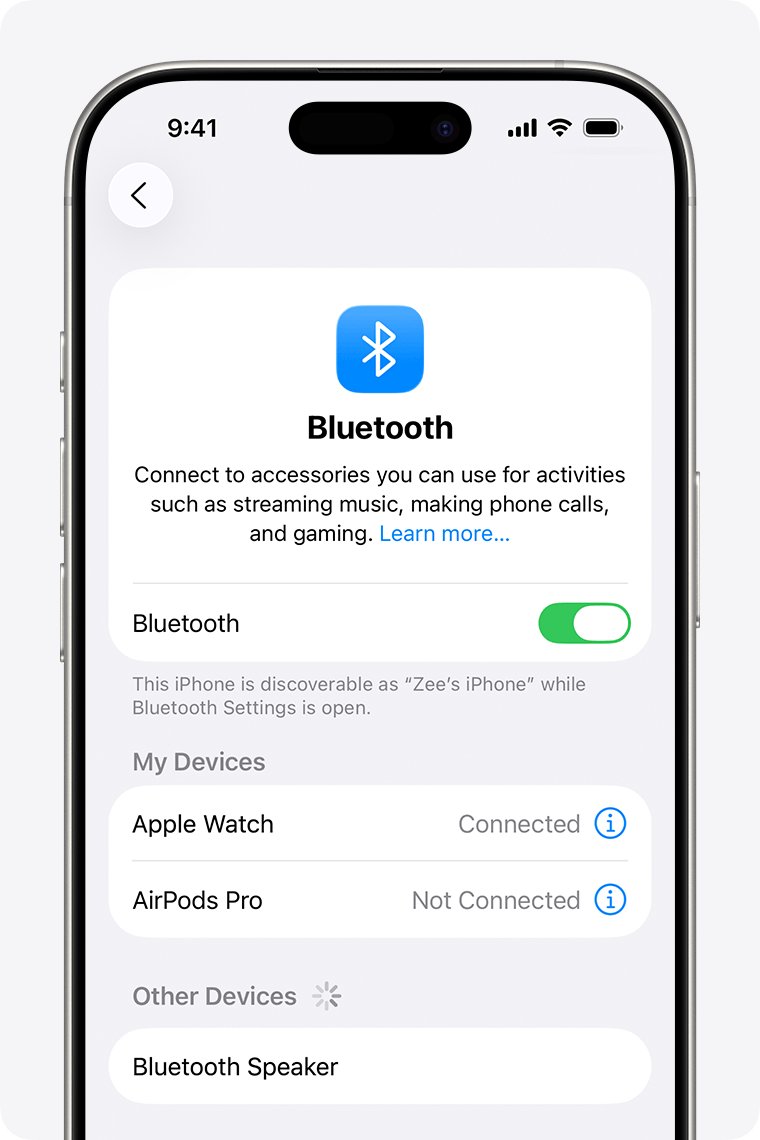
iPhone 17 Pro Max Bluetooth issues: forget and re-pair the accessory
Pairings made while iOS 26.0 was dropping connections, including headphones and car stereos that keep disconnecting, can stay unreliable after the update. Remove the accessory and pair it fresh.
- Open Settings and tap Bluetooth.
- Tap the More Info button next to the accessory that disconnects.
- Tap Forget This Device, then tap Forget Device to confirm.
- Put the accessory into discovery mode, using the instructions that came with it.
- Keep the iPhone within about 33 feet (10 meters) of the accessory.
- Tap the accessory's name when it appears below the devices list, and enter a PIN or passcode if it asks for one.
Forgetting AirPods on the iPhone also unpairs them from your other devices signed in to the same Apple Account. Pair them again on each device you use.
If audio still cuts out, move the iPhone and the accessory closer or change how they face each other. Apple notes that some accessories affect wireless performance.
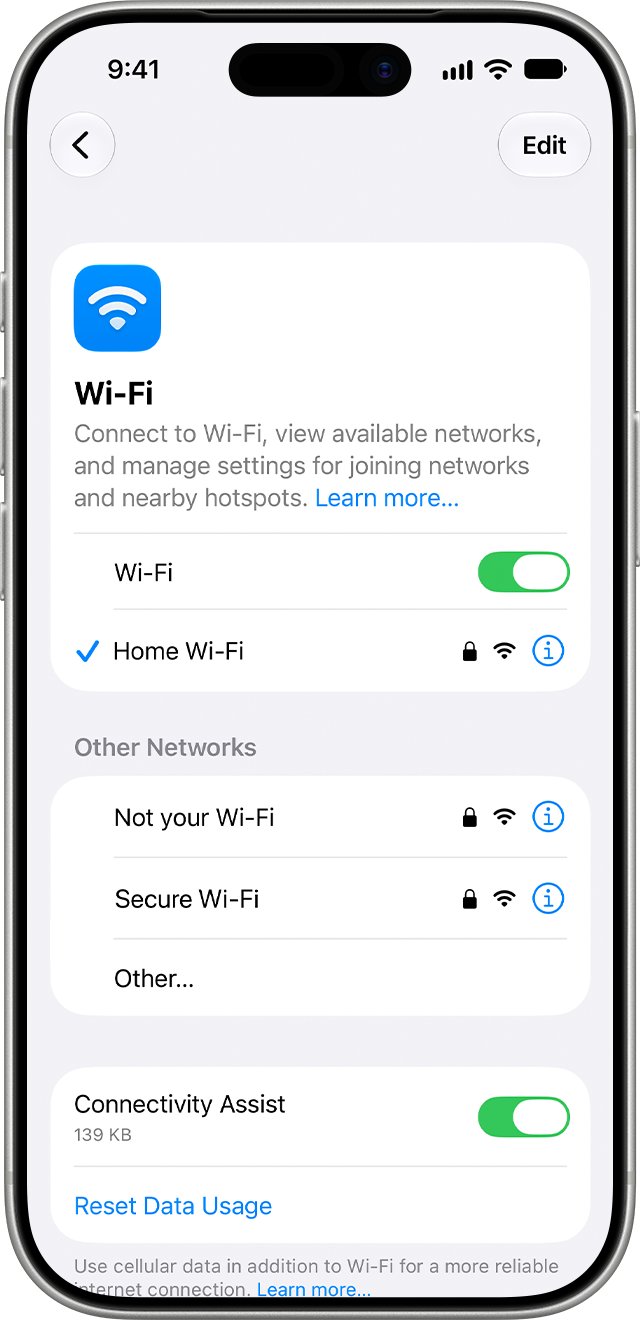
iPhone 17 Pro Max Wi-Fi issues after the iOS 26 update
If Bluetooth is stable but Wi-Fi still fails after iOS 26.0.1, work through the phone settings before you touch the router.
- Open Settings and confirm Airplane Mode is off.
- Tap Wi-Fi, make sure it is on, and tap your network name.
- Look for the blue checkmark next to the network to confirm the connection.
- Turn off Connectivity Assist on the same screen while you test.
- Tap Edit, tap the More Info button next to the network, tap Forget This Network, then tap Forget.
- Rejoin the network and enter the password again.
Forgetting a network on one device makes your other devices that use iCloud Keychain with the same Apple Account forget it too.
iPhone 17 Pro Max signal issues and no service after iOS 26
Apple lists a cellular connection bug among the iOS 26.0.1 fixes, so update first. If No Service or Searching stays, the iPhone 17 Pro cellular connection usually comes back once you reconnect the line.
- Open Settings, turn on Airplane Mode for at least 15 seconds, then turn it off.
- Restart the iPhone.
- Connect to Wi-Fi, open Settings > General > About, and install a carrier settings update if one appears.
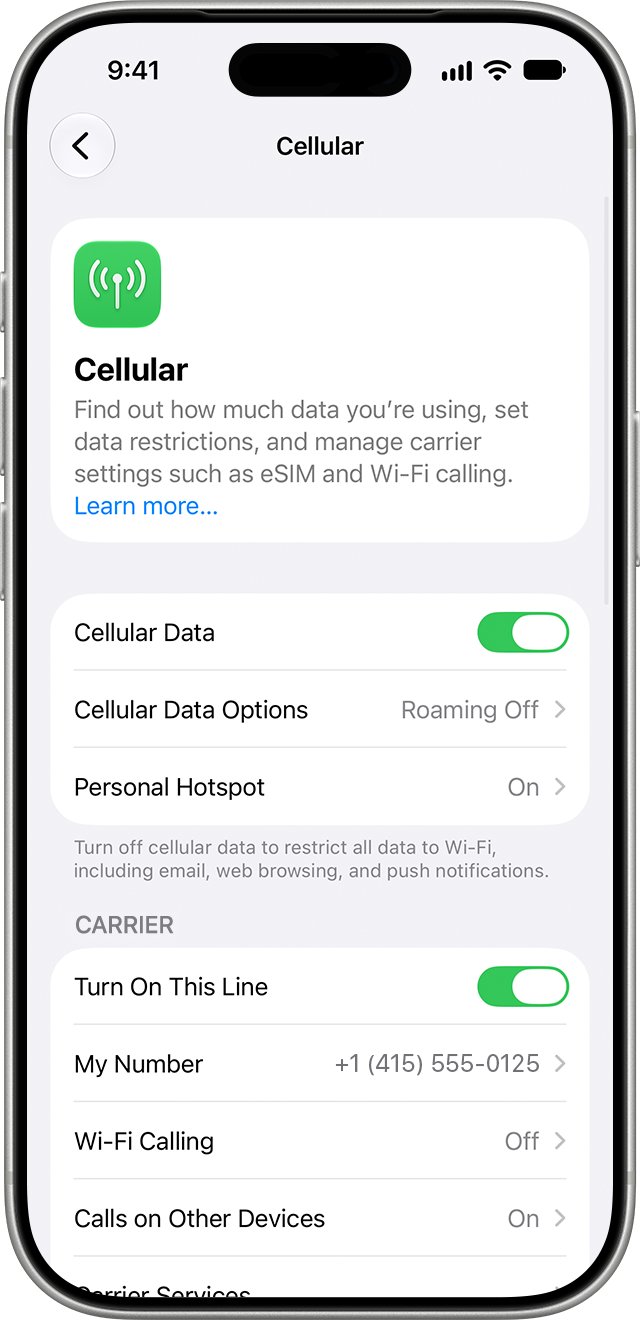
- Open Settings > Cellular, tap your line and check that it is turned on.
- If the line is off, tap Turn On This Line.
- Contact your carrier if no line appears or the account may be inactive.
Force restart iPhone 17 Pro Max when Wi-Fi is grayed out
Apple's Wi-Fi guidance says to restart the device when the Wi-Fi setting is dimmed. If the phone will not turn off normally, force a restart.
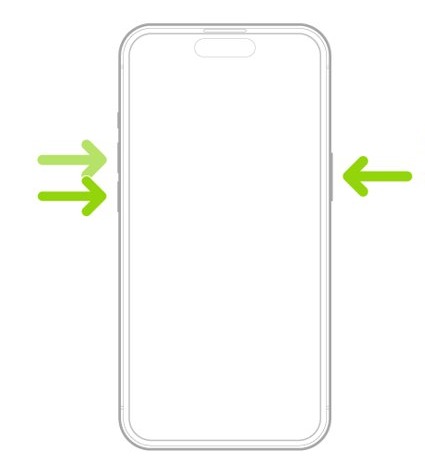
- Press and quickly release the volume up button.
- Press and quickly release the volume down button.
- Press and hold the side button.
- Release the side button when the Apple logo appears.
- Unlock the iPhone and check whether Wi-Fi and Bluetooth turn on.
Reset Network Settings on iPhone 17 Pro Max for connection problems
Use this only after the update and the steps above fail. It removes every saved Wi-Fi network and password, cellular settings, and VPN and APN settings, but it does not delete photos, messages or apps.
- Make a note of the Wi-Fi passwords you need to enter again.
- Open Settings and tap General.
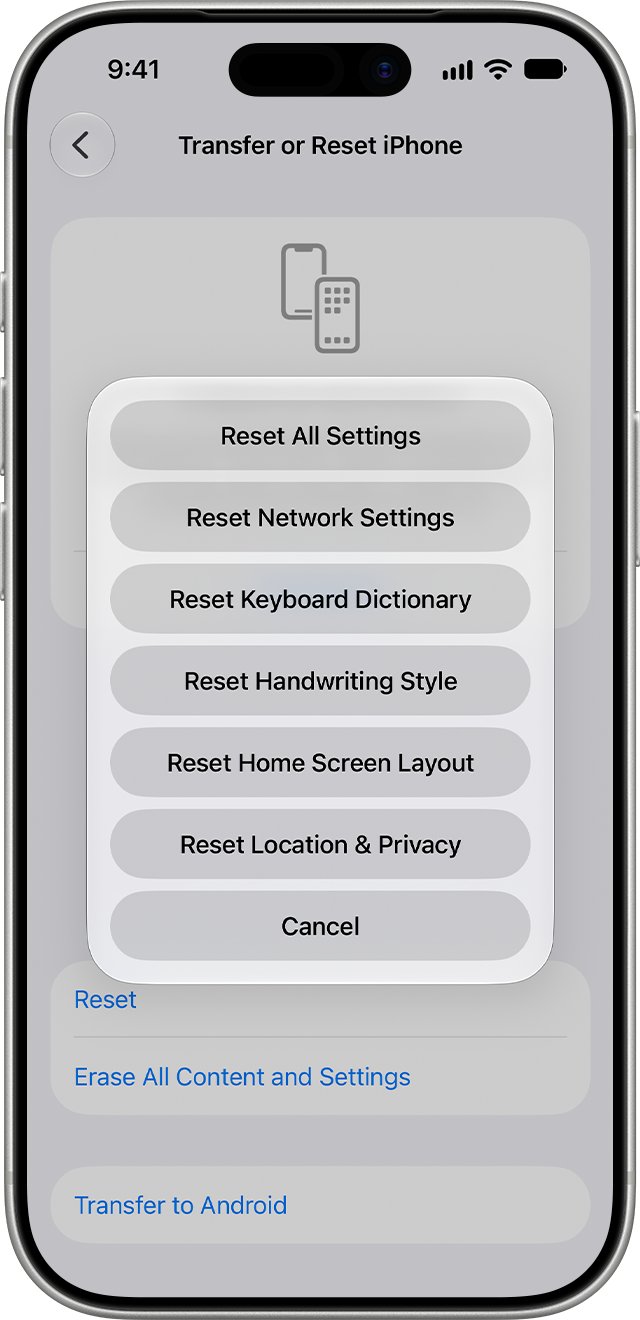
- Tap Transfer or Reset iPhone, then tap Reset.
- Tap Reset Network Settings and enter your passcode if asked.
- After the restart, rejoin Wi-Fi and pair your Bluetooth accessories again.
The reset also renames the phone to "iPhone" in Settings > General > About and may turn off cellular data roaming. Turn roaming back on if you travel.
If a school or company manages your network, ask its IT team before you reset.
How to tell if iOS 26.0.1 fixed iPhone 17 Pro Max connectivity
- Open Settings > General > Software Update and confirm the installed version is iOS 26.0.1 or later.
- Open Settings > Wi-Fi and look for the blue checkmark next to your network.
- Load a website in Safari with Wi-Fi on, then turn Wi-Fi off and load it again over cellular.
- Play audio to your Bluetooth headphones or car for several minutes and watch for dropouts.
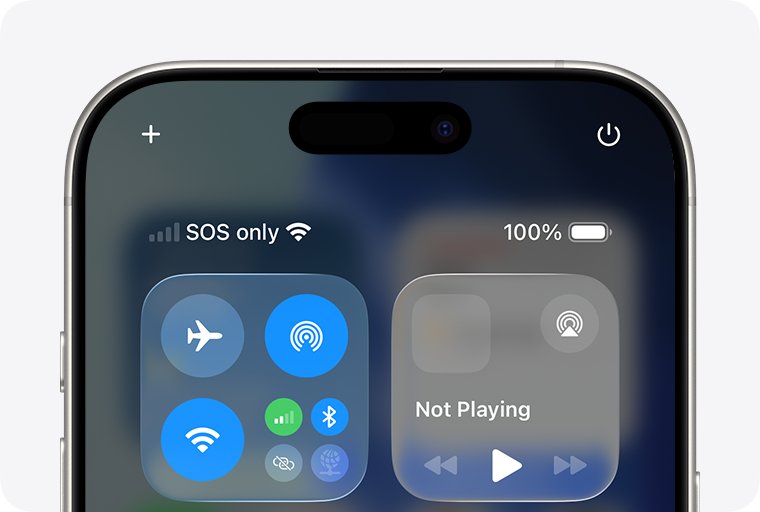
- Check the status bar for signal bars instead of No Service, Searching or SOS.
iPhone 17 Pro Max internet issues that remain after the update
iPhone 17 Pro Max connects to Wi-Fi but has no internet
The router, the internet service or a VPN app is blocking traffic.
- Check whether other devices can get online on the same network.
- Restart the router and modem by unplugging them and plugging them back in.
- Join the 5 GHz band instead of 2.4 GHz if your router offers both.
- Uninstall VPN or security apps, restart the iPhone and test again.
- Contact your internet provider if no device on the network can get online.
Bluetooth audio still cuts out on iPhone 17 Pro Max
The accessory is out of range, poorly placed or not fully compatible.
- Move the accessory closer, or reorient the iPhone and the accessory, and test again.
- Forget the device and pair it again from Settings > Bluetooth.
- Check the accessory's own instructions for a reset or pairing-mode procedure.
- Test a different Bluetooth accessory to see whether the fault follows the phone.
iPhone 17 Pro Max cellular issues continue in a covered area
A carrier account, eSIM or network problem the phone cannot fix, especially when calls work but mobile data does not.
- Ask your carrier to confirm the account is active and the phone is not blocked.
- Ask about outages in your area.
- On iOS 18 or later, run diagnostics in the latest Apple Support app.
- Book Apple service if the carrier finds no account or network fault.
iPhone 17 Pro Max cannot connect to any Wi-Fi network
A device fault rather than a single network problem.
- Try Wi-Fi in a different location, such as a friend's network.
- Run Reset Network Settings if you have not already.
- Contact Apple if the phone still cannot join any network.
iPhone 17 Pro Max connectivity issues FAQ
Did iOS 26.0.1 fix iPhone 17 Pro Max connectivity issues?
Yes. Apple's release notes say iOS 26.0.1 fixes Wi-Fi and Bluetooth that may occasionally disconnect on iPhone 17, iPhone Air and iPhone 17 Pro models. It also fixes a cellular bug that stopped some iPhones connecting after updating to iOS 26.
Why does my iPhone 17 Pro Max keep disconnecting from Wi-Fi?
On iOS 26.0 the likely cause is the Wi-Fi and Bluetooth disconnect bug Apple fixed in iOS 26.0.1. On later releases, check the router, forget and rejoin the network, turn off Connectivity Assist while testing, and remove VPN apps.
Is the iPhone 17 Pro Max connectivity problem a hardware fault?
Usually not on iOS 26.0, because Apple fixed the reported Wi-Fi and Bluetooth drops in software. If the phone cannot join any Wi-Fi network after updating and resetting network settings, contact Apple for service.
Does Reset Network Settings delete data on iPhone 17 Pro Max?
No. Reset Network Settings removes saved Wi-Fi networks and passwords, cellular settings, and VPN and APN settings. Photos, messages, apps and accounts stay on the phone. You need to rejoin Wi-Fi and pair Bluetooth accessories again.
How do I update iPhone 17 Pro Max if Wi-Fi does not work?
Connect the iPhone to a computer with a cable. On a Mac with macOS 10.15 or later, select it in the Finder sidebar and click General; on Windows, open iTunes and click Summary. Then click Check for Update and Update.
Why does my iPhone 17 Pro Max say No Service?
No Service or Searching means the phone is not connected to a cellular network. Toggle Airplane Mode for 15 seconds, restart, install any carrier settings update, and check your line under Settings > Cellular. If that fails, contact your carrier.
Does Connectivity Assist use cellular data on iPhone 17 Pro Max?
Yes. When Connectivity Assist is on, the iPhone uses cellular data alongside Wi-Fi when Wi-Fi is weak, busy or not connected to the internet. That can add data charges, so turn it off while you test a Wi-Fi problem.
How do I set up iPhone 17 Pro Max to update automatically?
Open Settings > General > Software Update > Automatic Updates and turn on Automatically Install. The iPhone then installs updates overnight while charging and on Wi-Fi, so future connectivity fixes arrive without a manual check.
When to take iPhone 17 Pro Max to Apple for connectivity issues
Update to iOS 26.0.1 or later first, then re-pair Bluetooth accessories, rejoin Wi-Fi and reset network settings. Book Apple service only if the phone still cannot hold any Wi-Fi network or your carrier finds no fault with the line. Apple fixed the iOS 26.0 Wi-Fi, Bluetooth and cellular faults in software, so most phones recover after the update, while a phone that fails on every network after a reset points to hardware.