To restore a lost homepage, open your browser's settings, enter the page you want under the homepage or startup option, and then remove whatever extension or program changed it.
This guide gives the exact settings path for Google Chrome, Microsoft Edge, Firefox and Safari, shows how to tell a homepage from a startup page, and fixes a homepage that keeps switching back.
How do I restore my lost homepage?
Find your browser in the first column and follow its path. Each route ends at the setting that controls the page you lost.
| Browser | Where the setting lives | What to choose |
|---|---|---|
| Google Chrome | More > Settings > On startup, and Appearance > Show Home button | Open a specific page or set of pages for launch; a custom address for the Home button |
| Microsoft Edge | Settings and more > Settings > Start, home, and new tab page | Open custom sites under On startup |
| Firefox | Menu > Settings (Options in older versions) > Home | Custom URLs next to Homepage and new windows |
| Safari on a Mac | Safari > Settings > General | Type the address in Homepage, then set New windows open with to Homepage |
If the page changes back after a restart, the setting is not the problem. Jump to the section on a homepage that keeps changing.
Before changing anything: homepage or startup page?
Browsers treat these as two separate settings, and they are not the same page unless you make them the same. Restoring the wrong one is the most common reason a fix seems not to work.
| Setting | When it appears | Chrome | Edge | Safari |
|---|---|---|---|---|
| Startup page | When you first launch the browser | On startup | On startup | New windows open with |
| Homepage | When you select the Home button | Show Home button | Opens the new tab page by default | Homepage field, or History > Home |
| New tab page | When you open a new tab | New Tab page | New tab page | New tabs open with |
If the wrong site appears the moment the browser opens, fix the startup page. If it appears only after you select Home, fix the homepage. Firefox uses one setting, Homepage and new windows, for both.
Restore the homepage in Google Chrome
Chrome stores the launch page and the Home button page in different parts of Settings. Set both to the address you want back.
- Open Chrome, select More (the three dots) at the top right, then select Settings.
- Select On startup on the left.
- Choose Open a specific page or set of pages.
- Select Add a new page, type the address you want, and select Add. To keep the tabs already open, select Use current pages instead.
- Remove any address you did not add: open the More menu next to it and select Delete.
- Go to Appearance and turn on Show Home button.
- Under Show Home button, choose New Tab page or enter your custom address.
The Home button then appears on the left of the address bar. If you want Google Search back specifically, you can make Google your homepage with the same settings. Chrome also lets you change the startup page to reopen your last session instead.
Restore the homepage in Microsoft Edge
Edge controls its launch pages from one settings page. By default, its Home button opens the new tab page rather than a separate homepage.
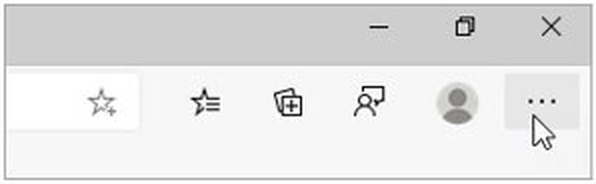
- Open Edge and select Settings and more (the three dots) in the upper-right corner.
- Select Settings.
- Select Start, home, and new tab page in the left menu.
- Under On startup, choose Open custom sites.
- Add the address of the homepage you lost and remove any site you did not add.
- Close Edge and open it again to check that your page loads first.
The other two startup choices are Open the new tab page and Open tabs from the previous session. If you only want the Microsoft start page back, you can set MSN as your homepage again the same way.
Restore the homepage in Firefox
Firefox uses one option for the homepage and for new windows, so a single change restores both.
- Open Firefox and select the menu button (three horizontal lines) beside the profile icon.
- Select Settings. Older versions label it Options.
- Select Home on the left.
- Under New Windows and Tabs, open the drop-down next to Homepage and new windows.
- Choose Custom URLs and type the address you want, or choose Firefox Home (Default) to go back to the original page.
- Close and reopen Firefox to check the result.
Blank Page is the third choice in the same list. It suits readers who want Firefox to open as fast as possible.
Restore the homepage in Safari on a Mac
Safari keeps the homepage address and the choice of when it appears on the General tab.
- Open Safari and choose Safari > Settings from the menu bar.
- Click General.
- Type the address you want in the Homepage field. To use the page you are viewing, click Set to Current Page.
- Click the New windows open with pop-up menu and choose Homepage.
- Click the New tabs open with pop-up menu and choose Homepage if you want it on every new tab too.
- Choose History > Home to open the homepage at any time.
How to reset Chrome settings to restore the original homepage
A reset puts the homepage, startup tabs and search engine back to Chrome's defaults when software changed them without asking. Saved bookmarks and passwords are not deleted.
- Open Chrome and select More > Settings.
- Select Reset settings.
- Select Restore settings to their original defaults.
- Select Reset settings to confirm.
- Turn back on only the extensions you trust: select More > Extensions > Manage extensions.
The reset also restores the new tab page, unpins tabs, resets site permissions, clears cookies and site data, and turns off extensions and themes. Fonts and accessibility settings stay as they are, and the change applies on every device where you are signed in.
How to remove an extension that changes your homepage
An extension is the most common reason a homepage changes by itself. Turn off anything you do not recognize, then set the homepage again.
- In Chrome, select More > Extensions > Manage extensions and turn off any extension you did not install on purpose.
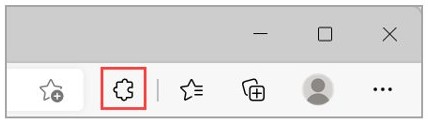
- In Edge, select Extensions to the right of the address bar, then select Manage extensions and use the toggle to turn one off.
- To remove it from Edge, right-click its icon and select Remove from Microsoft Edge > Remove.
- In Safari, choose Safari > Settings, then click Extensions.
- Deselect the extension's checkbox to turn it off, or select it and click Uninstall.
- Open your browser's homepage settings again and re-enter the page you want.
If an extension removes itself and comes back, a program installed on the computer is reinstalling it. Uninstall that program next.
How to scan for unwanted software that keeps changing the homepage
Google treats a homepage or search engine that changes without your permission as a sign of malware. Remove the program first, then scan the PC.
- On Windows, open Start > Settings > Apps > Installed apps.
- Select any app you do not recognize or did not install, then choose Uninstall.
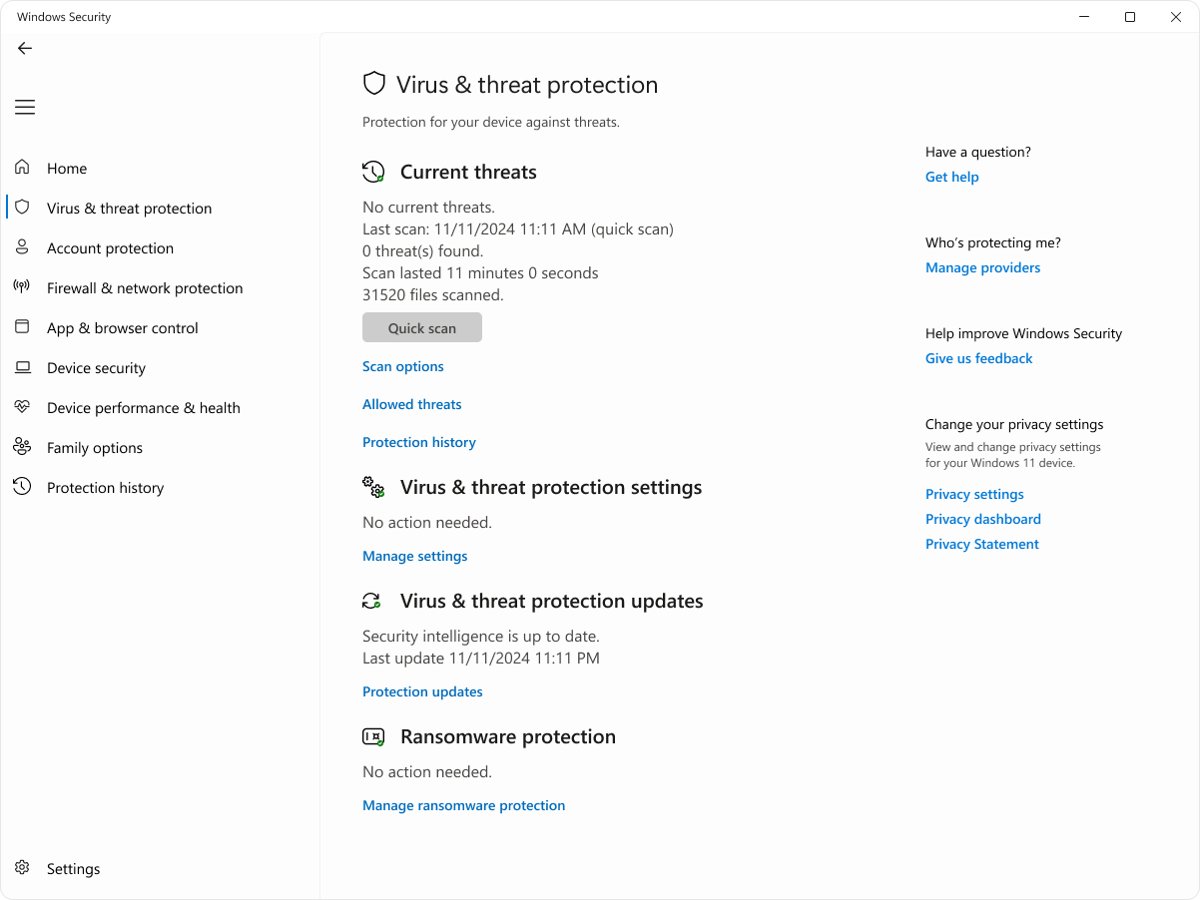
- Open the Windows Security app and select Virus & threat protection.
- Select Scan options, choose Full scan, and select Start a full scan.
- If threats come back, save your files, choose Microsoft Defender Antivirus (offline scan), and select Start an offline scan. The PC restarts to run it.
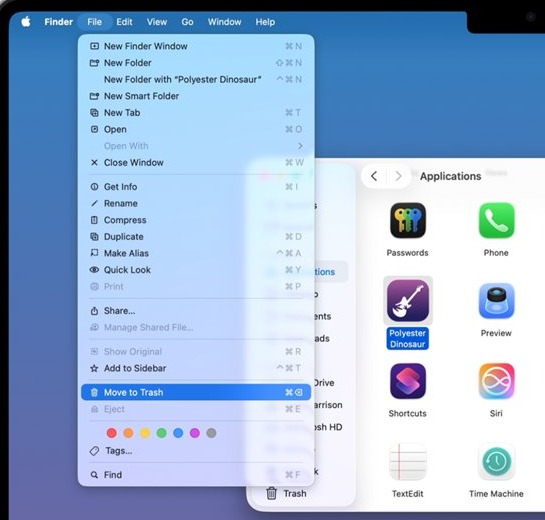
- On a Mac, open Finder, select Applications, right-click any unwanted program, and select Move to Trash.
- Right-click Trash in the Dock and select Empty Trash.
Results of each Windows scan appear under Protection history in Windows Security. Set the homepage again only after the scan finishes clean.
Quick diagnosis for a lost browser homepage
| What you see | Likely cause | What to do |
|---|---|---|
| The wrong site opens only when the browser starts | The startup page changed, not the homepage | Fix On startup (Chrome, Edge) or New windows open with (Safari) |
| The Home button is missing | The Home button is turned off | Turn on Show Home button in Chrome Appearance settings |
| The page changes back after every restart | An extension or installed program rewrites it | Remove the extension, then uninstall the program |
| The setting is greyed out or says it is managed | A policy set by an organization or by software | Check chrome://policy and ask the device's administrator |
| A different browser opens from links | The default browser changed | Change the default browser back in Windows Settings |
| Your old tabs vanished, not the homepage | The previous session was not reopened | Choose Continue where you left off (Chrome) or Open tabs from the previous session (Edge) |
When the homepage keeps changing or will not save
The homepage keeps changing back to a search site you did not choose
An extension or a bundled program is overriding the browser setting.
- Turn off every extension you do not recognize in the browser's extensions page.
- Uninstall unknown apps from Settings > Apps > Installed apps on Windows, or move them to the Trash on a Mac.
- In Chrome, run Reset settings > Restore settings to their original defaults.
- Set the homepage and startup page again, then restart the browser.
The homepage setting is greyed out or will not save
A browser policy locks the value, usually on a work or school device.
- In Chrome, type
chrome://policyin the address bar and press Enter to see which policies are set. - In Edge, look for a homepage or startup policy set by your organization; Edge's policies live under
SOFTWARE\Policies\Microsoft\Edgein the registry. - On a work or school computer, ask the administrator to change the page. Policies such as HomepageLocation and RestoreOnStartup stop users from changing it.
- On a personal PC that shows a policy you never set, remove unknown programs and extensions, then reset Chrome.
The homepage cannot be changed on a school or work Chromebook
The network administrator controls the startup page and homepage on managed Chromebooks.
- Open More and check for Managed by your organization at the bottom of the menu.
- Contact the administrator; the page cannot be changed from the Chromebook itself.
Edge ignores the startup page or will not open settings
Edge's own files may be damaged.
- Open Start > Settings > Apps > Installed apps.
- Select Microsoft Edge and choose Modify, then follow the repair prompts. Browser data and settings should not be affected.
- If Modify is missing, your organization may be managing Edge; contact the administrator.
- Open Start, home, and new tab page and set Open custom sites again.
How to tell if your browser is managed by your organization
A managed browser explains a homepage that will not stay put. Chrome shows this in two places.
- Open Chrome and select More at the top right.
- Look at the bottom of the menu. Managed by your organization means a policy is in force.
- Type
chrome://managementin the address bar and press Enter to see what is managed, including extensions. - Type
chrome://policyand press Enter to list each policy and its value. - Check which account is signed in. A work or school domain points to a managed account; a gmail.com address is personal.
If the browser should not be managed, remove unfamiliar programs and extensions, reset Chrome, and restart the computer. If the label stays, contact the account or device administrator.
Lost homepage FAQ
How do I restore my lost homepage?
Open your browser settings and set the page again: On startup and Show Home button in Chrome, Start, home, and new tab page in Edge, Home in Firefox, or General in Safari. Then remove the extension or program that changed it.
How do I restore a lost homepage in Firefox?
Open the Firefox menu, select Settings (or Options), then Home. Next to Homepage and new windows, choose Custom URLs and enter your page, or pick Firefox Home (Default) to go back to the original Firefox start page.
How do I restore my original homepage?
Choose the browser's default option: New Tab page for Chrome's Home button, Open the new tab page in Edge, or Firefox Home (Default) in Firefox. In Chrome, Restore settings to their original defaults returns the homepage and startup tabs in one step.
How to get back to my homepage?
Select the Home button beside the address bar. In Chrome, turn it on first with Show Home button under Appearance. In Safari on a Mac, choose History > Home to open the homepage at any time.
How to recover my homepage on computer?
Set the homepage in the browser you use, then check that it survives a restart. If it changes back, uninstall unknown apps from Settings > Apps > Installed apps and run a Full scan in Windows Security.
How to restore my pages that were open before?
Choose Continue where you left off under On startup in Chrome, or Open tabs from the previous session in Edge. To bring back tabs you already lost, you can restore closed tabs from the browser's history.
Does restoring a homepage delete my bookmarks or browsing history?
No. Changing the homepage setting deletes nothing. Even a full Chrome reset keeps saved bookmarks and passwords, although it clears cookies and site data and turns off extensions.
Why does my browser keep switching to a different homepage?
An extension, a bundled program, or a policy is overriding your choice. Turn off unknown extensions, uninstall programs you did not install, check chrome://policy, and reset Chrome if the page still changes back.
Can I restore a homepage on a managed Chromebook?
No. On a work or school Chromebook, the network administrator controls the startup page and homepage, so the settings cannot be changed by the user. Ask the administrator to change them.
How to find a lost home page if I do not remember the address?
Open the browser's history and look for the site you used to start on, then copy its address into the homepage setting. In Safari, Set to Current Page fills the Homepage field from the page you are viewing.