To close and restart an app on iPhone, open the App Switcher, swipe up on the app's preview to close it, then tap the app on the Home Screen to open it again.
This guide covers the steps for iPhone models with Face ID and with a Home button, when closing an app is worth doing, and what to try when the app keeps freezing or crashing.
How to close and restart an app on iPhone
These steps are for any iPhone with Face ID, which covers iPhone X and every later model without a Home button.
Close an app only when it stops responding or seems frozen; a working app can be left in the App Switcher.
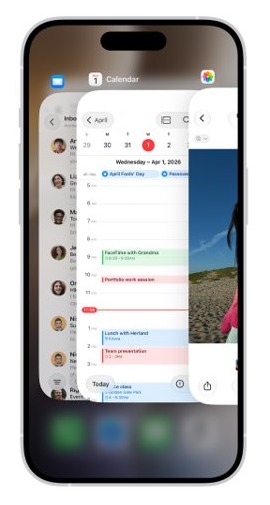
- From the Home Screen, swipe up from the bottom edge of the screen and pause in the middle until the App Switcher appears.
- Swipe right or left through the app previews until you find the app that is stuck.
- Swipe up on that app's preview. The preview slides off the top of the screen and the app closes.
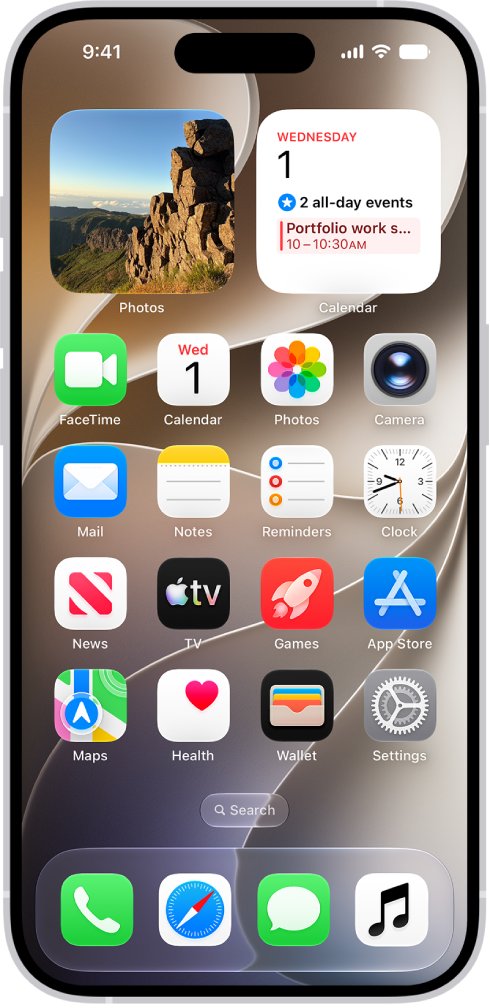
- Go back to the Home Screen, or open App Library if the app is not on a Home Screen page.
- Tap the app's icon to open it again with a fresh start.
If you are inside the frozen app when you start, the same upward swipe and pause from the bottom edge still opens the App Switcher.
How to close apps on iPhone with a Home button
iPhone SE, iPhone 8 and earlier models use the Home button instead of a swipe to open the App Switcher.
- Double-click the Home button to show your most recently used apps.
- Swipe right or left to find the app you want to close.
- Swipe up on the app's preview to close it.
- Press the Home button once to return to the Home Screen.
- Tap the app's icon to reopen it.
How to close apps on different iPhone models
| Your iPhone | How to open the App Switcher | How to close the app |
|---|---|---|
| iPhone X and later, and any iPhone with Face ID | Swipe up from the bottom edge, pause in the middle, then lift your finger | Swipe up on the app's preview |
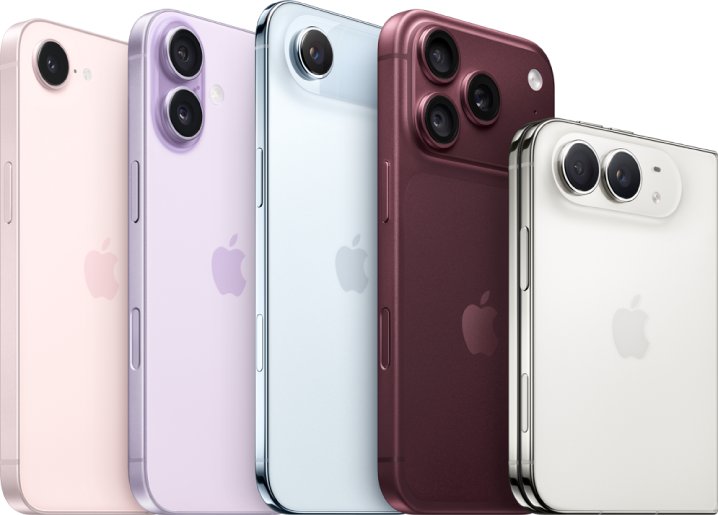
| iPhone Duo | Swipe up from the bottom edge, pause in the center, then lift your finger | Swipe up on the app's preview |
| iPhone SE, iPhone 8 and earlier | Double-click the Home button | Swipe up on the app's preview |
| iPod touch | Double-click the Home button | Swipe up on the app's preview |
Closing is the same upward swipe on every model; only the way you open the App Switcher changes.
Should you close apps you’re not using?
No. Apple's guidance is to close an app only when it is unresponsive, because iPhone manages background apps on its own.
Apps sitting in the App Switcher are not all running. They use resources and power only while they are active or doing a specific background task.
| Situation | Close the app? | Reason |
|---|---|---|
| The app is frozen or will not respond to taps | Yes | Closing and reopening gives the app a clean start |
| The app shows an error and will not load content | Yes, then reopen it | A restart of the app is the first fix Apple lists |
| iPhone feels slow | No | Closing all apps does not change overall iPhone performance |
| Battery drains quickly | No | Quitting apps you are not using does not extend battery life |
| You are done with an app for now | No | Leaving it in the App Switcher lets you resume where you left off |
Does closing apps save battery on iPhone?
Closing apps does not save battery on iPhone. iOS automatically manages how apps run in the background, so swiping away apps you are not using does not prolong battery life.
Leave working apps in the App Switcher and close only the one that is frozen. Recently used apps draw power only when they are active or performing a background task, so clearing the App Switcher out of habit gains nothing and forces those apps to start from scratch next time.
How to see which apps are open on iPhone
The App Switcher is the list of your recently used apps, so it is also where you check that the app really closed.
- On an iPhone with Face ID, swipe up from the bottom edge and pause in the center. On iPhone SE, double-click the Home button.
- Swipe right through the previews. The app you swiped away should no longer have a preview.
- Tap any remaining preview to jump back into that app where you left off.
- Open the app you closed from the Home Screen. It starts fresh rather than resuming the frozen screen.
How to switch between open apps on iPhone
Switching apps is the everyday use of the App Switcher, and it is different from closing an app. When you switch back, the app picks up where you left off.
- Open the App Switcher with the swipe-and-pause gesture, or double-click the Home button on iPhone SE.
- Swipe right to browse the open apps.
- Tap the app you want to use.
- On an iPhone with Face ID or iPhone Duo, swipe right along the bottom edge of the screen to jump straight to the previous app without opening the App Switcher.
How to restart iPhone when an app keeps freezing
If an app is still unresponsive after you close and reopen it, restart the iPhone itself. A normal iPhone restart clears more than closing one app does.
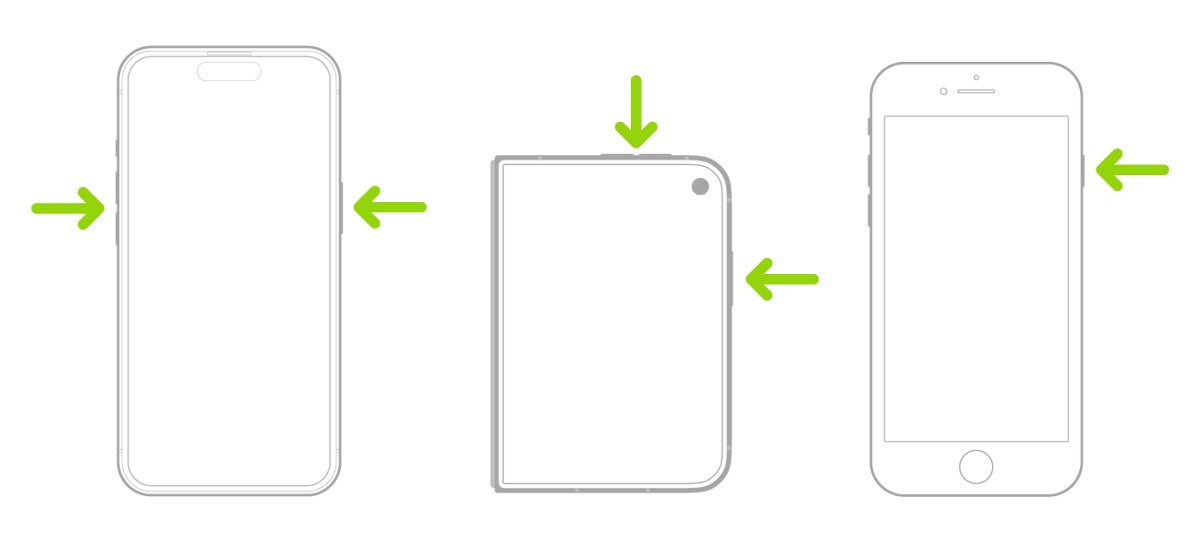
- On an iPhone with Face ID or iPhone Duo, press and hold the side button and either volume button until the sliders appear.
- On iPhone SE, press and hold the side button until the sliders appear.
- Drag the Power Off slider and wait for the screen to go dark.
- Press and hold the side button until the Apple logo appears.
- Unlock the iPhone and open the app again.
You can also go to Settings > General > Shut Down, or touch and hold the power control in the top-right corner of Control Center, then drag the slider.
How to force restart an iPhone when the screen is frozen
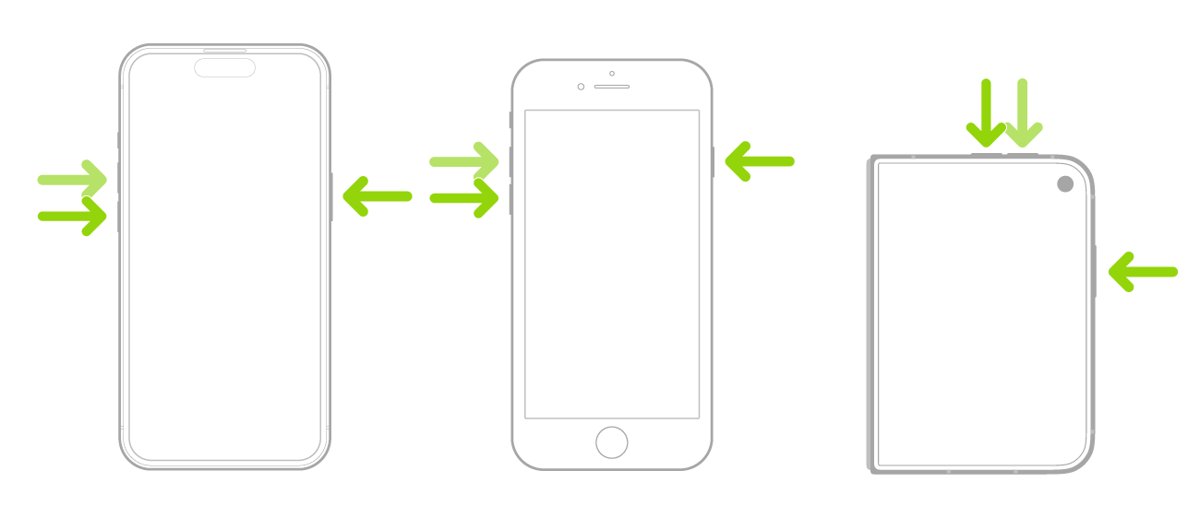
Use a force restart when the app has locked up the whole iPhone and you cannot reach the App Switcher or the Power Off slider.
- Press and quickly release the volume up button. On iPhone Duo, use the volume button nearest the side button.
- Press and quickly release the volume down button. On iPhone Duo, use the other volume button.
- Press and hold the side button.
- Release the side button when the Apple logo appears.
If the button sequence does nothing, work through the iPhone force restart fixes before assuming a hardware fault.
If the iPhone app still isn’t working
Work through these in order after you have closed the app and restarted the iPhone, starting with a check to update apps on iPhone from the App Store. Open the app after each fix to see whether it now works.
The app freezes again right after you reopen it
The installed version of the app may have a bug that the developer has fixed in an update.
- Open the App Store.
- Tap your profile icon in the top-right corner.
- Tap App Updates and look for the app in the list.
- Tap Update next to it, then open the app again.
No app update is available but the app keeps crashing
The app may need a newer version of iOS than the one installed.
- Go to Settings > General > Software Update.
- Check the installed iOS version and whether an update is available.
- Tap Download and Install if an update is offered, then follow the onscreen instructions.
- Open the app again after the iPhone restarts.
The app will not open at all or closes unexpectedly
The app's installed files or data may be damaged.
- Touch and hold the app on the Home Screen or in App Library.
- Tap Remove App, then tap Delete App.
- Tap Delete to confirm. Data stored only inside the app is removed with it.
- Open the App Store, find the app, and download it again.
- Sign back in to the app and test it.
The app still fails after a reinstall
The problem is in the app itself or its service, which only its developer can fix.
- Open the app's page in the App Store.
- Use the developer's support link on that page to report the problem.
- If you bought the app recently and no longer want it, request a refund from Apple.
How to reinstall a deleted app on iPhone
If you deleted an app to fix it, you can download it again at no extra charge as long as it is still available in the App Store.
- Open the App Store app.
- Tap your picture in the top-right corner.
- Tap Apps & Purchase History, then tap Your Apps.
- If you are in a Family Sharing group, tap My Apps or choose a family member.
- Find the app and tap the download button next to it.
Photos, documents and other data the app saved to iCloud are not deleted when you delete the app, so they return once you sign back in.
Does closing an app on iPhone delete data?
Closing an app from the App Switcher only stops it. The app and its saved data stay on your iPhone, which is the key difference from deleting an app on iPhone.
| Action | What happens to the app | What happens to its data |
|---|---|---|
| Swipe up in the App Switcher | The app closes and stays installed | Saved data stays on the iPhone |
| Remove from Home Screen | The icon moves to App Library; the app stays installed | Nothing is removed |
| Delete App | The app is removed from the iPhone | Data stored in the app is removed; data in iCloud is kept |
Some built-in Apple apps can be removed from the Home Screen but cannot be deleted. The same approach works for iPad, where you can close apps on iPad from its own App Switcher.
Close apps on iPhone FAQ
How do I restart an app on iPhone?
Open the App Switcher by swiping up from the bottom edge and pausing, or by double-clicking the Home button on iPhone SE. Swipe up on the app's preview to close it, then tap the app on the Home Screen to open it again.
Is there a Close All button on iPhone?
No. The App Switcher closes apps one preview at a time with an upward swipe. Apple also notes that closing all of your apps does not improve iPhone performance, so clearing the whole list is not needed.
Does closing apps save battery on iPhone?
No. iPhone manages background apps automatically, and recently used apps use power only while active or doing a specific background task. Quitting apps you are not using does not prolong battery life.
Does closing an app delete my data?
No. Closing an app from the App Switcher stops it but leaves the app and its saved data on the iPhone. Only Delete App removes the app and the data stored in it, and data saved to iCloud is kept even then.
How do I close an app on an iPhone with a Home button?
Double-click the Home button to show your recently used apps. Swipe left or right to find the app, then swipe up on its preview. This works on iPhone SE, iPhone 8 and earlier models.
What should I do if an iPhone app keeps crashing?
Close and reopen the app, then restart the iPhone. If it still crashes, update the app from App Updates in the App Store, update iOS, and finally delete and redownload the app before contacting its developer.
How do I force restart an iPhone when an app freezes the whole screen?
Press and quickly release volume up, press and quickly release volume down, then press and hold the side button. Release it when the Apple logo appears.
Will deleting an app delete my iCloud data?
No. Photos, documents and other data an app saved to iCloud are not deleted when you delete the app from your iPhone. Data kept only inside the app on the device is removed.