When your iPhone disconnects during a backup, connect it with a cable that carries data and charging, plug it straight into a different USB port, keep it unlocked and trusted, and update the computer, iOS and the Apple Devices app or iTunes before you try again.
This guide matches each cause to its fix, covers backups with Finder, the Apple Devices app and iCloud, and explains the error messages Apple lists for failed computer backups.
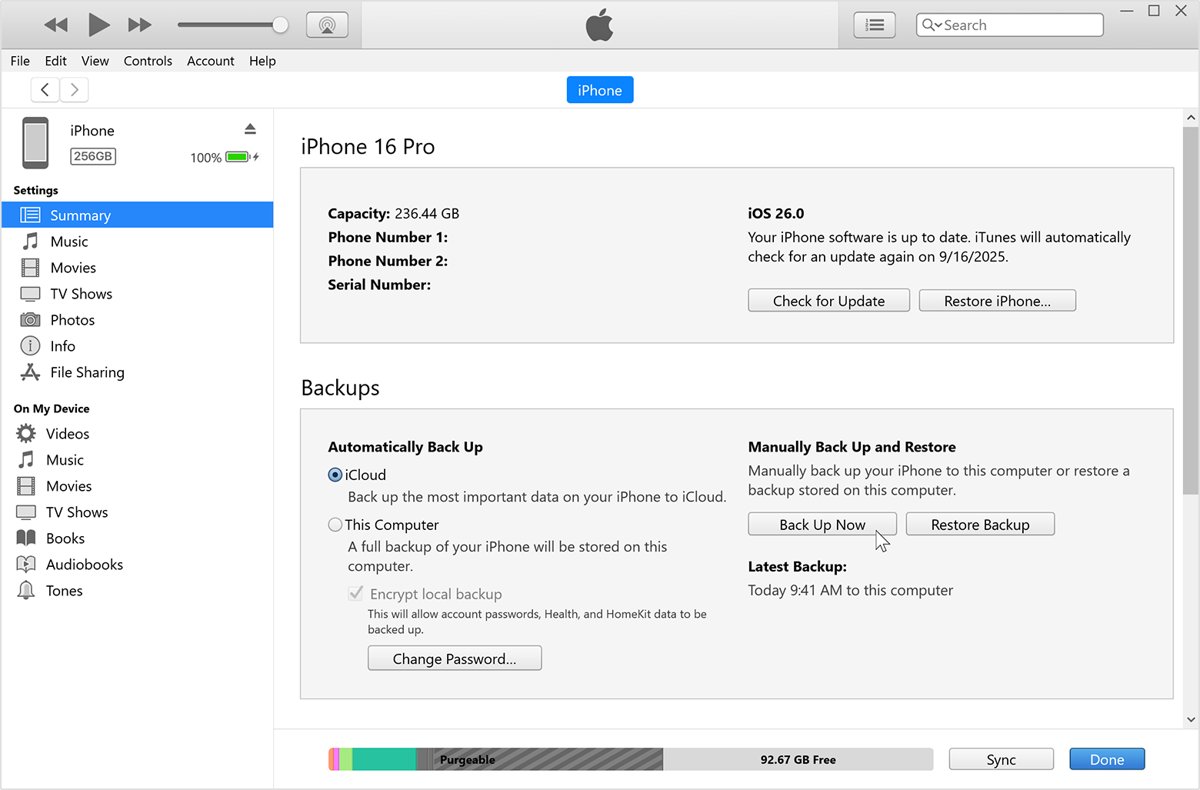
Why does my iPhone disconnect during backup?
A computer backup needs a steady USB connection from the first file to the last. Anything that interrupts it, from a loose cable to a dropped Wi-Fi sync, ends the backup with a disconnected message.
| What you notice | Likely cause | Fix |
|---|---|---|
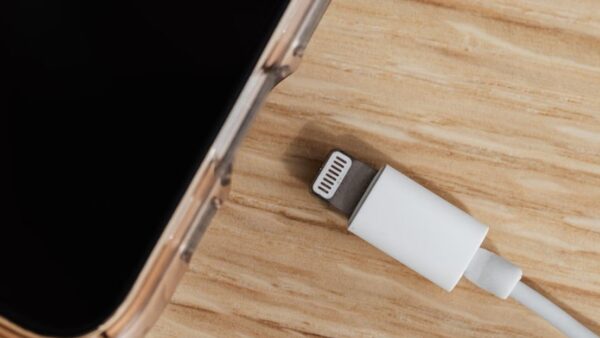
| The iPhone chimes or vibrates again partway through the backup | A worn cable, a charge-only cable or debris in the charging port | Check the port, then use a different cable that supports both data and charging |
| It drops on one port but not another | A front-panel port, hub or adapter that loses the connection | Plug into a different USB port on the computer itself, or try another computer |
| The backup was started over Wi-Fi | Wi-Fi sync loses the connection when the network or the iPhone sleeps | Connect with a USB cable for the backup |
| The iPhone never appears in Finder or the Apple Devices app | The computer is not trusted, or the trust choice was Don't Trust | Unlock the iPhone, tap Trust, or reset Location & Privacy to bring the alert back |
| It started after an iOS or macOS update | Old Apple Devices, iTunes or system software on the computer | Update the computer, the Apple Devices app or iTunes, and iOS |
| Windows freezes on the backup or it never finishes | Security software interfering with the backup | Update your security software, then try again |
| Every computer and every cable fails | A problem with the iPhone's port or the connection itself | Back up with iCloud, then contact Apple Support |
How to fix iTunes could not back up iPhone because it disconnected
Start with the physical connection, because it is behind most disconnected backups. Apple's own checklist for a computer that drops or does not see an iPhone begins with the cable and port.
- Unplug the iPhone and check its charging port for lint or debris.
- Use a cable that supports both data and charging, ideally a different one from the cable that failed.
- Plug the cable into a USB port on the computer itself, not a hub, keyboard or monitor port.
- Unlock the iPhone and stay on the Home Screen while it connects.
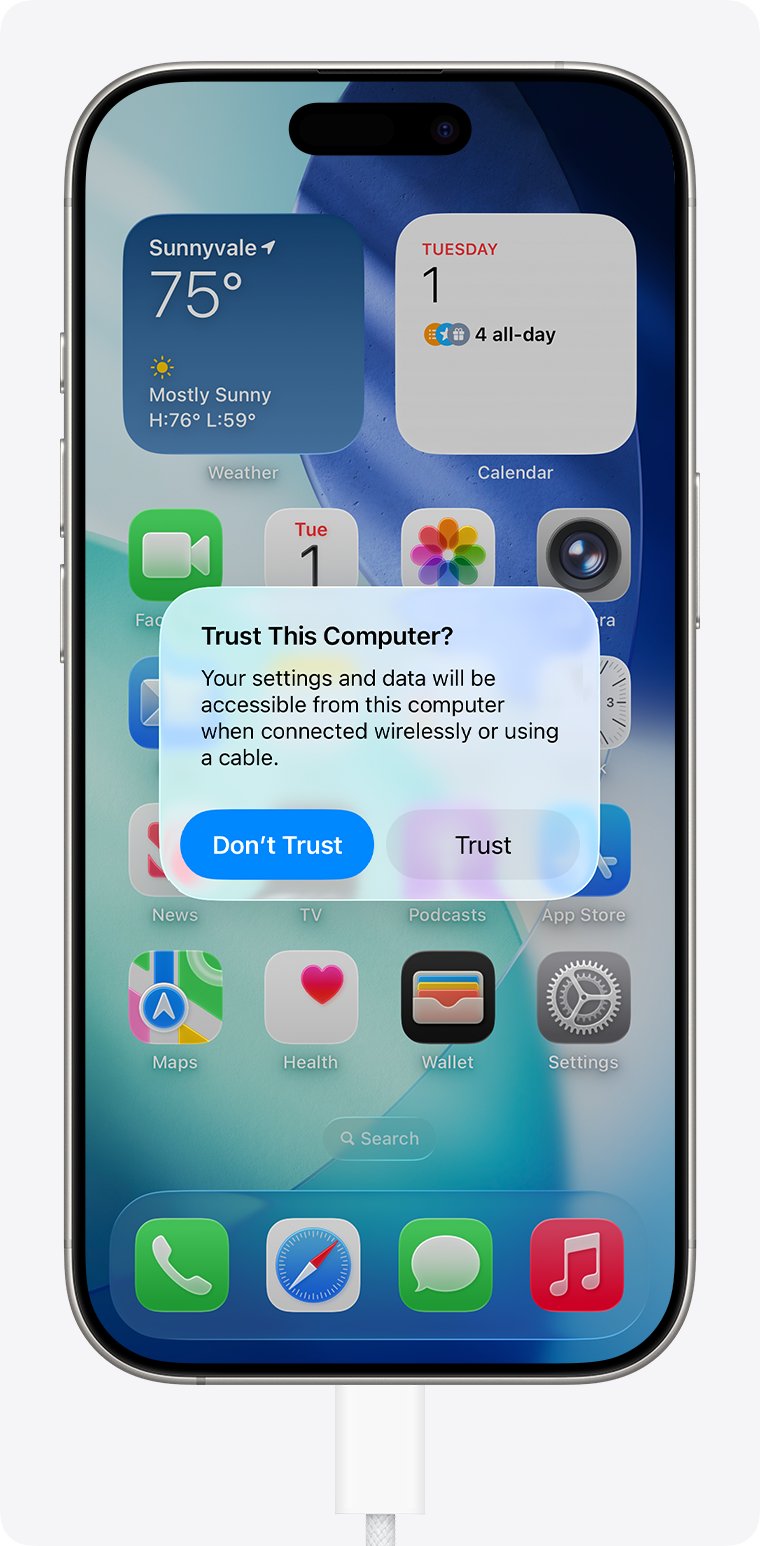
- Tap Trust if the Trust This Computer? alert appears, then enter your passcode.
- Open Finder on a Mac or the Apple Devices app on Windows and start the backup again.
- Leave the iPhone and cable untouched until the backup ends.
If the device does not chime or vibrate when you connect it, the cable or port is the problem before any software is.
iPhone backup keeps failing after an update: update iOS and the Apple Devices app
Apple's first step for any failed computer backup is to update the Mac or PC and install the latest Apple Devices app. Windows PCs without the Apple Devices app use the latest iTunes instead.
- On a Mac, open the Apple menu > System Settings > General > Software Update and install any macOS update.
- On Windows, open Settings > Windows Update and install any available update.
- On Windows, open Microsoft Store, search for Apple Devices and install or update it.
- On the iPhone, open Settings > General > Software Update and install the latest iOS.
- Restart the computer and the iPhone.
- Connect the iPhone and try the backup again.
An "An error occurred" alert during a backup is the case Apple ties directly to updating iOS or iPadOS.
Why does iPhone keep disconnecting from PC? Reset the trust computer alert
A computer you once marked Don't Trust cannot read the iPhone, and the backup fails or never starts. Resetting Location & Privacy brings the alert back the next time you connect.
- On the iPhone, open Settings.
- Tap General.
- Tap Transfer or Reset iPhone.
- Tap Reset, then tap Reset Location & Privacy.
- Connect the iPhone to the computer with a USB cable and unlock it.
- Tap Trust on the Trust This Computer? alert and enter your passcode.
If you choose Don't Trust again, the alert returns each time you connect, and the backup cannot run until you trust the computer.
How to back up iPhone to a Mac with Finder
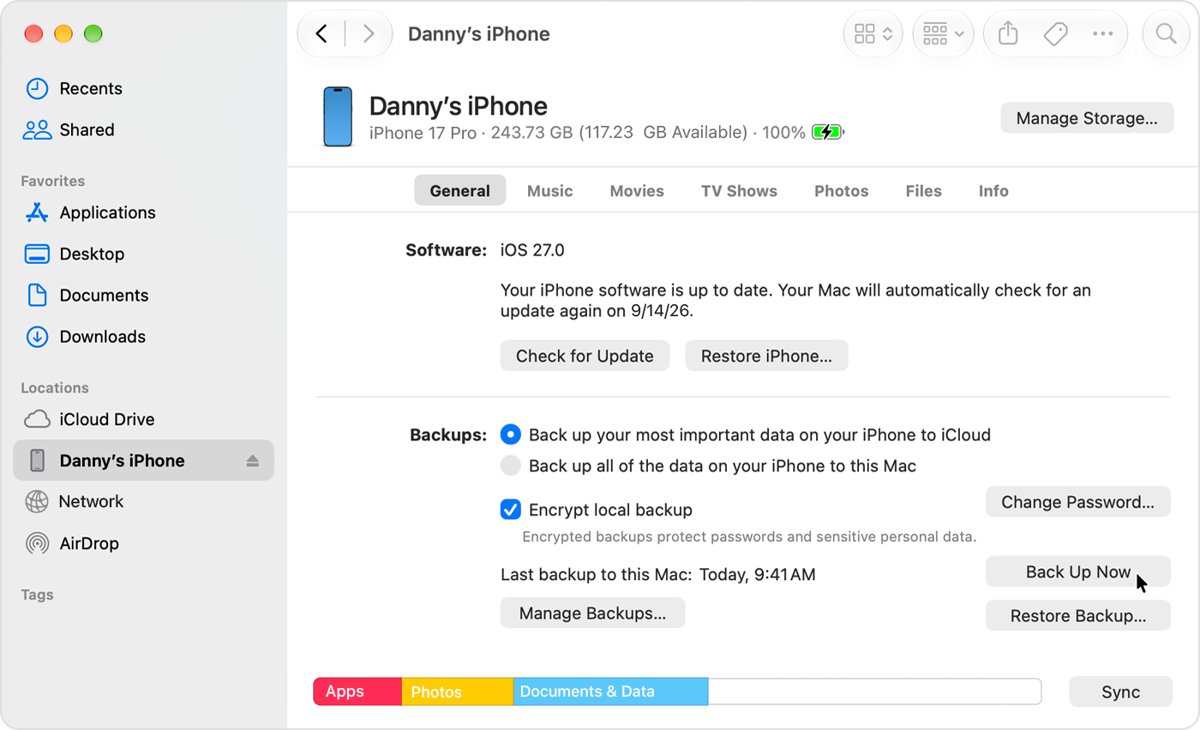
On macOS Catalina 10.15 or later the backup runs in Finder. On macOS Mojave or earlier it runs in iTunes. iTunes also backs up the iPhone automatically when you connect it.
- Connect the iPhone to your Mac with a cable, and click Allow if the Mac asks to allow the accessory to connect.
- Open Finder and select your iPhone in the sidebar.
- Click Trust on the Mac if asked, then tap Trust on the iPhone and enter your passcode.
- Select Encrypt local backup and set a password if you want to keep Health and Activity data.
- Click Back Up Now.
- Wait for the backup to finish before you unplug the cable.
If the Finder sidebar is hidden, choose View > Show Sidebar from the menu bar.
How to back up iPhone to PC with the Apple Devices app
On Windows, the Microsoft Store's Apple Devices app replaces iTunes for backups. If it is not installed, iTunes handles the same job from its Summary page.
- Open the Apple Devices app.
- Connect the iPhone with a USB cable, unlock it and tap Trust if asked.
- Select your iPhone in the sidebar.
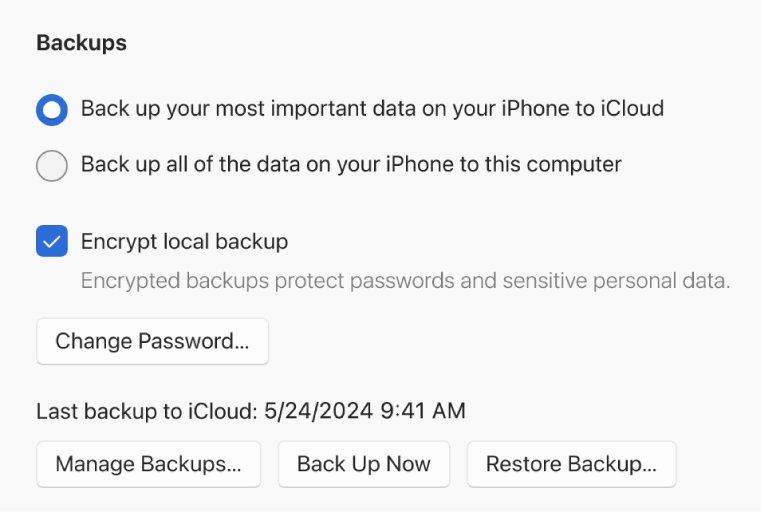
- Click General.
- Select Back up all of the data on your iPhone to this computer.
- Select Encrypt local backup if you want to keep saved passwords and Health data.
- Click Back Up Now and wait for it to finish.
Use the cable for the backup itself, even if the Apple Devices app on Windows is also set to show the iPhone over Wi-Fi.
How to backup iPhone that doesn't work on a computer: use iCloud
If the computer backup still drops, backing up to iCloud needs no cable at all. Apple suggests it as the alternative when a computer backup or restore fails.
- Connect the iPhone to a Wi-Fi network.
- Open Settings, tap your name, then tap iCloud.
- Tap iCloud Backup.
- Tap Back Up Now.
- Stay connected to Wi-Fi until the backup ends.
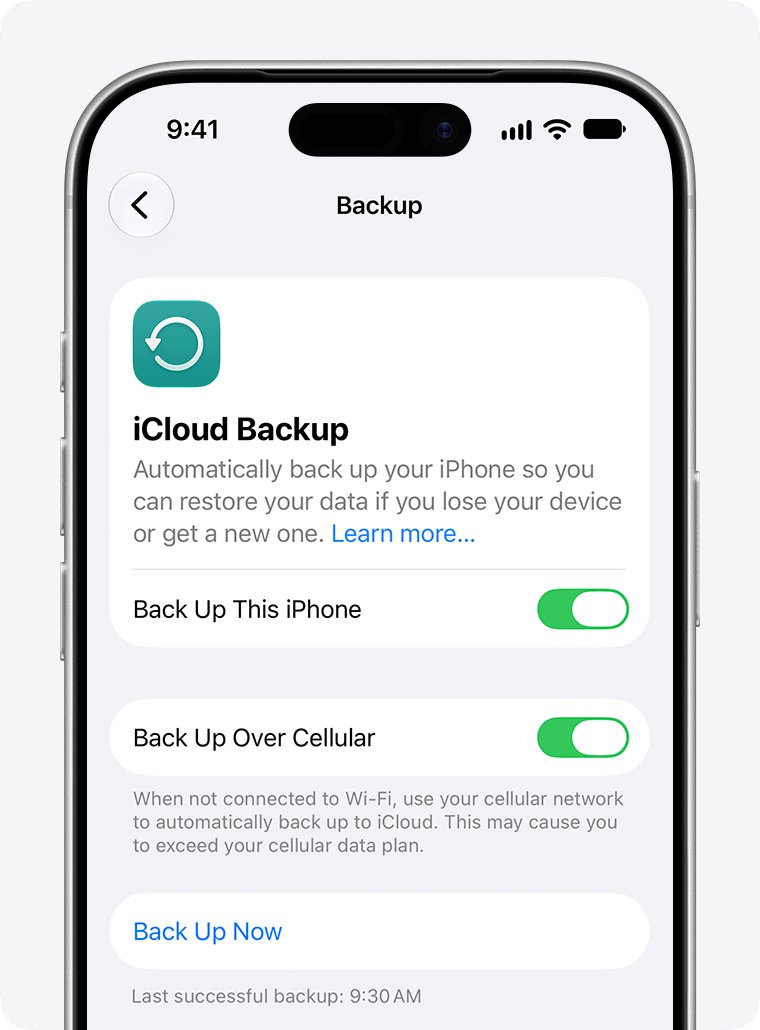
For automatic backups, keep Back Up This iPhone turned on, then leave the iPhone locked, on power and on Wi-Fi. If iCloud reports there is not enough storage, follow the onscreen steps to buy more.
How to tell if an iPhone backup completed
A finished backup is stamped with a date and time. A backup that disconnected partway does not update it.
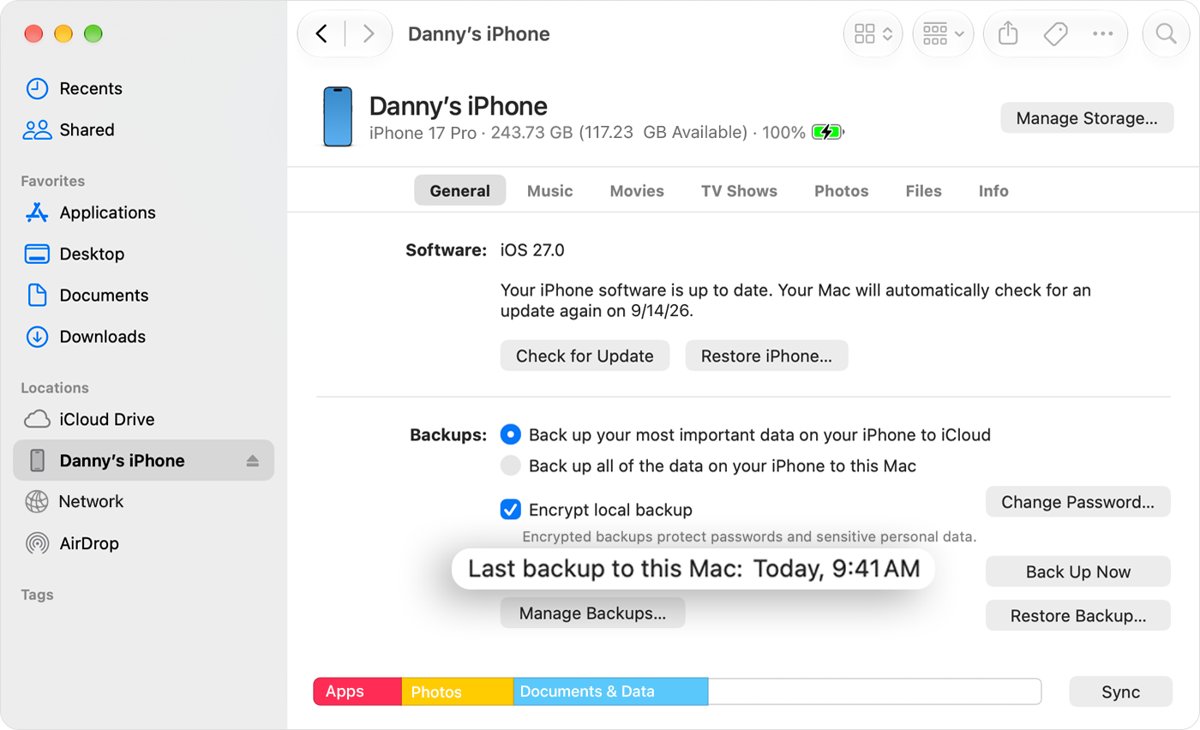
- In Finder or the Apple Devices app, select the iPhone and look for the date and time of the latest backup on the General page.
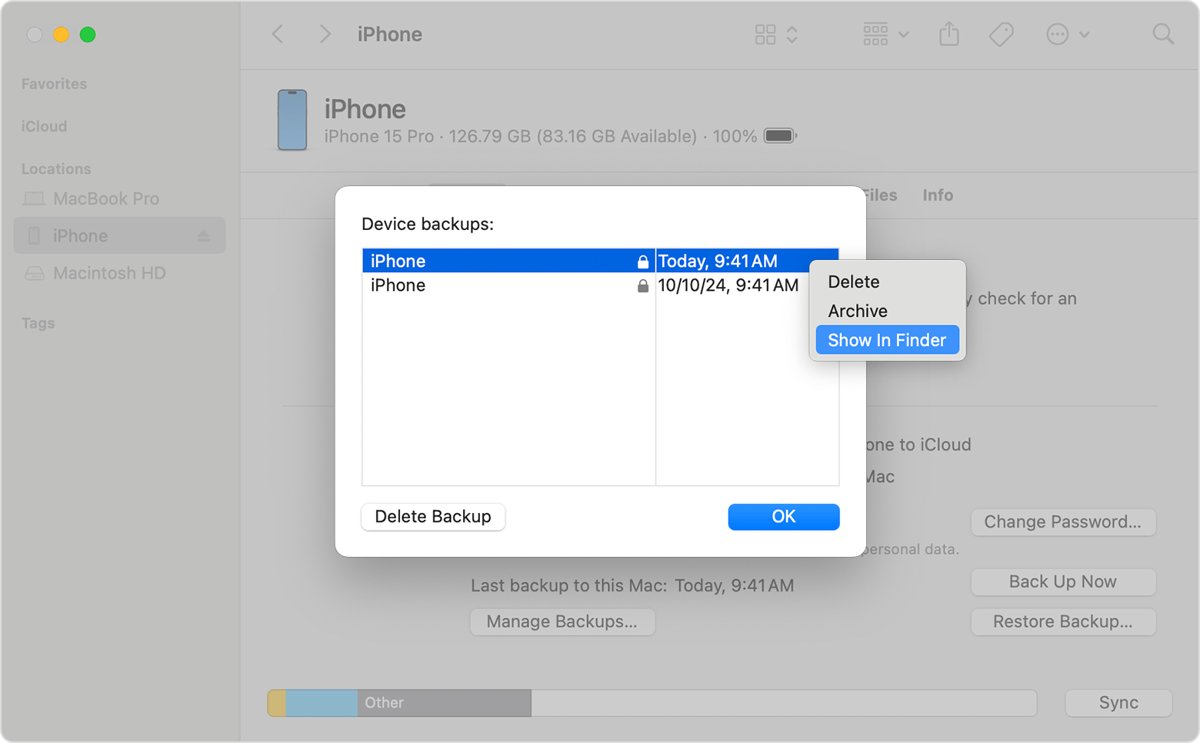
- Click Manage Backups to see each saved backup by device name and date.
- For iCloud, open Settings > your name > iCloud > iCloud Backup and check the time shown under Back Up Now.
A lock icon next to a backup in Manage Backups means it is encrypted.
iPhone backup not working: error messages and fixes
"An error occurred" during the backup
The iPhone is running older software than the backup process expects.
- Open Settings > General > Software Update on the iPhone.
- Install the latest iOS.
- Connect the iPhone and back up again.
"There's not enough disk space"
The computer's drive has too little free space for the backup.
- Free up space on the Mac or PC.
- Delete or archive old backups you no longer need from Manage Backups.
- On Windows, consider moving the backup folder to drive D: if drive C: is small.
- Start the backup again.
Backup is corrupt or not compatible
The backup or the computer software is out of date, or the backup was damaged when it stopped.
- Update the Mac, or update Windows and the Apple Devices app.
- Update iOS if the iPhone's software is too old to use the backup.
- Try a different backup from Manage Backups, or restore from an iCloud backup instead.
iTunes stops responding or the backup never finishes on Windows
Security software on the PC can interfere with the backup.
- Update your security software to its latest version.
- Restart the PC and the iPhone.
- Try the backup on another computer, or back up with iCloud.
iPhone not backing up to iCloud
Automatic iCloud backups run only when the conditions are met, and stop when storage runs out.
- Check that Back Up This iPhone is on in iCloud Backup.
- Plug the iPhone into power, connect to Wi-Fi and lock the screen.
- If an alert says you do not have enough iCloud storage, follow its steps to buy more or free space.
If nothing above works on any computer, contact Apple Support, since a fault in the iPhone's port can also break the connection.
iPhone disconnects during backup FAQ
Why can't I backup my iPhone?
A computer backup usually fails because of a bad cable or port, an untrusted computer, old software or too little disk space. An iCloud backup fails when Back Up This iPhone is off, the iPhone is not on Wi-Fi, or iCloud storage is full.
Why does my iPhone backup keep failing?
Repeated failures point to the connection or the software. Use a different data cable on a direct USB port, update the computer, iOS and the Apple Devices app or iTunes, and restart both devices before you try again.
How do I back up an iPhone when the computer backup doesn't work?
Back up with iCloud instead. Connect to Wi-Fi, open Settings, tap your name, then iCloud > iCloud Backup > Back Up Now, and stay on Wi-Fi until it ends. You can also try the backup on another computer.
Why does my iPhone keep disconnecting from my PC?
The usual causes are a charge-only or worn cable, a hub or front-panel port, debris in the charging port, or a computer that is not trusted. Use a data cable on a different port, unlock the iPhone and tap Trust.
What happens if I delete an iPhone backup?
Deleting a backup from Manage Backups removes that copy from the computer, and Apple notes it cannot be recovered afterwards. To keep an older backup from being replaced by new ones instead, choose Archive rather than Delete.
Why won't my iPhone back up to iCloud?
Automatic iCloud backups run only when Back Up This iPhone is on and the iPhone is plugged in, on Wi-Fi and locked. If iCloud is full, an alert asks you to buy more storage before the backup can finish.
How do I find my iPhone backups on a computer?
On a Mac, choose Go > Go to Folder in Finder and enter ~/Library/Application Support/MobileSync/Backup/. On Windows, open Run and enter %USERPROFILE%\Apple\MobileSync\Backup, or %AppData%\Apple Computer\MobileSync\Backup if that folder does not open.