To set up a WiFi range extender, booster or repeater, plug it in next to your router, pair it with WPS, a web browser or the maker's app, then move it about halfway between the router and the weak spot.
This guide covers what each device is, the three setup methods, repeater mode on an ASUS router, placement, connecting a Windows 11 PC, and fixes for the problems that stop setup.
How to set up WiFi range extender
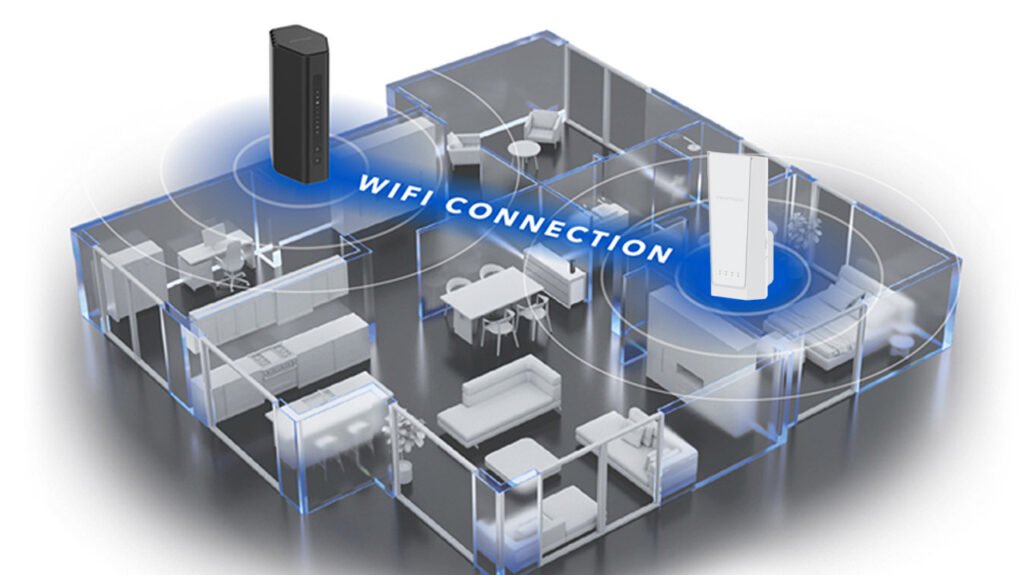
Extenders, boosters and repeaters all set up the same way, because they all join your router's WiFi and rebroadcast it. These steps follow NETGEAR's own setup article and match most brands.
- Plug the extender into a wall outlet in the same room as your router.
- If the extender has an Access Point/Extender switch, set it to Extender.
- Wait 1 to 2 minutes until the Power LED stops blinking and turns solid green or blue.
- Press the WPS button on the extender, then press the WPS button on your router within 2 minutes.
- Wait until the Router LED on the extender turns solid green or blue.
- Unplug the extender, move it about halfway between the router and the area with weak WiFi, and plug it in again.
- Connect your phone or PC to the extended network with your normal WiFi password.
If your router has no WPS button, use the browser or app method below instead. The extended network usually keeps your router's network name or adds _EXT to the end of it.
Understanding WiFi range extenders, boosters, and repeaters
NETGEAR calls "booster" a broad marketing term. In consumer products, an extender, a booster and a repeater are usually the same kind of device: it receives your router's signal and retransmits it.
| Device | How it works | Trade-off |
|---|---|---|
| WiFi range extender | Joins your router over WiFi and broadcasts an extended network, often with _EXT in the name | Receives and retransmits on the same band, so available bandwidth is typically cut in half |
| WiFi booster | Marketing name used for extenders, repeaters and sometimes mesh systems | Check the spec sheet: the name tells you nothing about the technology |
| WiFi repeater | Repeats the router's signal; many routers have a Repeater mode that does the same job | A router in repeater mode turns off its firewall, NAT and IP sharing |
| Mesh WiFi system | A main router plus satellites linked by a dedicated backhaul, under one network name | Costs more, but avoids the extender's speed loss and manual network switching |
| Wired access point | Gets its connection over Ethernet and broadcasts WiFi | Needs cable runs, so it suits offices and advanced home networks |
Why you need a WiFi range extender
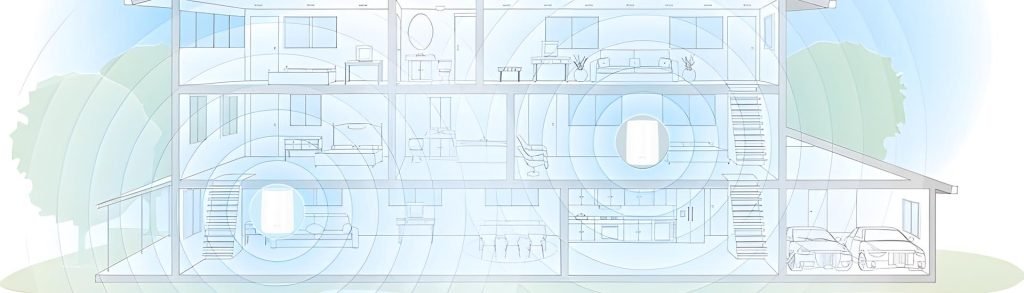
Weak WiFi comes from distance, walls and metal objects, brick or concrete, interference from other electronics, and a router hidden in a cabinet or corner. An extender fixes one or two dead spots without replacing the router.
| Your situation | Use this | Why |
|---|---|---|
| One or two rooms, a garage or a basement with weak WiFi | WiFi range extender | It fills targeted dead zones and works with almost any router, including ISP gateways |
| The router sits in a cabinet, behind a TV or in a far corner | Move the router first | A central, raised router spreads the signal evenly before you buy anything |
| You own a spare ASUS router | Repeater mode on that router | It does the extender's job with hardware you already have |
| Large or multi-floor home, or thick brick and concrete walls | Mesh WiFi system | Satellites keep one network name and dedicated backhaul keeps speeds up |
| You already have an Orbi or other mesh system | Add a matching satellite | An extender works in a pinch, but a satellite keeps seamless roaming |
Things to check before setting up
| Check | Why it matters |
|---|---|
| Your router has a working internet connection | The extender can only pass on a connection the router already has |
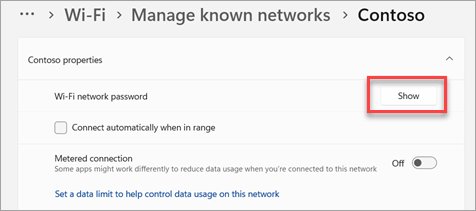
| You know your WiFi network name (SSID) and password | The browser and app methods ask for both; you can find your WiFi password from a connected PC |
| Your router has a WPS button, or you plan to use the browser or app | Not every router supports WPS |
| The extender is new or factory reset | NETGEAR asks you to reset an extender that was set up before |
| There is a free outlet about halfway to the dead zone | That is where the extender ends up after pairing |
| Your device supports the band you extend | Some adapters only see 2.4 GHz networks, so a 5 GHz-only extended network stays invisible to them |
How to set up WiFi extender using WPS
WPS (WiFi Protected Setup) pairs the extender with the push of two buttons. If you are unsure where the button is, here is where the WPS button is on a router.
- Plug the extender in near the router and wait for the Power LED to turn solid green or blue. If it stays off, press the Power or On/Off button.
- Press the WPS button on the extender. Its WPS LED starts blinking.
- Within 2 minutes, press the WPS button on your router.
- Wait up to 2 minutes for the extender's WPS LED to turn solid. If it does not, press the router's WPS button again.
- Wait for the Router LED to turn solid green or blue.
- When no LED is blinking, unplug the extender and plug it in halfway between the router and the weak area.
- Wait up to 4 minutes for the Power and Router LEDs to turn solid, then join the extended network with your existing WiFi password.
How to set up WiFi extender manually
The browser method works when the router has no WPS button, and it suits older extenders. The address below is NETGEAR's; other brands print their setup address on the extender's label.
- Plug the extender in near the router and wait for the Power LED to turn solid.
- On your PC or phone, connect to the extender's own network, NETGEAR_EXT. It is open or uses the password
password. Select Always connect if your device warns there is no internet. - Open a browser and go to mywifiext.net or
192.168.1.250. - Click NEW EXTENDER SETUP, accept the terms, and create an admin username and password that differ from your WiFi password.
- Pick and answer two security questions for account recovery.
- Select your router's 2.4 GHz and 5 GHz networks from the scan (use See More if yours is missing), then enter your WiFi password.
- Keep or change the extended network names. Tick Enable One WiFi Name if your model offers it and you want the router's name and password reused.
- Click NEXT, wait while the settings apply, and write down each network name and password.
- Connect your device to the new extended network, return to the browser, tick the box at the bottom and click CONTINUE.
Move the extender to its final spot only after the Power and Router LEDs are solid. You can change your router settings the same way if you later need to check the extender in the router's device list.
Mobile app setup method (optional)
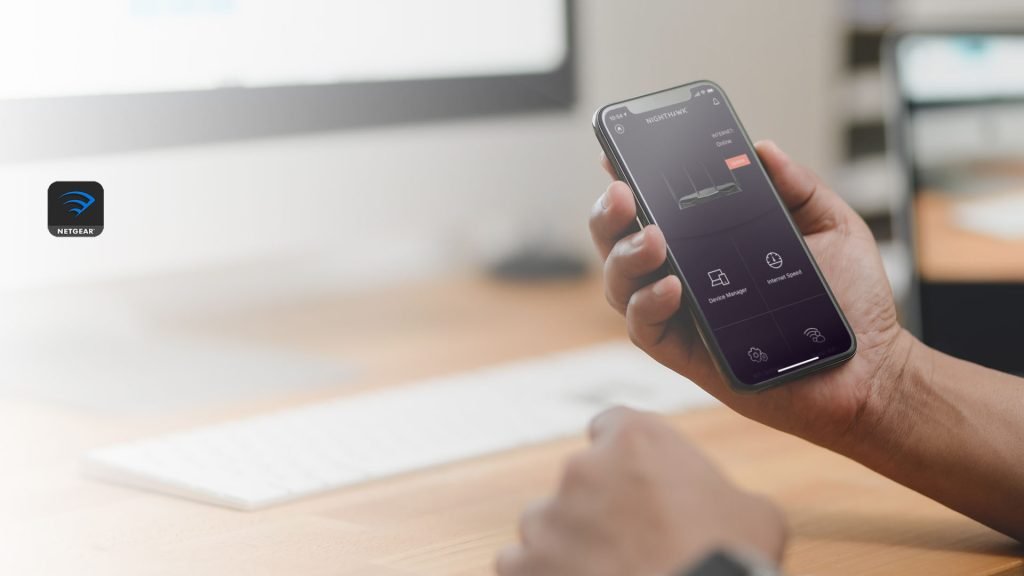
NETGEAR recommends the Nighthawk app for its newer extenders. Check that your model is on NETGEAR's supported list first.
- Install the Nighthawk app on your iPhone or Android phone.
- Open the app, tap Menu at the top left and choose to set up a new Nighthawk system.
- Tap GET STARTED! and select Range Extender.
- Plug the extender in near the router, wait for a solid Power LED, then tap NEXT and CONTINUE.
- If asked, join NETGEAR_EXT in your phone's WiFi settings, return to the app and tap WIFI IS CONNECTED.
- Select your router's network for each band and enter the WiFi password, then tap NEXT.
- Create the admin account, answer the two security questions and tap UPDATE if the app finds new firmware.
- Wait for solid Power and Router LEDs, then move the extender halfway to the weak area.
How to set up an ASUS router as a WiFi repeater
A spare ASUS router can act as a repeater. In this mode its firewall, IP sharing and NAT functions are turned off, because the main router handles them.
- Connect a laptop to the ASUS router with an Ethernet cable.
- Open a browser and go to http://www.asusrouter.com.
- On the Quick Internet Setup screen, click Advanced Settings, then Choose operation mode, and select Repeater mode.
- Select your main router's 2.4 GHz or 5 GHz network, enter its WiFi key and click Next.
- Select Automatic IP, set the repeater's network name and security, and click Apply.
- Create a login username and password for the repeater and click Next to finish.
The router's IP address changes after setup, so use ASUS's Device Discovery utility to find it again. On a router that is already set up, go to Administration > Operation mode, select Repeater mode and click Save.
Best placement tips for WiFi extenders
Placement decides most of the speed you get. Start close to the router and move the extender outward until you find the best balance of signal and coverage.
| Placement rule | Detail |
|---|---|
| Distance | About halfway between the router and the dead zone, roughly 25 to 40 feet from the router |
| Line of sight | Keep a clear path to the router and avoid thick walls and metal |
| Height | Match the router's height; about four feet off the floor on a shelf or table works well |
| Orientation | Stand a free-standing extender upright and face its antennas toward the router |
| Interference | Keep away from microwave ovens, cordless phones and baby monitors |
| Two extenders | Put them at opposite ends of the home, each with a single hop back to the router, never extender to extender |

How to scan a Wi-Fi QR code on Windows 11 PC
If a phone or router shows a QR code for the extended network, a Windows 11 PC with a camera can join it without typing the password. There is more on joining WiFi with a QR code from phones too.
- Select Start, type Camera and open the Camera app.
- Select the Barcode button on the right side of the app to leave photo mode.
- Hold the QR code in front of the camera until it is in focus.
- Select the link that appears at the bottom of the Camera app. Settings opens.
- Confirm that you want to add and connect to the network, and choose whether to connect automatically.
- Open quick settings from the network icon on the taskbar and check that the extended network shows Connected.
Without a camera, select the network icon, then Manage Wi-Fi connections, pick the extended network, select Connect and enter the password.
Maintenance and optimization tips
NETGEAR extenders check for firmware at login unless you changed that setting. You can also check by hand and rerun setup when you change routers.
- Connect a PC or phone to the extender's network and open mywifiext.net. With One WiFi Name on, use
http://mywifiext.local/instead. - Enter your admin username and password and click LOG IN. The Status page opens.
- Open the menu, select Firmware Update and click CHECK ONLINE. Follow the prompts if new firmware exists.
- To join a new router or change the network name or password, click SMART SETUP on the Status page and follow the prompts.
- If speeds drop, move the extender a little closer to the router and check it again from the weak room.
An extender connects to the router as a single device and shares that link with everything on it. If many devices crowd it, a mesh system is the upgrade NETGEAR itself points to.
How to reset a WiFi extender to factory settings
A reset erases the admin login, network name and security settings. Do it when you forget the admin password, cannot see NETGEAR_EXT, or want to set the extender up again from scratch.
- Plug the extender in and wait for the Power LED to turn solid green or blue.
- Find the Reset or Factory Reset hole on the side or bottom.
- Press and hold the button with a straightened paper clip until the Power LED starts blinking, which takes up to 15 seconds.
- Release it and wait for the Power LED to turn solid again.
- Run the WPS, browser or app setup again.
Troubleshooting common WiFi extender setup problems
mywifiext.net will not load
Your device is on the router's network instead of the extender's, or the browser cached an old page.
- Connect to NETGEAR_EXT or the extended network, not your main WiFi.
- Type
192.168.1.250into the address bar instead. - Clear the browser cache and try again.
WPS LED never turns solid
The router's WPS button was pressed too late, or the router does not support WPS.
- Press the extender's WPS button, then the router's within 2 minutes.
- Wait the full 2 minutes before trying again.
- If it still fails, use the browser or app method.
NETGEAR_EXT network does not appear
The extender was set up before and no longer broadcasts its setup network.
- Factory reset the extender with the paper-clip steps above.
- Wait for a solid Power LED and scan for networks again.
Connected to the extender but no internet
The extender has lost its link to the router, or the PC did not get an IP address.
- Check that the extender's Router LED is solid; if not, move it closer to the router.
- Restart the modem and router, waiting at least 30 seconds before plugging them back in.
- On Windows, an IP address starting with
169.254means the PC got no address from the router. Turn WiFi off and on, then reconnect.
Extended network is slow
Extenders retransmit on the same band, and a weak router link halves speed again.
- Move the extender closer to the router, in line of sight.
- Keep it away from microwaves, cordless phones and baby monitors.
- For a large or multi-floor home, replace the extender with a mesh system.
Windows says the WiFi password is wrong
Windows saved an old password for that network name.
- Open Settings > Network & internet > Wi-Fi > Manage known networks.
- Select the extended network and click Forget.
- Reconnect and enter the current password.
How to increase WiFi range at home without an extender
| Change | What it does |
|---|---|
| Move the router | A central, raised spot clear of cabinets and TVs spreads the signal evenly |
| Cut interference | Moving the router away from other electronics and busy channels steadies the signal |
| Use both bands | Dual-band, tri-band or quad-band routers spread devices out and reduce congestion |
| Upgrade old hardware | A WiFi 6 or WiFi 7 router improves baseline range and handles more devices |
| Go wired where you can | Ethernet or wired backhaul between mesh nodes beats any wireless hop |
WiFi range extender setup FAQ
How do I set up a WiFi booster range extender?
Set up a WiFi booster exactly like an extender. Plug it in near the router, pair it with WPS or the setup page printed on its label, then move it halfway to the weak area. Booster is a marketing name for the same kind of device.
How do I set up an AC750 or AC1200 WiFi range extender?
AC750 and AC1200 describe the extender's maximum speed class, not a different setup. Use WPS if your router has the button, or connect to the extender's setup network and open its setup address in a browser, as shown on the device label.
How do I set up a TP-Link WiFi range extender?
A TP-Link extender pairs through the same three routes: WPS, a browser setup page, or the maker's phone app. Follow the address and app named in its quick installation guide, and place it halfway between the router and the dead zone afterwards.
Where should a WiFi extender be placed?
Place a WiFi extender about halfway between the router and the area with weak WiFi, roughly 25 to 40 feet from the router. Keep it in line of sight, at the router's height, and away from microwaves and cordless phones.
Do WiFi extenders work with any router?
Yes. NETGEAR states its extenders work with NETGEAR routers and most other wireless routers, including the gateways internet providers supply. The extender joins the router like any WiFi device and rebroadcasts its network.
Does a WiFi extender slow down internet speed?
A traditional extender usually cuts available bandwidth because it receives and retransmits on the same band, and it adds some latency. It still gives far better speed than a near-dead signal, which is why placement matters so much.
How do I increase WiFi range in my laptop?
Move closer to the router or extender, keep the laptop's WiFi switch on, and set the wireless adapter's power saving mode to Maximum Performance in Power Options. If the laptop only supports 2.4 GHz, connect to the extender's 2.4 GHz network.
Can I use two WiFi extenders?
Yes, but place them at opposite ends of the home so their coverage does not overlap. Connect each one straight back to the router; chaining one extender to another makes the connection sluggish.
Can I use a WiFi extender with a mesh system?
Yes. An extender works with a mesh system such as Orbi for low-bandwidth devices like a garage door opener. For full speed and seamless roaming, add a matching mesh satellite instead.