To create a website on Google for free, sign in with your Google Account, open sites.google.com/new, pick a template under Start a new site, add your content and click Publish.
This guide walks through Google Sites from a blank page to a live site: adding pages, text, images and Google files, changing the theme, publishing and sharing, connecting your own domain, adding Analytics and fixing the errors people hit most.
Step by step tutorial on how to create a website on Google for free
Google's website builder is Google Sites. You build the site on a computer, and visitors can view it on a computer, phone or tablet.
- On a computer, sign in to your Google Account and open sites.google.com/new.
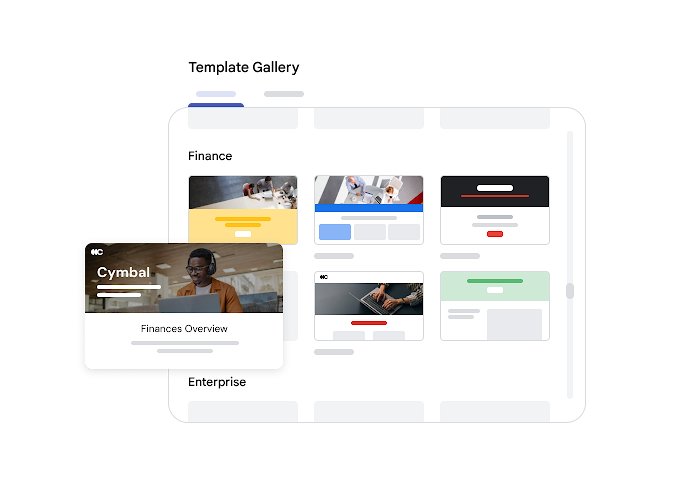
- Under Start a new site, select a template, or choose the blank option to start from scratch.
- At the top left, click Enter site name, type a name and press Enter.
- Click the page title area and type the main heading for your homepage.
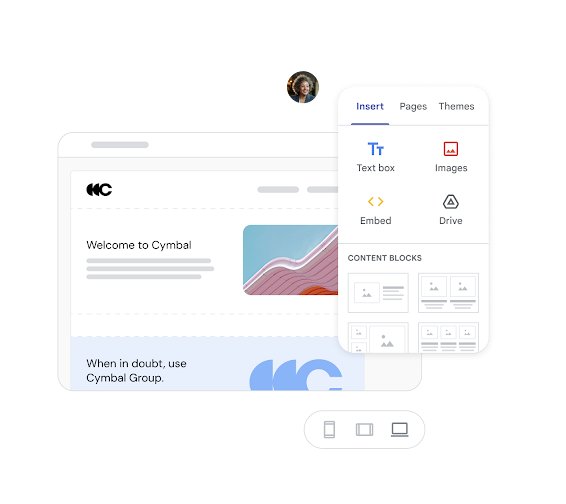
- On the right, use Insert to add text boxes, images, buttons and Google files.
- On the right, click Pages to add more pages, and Themes to change the look.
- At the top, click Preview to check the site at different screen sizes.
- Click Publish at the top right, enter the web address for your site and click Publish again.
- Visit the web address to make sure the site is published correctly.
What is Google Sites?
Google Sites is the website builder that comes with Google's apps. Google describes it as a way to create a website for personal or business use, with premade templates and sites that work on desktops, tablets and phones.
| Feature | What it does |
|---|---|
| Templates | Start a new site from a premade design instead of a blank page |
| Drag-and-drop editor | Add text, images, buttons, content blocks and collapsible text from the Insert panel |
| Google Workspace embeds | Insert Docs, Slides, Sheets, Forms, Charts, YouTube videos, calendars and maps |
| Themes | Pre-made and custom themes with colors, fonts, logos and banner images |
| Publishing controls | Publish to a web address, set the site to Public or Restricted, and ask search engines not to show it |
| Custom domains | Connect up to five domains you own to one site |
| Analytics | Add a Google Analytics property ID to see visits |
| Collaboration | Invite other people to edit the site with you |
Google Sites browser and account requirements
| You need | Details |
|---|---|
| A Google Account | Any personal or work account; you can create a Google account first if you do not have one |
| A computer for editing | Editing works only on a computer; phones and tablets can view the site |
| A supported browser | Chrome 24 or later (it is worth taking a minute to update Google Chrome), or the latest Firefox or Safari, for editing |
| Cookies and JavaScript | Both must be turned on in the browser while you edit |
| A domain (optional) | Only if you want an address like www.yourname.com instead of the Google Sites address |
How to add pages to a Google Sites website
Each page appears in the site menu automatically. Add the pages first, then fill them in.
- Open your site in Google Sites on a computer.
- On the right, click Pages.
- At the bottom right, hover over Add and click New page.
- Enter the page name and click Done.
- To group pages under a dropdown menu, nest them inside another page in the Pages list.
- Click Publish at the top right to push the new pages live.
To show a table of contents on a long page, click Insert > Table of contents. It updates itself from the page's titles, headings and subheadings.
How to add text, images and buttons in Google Sites
Images can be .png, .jpg or .gif files. Everything below is in the Insert panel on the right.
- Click Insert > Text box, then use the down arrow to pick a text, heading or title style and type your text.
- Click Insert > Images to add a picture.
- Drag a layout from Content Blocks onto the page to get a ready-made section with text and image slots.
- Click Insert > Button, enter the button name, paste a URL or choose a page on your site, then click Insert.
- Click Insert > Collapsible text for question-and-answer blocks that save space.
- Click Publish to make the changes live.
How to embed Google Docs, YouTube videos and maps in Google Sites
Google Sites can show live content from other Google apps and websites. Files stored with restricted sharing are visible only to people who already have access to them.
- Open your site and click Insert on the right.
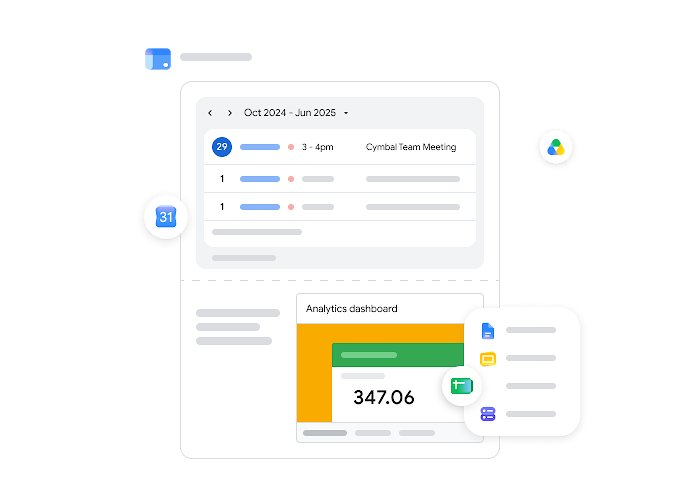
- At the bottom of the menu, choose the file type to add: Docs, Slides, Sheets, Forms or Charts.
- Choose the file and click Insert.
- For YouTube videos, calendars and maps, pick the matching item in the same Insert menu.
- To show a web page or your own HTML, CSS or JavaScript, click Insert > Embed and paste the link or code.
- Click Publish.
A contact or sign-up page works well with an embedded form: create a Google Form, then insert it through Forms so visitors can fill it in on your site.
How to change the theme in Google Sites
You can change a site's look at any time. Pre-made themes change colors and fonts in one click; custom themes let you set brand colors, fonts, a logo and a banner.
- Open your site in Google Sites on a computer.
- On the right panel, click Themes and select a pre-made theme to apply it.
- For your own design, under Custom, select Create theme and enter a name, then select Next.
- Add a logo and banner image if you have them, select a color palette and click Next.
- Select Customize colors to set colors for different parts of the site, then choose your fonts.
- Select Create theme, then keep adjusting it in the right panel.
- Click Settings > Navigation to move the menu to the top or left; this needs more than one page.
How to publish a Google Sites website and make it public
Publishing gives the site its web address. The sharing setting decides who can open it.
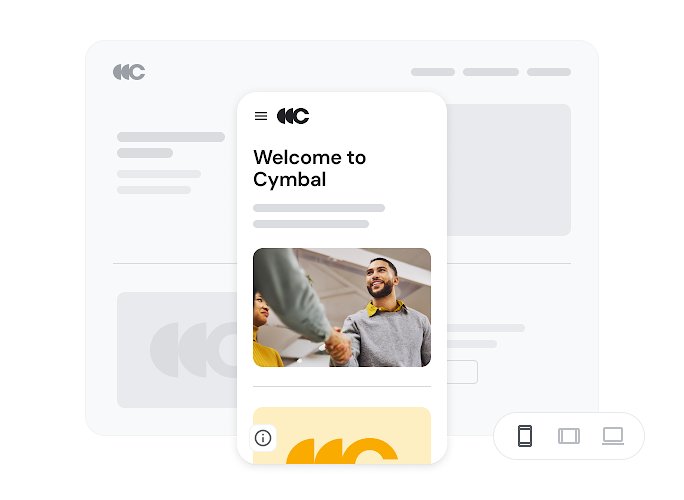
- At the top, click Preview, choose a layout option at the bottom right to check phone, tablet and computer views, then click Exit.
- At the top, click Publish.
- Enter the web address for your site; terms that break Google's Acceptable Use Policy are not allowed.
- Click Publish.
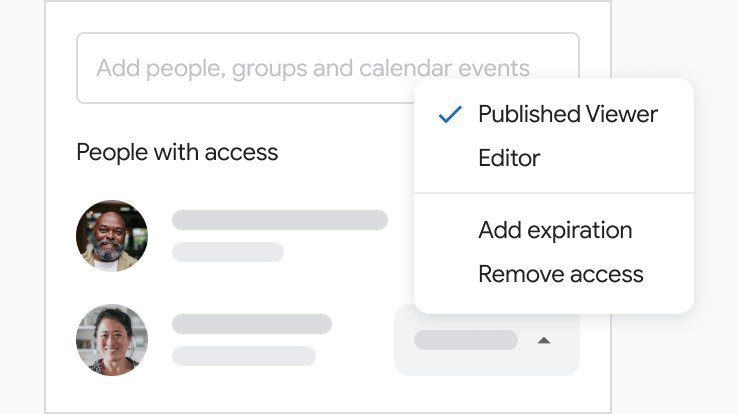
- Open the sharing settings and, next to Published site, choose Public so anyone can see it, or Restricted to share with specific people and groups.
- To keep a public site out of search results, open the publish settings, click Request public search engines to not display my site and click Save.
Google notes the search-engine option is a request and does not guarantee the site stays out of results. After later edits, click Publish again; visitors see changes only once you republish.
Can I use my own domain name with Google Sites?
Yes. Only the site owner can connect a domain, and you need to own the domain with a registrar first. Work or school accounts should ask their administrator.
- Open the site and go to Settings.
- Click Custom domains, then click Start setup.
- Enter your domain and click Next.
- If you are asked to verify ownership, open Google Search Console, click Add property, enter the domain under Domain, and add the TXT record it gives you to your DNS records, then click Verify.
- Follow the on-screen instructions to connect your domain registrar.
- Click Done.
You can connect up to five custom domains to one site. Changes can take up to 48 hours to show on the internet.
How to add Google Analytics to Google Sites
- Sign up for Google Analytics if you do not have an account, and copy your Analytics Property ID.
- Open your site in Google Sites.
- In the top right corner, click Settings.
- In the Settings window, go to Analytics and enter the property ID.
- Publish the site, then open Analytics to view the data, which can take up to 24 hours to appear.
Renaming a page or giving it a custom path creates a new URL, which can split your Analytics data between the old and new address.
How to see your published Google Sites website
- Open the web address you entered when you clicked Publish.
- Open the same address in a private browser window where you are not signed in, to see what the public sees.
- If the page asks visitors to sign in, the site is set to Restricted; change Published site to Public.
- Open the address on your phone to check the mobile layout and the menu.
Are there any limitations to Google Sites?
Google Sites suits information sites, portfolios, project pages and small business pages. These are the limits Google documents.
| Limit | What it means |
|---|---|
| Editing needs a computer | You cannot build or edit the site on a phone or tablet |
| No built-in shop or checkout in the help docs | Selling usually means linking a Button to a payment page or embedding an outside service |
| Up to five custom domains per site | Plus a limit of 20 URL mappings per week |
| Large sites may not copy | Google warns Make a copy can fail on a large site |
| Restricted files stay restricted | Embedded Drive files with limited sharing are hidden from other visitors |
| Domain stops working in some cases | Deleting the site, transferring ownership or moving it to a shared drive breaks a custom domain |
Google Sites not working: publish and domain errors
"You need permission" when opening a Google site
The site or an item on it is restricted, or you are signed in with the wrong account.
- Switch to the Google Account that has access to the site, or make that Google account your default in the browser.
- Ask the site owner to set Published site to Public or to share it with you.
- If a single file on the page is blocked, ask the file owner for permission.
The web address you want is already in use
Another site you own, or used in the past, holds that address.
- Change the web address of the old site under its Web address setting and click Save.
- Or permanently delete the old site.
- Enter the address on the new site and click Publish.
Custom domain shows "Invalid DNS"
The registrar does not yet have the CNAME entry Google Sites needs.
- Add the CNAME record shown during setup at your domain registrar.
- Wait 24 to 48 hours for DNS to update.
- Return to Settings > Custom domains and try again.
"This isn't a valid URL" for a custom domain
The address has a typo or no subdomain.
- Type the full web address again with no typos.
- Include a subdomain such as www.
- Click Assign.
Visitors cannot see embedded Docs or Sheets
The file's own sharing is restricted.
- Publish the document from Google Docs, Sheets or Slides first.
- In Google Sites, click Insert > Embed and insert the link to the published document.
- Click Publish and check the page in a private window.
Tips on how to create a website on Google for free
| Tip | Why it helps |
|---|---|
| Start from a template | You get a tested layout and only swap in your text and images |
| Plan the pages before you design | The menu builds itself from the Pages list |
| Use headings in text boxes | The table of contents and visitors both rely on them |
| Add alt text to images | Screen readers can describe your pictures |
| Preview at every screen size | Most visitors arrive on a phone |
| Publish after every round of edits | Changes stay private until you click Publish |
| Add Analytics early | You see where visitors come from from day one |
| Pick a short, clear web address | It is easier to share and remember |
Google Sites website FAQ
How do I create a website on Google?
Use Google Sites. Sign in with your Google Account on a computer, open sites.google.com/new, choose a template under Start a new site, name the site, add your content and click Publish, then enter a web address for it.
Is Google Sites free?
Google Sites works with an ordinary free Google Account, and building and publishing a site on a Google Sites address costs nothing. The main cost is optional: buying your own domain from a registrar if you want a custom address.
Is Google Sites good for a business website?
It suits a simple business site with pages for services, contact details, embedded maps, calendars and forms. Google lists business use as a purpose, and you can connect your own domain. Businesses that need a built-in shop usually pick a dedicated store platform.
Can I sell products on my Google Sites website?
Google's Sites help describes no built-in store or checkout. You can list products on pages and add a button that links to an external payment or store page, or embed content from another website with Insert and Embed.
Can I use my own domain name with Google Sites?
Yes. The site owner can go to Settings, Custom domains, Start setup, then enter and verify the domain and follow the registrar instructions. Up to five domains can point to one site, and changes can take up to 48 hours.
Can I create a website on my own without coding?
Yes. Google Sites uses drag-and-drop blocks, so you build pages by inserting text boxes, images, buttons and Google files. You can still add your own HTML, CSS or JavaScript through Insert and Embed if you want to.
Can I edit a Google site on my phone?
No. Google says you must use a computer to edit a site. Phones and tablets can view the published site, so you can check how it looks on mobile but make changes on a computer.
Will my Google site show up in Google search?
A Public site can appear in search results once it is published. If you do not want that, use Request public search engines to not display my site in the publish settings, which Google treats as a request rather than a guarantee.