To scan a document on iPhone, open a note in the Notes app, tap the Attachment button, tap Scan Documents, point the camera at the page and tap Keep Scan, then Done; the scan is saved as a PDF in the note.
This guide covers the Notes and Files scanners, copying text with Live Text, editing and signing a scan, sending scans to a Mac, the steps on older iOS versions and what to do when the scanner does not appear.
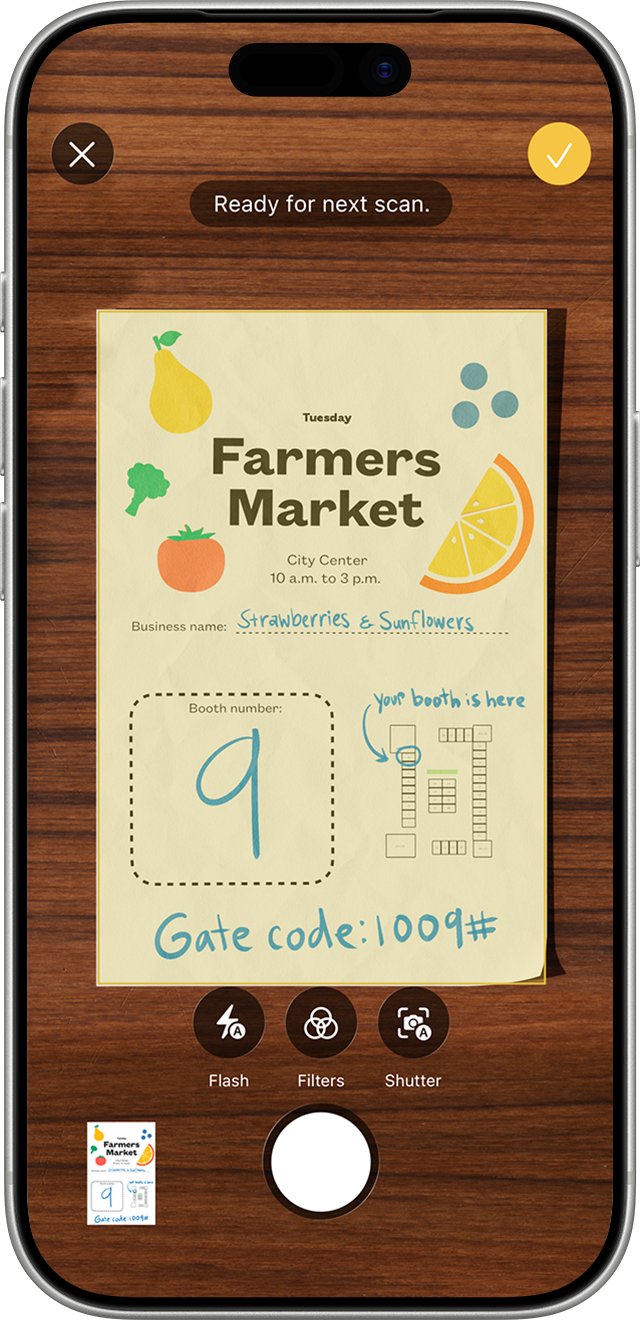
Step by step tutorial on scanning documents on iPhone
Notes is the built-in scanner on every iPhone, so there is nothing to download. These steps match the current iPhone User Guide.
- Open the Notes app and select a note, or create a new one.
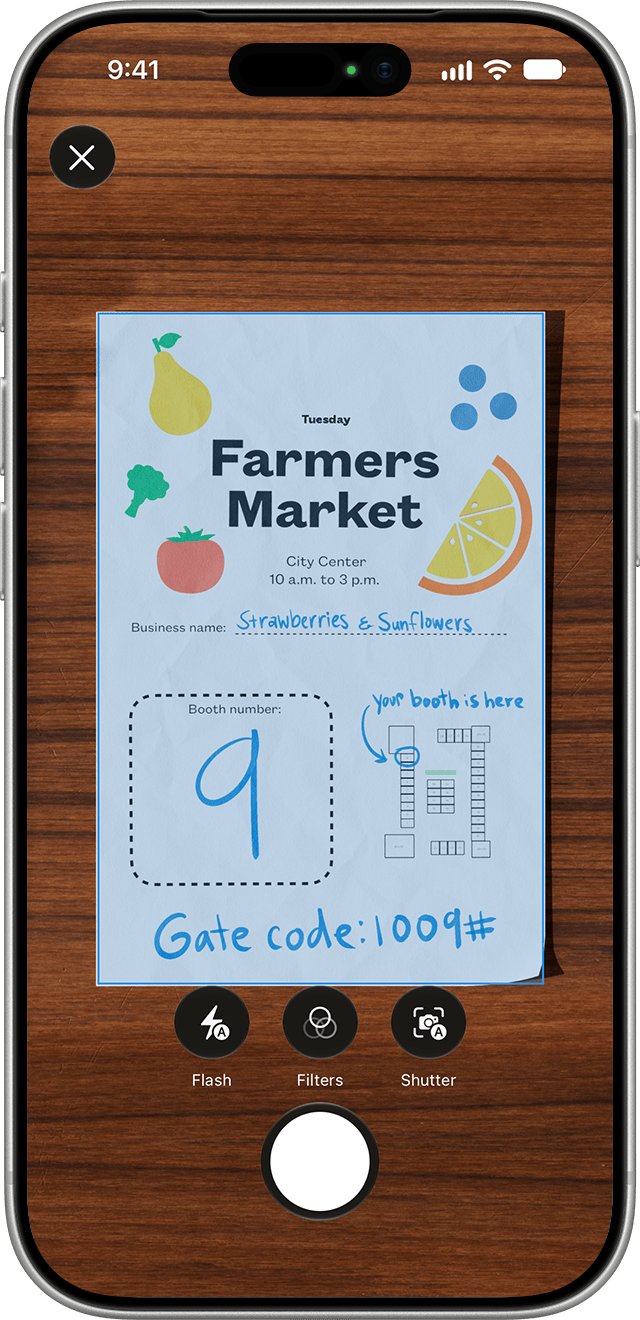
- Tap the Attachment button (the paperclip), then tap Scan Documents.
- Place the document in view of the camera. Set options such as Flash or a filter at the top if you need them.
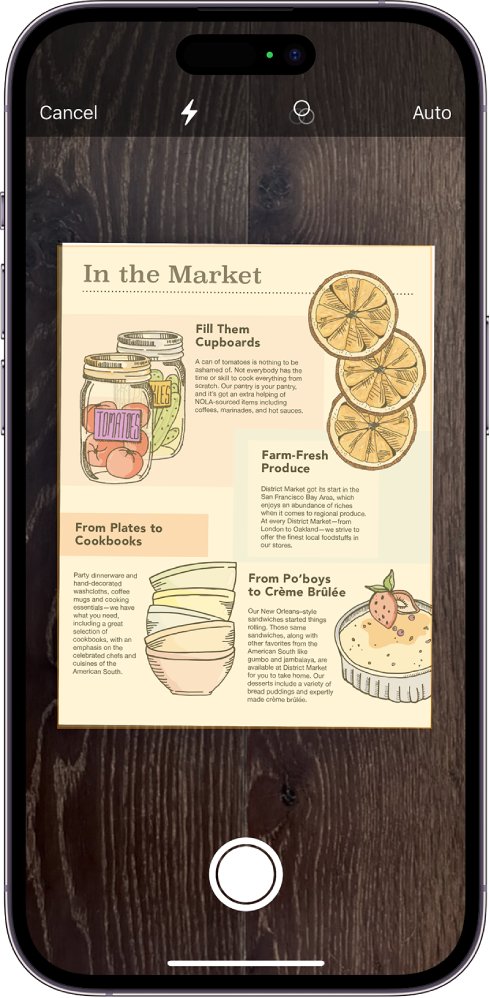
- Hold the iPhone steady: in Auto mode it captures the page as soon as it detects the edges.
- To capture manually, tap the Shutter button or press either Volume button, drag the corners to fit the page, then tap Keep Scan (or Retake).
- Scan the next page if the document has more than one.
- Tap Done. The pages are saved together as one PDF in the note.
Inside an open note you can also tap the More button and then Scan to start the same scanner.
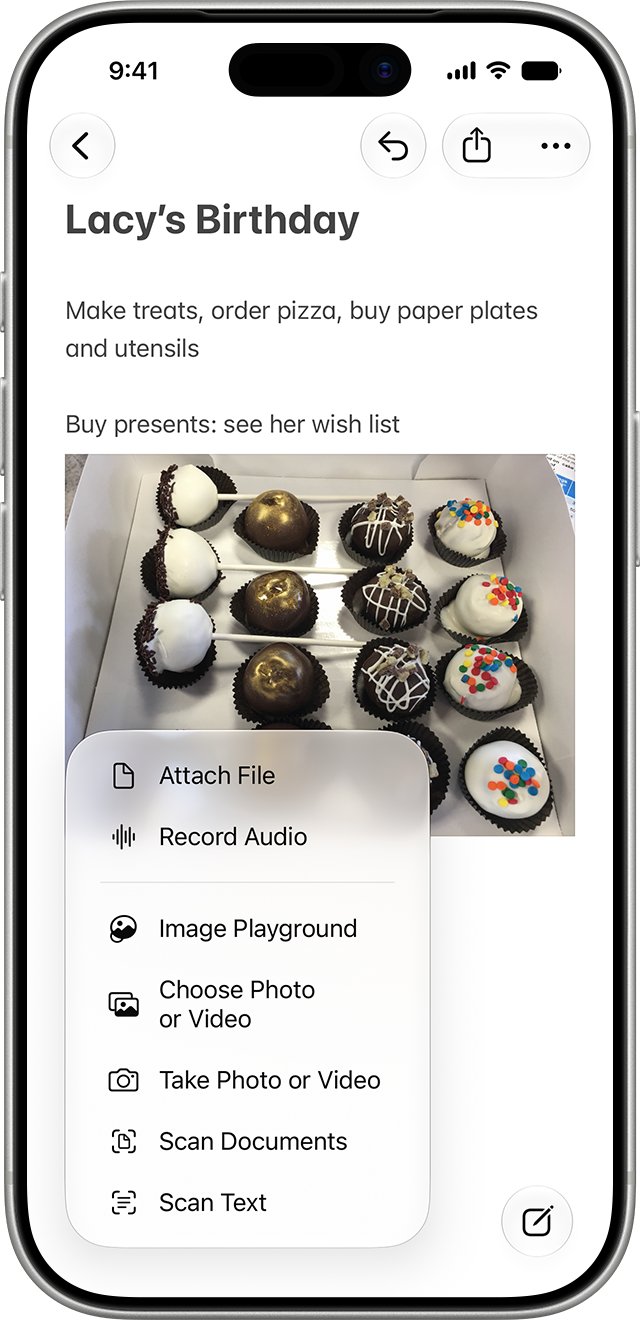
How to use iPhone to scan document: Notes, Files or Camera
Three built-in apps can scan paper. Each keeps the result in a different place.
| You want | Use | What you get |
|---|---|---|
| A multi-page PDF kept with your notes | Notes > Attachment > Scan Documents | A PDF inside the note that you can mark up, sign and share |
| A PDF saved to iCloud Drive or a folder | Files > More > Scan Documents | A PDF in the location you choose |
| Just the text from a page | Camera with Live Text | Copied text you paste into another app |
| Typed text inside a note | Notes > Attachment > Scan Text | Editable text inserted into the note |
| The scan on your Mac straight away | Continuity Camera from a Mac app | A PDF in the Mac document you are working on |
If you also have a flatbed printer, you can scan a document on an HP printer for pages that need a perfectly flat, even image.
How to scan document on iPhone with the Files app
Files uses the same scanner as Notes but asks where to save the PDF, which suits receipts and forms you keep in folders in the iPhone Files app.
- Open the Files app and tap the More button.
- Tap Scan Documents.
- Place the document in view of the camera and choose flash or a filter if needed.
- Let Auto mode capture the page, or tap the Shutter button or a Volume button to capture it yourself.
- Drag the corners to fit the page, then tap Keep Scan.
- Add more pages, then tap Done.
- Choose a location such as iCloud Drive or On My iPhone, then tap Save.
Scan document with iPhone camera using Live Text
The Camera app does not make a PDF, but Live Text reads the words on a page so you can copy, translate or share them. Live Text is not available in every region or language.
- Open the Camera app.
- Position the iPhone so the text appears within the camera frame.
- When a yellow frame appears around the detected text, tap the Live Text button.
- Touch and hold the text, then drag the grab points to select what you need, or tap Select All.
- Tap Copy, Translate, Share or another action, then paste the text where you want it.
- Tap the Live Text button again to return to the camera.
If no yellow frame appears, go to Settings > Camera and turn on Show Detected Text.
How to scan text into a note on iPhone
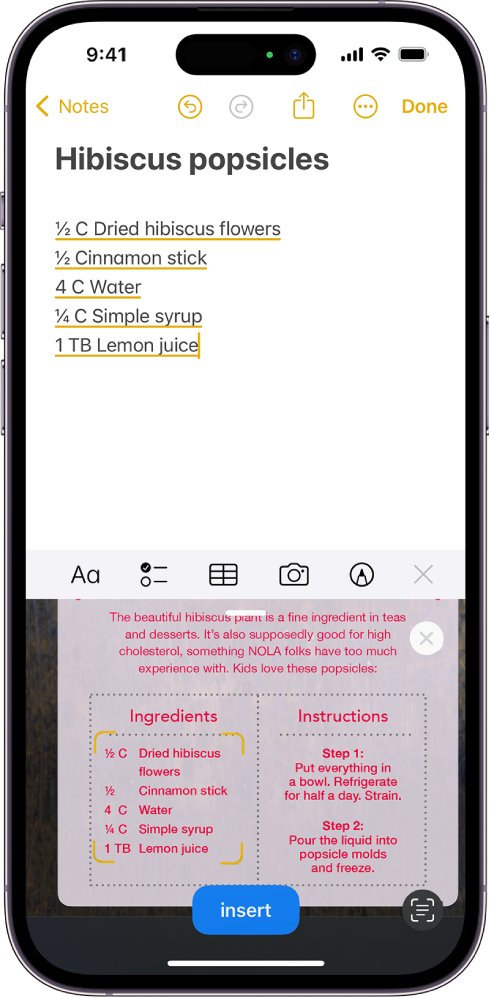
Scan Text inserts the words themselves into a note instead of an image of the page. It works in supported languages.
- Open the Notes app and go to a note.
- Tap the Attachment button, then tap Scan Text.
- Position the iPhone so the text appears within the camera frame.
- Drag or use the grab points to select the text.
- Tap Insert to place the text in the note.
How to sign a scanned document on iPhone
A scan in Notes can be signed without printing it, which is the quickest way to return a signed form.
- Open Notes and tap the scanned document in the note.
- Tap the Markup button.
- Tap the Add button, then tap Signature.
- Choose a saved signature or create a new one.
- Resize the signature box and drag it to the signature line.
- Tap Done.
To sign by hand instead, open Markup, pick a pen tool and sign with your finger.
How to edit a scanned document in Notes on iPhone
Scans stay editable after you save them. Filters and Crop Page work only on scanned documents, not on PDFs you attached from elsewhere.
| To do this | Tap | Notes |
|---|---|---|
| Fix the edges of a page | The page thumbnail > the edit button > Crop Page | Scanned documents only |
| Change the look of the scan | The page thumbnail > the edit button > Filters | Scanned documents only |
| Turn a page the right way up | The page thumbnail > the edit button > Rotate Left or Rotate Right | Works on any PDF in Notes |
| Add an empty page | The page thumbnail > the edit button > Insert Blank Page | Use it for notes between pages |
| Rename, copy, share or delete the PDF | The PDF's options button > choose the action | Share sends it by Mail, Messages or AirDrop |
| Make the preview bigger or smaller | The PDF's options button > View As > Small, Medium or Large | Thumbnails and page edits need Medium or Large |
| View the scan full screen | The PDF's options button > Quick Look | Swipe to move between pages |
Once the scan looks right, you can print from your iPhone with an AirPrint printer or share the PDF.
How to scan documents from iPhone to Mac with Continuity Camera
Continuity Camera starts the iPhone scanner from a Mac app and drops the PDF into the Mac document. It works in apps such as Finder, Mail, Messages, Notes, Pages 7.2 or later, Keynote 8.2 or later, Numbers 5.2 or later and TextEdit, and needs macOS Mojave 10.14 or later.
- Open a supported app on your Mac.
- Control-click where you want the scan to go and choose Scan Documents, selecting Insert from iPhone or iPad first if needed.
- Or open the File menu (or Insert menu), choose Insert from iPhone or iPad, then Scan Documents.
- On the iPhone, place the document in view of the camera and wait for the scan, or tap the Shutter button and then Keep Scan.
- Add more pages or tap Save. The scan appears as a PDF in the Mac window.
How to scan document on iPhone 16, 15, 14, 13, 12 and 11
The scanner follows the iOS version, not the iPhone model. An iPhone 17, iPhone 16 or iPhone SE on the same iOS release uses the same buttons.
| iOS version | How to start a scan in Notes | How to finish |
|---|---|---|
| iOS 26 and later | Attachment button > Scan Documents, or More > Scan; flash and filter options before capture | Keep Scan for each page, then Done |
| iOS 17 and earlier | In a note, tap the camera button > Scan Documents | Capture each page, then tap Save |
| Any version, manual capture | Tap the Shutter button or press a Volume button | Adjust the corners before keeping the page |
To check your version, open Settings > General > About and look at iOS Version.
Where do scanned documents go on iPhone?
- For a Notes scan, open the note you scanned into: the PDF sits in the note body with a preview of the first page.
- Tap the PDF and swipe through the pages to check every page was captured and none is cut off.
- For a Files scan, open Files, go to the location you picked when you tapped Save, and open the PDF.
- To find a scan later, use the search field at the top of the Notes list or in Files.
Scan Documents not showing in Notes on iPhone
Scan Documents is missing from the Attachment menu
The note is stored in an email account such as Gmail; many Notes features work only with iCloud notes or notes saved on the device.
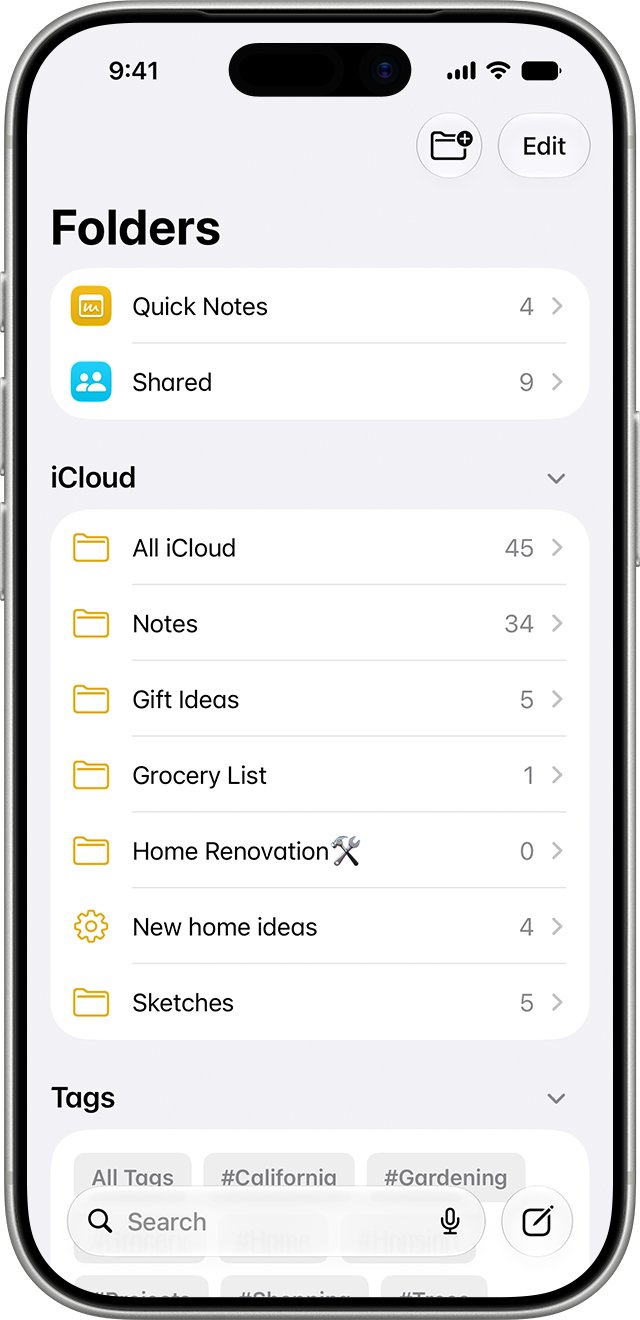
- Go back to the Folders list in Notes.
- Open a folder under iCloud or On My iPhone.
- Create a new note there and tap the Attachment button again.
iPhone does not capture the page automatically
The camera cannot find all four edges, often on a light page against a light surface.
- Put the page on a darker, plain surface with even light.
- Hold the iPhone parallel to the page so all edges are in the frame.
- Tap the Shutter button or press a Volume button to capture manually, then drag the corners.
Scan is too dark or hard to read
Low light or the wrong filter.
- Turn on Flash before you capture the page.
- After saving, open the page edit options and try a different setting in Filters.
- Retake the page if text is still blurred.
Live Text does not detect text in the Camera app
Show Detected Text is off, or Live Text is not available in your region or language.
- Go to Settings > Camera and turn on Show Detected Text.
- Move closer so the text fills more of the frame.
- Use Scan Text in Notes or a document scan instead if Live Text is unavailable.
Tips for scanning documents on iPhone
| Tip | Why it helps |
|---|---|
| Scan every page of a document in one session | The pages save as one PDF instead of several separate files |
| Use a contrasting background | Auto mode finds the page edges faster |
| Press a Volume button to capture | The iPhone moves less than when you tap the screen |
| Check corners before Keep Scan | Dragging them now saves cropping later |
| Rename the PDF straight away | A clear name makes it easy to find in search |
| Keep scans in iCloud notes | They stay up to date across your Apple devices |
| Sign in Markup instead of printing | A saved signature can be reused on the next form |
Scanning documents on iPhone FAQ
Can I scan documents on iPhone?
Yes. The Notes app and the Files app both include a document scanner that uses the iPhone camera and saves the pages as a PDF. There is no separate app to install, and the same scanner works on every iPhone running a recent iOS version.
Can I scan multiple pages into one document on my iPhone?
Yes. After you keep the first page, point the camera at the next one and keep scanning. When you tap Done, every page is saved together as one multi-page PDF in the note or in the Files location you choose.
What file format does the iPhone save scanned documents as?
Scans are saved as PDF files. In Notes the PDF sits inside the note, and you can share, copy or rename it from its options button. In Files you pick the folder where the PDF is saved.
Can I edit the scanned document on my iPhone?
Yes. In Notes, open the page thumbnail's edit options to crop the page, change the filter, rotate it or insert a blank page. Tap the Markup button to write on the scan or add a signature.
How do I scan a document on iPhone with the camera?
The Camera app copies text with Live Text but does not create a PDF. For a full-page scan, use Scan Documents in Notes or Files, which open the camera for you and capture the page when it detects the edges.
How do I scan a document on iPhone in Notes?
Open a note, tap the Attachment button, tap Scan Documents and hold the iPhone over the page. Tap Keep Scan for each page you capture manually, then tap Done to save the PDF into the note.
Is there a limit to how many documents I can scan with the Notes app?
Apple does not publish a limit on the number of scans. Scans in iCloud notes use your iCloud storage, so a full iCloud plan is the practical limit; scans in On My iPhone notes use the phone's own storage.
Can I scan documents if I don't have an internet connection?
Yes. The scanner uses the iPhone camera and saves the PDF into the note or folder on the phone. Notes stored in iCloud sync the new scan to your other devices once the iPhone is back online.
How do I scan a document on an older iPhone such as the iPhone X?
On iOS 17 and earlier, open a note, tap the camera button, choose Scan Documents, capture each page and tap Save. The PDF is saved in the note just as it is on newer versions.