To fix a Windows Start button that is not working, press Ctrl + Shift + Esc, right-click Windows Explorer in Task Manager and select Restart, then restart the PC if Start still won't open.
If that fails, work through the 11 fixes below, from updating Windows and re-registering the Start menu in PowerShell to SFC, System Restore and a reset on Windows 11 and Windows 10.
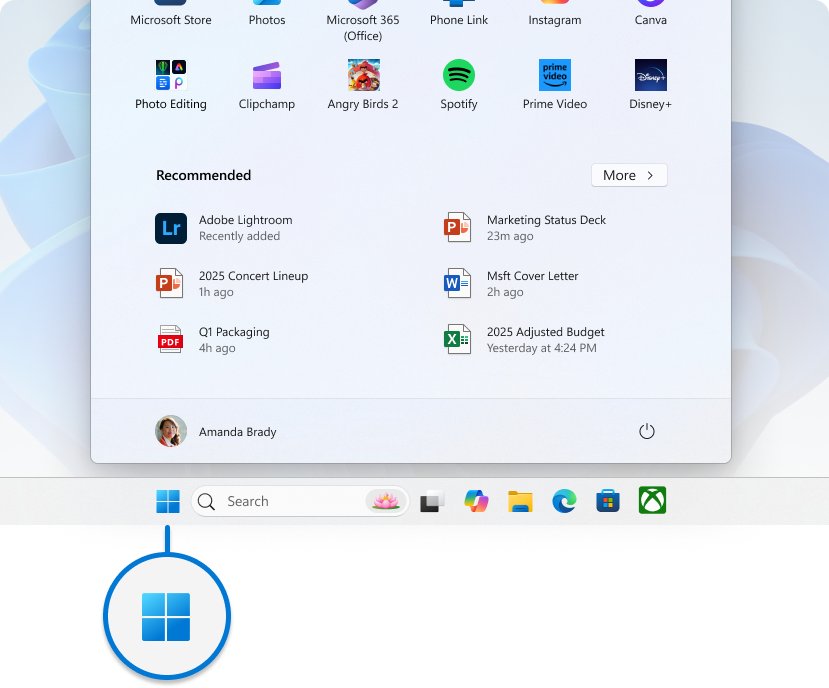
Fix Start menu not working or opening in Windows 11/10
Match what you see to a row and start with that fix. Every fix below works even when the Start menu won't open, because each one starts from a keyboard shortcut.
| What you see | Start with | Fix number |
|---|---|---|
| Start, taskbar or desktop icons froze at the same time | Restart Windows Explorer process | 5, then 1 |
| The taskbar and Start button are not on the screen | Check if the Start menu is hidden | 2 |
| Start stopped working after a Windows update | Update Windows to the latest version | 4 |
| Start works for another person on the PC but not for you | Change user account | 6 |
| Start opens nothing, or shows a critical error | Re-register the Start menu in PowerShell | 7 |
| Other Windows features fail too | Use the System File Checker | 9 |
| You changed the registry or installed a tweak tool | Roll the registry back with System Restore | 10 |
| Nothing else worked | Perform a system reset | 11 |
Start button not working in Windows 11/10
In Windows 11 and recent Windows 10 builds, the Start menu runs as its own app package, Microsoft.Windows.StartMenuExperienceHost, inside the Windows Explorer shell. A fault in either one stops the Start button responding.
| Cause | What it looks like | Fix |
|---|---|---|
| Windows Explorer is frozen or crashed | Taskbar, Start and system tray stop responding together | Restart Windows Explorer process |
| The Start menu package is not registered for your account | The button highlights but no menu opens | Use Windows PowerShell to re-register built-in apps |
| A monthly update left XAML packages unregistered | Start, Settings and Search fail on some managed PCs | Update Windows to the latest version |
| Damaged system files | Several built-in apps fail or crash | Use the System File Checker |
| Recent registry or policy changes | Start fails after a tweak tool or old Group Policy | Create new registry for the Start menu (System Restore) |
| A damaged user profile | Start works when another account signs in | Change user account |
| Malware | Start fails along with other system tools | Check for malware and viruses |
1. Restart your PC
A restart reloads Windows Explorer and the Start menu process, and finishes any update waiting to install. The Start menu is not needed for it.
- Save your work and close open apps.
- Press Windows key + X to open the Quick Link menu, which is the same menu you get by right-clicking Start.
- Select Shut down or sign out.
- Select Restart.
- After you sign in, wait a few seconds and select the Start button.
If the Quick Link menu won't open either, press Ctrl + Alt + Delete, open Task Manager and restart Windows Explorer (fix 5) first.
2. Check if the Start menu is hidden
With Automatically hide the taskbar on, the Start button only appears when you point at or touch the bottom edge of the screen. Windows 11 also lets you align it to the left, which can look like it vanished.
- Move the mouse to the bottom edge of the screen, or touch it, to see whether the taskbar slides up.
- Press Windows key + I to open Settings, then select Personalization > Taskbar.
- Expand Taskbar behaviors.
- Clear Automatically hide the taskbar so the taskbar stays on screen.
- Check Taskbar alignment. Center puts Start in the middle, and Left puts it in the corner.
The taskbar always sits at the bottom of the screen in Windows 11, so look there first.
3. Check for malware and viruses
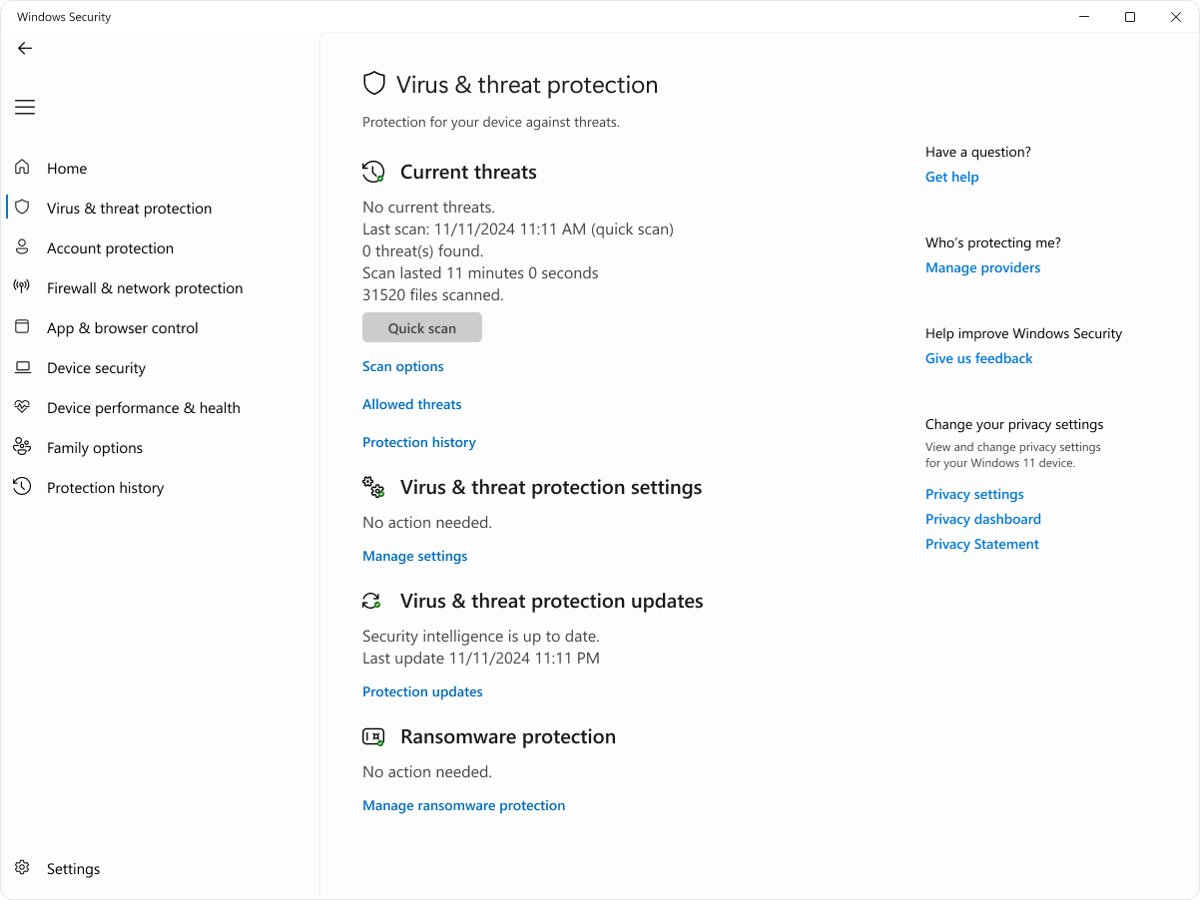
Malware can break shell components and system tools at the same time. A full scan checks every file, and the offline scan runs before Windows loads, where persistent malware has a harder time hiding.
- Press Windows key + I and select Privacy & security > Windows Security > Open Windows Security.
- Select Virus & threat protection, then Scan options.
- Select Full scan and Scan now.
- If the scan finds a threat or you still suspect one, return to Scan options, select Microsoft Defender Antivirus (offline scan) and Scan now.
- After the PC restarts, open Windows Security and select Protection history to see the results.
4. Update Windows to the latest version
Microsoft fixes Start menu bugs in monthly updates. One known issue, KB5072911, stopped Explorer, the Start menu, Settings and Search opening on some enterprise PCs after July 2025 updates on Windows 11 24H2 and 25H2, and it was addressed from the June 23, 2026 update (KB5095093).
- Press Windows key + I to open Settings.
- Select Windows Update.
- Select Check for updates.
- Install everything offered, including the latest cumulative update.
- Select Restart now when asked, then test the Start button.
To see which build you are on, press Windows key + R, type winver and press Enter.
5. Restart Windows Explorer process
Restarting Windows Explorer reloads the taskbar and Start button without signing out. Open windows of File Explorer close, but other apps keep running.
- Press Ctrl + Shift + Esc to open Task Manager.
- Find Windows Explorer in the list of processes.
- Right-click Windows Explorer and select Restart.
- Wait for the taskbar to disappear and come back, then select Start.
- If Windows Explorer is not listed, select File > Run new task, type
explorer.exeand press Enter.
You can also restart Explorer.exe from Command Prompt or PowerShell when Task Manager is slow to respond.
6. Change user account
If Start works in a fresh account, your own profile is damaged, and moving your files to the new account fixes the problem for good.
- Press Windows key + I and select Accounts > Other users.
- Next to Add other user, select Add account.
- Enter a Microsoft account email, or select I don't have this person's sign-in information > Add a user without a Microsoft account for a local test account.
- Finish the setup, then press Windows key + X and select Shut down or sign out > Sign out.
- Sign in to the new account and test the Start button.
- If it works there, copy your files across and keep using the new account.
Removing a test account later, from Accounts > Other users > Remove, deletes its data from the PC but not the Microsoft account itself.
7. Use Windows PowerShell to re-register built-in apps
Microsoft's own fix re-registers the Start menu app package for your account. Run the final command in a normal, non-elevated PowerShell window, otherwise the package registers to the administrator instead of you.
- Press Windows key + R, type
powershelland press Enter. - Run
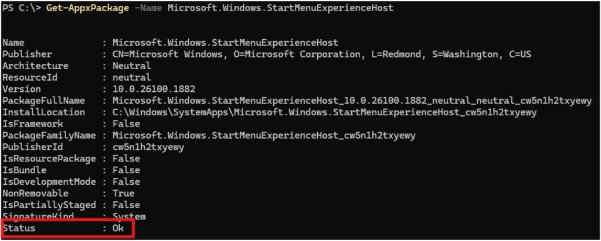
Get-AppxPackage -Name Microsoft.Windows.StartMenuExperienceHostand check that package details appear. - If nothing appears, open an elevated PowerShell window and run
Get-AppxPackage *StartMenu* -AllUsersto confirm the package exists for another user. - Back in the normal PowerShell window, run
Add-AppxPackage -Path "C:\Windows\SystemApps\Microsoft.Windows.StartMenuExperienceHost_cw5n1h2txyewy\AppxManifest.xml" -Register -DisableDevelopmentMode. - Sign out and sign back in, then test the Start button.
On Windows 10 version 1809 and earlier, the Start menu package is Microsoft.Windows.ShellExperienceHost instead. If StartMenuExperienceHost is missing for every user, Microsoft supports no way to reinstall it: roll back the update, restore from a backup or reset the PC.
8. Disable Cortana’s temporary files
This fix dates from Windows 10 builds where Start and Cortana shared one process. Microsoft retired the standalone Cortana app in Windows in spring 2023, so on a current PC there are no Cortana files for Start to depend on. Removing a leftover Cortana app is the version of this fix that still applies.
- Press Windows key + I and select Apps > Installed apps.
- Search the list for Cortana.
- If it is still installed, select the … button next to it and select Uninstall.
- Restart the PC and test the Start button.
- If Cortana is not listed, skip to fix 9.
9. Use the System File Checker
Microsoft recommends running DISM first, because it supplies the clean files that SFC uses to repair damaged ones. Both need an administrator Command Prompt.
- Press Windows key + R, type
cmdand press Ctrl + Shift + Enter to run Command Prompt as administrator, then select Yes. - Type
DISM.exe /Online /Cleanup-image /Restorehealthand press Enter. It can take several minutes. - Type
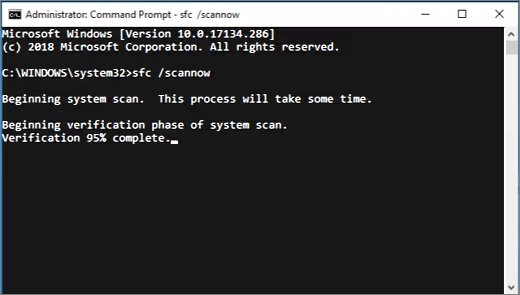
sfc /scannowand press Enter. - Leave the window open until verification reaches 100%.
- Restart the PC and test the Start button.
Windows Resource Protection found corrupt files and successfully repaired them means the repair worked. If SFC could not perform the operation, run it again in Safe Mode. You can also read the System File Checker results in the CBS log for details on each repaired file.
10. Create new registry for the Start menu
Microsoft lists recent registry changes and old Group Policy settings among the causes of Start menu failures, and it documents no registry value that rebuilds Start. The supported way to undo a registry change is System Restore, which returns system files, registry settings and installed programs to a restore point without touching personal files.
- Press Windows key + R, type
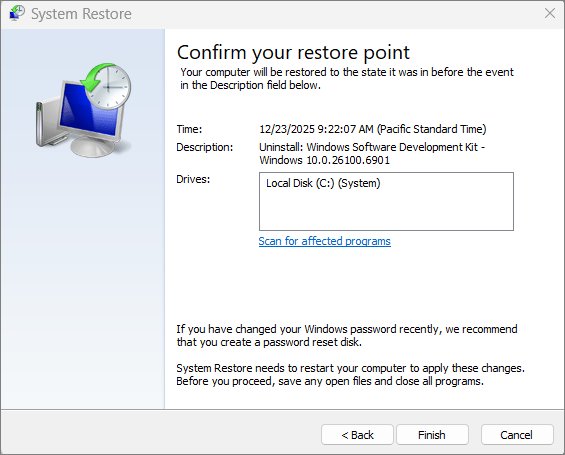
rstrui.exeand press Enter. - In Restore system files and settings, select Next.
- Select a restore point from before the Start button stopped working. Tick Show more restore points if you need older ones.
- Optionally select Scan for affected programs to see what will be removed.
- Select Next, then Finish.
- Wait for Windows to restart and test the Start button.
If there are no restore points, System Protection was off on the drive and fix 11 is the remaining route.
11. Perform a system reset
Reset this PC reinstalls Windows. Keep my files removes apps and settings but keeps documents and photos, which clears any Start menu fault in the system or your settings.
- Back up important files, and find your BitLocker recovery key if the drive is encrypted.
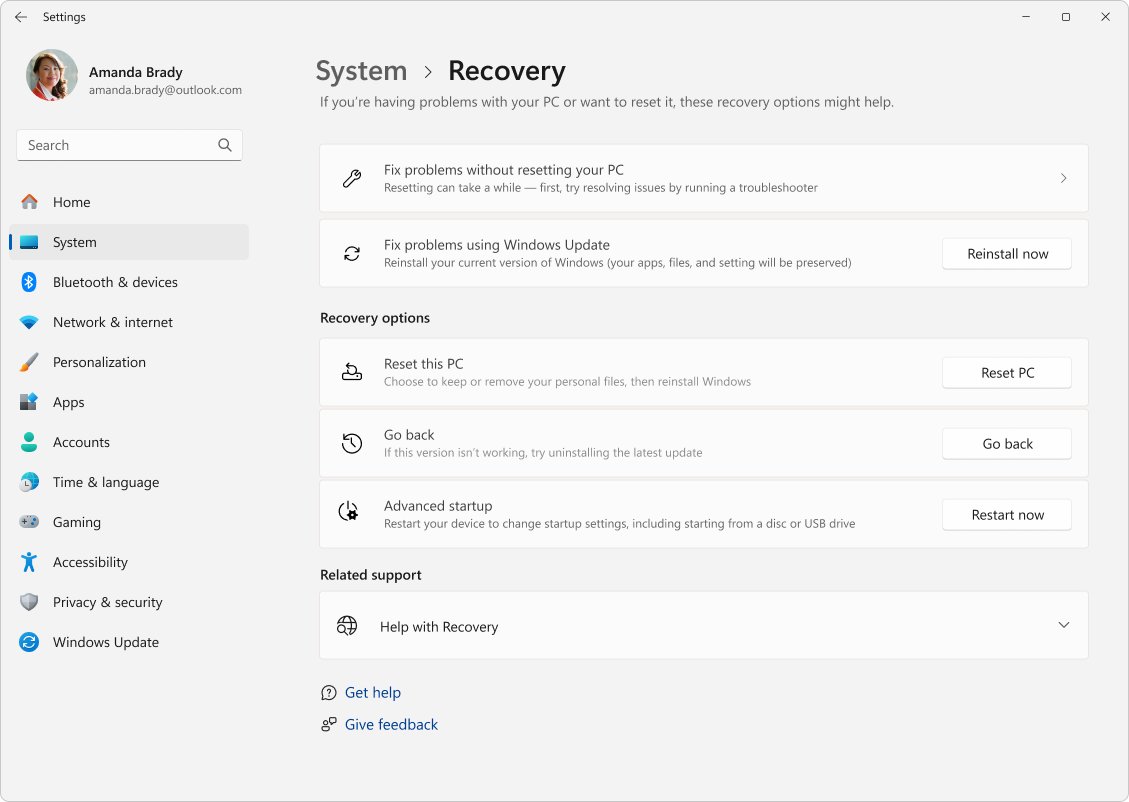
- Press Windows key + I and select System > Recovery.
- Under Recovery options, select Reset PC.
- Select Keep my files.
- Choose Cloud download for a fresh copy of Windows, or Local reinstall on a slow connection.
- Follow the prompts and don't restart the PC yourself, even if the screen stays black for 15 minutes or more.
If the reset fails or won't start, you can repair a failed Reset this PC before trying installation media.
How to open the Start menu
Windows 11 gives three standard ways to open Start, plus a fourth shortcut that helps when the Windows key is broken.
| Method | How | Useful when |
|---|---|---|
| Start button | Select the Windows icon on the taskbar | The mouse works normally |
| Windows key | Press the Windows logo key to open or close Start | You prefer the keyboard |
| Ctrl + Esc | Press Ctrl and Esc together | The Windows key does nothing |
| Touch | Swipe from the bottom of the screen | Tablets and 2-in-1 PCs |
If the Windows key does nothing while the Start button still works, the keyboard is the problem, and you need to fix the Windows key instead.
How to find Start-related shortcuts in Windows 11
These shortcuts reach the tools in this guide without the Start menu.
| Shortcut | What it opens |
|---|---|
| Windows key | Opens or closes the Start menu |
| Ctrl + Esc | Opens the Start menu |
| Windows key + X | Quick Link menu, the same as right-clicking Start |
| Windows key + I | Settings |
| Windows key + S | Search |
| Windows key + R | Run dialog box |
| Windows key + E | File Explorer |
| Ctrl + Shift + Esc | Task Manager |
| Windows key + L | Locks the PC |
Right-clicking the Start button: The hidden power menu
Right-click Start, or press Windows key + X, to open the Quick Link menu. It stays useful when the main Start menu won't open, because it is a separate menu.
| Menu item | Use it to |
|---|---|
| Shut down or sign out | Restart, shut down or sign out without the Start menu |
| Device Manager | Update, roll back or reinstall a driver |
| Windows key + X | Opens the same menu from the keyboard when the mouse click on Start does nothing |
If you can’t see the Start button
The whole taskbar is missing
The taskbar is set to hide itself, or Windows Explorer is not running.
- Point at or touch the bottom edge of the screen.
- If nothing slides up, press Ctrl + Shift + Esc, select File > Run new task, type
explorer.exeand press Enter. - Turn off Automatically hide the taskbar under Personalization > Taskbar > Taskbar behaviors.
The Start button is not in the middle any more
Taskbar alignment is set to Left.
- Look in the bottom-left corner of the screen.
- To move it back, set Taskbar alignment to Center under Taskbar behaviors.
The taskbar is missing on a second monitor
Show my taskbar on all displays is off.
- Open Personalization > Taskbar > Taskbar behaviors.
- Tick Show my taskbar on all displays.
If the Start button does not work
Start shows a critical error message
The StartMenuExperienceHost process is failing to start, often after an update.
- Install the latest cumulative update from Settings > Windows Update.
- Re-register the Start menu package in a non-elevated PowerShell window (fix 7).
- If it began right after an update, roll the update back or use System Restore.
Start, Settings and Search all fail on a work PC
On some managed Windows 11 24H2 and 25H2 PCs, XAML packages didn't register in time after an update (KB5072911).
- Install the latest monthly update, which contains the fix.
- Ask your IT administrator to register the missing XAML packages Microsoft lists in KB5072911.
Start opens but typing finds nothing
Windows Search is failing, not the Start menu.
- Restart Windows Explorer in Task Manager.
- Fix taskbar search separately if results stay empty after the restart.
Start works only after a restart, then stops again
A third-party app or driver is crashing the shell.
- Restart into Safe Mode and test Start there.
- If it works in Safe Mode, turn off recently added startup apps and test again.
- Check the Application event log for event IDs 1000 and 1001 for StartMenuExperienceHost.exe.
How to move the Windows 11 Start button to the left
Windows 11 centers the Start button by default. You can move it and the other taskbar icons to the left corner in one setting.
- Right-click an empty part of the taskbar and select Taskbar settings.
- Expand Taskbar behaviors.
- Open the Taskbar alignment list.
- Select Left.
- To go back, select Center in the same list.
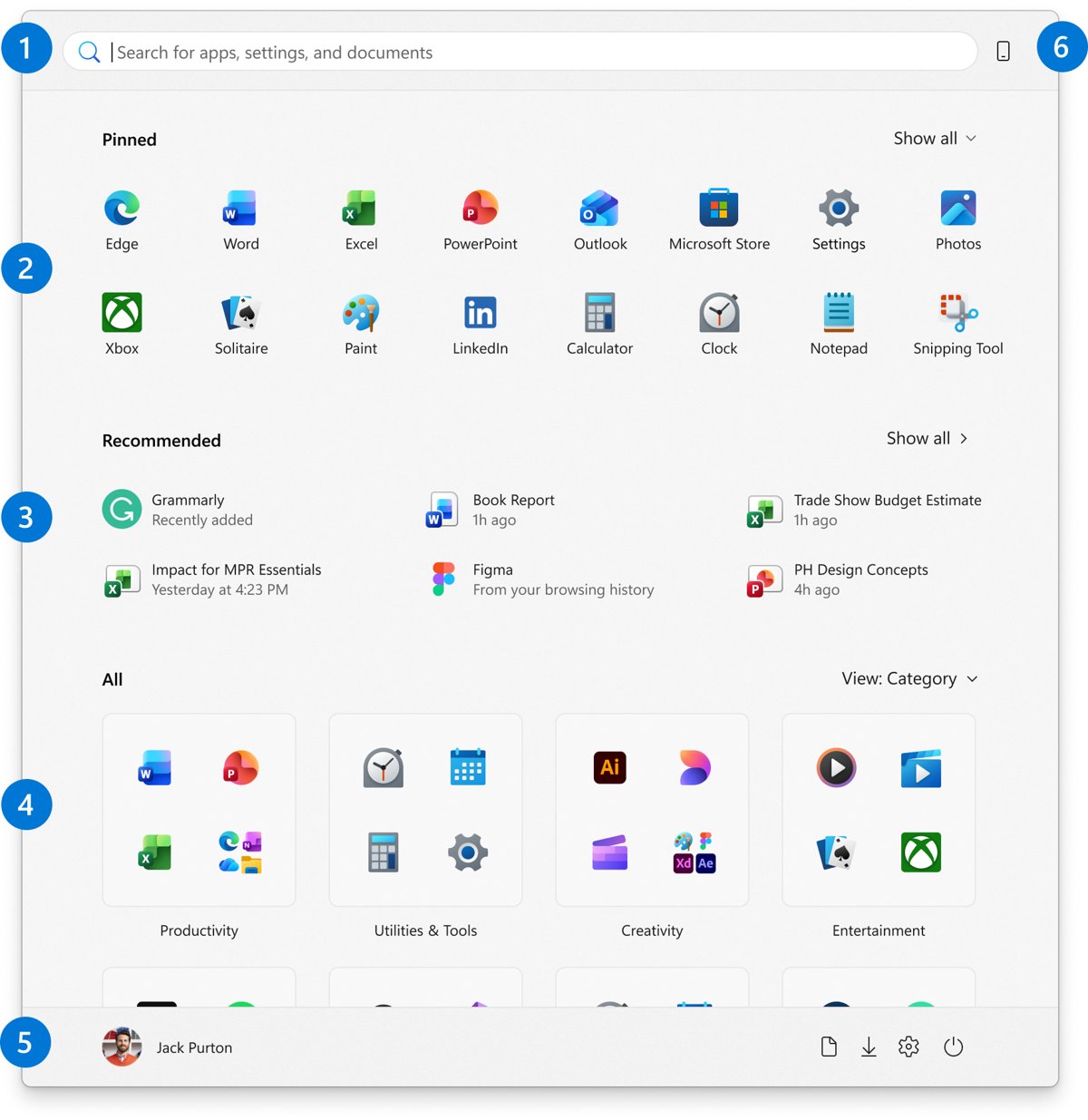
How to customize the Start menu
Most Start menu changes are made from the menu itself or from Settings > Personalization > Start.
| Change | Where to do it |
|---|---|
| Pin an app | Type its name in Search, right-click it and select Pin to Start |
| Unpin an app | Right-click it in Start and select Unpin from Start |
| Make a folder of pins | Drag one pinned item onto another, then rename the folder |
| Change the All apps view | Choose Category, Grid or List in the All section |
| Add folders next to the power button | Right-click the bottom of Start, select Start settings > Folders and turn on the ones you want |
| Hide recommendations | Turn off the recommended providers in Personalization > Start |
Can you move the Start button to the top or side?
No. Windows 11 can only align the Start button and taskbar icons in the center or on the left. Microsoft's taskbar settings have no option to move the taskbar to the top or to the side of the screen, so the taskbar and the Start button always sit at the bottom.
Why Microsoft moved the Start button
Microsoft centered Start in Windows 11 to make it quicker to find what you need, and it kept a left-alignment option for people who prefer the old position. When it introduced Windows 11 in June 2021, Microsoft said it put Start at the center and made it easier to quickly find what you need, as part of a simpler design meant to put you in control.
How to check if StartMenuExperienceHost is running
Get-Process StartMenuExperienceHost -IncludeUserNameRun it in an elevated PowerShell window. It lists the Start menu process for each signed-in user, and each user should have one in their session.
You should see: A row with your user name means Start is running for you. No row means the package is installed but not starting: test in Safe Mode or re-register it with fix 7.
Common questions about the Windows 11 Start button
Why is my Start button not working in Windows 11?
The usual causes are a frozen Windows Explorer process, a Start menu package that is not registered for your account, a faulty update, damaged system files or a broken user profile. Restarting Windows Explorer in Task Manager fixes the most common case in seconds.
How do I restart the Start menu without restarting the PC?
Press Ctrl + Shift + Esc, right-click Windows Explorer in Task Manager and select Restart. The taskbar and Start button reload in a few seconds, and your open apps keep running.
How do I open Start if the Windows key does not work?
Select the Start button on the taskbar, press Ctrl + Esc, or swipe up from the bottom of the screen on a touch device. If only the key fails, the keyboard or its driver is the problem, not Windows.
Can sfc /scannow fix the Start menu?
It can when damaged system files are the cause. Run DISM.exe /Online /Cleanup-image /Restorehealth first, then sfc /scannow in an administrator Command Prompt, and restart the PC when the scan reaches 100%.
Does the Start menu need Cortana?
No. Microsoft retired the standalone Cortana app in Windows in spring 2023, and the Windows 11 Start menu runs as its own package, StartMenuExperienceHost. Old fixes that clear Cortana files don't apply to current builds.
Why did the Start menu stop working after a Windows update?
An update can leave packages that Start depends on unregistered. Microsoft documented this as KB5072911 for some managed Windows 11 PCs and fixed it in later updates. Install the newest update, or roll back the one that caused it.
Will resetting my PC delete my files?
Not if you choose Keep my files. That option reinstalls Windows and removes apps and settings but keeps documents, photos and other personal files. Remove everything deletes all of it, so back up first either way.
Can I get the Start button back in the bottom-left corner?
Yes. Right-click the taskbar, select Taskbar settings, expand Taskbar behaviors and set Taskbar alignment to Left. Start and the pinned taskbar icons move to the left side of the screen.
Get your Start menu up and running again
Restart Windows Explorer and install the latest update first, then re-register the Start menu package in PowerShell before trying SFC, System Restore or a reset. Most Start button failures come from a frozen shell, an update problem or a package that lost its registration, and those three fixes leave your apps and files untouched. A test account tells you quickly whether the fault is in Windows or in your own profile.