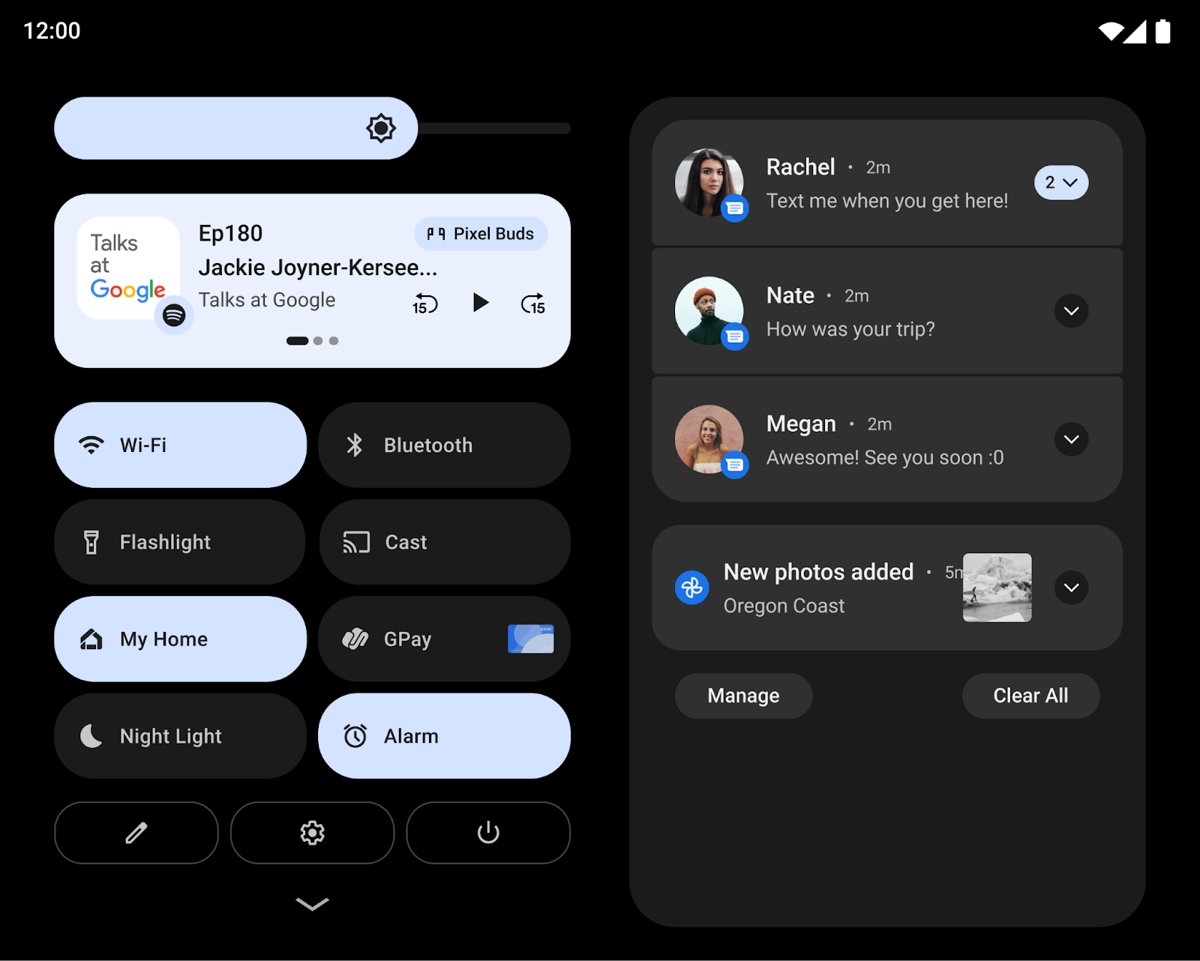
System UI is the Android system app that draws everything on screen that is not part of an app, such as the status bar, notification shade, Quick Settings and lock screen, and you cannot delete it on a normal phone.
This guide explains what System UI does, whether it can be a virus, what System UI Tuner is, and how to fix the "System UI isn't responding" and "System UI has stopped" errors.
Can I delete System UI on Android?
No. Leave System UI installed and enabled. Android starts System UI when the phone powers on, and it provides the status bar, notifications, Quick Settings and lock screen. Android's own help notes that you cannot delete some pre-installed system apps, and System UI is one the phone depends on to be usable at all.
The only way to strip it out is to root the phone or flash a custom ROM, which voids the safety of a stock system and can leave the phone unusable. If System UI misbehaves, fix it with the steps further down instead.
What is System UI on Android?
The Android Open Source Project defines System UI as any element displayed on the screen that is not part of an app. It is an Android app that runs when the device powers on, started by the system server. Its code lives in the com.android.systemui package.
| Part of the screen | What System UI provides |
|---|---|
| Status bar | Clock, Wi-Fi, Bluetooth, mobile signal and battery icons along the top |
| Notification shade | The pull-down panel and heads-up notifications |
| Quick Settings | The tiles you reach by swiping down from the top of the screen |
| Navigation bar | Back, Home and recent apps buttons, or the gesture bar |
| Lock screen | The screen where you unlock with your PIN, pattern or fingerprint |
| Volume dialog | The slider that appears when you press the volume buttons |
| Media controls | Playback controls shown in Quick Settings |
Because these pieces run in one app, a System UI crash makes the status bar, notifications or navigation buttons vanish or freeze at the same moment.
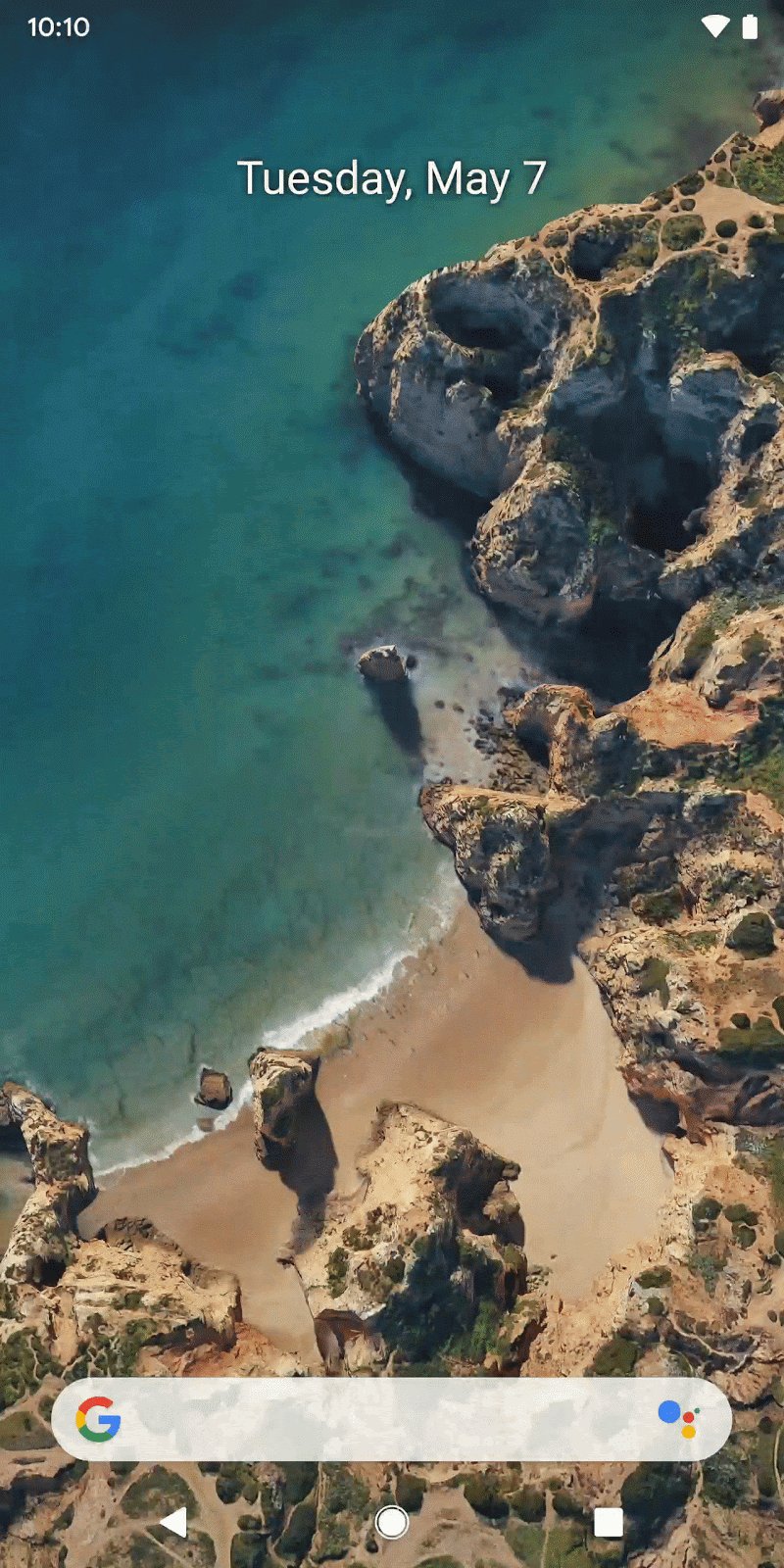
Is System UI a virus?
No. System UI is a genuine part of Android on every phone, from Pixel to Samsung Galaxy. It is the system app that runs the status bar, notifications and lock screen, and it starts with Android itself. Seeing it in your app list, battery stats or an error message is normal.
What can be harmful is a separate app that copies the name. A real System UI never asks you to install anything from a link or a pop-up. If an app named System UI appeared after you installed something, restart in safe mode, as shown in the troubleshooting section, and remove the most recent download. Keeping Google Play Protect turned on lets Android check your apps for harmful behaviour.
System UI Tuner
System UI Tuner is a hidden, experimental settings screen for tweaking the status bar and Quick Settings on stock Android builds. Google does not document it in its Android or Pixel help, and whether your phone has it depends on the manufacturer and Android version.
| Question | Answer |
|---|---|
| Is it the same as System UI? | No. System UI is the app that draws the interface; the tuner is a settings screen for some of its options |
| Is it an app you install? | No. When present, it is part of System UI on the phone |
| Is it supported? | It is experimental; features can change or disappear between Android releases |
| Is it on Samsung Galaxy phones? | Samsung builds its own interface, so its settings differ from stock Android |
| Where are the documented tweaks? | Quick Settings edit mode and Developer options, both covered below |
How to enable System UI Tuner
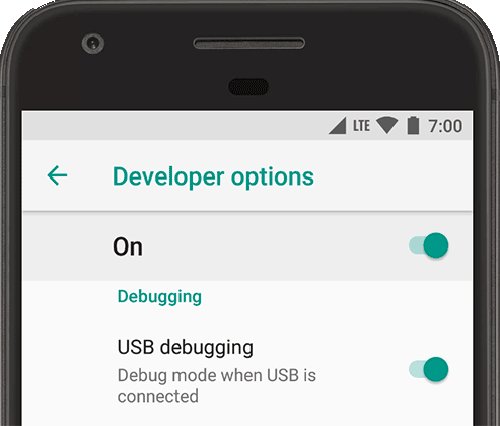
The tuner's best-known tool, a clean status bar for screenshots, now sits in Developer options as System UI demo mode. Turn on Developer options first.
- Open the Settings app.
- Find Build number: on a Pixel it is under About phone; on a Samsung Galaxy it is under About phone > Software information.
- Tap Build number seven times until you see You are now a developer!
- Go back to the previous screen and open Developer options.
- Scroll to System UI demo mode and turn on Enable demo mode, then Show demo mode.
Show demo mode hides notifications and low battery warnings and shows a preset status bar. Google notes the demo mode commands are only verified on Nexus and Pixel devices.
System UI Tuner options
The table maps the tweaks people use System UI Tuner for to the place Android documents them today.
| What you want to change | Where to do it | Notes |
|---|---|---|
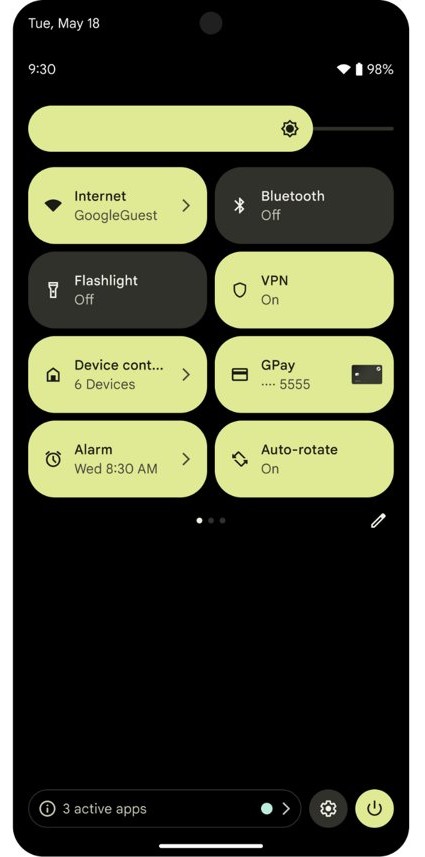
| Add, remove or reorder Quick Settings tiles | Swipe down twice, tap Edit | Tap Add or Remove, or drag tiles |
| Shrink a tile to an icon | Quick Settings Edit mode | Drag the right side of the tile to the left |
| Clean status bar for screenshots | Developer options > System UI demo mode | Hides notifications and low battery warnings |
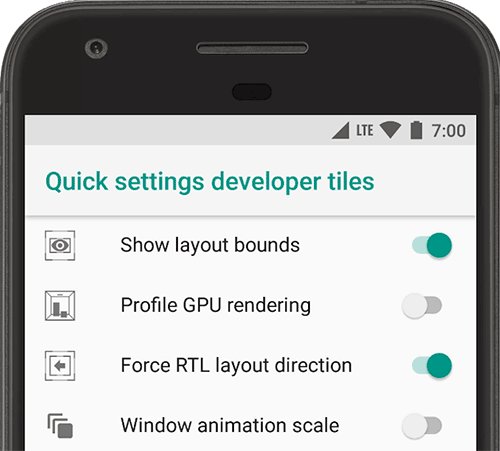
| Developer shortcuts in Quick Settings | Developer options > Quick settings developer tiles | Then add the tiles in Quick Settings edit mode |
| Hidden status bar icons | Look for the dot at the top of the screen | Android hides icons when many settings are on |
Disabling System UI Tuner
Switching the developer tweaks off returns System UI to its normal look.
- Open Settings and go to Developer options.
- Under System UI demo mode, turn off Show demo mode and Enable demo mode.
- To hide everything at once, turn off the main switch at the top of the Developer options screen.
- Swipe down twice, tap Edit and remove any developer tiles you added to Quick Settings.
With the top switch off, most developer options are disabled.
Troubleshooting System UI stopped working
"System UI isn't responding" or a blank, frozen status bar usually comes from an app conflict, an outdated system, or a launcher problem. Work from the top down.
"System UI isn't responding" after installing an app
A downloaded app is interfering with the system interface.
- On a Pixel 6 or later, press and hold Power and Volume up, then touch and hold Power off or Restart and tap OK to reboot to safe mode.
- If the phone is off, press Power, and when the animation starts hold Volume down until it ends. Safe mode shows at the bottom of the screen.
- Use the phone. If the error stops, an app is the cause.
- Restart normally, then remove recently downloaded apps one at a time, restarting after each.
System UI keeps stopping after an Android update
A later system or app update fixes a bug in the build you are on.
- Open Settings, tap System > Software updates and install any update.
- Open the Google Play Store, tap your profile icon, then Manage apps & device.
- Under Updates available, tap Update all.
- Restart the phone.
Status bar or navigation buttons freeze with a third-party launcher
The home screen app conflicts with the system interface.
- Open Settings and tap Apps > Default apps.
- Tap the default home app entry and choose your phone's original launcher.
- Restart the phone and check whether the error returns.
System UI still crashes in safe mode
The problem is not an app, so only a full reset clears the system state.
- Back up your data to your Google Account and note your Google Account password.
- Charge the phone and connect it to Wi-Fi.
- Factory reset the phone from Settings, following your manufacturer's steps, because a reset erases all data.
How to enable System UI using Nova Launcher?
Nova Launcher is a third-party home screen app from Google Play. A launcher replaces your home screen and app drawer; it sits on top of System UI and does not replace the status bar or notifications, so it cannot add a System UI menu your phone's build does not include.
- Install Nova Launcher from the Google Play Store.
- Open Settings and tap Apps > Default apps.
- Tap the default home app entry and select Nova Launcher.
- Press Home to load the new launcher.
- To go back, repeat the steps and pick your original launcher.
If System UI errors started after you installed a launcher, switch back to the original one before trying anything else.
Android System UI FAQ
What does System UI do on Android?
System UI draws every on-screen element that is not part of an app: the status bar, notification shade, Quick Settings, navigation bar, lock screen and volume slider. Android starts it when the phone powers on.
Can I disable System UI?
You should not. System UI provides the status bar, notifications and lock screen, so disabling it would leave the phone without its basic interface. Android's help notes some pre-installed system apps cannot be deleted at all.
Why does my phone say System UI isn't responding?
Usually an app you downloaded, an outdated system build, or a third-party launcher is clashing with the interface. Restart in safe mode to test apps, install updates, and switch back to the original launcher.
Is System UI Tuner safe to use?
It is an experimental menu, so its tweaks can change or break between Android releases. The documented options, such as System UI demo mode in Developer options, can be turned off at any time.
Does a factory reset fix System UI errors?
It can when safe mode, updates and changing the launcher do not help, because it returns the phone to factory settings. A factory reset erases all your data, so back up to your Google Account first.
Is System UI the same as the launcher?
No. The launcher is the home screen and app drawer app, which you can change in Default apps. System UI draws the status bar, notifications and navigation around every app, including the launcher.