To enable or disable Address Space Layout Randomization (ASLR) in Windows 11, open Windows Security > App & browser control > Exploit protection settings and change the three ASLR entries on the System settings tab, then restart the PC.
This guide covers the system-wide switch, a per-app override, the matching PowerShell commands, the Windows defaults, and how to put everything back.
Disable Address Space Layout Randomization (ASLR) in Windows 11
Windows 11 has no single ASLR switch. It splits the feature into three settings, and two of them are on out of the box.
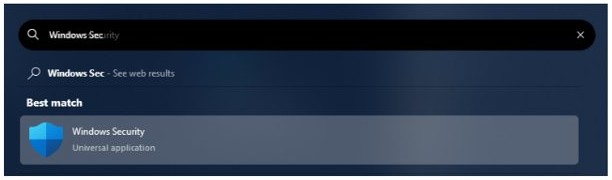
- Open Start, type Windows Security and open the app. The shield icon in the taskbar notification area is one of the other ways to open Windows Security.
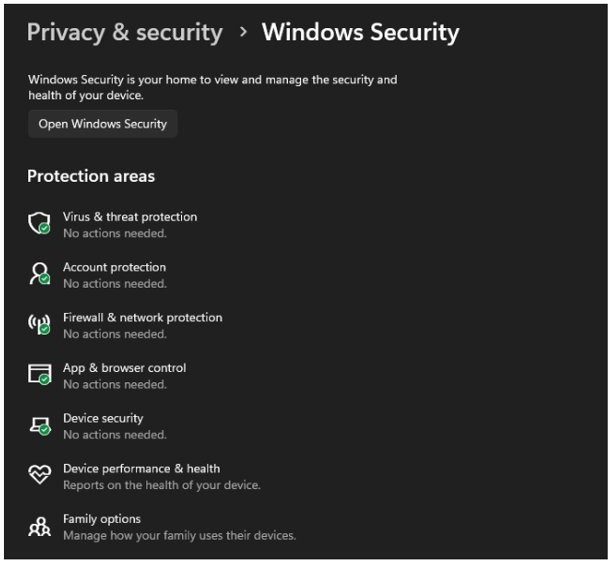
- Select App & browser control in the left pane.
- Under Exploit protection, select Exploit protection settings.
- Stay on the System settings tab and find Randomize memory allocations (Bottom-up ASLR).
- Change its drop-down from Use default (On) to Off by default.
- Change High-entropy ASLR to Off by default as well.
- Check that Force randomization for images (Mandatory ASLR) reads Use default (Off) or Off by default.
- Select Yes if User Account Control asks for permission, then restart the PC.
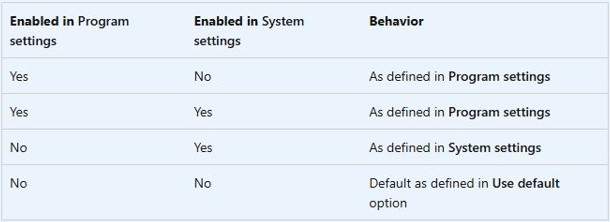
System-level exploit protection changes need a device restart before they apply. Any app with its own ASLR override on the Program settings tab keeps that override.
Enable Mandatory ASLR in Windows 11
Turning ASLR on usually means switching on Mandatory ASLR, the one setting Windows leaves off. It forces a relocation of programs and DLLs that were not built for ASLR.
- Open Windows Security and select App & browser control.
- Select Exploit protection settings and stay on the System settings tab.
- Set Force randomization for images (Mandatory ASLR) to On by default.
- Set Randomize memory allocations (Bottom-up ASLR) to On by default or leave it on Use default (On).
- Leave High-entropy ASLR on Use default (On) so 64-bit apps get the wider randomization range.
- Approve the User Account Control prompt and restart Windows.
Mandatory ASLR on its own moves an image to a new address without adding randomness. Microsoft pairs it with Bottom-up ASLR so that the new location is also unpredictable.
Turn off ASLR for one app in Windows 11
When one older program crashes with ASLR on, give that program its own override instead of switching ASLR off for the whole PC.
- In Exploit protection settings, select the Program settings tab.
- Select the app and choose Edit if it is already listed.
- If it is not listed, select Add program to customize, then Add by program name (for example
app.exe) or Choose exact file path. - Under Force randomization for images (Mandatory ASLR), tick Override system settings and set the switch to Off.
- Under Randomize memory allocations (Bottom-up ASLR), tick Override system settings and set the switch to Off, or tick Don't use high entropy to keep ASLR with the smaller range.
- Select Apply, then close and reopen the app.
App-level settings do not need a Windows restart. Windows tells you when the app or the PC has to restart for a change to take effect. The Exploit Protection program settings work the same way for every other mitigation.
Disable ASLR with PowerShell Set-ProcessMitigation
PowerShell sets the same values as Windows Security, and the most recent change wins whichever tool made it. The cmdlets need an elevated window, so run PowerShell as administrator first.
Set-ProcessMitigation -System -Disable BottomUp,HighEntropy-System applies the change to every app without its own rule, -Disable turns the listed mitigations off, and BottomUp and HighEntropy are the PowerShell names for Bottom-up ASLR and High-entropy ASLR. Mandatory ASLR is ForceRelocateImages.
You should see: The command returns to the prompt without an error, and the two entries read Off by default in Windows Security after you reopen it. Restart the PC to apply the change.
To disable ASLR for one program only, run Set-ProcessMitigation -Name app.exe -Disable ForceRelocateImages,BottomUp with the real file name in place of app.exe.
Enable ASLR with PowerShell in Windows 11
Use -Enable with the same cmdlet to switch the three ASLR settings on system-wide.
Set-ProcessMitigation -System -Enable ForceRelocateImages,BottomUp,HighEntropyForceRelocateImages turns on Mandatory ASLR, BottomUp turns on Bottom-up ASLR, and HighEntropy adds the wider randomization range for 64-bit processes.
You should see: Windows Security shows all three entries as On by default on the System settings tab. Restart Windows before you test your apps.
Separate each mitigation name with a comma, as the Set-ProcessMitigation syntax requires. Enable only ForceRelocateImages if Bottom-up ASLR and High-entropy ASLR are still on their defaults.
Where is ASLR in Windows Security?
| Where you change it | Exact location | Best for |
|---|---|---|
| Windows Security app | App & browser control > Exploit protection settings > System settings or Program settings | One home or work PC |
| PowerShell (admin) | Get-ProcessMitigation and Set-ProcessMitigation | Scripts and quick checks |
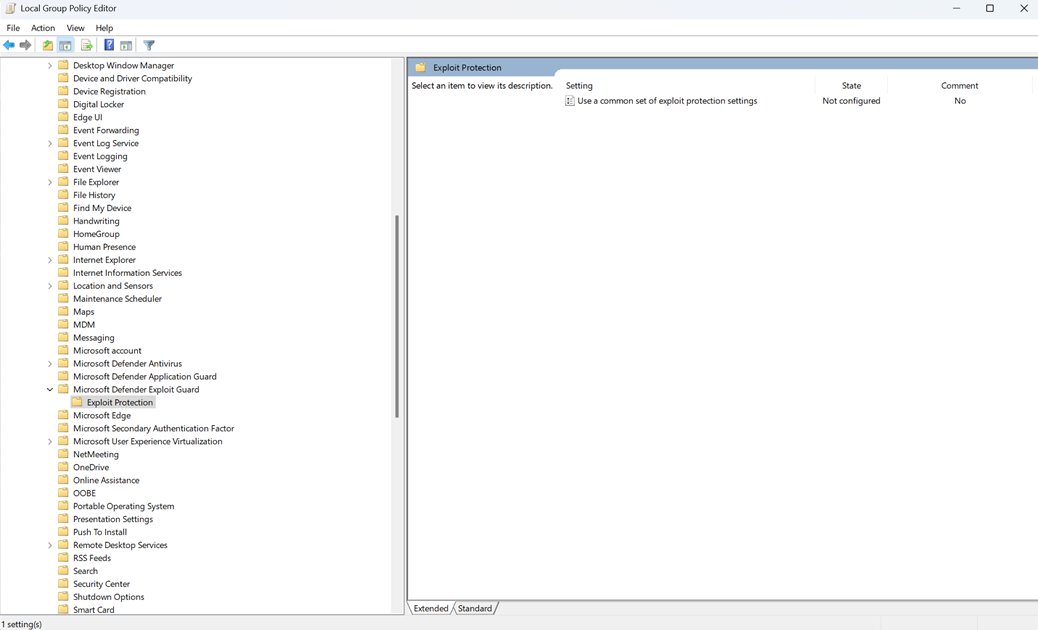
| Local Group Policy Editor (gpedit.msc) | Computer configuration > Administrative templates > Windows components > Microsoft Defender Exploit Guard > Exploit Protection > Use a common set of exploit protection settings | Pointing several PCs at one exported XML file |
| Microsoft Intune | Endpoint security > Attack surface reduction > Exploit Protection profile | Managed company devices |
The Group Policy setting does not hold ASLR switches itself. It points to an exploit protection XML file exported from a configured PC, and it overrides whatever you set locally. Windows 10 builds before version 2004 label the folder Windows Defender Exploit Guard.
How to check if ASLR is enabled in Windows 11
- Open Exploit protection settings and read the three ASLR drop-downs on the System settings tab.
- Open PowerShell as administrator and run
Get-ProcessMitigation -System. - Find the ForceRelocateImages, BottomUp and HighEntropy entries in the output. NOTSET means Windows is using its default value.
- Run
Get-ProcessMitigation -Name app.exeto see the rule saved for one program. - Add
-RunningProcesseswhile the app is open to read the settings the live process actually received.
What is Address Space Layout Randomization (ASLR) in Windows
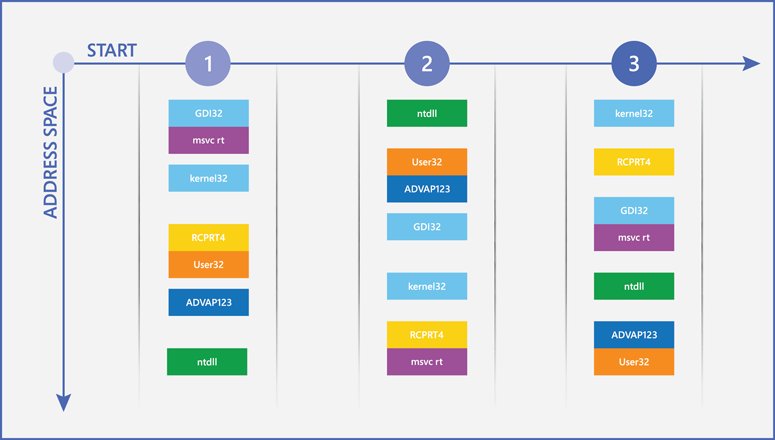
ASLR places code and data at unpredictable memory addresses. An attacker who cannot guess where existing executable code sits has a much harder time reusing it, for example in a return-to-libc attack.
| Windows Security name | PowerShell name | Windows 11 default | What it does |
|---|---|---|---|
| Force randomization for images (Mandatory ASLR) | ForceRelocateImages | Use default (Off) | Rebases EXEs and DLLs not compiled with /DYNAMICBASE. Optional: Do not allow stripped images |
| Randomize memory allocations (Bottom-up ASLR) | BottomUp | Use default (On) | Randomizes virtual memory allocations, including heaps, stacks, TEBs and PEBs |
| High-entropy ASLR | HighEntropy | Use default (On) | Adds 24 bits of entropy (1 TB of variance) to bottom-up allocations for 64-bit apps |
None of the three ASLR settings has an audit mode. Each one is either enforced or off, so test an app right after you change them.
Buffer over-run protection in Windows
ASLR is one of several system-level mitigations that make a buffer overrun harder to turn into running code. They all sit on the same System settings tab.
| Mitigation | Default | What it stops |
|---|---|---|
| Data Execution Prevention (DEP) | Use default (On) | Code running from data-only pages such as the heap and stack; always on for 64-bit apps |
| Control flow guard (CFG) | Use default (On) | Indirect calls to locations an app did not expect |
| Validate exception chains (SEHOP) | Use default (On) | Tampered exception handler chains in 32-bit apps |
| Validate heap integrity | Use default (On) | A process that keeps running after heap corruption |
| ASLR (three settings) | Mandatory Off, Bottom-up and High-entropy On | Reuse of code at known memory addresses |
DEP and ASLR work as a pair. DEP blocks injected code from running, and ASLR hides the location of code that is already allowed to run.
Reset ASLR to the default in Windows 11
- Open Exploit protection settings and select the System settings tab.
- Set Force randomization for images (Mandatory ASLR), Randomize memory allocations (Bottom-up ASLR) and High-entropy ASLR back to Use default.
- Select the Program settings tab, open each app you changed with Edit, and clear Override system settings under both ASLR entries.
- Or run
Set-ProcessMitigation -System -Remove -Disable ForceRelocateImages,BottomUp,HighEntropyin an admin PowerShell window to remove the system overrides. - Run
Set-ProcessMitigation -Name app.exe -Remove -Disable ForceRelocateImages,BottomUpto remove an app override. - Restart Windows.
Is it safe to disable ASLR in Windows 11?
Leave Bottom-up ASLR and High-entropy ASLR on, and turn ASLR off only for the single app that fails with it. A system-wide change removes the protection from every program, browsers included, while compatibility problems are usually limited to older apps built with fixed base addresses or 32-bit pointer assumptions.
Microsoft describes the Use default values as its baseline for everyday home use. If you are troubleshooting several mitigations at once, the full Exploit Protection switch-off steps show how to undo them one by one.
ASLR settings not changing in Windows 11
The ASLR setting changes back or ignores your choice
A Group Policy or Intune exploit protection policy overrides the local configuration.
- Press Win + R, type
gpedit.mscand press Enter on Pro, Enterprise or Education. - Go to Computer configuration > Administrative templates > Windows components > Microsoft Defender Exploit Guard > Exploit Protection.
- Check whether Use a common set of exploit protection settings is Enabled.
- On a work PC, ask the administrator to change the policy XML instead of editing it locally.
An old app crashes or will not start after you enable Mandatory ASLR
The app was built with assumptions about its base address, or its relocation data was stripped.
- Open the app's entry on the Program settings tab.
- Tick Override system settings under Force randomization for images (Mandatory ASLR) and set it to Off.
- If you ticked Do not allow stripped images, clear that option first and test again.
- Select Apply and reopen the app.
A 64-bit app fails only with High-entropy ASLR on
The app stores pointers in 32-bit variables and expects a base address below 4 GB.
- Open the app on the Program settings tab.
- Under Randomize memory allocations (Bottom-up ASLR), tick Override system settings.
- Tick Don't use high entropy and select Apply.
Display problems after forcing system-wide ASLR with an older AMD graphics driver
Microsoft lists certain AMD (ATI) video drivers as incompatible with system ASLR set to always on.
- Set Force randomization for images (Mandatory ASLR) back to Use default (Off).
- Restart the PC.
- Update the graphics driver from AMD or Windows Update before you try again.
Nothing changes after you switch ASLR off
System-level exploit protection changes apply only after a restart.
- Restart Windows, not just the app.
- Run
Get-ProcessMitigation -Systemand check the ASLR entries no longer read NOTSET.
Windows 11 ASLR FAQ
What is address space layout randomization?
Address space layout randomization (ASLR) loads programs, DLLs and memory allocations at unpredictable addresses. An attacker who exploits a memory bug then cannot rely on knowing where useful code sits, which blocks attacks that reuse existing code.
Is ASLR enabled by default in Windows 11?
Yes, partly. Bottom-up ASLR and High-entropy ASLR are on by default, while Force randomization for images (Mandatory ASLR) is off by default. The defaults appear in brackets next to Use default on the System settings tab.
What is the difference between Mandatory ASLR and Bottom-up ASLR?
Mandatory ASLR forces programs that did not opt in to ASLR to load at a different address. Bottom-up ASLR adds randomness to memory allocations. Mandatory ASLR alone gives a predictable new address, so Microsoft pairs the two.
What is high-entropy ASLR?
High-entropy ASLR widens the randomization range for 64-bit apps by 24 bits, or 1 TB of variance. A few apps that keep pointers in 32-bit variables fail with it, and the Don't use high entropy option fixes them per app.
Do I need to restart after changing ASLR?
Yes for system settings. System-level exploit protection changes need a device restart. A per-app change on the Program settings tab only needs that app to be closed and reopened.
Can I turn off ASLR for just one program?
Yes. Add the program on the Program settings tab of Exploit protection, tick Override system settings under each ASLR entry and set it to Off. Every other app keeps the system-wide ASLR setting.
Does ASLR have an audit mode?
No. Force randomization for images and Randomize memory allocations have no audit mode, so they cannot be tested in a log-only state. Turn them on for one app first and check that it still works.
Is ASLR the same as DEP?
No. Data Execution Prevention stops code from running in data-only memory such as the stack and heap, while ASLR hides where code is loaded. Both are separate entries on the Exploit protection System settings tab.