Open Task view with Windows key + Tab, right-click a desktop, select Choose background and pick a picture to give that desktop its own wallpaper on Windows 11.
This guide covers the Task view and Settings routes, what each desktop can and cannot show, a different picture for each monitor, and fixes for wallpaper that looks blurry or does not fill the screen.
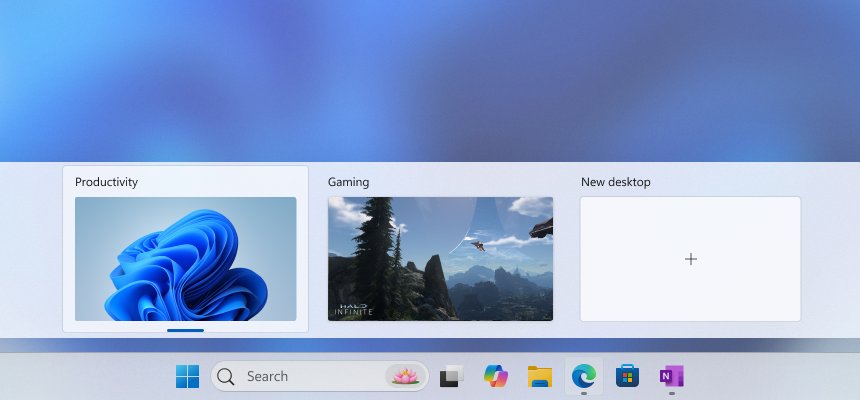
Set different wallpaper on different desktops on Windows 11
Each virtual desktop in Windows 11 can carry its own background picture. A distinct wallpaper makes it obvious at a glance whether you are on your work desktop or your personal one.
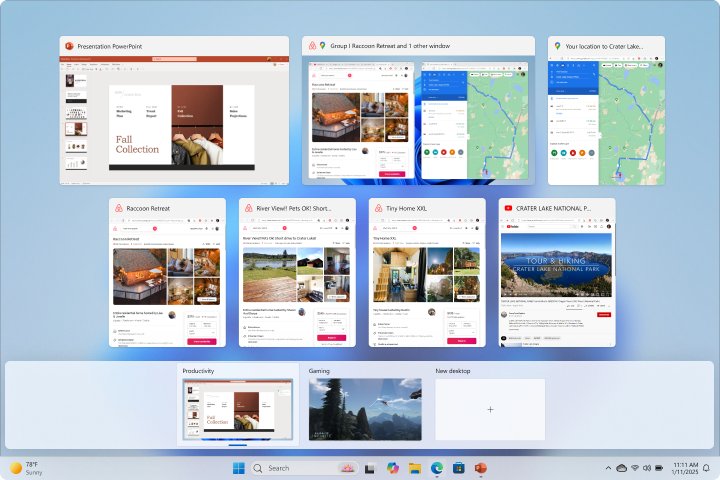
- Press Windows key + Tab, or hover over the Task view icon on the taskbar.
- Right-click the desktop thumbnail you want to change.
- Select Choose background. The Background page in Settings opens for that desktop.
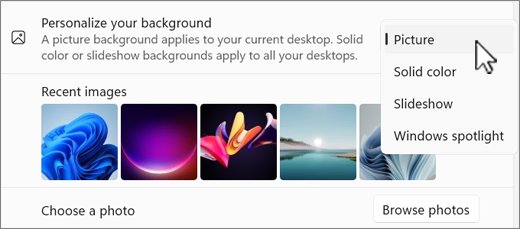
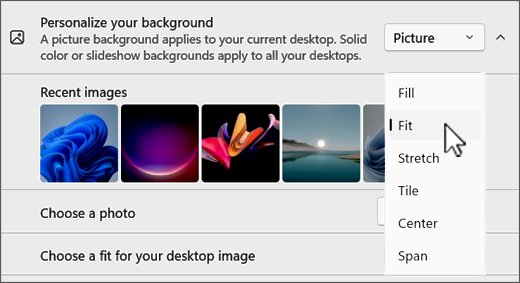
- Under Personalize your background, select Picture from the dropdown.
- Select one of the pictures shown, or select Browse and pick an image file from your PC.
- Open Task view again and repeat these steps for each other desktop.
The picture applies only to the desktop you right-clicked. The other desktops keep their current wallpaper until you change them.
How to set different wallpapers on desktop from Settings in Windows 11
The Recent images row on the Background page can send any recent picture to one desktop or to all of them. Use this route when the pictures you want are already in that row.
- Right-click an empty area of the desktop and select Personalize, or open Settings and select Personalization.
- Select Background.
- Make sure Personalize your background is set to Picture.
- Under Recent images, right-click the picture you want to use.
- Select the desktop you want the picture on, or select Set for all desktops to use it everywhere.
- Repeat for the next picture and the next desktop.
To add a new picture to Recent images, select Browse, pick the file, then right-click its thumbnail. The same page also holds the fit types and slideshow options, and the Windows 11 wallpaper settings explain each one.
How to create a new virtual desktop in Windows 11
Per-desktop wallpaper needs at least two desktops. A name for each one makes the Task view menu easier to read when you assign pictures.
- Press Windows key + Tab, or hover over the Task view icon on the taskbar.
- Select New desktop. You can also press Windows key + Ctrl + D to create one straight away.
- Select the name of the new desktop, such as Desktop 2, and type a name such as Work.
- Press Enter to save the name.
- Open the apps you want on that desktop, then set its wallpaper with Choose background.
Virtual desktops also keep their own set of open apps, so you can separate work and personal apps as well as their backgrounds.
Can you use a slideshow on different virtual desktops in Windows 11?
No. A separate background for each desktop works only with the Picture option. Microsoft lists these limits for Windows 11 when more than one desktop is in use.
| Background type | Different per desktop? | What happens |
|---|---|---|
| Picture | Yes | Each desktop can show its own image file |
| Solid color | No | You cannot give each desktop a different color |
| Slideshow | No | Slideshow is not supported as a per-desktop background |
| Windows spotlight | Not listed | Microsoft documents per-desktop backgrounds for pictures only |
| A different picture per monitor | No | Per-monitor pictures are not supported while you use multiple desktops |
To get a solid-color look on one desktop, save a plain image in that color and set it as that desktop's picture. If you want the daily image instead, set Windows spotlight as the desktop wallpaper on a single-desktop setup.
Set different wallpapers on dual monitors in Windows 10
Microsoft's background steps for a different picture on each display apply to Windows 10 and Windows 11. The option is not available while you use multiple desktops, so close extra desktops first if the menu does not offer a monitor.
- Right-click an empty area of the desktop and select Personalize.
- Select Background.
- Under Background or Personalize your background, select Picture.
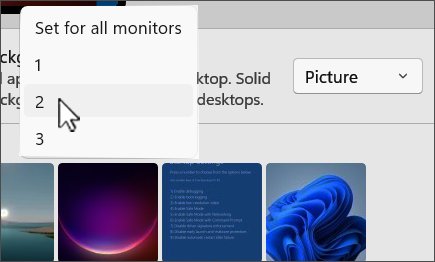
- Right-click the picture you want on the first screen and choose that monitor from the menu.
- Right-click a different picture and choose the second monitor.
- Set Choose a fit to Fill so each picture covers its whole screen.
Support for Windows 10 ended on October 14, 2025. The steps still work, but the PC no longer receives free security fixes from Windows Update.
Set different wallpaper for each monitor: Picture, Slideshow or Span
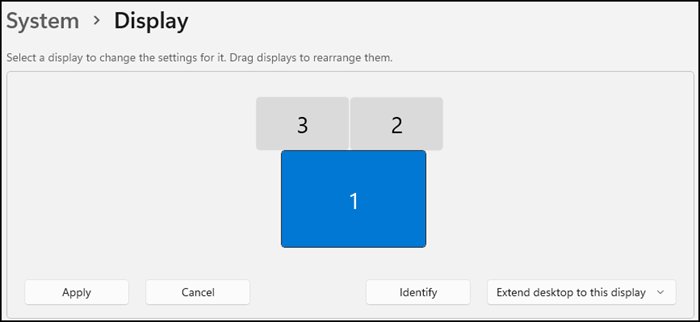
Windows numbers every connected screen. To see which number belongs to which screen, open Settings > System > Display and select Identify.
| What you want | Background setting | How it behaves |
|---|---|---|
| A chosen picture on each of 2, 3 or 4 monitors | Picture, then right-click each image and pick a monitor | Each display keeps the image you assigned |
| Changing pictures on every screen | Slideshow with a folder of images | Each screen shows a different picture from the folder |
| One wide image across all screens | Picture with the Span fit | A single image stretches across every monitor |
| The same picture everywhere | Picture, then right-click and set it for all displays | Every monitor shows one image |
| A different picture per desktop | Task view > Choose background | Per-monitor pictures stop working while multiple desktops are in use |
Windows 11 virtual desktop keyboard shortcuts
These shortcuts let you jump between desktops and see each wallpaper change without opening Task view.
| Shortcut | What it does |
|---|---|
| Windows key + Tab | Opens Task view, where you right-click a desktop to choose its background |
| Windows key + Ctrl + D | Creates another desktop |
| Windows key + Ctrl + Right arrow | Switches to the desktop on the right |
| Windows key + Ctrl + Left arrow | Switches to the desktop on the left |
| Windows key + Ctrl + F4 | Closes the desktop you are using |
Closing a desktop does not close its apps. Its open windows move to the next available desktop.
Show only the current desktop's apps on the taskbar in Windows 11
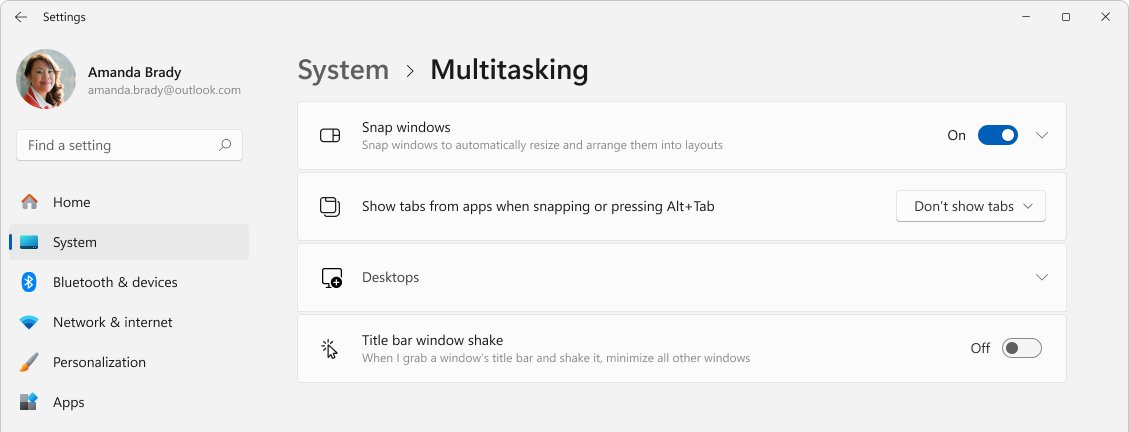
Separate wallpapers work best when each desktop also shows only its own windows. Two Multitasking settings control this.
- Open Settings and select System > Multitasking.
- Expand Desktops.
- Under On the taskbar, show all the open windows, select Only on the desktop I'm using.
- Under Show all open windows when I press Alt+Tab, select the option that shows windows from the current desktop only.
- Switch desktops with Windows key + Ctrl + Right arrow and check that the taskbar changes along with the wallpaper.
How to tell if each virtual desktop has its own wallpaper
- Close Settings so the desktop is visible.
- Press Windows key + Ctrl + Right arrow to move to the next desktop.
- Check that the background changes to the picture you chose for that desktop.
- Press Windows key + Ctrl + Left arrow to go back and check the first desktop's picture.
- If two desktops show the same image, open Task view, right-click the desktop that is wrong and select Choose background again.
How to use the same wallpaper on all desktops in Windows 11
- Open Settings > Personalization > Background.
- Under Recent images, right-click the picture you want everywhere.
- Select Set for all desktops.
- Switch through your desktops with Windows key + Ctrl + Right arrow to check that each one shows the same picture.
Closing every extra desktop also leaves a single background, and it brings back the option to set a different picture for each monitor.
Blurry or pixelated wallpaper on Windows 11
A wallpaper looks soft when Windows has to enlarge it, or when the screen runs below its native resolution.
The picture looks blurry or blocky on a large or high-resolution screen
The image has fewer pixels than the screen, so the Fill or Stretch fit enlarges it.
- Open Settings > System > Display and note the value marked (Recommended) under Display resolution.
- Use an image that is at least that wide and that tall.
- Open Settings > Personalization > Background and select the new picture.
- Set Choose a fit to Fill.
The wallpaper looks stretched or distorted
The Stretch fit ignores the image's shape when it does not match the screen.
- Open Settings > Personalization > Background.
- Change Choose a fit from Stretch to Fill, which crops the edges instead of distorting the picture.
- Select Fit instead if you need to see the whole image and can accept bars at the sides or top.
A small picture sits in the middle of the screen with a border
The Center fit shows the image at its original size without resizing it.
- Open Settings > Personalization > Background.
- Pick a larger image, or change Choose a fit to Fill.
- Select Tile only for small patterns you want repeated across the screen.
Monitor not displaying full screen in Windows 11
When the wallpaper or the whole picture does not reach the edges of a screen, the cause is usually a resolution mismatch between displays.
The wallpaper does not fill the external monitor after you connect it
The built-in display and the external monitor use different resolutions, so the wallpaper is sized for the wrong screen. It can look too small or be cropped on the right and bottom.
- Open Start > Settings > System > Display.
- Select the external display.
- In the Display resolution row, choose a different resolution from the list.
- When Windows asks whether to keep the change, select Revert. The wallpaper redraws at the correct size.
The screen image is small, centered or edged with black
The monitor is running below its native resolution.
- Open Settings > System > Display and select the monitor.
- In the Display resolution row, choose the option marked (Recommended).
- Check that the picture now reaches every edge of the screen.
The resolution changes on its own
The graphics driver might need an update.
- Select Start > Settings > Windows Update.
- Select Check for updates and install what is offered.
- Restart the PC, then check Display resolution again.
Different wallpaper on each desktop FAQ
How do I set different wallpapers on desktop in Windows 11?
Press Windows key + Tab, right-click a desktop, select Choose background and pick a picture. Repeat for each desktop. Only the Picture option works per desktop; slideshow and solid color apply to all desktops.
How do I set a different wallpaper on 2 monitors?
Open Settings > Personalization > Background, choose Picture, right-click an image and pick the monitor for it, then do the same with another image. The option is unavailable while you use multiple virtual desktops.
How do I set a different wallpaper on 3 monitors or 4 monitors?
Use the same Picture method and right-click a separate image for each monitor. Select Identify under Settings > System > Display first, so you know which number belongs to each screen.
How do I set a different wallpaper on the 2nd monitor only?
Right-click the picture you want in the Background page and assign it only to the second monitor. The first monitor keeps its current picture. Use Identify in Display settings if you are unsure which screen is number 2.
How do I set two different wallpapers in Windows?
Decide whether you mean two screens or two virtual desktops. For two screens, right-click each picture in the Background page and assign a monitor. For two desktops, use Task view and Choose background on each desktop.
How do I have changing wallpaper in Windows 11?
Select Slideshow under Personalize your background and choose a folder of images, then set how often the picture changes. Slideshow cannot be set separately for each virtual desktop.
How do I set a picture as wallpaper in Windows 11?
Right-click the image file in File Explorer and select Set as desktop background. In the Photos app, open the three-dot menu and select Set as > Background. Both set the picture for the desktop you are using.
Can each virtual desktop have a different wallpaper on each monitor?
No. Microsoft does not support a per-monitor picture while multiple desktops are in use. Each desktop gets one picture, and that picture is used on every connected screen.
For a moving background on a single desktop, you can set animated wallpaper in Windows 11.