Windows 11 already includes free folder synchronization software: Robocopy, a command-line tool that can mirror one folder to another drive, network share or USB disk with a single command.
This guide compares it with the free tiers of OneDrive, Google Drive for desktop, Dropbox Basic and the open-source WinSCP, and shows how to mirror, merge and schedule folder sync on Windows 11.
Free folder sync software built into Windows 11: Robocopy
Robocopy needs no download and has no storage cap beyond the destination drive. The steps below mirror a source folder to a backup folder, so the destination ends up as an exact copy.
- Select Start, type
cmdand open Command Prompt. - Preview the sync first with the list-only switch:
robocopy C:\Users\Admin\Records D:\Backup /MIR /L. Nothing is copied or deleted while/Lis set. - Read the list. Any file shown under the destination that no longer exists in the source will be deleted by
/MIR. - Run the real sync with retries and a log:
robocopy C:\Users\Admin\Records D:\Backup /MIR /R:2 /W:5 /LOG:C:\Logs\Backup.log. - Open
C:\Logs\Backup.logand check the summary table at the end of the run. - Run the same command again whenever you want the destination to catch up. Only new and changed files are copied on later runs.
Replace the two paths with your own folders and put quotation marks around any path that contains spaces. Create the C:\Logs folder before the first run, or point /LOG: at a folder that already exists.
Free file and folder sync software for Windows PC
Each free option syncs a different way. Local tools copy between drives you own, while cloud clients keep a folder on the PC matched to online storage and to your other devices.
| Software | How it syncs | Free allowance | Good fit for |
|---|---|---|---|
| Robocopy (built into Windows) | One-way copy or mirror between folders, drives and network shares | No limit beyond the destination drive | Mirroring a folder to an external drive, NAS or second disk |
| OneDrive (built into Windows 11) | Two-way sync between the PC and Microsoft cloud storage, plus Desktop, Documents and Pictures backup | 5 GB of cloud storage on a free Microsoft account; single files over 250 GB cannot sync | Keeping documents the same on several Windows PCs and phones |
| Google Drive for desktop | Streams files from the cloud or mirrors a full local copy | 15 GB shared across Gmail, Google Drive and Google Photos | People who already store files in a Google Account |
| Dropbox Basic | Two-way sync through a Dropbox folder | 2 GB of storage, up to 3 connected devices | Small sets of files shared between a few devices |
| WinSCP | Synchronizes a local folder with an SFTP, FTP, FTPS, SCP, WebDAV or S3 server, or two local folders | Free under the GNU GPL, including commercial use | Keeping a website or server folder matched to a PC folder |
| DFS Replication (Windows Server) | Active-active replication of folders between servers | Part of the File and Storage Services role in Windows Server | Offices that keep file servers in different sites in sync |
Cloud clients count every synced file against the account's storage quota, so a large photo or video folder fills a free tier quickly. Robocopy and WinSCP only need space on the destination.
What is file synchronization
File synchronization keeps the contents of two or more folders matched, so a change in one location shows up in the others. It is not the same as a backup, and the difference matters when you delete something by mistake.
| Sync type | What happens | Windows example |
|---|---|---|
| One-way copy | New and changed files go from source to destination; nothing is deleted | robocopy <source> <destination> /E |
| Mirror | The destination becomes an exact copy, so files deleted from the source are deleted from the destination too | robocopy <source> <destination> /MIR |
| Two-way sync | Changes made on either side are copied to the other side | OneDrive, Google Drive for desktop, Dropbox, WinSCP in Both direction |
| Backup | Copies are kept separately from the original, so a deletion does not spread to the copy | Windows Backup |
A mirror copies a mistake as faithfully as a good change, which is the core difference between sync and backup. Keep a separate backup of anything you cannot lose.
Robocopy command to synchronize files and folders
These switches cover most folder sync jobs on Windows 11. Robocopy copies data, attributes and time stamps by default, which is the /COPY:DAT setting.
robocopy "C:\Users\Admin\Records" "D:\Backup" /MIR /R:2 /W:5 /MT:16 /XD "Temp" /LOG:C:\Logs\Backup.log /TEE/MIR mirrors the tree (the same as /E plus /PURGE). /R:2 /W:5 retries a locked file twice, five seconds apart, instead of the default one million retries 30 seconds apart. /MT:16 copies with 16 threads (the default is 8). /XD "Temp" skips any folder named Temp. /LOG: writes the result to a file and /TEE also shows it in the window.
You should see: An exit code below 8 means no copy failed. Code 1 means all files were copied, and 0 means the folders already matched.
Leave out /MIR and use /E when you never want files removed from the destination. Add /XO to skip source files that are older than the copy already in the destination.
How to merge folders in Windows 11
Merging copies everything from one folder into another without deleting anything, and keeps the newer version when both folders hold a file with the same name. Robocopy does this with /E and /XO.
- Select Start, type
cmdand open Command Prompt. - Preview the merge:
robocopy "D:\Folder A" "D:\Folder B" /E /XO /L. - Run the merge from A into B:
robocopy "D:\Folder A" "D:\Folder B" /E /XO./Eincludes every subfolder, even empty ones, and/XOskips files in A that are older than the same file in B. - To make both folders hold the combined set, run the same command with the paths swapped:
robocopy "D:\Folder B" "D:\Folder A" /E /XO. - Open both folders in File Explorer and compare the item counts in the status bar.
- Delete the folder you no longer need only after the counts match.
Never add /MIR or /PURGE to a merge. Both delete destination files that are missing from the source, which is the opposite of merging.
How to schedule automatic folder sync in Windows 11
Robocopy runs once and stops. To sync on a schedule, save the command in a batch file and let Task Scheduler start it.
- Open Notepad, paste your Robocopy line, for example
robocopy "C:\Users\Admin\Records" "D:\Backup" /MIR /R:2 /W:5 /LOG+:C:\Logs\Backup.log, and save it asC:\Scripts\FolderSync.bat. - Double-click the batch file once and check the log to make sure the paths are right.
- Open Command Prompt and create a daily task at 6 PM:
schtasks /create /tn "Folder sync" /tr C:\Scripts\FolderSync.bat /sc daily /st 18:00. - Enter your account password if schtasks asks for it.
- Look for the SUCCESS line that says the scheduled task has been created.
- Open the log after the first scheduled run.
/LOG+:appends each run to the same file instead of overwriting it.
Schtasks does not check that the batch file exists, so a wrong path creates a task that never runs. For sync while you work, /MOT:<m> keeps Robocopy running and repeats the copy every m minutes when it sees changes.
How to sync files and folders with OneDrive in Windows 11
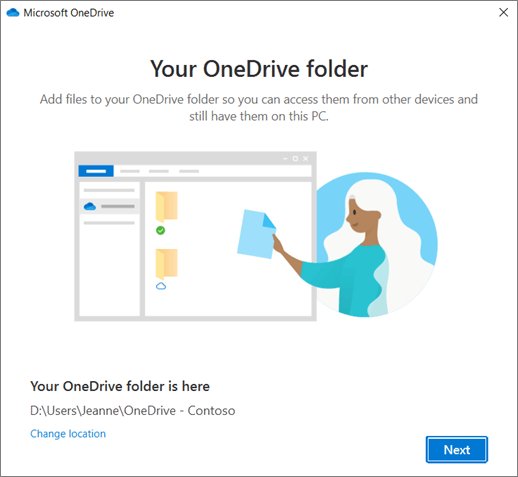
OneDrive is preinstalled on Windows 11 and syncs a OneDrive folder in File Explorer with your Microsoft account. Folder backup adds Desktop, Documents and Pictures to that sync, and the other OneDrive sync settings control what stays on the PC.
- Open OneDrive from Start and enter your Microsoft account, then select Sign in.
- On This is your OneDrive folder, select Next, or select Change location to put the folder on another drive.
- Select Next on the Files On-Demand screen. Online-only files take no disk space until you open them.
- Select the OneDrive cloud icon in the notification area, select the gear icon and choose Settings.
- Open the Sync and backup tab and select Manage backup.
- Turn on each folder marked Not backed up and select Save changes.
A free Microsoft account includes 5 GB of cloud storage, and email attachments count toward it. Move any file larger than 250 GB out of a backed-up folder, because OneDrive cannot sync it.
How to sync folders with Google Drive for desktop
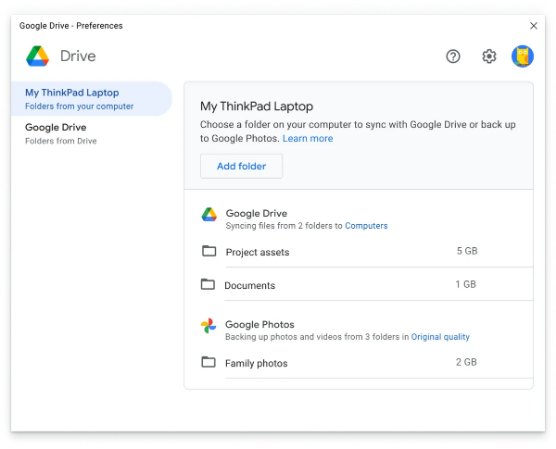
Google Drive for desktop adds a Google Drive folder to File Explorer that holds My Drive and Shared drives. The free 15 GB is shared with Gmail and Google Photos.
- Install Google Drive for desktop from Google's Drive download page and follow the on-screen instructions.
- Open Google Drive for desktop, select Get started, then Sign in, and choose your Google Account.
- Open File Explorer and select the Google Drive location to see My Drive and Shared drives.
- Decide between streaming, which keeps files mainly in the cloud and uses almost no disk space, and mirroring, which downloads a full copy of every file to the PC.
- Save or move files into My Drive to sync them to your other devices.
Synced shared files do not count against your Google storage, but mirroring them still fills the local drive.
WinSCP folder synchronization with an SFTP or FTP server
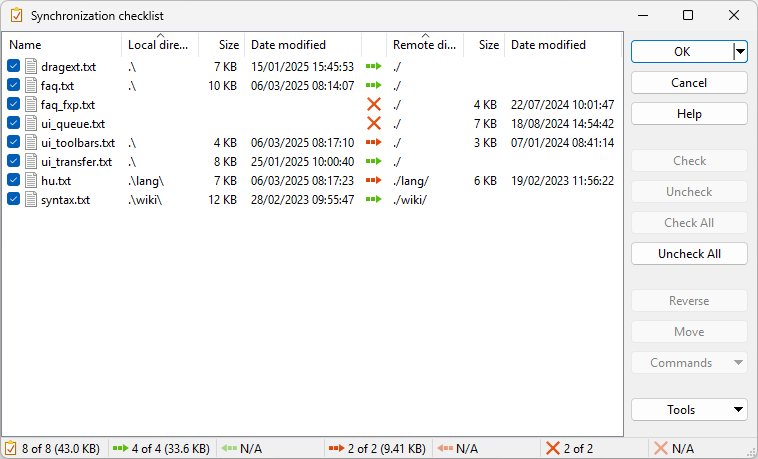
WinSCP is free and open source under the GNU GPL. Its Synchronize command makes a local folder and a server folder match, or two local folders, and shows a checklist of changes before it touches anything.
- Connect to your server in WinSCP and open the local and remote folders you want to match.
- Select Commands > Synchronize to open the Synchronize dialog.
- Pick the direction: Local changes only the PC folder, Remote changes only the server folder, and Both updates either side.
- Pick the mode: Synchronize files copies newer and missing files, Mirror files copies any file that differs, and Synchronize timestamps only fixes dates (SFTP only).
- Turn on Delete files only if files missing from the source should be removed from the target. In Both mode nothing is deleted.
- Turn on Preview changes, confirm the dialog, and untick anything in the synchronization checklist you do not want applied.
WinSCP needs the correct time stamps of the remote files before a local-remote sync, otherwise newer files can be overwritten by older ones.
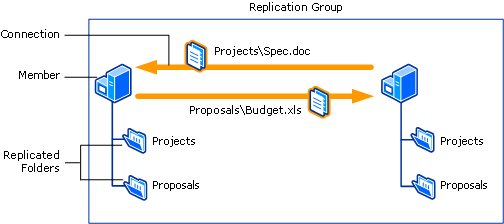
Windows Server file synchronization tool
Robocopy also runs on Windows Server, but servers that must stay in sync all the time use a replication service instead of a scheduled copy.
| Tool | What it does | How you get it |
|---|---|---|
| DFS Replication | Keeps replicated folders synchronized between servers and sites over limited bandwidth; remote differential compression sends only changed file blocks | Install as part of the File and Storage Services role with Windows Admin Center, Server Manager or PowerShell |
| Azure File Sync | Keeps several Windows file servers in sync while the full copy lives in Azure and each server keeps a local cache | A Microsoft Azure service that Microsoft suggests alongside DFS Replication to reduce on-premises storage |
| Robocopy | One-off or scheduled copy and mirror jobs between servers and shares | Built into Windows Server and Windows 11 |
Robocopy exit codes explained
Robocopy returns a number when it finishes. Scheduled tasks and scripts use it to tell a clean sync from a failed one.
| Exit code | Meaning |
|---|---|
| 0 | No files copied and no failure; the folders already matched |
| 1 | All files were copied successfully |
| 2 | Extra files exist in the destination that are not in the source; no files copied |
| 3 | Some files copied and extra files were present; no failure |
| 5 | Some files copied and some were mismatched; no failure |
| 6 | Extra and mismatched files exist; no files copied and no failure |
| 7 | Files copied, a mismatch was present and extra files were present |
| 8 or higher | At least one file failed to copy; open the log to see which |
Free file synchronization software FAQ
What is file synchronization?
File synchronization keeps two or more folders matched, so a file added, changed or deleted in one place is updated in the others. One-way sync copies from a source to a destination, while two-way sync copies changes from either side.
Is there free file synchronization software for Windows 11?
Yes. Windows 11 includes Robocopy for folder mirroring and OneDrive for cloud sync with 5 GB free. Google Drive for desktop, Dropbox Basic and WinSCP are also free to use on Windows 11.
Does Windows 11 have a built-in folder synchronization tool?
Yes. Robocopy is built into Windows 11 and mirrors a folder with robocopy <source> <destination> /MIR. OneDrive is also preinstalled and syncs its folder, plus Desktop, Documents and Pictures if you turn on folder backup.
Is there open source file synchronization software for Windows?
WinSCP is open source under the GNU General Public License and free for commercial use. It synchronizes a local folder with an SFTP, FTP, WebDAV or S3 server, or two local folders, through Commands > Synchronize.
What is the Windows Server file synchronization tool?
DFS Replication is the Windows Server role service that keeps folders synchronized across servers and sites. It is part of the File and Storage Services role. Microsoft also suggests Azure File Sync for servers that should keep the full copy in the cloud.
What is the best file synchronization software for Windows?
It depends on where the copy should live. Robocopy suits a mirror on an external drive or NAS, OneDrive or Google Drive suits sync between devices, and WinSCP suits a folder that must match a web or SFTP server.
Can Robocopy sync folders automatically?
Yes. Save the Robocopy command in a batch file and schedule it with schtasks /create /sc daily, or add /MOT:<m> so Robocopy stays running and repeats the copy every m minutes when it detects changes in the source.
Is OneDrive free file sync software?
OneDrive is free with any Microsoft account and includes 5 GB of cloud storage, shared with Outlook.com attachments. It syncs a OneDrive folder in File Explorer and can back up Desktop, Documents and Pictures. More storage needs a paid plan.