AirDrop is not an open door into your iPhone: transfers are encrypted, AirDrop is set to Contacts Only by default, and you must tap Accept before anything from another person is saved.
This guide shows how to lock AirDrop down, what to do after accepting an unknown AirDrop, and how to check an iPhone for real signs of a hack.
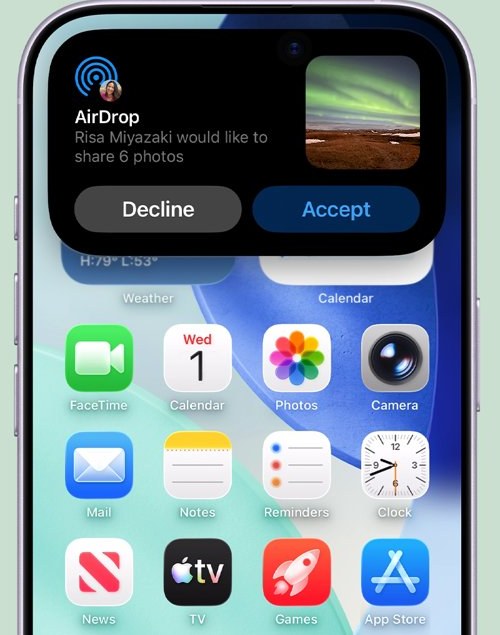
How to secure AirDrop on iPhone
The receive setting decides who can see your iPhone in their AirDrop list. Contacts Only hides it from strangers, and Receiving Off hides it from everyone.
- Open Settings.
- Tap General, then tap AirDrop.
- Tap Contacts Only to accept requests only from people in your Contacts, or Receiving Off to turn receiving off.
- Avoid leaving Everyone for 10 Minutes on in public places such as trains and stations.
- Update to the latest iOS from Settings > General > Software Update so AirDrop has every security fix.
Everyone for 10 Minutes switches itself back after 10 minutes. It returns to Contacts Only if you are signed in to your Apple Account, or to Receiving Off if you are not.
How AirDrop security works on iPhone
AirDrop uses Bluetooth Low Energy to find nearby devices and a direct peer-to-peer Wi-Fi link to send the file. That link is encrypted with TLS and does not pass through the internet or a Wi-Fi router.
| AirDrop setting | Who can see your iPhone | What happens to an incoming item |
|---|---|---|
| Receiving Off | Nobody | No AirDrop requests reach you |
| Contacts Only (default) | People whose Apple Account email or phone number is in your Contacts | You see who sent it and choose Accept or Decline |
| Everyone for 10 Minutes | Any nearby Apple device for 10 minutes | Strangers can send requests; on iOS 26.2 and later they must enter an AirDrop code from your screen |
| Your own devices on the same Apple Account | Your iPhone, iPad and Mac | Items are accepted automatically |
In Contacts Only mode, your iPhone compares the sender's identity hash with your Contacts and does not respond at all when there is no match. A sender who is not verified shows up only as a silhouette and a device name.
What to do after accepting an unknown AirDrop on iPhone
Accepting an AirDrop saves the item in the app it was sent from. A photo goes to Photos, and some files go to the Files app. Work through these steps to clean up and close any gap.
- Open Photos or Files and delete the item you accepted.
- Go to Settings > General > AirDrop and choose Contacts Only or Receiving Off.
- Go to Settings > General > Software Update and install any available update.
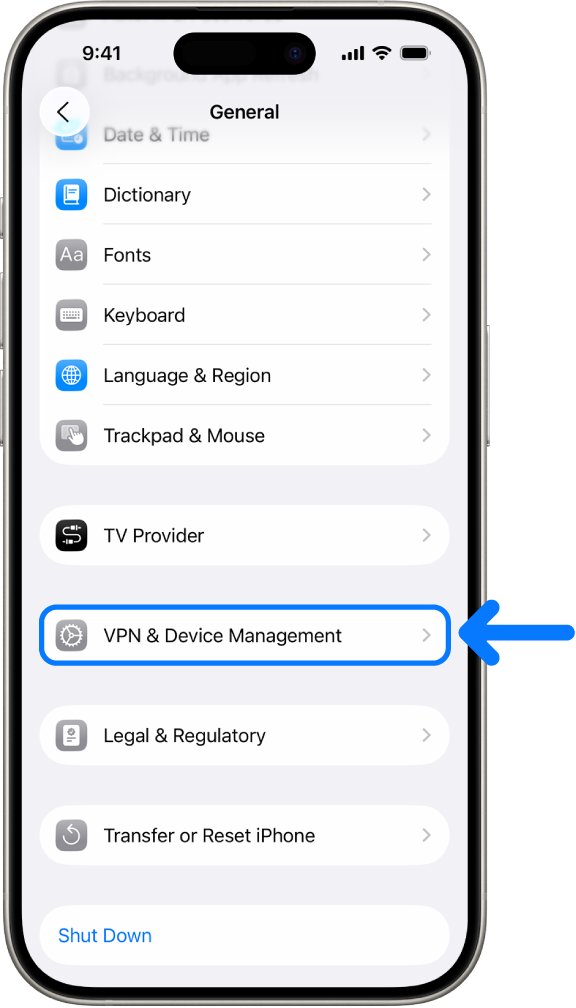
- Go to Settings > General > VPN & Device Management and check for profiles you did not install.
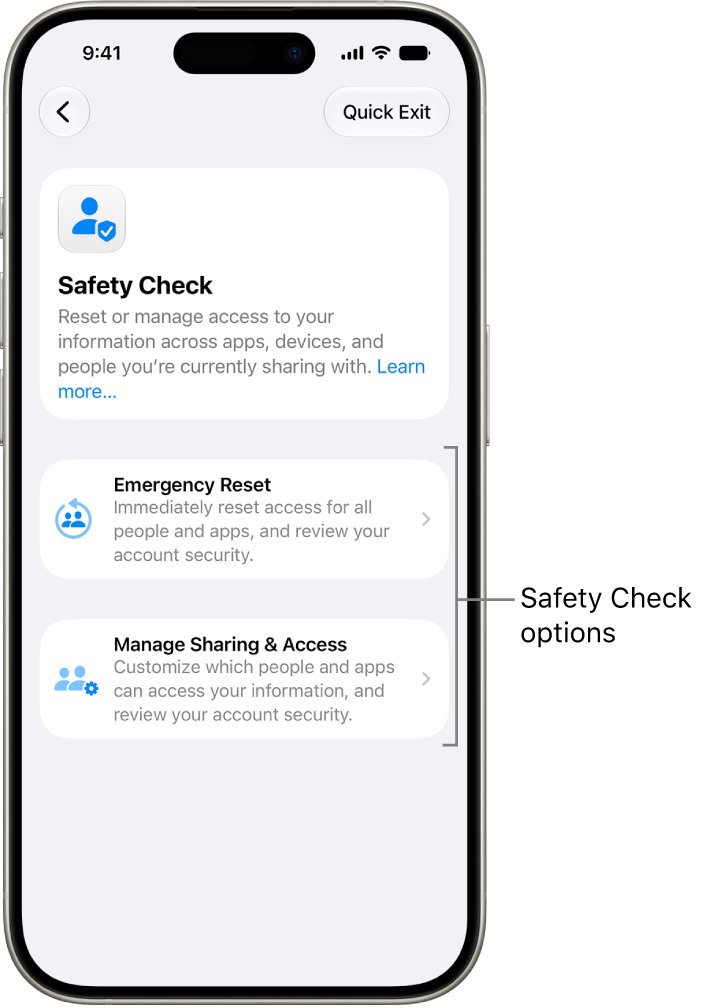
- Go to Settings > Privacy & Security > Safety Check and review the devices and people with access to your information.
- Watch for the account warning signs listed in the next sections over the following days.
If none of those checks turns anything up, the AirDrop was an unwanted message rather than a break-in. AirDrop itself does not install apps or profiles on its own.
How to turn off AirDrop from Control Center on iPhone
Control Center is the quickest place to change AirDrop when you are already out in public.
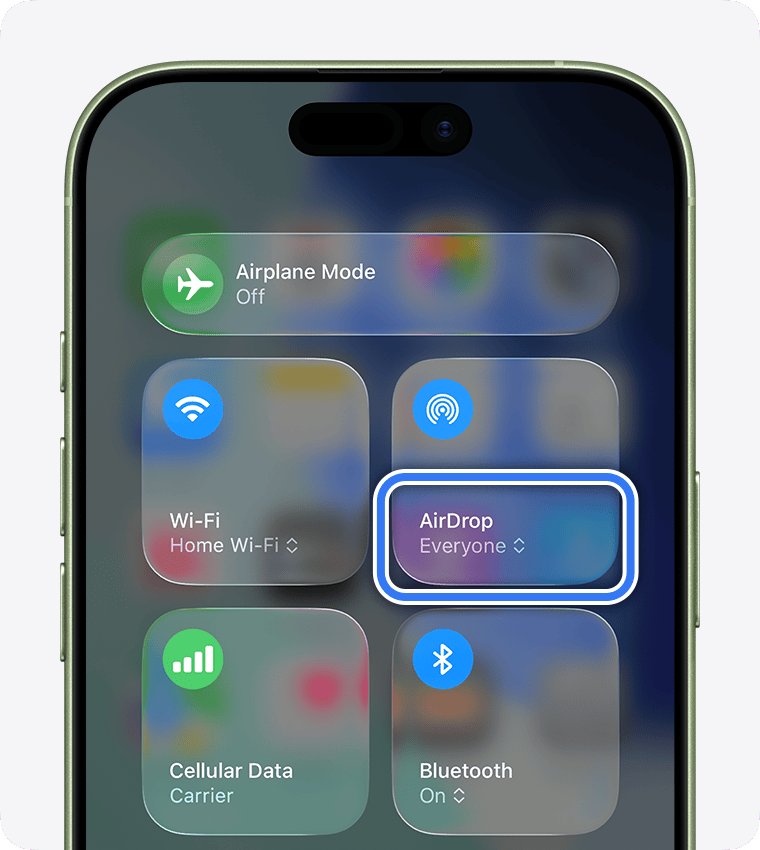
- Open Control Center.
- Touch and hold the top-left group of connectivity controls.
- Tap the AirDrop button.
- Tap Contacts Only to stop strangers, or use Settings > General > AirDrop to choose Receiving Off.
How to forget an AirDrop contact on iPhone
From iOS 26.2, a person who sent you something with an AirDrop code stays on your Other Known list for 30 days and can keep sending without a new code.
- Open the Contacts app.
- Find the sender in your Other Known list.
- Select the person.
- Tap Forget This Person.
After that, the person needs a fresh AirDrop code, which only appears if you choose to receive their item.
How to turn on Sensitive Content Warning for AirDrop
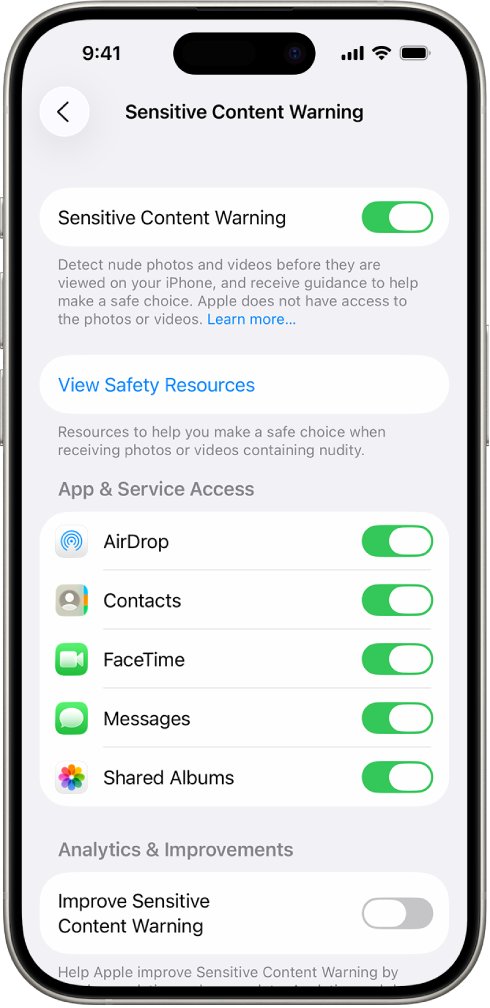
Unwanted images are the most common AirDrop problem in public places. Sensitive Content Warning blurs photos and videos that appear to contain nudity before you see them, in AirDrop, Messages, FaceTime video messages and Contact Posters.
- Open Settings.
- Tap Privacy & Security.
- Tap Sensitive Content Warning.
- Turn on Sensitive Content Warning.
For a child's iPhone, Communication Safety does the same job and can also warn the child and offer resources.
How to find if your iPhone is hacked
Apple lists specific signs that someone else has access to your Apple Account. Check each one rather than relying on a vague feeling that the phone is acting oddly.
- Look for Apple notifications or emails about sign-ins or password changes you did not make.
- Note any two-factor authentication codes you did not request.
- Check Messages, Photos and other apps for sent messages or deleted items you do not recognize.
- Sign in at account.apple.com, select Devices, and look for devices you do not own.
- Check Settings > General > VPN & Device Management for unknown profiles. No profiles listed means no device management profile is installed.
- Confirm the phone has not been locked or put in Lost Mode by someone else, and that your Apple Account password still works.
If none of these signs appear, there is no evidence that your iPhone or Apple Account has been taken over.
How to secure a hacked iPhone
Follow these steps if any warning sign above checks out. Start with the Apple Account, because it controls your devices, iCloud data and purchases.
- Change your Apple Account password to a strong, unique one. If someone else already changed it, reset the password.
- At account.apple.com, correct any personal or security details you do not recognize.
- Select Devices at account.apple.com and remove any device you do not recognize.
- Ask your email provider and carrier to confirm you control every email address and phone number on the account, and that SMS forwarding is not set up.
- Turn on two-factor authentication if it is not already on.
- Delete any unknown profile in Settings > General > VPN & Device Management, then restart the iPhone.
- Use Safety Check to reset sharing and app permissions.
If you cannot reset the password or sign in, start Apple Account recovery at iforgot.apple.com. Recovery includes a waiting period before you get access back.
How to stop iPhone from being hacked
These are the protections Apple recommends for every user, not only people who have had a scare.
- Turn on automatic updates in Settings > General > Software Update > Automatic Updates.
- Protect the iPhone with a passcode plus Face ID or Touch ID.
- Use two-factor authentication and a strong password for your Apple Account.
- Turn on Stolen Device Protection.
- Install apps only from the App Store.
- Use strong, unique passwords online, and passkeys where a site offers them.
The same habits keep Apple Pay secure too, since it relies on the same passcode, Face ID and Apple Account protection.
How to turn on Lockdown Mode on iPhone
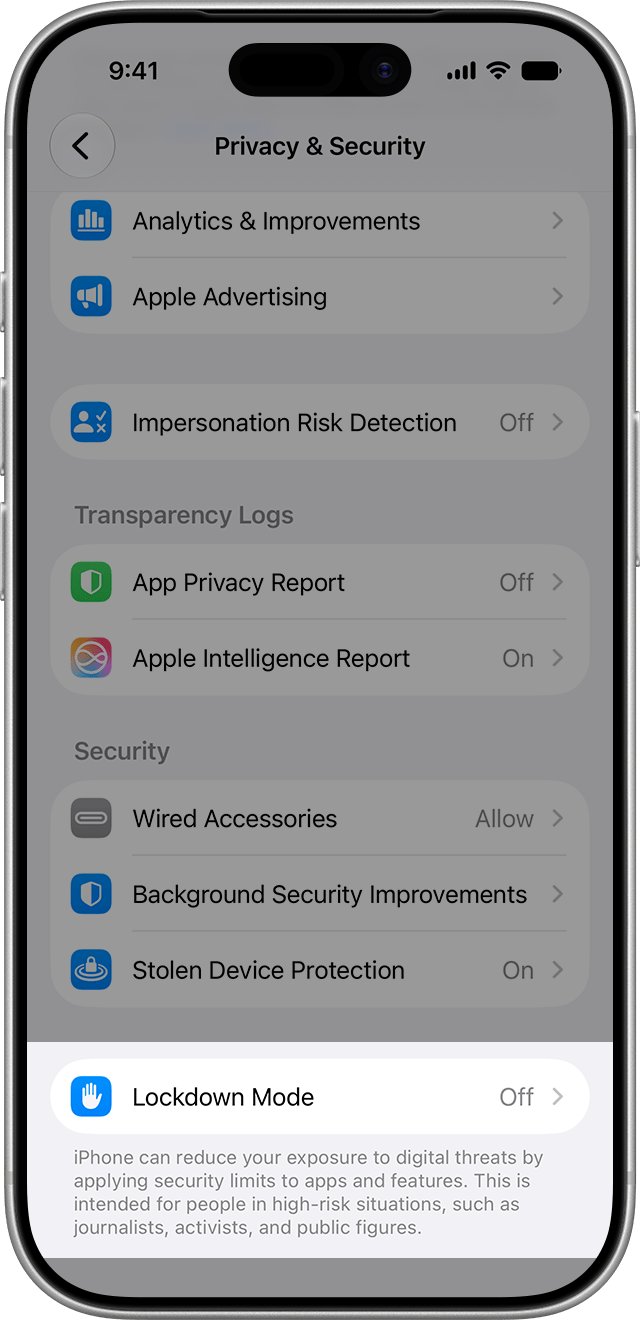
Lockdown Mode is an optional, extreme protection for the very few people who might be personally targeted by mercenary spyware. Most people are never targeted by attacks of this kind, and Lockdown Mode limits Messages attachments, web technologies, FaceTime and other features.
- Update the iPhone to the latest iOS first.
- Open Settings and tap Privacy & Security.
- Scroll down and tap Lockdown Mode.
- Tap Turn On Lockdown Mode, then tap Turn On Lockdown Mode again.
- Tap Turn On & Restart, then enter your passcode.
Apple sends an Apple Threat Notification on the Lock Screen, in Settings and by email when it detects a mercenary spyware attack. A genuine notice never asks you to click links, open files, install apps or profiles, or give a password or code.
Getting AirDrop requests from strangers on iPhone
An AirDrop image arrived in a public place even though you thought receiving was off
The receive setting was Contacts Only or Everyone for 10 Minutes at the time, or a contact sent it.
- Open Settings > General > AirDrop and confirm which option is ticked.
- Choose Receiving Off while you travel.
- Tap Decline on any request you do not expect.
You tapped Accept on an AirDrop by mistake
The item was saved in Photos or Files like any shared file.
- Delete the item from Photos or Files.
- Run the checks in the section on what to do after accepting an unknown AirDrop.
A message or web page says your iPhone has been hacked
Pop-ups and messages that ask you to tap a link or install something are scams, not Apple warnings.
- Close the page without tapping anything in it.
- Do not install any profile or app it offers.
- Sign in at account.apple.com yourself to check for a real Apple notice.
AirDrop will not receive from your own contacts
Contacts Only needs the sender's Apple Account email or phone number on their card in your Contacts.
- Add the sender's Apple Account email or phone number to their contact card.
- Make sure both phones have Wi-Fi and Bluetooth on and are within 30 feet (10 meters).
If your iPhone can receive but not send, fix AirDrop not sending files before you change any security setting.
iPhone AirDrop hacking FAQ
Can my iPhone be hacked through AirDrop?
AirDrop is designed so that nothing from another person is saved until you tap Accept, and every transfer is encrypted with TLS. Keep AirDrop on Contacts Only or Receiving Off and install iOS updates, which carry Apple's security fixes.
Can someone hack into your iPhone by sending a photo with AirDrop?
Accepting a photo saves it to Photos like any other picture. AirDrop does not install apps or profiles. Delete the photo, update iOS, and check VPN & Device Management for unknown profiles if you want reassurance.
Can hackers access your iPhone?
Most iPhone account takeovers start with a stolen Apple Account password or a phishing trick, not a wireless attack. Two-factor authentication, a strong unique password and current iOS updates block the common routes.
Can your Apple phone be hacked with Contacts Only on?
With Contacts Only, your iPhone does not even respond to AirDrop senders who are not in your Contacts. Strangers never see your phone in their AirDrop list, so they cannot send you a request.
Has someone hacked my iPhone?
Look for Apple sign-in alerts you did not trigger, two-factor codes you did not request, unknown devices at account.apple.com, and profiles you did not install. Without those signs, there is no evidence of a hack.
Apple iPhone hacked, what to do first?
Change your Apple Account password first, then remove unknown devices at account.apple.com, turn on two-factor authentication, delete unknown profiles and run Safety Check in Settings > Privacy & Security.
Can someone hack your iPhone through AirDrop if it is turned off?
With Receiving Off, your iPhone does not appear in anyone's AirDrop list and no requests reach you. Turning AirDrop off removes it as a route entirely.
Is Everyone for 10 Minutes safe to use?
It is safe for a short, deliberate transfer. Strangers can send you requests during those 10 minutes, but you still choose Accept or Decline, and on iOS 26.2 and later they also need an AirDrop code from your screen.