VirtualBox is the best choice for most home users, while VMware Workstation Pro is the better choice for business use and virtual lab networks. VirtualBox is open source, downloads without an account and runs on more host systems, and Workstation Pro is free for commercial use with every feature included.
This comparison covers VirtualBox 7.2 and VMware Workstation Pro 26H1 as of November 2026, including licensing, snapshots, ease of use, graphics, Hyper-V and moving a VM between the two.
VirtualBox vs VMware for home and business use
Match your situation to a row. Both products cost nothing to download, so the decision comes down to licensing, platform and the features you need.
| Your situation | Choose | Why |
|---|---|---|
| Home user who wants a VM running today | VirtualBox | The download page needs no account, while Workstation Pro needs a Broadcom account that can take weeks to clear review |
| Company PC that needs every feature licensed | VMware Workstation Pro | The full product is free for commercial use, while the VirtualBox Extension Pack needs a paid Oracle license at work |
| Building a test network of several VMs | VMware Workstation Pro | The Virtual Network Editor and LAN segments are built in, along with latency and bandwidth simulation |
| Mac with Apple silicon | VirtualBox or VMware Fusion | Workstation Pro has no Mac version, and Fusion is the VMware product for Mac |
| PC with a CPU launched before 2011 | VirtualBox | Workstation Pro requires a 64-bit x86 CPU launched in 2011 or later |
| Windows PC that runs 3D apps in a guest | VMware Workstation Pro | Its guest driver reaches OpenGL 4.3, against OpenGL 4.1 for VirtualBox |
Windows also includes its own options, and a Windows 11 virtual machine comparison sets both products against Hyper-V and Windows Sandbox.
What do VirtualBox and VMware do?
Both let you run another operating system in a window on your PC. The guest runs in a virtual machine (VM) with its own virtual disk, memory and network card, so changes inside it stay away from your main system. You can run a virtual machine on Windows 11 with either product.
| Product | Vendor | Installs on | Latest release |
|---|---|---|---|
| VirtualBox | Oracle | Windows, Linux, macOS, Oracle Solaris | 7.2.22, released 20 October 2026 |
| VMware Workstation Pro | Broadcom | Windows and Linux | 26H1, released 14 May 2026, with a 26H1u1 update |
| VMware Fusion Pro | Broadcom | macOS | 26H1, released 14 May 2026 |
What are the types of hypervisors?
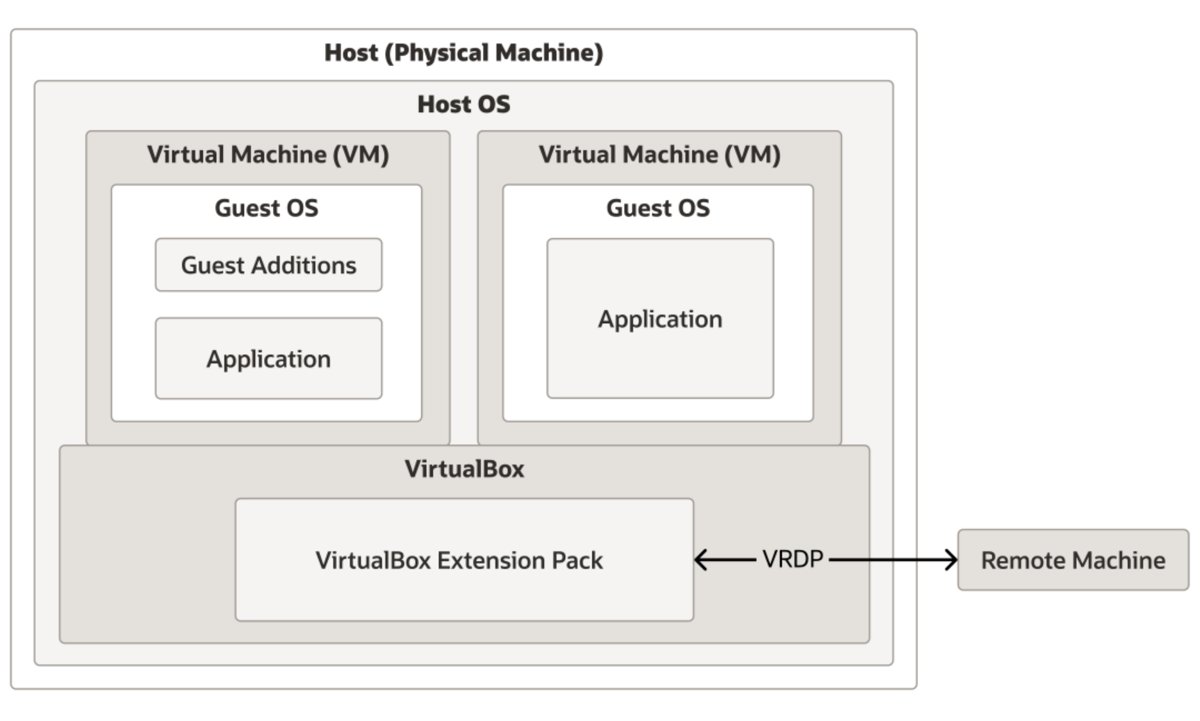
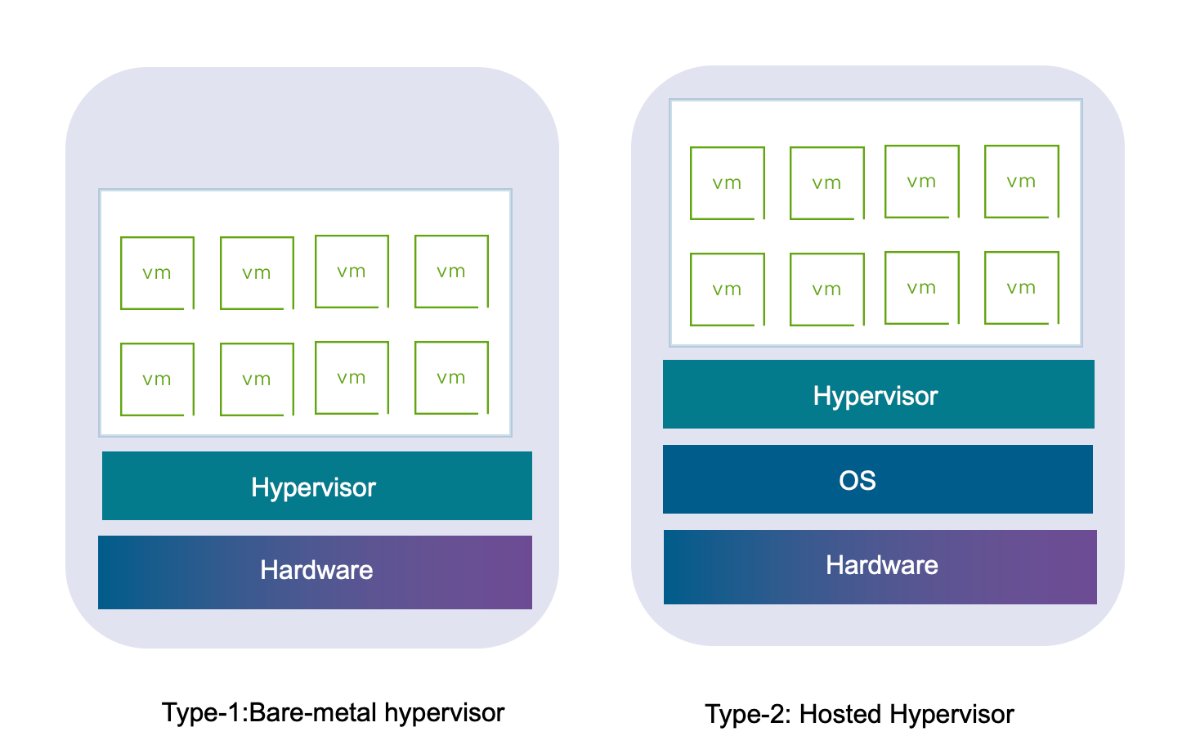
A hypervisor is the software layer that shares a computer's hardware between virtual machines. The two types differ in what sits underneath them.
| Type | Also called | Runs on | Examples |
|---|---|---|---|
| Type 1 | Bare metal | Directly on the hardware | VMware ESX, Microsoft Hyper-V, Xen, Linux KVM |
| Type 2 | Hosted | On top of an installed operating system | VirtualBox, VMware Workstation Pro, VMware Fusion |
VirtualBox and Workstation Pro are both hosted products, so this article compares like with like. You keep using Windows or Linux as normal and open the VM as an app.
Comparing VirtualBox and VMware type 2 hypervisors
| Feature | VirtualBox | VMware Workstation Pro |
|---|---|---|
| Price | Free | Free for commercial, educational and personal use |
| License | GPLv3 for the base package, PUEL for the Extension Pack | Broadcom proprietary terms, with no license key required |
| Open source | Yes, base package | No |
| Host systems | Windows, Linux, macOS, Oracle Solaris | Windows and Linux |
| Host CPU | x86-64, plus Arm64 on Apple silicon Macs, Linux and Windows 11 (experimental) | 64-bit x86/AMD64 launched in 2011 or later |
| Download | virtualbox.org, no account needed | Broadcom Support Portal, account required |
| Guest tools | Guest Additions | VMware Tools |
| Snapshots | Yes, branched | Yes, plus AutoProtect timed snapshots |
| Clones | Full and linked | Full and linked |
| Portable VM format | OVF import and export | OVF and OVA import, OVF export |
| Virtual disk formats | VDI, VMDK, VHD, HDD | VMDK |
| Networking | NAT, NAT Network, bridged, internal, host-only, cloud | NAT, bridged, host-only, custom networks, LAN segments |
| Vendor support for free users | Community, or paid Oracle support | Community forums, documentation and knowledge base only |
Once a VMware guest is running, you can still increase the VMware virtual disk size if the first allocation runs short.
VMware Player and VirtualBox functionality comparison
VMware Workstation Player was the free, reduced VMware product for years. Broadcom's 26H1 release notes cover Workstation Pro only, and the newest Player notes listed are for 17.6.1. Workstation Pro is now free, so a new setup has no reason to pick Player over it.
| Function | VMware Workstation Player | VirtualBox |
|---|---|---|
| Create and run VMs | Yes | Yes |
| Run downloaded virtual appliances | Yes | Yes, through OVF import |
| Shared folders | Yes | Yes, with Guest Additions |
| Bridged, NAT and host-only networks | Yes | Yes |
| USB devices | Yes | Yes, up to USB 3.0 with the xHCI controller |
| Snapshots | No topic in the Player guide, use Workstation Pro | Yes |
| Cloning | No topic in the Player guide, use Workstation Pro | Yes |
| Command-line control | vmrun | VBoxManage |
| Programming interface | REST API | SDK |
VirtualBox, VMware, and snapshots
A snapshot saves a VM's state so you can return to it after a bad update or a failed test. VirtualBox and Workstation Pro handle the basics the same way, and they differ in automation.
| Snapshot detail | VirtualBox | VMware Workstation Pro |
|---|---|---|
| What is saved | VM settings, attached virtual disks and, for a running VM, memory | Memory, settings and virtual disks |
| Take one while running | Yes, the VM pauses briefly | Yes, also while powered off or suspended |
| Return to any older state | Yes, from the snapshot tree | Yes, with Go To on the chosen snapshot |
| Automatic snapshots | Not covered in the manual | AutoProtect at intervals you set |
| Leave some disks out | Write-through disks stay unchanged on restore | Independent disks are not affected |
| Number allowed | No limit, only host disk space | No limit stated |
How to take a snapshot in VirtualBox
- For a running VM, open the Machine menu in the VM window and select Take Snapshot.
- For a VM that is powered off or saved, select it in VirtualBox Manager, click Snapshots, then click Take.
- Enter a name that describes the state, such as a clean install.
- Confirm the dialog, and the snapshot appears in the list above Current State.
- To go back later, select the snapshot on the Snapshots tab and click Restore.
Restoring discards the current state of the VM, so take a fresh snapshot first if you may want that state back.
How to take a snapshot in VMware Workstation Pro
- Select the virtual machine in the library.
- Open the VM menu, select Snapshot, then click Take Snapshot.
- Enter a unique name, and add a description of the VM state if it helps.
- Click OK.
- To go back to the parent snapshot, open VM, select Snapshot, then click Revert to Snapshot.
You cannot take a snapshot of a VM that uses a physical disk. Reverting also removes any disk added after the snapshot, along with its files if no other snapshot uses them.
Which is easier to use, VirtualBox or VMware Workstation Player?
VirtualBox is easier to get started with, and the two are close once a VM exists. Workstation Pro replaces Player in this table because it is the current free product.
| Task | VirtualBox | VMware Workstation Pro |
|---|---|---|
| Get the installer | Download from virtualbox.org | Register at the Broadcom Support Portal and wait for account review |
| Start a new VM | Home, then New | File, then New Virtual Machine |
| Choose simple setup | Basic experience level | Typical configuration |
| Install the guest automatically | Unattended installation from the ISO | Easy Install from the ISO |
| Add guest integration | Install Guest Additions | VMware Tools installs after Easy Install |
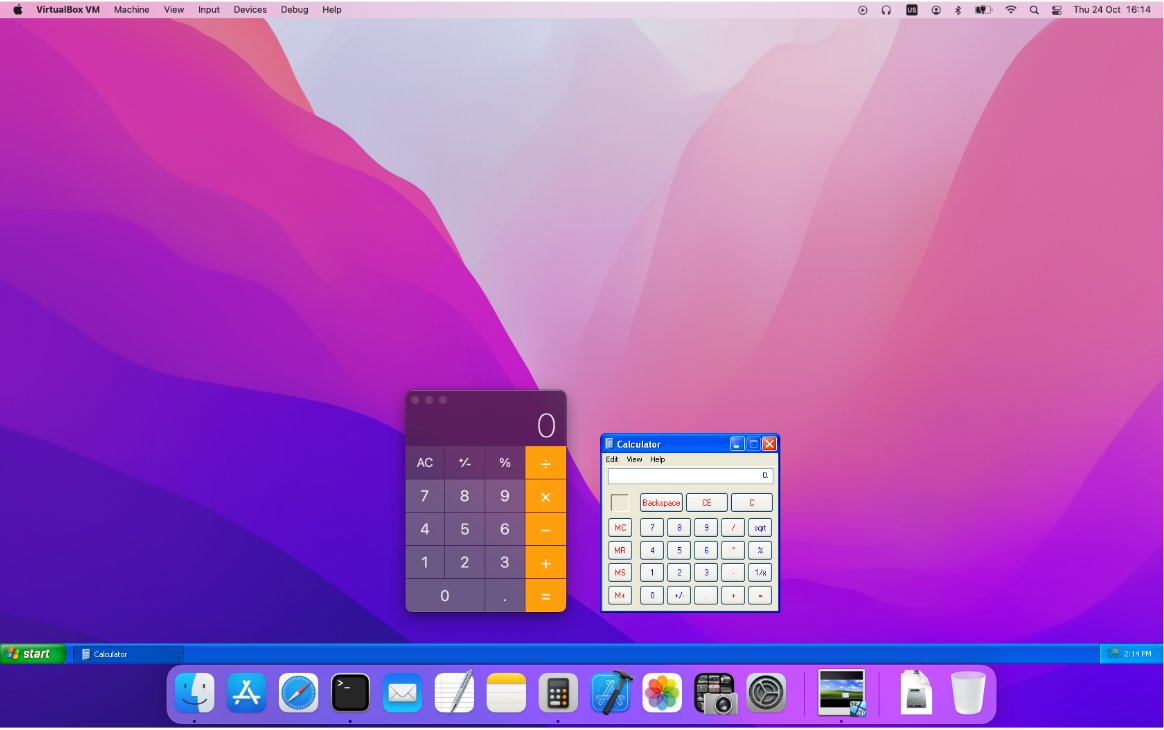
| Display modes | Full screen, and seamless windows with Host key + L | Full screen, exclusive mode and multiple monitors |
Guest Additions add shared folders, clipboard sharing and drag and drop, so install VirtualBox Guest Additions right after the guest system.
Which runs better, VirtualBox or VMware Workstation Player?
Workstation Pro has the edge on documented OpenGL level, and the two are level on Direct3D. Speed otherwise depends on your CPU, your guest and the workload, so test the guest you plan to use before settling on one.
| Factor | VirtualBox | VMware Workstation Pro |
|---|---|---|
| Direct3D in Windows guests | Direct3D 11.0 or 11.1 on Windows 8 and newer guests | DirectX 11 |
| OpenGL in guests | OpenGL 4.1 in Windows guests | OpenGL 4.3 compatibility profile |
| What 3D needs | Guest Additions and a supported graphics controller | VMware's guest graphics driver |
| Hardware virtualization | Nested paging with AMD-V or Intel VT-x EPT gives a significant gain | 64-bit guests require AMD-V or Intel VT-x |
| With Hyper-V or VBS on | A green turtle icon shows a native hypervisor is active | Runs through the Windows Hypervisor Platform and can be slower |
How to download VMware Workstation Pro for free
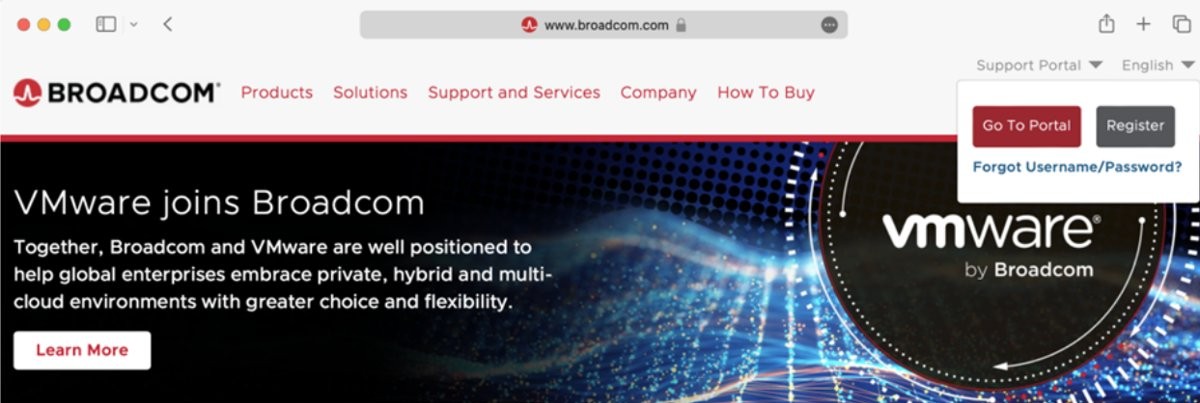
Workstation Pro has been free for all users since 11 November 2024, and no license key is required. The download sits behind a Broadcom account.
- Go to support.broadcom.com and select Support Portal in the upper right corner.
- Log in with a Broadcom account, or register for a basic account.
- Open the division dropdown and choose VMware Cloud Foundation.
- Click My Downloads, then follow the link to the free software downloads.
- Search for Workstation, click Show Results, then select VMware Workstation.
- Choose the newest release.
Basic accounts need approval from Broadcom's Export Compliance team before free downloads appear, and that review can take several weeks. Accurate profile details help avoid delays.
Is VirtualBox free for commercial use?
The base package is free for any use under GPLv3. The Extension Pack is not, because its license excludes commercial use.
| Part | License | Commercial use | What it adds |
|---|---|---|---|
| VirtualBox base package | GPLv3 | Allowed | The hypervisor, VirtualBox Manager and VBoxManage |
| Guest Additions | GPLv3 | Allowed | Shared folders, clipboard, seamless windows, 3D |
| Extension Pack | PUEL | Paid Enterprise license only | VRDP server, host webcam passthrough, Intel PXE boot ROM, AES disk encryption, cloud integration |
Oracle's Enterprise license for the Extension Pack is sold with Oracle support, and named user licenses have a minimum purchase of 100. A small business without that budget can use Workstation Pro, which needs no paid license.
How to move a VirtualBox VM to VMware Workstation
OVF is the shared format, so export from VirtualBox and import into Workstation Pro. Keep the original VM until the imported copy boots.
- Shut down the VM in VirtualBox Manager.
- Select File, then Export Appliance, select the VM and click Next.
- Set Format to Open Virtualization Format, choose a location under File, and finish the export.
- In Workstation Pro, select File, then Open, and select the exported .ova or .ovf file.
- Enter a name and a storage folder for the VM.
- Click Import, and the VM appears in the library when the import succeeds.
Workstation Pro supports OVF 1.x files only. If the import fails and you click Retry, it relaxes its compliance checks, and the VM may not work properly afterward. Going the other way, VirtualBox uses File, then Import Appliance, and it can also attach VMDK disks directly.
VirtualBox vs VMware on Apple silicon Mac
Workstation Pro does not run on a Mac at all. The real choice on a Mac is between VirtualBox and VMware Fusion Pro, which is free on the same terms.
| Question | VirtualBox | VMware Fusion Pro |
|---|---|---|
| Runs on Apple silicon | Yes | Yes |
| Windows 11 for Arm guest | Yes, with Premier Oracle support on macOS hosts | Yes, with a built-in Get Windows feature |
| 3D graphics | Experimental acceleration on Arm Macs | Hardware-accelerated DirectX 11 |
| Cost | Free | Free |
VirtualBox and VMware problems on Windows with Hyper-V
Microsoft warns that VMs from other virtualization apps might not start or might run unreliably while the Hyper-V hypervisor is running. Each symptom below lists its cause and fix.
Green turtle icon in the VirtualBox status bar
The Processor icon turns into a green turtle when a native hypervisor, such as Hyper-V, is running on the host.
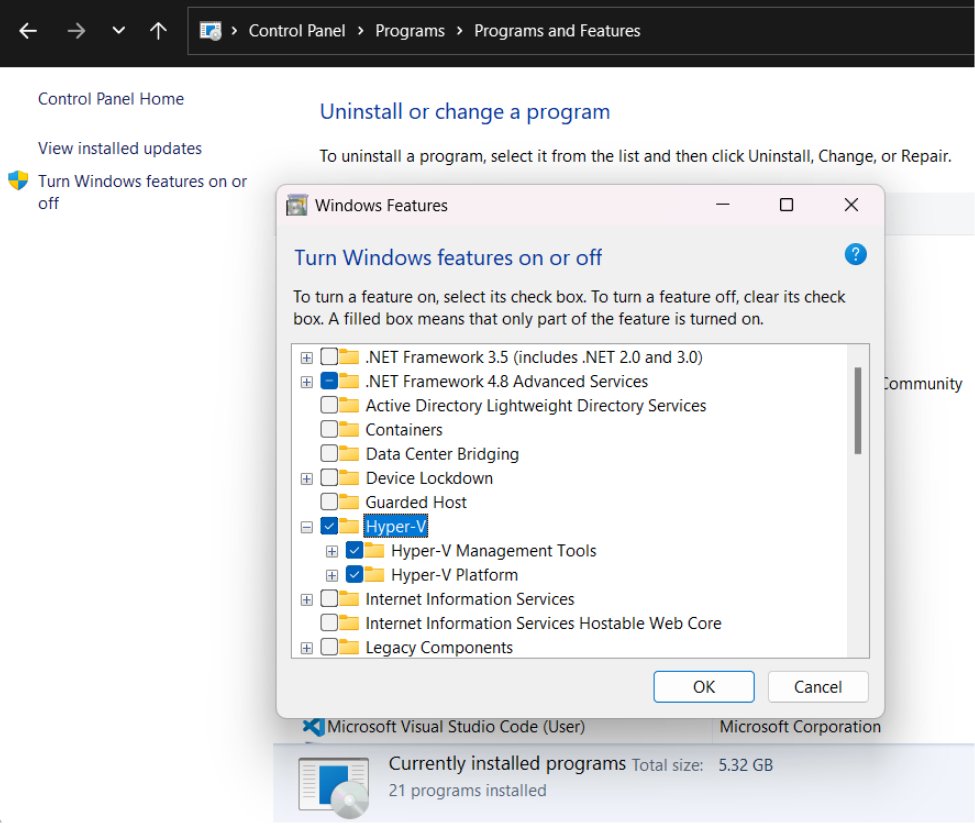
- Open Control Panel, then select Programs and Programs and Features.
- Select Turn Windows features on or off.
- If you added Hyper-V yourself and no longer use it, clear the box and select OK.
- Restart the PC and start the VM again.
VMware Workstation VMs run slowly with Hyper-V or VBS on
Workstation Pro runs VMs through the Windows Hypervisor Platform when Hyper-V or virtualization-based security is active, and that adds overhead on some workloads.
- Check that the CPU is Intel Sandy Bridge or newer, or AMD Bulldozer or newer.
- Check that Windows is Windows 10 20H1 build 19041.264 or newer.
- Close other running VMs to give the guest more memory and CPU time.
- Keep Windows security features on, and accept the slower mode as the cost of keeping them.
64-bit guests will not install in VMware Workstation
64-bit guest systems require AMD-V or Intel VT-x, and Intel PCs must also have VT-x enabled in the BIOS.
- Restart the PC and enter the BIOS or UEFI setup.
- Find the virtualization setting, whose name varies by PC maker.
- Enable it, save and restart Windows.
- Start the guest system install again.
PC crashes when VirtualBox and VMware VMs run together
Oracle warns that competing hypervisors using VT-x at the same time can crash the entire host.
- Shut down every VM in one product.
- Close that product's window.
- Start the VM you need in the other product.
- Keep both installed, because only running VMs at the same time causes the conflict.
VBS mode has other limits too: guests cannot use Intel VT or AMD-V, so they cannot run Windows with Hyper-V or VBS enabled inside the VM.
VirtualBox vs VMware FAQ
Is VirtualBox better than VMware?
VirtualBox is better for home users who want open-source software, no account and a wide choice of hosts. VMware Workstation Pro is better for business use and lab networking, because every feature is free for commercial use.
Is VMware Workstation free?
Yes. VMware Workstation Pro and Fusion Pro have been free for commercial, educational and personal use since 11 November 2024, and no license key is required. Free users get community forums and documentation, not Broadcom support tickets.
Is VMware Workstation Player still available?
Player guides remain in Broadcom's documentation, labeled 17.0, but the newest Player release notes listed are for 17.6.1. The 26H1 release notes cover Workstation Pro only. Workstation Pro is free, so use it for new setups.
Can VirtualBox run VMware VMDK files?
Yes. VirtualBox fully supports the VMDK disk format that VMware products use, so you can attach a VMDK file to a new VM. Importing an OVF appliance is the cleaner route because it carries the VM settings too.
Can I install VirtualBox and VMware on the same PC?
Yes. Oracle says several hypervisors can normally be installed in parallel. Do not run VMs from both at the same time, because competing use of VT-x can crash the host.
Does VMware Workstation run on a Mac?
No. Workstation Pro installs on Windows and Linux hosts only. VMware Fusion Pro is the Mac product, it supports Windows 11 for Arm on Apple silicon, and it is free on the same terms.
Does VirtualBox run Windows 11?
Yes. Windows 11 is a Premier-support guest on x86-64 hosts, and VirtualBox has TPM and Secure Boot settings for it. Windows 11 for Arm guests have Premier support on macOS hosts only, and released versions only are covered.
Does VirtualBox work with Hyper-V enabled?
VirtualBox can run while a native hypervisor such as Hyper-V is active, and it shows a green turtle icon in the status bar. Microsoft warns that third-party VMs might not start or might run unreliably in that state.
Which is better, VMware Workstation Player or VirtualBox?
Choose VirtualBox for personal use, and choose VMware Workstation Pro instead of Player for work. VirtualBox gets you running faster, with no account and an open-source license, and it also covers Macs and Solaris. Workstation Pro replaces Player at the same price of zero, adds snapshots, clones and virtual network tools, and lets a company use all of it without buying anything.