Press Ctrl + Shift + Esc, select Performance, then CPU, and read the Up time value to check uptime in Windows 11 or Windows 10.
The sections below add the CMD and PowerShell commands, a way to check another PC, how to reset the counter, and why a PC you shut down last night can still show days of uptime.
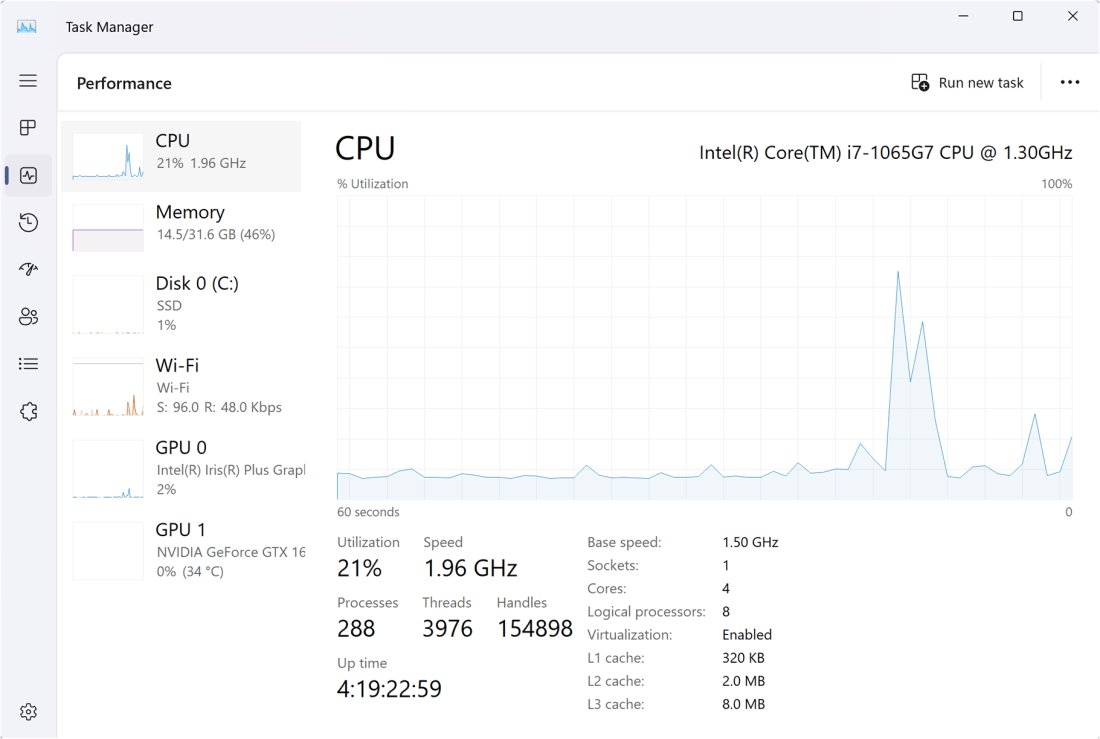
How to check uptime in Windows 11/10
- Press Ctrl + Shift + Esc to open Task Manager.
- Select More details at the bottom of the window if Task Manager opens in its condensed view.
- Select Performance, then select CPU.
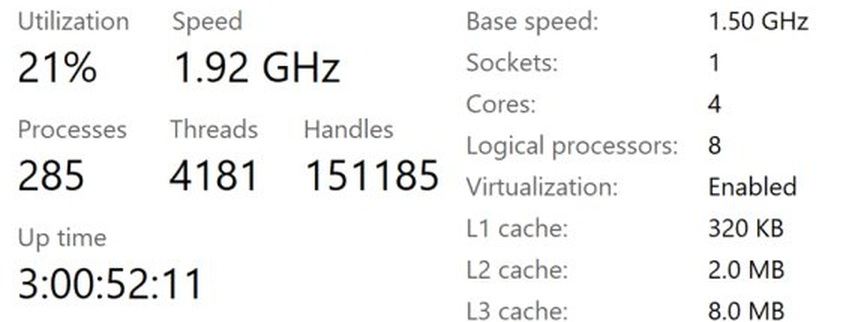
- Read Up time below the graph. The format is days:hours:minutes:seconds, so
4:19:22:59means 4 days, 19 hours, 22 minutes and 59 seconds.
The same Performance view shows memory and graphics load too, so you can look at installed RAM and GPU usage in one window.
Check uptime with Task Manager, CMD or PowerShell
| Your situation | Use this | What you get |
|---|---|---|
| You want a quick look | Task Manager, Performance > CPU | Up time as a running clock |
| You already have Command Prompt open | powershell -NoProfile -Command "(Get-Date) - (Get-CimInstance Win32_OperatingSystem).LastBootUpTime" |
Days, hours, minutes and seconds |
| You use Windows PowerShell 5.1 | (Get-Date) - (Get-CimInstance Win32_OperatingSystem).LastBootUpTime |
The same elapsed time, plus totals |
| You use PowerShell 7 | Get-Uptime |
Elapsed time, or the boot date with -Since |
| You need the uptime of another PC | Get-CimInstance with -ComputerName |
The remote PC's last boot date |
| You need past restarts, not only the last one | Event Viewer, System log | A dated list of shutdowns and restarts |
How to check uptime in Windows 11 from CMD
Command Prompt has no dedicated uptime command, but it can call PowerShell for one line and print the result in the same window.
powershell -NoProfile -Command "(Get-Date) - (Get-CimInstance Win32_OperatingSystem).LastBootUpTime"LastBootUpTime holds the date and time the operating system was last restarted. Subtracting it from the current time gives the uptime.
You should see: lines such as Days, Hours, Minutes and Seconds, followed by totals such as TotalHours.
To print only the boot date, run powershell -NoProfile -Command "(Get-CimInstance Win32_OperatingSystem).LastBootUpTime".
How to check system uptime in PowerShell
This one-liner works in Windows PowerShell 5.1 and PowerShell 7, so it is the safest choice for a script that runs on several PCs.
(Get-Date) - (Get-CimInstance Win32_OperatingSystem).LastBootUpTimeGet-CimInstance reads the Win32_OperatingSystem class from WMI on the local computer, and the subtraction returns a time span.
You should see: a Days value that matches the first number of Up time in Task Manager.
Get-Uptime command in PowerShell 7
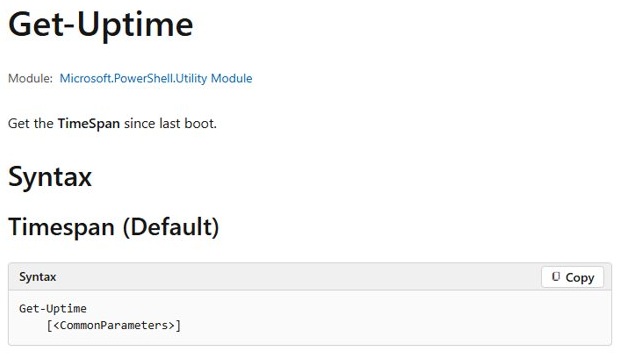
Get-Uptime arrived in PowerShell 6.0, so Windows PowerShell 5.1 does not have it. You can check your PowerShell version before you rely on it in a script.
Get-Uptime
Get-Uptime -Since
The first line returns the time elapsed since the last boot. The second returns the date and time of that boot instead.
You should see: Days, Hours and Minutes from the first line, and a date such as Tuesday, June 18, 2019 2:34:56 PM from the second.
Get-Uptime uses a high-resolution timer, so its answer can differ slightly from LastBootUpTime.
Get-ComputerInfo uptime in Windows PowerShell
Get-ComputerInfo has shipped since Windows PowerShell 5.1 and can return the uptime and the boot date together.
Get-ComputerInfo -Property OsUptime, OsLastBootUpTimeOsUptime is the interval since the operating system last restarted. OsLastBootUpTime is the date and time of that restart.
You should see: both properties listed with their values.
Check uptime on a remote Windows computer
Run this from an account with rights on the other PC. Replace Server01 with its name or IP address.
Get-CimInstance -ClassName Win32_OperatingSystem -ComputerName Server01 | Select-Object CSName, LastBootUpTimeWith -ComputerName, the cmdlet connects over WSMan and queries that computer instead of your own. CSName confirms which PC answered.
You should see: one row with the computer name and its last boot date.
Why Windows 11 uptime does not reset after shutdown
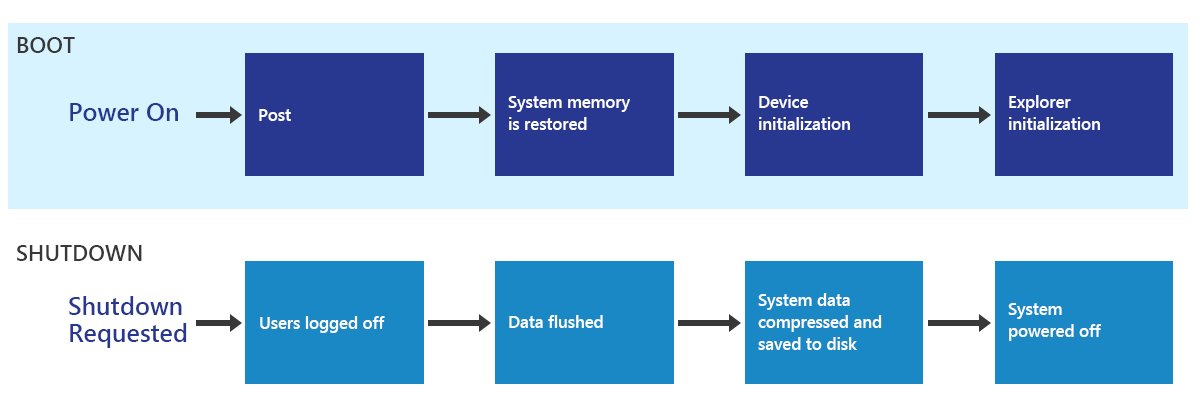
Fast Startup is the reason. In a default shutdown, Windows closes your user session and saves the kernel to the hibernation file, then loads it again at the next power-on.
Microsoft notes that the time between kernel reboots can be much longer as a result, because the kernel, drivers and services are preserved and restored on a user-initiated shutdown rather than restarted.
| What you do | Does uptime reset? | Why |
|---|---|---|
| Restart from the Start menu | Yes | Windows boots again |
| Shut down with Fast Startup on | No | The kernel is saved and restored |
| Shut down with Fast Startup off | Yes | The next start is a cold start |
Run shutdown /s |
Yes | Fast Startup preparation applies only with the /hybrid switch |
| Sleep | No | The PC resumes where you left off |
| Hibernate | No | Drivers and services are restored, not restarted |
| Sign out | No | Only your user session ends |
How do I reset Windows 11 uptime?
Task Manager has no reset button. The counter measures time since the last boot, so a restart is what clears it.
- Save your work and close your apps.
- Select Start, select the Power button, then select Restart.
- Or open Command Prompt and run
shutdown /r /t 0to restart with no delay. - After you sign back in, press Ctrl + Shift + Esc and open Performance > CPU. Up time now shows only the minutes since the restart.
How to turn off Fast Startup so uptime resets after shutdown
Microsoft does not recommend disabling this state, and restarting already resets the counter. Change it only if you need every shutdown to be a full one.
- Open Control Panel, then open Power Options.
- Select Choose what the power buttons do.
- Clear the Turn on fast startup (recommended) check box.
- Select Save settings.
- Shut down, start the PC, and check Up time again. It now counts from this start.
How to see when Windows 11 last restarted in Event Viewer
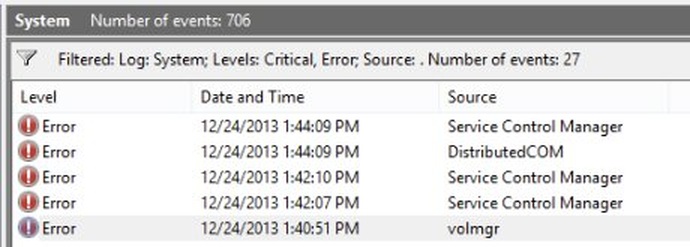
Uptime tells you about the current boot only. The System log in Windows Event Viewer keeps a dated record of earlier shutdowns and restarts.
- Select Start, type
Event Viewer, then press Enter. - Expand Windows Logs, then select System.
- Select Filter Current Log in the right pane.
- Type
41,1074,6006,6008in the event ID box, then select OK. - Read the Date and Time column, using the event ID table below to see what each entry means.
The same filter works from PowerShell: Get-WinEvent -FilterHashtable @{LogName='System'; Id=41,1074,6006,6008} -MaxEvents 20.
Windows restart event IDs explained
| Event ID | What it means |
|---|---|
| 41 | Windows restarted without a complete shutdown, for example after a crash or power loss |
| 1074 | An app caused a shutdown or restart, or a user started one from the Start menu or Ctrl + Alt + Del |
| 6006 | Windows was adequately turned off |
| 6008 | The previous shutdown was unexpected |
Windows uptime problems and error messages
Uptime did not reset after shutting down the PC
Fast Startup saved and restored the kernel, so Windows did not count a new boot.
- Select Start, select the Power button, then select Restart.
- Open Task Manager and check Up time again.
Get-Uptime is not recognized as a command
You are in Windows PowerShell 5.1, and Get-Uptime needs PowerShell 6.0 or later.
- Run
(Get-Date) - (Get-CimInstance Win32_OperatingSystem).LastBootUpTimeinstead. - Use
Get-Uptimeonly from a PowerShell 7 window.
wmic is not recognized in Windows 11
Microsoft removed WMIC from Windows 11 version 24H2 and later, and it is no longer available as an optional feature.
- Run the
Get-CimInstancecommand from the CMD section above. WMI itself is unaffected, only the old command-line tool is gone. - Update any script that reads boot time through
wmicto useGet-CimInstanceas well.
Get-CimInstance shows Access is denied for a remote PC
Your account has no rights to query WMI on that computer, and Get-CimInstance has no Credential parameter of its own.
- Run
$CimSession = New-CimSession -ComputerName Server01 -Credential (Get-Credential)and enter an account with rights on that PC. - Run
Get-CimInstance -CimSession $CimSession -ClassName Win32_OperatingSystem | Select-Object CSName, LastBootUpTime. - Run
Get-CimSession | Remove-CimSessionwhen you finish.
Uptime is much shorter than expected
The PC restarted without you asking it to, often after a Stop error, a power loss, or an update.
- Filter the System log for event IDs
41,1074and6008as shown above. - Check the time of the newest entry against the Up time value.
- If event ID
41shows a nonzero BugcheckCode, treat it as a Stop error. A zero code can point to a power problem such as a drained battery or a failing power supply.
Windows uptime FAQ
How to check uptime in Windows 11 from cmd?
Open Command Prompt and run powershell -NoProfile -Command "(Get-Date) - (Get-CimInstance Win32_OperatingSystem).LastBootUpTime". It prints days, hours, minutes and seconds since the last boot. The old wmic route no longer works on Windows 11 version 24H2 and later.
How to check PC uptime in Windows 11?
Press Ctrl + Shift + Esc to open Task Manager, select Performance, then select CPU. The Up time value below the graph shows how long the PC has been running since its last boot, in days, hours, minutes and seconds.
How to check laptop uptime in Windows 11?
Use Task Manager the same way as on a desktop: Performance, then CPU, then Up time. Closing the lid to sleep or hibernate does not reset the value, and neither does a default shutdown with Fast Startup on, so laptops often show long uptimes.
How to check computer uptime in Windows 11?
Run (Get-Date) - (Get-CimInstance Win32_OperatingSystem).LastBootUpTime in PowerShell for a figure you can copy. For a different computer on your network, add -ComputerName and the computer's name to Get-CimInstance, and read its last boot date instead.
How to check system uptime in Windows 11?
In PowerShell 7, run Get-Uptime for the elapsed time, or Get-Uptime -Since for the date of the last boot. In Windows PowerShell 5.1, which is built into Windows, use Get-ComputerInfo -Property OsUptime, OsLastBootUpTime for the same two answers.
How to see Windows 11 uptime?
Open Task Manager with Ctrl + Shift + Esc and look under Performance, then CPU. A reading of 4:19:22:59 means 4 days, 19 hours, 22 minutes and 59 seconds. The clock runs live while the window stays open.