To format a USB drive to FAT32 on Windows 11, open File Explorer, right-click the drive, select Format, set File system to FAT32 and select Start.
This guide covers File Explorer, Disk Management, Settings, Command Prompt, PowerShell and DiskPart, plus the new 2 TB command-line limit, drives over 32 GB, formatting on a Mac and fixes when FAT32 will not appear.
How to format USB to FAT32 on Windows 11
Formatting erases every file on the drive. Copy anything you want to keep to another drive first.
- Plug the USB drive into your PC.
- Open File Explorer and select This PC.
- Right-click the USB drive and select Format.
- Open the File system menu and select FAT32.
- Type a name in Volume label if you want one, up to 11 characters.
- Select Start, then confirm the warning that all data will be erased.
FAT32 is missing from the menu on many drives larger than 32 GB. Use the format command in that case, because Microsoft's higher limit applies to the command line.
What's FAT32?
FAT32 is an older Windows file system that also works on Macs and on PCs that boot from USB. FAT stands for File Allocation Table, the table that records where each file's data sits on the drive.
| FAT32 fact | Detail |
|---|---|
| Largest single file | 4 GB |
| Longest file name | 255 Unicode characters |
| Cluster count | 65,527 to 4,177,917 clusters per volume |
| Volume label | Up to 11 characters |
| File permissions and encryption | Not supported |
| Journaling | Not supported |
| Windows support since | Windows 95 OSR2, Windows 98 and Windows 2000 |
FAT32 vs. exFAT?
Pick exFAT unless a device or a bootable drive specifically asks for FAT32. The 4 GB file cap is the difference most people run into.
| Feature | FAT32 | exFAT |
|---|---|---|
| Maximum file size | 4 GB | 2^64-1 bytes |
| Maximum volume size in the file system | 2^32 blocks | 2^32-1 clusters |
| Formatting limit in Windows | 32 GB, or 2 TB from the command line on current Windows 11 builds | No 32 GB limit |
| Disk Utility on a Mac | MS-DOS (FAT), for disks of 32 GB or less | ExFAT, for disks over 32 GB |
| Bootable Windows install drive | Microsoft's choice, because it boots BIOS and UEFI PCs | Not the format Microsoft names for this job |
| Metadata checksum | No | Yes |
| Last access time stamp | Date only | Yes |
The differences between FAT32, exFAT and NTFS matter more if the drive stays plugged into one Windows PC, where NTFS adds permissions and journaling.
What’s a file system?
A file system lets apps store and retrieve files on a storage device. It sets the naming rules, the folder structure and the data format, so formatting a drive replaces all of them.
| Term | What it means |
|---|---|
| Volume | A collection of folders and files, usually shown as one drive letter |
| Directory | A folder, which can hold files and more folders |
| File | A logical grouping of related data |
| File systems the format command can write | FAT, FAT32, NTFS, exFAT, ReFS and UDF |
Format USB flash drive using FAT32 on Windows 11 with Disk Management
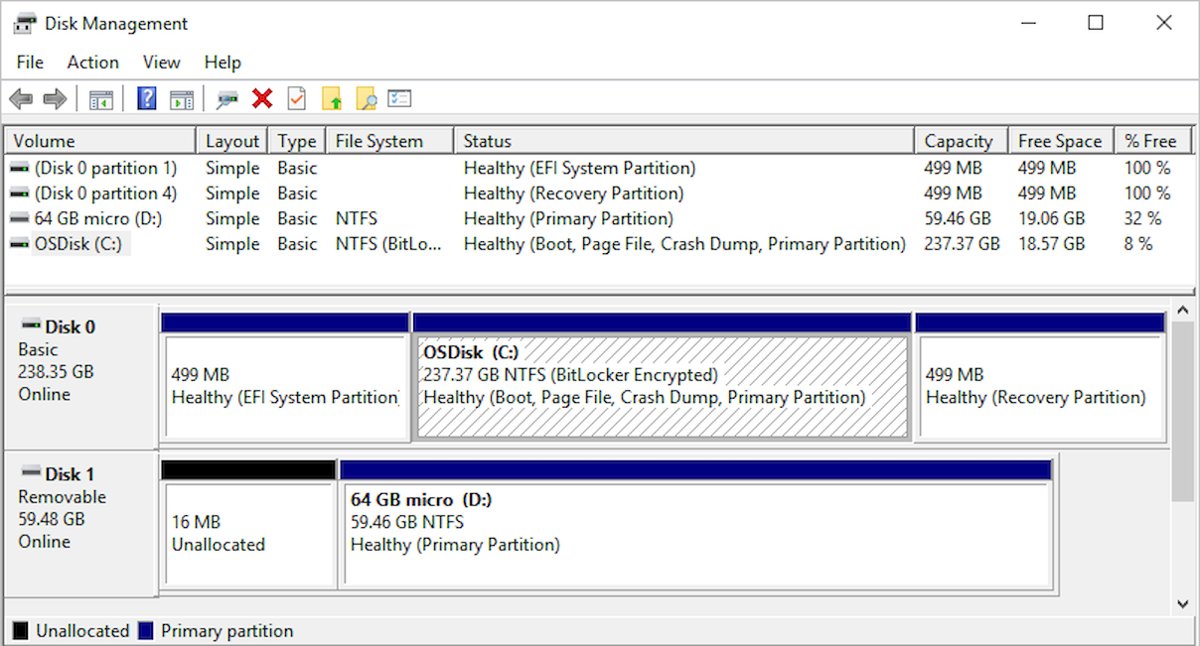
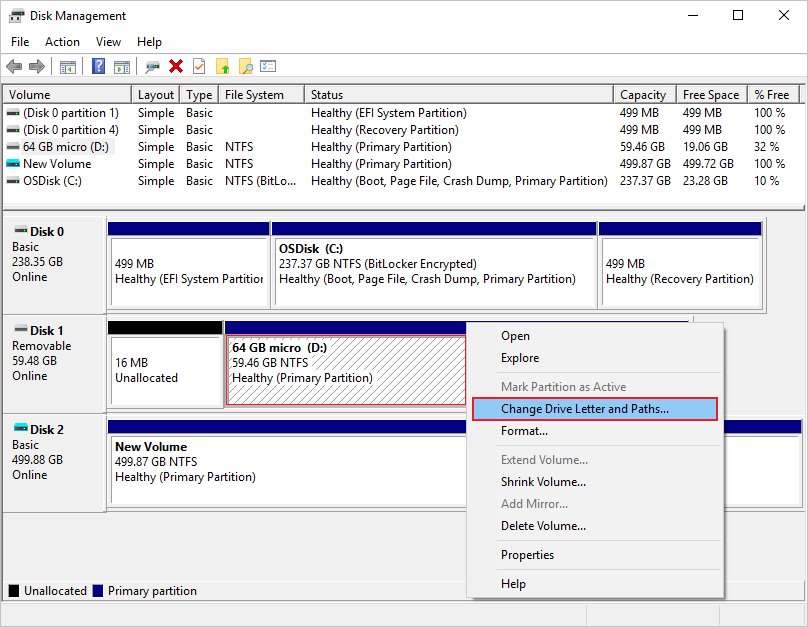
Disk Management is useful when the drive has no letter in File Explorer. You can open Disk Management from the Start button menu or with diskmgmt.msc.
- Right-click the Start button and select Disk Management.
- Find the USB drive in the lower pane by its size and label.
- Right-click the USB partition and select Format.
- Set File system to FAT32 and type a Volume label if you want one.
- Leave Perform a quick format on for a drive you know is healthy.
- Select OK, then select OK again to confirm the data loss warning.
Check the size before you right-click, because Disk Management also lists your internal drives.
Format USB flash drive using FAT32 from Settings
The Disks & volumes page in Settings can create, format and resize volumes. Press Windows key + R and enter ms-settings:disksandvolumes to jump straight to it.
- Open Settings and select System, then Storage.
- Select Advanced storage settings, then Disks & volumes.
- Find the USB drive and select Properties next to its volume.
- Select the format option on the volume's page.
- Set the file system to FAT32, add a label if you want one, and confirm.
If the list does not offer FAT32, use the Command Prompt method below.
Format USB flash drive using FAT32 with Command Prompt
Run this from an administrator Command Prompt. Replace E: with your USB drive letter and check that letter twice.
format E: /FS:FAT32 /V:USBDRIVE /Q/FS:FAT32 sets the file system, /V:USBDRIVE sets the label, and /Q runs a quick format. A quick format skips the bad-sector scan, so drop /Q on a drive you do not trust. Add /X if the drive is in use and needs to dismount first.
You should see: When the command finishes, it reports the total disk space, any space marked defective and the space available. Exit code 0 means the format succeeded.
Press Y if you see Proceed with Format (Y/N)? Pressing N stops the format and leaves your files alone.
Format USB flash drive using FAT32 with PowerShell
Open PowerShell as administrator and run Get-Volume first. It lists each drive letter with its label and size, so you can confirm the right volume.
Format-Volume -DriveLetter E -FileSystem FAT32 -NewFileSystemLabel USBDRIVEQuick-formats volume E as FAT32 with the label USBDRIVE. Add -Full for a full format, which writes to every sector and takes much longer. -Force is the override switch.
You should see: PowerShell returns a line showing the drive letter, label, FAT32 as the file system and the volume size.
How to format USB to FAT32 using diskpart
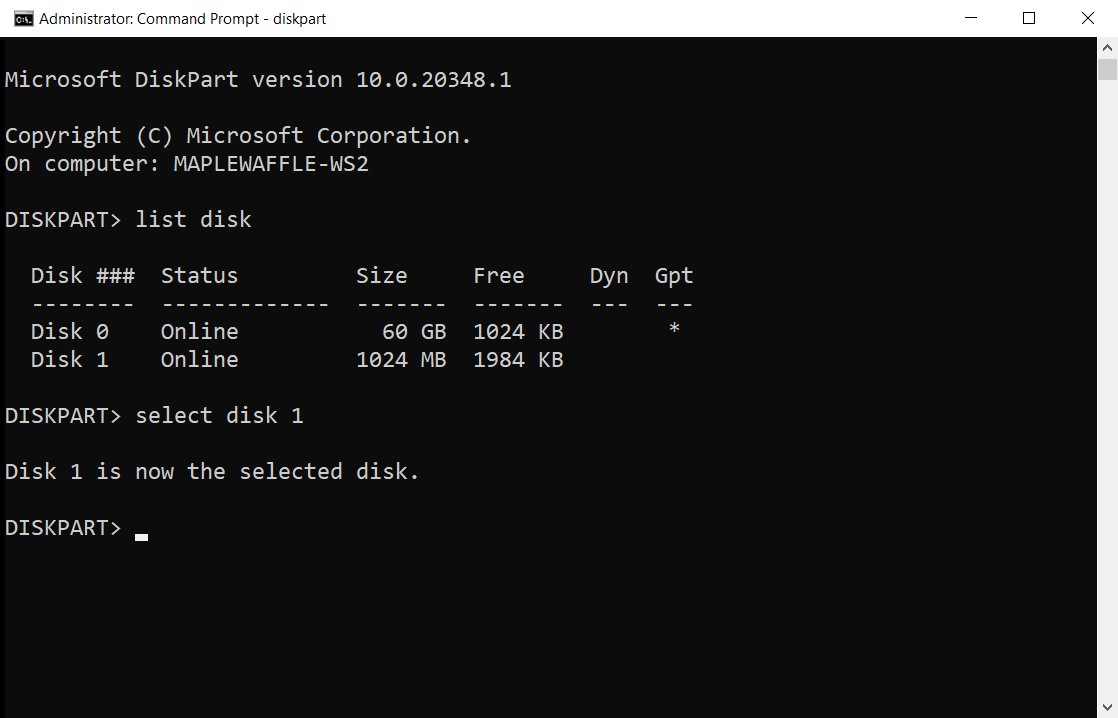
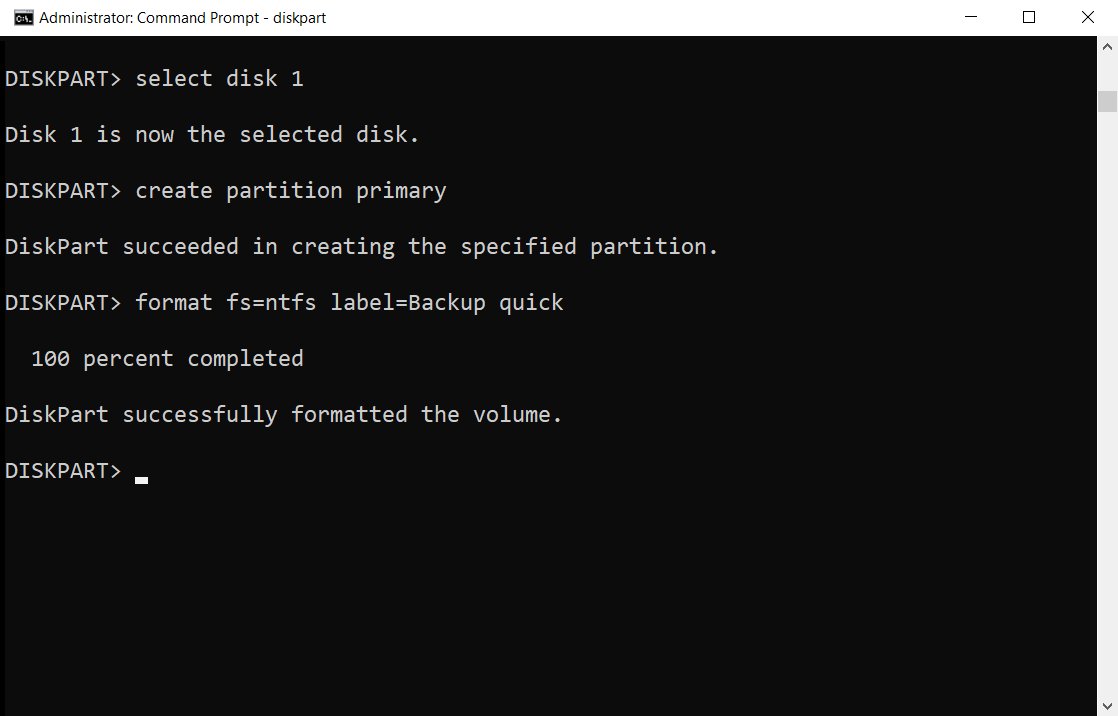
DiskPart rebuilds the drive from scratch, which helps when the partition itself is the problem. The clean command erases the partition layout of whichever disk you selected, so match the disk number by size first.
- Open Command Prompt as administrator, type
diskpartand press Enter. - Type
list diskand note the number of the USB drive. - Type
select disk 2, replacing 2 with your USB drive's number. - Type
cleanto remove all partitions from that disk. - Type
create partition primaryto make one new partition. - Type
format fs=fat32 label=USBDRIVE quickto format it. - Type
assignto give the drive a letter, then typeexit.
To keep the current partition, skip clean. Type list volume, then select volume E, then run the same format line.
How to format USB to FAT32 over 32GB
Microsoft raised the command-line FAT32 limit from 32 GB to 2 TB in the April 30, 2026 Windows 11 preview update, KB5083631. Press Windows key + R and run winver to see your build number.
| Your situation | Use this | Why |
|---|---|---|
| 32 GB or smaller, any Windows version | File Explorer, Disk Management or format |
The drive fits inside the older limit |
| Over 32 GB and up to 2 TB, Windows 11 build 26100.8328 or 26200.8328 or later | format E: /FS:FAT32 /Q |
The higher limit applies to formatting from the command line |
| Over 32 GB on Windows 10 or an older Windows 11 build | DiskPart with create partition primary size=32000, then format fs=fat32 quick |
A 32,000 MB partition stays inside the older limit, and the rest of the drive stays unallocated |
| Larger than 2 TB | exFAT | The drive is beyond the FAT32 formatting limit |
| You need to store files over 4 GB | exFAT | A larger volume does not change the 4 GB file cap |
If format still refuses a large drive on a newer build, install the latest updates from Windows Update and try again. Microsoft described this change as a gradual rollout during Insider testing.
How to format USB to FAT32 on Mac
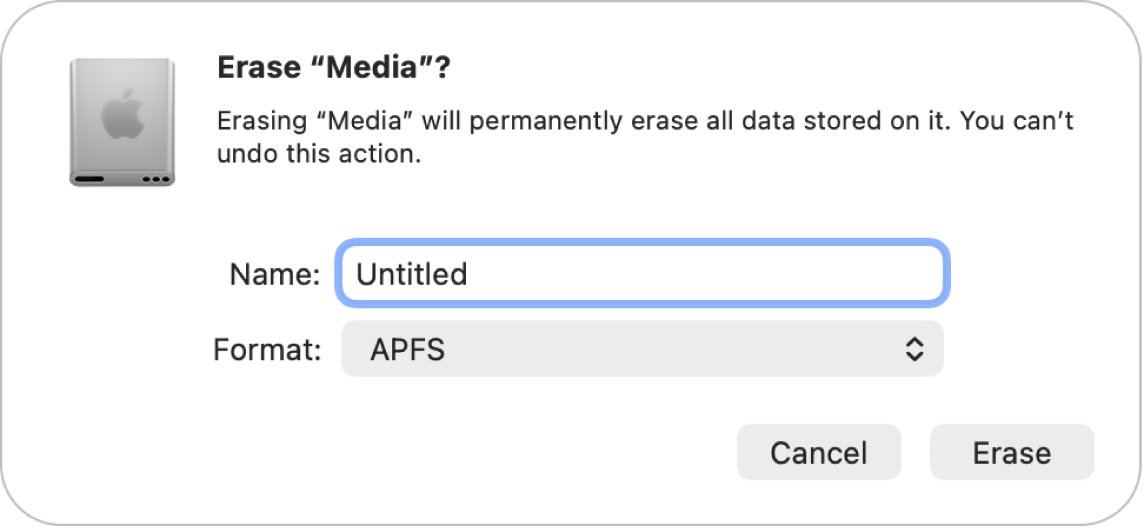
Apple lists FAT as MS-DOS (FAT) in Disk Utility and recommends it for disks of 32 GB or less. You can format an SD card on a Mac with the same tool.
- Open Disk Utility on your Mac.
- Choose View > Show All Devices.
- Select the USB drive in the sidebar and click the Erase button in the toolbar.
- Open the Scheme menu and choose a partition scheme.
- Open the Format menu and choose MS-DOS (FAT).
- Enter a name of up to 11 characters.
- Click Erase, then click Done.
How to tell if a USB drive is FAT32
- Open File Explorer and select This PC.
- Right-click the USB drive and select Properties.
- Read the File system line on the General tab. It should say FAT32.
- Check the label and the free space against what you expect.
- Copy a small test file to the drive and open it from there.
In PowerShell, Get-Volume -DriveLetter E shows the same file system in one line.
How to change a USB drive from FAT32 back to exFAT or NTFS
Changing the file system again means another format, which erases the drive. Copy your files off first.
- Copy your files from the USB drive to your PC.
- Right-click the USB drive in File Explorer and select Format.
- Set File system to exFAT or NTFS.
- Select Start and confirm the warning.
- Copy your files back to the drive.
From the command line, run format E: /FS:exFAT /Q or format E: /FS:NTFS /Q.
Why can't I format my USB to FAT32
FAT32 is missing from the File system menu
The drive is usually larger than 32 GB, and the higher limit only covers the command line.
- Open Command Prompt as administrator.
- Run
format E: /FS:FAT32 /Q, replacing E with your drive letter. - If that also fails, use the partition route in the over 32GB table above.
Why won't my USB format to FAT32 from Command Prompt?
The Windows build predates the 2 TB limit, or the drive is larger than 2 TB.
- Run
winverand compare your build with 26100.8328 or 26200.8328. - Install the latest updates from Windows Update, then try again.
- Use exFAT if the drive is larger than 2 TB.
The USB drive is write protected
The disk has its read-only attribute set.
- Open
diskpartas administrator and runlist disk. - Run
select disk 2, replacing 2 with your USB drive's number. - Run
attributes disk clear readonly. - Run the format again.
The format fails because the USB drive is in use
An open file, app or File Explorer window has a handle on the volume.
- Close every app and window using the drive.
- Run
format E: /FS:FAT32 /Q /Xto dismount the volume first. - In DiskPart, add
overrideto the format line for the same effect.
The USB drive does not show up in File Explorer
The drive has no drive letter or no volume on it yet.
- Open Disk Management and find the USB drive by its size.
- Format it if it has a partition. Some USB disks are only formatted and assigned a letter, not initialized.
- If it is not listed at all, run
rescanin DiskPart and try another USB port.
The format stops partway or reports errors
The drive may have bad areas, which a quick format does not scan for.
- Run the format without
/Qso Windows scans the whole drive. - Try DiskPart
cleanfollowed bycreate partition primaryand the format line. - Replace the drive if the errors keep coming back.
Tips for formatting USB to FAT32 on Windows 11
| Tip | Why it matters |
|---|---|
| Back up the drive first | Every method here erases the volume or the whole disk |
| Match the drive letter or disk number by size | format and clean act on whatever you name, with no undo for your files |
| Use quick format only on healthy drives | A quick format skips the sector-by-sector scan for bad areas |
| Keep the default allocation unit size | Microsoft recommends the defaults for general use |
| Keep the label to 11 characters | That is the limit the format prompt and Disk Utility both state |
| Split large files for a Windows install drive | Dism /Split-Image breaks an install.wim over 4 GB into pieces Windows Setup can read |
| Switch to exFAT for large files | No setting removes the 4 GB file cap in FAT32 |
The same choices apply when you format an SD card on Windows.
Format USB to FAT32 on Windows 11 FAQ: frequently asked questions
Can I format a USB larger than 32GB to FAT32?
Yes, from the command line on current Windows 11 builds, which raise the limit to 2 TB. Run format E: /FS:FAT32 /Q as administrator. On older Windows versions, create a partition of 32,000 MB in DiskPart and format that as FAT32.
Will formatting erase data?
Yes. Formatting removes access to every file on the volume, so copy your files elsewhere first. A quick format deletes the file table and root folder without overwriting the data, which means it is not a secure way to wipe a drive.
What is the difference between FAT32 and exFAT?
FAT32 limits each file to 4 GB, while exFAT has no practical file size limit. FAT32 suits older devices and bootable install drives. exFAT suits large flash drives that move between Windows PCs and Macs.
Can I use Command Prompt to format to FAT32?
Yes. Open Command Prompt as administrator and run format E: /FS:FAT32 /Q, replacing E with your USB drive letter. Press Y if asked to proceed. This is also the route Microsoft raised to 2 TB on current Windows 11 builds.
Why isn’t FAT32 an option in Disk Management?
The drive is usually larger than 32 GB. Microsoft's 2 TB increase applies to formatting from the command line, so Disk Management can still leave FAT32 out on larger drives. Use the format command or choose exFAT instead.
How do I format a 64GB USB to FAT32?
Open Command Prompt as administrator and run format E: /FS:FAT32 /Q on Windows 11 build 26100.8328, 26200.8328 or later. On older builds, use DiskPart to create one partition of 32,000 MB and format it, leaving the rest unallocated.
How do I format USB to FAT32 on Windows 10?
Use the same File Explorer, Disk Management, format, PowerShell and DiskPart steps. Microsoft lists the 2 TB command-line change for Windows 11 only, so on Windows 10 plan for the 32 GB limit on larger drives.
How do I format USB to FAT32 from exFAT?
Reformat the drive and choose FAT32 in File Explorer, or run format E: /FS:FAT32 /Q in Command Prompt. Formatting erases the drive, so copy your files off first, and check that none of them is larger than 4 GB before you copy them back.
How do I format USB to FAT32 using Rufus?
Rufus is a third-party utility that helps format and create bootable USB flash drives, so it suits a drive you are building from an ISO. For a plain FAT32 data drive, the tools built into Windows do the job with nothing extra to install.
Is there a USB FAT32 format tool built into Windows?
Yes, several. File Explorer, Disk Management, the format command, Format-Volume in PowerShell and DiskPart can all write FAT32. Use the format command or DiskPart when the graphical tools do not offer FAT32.