A motherboard's SATA ports come in three speeds, 1.5 Gb/s, 3 Gb/s and 6 Gb/s, in the standard internal form, alongside related types such as eSATA, mSATA, SATA Express and M.2 slots in SATA mode.
This guide shows what each type does, how to identify the ports on your own board, which one to use for each drive, and how controller mode and hot-plugging affect them.
What are the types of SATA ports on a motherboard?
The Z790 and B550 boards listed further down carry only the first row, plus M.2 slots. The other rows appear on older boards or on specific models.
| Port type | Top speed | What plugs into it | Where you find it |
|---|---|---|---|
| SATA 6Gb/s (SATA 3, SATA III) | 6 Gb/s | Hard drives, SATA SSDs and optical drives, through a data cable | Current desktop boards, such as those on Intel's Z790 chipset |
| SATA 3Gb/s (SATA 2, SATA II) | 3 Gb/s | The same drives, at a lower speed | Older boards |
| SATA 1.5Gb/s (SATA 1, SATA I) | 1.5 Gb/s | The same drives, at the lowest speed | The oldest SATA boards |
| eSATA | Follows its SATA generation; SATA-IO lists 1.5 Gb/s and 3 Gb/s | External drives, through a shielded cable up to 2 m | External ports on boards that include it |
| mSATA | Follows its SATA generation | A small SSD card | Compact devices; M.2 has since replaced it |
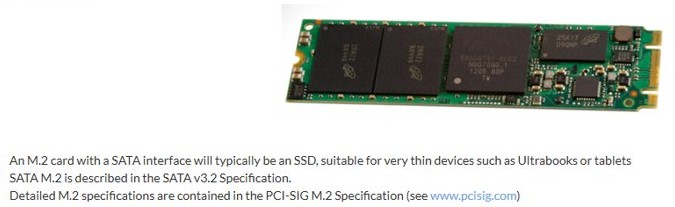
| M.2 slot in SATA mode | Follows the SATA link, not PCIe | A SATA M.2 SSD card, 22 mm wide | Boards whose specification lists SATA mode for that slot |
| SATA Express | Up to 2 GB/s over two PCIe 3.0 lanes | SATA Express drives, or standard SATA cables | Boards that list a SATA Express connector in their specifications |
What is SATA?
SATA, short for Serial ATA, is the interface that connects storage drives to a motherboard. It replaced the older IDE and parallel ATA (PATA) connection.
| Point | What it means for you |
|---|---|
| Serial transfer | Data moves one bit at a time over a single data line, instead of several bits over separate lines as in PATA |
| Drives it connects | Hard drives, SATA SSDs and DVD or Blu-ray drives |
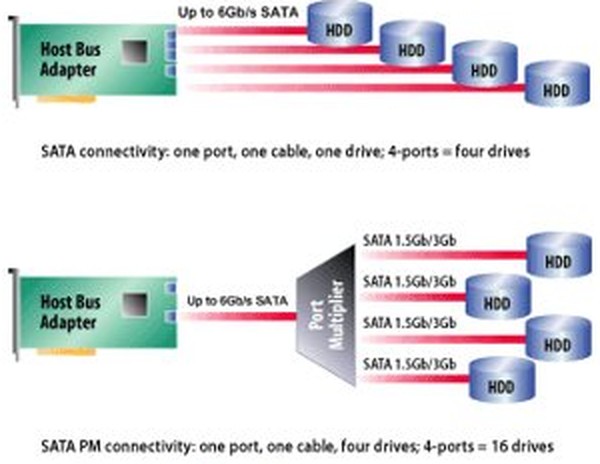
| One drive per port | Each drive gets its own cable and port, unless you add a port multiplier |
| Drivers | Modern operating systems include them, so a new drive is normally recognized without extra software |
| Speed against NVMe | A SATA SSD beats a hard drive, while an NVMe SSD on a different interface runs faster still |
You can compare M.2 and NVMe drives against SATA if you are still choosing a drive.
All SATA revisions
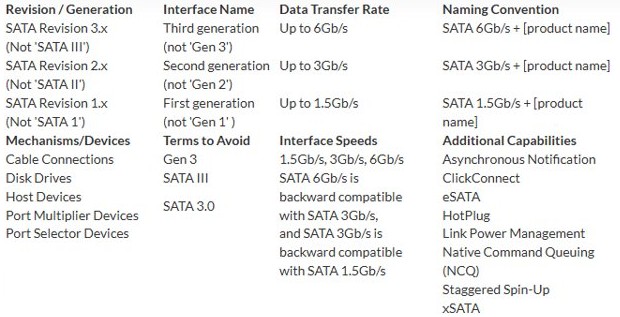
SATA-IO groups the speeds into three generations, and every 3.x revision keeps the 6 Gb/s limit. SATA-IO's own names use the speed, while shops still use SATA I, II and III, and you can compare SATA 2 and SATA 3 in more depth.
| Revision | Common name | Official name | Link speed | Usable throughput | Released | Main additions |
|---|---|---|---|---|---|---|
| SATA Revision 1.0 | SATA-I | SATA 1.5Gb/s | 1.5 Gb/s | 150 MB/s | January 2003 | First serial standard |
| SATA Revision 2.0 | SATA-II | SATA 3Gb/s | 3 Gb/s | 300 MB/s | April 2004 | Double the link speed |
| SATA Revision 3.0 | SATA-III | SATA 6Gb/s | 6 Gb/s | 600 MB/s | May 2009 | Double the link speed again |
| SATA Revision 3.1 | SATA-III | SATA 6Gb/s | 6 Gb/s | 600 MB/s | July 2011 | mSATA, queued TRIM, required link power management |
| SATA Revision 3.2 | SATA-III | SATA 6Gb/s | 6 Gb/s | 600 MB/s | August 2013 | SATA Express, M.2, microSSD, DevSleep |
| SATA Revision 3.3 | SATA-III | SATA 6Gb/s | 6 Gb/s | 600 MB/s | February 2016 | Shingled recording control, Power Disable on pin 3 |
| SATA Revision 3.4 | SATA-III | SATA 6Gb/s | 6 Gb/s | 600 MB/s | June 2018 | Device temperature monitoring, durable write notification |
| SATA Revision 3.5 | SATA-III | SATA 6Gb/s | 6 Gb/s | 600 MB/s | July 2020; 3.5a in March 2021 | Defined NCQ ordering, command duration limits |
SATA ports on motherboard
Internal ports look alike, so the specification tells you more than the shape does. Vendors list the count, the speed and any sharing rules there.
- Note your board's model name, printed on the board or shown in Windows.
- Open the maker's product page and select its technical specifications.
- Find the storage section and read the SATA line, such as 6 x SATA 6Gb/s ports.
- Read the footnotes under that section for any port shared with an M.2 slot.
- Match the port names, such as SATA6G_56, to the board layout in the manual.
- Plug each drive into the port you picked, using the choices in the table below.
You can find your motherboard model in Windows without opening the case. Board size also limits the port count, and ATX, Micro ATX and Mini ITX boards differ in the room they have.
How many SATA ports does a motherboard have?
The number depends on the chipset and the board. A chipset sets the maximum, and the board maker decides how many ports to build.
| Chipset or board | SATA ports listed | M.2 notes |
|---|---|---|
| Intel Z790 chipset (launched Q4 2022) | Up to 8 SATA 6.0 Gb/s | Depends on the board |
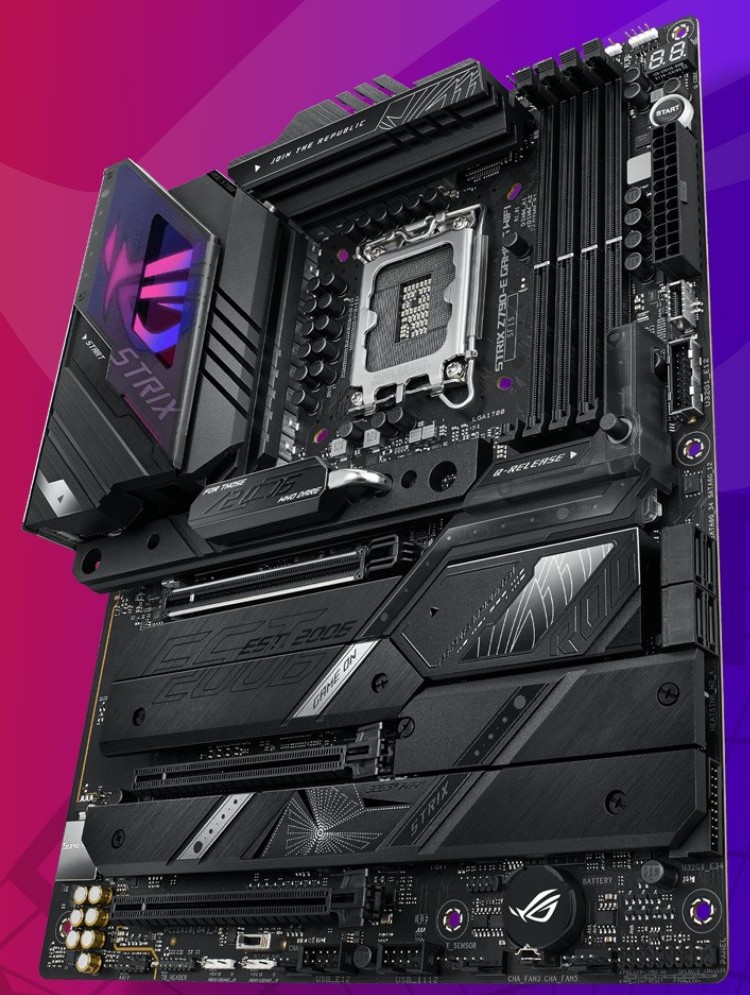
| ASUS ROG Strix Z790-E Gaming WiFi | 4 SATA 6Gb/s | 5 M.2 slots; M.2_5 supports SATA mode |
| ASUS Prime Z790-P WiFi | 4 SATA 6Gb/s | 3 M.2 slots; M.2_3 supports SATA mode |
| ASUS Prime B550-Plus | 6 SATA 6Gb/s | 2 M.2 slots; M.2_2 shares bandwidth with SATA6G_56 |
| Intel Z77 chipset (launched Q2 2012) | 6 in total | Launched before SATA 3.2 added M.2 |
A board that uses fewer ports than its chipset allows is normal. The ROG Strix Z790-E, for example, lists 4 of the 8 ports the Z790 chipset can provide.

Which SATA port should you choose?
A SATA link runs at the speed of its slower end, and older drives and ports still work with newer ones. Choose the port by what the drive can actually use.
| Your situation | Use this port | Why |
|---|---|---|
| A SATA SSD on a board with only 6 Gb/s ports | Any free port not shared with an M.2 slot | All ports run at the same top speed |
| A SATA SSD on a board with mixed speeds | A 6 Gb/s port | A 3 Gb/s port becomes the bottleneck for the SSD |
| A hard drive or optical drive on a mixed board | A 3 Gb/s port, if you need the faster ports for SSDs | These drives lose less from a slower link than an SSD does |
| You have an M.2 SSD installed | A port the specification does not list as shared | On some boards, filling the M.2 slot disables named SATA ports |
| An external drive | eSATA, if the board has it | It uses a shielded cable and connector built for repeated plugging |
| A RAID array | SATA ports the board's RAID documentation names | Support depends on the chipset and board; Intel's Z790 lists SATA RAID 0, 1, 5 and 10 |
SATA properties
These properties apply across SATA ports and affect how a drive behaves, whichever port you pick.
| Property | What it does | What it needs |
|---|---|---|
| Controller mode | Sets how the port talks to Windows: AHCI, RAID or IDE emulation | A setting in UEFI (BIOS); without AHCI, controllers often run in IDE emulation |
| Hot-plugging and hot-swapping | Lets you connect and disconnect a drive without rebooting | Support in the host, the device and the operating system; IDE mode does not support it |
| Compatibility | SATA 6Gb/s works with SATA 3Gb/s, which works with SATA 1.5Gb/s | Nothing extra; the link runs at the slower speed |
| Native Command Queuing (NCQ) | Reorders pending read and write commands so the drive does less work | Support in both the host controller and the drive |
| Port multiplier | Lets one SATA port communicate with several drives | A host controller with command-based or FIS-based switching |
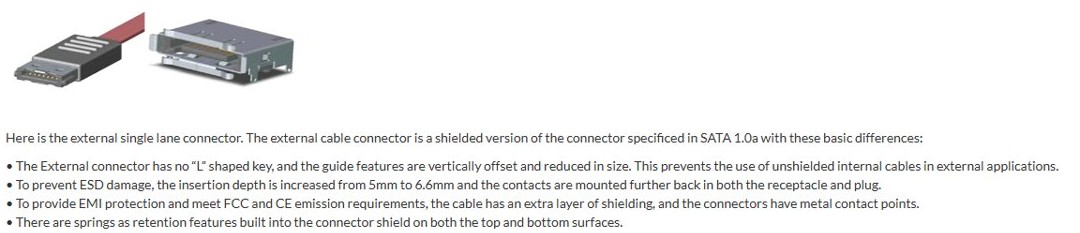
| Cable length | Internal cables run up to 1 m; eSATA cables up to 2 m | Shielded cables for eSATA |
SATA data and power connectors
A SATA drive takes two connections: one for data to the motherboard and one for power from the power supply. Smaller drives use smaller versions.
| Connector | Pins | Used for |
|---|---|---|
| Standard data | 7 (3 ground, 4 signal), with an L-shaped key | Internal 2.5-inch and 3.5-inch drives |
| Standard power | 15 | The same drives; comes from the power supply, not the board |
| Slimline power | 6, +5 V only | Smaller drives such as laptop optical drives |
| Micro power | 9 | 1.8-inch drives, with a thinner data connector |
| eSATA | Data only, with no L-shaped key | External drives; rated for over 5,000 insertions against about 50 for the internal connector |
| eSATAp | 4 USB pins, 7 eSATA pins, and optionally 2 pins for 12 V | Combined eSATA and USB ports that can power a drive |
How to connect a SATA drive to a motherboard
Each drive needs its own data cable and a power lead. The ASUS boards listed above ship with two SATA cables each.
- Shut down the PC, switch off the power supply and unplug it.
- Fit the drive in a bay or bracket in the case.
- Push one end of the SATA data cable onto the port you chose on the motherboard.
- Push the other end onto the narrower connector on the drive.
- Connect a SATA power lead from the power supply to the wider connector on the drive.
- Plug the PC back in, start Windows and look for the new drive in Disk Management.
A brand-new drive may show as unallocated until you set it up, so open Disk Management when it does not appear in File Explorer.
How to check if AHCI is enabled on a SATA port
Device Manager shows which controller type Windows is using for your SATA ports. It takes a few seconds and changes nothing.
- Right-click Start and select Device Manager.
- Expand IDE ATA/ATAPI controllers.
- Read the controller names in the list.
- Look for AHCI in a controller's name, which means AHCI is in use.
Is it safe to change SATA mode from IDE to AHCI?
Changing the mode on a PC that already has Windows installed can stop it from starting. Microsoft lists a controller mode change from legacy to AHCI in UEFI as a cause to revert when you get the INACCESSIBLE_BOOT_DEVICE stop code.
Back up your data first, and change the SATA mode only when you plan to reinstall Windows or have the steps for your Windows version. Lenovo notes that moving from IDE to AHCI on Windows may need registry changes or a reinstall, and it advises backing up your data before making the change.
Motherboard SATA port not working
A SATA drive disappeared after installing an M.2 SSD
The M.2 slot shares bandwidth with certain SATA ports. On the ASUS Prime B550-Plus, filling M.2_2 disables SATA6G_56.
- Open your board's technical specifications and read the footnotes under storage.
- Note the SATA ports named as shared with the M.2 slot you filled.
- Shut down the PC and move the SATA drive to a port that is not listed.
- Start Windows and check that the drive is back.
A SATA SSD runs slower than its rated speed
The SSD is on a slower port, and the link runs at the speed of the slower end.
- Look up the speed of the port you used in your board's specifications.
- Look up the interface line on the SSD maker's page.
- Move the SSD to a 6 Gb/s port if both support it.
Windows will not start after changing the SATA mode
Windows has lost access to the system partition because the controller mode changed.
- Restart the PC and open UEFI (BIOS) setup; common keys are Esc, Del and F2.
- Find the SATA mode setting you changed.
- Set it back to its earlier value.
- Save the change and restart.
A drive is not detected when plugged in while the PC is on
Hot-plugging needs support in the host, device and operating system, and IDE mode does not provide it.
- Check that the controller shows AHCI in Device Manager.
- Shut down the PC if it does not.
- Connect the drive with the PC off and start Windows.
SATA ports on motherboard FAQ
Are all SATA ports on a motherboard the same?
They share the same connector, but not always the same speed or rules. Older boards can list slower ports, and some ports are shared with M.2 slots. Your board's specifications list each port's speed and any sharing.
What is the difference between SATA 2 and SATA 3 ports?
Speed. A SATA 2 port (SATA 3Gb/s) runs at up to 3 Gb/s, and a SATA 3 port (SATA 6Gb/s) runs at up to 6 Gb/s. Both accept the same drives, because SATA 6Gb/s is backward compatible with SATA 3Gb/s.
Can I use a SATA 3 SSD on a SATA 2 port?
Yes. The drive works normally, but the port limits it to 3 Gb/s, so a fast SSD will not reach its rated speed. Move it to a 6 Gb/s port if your board has one.
How do I know how many SATA ports my motherboard has?
Check the storage section of your board's technical specifications on the maker's site. It lists a line such as 6 x SATA 6Gb/s ports, with footnotes for any port that an M.2 slot shares or disables.
Why did my SATA port stop working after adding an M.2 SSD?
The slot you filled probably shares bandwidth with that port. On the ASUS Prime B550-Plus, for example, filling M.2_2 disables SATA6G_56. Move the drive to a port your specifications do not list as shared.
Can one SATA port connect several drives?
Yes, with a port multiplier. It lets one SATA port communicate with several drives, usually from an enclosure's backplane. The host controller must support command-based or FIS-based switching for it to work.
Is eSATA the same as SATA?
It uses the same protocol for external drives, with a different connector. eSATA adds shielding, drops the L-shaped key, supports cables up to 2 m and is rated for over 5,000 insertions, against about 50 for an internal connector.
Is an M.2 slot a SATA port?
Only in SATA mode. M.2 is a card format that can carry SATA or PCIe. Your specifications say which each slot supports, and on the ROG Strix Z790-E, only M.2_5 lists SATA mode alongside PCIe.
What is SATA Express used for?
SATA Express, added in SATA 3.2, adds up to two PCIe 3.0 lanes while staying compatible with the standard 7-pin data connector. It reaches about 2 GB/s, and M.2 is its smaller form factor.
Do SATA ports need AHCI to work?
No. Without AHCI, controllers often run in IDE emulation, and the drive still works. You lose features such as hot-plugging and NCQ, which is why AHCI is recommended for most modern hard drives and SSDs.