You can't run a traditional virus scan on an iPhone, because iOS has no built-in scanner and its sandbox keeps every app out of other apps' data, so you check for malware by hand in Settings.
This guide covers the manual check, profiles and apps to remove, fake virus pop-ups, hacked Apple Accounts, spyware and Lockdown Mode, and erasing the iPhone as a last resort.
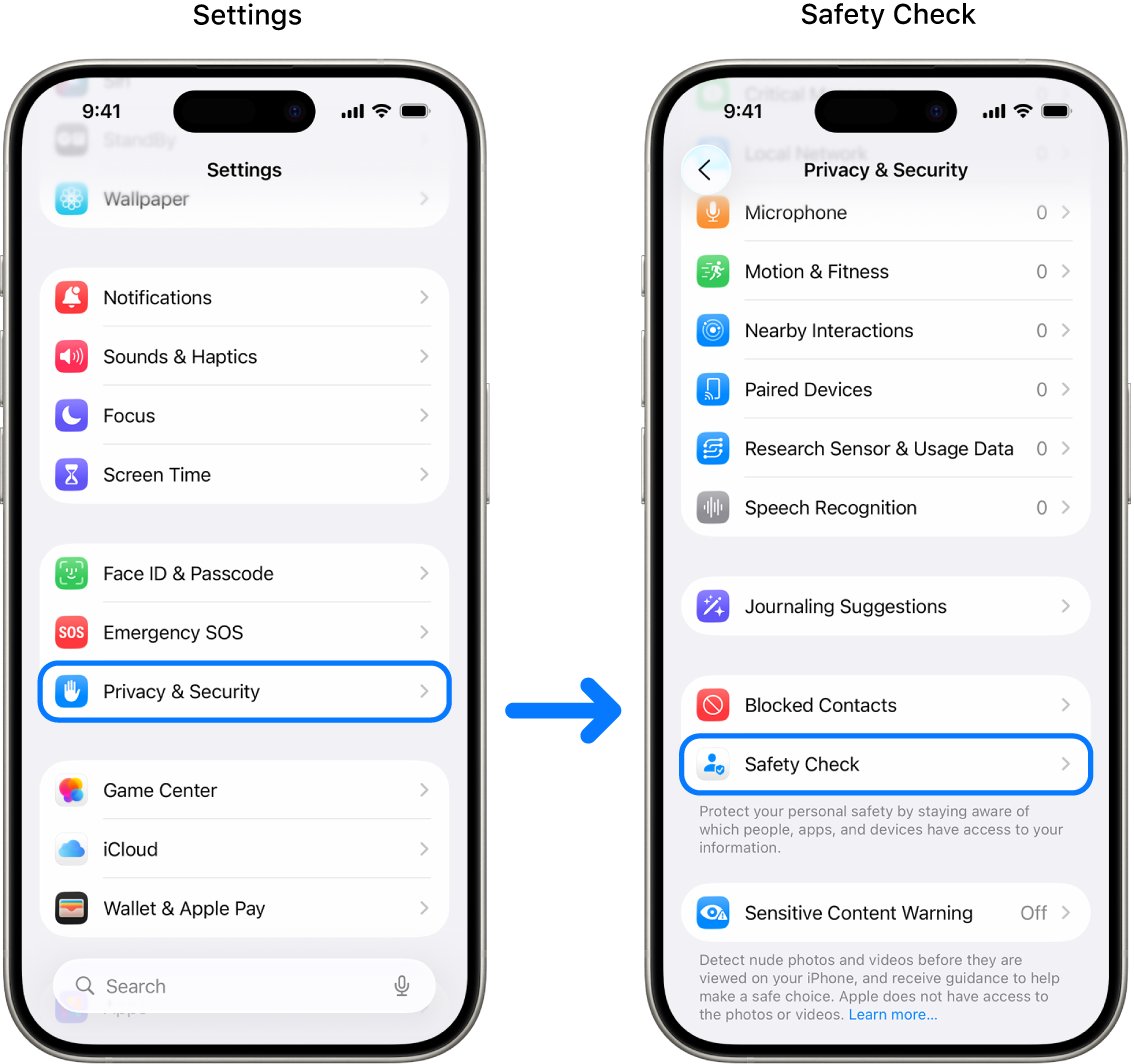
How can I scan my iPhone for virus or malware?
Work through these checks in order. They cover the places unwanted software or access can show up.
- Open Settings > General > Software Update and install any update listed.
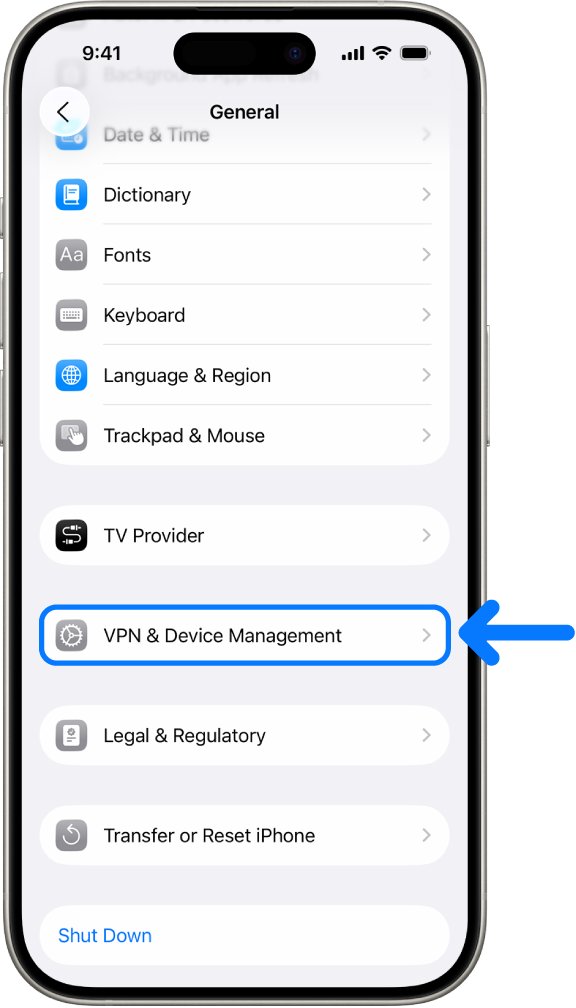
- Go back to General and tap VPN & Device Management. Delete any profile you don't recognize.
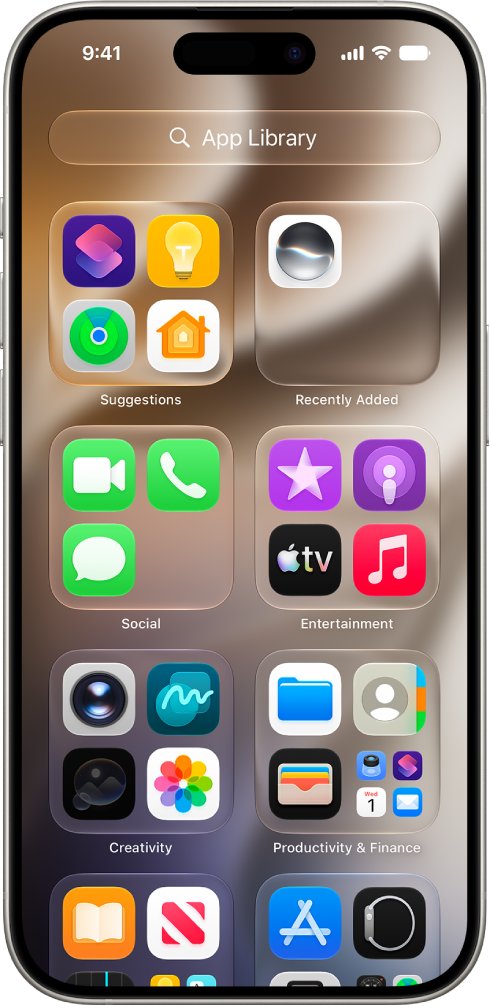
- On the Home Screen, swipe left past your last page to App Library, then tap the search field to see every app in alphabetical order.
- Delete any app you don't recognize. Look it up in the App Store first if you're unsure what it does.
- Open Settings > Privacy & Security > Safety Check to review who and which apps can reach your information.
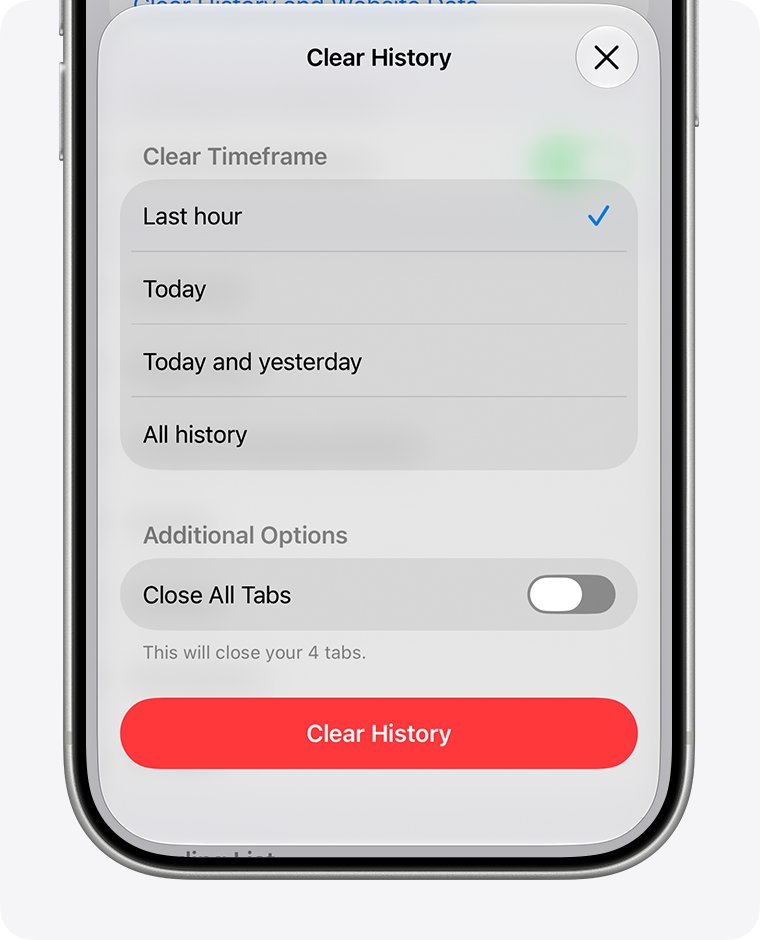
- Open Settings > Apps > Safari, tap Clear History and Website Data, pick a timeframe, then tap Clear History.
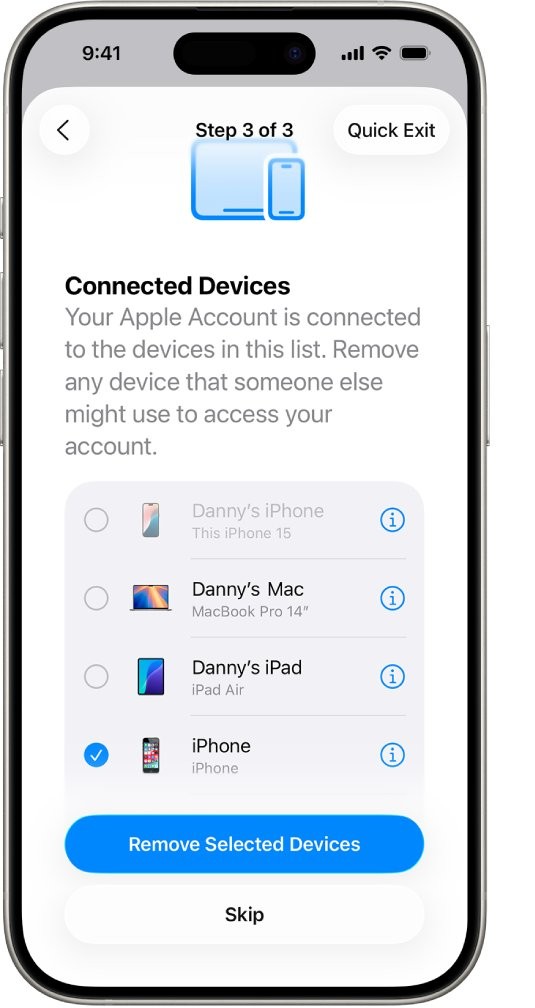
- Open Settings, tap your name, scroll to the device list, and remove anything you don't recognize.
- Restart the iPhone.
If all of these come back clean and you only saw a pop-up, it was most likely a scam ad. Apple says pop-ups claiming security problems are usually fraudulent.
Is there a virus scanner for iPhone?
Apple publishes no virus scanner for iPhone, so pick the tool that matches what you're worried about.
| Your situation | Use this | Why |
|---|---|---|
| A pop-up says your iPhone is infected | Close the tab and ignore it | Apple says not to believe a pop-up that warns about viruses on your device |
| Something may be installed without your permission | VPN & Device Management and the App Library list | These two lists show profiles and apps on the iPhone |
| Someone may have access to your data or location | Safety Check (iOS 16 or later) | Reviews sharing, app permissions and devices on your Apple Account |
| You want to see which domains your apps contact | App Privacy Report (iOS 15.2 or later) | Shows data and sensor access and network activity for the past 7 days |
| You want more protection from scam texts and links | A security app from the App Store, such as Malwarebytes or Bitdefender for iOS | Malwarebytes lists scam detection and malicious link blocking; Bitdefender describes its device scan as a check of security and privacy settings |
| Apple sent you a threat notification | Lockdown Mode | Apple recommends it for people targeted by mercenary spyware |
| Problems continue after every other check | Erase All Content and Settings | Removes your data, settings and apps from the iPhone |
How to find and delete configuration profiles on iPhone
Configuration profiles define settings for work or school networks, and they may allow access to data or location information on the iPhone. One can arrive by email or from a webpage, and Apple advises caution with apps that ask to install one.
- Open Settings > General > VPN & Device Management.
- Read the list. If no profiles appear, no device management profile is installed.
- Tap a profile you don't recognize, then tap Delete Profile.
- Follow the onscreen instructions, then restart the iPhone.
Deleting a profile also deletes its settings, apps and data. If a school or employer owns the iPhone, ask the administrator before you delete anything.
How to remove suspicious apps from iPhone
Removing an app from the Home Screen only moves it to App Library, so a deleted app that still works was probably just hidden.
- Touch and hold the app on the Home Screen or in App Library.
- Tap Remove App, then tap Delete App.
- Tap Delete to confirm.
- Search App Library again to make sure the app is gone.
How to use App Privacy Report on iPhone
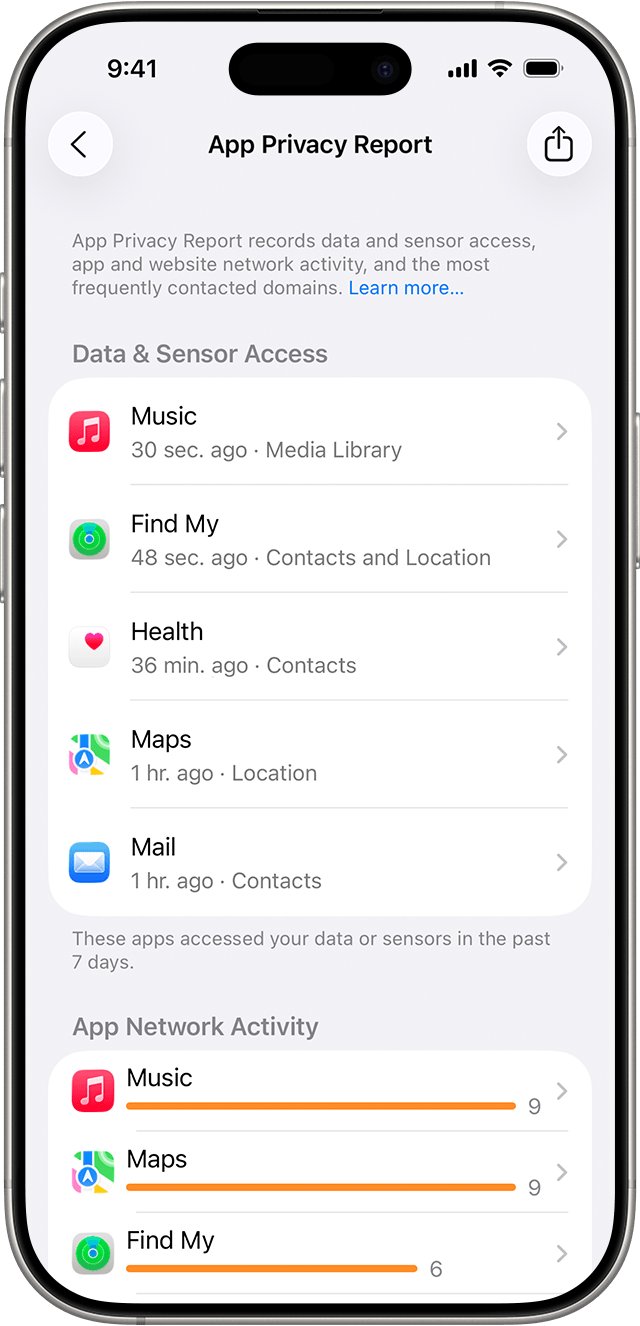
App Privacy Report isn't a malware scan, but it shows what each app has been doing. It collects nothing until you turn it on, so give it a few days of normal use.
- Open Settings and tap Privacy & Security.
- Scroll down and tap App Privacy Report.
- Tap Turn on App Privacy Report.
- Come back later and read Data & Sensor Access for apps using your camera, microphone, photos, contacts or location.
- Read App Network Activity and Most Contacted Domains for domains you don't expect.
- Delete any app whose activity makes no sense for what the app does.
The report covers the past 7 days, stays on the iPhone, and leaves out private browsing sessions. Turning it off clears its data.
How to get rid of a fake virus warning on iPhone
Apple describes these alerts as fraudulent ads that use warnings to trick you into sharing personal or financial information or installing unwanted software. Some have fake close buttons, so don't tap anything inside the ad.
- Don't call any number or follow any link in the message.
- Close the Safari tab, or type a new address in the Search field. Tap the top of the screen if you can't see the field.
- Open Settings > Apps > Safari.
- Turn on Block Pop-ups and Fraudulent Website Warning.
- Tap Clear History and Website Data, pick a timeframe, then tap Clear History.
If the warning came with a request to install a profile, skip it. Apple advises caution with apps that ask to install configuration profiles and says to install software only from the App Store or the developer's website.
How to delete spam calendar events on iPhone
Unwanted events can come from a spam invitation or a calendar you subscribed to by accident. These labels apply to iOS 26 and later.
- Open the Calendar app and tap the unwanted event.
- Tap Report Junk, then Delete and Report Junk, if the event came from an unknown contact. Otherwise tap Delete Event twice.
- Tap the Calendars button to see every calendar on the iPhone.
- Tap the info button next to a calendar you don't recognize.
- Tap Delete Calendar or Unsubscribe, then tap it again to confirm.
iPhone spyware: threat notifications and Lockdown Mode
Mercenary spyware targets a very small number of people, and Apple describes no scan that detects it. Apple alerts targeted users on the Lock Screen and in Settings, by email, and with a banner at account.apple.com.
Sign in at account.apple.com directly to confirm a notification. Apple's alerts never ask you to click links, open files, install apps or profiles, or share a password or verification code.
- Open Settings and tap Privacy & Security.
- Scroll down and tap Lockdown Mode.
- Tap Turn On Lockdown Mode, then confirm.
- Tap Turn On & Restart, then enter your passcode.
Lockdown Mode needs iOS 16 or later and is built for the few people who may be personally targeted. Most iPhone owners don't need it. If you have good reason to think you are a target, you can turn it on without a notification.
How to remove a virus from iPhone by erasing it
Erasing is the last resort, for an iPhone that still misbehaves after the checks above. You can factory reset the iPhone from Settings once your data is backed up.
- Back up the iPhone to iCloud or your computer.
- Open Settings and tap General.
- Tap Transfer or Reset iPhone.
- Tap Erase All Content and Settings.
- Enter your passcode if asked, then follow the onscreen instructions.
- Reinstall apps from the App Store one at a time, so you can spot any app that brings the problem back.
How to see which devices are signed in to your Apple Account
A device on this list could receive verification codes, change your password or sync with iCloud, so an unknown entry matters more than any pop-up.
- Open Settings and tap your name.
- Scroll down to the list of devices.
- Tap any device name to view its details.
- Tap Remove from Account on a device you don't recognize, then confirm.
- Change your Apple Account password if you removed anything.
A removed device doesn't reappear unless someone signs in on it again. If you think a person is monitoring you, weigh the safety impact before removing access, as Apple's Personal Safety guide advises.
How to tell if your iPhone has a virus
None of these signs alone proves an infection. Match what you see to the likely cause, then act on that row.
| What you see | What it usually means | What to do |
|---|---|---|
| Full-screen alert saying the iPhone is infected | A fraudulent ad | Close the tab and call no number |
| A profile you don't recognize in VPN & Device Management | Settings from an organization or an unknown source | Delete the profile, then restart |
| An app you don't remember installing | Someone else installed it, or you forgot | Look it up in the App Store, then delete it |
| Events you didn't add, full of warnings or links | A spam invitation or subscribed calendar | Delete the event or unsubscribe |
| Verification codes you didn't request, or a password that stopped working | A possibly compromised Apple Account | Change or reset the password at once |
| Battery use marked as Higher usage | An app or system activity using more power than usual | Check the top apps listed in Settings > Battery |
| Crashes, battery drain and dropped calls on a jailbroken iPhone | Effects Apple attributes to unauthorized changes to iOS | Back up, then restore from a computer in Finder or Apple Devices, which reinstalls iOS and erases all your data |
| Zoomed screen, inverted colors and a mooing sound | Built-in features switched on, not malware | Turn off the Moo virus settings |
Why iPhone antivirus apps can't scan other apps
Desktop antivirus works by reading files across the whole computer. iOS is built to block that kind of access between apps, so iPhone security products describe link filtering, scam detection and settings checks instead.
| iOS protection | What it does | What it means for you |
|---|---|---|
| App sandbox | Each third-party app gets its own home directory and can't gather or change other apps' stored data | No app can inspect the others the way a PC scanner does |
| Mandatory code signing | All executable code must be signed with an Apple-issued certificate | Third-party apps can't load unsigned code |
| Security updates | Apple ships security fixes in software updates and lists them on its security releases page | Installing updates is one of the most useful things you can do |
| Jailbreak restrictions | Apple says jailbreaking removes security layers and can let in malware, spyware or viruses | Apple strongly cautions against any software that modifies iOS |
How to protect iPhone from viruses and malware
- Open Settings > General > Software Update > Automatic Updates and turn on Automatically Install.
- Keep Block Pop-ups and Fraudulent Website Warning turned on in Settings > Apps > Safari.
- Install apps only from the App Store.
- Skip links and attachments in unsolicited messages, even when they look like they came from Apple.
- Use a passcode with Face ID or Touch ID, and turn on two-factor authentication for your Apple Account.
- Turn on Stolen Device Protection on iOS 17.3 or later, which helps stop a thief who knows your passcode from making critical account changes.
Older models have their own limit. An iPhone 8 stops at iOS 16, so update an iPhone 8 to its last release to get the final fixes Apple issued for it.
iPhone virus pop-up and hacked account problems
A link in Facebook or another app opened a pop-up saying the iPhone has a virus
Apple says pop-ups warning about viruses are usually fraudulent ads, so the warning itself isn't evidence of an infection.
- Close the page without tapping anything inside it.
- If you installed anything the page asked for, check VPN & Device Management and App Library and delete it.
- If a text that looks like Apple's sent you there, email a screenshot to [email protected].
An app came back on the Home Screen after you deleted it
Remove from Home Screen only moves an app to App Library, so it stays on the iPhone.
- Find the app in App Library or on the Home Screen.
- Touch and hold it, tap Remove App, then tap Delete App.
- Tap Delete to confirm, then restart the iPhone.
You entered your Apple Account password on a scam page
The page may have captured the password, so treat the account as exposed even if nothing looks wrong yet.
- Open Settings, tap your name, then tap Sign-In & Security.
- Tap Change Password and follow the onscreen instructions.
- Tap Remove Other Devices when asked, if you see devices you don't trust.
- Make sure two-factor authentication is turned on.
The Apple Account shows purchases, devices or changes you didn't make
Someone else may have signed in. Review recent transactions and keep Apple Pay secure as well.
- Change the password, or reset your Apple Account password if someone already changed it.
- Go to account.apple.com and correct or remove personal and security details you don't recognize.
- Select Devices there and remove any device you don't recognize.
- Confirm with your email provider and carrier that you control every linked address and number.
- Go to iforgot.apple.com to start account recovery if you can't sign in or reset the password.
A caller claims to be from Apple Support about a virus
Apple advises hanging up on unsolicited calls that claim to be from Apple Support.
- Hang up without sharing a password, code or payment details.
- Contact Apple directly through its official support channels if you're unsure.
- Report the call at reportfraud.ftc.gov if you're in the US.
The iPhone won't respond at all after a warning appears
A frozen screen needs a force restart, which doesn't erase anything. This is the button sequence in Apple's current iPhone guide.
- Press and quickly release the volume up button.
- Press and quickly release the volume down button.
- Press and hold the side button.
- Release the side button when the Apple logo appears.
iPhone virus scan FAQ
How can I scan my iPhone for malware?
Check it by hand, because iOS has no malware scanner. Install updates, review VPN & Device Management, go through the App Library list, run Safety Check, and look at the devices on your Apple Account. Delete whatever you don't recognize.
Can I scan my iPhone for viruses?
Not with a full device scan. iOS sandboxing stops any app from gathering or changing other apps' stored data, so a scanner can't inspect them. A manual review of profiles, apps and account activity is the realistic check.
Is there a virus scan for iPhone in the App Store?
Security apps exist, but what they call a scan differs from a PC scan. Malwarebytes for iOS lists scam detection and malicious link blocking, while Bitdefender describes its device scan as a check of security and privacy settings. Be wary of pop-ups promising a full virus scan.
Can I scan my iPhone for issues?
You can check parts of it in Settings. Open Settings > Battery to see which apps and system activities use the most power, and Settings > General > Software Update to see whether iOS is current.
How can I scan documents on my iPhone?
Use the Notes app. Open a note, tap the Attachment button, tap Scan Documents, and hold the page in view of the camera. Drag the corners to fit if needed, tap Keep Scan, then tap Done.
How can I scan from my iPhone without Notes?
Use the Files app. Tap the More button, tap Scan Documents, and place the page in view of the camera. After you tap Keep Scan and Done, choose a location and tap Save.
Why won't my iPhone scan QR codes?
Camera reads QR codes in Photo mode with the code inside the frame, so check both first, then tap the link that appears. If it still fails, use the Scan Code control in Control Center and tap the flashlight for more light.
How do I use the scan function on iPhone?
It depends on what you're scanning. Use Scan Code in Control Center or the Camera app for QR codes, and Scan Documents in Notes or Files for paper. Neither one checks for viruses.