UnityPlayer.dll is missing or not found when a game built with Unity cannot load its engine file, and verifying or reinstalling that game puts a clean copy back.
This guide covers what the file does, the errors you see, fixes for Steam and other launchers, and why a DLL download site is the wrong source.
UnityPlayer.dll is missing or not found on Windows PC
UnityPlayer.dll is part of each Unity game's own build, so the fix comes from that game's store or installer. Match where the game came from to a row.
| Where the game came from | Do this | Why |
|---|---|---|
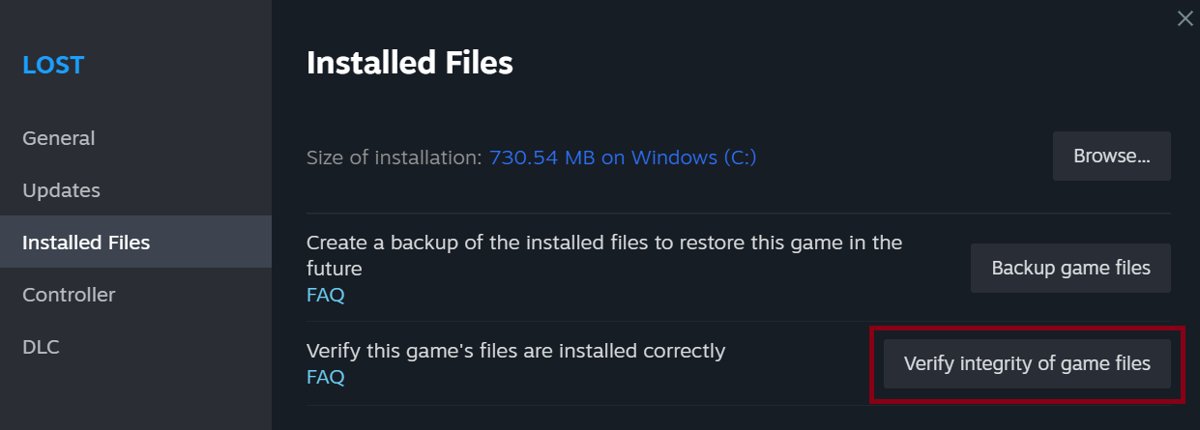
| Steam | Properties > Installed Files > Verify integrity of game files | Steam checks the game's files and restores what is missing |
| Xbox app | Update and repair the game, then uninstall and reinstall it if the error stays | These are the steps Xbox Support lists for a PC game that will not launch |
| Another launcher or a standalone installer | Settings > Apps > Installed apps > More > Uninstall, then install it again from the same source | A new install writes the whole build again |
| You moved or copied the game | Put the .exe back beside UnityPlayer.dll and the _Data folder | Windows looks for the DLL in the folder the app loaded from |
| You built the game in Unity | Rebuild it and ship the entire output folder | The DLL is part of the build output |
Understanding UnityPlayer.dll
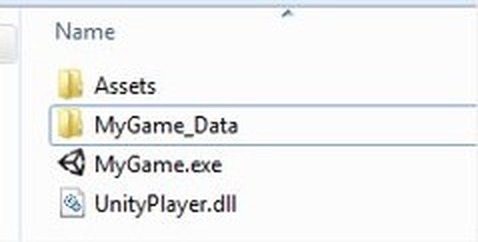
UnityPlayer.dll holds all the native Unity engine code, and the game's .exe calls into it when launched. It is not a Windows system file, so a game without it cannot start.
| File in a Windows build | What it does |
|---|---|
| ProjectName.exe | The game's executable, with the entry point that calls into the Unity engine |
| UnityPlayer.dll | All the native Unity engine code, signed with the Unity Technologies certificate |
| ProjectName_Data folder | All the data the game needs to run |
| UnityClrProfiler.dll | Unity Profiler support for CoreCLR Players, also signed by Unity Technologies |
| WinPixEventRuntime.dll | PIX support; Unity creates it only for a Development Build |
| *.pdb files | Debugging symbols, copied only when Copy PDB files is on |
Common symptoms of UnityPlayer.dll errors
| What you see | What it points to |
|---|---|
| A system error box says UnityPlayer.dll was not found | The game's .exe started but could not load the engine file |
| A message says the program can't start because UnityPlayer.dll is missing from your computer | The file is absent from the game folder, or the .exe is running from another folder |
| Steam lists the game as installed, but launching it brings up the error | A damaged or partial install; run the Steam file check |
| The error started after a security scan | Windows Security may have quarantined the file; look in Protection history |
| The error appears for one game and other Unity games still run | That game's own copy is the problem, because each build carries its own file |
Causes of UnityPlayer.dll errors
Windows searches several locations for a DLL, and the folder the app loaded from comes before the system folders. A Unity game relies on finding its engine file there.
| Cause | How it happens | Fix |
|---|---|---|
| The .exe was separated from its build | A copy of the .exe was moved to the desktop or another folder | Move it back, or use a shortcut instead |
| The install is incomplete | A download or a game update did not finish | Verify the game or reinstall it |
| The file was removed | Someone deleted part of the game folder | Verify the game or reinstall it |
| Security software took the file | Microsoft Defender Antivirus quarantined it as a threat | Check Protection history, then reinstall from the official store |
| The build was shipped without it | A developer shared only the .exe | Rebuild, and share the whole output folder |
Quick fixes for UnityPlayer.dll errors
Try these in order, because the first few cost nothing and a reinstall is the last step.
- Restart the PC, then launch the game from its launcher or its original Start menu shortcut.
- Open the game's install folder and look for UnityPlayer.dll beside the game's .exe file.
- If you moved the .exe out of that folder, move it back and create a shortcut for the desktop instead.
- Check the Recycle Bin, and restore the game's files if they were deleted by accident.
- Open Windows Security and select Protection history to see whether the file was quarantined. Events stay listed for two weeks.
- Run the store's file check or reinstall the game if the file is still absent.

UnityPlayer.dll was not found Steam
Steam's file check confirms a game's files are installed correctly, which makes it the first repair for a Steam game. Run it for one game at a time.
- Restart your computer and launch Steam.
- Right-click the game in your Library, or select the gear icon on the game's Library page.
- Select Properties from the menu.
- Select the Installed Files tab, then select Verify integrity of game files.
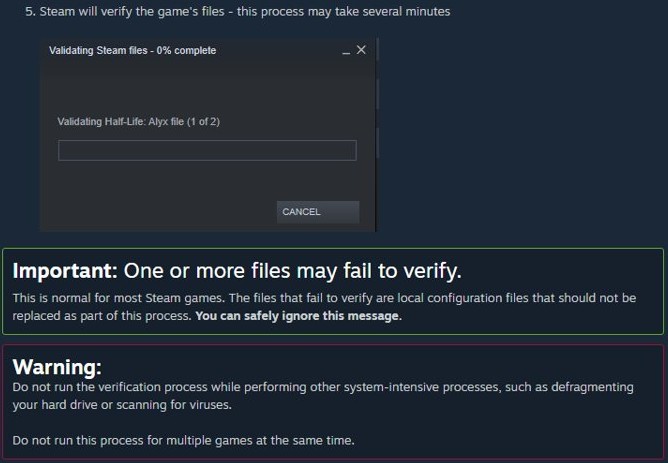
- Wait while Steam checks the files, which can take several minutes.
- Launch the game again when the check finishes.
A message that one or more files failed to verify is normal for most Steam games. Those are local configuration files that should not be replaced, and you can ignore the message.
Do not run the check during a virus scan or a disk defragment, because Steam warns against other system-intensive work at the same time.
Detailed solutions for UnityPlayer.dll errors
Use these when the quick fixes leave the error in place. Each one starts from the wording people see or search for.
UnityPlayer.dll was not installed
The game's install did not finish, or it came from an installer that left files out.
- Select Start > Settings > Apps > Installed apps.
- Find the game, then select More > Uninstall. Use Control Panel > Programs > Programs and Features if Settings cannot remove it.
- Restart the PC.
- Install the game again from its original store or official installer.
- Launch it from the new shortcut.
UnityPlayer.dll was not verified
The Steam check was interrupted, or you want proof that the copy on your PC is genuine.
- Close other demanding programs and run Verify integrity of game files again.
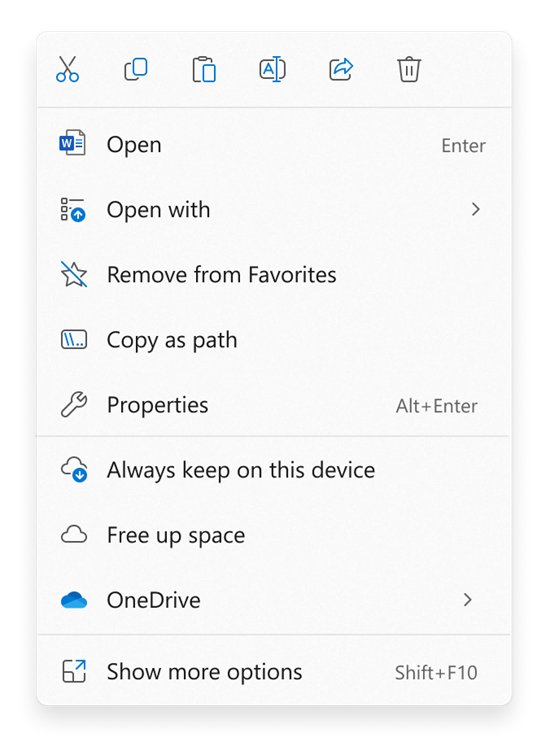
- Open the game folder, right-click UnityPlayer.dll, and select Properties.
- Open the Digital Signatures tab and look for a Unity Technologies signature.
- If the tab is missing or names another signer, delete the game folder and reinstall the game from its store.
UnityPlayer.dll was not registered
Unity describes this file as part of the build, and its file list includes no registration step.
- Skip any advice to register the file with a command.
- Confirm the DLL sits in the same folder as the game's .exe.
- Verify or reinstall the game if the file is absent.
UnityPlayer.dll was not updated
A game update stopped partway, which can leave the game folder incomplete.
- Install any pending update for the game from its launcher.
- On the Xbox app, update and repair the game from its own options.
- On Steam, run Verify integrity of game files after the update.
- Uninstall and reinstall the game if the error stays.
UnityPlayer.dll was not working after a security scan
Microsoft Defender Antivirus may have quarantined the file as a threat.
- Open Windows Security and select Protection history.
- Select the card for the event to expand it. You need administrator rights to see the details.
- If the file came from an unofficial source, select Remove under Actions.
- Reinstall the game from its official store to get a clean copy.
- If the new copy is flagged too, contact the game's publisher.
UnityPlayer.dll was not found again after a reinstall
Hard drive errors can stop files from staying intact on the disk.
- Type command prompt in the taskbar search box and open it as an administrator.
- Run
chkdsk/f C:, changing the letter if the game is on another drive. - Restart when asked so the repair can finish.
- Install the game again and launch it.
UnityPlayer.dll download: is a DLL site safe?
Do not download UnityPlayer.dll from a DLL website. Verify or reinstall the game so the genuine file arrives from its own store or installer. Microsoft warns that a malicious copy of a DLL placed in a searched folder can load in place of the real one, and UnityPlayer.dll runs inside the game. Unity signs its own copy with the Unity Technologies certificate so that tampering can be spotted.
The same caution applies to missing DLL and runtime errors in general. If the box names a different file, such as the Visual C++ runtime, fix the vcruntime140.dll error or restore MSVCP140.dll instead, because those files belong to the Microsoft runtime rather than Unity's engine.
Check UnityPlayer.dll is in the game folder
- Open the game's install folder in File Explorer.
- Find the game's .exe file, UnityPlayer.dll, and the folder ending in _Data, all at the same level.
- Right-click UnityPlayer.dll, select Properties, and open Digital Signatures to see the Unity Technologies signature.
- Launch the game from its launcher. It should reach its first screen with no system error box.
UnityPlayer.dll not found in a Unity Windows build
If you made the game, the error on a tester's PC usually means only the .exe was shared. Unity's Windows Player output is a set of files that belong together.
- Open the project in the Unity Editor and open the Build Profiles window.
- Select the Windows platform and pick the architecture, such as Intel 64-bit.
- Build the project to an empty folder.
- Confirm the output holds ProjectName.exe, UnityPlayer.dll and the ProjectName_Data folder.
- Compress and share the whole folder, never the .exe alone.
- Extract it on another PC and run the .exe from inside the extracted folder.
Unity 6.6 players need Windows 10 version 21H1 (build 19043) or newer. A tester on an older build should update Windows first.
UnityPlayer.dll error FAQ
How do you fix UnityPlayer.dll?
Verify the game's files if it came from Steam, using Properties, Installed Files and Verify integrity of game files. For other sources, uninstall the game and install it again from the same store. Either route restores the genuine file to the game's own folder.
How do you fix a UnityPlayer.dll error on Windows 10?
The fix on Windows 10 matches Windows 11: verify or reinstall the game that shows the error. Uninstall it from Settings, then Apps, and install it again from the same store. Games built with current Unity need Windows 10 version 21H1 or newer.
How do you fix Unity Player.dll not found?
Check that the game's .exe sits in the same folder as UnityPlayer.dll and the _Data folder. Move the .exe back if you copied it elsewhere, and use a shortcut for the desktop. If the DLL is gone, verify or reinstall the game.
Why does Among Us say UnityPlayer.dll was not found?
The game cannot load the engine file from its own folder. On Steam, run Verify integrity of game files for Among Us. If you installed it from another store, uninstall and reinstall it there. Do not copy the file from a DLL site.
How do you install UnityPlayer.dll?
You do not install it on its own. The file arrives as part of a game's build, so installing or verifying that game puts it in the right place. Unity's documentation lists it among the files in the game's output folder.
Is UnityPlayer.dll a virus?
The genuine file is not. It contains Unity's native engine code, and Unity's documentation says it carries the Unity Technologies certificate, shown on the Digital Signatures tab of its properties. If a copy shows another signer, reinstall the game from its store to replace it.
Will SFC or DISM fix a UnityPlayer.dll error?
No. The sfc /scannow command scans protected Windows system files, and DISM provides the files that repair uses. UnityPlayer.dll belongs to the game, so neither tool restores it. Verify or reinstall the game instead, then launch it again from its launcher.
Do you need the Unity Editor to fix UnityPlayer.dll?
No. Players only need the game's own files, and the DLL ships with the game. The Unity Editor matters only if you made the game yourself, because you then rebuild the project and share the whole output folder with your testers.