An iPod shuffle that does not appear in iTunes usually needs a direct USB connection with a data-capable cable, a force restart, or a restart of Apple Mobile Device Service on Windows.
This guide covers each fix, the cable each model uses, how to sync music once iTunes sees the device, and what still works on this discontinued iPod.
How to fix iPod shuffle not appearing in iTunes
Work through these in order and check iTunes after each step. The shuffle shows up as a Device button near the top left of the iTunes window.
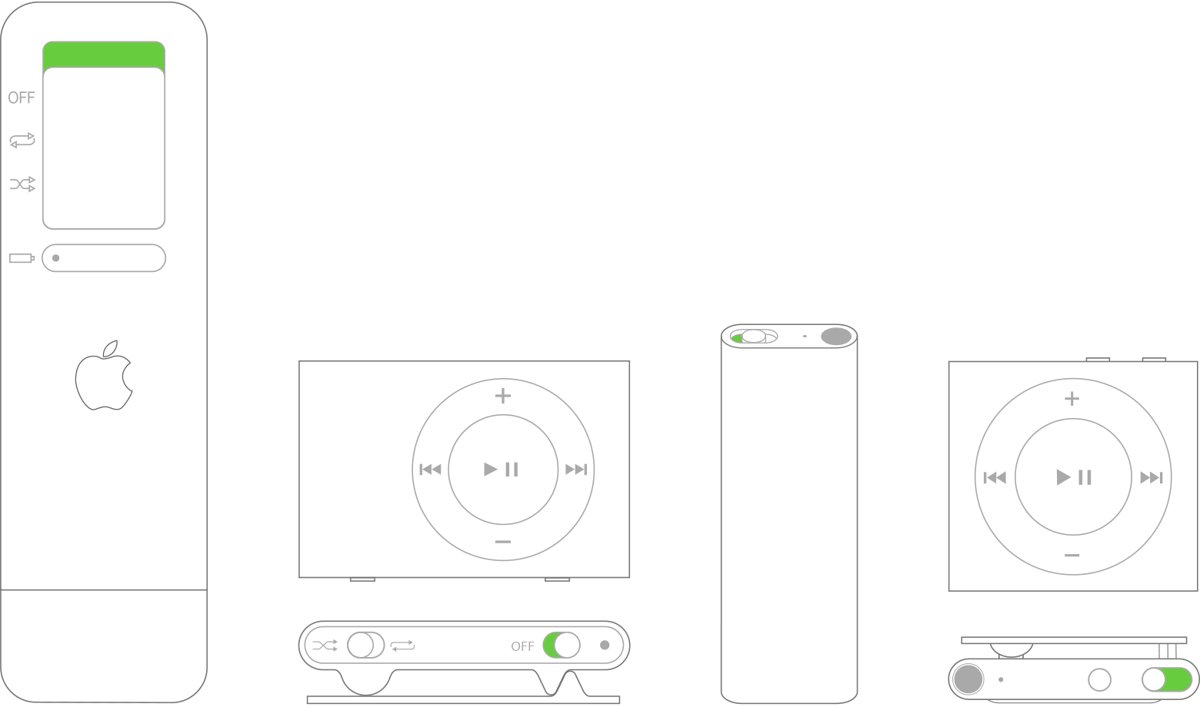
- Slide the power switch on. Green by the switch means the iPod is on.
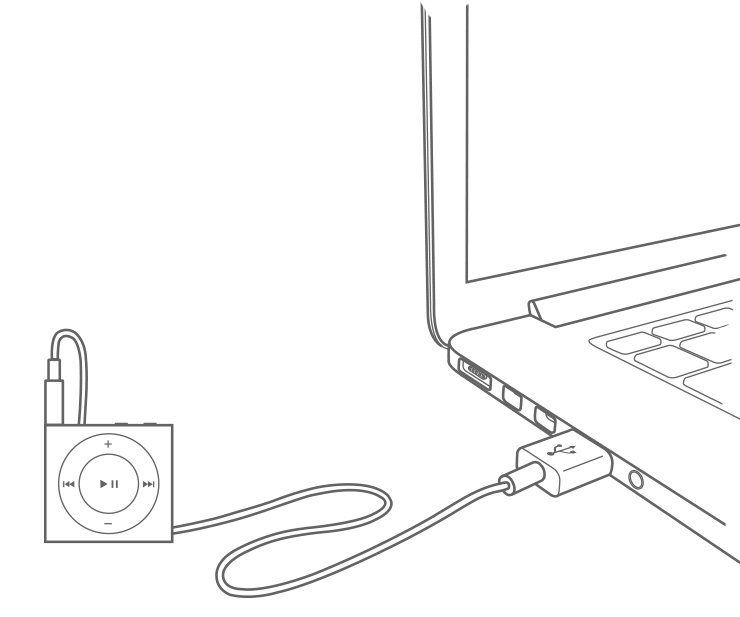
- Plug the Apple iPod shuffle USB cable or dock into the headphone jack, and the other end into a USB port on the computer itself, not on your keyboard. A 1st generation model plugs straight into the port.
- Open iTunes and look for the Device button near the top left of the window.
- Unplug the iPod and force restart it if the button is missing: switch it off, wait ten seconds, and switch it on again.
- Close iTunes on Windows and restart Apple Mobile Device Service in
services.msc. - Try another cable, another USB port, and then another computer.

Why is iTunes not recognizing iPod shuffle?
Match what you see to a row below, then go straight to that fix.
| What you see | Likely cause | What to do |
|---|---|---|
| The computer does not react when you plug it in | Faulty cable, a keyboard USB port, or a flat battery | Use a port on the computer, try another cable, charge the iPod, and on Windows check USB power settings and drivers |
| The iPod charges, but iTunes shows no Device button | Apple Mobile Device Service is stopped, or the cable does not carry data | Restart the service and use a cable that supports data and charging |
| "This [device] cannot be used because the Apple Mobile Device Service is not started" | The service is not running | Restart Apple Mobile Device Service |
| The buttons on the iPod do nothing | The iPod is not responding | Force restart it with the power switch |
| The Device button appears, but Music is missing from the iTunes pop-up menu | The Apple Music app now handles your music on this PC | Open the Apple Music app and the Apple Devices app |
| You are on a Mac with no iTunes | iTunes syncing applies to macOS Mojave or earlier | Look in the Finder sidebar instead |
iPod shuffle models and how each connects to USB
Each generation connects to a computer differently, so match yours to a row below before you change anything in iTunes.
| Model | Model number | How it connects | Controls |
|---|---|---|---|
| iPod shuffle (1st generation) | A1112 | Built-in USB connector | Control pad |
| iPod shuffle (2nd generation) | A1204 | No USB connector, so it needs the Apple cable or dock | Control pad |
| iPod shuffle (3rd generation) | A1271 | Headphone port connects to the USB port through the Apple cable | Apple Earphones with Remote |
| iPod shuffle (4th generation) | A1373 | Apple USB cable in the headphone jack | Control pad |
If you lost the original cable or dock, Apple says to use an Apple-certified USB cable. The cable must support both data and charging, because a charge-only cable can power the iPod without showing it in iTunes.
How to reset iPod shuffle without iTunes
A force restart uses the power switch, so it needs no computer and erases nothing.
- Unplug the iPod shuffle from its charger and from your computer.
- Use the power switch to turn it off. Green by the switch means it is still on.
- Wait for ten seconds.
- Turn the iPod shuffle on again.
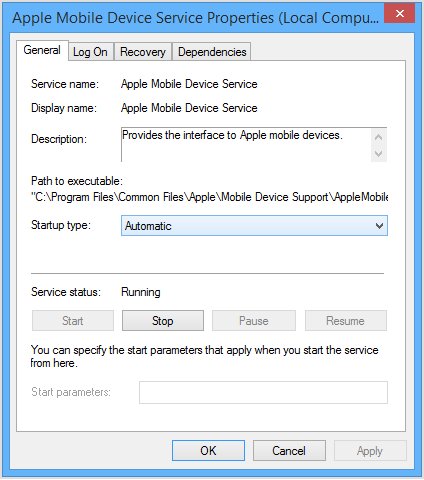
How to restart Apple Mobile Device Service for iPod shuffle
Apple's iTunes guide lists this restart among its fixes when an iPod does not show in iTunes on Windows.
- Close iTunes and disconnect any iPhone, iPad or iPod.
- Press Windows + R, type
services.mscand click OK. - Right-click Apple Mobile Device Service and click Properties.
- Set Startup type to Automatic.
- Click Stop to stop the service, then click Start after it has stopped.
- Click OK and restart the computer.
- Open iTunes and connect the iPod shuffle.
Apple says third-party security software can stop this service from starting, so install any update your security app offers. If Windows reports a driver failure, you can fix the usbaapl64.inf driver install and then try iTunes again.
iTunes for iPod shuffle on Windows 10 and Windows 11
Apple's iTunes guide says syncing to an iPod shuffle needs iTunes on Windows 10 or later, and that iTunes is the only way to add content to it.
- Install iTunes from the Microsoft Store if it is not on the PC.
- Check for iTunes updates in the Microsoft Store and install any that appear.
- Update Windows to the latest version.
- Open iTunes and connect the iPod shuffle.
- Install and open the Apple Devices app if you also use the Apple Music or Apple TV app on this PC, then look for the iPod in its sidebar.
You can update iTunes on Windows from the Microsoft Store at any time. Apple's download page describes the Apple Devices app as managing iPhone and iPad, while its iTunes guide still names the iPod shuffle, so between iTunes and the Apple Devices app, iTunes remains the one to try first.
Computer not recognizing iPod shuffle on Mac
Apple points to iTunes syncing on macOS Mojave or earlier. On later versions, connected devices appear in the Finder sidebar.
- Connect the iPod shuffle to the Mac with a USB cable.
- Click Allow if the Allow accessory to connect? alert appears.
- Open a Finder window and look in the sidebar.
- Choose View and then Show Sidebar if no sidebar is visible.
- Try another USB cable, then another USB port, then another Mac.
- Update macOS to the latest version available for that Mac.
How to tell if iTunes can see your iPod shuffle
- Look for the Device button near the top left of the iTunes window.
- Click it and check that the settings for your iPod shuffle open.
- Check that the iPod is charging, which shows the cable is connected properly.
- Look for the iPod icon on the desktop if you turned on disk use.
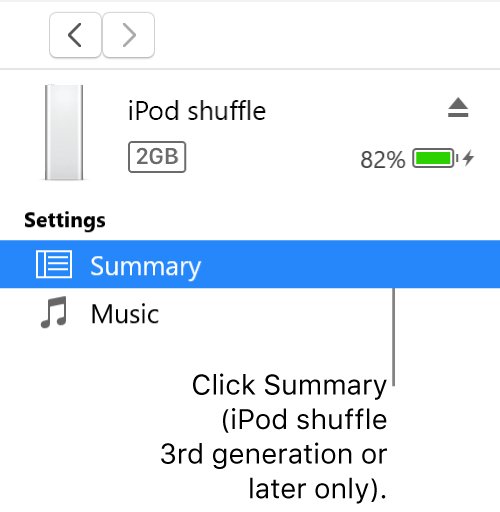
On the iPod shuffle 3rd generation or later, Summary holds settings such as Sound Check and the maximum volume limit.
How to sync iPod shuffle with iTunes
Automatic syncing is quickest. Manual syncing gives you more control, and it is required if you want to sync the shuffle with more than one iTunes library or use Autofill.
- Connect the iPod shuffle and open iTunes.
- Click the Device button near the top left of the window.
- Click Music in the sidebar.
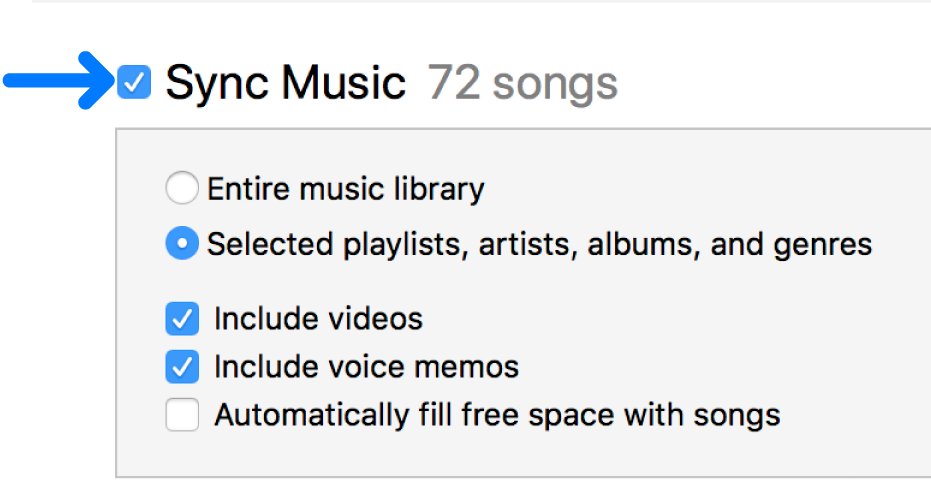
- Select the Sync checkbox, then select the items you want.
- Check the bar at the bottom of the window to see the space left.
- Click Apply, then use the eject control in iTunes before you disconnect.
To add a single item by hand, choose Music from the pop-up menu, click Library, click Downloaded, right-click the item and choose Add to Device. To fit more songs on the iPod, select Convert higher bit rate songs to 128 kbps AAC in Summary.
Put music on iPod shuffle without iTunes
Apple gives no way to add music to an iPod shuffle except syncing it with iTunes. Its iTunes guide says plainly that there is no other way to add content to an iPod classic, iPod nano or iPod shuffle. Copying audio files in disk mode does not change this, because disk mode is for storing files rather than loading playable music.
If the songs you want are only on the iPod, you can recover your iTunes library from the iPod before you restore anything.
How to use iPod shuffle as a hard disk in iTunes
Disk use lets you carry any kind of file, such as a document or a picture, in the free space on the iPod. It also needs iTunes on Windows 10 or later.
- Connect the iPod shuffle and open iTunes.
- Click the Device button near the top left of the window.
- Click Summary or Settings.
- Select Enable disk use and click Apply.
- Drag files to the iPod icon on the desktop, or double-click the icon to open it.
A dimmed checkbox means disk use is already on. Music synced by iTunes does not show in this window.
How to restore iPod shuffle to factory settings
A restore erases everything on the iPod and installs the latest iPod software, so try it only after the other fixes. It also needs the computer to see the iPod.
- Update your Mac or PC, and make sure iTunes is the latest version if you use it.
- Connect the iPod shuffle to the computer.
- Open the Finder on a Mac, or iTunes or the Apple Devices app on a PC.
- Select the iPod shuffle in the sidebar, or click the Device button and then Summary in iTunes.
- Click Restore and follow the onscreen instructions.
- Sync your music again when the restore finishes.
Why is my iPod shuffle not working?
iPod shuffle not turning on
The battery may be flat, or a rechargeable battery may have reached the end of its life.
- Plug the Apple USB cable or dock into the headphone jack, and the other end into the computer's USB port or an Apple USB Power Adapter.
- Keep the computer on and awake while the iPod charges.
- Unplug it and try the power switch.
- Consider replacing the battery if the iPod charges but turns off when you unplug it.
iPod shuffle not playing music
The iPod may be switched off, frozen, or empty, and saved Apple Music songs cannot be synced to it.
- On a 3rd generation model, set the three-position switch to play in order or shuffle rather than off.
- Force restart the iPod with the power switch.
- Connect it to iTunes and click Music to confirm that songs are selected for syncing.
- Choose songs you purchased or imported rather than saved Apple Music songs.
- Click Apply to sync again.
iPod shuffle won't connect to iTunes on a new computer
Automatic syncing ties the iPod to one iTunes library, and clicking Remove and Sync replaces its selected content.
- Leave Remove and Sync unclicked if you want to keep the current songs.
- Click Summary and select Manually manage music.
- Click Apply, and then add items from the new library by hand.
Can I still use my iPod shuffle?
Yes, as long as the hardware works and a computer can still sync it. Apple now lists every iPod shuffle generation as obsolete, so repair is the part that has ended.
| What you may need | Status |
|---|---|
| Sync music from a Windows 10 or later PC | Available in iTunes |
| Force restart | Still works, with no computer needed |
| Repair or battery service from Apple | Ended, because Apple discontinues hardware service for obsolete products |
| Syncing saved Apple Music songs | Not possible on any iPod shuffle |
| Wireless sync | Not available, since it needs an iPhone, iPad or iPod touch |
iPod shuffle not recognized by iTunes FAQ
How to use iPod shuffle without iTunes?
You can play the music already on it without a computer, but you cannot add new music without iTunes. Apple's iTunes guide says syncing is the only way to add content to an iPod shuffle.
How to reset iPod shuffle without iTunes?
Unplug the iPod from any charger or computer, use the power switch to turn it off, wait ten seconds, and turn it on again. This force restart needs no software and leaves your music in place.
Why is my iPod shuffle not working?
The most common causes are a flat battery, a frozen iPod, or a cable that does not carry data. Charge it first, force restart it with the power switch, and then connect it to iTunes with another Apple-certified USB cable.
Why won't my iPod shuffle play?
An iPod shuffle plays only what iTunes has synced to it, so an empty iPod has nothing to play. Check that the switch is on, charge the battery, force restart it, then sync your music again from iTunes.
Is iPod shuffle still supported?
Apple lists all iPod shuffle models as obsolete, which means it no longer provides hardware service or parts. Its current iTunes guide for Windows still documents syncing and managing an iPod shuffle, so software use continues.
Does iPod shuffle have a screen?
No, the iPod shuffle has no display, so you cannot browse songs or see prompts on the device. That also means you will not see a Trust This Computer alert on it, so that fix applies only to devices with a screen.
Why doesn't iPod shuffle show up in iTunes?
A keyboard USB port, a charge-only cable or a stopped Apple Mobile Device Service are the usual reasons. Plug the iPod into a port on the computer, use a data-capable cable, restart the service, and look again for the Device button in iTunes.