Uninstall League of Legends in Settings > Apps > Installed apps, delete its folders in C:\Riot Games and %localappdata%\Riot Games, then restart your PC.
This guide covers each step on Windows 11 and Windows 10, what happens to Riot Vanguard and your other Riot games, and what to do when League of Legends will not uninstall.
How to uninstall League of Legends completely on Windows?
These steps follow Riot's own clean removal process. Keep to the folder note in step 5 if another Riot game shares the PC.
- Close League of Legends and the Riot Client.
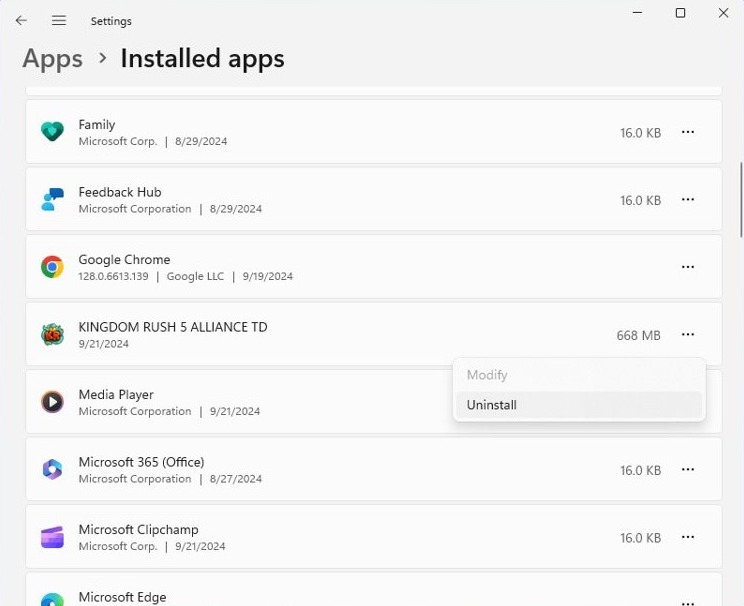
- Select Start > Settings > Apps > Installed apps.
- Find League of Legends, select More, then select Uninstall.
- Open File Explorer and go to
C:\Riot Games, the default install location. - Delete the whole folder if League is your only Riot game, or only its League of Legends folder if you have others.
- Type
%localappdata%in the address bar, press Enter, and open Riot Games. - Delete Riot Games if League was your only Riot game, or only its League of Legends folder if not.
- Empty the Recycle Bin and restart your PC.
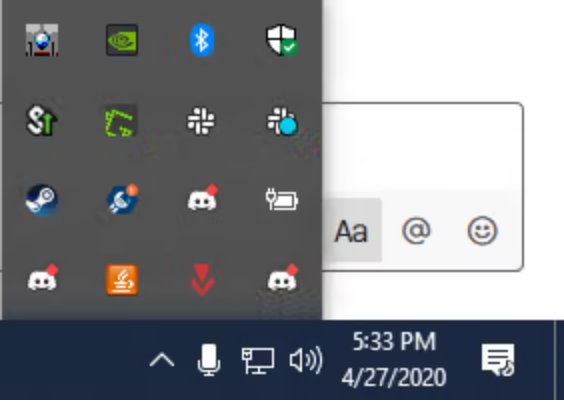
Riot Vanguard removes itself automatically once no installed software needs it. Check for its red icon in the system tray after the restart.
Uninstall League of Legends but keep Valorant
League shares the Riot Games folder and Riot Vanguard with other Riot titles, so match your setup to a row before deleting anything.
| Your setup | What to remove | Why |
|---|---|---|
| League of Legends is your only Riot game | The game, both Riot Games folders, and Vanguard if it remains | Nothing else on the PC depends on them |
| You also play VALORANT | The game and only its League of Legends folders | VALORANT also requires Vanguard, so Vanguard stays |
| You also have another Riot game | The game and only its League of Legends folders | Deleting Riot Games would remove the other game too |
| You want League gone but plan to return | The game and both folders, then reinstall later | Riot suggests a clean reinstall to fix many League problems |
Teamfight Tactics on PC relies on the League Client, so expect to lose TFT on this PC as well.
Close Riot Client and Riot Vanguard before you uninstall League of Legends
Riot's instructions start from a Windows account with admin access and with every Riot program closed.
- Close any game launched from the Riot Client.
- Close the Riot Client, then look in the system tray at the bottom right of the screen.
- Right-click the Riot Client icon and select Exit if it is still there.
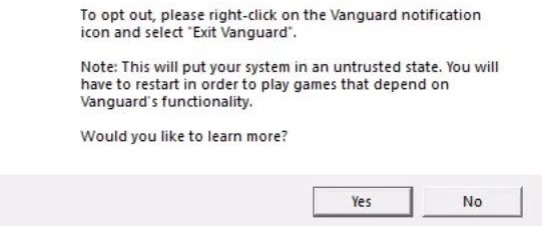
- Right-click the red Riot Vanguard icon, select Exit Vanguard, and select Yes.
- Press Ctrl + Shift + Esc to open Task Manager, select any Riot program still listed, and select End task.
How to uninstall League of Legends on Windows 11 and Windows 10
- Select Start > Settings > Apps.
- Select Installed apps on Windows 11, or Apps & features on Windows 10.
- Find League of Legends in the list.
- On Windows 11, select More, then Uninstall. On Windows 10, select the entry, then Uninstall.
- Follow the on-screen prompts until the entry leaves the list.
The steps are the same on a laptop or desktop, because they depend on your Windows version and not your hardware.
Remove League of Legends from Control Panel or the Start menu
Microsoft notes that some apps cannot be uninstalled from Settings, so use these routes when League does not appear there.
- Enter Control Panel in taskbar search and select it.
- Select Programs > Programs and Features.
- Right-click League of Legends and select Uninstall or Uninstall/Change.
- Follow the directions on the screen.
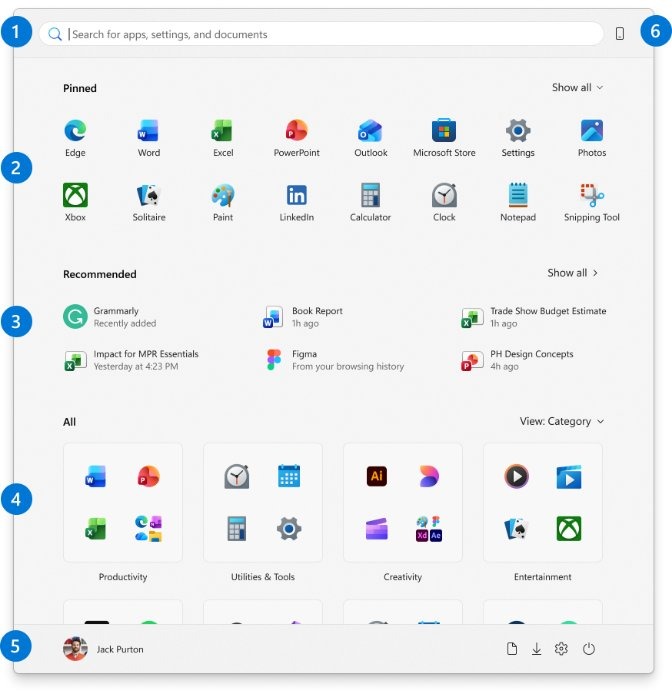
- If it is not listed, select Start > All apps, right-click the game, and select Uninstall.
Delete League of Legends leftover files and folders
Riot treats this as part of a clean removal, and the uninstall alone is not the end of it. If you picked a custom install folder, use that location in place of C:\Riot Games.
- Open File Explorer and go to
C:\Riot Games. - Delete the entire folder if League is your only Riot game, or only League of Legends if not.
- Type
%localappdata%in the File Explorer address bar and press Enter. - Open Riot Games and apply the same rule.
- Empty the Recycle Bin.
How do I uninstall LoL and Riot Games?
Riot Support has no separate page for removing the Riot Client. Use this order to remove League and every other Riot program from the PC.
- Exit every Riot program, including Riot Vanguard, from the system tray.
- Open Settings > Apps > Installed apps and uninstall each Riot game in the list.
- Uninstall Riot Client too if it has its own entry on your PC.
- Delete
C:\Riot Gamesand the Riot Games folder inside%localappdata%. - Restart your PC.
- Check the system tray and remove Riot Vanguard if it is still there.
Uninstall Riot Vanguard after removing League of Legends
Riot removes Vanguard automatically once you uninstall all software that requires it. With VALORANT still installed, Vanguard stays, and VALORANT needs it to run.
- Right-click the Riot Vanguard icon in the system tray.
- Select Advanced, or More if that is what your version shows.
- Select Uninstall Vanguard and follow the prompts.
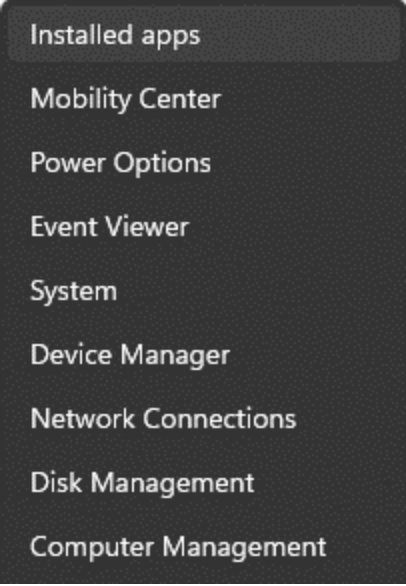
- Or press the Windows key, type Add or Remove programs, press Enter, and uninstall Riot Vanguard from the list.
- Restart your PC. Vanguard is gone if its icon does not return to the system tray.
Manually remove Riot Vanguard with sc delete vgc and vgk
Riot provides this advanced route for when Vanguard lingers after a normal uninstall. Close all Riot software first.
- Press the Windows key and type cmd.
- Right-click Command Prompt and select Run as administrator.
- Type
sc delete vgcand press Enter. - Type
sc delete vgkand press Enter. - Restart your PC.
- Open
C:\Program Filesin File Explorer, right-click the Riot Vanguard folder, and delete any remaining files.
Do you need a League of Legends uninstaller?
No, the removal tools already built into Windows are enough, and you do not need to install a free software uninstaller. Riot's clean removal process uses Settings, File Explorer and a restart, and its Vanguard process adds only two Command Prompt lines. Those steps cover everything Riot documents, without adding another program to the PC you are trying to clean up.
How to tell if League of Legends is fully uninstalled
- Open Settings > Apps > Installed apps and search for League of Legends.
- Open File Explorer and look for a League of Legends folder inside
C:\Riot Games. - Type
%localappdata%in the address bar and look inside Riot Games the same way. - Restart your PC and look for the red Riot Vanguard icon in the system tray.
No list entry, no folders and no tray icon means the removal is complete. If you still play VALORANT, the Vanguard icon staying is correct.
Does uninstalling League of Legends delete your Riot account?
No. Removing the game only affects files on this PC. Riot says you can leave an account active when you stop playing, and it will not be deleted or harmed.
| Action | What happens to the account | Can you undo it? |
|---|---|---|
| Uninstall League of Legends | Nothing changes | Yes, by reinstalling the game |
| Deactivate the Riot account | Access is restricted and data stays in place | Yes, at any time by request to Player Support |
| Delete the Riot account | Deleted 30 days after your request, across every Riot game tied to it | Only if you reply at least five days before the deletion date |
Reinstall League of Legends after a clean uninstall
Riot suggests a clean removal and reinstall as a fix for many League problems. Its Riot Repair Tool can also re-patch and reinstall the game, and you can learn what Riot Repair Tool does before you run it.
- Restart your PC after the removal.
- Download League of Legends again.
- Right-click the installer and select Run as administrator.
- Follow the prompts to install.
- Launch the Riot Client so that Vanguard reinstalls automatically.
- Restart your PC if League asks for Vanguard, because Vanguard runs from boot.
You can also install Riot Vanguard on Windows 11 separately if the automatic install does not start.
Why can't I uninstall League of Legends?
Riot's removal steps assume every Riot program is closed, so start there. Microsoft's general guidance for blocked removals also applies here.
League of Legends won't uninstall
The Riot Client, the game, or Vanguard is still open.
- Exit the Riot Client and Riot Vanguard from the system tray.
- Press Ctrl + Shift + Esc, select any Riot program left in Task Manager, and select End task.
- Go to Start > Power > Restart.
- Try the uninstall again before you open any Riot program.
- Use Programs and Features in Control Panel if Settings still fails.
League of Legends uninstall not working, with an error message
The install may be incomplete or its app data may be damaged.
- Restart your PC.
- Go to Settings > Apps > Installed apps, select the game, and select Advanced options if it is offered.
- Select Repair, or Reset if the issue continues. Not all desktop apps offer these.
- Select Uninstall again.
- Follow any troubleshooting steps that Windows recommends in the error message.
- Gather logs with Riot Repair Tool and submit a ticket to Player Support if the error stays.
League of Legends is not in Installed apps
Settings does not list every program, or an earlier uninstall already removed the entry.
- Check Programs and Features in Control Panel and All apps in Start.
- Delete the League of Legends folders in
C:\Riot Gamesand%localappdata%\Riot Gamesif no entry exists. - Restart your PC.
Why can't I delete the League of Legends folder?
A running Riot process still has files open.
- End Riot programs in Task Manager.
- Restart your PC and delete the folder before you open any Riot program.
- Sign in with an account that has admin access if Windows asks for permission.
League of Legends uninstall FAQ
How do I fully uninstall League of Legends?
Uninstall the game from Installed apps, then delete its folders in C:\Riot Games and %localappdata%\Riot Games. Empty the Recycle Bin and restart. Vanguard removes itself automatically unless VALORANT or other software still requires it.
How do I uninstall League of Legends on Windows 11?
Select Start, Settings, Apps and Installed apps. Find League of Legends, select More and then Uninstall. Delete the leftover Riot Games folders afterward, because Riot treats those as part of a clean removal on Windows.
How do I uninstall League of Legends on Windows 10?
Select Start, Settings, Apps and Apps & features, then select League of Legends and Uninstall. Riot's folder steps are the same on Windows 10, so delete the Riot Games folders and restart the PC when you finish.
Why won't League of Legends uninstall?
Check for a running Riot program first. Exit the Riot Client and Riot Vanguard from the system tray, end anything left in Task Manager, restart, and try again. Use Programs and Features in Control Panel if Settings still fails.
Does uninstalling League of Legends remove Riot Vanguard?
Only if nothing else needs it. Riot says Vanguard is removed automatically once you uninstall all software that requires it, so it stays when VALORANT is installed. You can also remove it from its tray icon or from Add or Remove programs.
How do I uninstall League of Legends PBE?
Riot no longer uses a separate PBE client, because you launch PBE from the Riot Client with a PBE account. Riot has no PBE removal page, so check Installed apps for a PBE entry and use the same folder steps.
How do I remove League of Legends from a laptop?
Use the same process as on a desktop PC. Uninstall the game from Settings, delete the Riot Games folders in File Explorer, empty the Recycle Bin, and restart. Windows treats a laptop the same way for these steps.
Can I uninstall League of Legends without losing my account?
Yes. Uninstalling removes files from this PC and does not touch your Riot account. Riot says an unused account can stay active without being deleted or harmed, and account deletion is a separate request you would have to make.