To turn on OneDrive in Windows 11, select Start, type OneDrive, open the OneDrive app, and sign in with your Microsoft account.
The steps below also start OneDrive automatically at sign-in and bring it back after it was paused, unlinked, uninstalled or blocked by a policy.
How to turn on OneDrive Windows 11
Microsoft states that OneDrive is already installed on Windows 11, so most PCs need a sign-in rather than a download.
- Select Start and type OneDrive in the search box.
- Select OneDrive in the search results.
- Enter your personal Microsoft account, or your work or school account, and select Sign in.
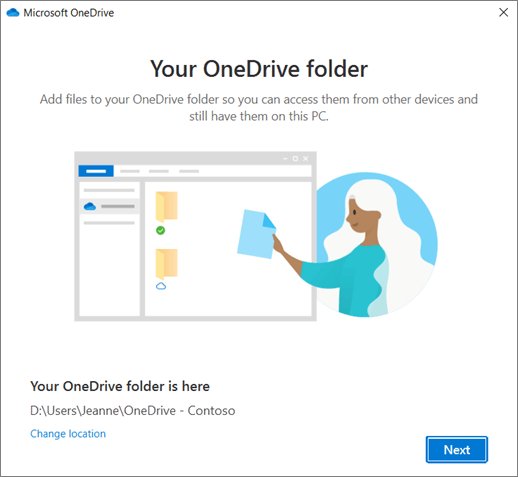
- Select Next on the This is your OneDrive folder screen to keep the default location.
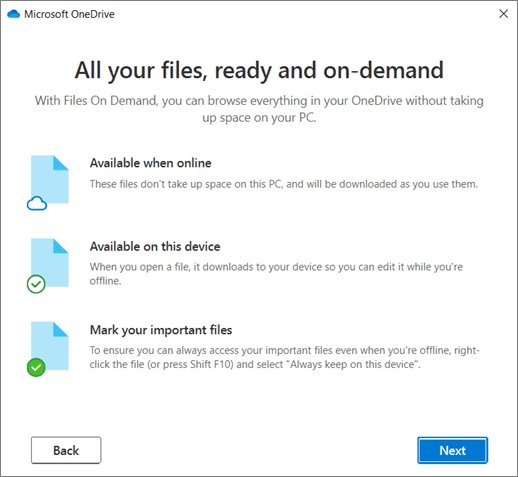
- Select Next on the All your files, ready and on-demand screen.
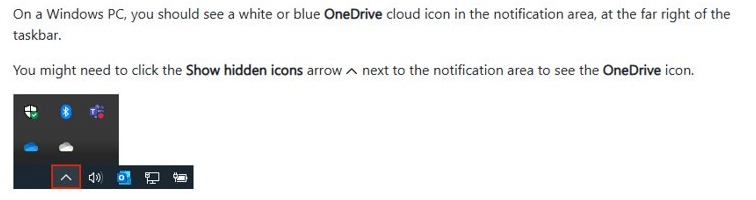
A white or blue OneDrive cloud icon now appears at the far right of the taskbar. Your files appear in the OneDrive folder in File Explorer.
Why OneDrive is off in Windows 11 and how to turn it back on
OneDrive can be off in several different ways, and each one has its own fix. Match what you see on your PC to a row, then use that fix.
| What you see | What it means | How to turn it on |
|---|---|---|
| No cloud icon, but OneDrive is listed in Start | The app is closed | Open OneDrive from Start |
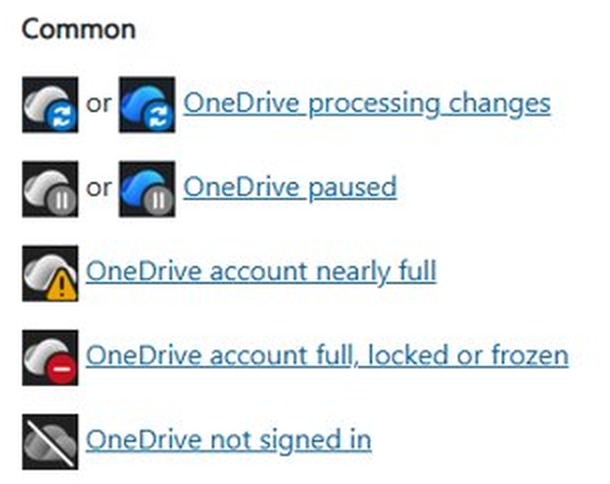
| Gray cloud icon with a line through it | No account is signed in | Select the icon and sign in |
| OneDrive works but never opens at sign-in | The startup entry is off | Turn on the startup entry in Settings or Task Manager |
| The cloud icon shows Paused | Sync is paused | Resume sync from the OneDrive panel |
| The Set up OneDrive screen appears after an earlier unlink | This PC is disconnected from your account | Sign in and select Use this folder |
| No OneDrive result in Start | The sync app is not installed | Download the app from Microsoft |
| OneDrive is missing from the File Explorer navigation pane and will not start | A policy may be blocking it | Change the Group Policy setting or ask your admin |
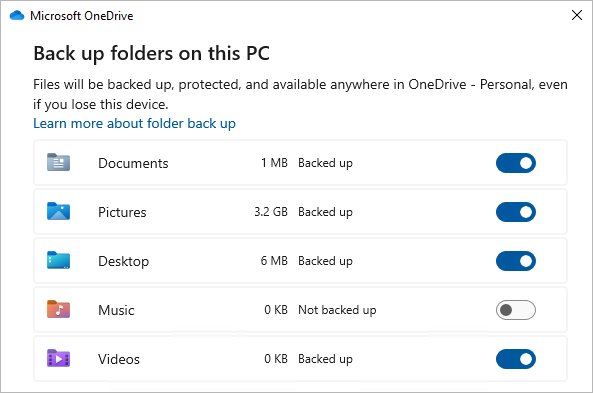
| Desktop or Documents show Not backed up | Folder backup is off for those folders | Turn them on in Manage backup |
Turn on OneDrive personal Windows 11
A personal OneDrive uses your own Microsoft account rather than a work or school sign-in. Setup is also the best time to move the OneDrive folder to another location.
- Open OneDrive from Start.
- Enter the email address of your personal Microsoft account and select Sign in.
- Enter your password when asked.
- On This is your OneDrive folder, select Change location if you want another folder, or select Next to keep the default.
- Read how files are marked on All your files, ready and on-demand, then select Next.
Your files appear in the OneDrive folder in File Explorer. If you use more than one account, personal files appear under OneDrive – Personal and work or school files under OneDrive – [CompanyName].
A PC can hold only one personal account, plus several work or school accounts.
How to turn on OneDrive automatically
Turning on the startup entry opens OneDrive each time you sign in to Windows, so you do not have to start it by hand. The Settings app and Task Manager show the same list of startup apps.
- Select Start > Settings > Apps > Startup.
- Find OneDrive in the list and set its toggle to On.
- If you prefer Task Manager, right-click Start and select Task Manager.
- Select the Startup apps tab, select OneDrive, then select Enable.
- To check the app's own setting, select the OneDrive cloud icon, then Help & Settings > Settings.
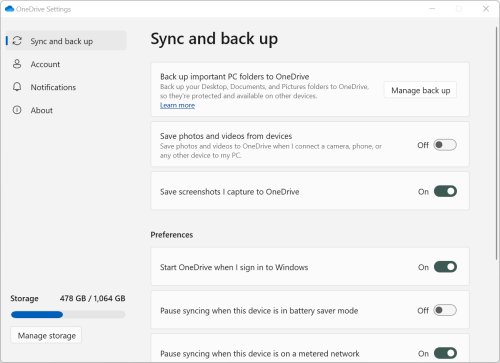
- Open the Sync and backup tab and review Preferences, which controls how OneDrive behaves at startup.
Task Manager also shows the startup impact of each app, which helps if a slow sign-in concerns you. OneDrive starts by itself at your next sign-in.
How to turn on OneDrive Windows 10
Microsoft says the OneDrive app comes with some versions of Windows 10, so check Start before you download anything.
- Select Start, type OneDrive, and select OneDrive in the results.
- If nothing appears, get the app from Microsoft's OneDrive download page and open the file you saved.
- Enter your Microsoft account or your work or school account, then select Sign in.
- Follow the two setup screens and select Next on each.
- Look for the white or blue cloud icon at the far right of the taskbar.
Microsoft ended support for the OneDrive desktop app on Windows 10 21H2 and earlier on August 15, 2026. Update Windows if your PC still runs one of those versions.
How to turn on OneDrive after unlinking this PC
Unlinking disconnects your local folders from the cloud without losing data. Changes you made while unlinked sync once the PC is linked again.
- Press the Windows key, type OneDrive, and select the OneDrive app.
- Sign in with the same account you used before.
- When OneDrive reports that a folder already exists, select Use this folder.
- Wait for the first sync to finish, then check your files in File Explorer.
How to turn on OneDrive sync after pausing it
Sync resumes by itself when a 2, 8 or 24 hour pause ends. OneDrive also pauses on its own in battery saver mode and on a metered network.
- Select the paused OneDrive icon in the notification area.
- Select the resume icon or the yellow box in the panel that opens.
- Check that the icon no longer shows Paused.
If you have both a personal and a work OneDrive, pause and resume work independently. Repeat the steps on the other cloud icon.
How to turn on OneDrive backup in Windows 11
Folder backup adds your Desktop, Documents, Pictures, Music and Videos folders to OneDrive. Those folders are then protected and available across your devices.
- Select the OneDrive cloud icon in the notification area.
- Select the Help & Settings gear icon, then Settings.
- Go to the Sync and backup tab.
- Select Manage backup.
- Toggle on each folder that says Not backed up.
- Select Save changes.
Backup stops on a file over 250 GB and on a path of 260 characters or more. To keep a copy of your cloud files somewhere else too, you can back up OneDrive itself.
How to turn on OneDrive Files On-Demand in Windows 11
Files On-Demand shows all your files in File Explorer without downloading them. It is on by default from OneDrive build 23.066, so you only need these steps if it is off.
- Confirm you are signed in to OneDrive on this PC.
- Select the OneDrive cloud icon, then the Help & Settings gear icon, then Settings.
- Go to the Sync and backup tab.
- Expand Advanced settings.
- Toggle on Files On-Demand.
A blue cloud next to a file means it is online-only. Online-only files take no disk space, but they will not open without an internet connection.
How to turn on OneDrive when Group Policy blocks it
The policy Prevent the usage of OneDrive for file storage stops OneDrive syncing and removes it from the File Explorer navigation pane. Microsoft lists this policy for Pro, Enterprise, Education and IoT Enterprise editions.
- Press Windows key + R, type
gpedit.msc, and press Enter. - Go to Computer Configuration > Administrative Templates > Windows Components > OneDrive.
- Double-click Prevent the usage of OneDrive for file storage.
- Select Not Configured or Disabled, then select OK.
- Restart the PC.
- Open OneDrive from Start and sign in.
On a PC managed by your organization, ask your IT admin to make this change. A policy set by your organization comes back after a restart or sign-in.
DisableFileSyncNGSC registry value blocking OneDrive
The same policy is stored in the registry. Microsoft warns that incorrect registry changes can cause serious problems, so back up the registry before editing it.
- Press Windows key + R, type
regedit, and press Enter. - Go to
HKEY_LOCAL_MACHINE\Software\Policies\Microsoft\Windows\OneDrive. - Find the
DisableFileSyncNGSCvalue. A DWORD of1means OneDrive sync is disabled. - Delete the value, or change its data to
0. - Restart the PC, then open OneDrive from Start.
If the key or value does not exist, this policy is not what is stopping OneDrive.
How to turn on OneDrive after uninstalling it
OneDrive only comes back after you install the sync app again, and uninstalling did not delete anything stored in your account. You can download and install OneDrive from Microsoft, then sign in.
- Get the Microsoft OneDrive app from Microsoft's OneDrive download page.
- Open the downloaded file.
- Follow the prompts to sign in and get started.
- Choose your synced folders again if you had picked only some of them before.
OneDrive by Microsoft Corporation is a separate Microsoft Store app. It lets you view your OneDrive, but it does not back up or sync your files.
How to turn off OneDrive Windows 11
Unlinking stops OneDrive on this PC, and you do not lose any files. They stay available at OneDrive.com.
- Select the OneDrive cloud icon in the notification area.
- Select the Help & Settings gear icon, then Settings.
- Go to the Account tab.
- Select Unlink this PC, then select Unlink account.
To turn off OneDrive backup instead, switch off the folder's toggle in Manage backup and choose where its files should stay. To keep OneDrive off for good, you can disable OneDrive in Windows 11 through startup settings, an uninstall or Group Policy.
Is OneDrive turned on? How to check in Windows 11
- Look for a white or blue OneDrive cloud icon in the notification area at the far right of the taskbar.
- Select the Show hidden icons arrow next to the notification area if you see no cloud icon.
- Treat a gray icon with a line through it as off, because it means no account is signed in.
- Open File Explorer and look for OneDrive in the navigation pane.
- Save a small test file in the OneDrive folder, then sign in at OneDrive.com and confirm the file is listed.
How does OneDrive work in Windows 11
OneDrive keeps a folder on your PC and your online storage matched, and you work with those files in File Explorer.
| What you do | What OneDrive does |
|---|---|
| Add, change or delete a file in the OneDrive folder | Makes the same change on the OneDrive website, and the reverse |
| Open an online-only file | Downloads it, then keeps it available without internet access |
| Select Free up space on a file | Returns the file to online-only and frees the disk space |
| Select Always keep on this device | Downloads the file and shows a green circle with a white check mark |
| Clear a folder in Choose folders | Removes the folder from this PC and keeps it online |
Tips for how to turn on OneDrive Windows 11
| Tip | Why it matters |
|---|---|
| Sign in with the account that already holds your files | Each account has its own settings and its own OneDrive folder |
| Pick the folder location during setup | Microsoft calls setup the best time to change the location |
| Check your storage use in OneDrive Settings before turning on folder backup | A free account has 5 GB, and an account over its quota cannot upload, edit or sync new files |
| Close open files before you turn on folder backup | OneDrive cannot move a file that is open |
Remove spaces at the start of file names and the characters \ : / * ? < > " | |
OneDrive does not allow them and stops the folder backup |
| Keep the OneDrive app up to date | Microsoft recommends the latest free app for current features and fixes |
OneDrive won't start in Windows 11
No OneDrive cloud icon on the taskbar
The icon has moved out of the notification area, or OneDrive is not running.
- Select the Show hidden icons arrow next to the notification area.
- If the icon is not there, select Start, type OneDrive, and select OneDrive.
- If OneDrive is not in the results, install the latest app from Microsoft.
Gray OneDrive icon with a line through it
You are not signed in.
- Select the gray OneDrive icon.
- Enter your email address and password on the Set up OneDrive screen.
- Use the Microsoft account sign-in helper if you forgot your personal account details.
- Reset your password or contact your IT admin if a work or school account fails.
OneDrive says it is not connected
The app needs a restart, or a firewall on your network is blocking OneDrive.
- Select Start, search for OneDrive, and open it again.
- Sign in if OneDrive asks you to.
- Connect to a mobile hotspot to test whether your internet provider's firewall blocks OneDrive.
- Ask your internet provider whether it supports access to Microsoft 365 services if the hotspot works.
No sign-in prompt and no files sync, with no error message
A Group Policy setting is preventing onedrive.exe from starting.
- Check the
DisableFileSyncNGSCregistry value as shown above. - If your organization manages the PC, ask your admin to change the policy.
- Do not rely on a manual registry edit on a managed PC, because the policy is reapplied after a restart or sign-in.
OneDrive still won't open after these checks
The sync app's local settings may need a reset, which does not remove your files from OneDrive.
- Press Windows key + R to open the Run dialog.
- Paste
%localappdata%\Microsoft\OneDrive\onedrive.exe /resetand select OK. - If you see a Windows cannot find message, run
C:\Program Files\Microsoft OneDrive\onedrive.exe /resetinstead. - If that also fails, run
C:\Program Files (x86)\Microsoft OneDrive\onedrive.exe /reset. - Select Start, type OneDrive, and open the desktop app.
- Choose your synced folders again if you had picked only some of them.
If none of the three reset commands runs, the OneDrive sync app is not installed. Download it from Microsoft and sign in.
Turn on OneDrive Windows 11 FAQ
How do I turn on OneDrive on my PC?
Select Start, type OneDrive, and select the OneDrive app in the results. Sign in with your Microsoft account or your work or school account, then finish the setup screens. A white or blue cloud icon on the taskbar shows it is running.
Is OneDrive turned on by default in Windows 11?
OneDrive is installed on Windows 11, but it does not sync your account until you sign in. A gray cloud icon with a line through it means no account is signed in. Select that icon and enter your email address and password to start it.
Why is OneDrive on my computer?
OneDrive is on your computer because Microsoft includes it with Windows 11 and some versions of Windows 10. It syncs files between your PC and your cloud storage. You can leave it signed out, unlink it, or uninstall it if you do not want to use it.
Why is my computer using OneDrive?
Your computer uses OneDrive when an account is signed in or folder backup is on. Backup adds Desktop, Documents, Pictures, Music and Videos to OneDrive. Check which folders are included in OneDrive Settings under Sync and backup, then select Manage backup.
What if I don't have a Microsoft account?
Create a free Microsoft account before you sign in to OneDrive. If you do not have your own email address, you can get a new Outlook.com address at outlook.com by selecting Create free account. Each new account includes 5 GB of cloud storage.
Is OneDrive free to use?
Yes, a free Microsoft account includes 5 GB of cloud storage. That storage is shared across your OneDrive files and photos, Outlook.com attachments and Microsoft 365 apps. You only need to buy more if you want to go over that allowance.
Can I use OneDrive offline?
Yes, you can open synced files that are stored on your PC without an internet connection. Right-click a file or folder and select Always keep on this device to make it available offline. Online-only files marked with a blue cloud will not open until you reconnect.
How do I manage syncing folders?
Open OneDrive Settings, go to the Account tab, and select Choose folders. Uncheck any folders you do not want on this PC and select OK. Unchecked folders stay online, and you cannot uncheck Documents, Desktop, Pictures or your Personal Vault folder.
What happens if I uninstall OneDrive?
Your OneDrive folder stops syncing, but you do not lose your files or data. Everything already in OneDrive stays available when you sign in at OneDrive.com. Installing the app again later runs a full sync and resets all OneDrive settings.