Open Windows PowerShell and run irm https://antigravity.google/cli/install.ps1 | iex to install Antigravity CLI on Windows 11, then run agy --version to check it.
These steps also cover the Command Prompt installer, Google sign-in, PATH errors, models, permissions, and the Antigravity app.
Installing Antigravity CLI on Windows 11
Google's installer adds the agy command to your PATH, so this is usually a single command. Admin rights are not part of Google's listed steps, so start with a normal window rather than running PowerShell as administrator.
- Open Start, type Windows PowerShell, select Windows PowerShell, then select Open.
- Paste
irm https://antigravity.google/cli/install.ps1 | iexand press Enter. - Read the installer output and note any message about adding
agyto your PATH. - Close the window and open a new PowerShell window.
- Run
agy --versionto confirm the command responds with a version number.
You can run the same command from PowerShell 7 if you already use it instead of Windows PowerShell.
Antigravity CLI install command for PowerShell and CMD
Google publishes a separate command for each Windows shell. Both end with the same agy command, so use the shell you already have open, or open Command Prompt if you prefer CMD.
| Your shell | Run this command | What it does |
|---|---|---|
| Windows PowerShell or PowerShell 7 | irm https://antigravity.google/cli/install.ps1 | iex |
Fetches Google's install script and runs it |
| Command Prompt (CMD) | curl -fsSL https://antigravity.google/cli/install.cmd -o install.cmd && install.cmd && del install.cmd |
Saves the script, runs it, then deletes the script file |
| PowerShell, reading the script first | irm https://antigravity.google/cli/install.ps1 |
Prints the script without running it |
irm is short for Invoke-RestMethod, and iex is short for Invoke-Expression, which runs whatever text it receives. Microsoft advises checking that a command is safe before you run it through Invoke-Expression, so type the antigravity.google address exactly.
Antigravity CLI requirements on Windows 11
Google's hands-on Antigravity CLI guide names a browser and an account as the basics. It does not list a minimum Windows build or hardware specification.
| Item | Why it matters |
|---|---|
| Chrome browser | Google lists Chrome as a basic requirement, and sign-in opens a browser window |
| Personal Gmail account | Used for the Google OAuth sign-in option |
| Google Cloud project | The alternative sign-in option at first launch |
| Git, Python 3, and GitHub CLI | Needed only for the developer use cases in Google's guide |
| Google AI Pro or Ultra plan | Optional, and it adds quota on top of the personal account starter pack in the Antigravity app |
How to set up Antigravity CLI and sign in
The first launch walks you through sign-in, a theme, the terms, and folder trust. Start in a project folder, because agy asks for permission to read, edit, and run files there.
- Run
mkdir agy-cli-projectsand thencd agy-cli-projectsto create a working folder. - Run
agy. The screen shows You are currently not signed in. on a first launch. - Select Google OAuth, or select Use a Google Cloud project if you work from a Cloud project.
- Finish signing in through the browser window, then copy the code it gives you.
- Paste the code into the terminal and press Enter.
- Choose a color theme and accept the terms of service.
- Select Yes, I trust this folder to start working, or No, exit to leave.
How to tell if Antigravity CLI is installed on Windows 11
Two commands answer this. One proves the program runs, and the other shows which file Windows is launching.
- Open a new PowerShell window so it loads your current PATH.
- Run
agy --versionand look for a version number. Google's guide was last updated against version 1.1.27, so a newer number is normal. - Run
Get-Command agyto see the command name and where it was found. - Run
agy --helpto confirm that the command-line options load.
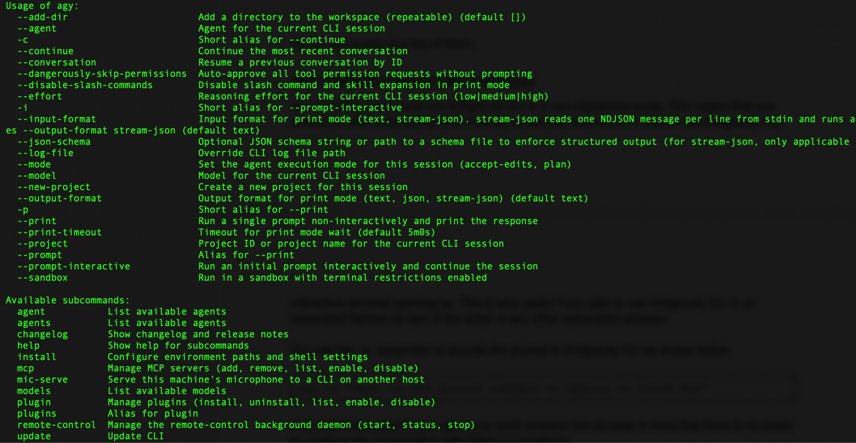
Antigravity CLI commands to run first
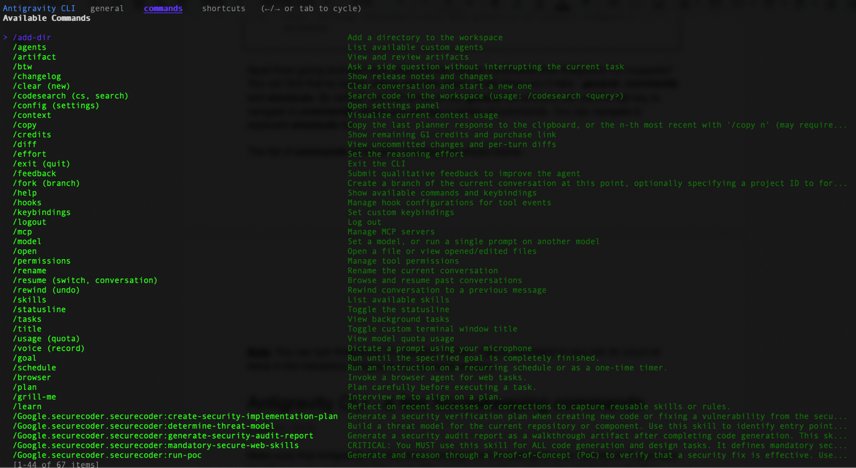
These commands cover your first session. Terminal commands run from PowerShell, and slash commands run inside an open agy session.
| Command | Where to run it | What it does |
|---|---|---|
agy |
PowerShell or CMD | Starts an interactive session in the current folder |
agy --help |
PowerShell or CMD | Lists the command-line options |
agy -p "your prompt" |
PowerShell or CMD | Runs one prompt in non-interactive mode, with no follow-up questions |
/help |
Inside agy |
Opens help with general, commands, and shortcuts tabs |
/plan |
Inside agy |
Has the agent analyze your request and produce a plan to review before building |
/artifact |
Inside agy |
Lists plans and walkthroughs so you can open, approve, or reject them |
/quit |
Inside agy |
Exits the session |
! |
Inside agy |
Toggles shell mode, and Esc also exits it |
| Ctrl + D twice | Inside agy |
Exits the session |
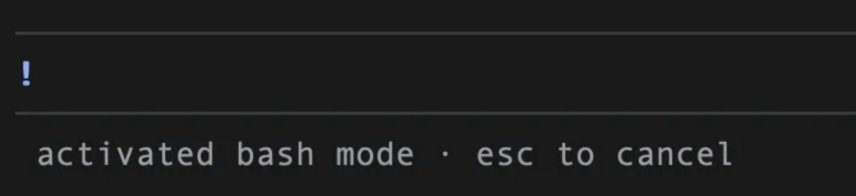
How to change the Antigravity CLI model
Google says the model list can change over time. Treat the model name below as a format example and read your own list first.
- Run
agy modelsto list the models available to you. - Copy the exact name of the model you want, including any level in brackets.
- Start a session with that model, for example
agy --model "Gemini 3.7 Flash (Low)". - Type
/modelinside the session to confirm which model is active.
The --model option applies to that session, which helps when you run several sessions with different models at once.
Antigravity CLI tool permission modes
Tool permission decides whether commands need your approval before they run. Open it with /config and keep the default until you have a reason to change it.
| Mode | What happens | Use it when |
|---|---|---|
request-review (default) |
The agent pauses and asks before actions that affect your system or files | You want to approve each change |
proceed-in-sandbox |
Commands run without prompts in an isolated container with no access to your host files or local network | You want fewer prompts and no host changes |
always-proceed |
Commands and file writes run directly on your PC with no confirmation | You fully trust the folder and the task |
strict |
Only read tools run without approval | You want the tightest control |
The agy --dangerously-skip-permissions option auto-approves every tool permission. Google's guide tells you to review permission prompts carefully, so avoid this option on a folder you care about.
Where Antigravity CLI settings are stored on Windows 11
Settings live in a JSON file inside your user profile. The ~ in the path below means your home folder.
| Setting route | Location | What to know |
|---|---|---|
| Settings file | ~/.gemini/antigravity-cli/settings.json |
Restart agy after you edit the file directly |
| Settings screen | /config or /settings inside agy |
Google recommends this route because it avoids typing errors |
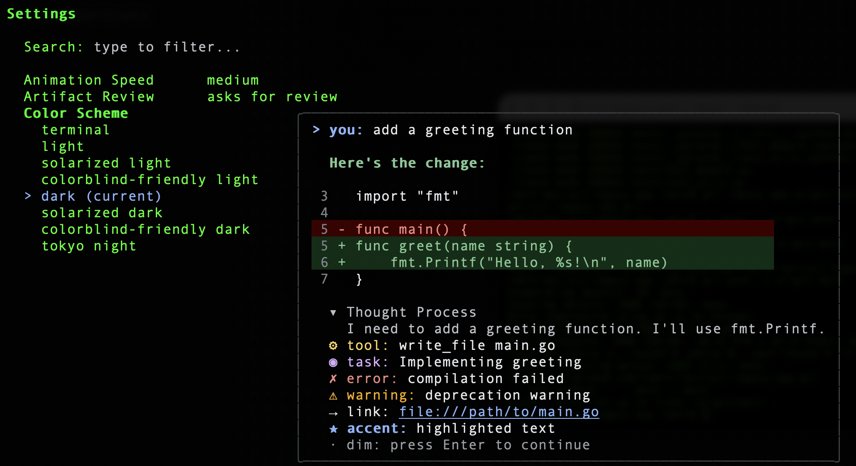
Antigravity CLI vs Google Antigravity app on Windows
Antigravity CLI runs in your terminal, while the Antigravity app has its own desktop installer. You only need the app or the Antigravity IDE if you want a graphical workspace, and you can install apps on a Windows PC the usual way.
| Product | How it installs on Windows | Use it for |
|---|---|---|
| Antigravity CLI | PowerShell or CMD install command | Agent work in a terminal, including multi-file edits and tool calls |
| Google Antigravity app | Download from antigravity.google/download and run the installer | A desktop app with Continue with Google or Use business account sign-in |
| Antigravity IDE | Select Install Antigravity IDE inside the app, then choose an editor extension or the standalone installer | A full development environment |
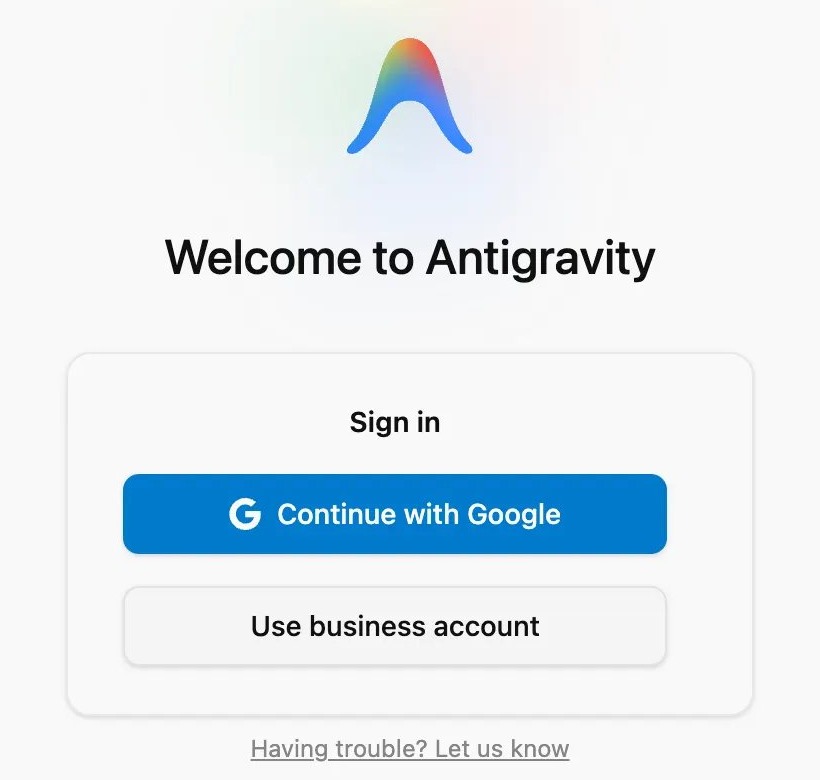
Antigravity CLI not working on Windows 11
agy is not recognized as a command
PowerShell runs a program by name only when its folder is listed in the PATH environment variable, and an open window keeps its old PATH.
- Close the terminal, open a new one, and run
agy --versionagain. - If that fails, run the install command again and read the installer's PATH message, which names what to add.
- Open Control Panel, select System, then select Advanced System Settings.
- Go to the Advanced tab and select Environment Variables….
- Under your user variables, edit Path and add the folder that the installer named.
- Select OK on each dialog, open a new terminal, and run
agy --version.
Antigravity CLI says you are currently not signed in
This is the normal first screen until you finish Google OAuth or link a Cloud project.
- Select Google OAuth on the login screen.
- Sign in through the browser window that opens.
- Copy the code from the browser and paste it into the terminal.
Antigravity CLI shows a startup error after you edit settings.json
A malformed settings.json file stops agy from starting.
- Open
~/.gemini/antigravity-cli/settings.jsonin a text editor. - Undo your last edit and save the file.
- Run
agyagain, then change that setting through/configinstead.
Antigravity CLI install FAQ
How do you install Antigravity in Windows?
Run irm https://antigravity.google/cli/install.ps1 | iex in PowerShell to install Antigravity CLI on Windows. For the desktop app, download the Windows installer from antigravity.google/download instead. The CLI gives you the agy command, and the app gives you a graphical workspace.
How do you install Antigravity?
Choose the terminal version or the desktop app, because they install differently. Antigravity CLI uses a one-line install command on Windows, macOS, and Linux. The app uses a downloaded installer, and you then sign in with your Google account or a business account.
How do you install Google Antigravity?
Download the Google Antigravity app from antigravity.google/download, run the installer, and select Continue with Google. Sign in, select Open Antigravity, pick any theme and Google plugins you want, accept the terms, and select Finish to complete the setup.
How do you install Antigravity in Ubuntu?
Run curl -fsSL https://antigravity.google/cli/install.sh | bash in a Ubuntu terminal to install Antigravity CLI. Then run agy --version to check it. Google says the Antigravity app supports specific Linux distributions, so check its download page for the current list before you install the app.
How do you update Antigravity in Windows?
Run agy --version first to see your installed version, then run agy --help to see whether your release lists an update option. Google's Antigravity CLI guide does not publish a separate update command, so follow the option your installed version shows.
How do you uninstall Antigravity?
For the desktop app on Windows 11, open Settings, go to Apps, select Installed apps, find Antigravity, open the More menu, and choose Uninstall. Google's hands-on guide lists no uninstall command for Antigravity CLI, so check agy --help for an option in your version.
How do you set up Antigravity?
Run agy in a project folder, choose Google OAuth, and paste the browser code into the terminal. Then choose a theme, accept the terms, and trust the folder. After that, use agy models to choose a model and /config to review tool permissions.