An HP printer shows offline when your computer cannot communicate with it, so start by powering the printer off, restarting the computer and router, then confirming both devices share one network.
The seven fixes below run from that restart through Windows settings, the Print Spooler, HP's Diagnose & Fix tool and official drivers to a static IP address, with Mac steps near the end.
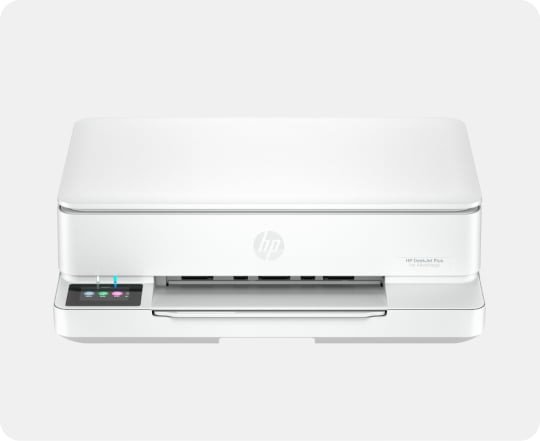
View the printer status
Read the status on both the printer and the computer first. An error on the printer's control panel needs clearing before any Windows setting can help, and a plain power cycle fixes many offline messages.
- Look at the printer's control panel and clear any error it reports.
- In Windows 11, open Start > Settings > Bluetooth & devices > Printers & scanners.
- Select your HP printer and read its status.
- If the status says Offline, turn the printer off and disconnect it from the power supply.
- Restart the computer you print from, then restart your internet router.
- Turn the printer back on and try printing again.
Microsoft suggests waiting about 30 seconds before plugging the printer back in. These steps apply to offline printers from any brand, while the fixes further down add the HP tools.
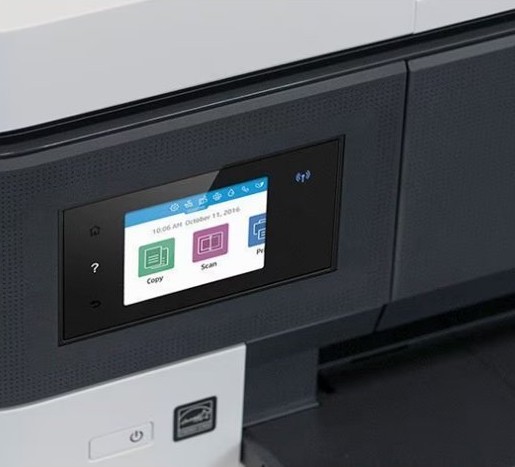
Why is my HP printer offline?
HP gives one root cause for the message: the device you print from cannot reach the printer. Match what you see to the fix most likely to clear it.
| What you see | Likely cause | Fix to try |
|---|---|---|
| Error message on the printer's control panel | The printer is in an error state | View the printer status |
| Blinking wireless light, or a different network name on the printer and PC | The printer and computer are not on one network | Check the connection status |
| Use Printer Offline ticked in the queue window | Windows was told to hold jobs | Disable offline mode on your printer |
| Jobs stuck in the queue after a restart | The Print Spooler service needs restarting | Restart spooler service |
| Offline message you cannot explain | A queue, spooler, driver or port fault | Run the HP printer troubleshooter |
| Offline after a driver change or Windows reinstall | Missing or wrong driver | Install official printer drivers |
| Offline again after a router restart | The printer's IP address changed | Use static IP address to add the printer |
Check the connection status
A wireless HP printer must be on the same network as the computer or phone sending the job. HP lists this check right after the restart.
- Open the printer's wireless or network menu and note the network it has joined. Your printer's manual shows where that menu sits.
- On the PC, open Start > Settings > Network & internet > Wi-Fi and note the network name.
- If the two names differ, connect the PC or the printer to the same network.
- For a USB printer, check that the cable is seated at both ends and that the printer is powered on.
- Print again and watch the status in Printers & scanners.
A flashing blue wireless light is one of the wireless faults HP lists. If the network names match and your computer cannot find the wireless printer, rejoin the printer to Wi-Fi from the HP app or the printer's own menu.
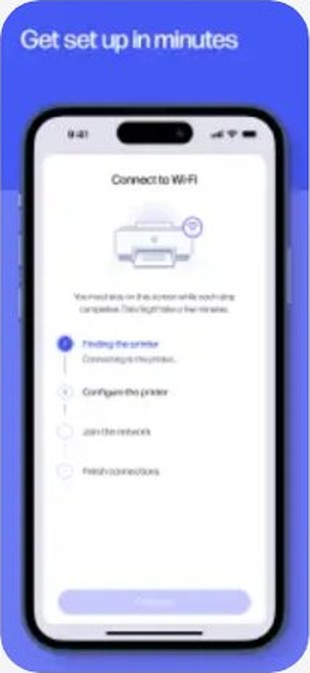
Disable offline mode on your printer
Windows has a queue setting called Use Printer Offline. When it is on, Windows holds jobs even though the printer works, so clear it along with Pause Printing.
- Open Settings > Bluetooth & devices > Printers & scanners.
- Select your HP printer, then select Open print queue.
- Select the Printer menu in the queue window.
- Clear Pause Printing and Use Printer Offline if either has a tick.
- Close the queue window and print again.
If your queue window shows only an ellipsis (…) rather than a Printer menu, select Cancel all to clear pending jobs and carry on with the next fix. On Windows 10 the path is Settings > Devices > Printers & scanners > your printer > Open queue.
Restart spooler service
The Print Spooler is the Windows service that hands jobs to the printer. Restarting it refreshes the link without touching your documents or drivers.
- Press Windows key + R.
- Type
services.mscand press Enter. - Scroll down to Print Spooler.
- Right-click Print Spooler and select Restart.
- Close Services and print again.
Run the HP printer troubleshooter
HP's current troubleshooter is Diagnose & Fix, built into the HP app (formerly HP Smart) for Windows and Mac. HP says it can clear stuck jobs, check an offline printer and try to reconnect it, and resolve spooler errors. On Windows it also handles driver updates and port mismatches.
HP retired HP Print and Scan Doctor on May 27, 2025 and recommends removing it because of security risks, so do not go looking for that older tool.
- Open the HP app, or download it from your device's app store or 123.hp.com.
- Select your printer on the home screen.
- On Windows, select the wrench icon in the bottom-left corner. On a Mac, open the printer dropdown in the top menu bar and choose Diagnose & Fix.
- Select Start and keep the HP app open while it runs.
- Follow the onscreen instructions for anything it finds.
Windows has a separate tool too. Open the Get Help app and start the Windows printer troubleshooter if the HP app cannot see your printer at all.
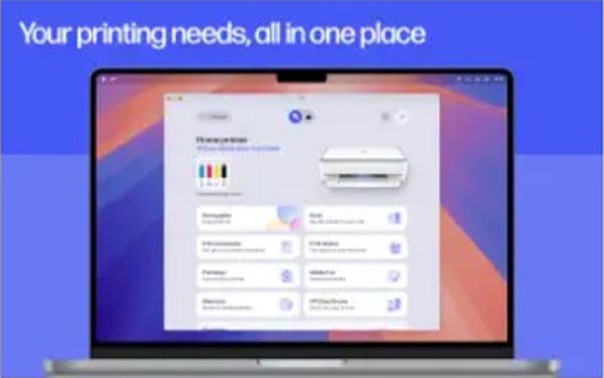
Install official printer drivers
A missing or damaged driver can leave a printer that never comes online. Remove the old entry first so Windows does not keep using it, then install from HP rather than a third-party download site.
- Find your printer's model name on the printer or the purchase receipt.
- Open Settings > Bluetooth & devices > Printers & scanners, select the printer and select Remove.
- Go to the Software and Drivers section at support.hp.com and enter your model.
- Choose your version of Windows if the page asks, then download the latest software and drivers.
- Right-click the downloaded file in your Downloads folder and select Open.
- Follow the prompts, connect the printer when asked, and restart if prompted.
- Open Settings > Windows Update and check for newer drivers.
Some Arm-based PCs, such as Copilot+ PCs, cannot use a manufacturer's installer. On those, go to Printers & scanners and select Add device unless HP gives Windows on Arm instructions for your model.
Use static IP address to add the printer
Routers assign printer addresses automatically, and HP notes that a changed IP address can stop a printer from printing. Fixing the address and adding the printer by that address stops Windows from chasing an old one.
- Find the printer's IP address in the HP app, on the touchscreen control panel, or by printing an Information page.
- Type that address into a web browser to open the printer's Embedded Web Server.
- Select the Network tab, then IPv4 Configuration. Menu names differ between HP models.
- Select Manual IP, enter an IPv4 address no other device uses, plus the subnet mask and default gateway, then select Apply.
- In Windows 11, open Printers & scanners and select Add device > Add new device manually.
- Choose Add a printer using an IP address or hostname.
- Set Device type to IPP Device if your printer supports IPP, and type the address in Hostname or IP address.
- Finish the remaining prompts and print a test page.
How to change an HP printer to a Standard TCP/IP port in Windows
If the printer is already installed, you can point its existing entry at the IP address instead of adding it again. HP gives this route for port problems, including the User Intervention Required error.
- Open Printers & scanners, select your HP printer and select Printer properties.
- Open the Ports tab and select Add Port.
- Select Standard TCP/IP Port, then New Port.
- In the wizard, select Next, enter the printer's IP address and give the port a name you will recognize.
- Select Next, then Finish.
- Back on the Ports tab, select the new port and select OK.
- Reopen Printer properties, open Device Settings, set Automatic Configuration and select Update Now.
- Select OK to close the window.
How to tell if an HP printer is back online
- Open Printers & scanners and select your HP printer; the status no longer reads Offline.
- Select Print test page on the same screen.
- Select Open print queue and confirm the test job leaves the queue.
- Collect the page from the printer.
If the status looks fine but pages still do not appear, work through the HP printer won't print fixes next.
HP printer keeps going offline
HP printer says offline but is connected to Wi-Fi
The printer can reach the router, yet Windows may be sending jobs to an old address or a paused queue.
- Confirm the printer and PC show the same network name.
- Clear Use Printer Offline and Pause Printing in the queue window.
- Run Diagnose & Fix in the HP app, which can repair port mismatches on Windows.
- Add a Standard TCP/IP port using the printer's current IP address.
HP printer goes offline after a router restart or a new router
The router gave the printer a new address, or the printer is no longer on your Wi-Fi.
- Reconnect the printer to Wi-Fi from its own menu or the HP app.
- Find the new IP address on an Information page.
- Set a manual IP in the Embedded Web Server so the address stays put.
- Remove the printer in Printers & scanners and add it again by IP address.
HP printer shows User Intervention Required
HP links this Windows error to the printer's port setting.
- Open Printer properties and the Ports tab.
- Create a Standard TCP/IP port with the printer's IP address.
- Select the new port, then select OK and print again.
HP printer offline on Mac
HP printer shows offline or stops responding in macOS
The Mac is holding jobs or has a stale printer entry.
- Confirm the Mac and printer are on the same network, then restart both devices and the router.
- Click the printer icon in the Dock while a job runs to view or cancel it, or search Spotlight for Print Center.
- Open the HP app and run Diagnose & Fix from the printer dropdown in the top menu bar.
- Open System Settings > Printers & Scanners, Control-click the printer and choose Remove Printer.
- Select Add Printer, Scanner, or Fax, select your printer and click Add.
HP printer is not listed when adding it on a Mac
Network discovery cannot see the printer, so add it by address.
- In Add Printer, Scanner, or Fax, click the IP button.
- Type the printer's IP address in Address.
- Under Protocol, choose one your printer supports, such as AirPrint or HP Jetdirect – Socket.
- Choose the printer software under Use and click Add.
HP printer offline FAQ
How do I get my HP printer back online?
Turn the printer off and unplug it, restart your computer and router, then turn the printer on. Confirm both devices are on one network. If it still shows offline, clear Use Printer Offline in the queue window and restart the Print Spooler service.
Why does my HP printer keep going offline?
A printer that repeatedly drops offline has usually lost its link to the computer, often because its IP address changed or it left your Wi-Fi network. Set a manual IP address in the Embedded Web Server, then add the printer by that address.
Why does my HP printer say offline when it is connected to Wi-Fi?
The printer may be on a different network from your computer, or Windows may be using an old port or a paused queue. Compare the two network names, clear Use Printer Offline, then run Diagnose & Fix in the HP app to repair port mismatches.
How do I turn off Use Printer Offline in Windows 11?
Open Settings, Bluetooth & devices, Printers & scanners, select your printer and select Open print queue. Select the Printer menu and clear Use Printer Offline and Pause Printing. If your queue window shows no Printer menu, cancel pending jobs and try the next fix.
Is HP Print and Scan Doctor still available?
No. HP retired HP Print and Scan Doctor for Windows on May 27, 2025 and recommends removing it because of security risks. Diagnose & Fix in the HP app replaces it on Windows and Mac, and it handles queue, spooler, driver and port problems.
How do I find my HP printer's IP address?
HP gives three places to look: the HP app, the touchscreen control panel on models that have one, and a printed Information page. You need that address to open the Embedded Web Server or to add the printer by IP address.
Does an HP printer need a static IP address?
No, most home printers work with an address assigned by the router. A static address helps when your printer keeps going offline after a router restart, because Windows then keeps finding it at the same address instead of an old one.
Should I reinstall my HP printer driver if it shows offline?
Try the restart, network check, offline setting and Print Spooler first, since they take minutes. Reinstall when those fail or Diagnose & Fix reports a driver problem: remove the printer in Settings, then install the current driver from the HP support site.
Offline messages are only one of the common HP printing problems, so a printer that comes back online but prints poorly needs a different fix.