Miracast usually drops on a Windows PC because of a stale display pairing, an outdated Wi-Fi or graphics driver, Wi-Fi power saving, or a busy wireless channel, so fix those four first.
These steps cover Windows 11 and Windows 10, for TVs, monitors, projectors and adapters that lose the connection after it has already started.
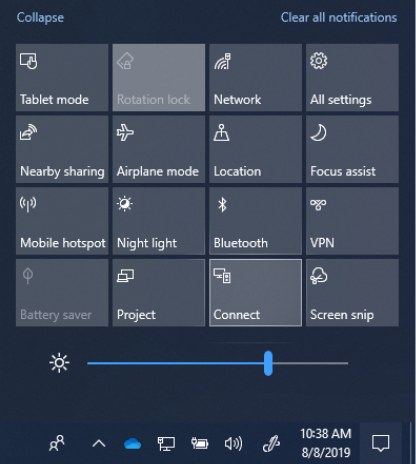
Miracast keeps disconnecting randomly on Windows PC
Run these steps in order. They clear the most common causes without changing any router settings.
- Restart the PC and the wireless display.
- Open Settings and remove the display. On Windows 11, select Bluetooth & devices > Devices. On Windows 10, select Devices > Bluetooth & other devices.
- Select the display or adapter, then select Remove device.
- Right-click the Start button, select Device Manager, and update your Wi-Fi adapter and graphics adapter drivers.
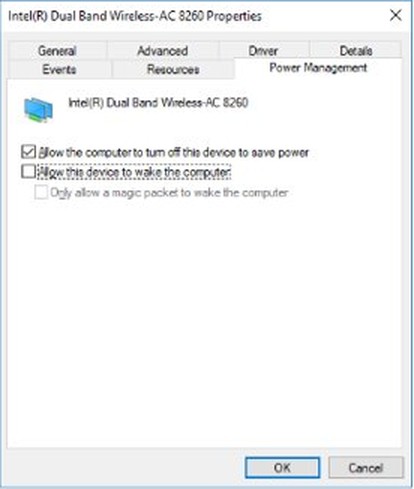
- In Device Manager, open your Wi-Fi adapter's Properties, select Power Management, and uncheck Allow the computer to turn off this device to save power.
- Press Windows logo key + K and select the display again.
If the connection still drops, use the table below to match the pattern you see with its fix.
Why does my Miracast keep disconnecting?
Wireless projection sends a real-time stream that must be created, delivered and rendered without pause. Anything that interrupts the Wi-Fi adapter can interrupt the picture.
| What you notice | Likely cause | Fix to try |
|---|---|---|
| Drops began after an update or on an old PC | Outdated Wi-Fi or graphics driver, or old receiver firmware | Update Wi-Fi and graphics drivers |
| Drops on a laptop when the PC saves power | Windows or the power plan limits the Wi-Fi adapter | Turn off Wi-Fi power saving |
| Stutter or lag comes before each drop | A saturated channel, or channel switching between your router and the display | Change the Wi-Fi channel or band |
| Drops when you move the laptop or use the microwave | Distance or radio interference | Move closer and remove interference |
| Only a Microsoft adapter drops | A weak USB power source or old firmware | Fix adapter power and firmware |
| Everything on Wi-Fi misbehaves, not only Miracast | Damaged network settings or a bad adapter state | Reset network settings |
Remove a wireless display and reconnect Miracast
Windows remembers each receiver in a saved profile and reuses it on later connections. Removing that profile forces a fresh pairing.
- Open Settings.
- On Windows 11, select Bluetooth & devices > Devices. On Windows 10, select Devices > Bluetooth & other devices.
- Under Wireless displays & docks, select the display or adapter.
- Select Remove device. On some Windows 11 versions, select More options first.
- Restart the PC and the wireless display.
- Press Windows logo key + K and select the display.
Update Wi-Fi and graphics drivers for Miracast
Miracast depends on both drivers. The Wi-Fi driver carries the link, and the graphics driver encodes the picture, so update both even when only one looks old.
- Right-click the Start button and select Device Manager.
- Expand Network adapters, right-click your Wi-Fi adapter and select Update driver.
- Select Search automatically for updated driver software.
- If Windows finds nothing, select Search for updated drivers on Windows Update, then select Close.
- Expand Display adapters and repeat the same steps for your graphics adapter.
- Update the firmware on your wireless display or adapter from its maker's website or app.
- Restart the PC and reconnect with Windows logo key + K.
If Windows finds no update, you can also update the graphics driver directly from the chip maker.
If the Wi-Fi driver is already current, save a copy from the PC maker's site first. Then right-click the adapter, select Uninstall device, check Attempt to remove the driver for this device, select Uninstall, and restart so Windows reinstalls it.
Turn off Wi-Fi adapter power saving for Miracast
Microsoft lists both of these settings as fixes for Wi-Fi connections that drop. Miracast runs on the same Wi-Fi adapter, so apply both when the picture disconnects.
- Open Device Manager and expand Network adapters.
- Right-click your Wi-Fi adapter and select Properties.
- Select the Power Management tab.
- Uncheck Allow the computer to turn off this device to save power, then select OK.
- Open Control Panel > Hardware and Sound > Power Options.
- Next to your active plan, select Change plan settings, then Change advanced power settings.
- Expand Wireless Adapter Settings and set Power Saving Mode to Maximum Performance.
On a laptop this setting costs some battery life, so plug the PC in for long presentations.
Change the Wi-Fi channel or band to stop Miracast dropping
After a connection starts, poor performance usually comes from channel saturation or channel switching. Channel switching happens when the Wi-Fi adapter must send traffic on more than one channel, and it slows all wireless traffic on the PC.
Microsoft also notes that some Wi-Fi drivers perform poorly on Dynamic Frequency Selection (DFS) channels, which run from 49 through 148. That guidance covers projection to Surface Hub, and Microsoft applies it to the projecting device as well.
- Open your router's admin page, using the steps in its manual.
- Change the wireless channel to a less crowded one that is outside the DFS range.
- Connect the PC to your router's other band if it offers both 2.4 GHz and 5 GHz networks. The 5 GHz band has more bandwidth and less interference.
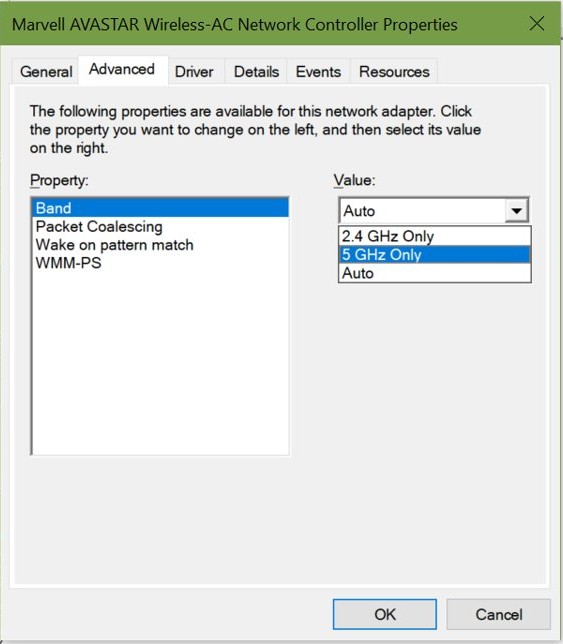
- In Device Manager, expand Network adapters, right-click your Wi-Fi adapter and select Properties > Advanced.
- Under Property, select Band and set Value to Auto, then select OK. A Microsoft Wireless Display Adapter needs the 2.4 GHz band enabled while pairing.
- Press Windows logo key + K and reconnect.
Stop Miracast interference from nearby devices
Radio noise and distance can disrupt the link between the PC and the receiver. Microsoft gives a 23-foot (7 m) limit for its own adapter, which makes a useful test distance for other receivers.
- Move the PC to within 23 feet (7 m) of the display.
- Move the receiver away from microwave ovens, cordless phones and baby monitors.
- Use an HDMI extension cable if the adapter sits at an angle in the HDMI port.
- Remove any HDMI to VGA converter, because it weakens the video signal.
- Disconnect from the display and connect again with Windows logo key + K.
Microsoft Wireless Display Adapter keeps disconnecting
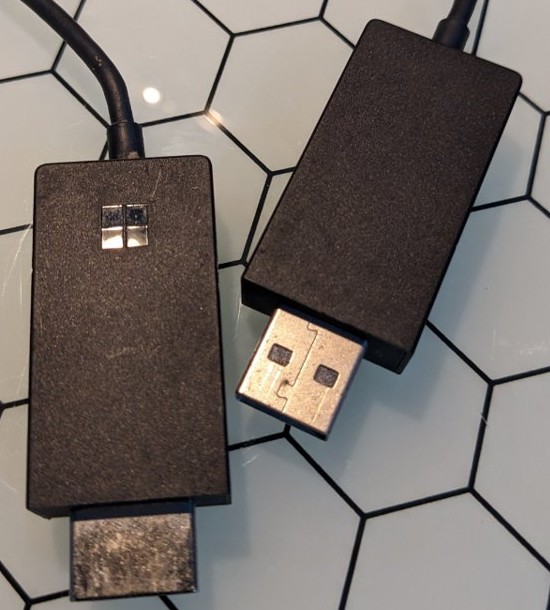
This adapter takes its power from a USB port, so a weak port can cause instability. Microsoft recommends a charging port wired directly to a wall outlet for the most stable connection. You can also set up the Microsoft Wireless Display Adapter again from the start if the steps below do not settle it.
- Plug the adapter's USB end into a wall-connected charging port that provides at least 5W (5V/1A).
- Check that the HDMI end sits fully in the display, and use the included HDMI extension cable if needed.
- Connect the PC to Wi-Fi before you connect it to the adapter, and keep only one display connected to the adapter.
- Connect to the adapter, open the Microsoft Wireless Display Adapter app and select Update & security.
- Select Update if one is listed, and stay connected until it finishes.
- If drops continue, unplug the adapter and hold the reset button next to the wired connection for 10 seconds until the LED blinks.
- Plug the adapter back in. When Ready to connect appears, reconnect from the PC.
The adapter does not work through a proxy server, so turn off any proxy before you test it.
Windows Firewall blocking Miracast: allow Wireless Display
Windows Firewall can block Miracast traffic. Add an exception for Wireless Display and leave the firewall on.
- Select Search on the taskbar, enter allow firewall, and select Allow an app through Windows Firewall.
- If the list is grayed out, select Change settings and enter your administrator password.
- Under Name, find Wireless Display.
- Check Private and Public next to it, then select OK.
- Press Windows logo key + K and reconnect.
Use Miracast over an existing Wi-Fi network
Miracast normally uses a direct Wi-Fi link. Windows can instead send the stream over your existing network, which Microsoft says provides a stable stream and works well with older wireless hardware. Windows picks this route by itself when it is available.
Only some receivers support it. Among Microsoft's adapters, only the 4K model supports Miracast over Wi-Fi.
- Connect the PC to Ethernet or a secure Wi-Fi network. Windows skips this route on open Wi-Fi.
- Connect the receiver to that same network. On a Microsoft 4K adapter, use the Microsoft Wireless Display Adapter app.
- For a Microsoft 4K adapter, use 5 GHz Wi-Fi secured with WPA, WPA2 or WPA3, and keep the router up to date.
- On a managed network, ask your admin to open TCP port 7250 and make the receiver's name resolvable through DNS.
- Press Windows logo key + K and select the receiver as usual.
Enterprise networks that require extra authentication or certificates do not work with the 4K adapter's Wi-Fi connection.
Reset network settings to fix Miracast disconnecting
Microsoft calls network reset the last step to try. It removes your network adapters and their settings, then reinstalls the adapters with default settings after a restart. Use it only when normal Wi-Fi is also unreliable.
- Select Start, enter settings, and select Settings > Network & internet.
- On Windows 11, select Advanced network settings > Network reset. On Windows 10, select Status > Network reset.
- Select Reset now, then select Yes.
- Wait for the PC to restart, then reconnect to your Wi-Fi network.
- Press Windows logo key + K and select the display.
After you reset network settings, you might need to reinstall VPN software or Hyper-V virtual switches.
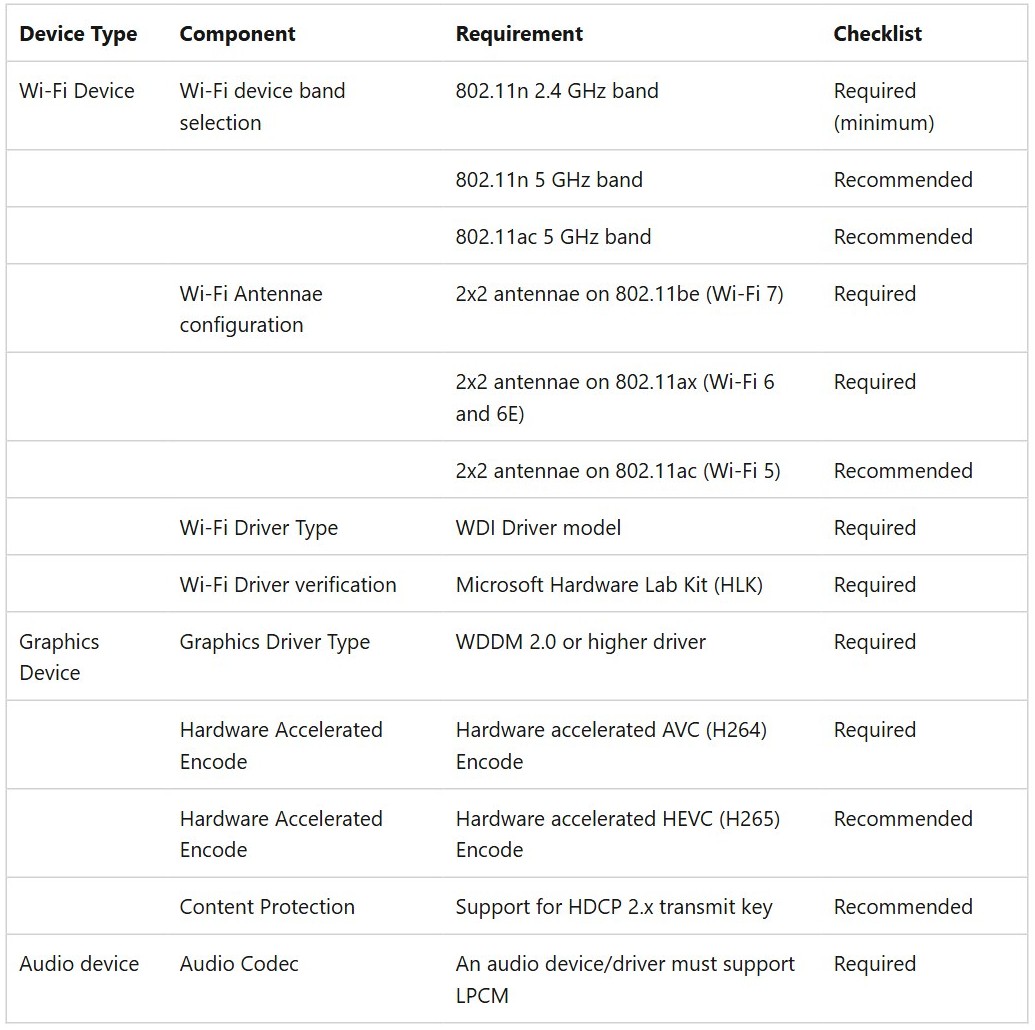
Wi-Fi adapter and graphics driver needs for stable Miracast
These are the Microsoft requirements and recommendations for PC makers. They explain why two PCs can behave differently on the same display.
| Part | What Microsoft specifies | Effect on the connection |
|---|---|---|
| Wi-Fi band | 802.11n on 2.4 GHz at minimum; 5 GHz recommended | 5 GHz gives higher bandwidth, more channels and less interference |
| Wi-Fi antennas | 2×2 on Wi-Fi 6, 6E and 7; recommended on Wi-Fi 5 | 2×2 on 5 GHz gives a higher-quality stream than a 1×1 adapter |
| Wi-Fi driver | Windows Wireless Driver Interface (WDI) model | WDI drivers show higher connection rates and better sessions |
| Graphics driver | WDDM 2.0 or higher | Required by the Miracast stack in Windows |
| Video encoding | Hardware-accelerated AVC (H.264) required; HEVC (H.265) recommended | HEVC allows higher resolutions while using less bandwidth |
| Content protection | HDCP 2.x recommended | HDCP 2.0 or greater is needed for protected video from most major streaming services |
How to test a Miracast connection on Windows
- Press Windows logo key + R, type
dxdiagand press Enter. - Select Save All Information, open the saved
DxDiag.txtfile and find Miracast. It should read Available, with HDCP. - Press Windows logo key + K and connect to the display.
- Press Windows logo key + P and select Duplicate or Extend. The display should follow your choice.
- Play a video for longer than the connection used to last, and watch for freezes or stutter.
- If the connection still drops, read the Wlanautoconfig events in Event Viewer, because Miracast errors are logged there.
Miracast freezing or lagging on Windows
These problems often appear with an unstable connection, and each has its own fix. They apply to Windows 11 and Windows 10.
Video plays on the PC but freezes on the second screen
The session between the PC and the adapter has stalled.
- On Windows 11, select Network on the taskbar, then Cast. On Windows 10, open Action center, then Connect.
- Select the display name, then select Disconnect.
- Unplug both ends of the adapter and plug them back in.
- Open the same panel and select the display to reconnect.
Video is pixelated or audio stutters
Distance or radio interference is limiting the stream.
- Move the PC closer to the receiver.
- Move the receiver away from microwave ovens, cordless phones and baby monitors.
- On a Microsoft 4K adapter, turn off HDCP in the app if you turned it on earlier.
Connected, but nothing displays on the second screen
The projection mode, the HDMI input or the adapter state is wrong.
- Press Windows logo key + P and select Duplicate or Extend.
- Set the display to the HDMI input that holds the adapter.
- Unplug the adapter's USB end, then plug it back in.
- Check that the display supports HDCP.
YouTube, Netflix or Amazon video will not play over Miracast
App video needs current firmware and, for protected streams, HDCP.
- Update the adapter's firmware.
- Close and reopen or refresh the video app.
- Disconnect from the adapter, restart the PC and reconnect.
- On a Microsoft 4K adapter, turn on Enable HDCP in its app.
Should you use HDMI instead of Miracast?
Use an HDMI cable when a 5 GHz network, current drivers and a close receiver still leave Miracast dropping. A wireless stream depends on the Wi-Fi adapter, the channel and the receiver at the same time, while a cable removes all three. Keep Miracast for rooms where a cable is not practical.
Miracast disconnecting on Windows FAQ
Does Windows 11 support Miracast?
Yes, on PCs with suitable hardware. Press Windows logo key + K to check. A message telling you to connect an external display with a cable means your PC does not support it. The PC needs a WDDM 2.0 graphics driver and a compatible Wi-Fi adapter.
How do I mirror screen in Windows 11?
Turn on the display and plug in any Miracast adapter it needs. Press Windows logo key + K and select the display from the list. Then press Windows logo key + P and select Duplicate, so the display shows the same picture as your PC.
Is Miracast safe?
Miracast on Windows includes safeguards. It supports PIN-based pairing, and a receiver can control your PC only if you explicitly allow it. When it uses your existing network, Windows requires Ethernet or secure Wi-Fi. Remember that anyone near the display can see what you project.
Why is Miracast not working on Windows 11?
Common causes are Wi-Fi being off, a display without Miracast support, outdated drivers or a stale saved connection. Turn on Wi-Fi, update your drivers, restart both devices and remove the display in Settings. Then reconnect with Windows logo key + K.
How do I enable Miracast on Windows 11?
Sending your screen needs no setup on a supported PC. Turn on Wi-Fi and press Windows logo key + K. To receive a screen on a PC, add the Wireless Display optional feature from Settings > System > Projecting to this PC.
Is there a Miracast driver download for Windows 11?
No separate Miracast driver exists, because Windows includes its own Miracast stack and needs no extra software. It relies on your graphics and Wi-Fi drivers. Update those through Device Manager or from your PC maker's support site when casting is unreliable.
What is Miracast on Windows 11?
Miracast is a wireless display standard that lets Windows project your screen to a TV, monitor, projector or adapter without a cable. It normally uses a direct Wi-Fi connection. You can enable and use Wireless Display to receive a screen on a PC.