Force Windows 11 into Advanced Startup Options by interrupting startup twice, then select Troubleshoot > Reset this PC and choose Keep my files or Remove everything.
This guide covers that route, the other ways in without a working desktop, what each reset option removes and what to do when the menu will not appear.
Reset Windows 11 using Advanced Startup Options when PC won’t boot
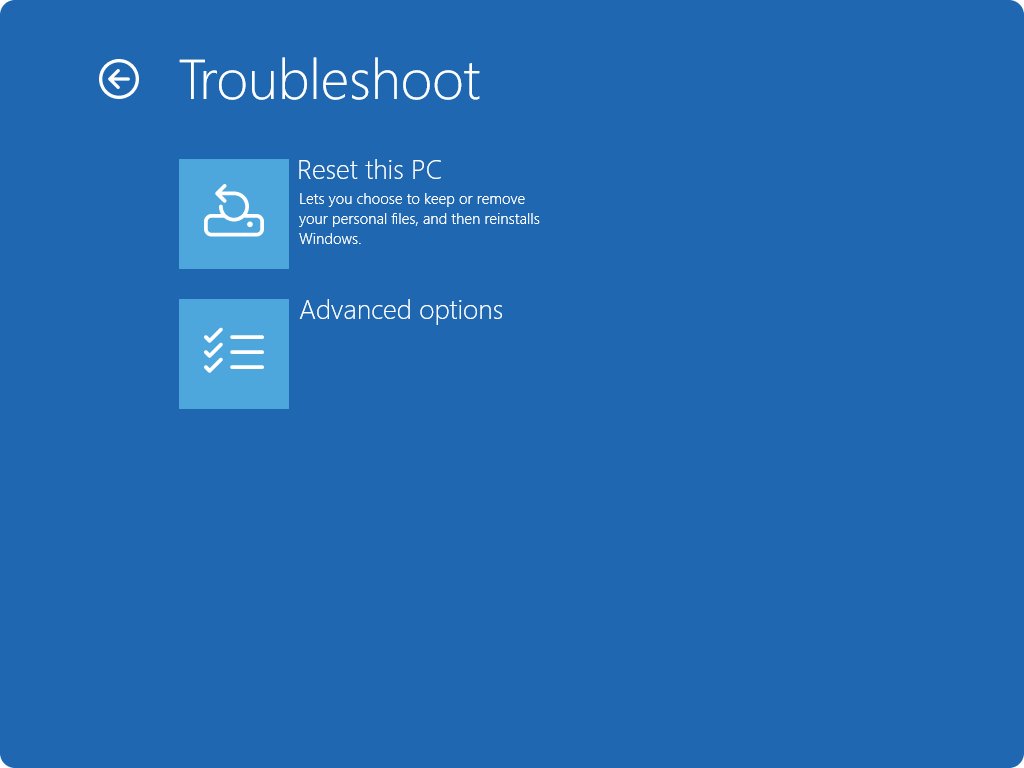
These steps use the Automatic Repair route, so you never need to reach the desktop. If Windows has already opened the blue Choose an option screen on its own, start at step 5.
- Turn on the PC and wait for the Windows or manufacturer logo.
- As soon as the logo appears, press and hold the power button until the PC shuts down.
- Turn the PC on again and repeat the same forced shutdown.
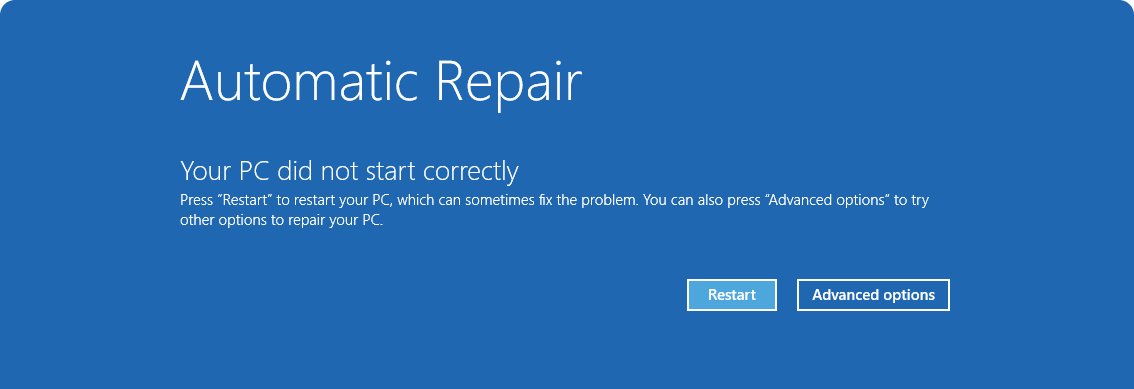
- Turn the PC on a third time. At the Automatic Repair screen, select Advanced options.
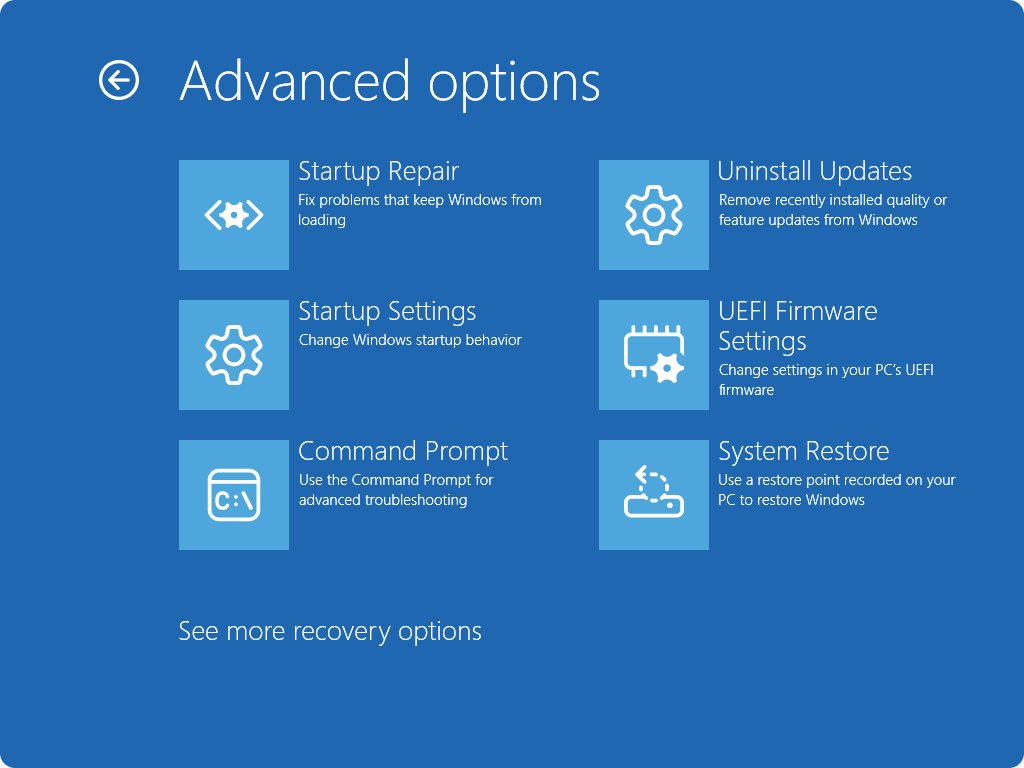
- On the Choose an option screen, select Troubleshoot > Reset this PC.
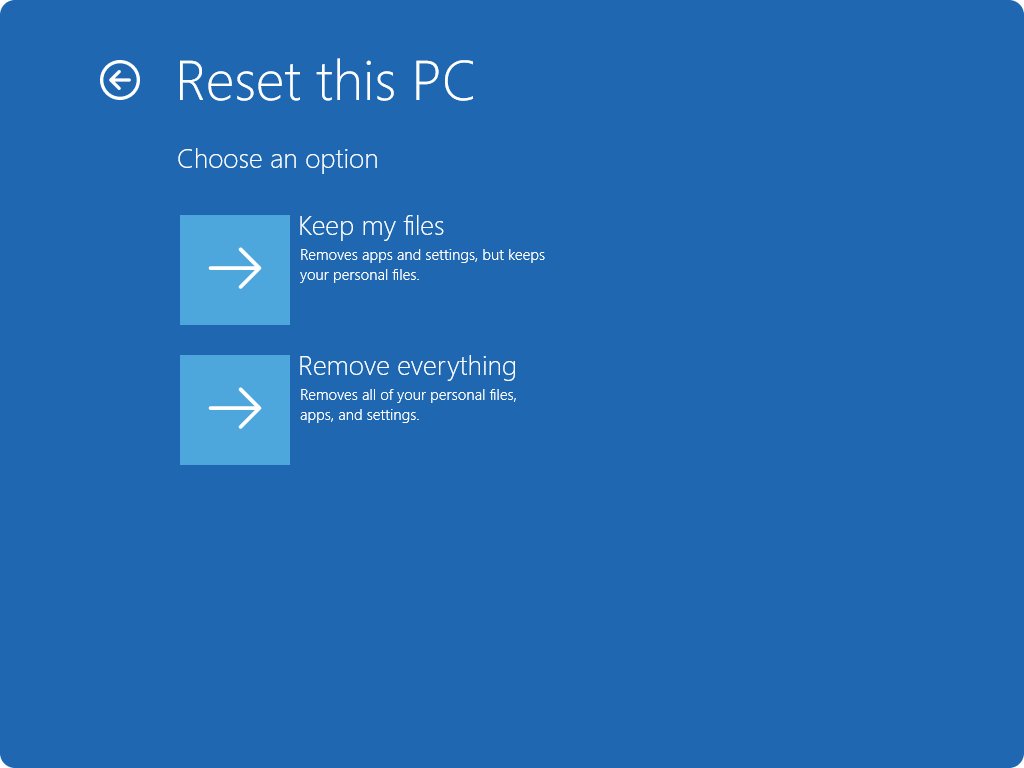
- Choose Keep my files or Remove everything.
- Choose Cloud download or Local reinstall.
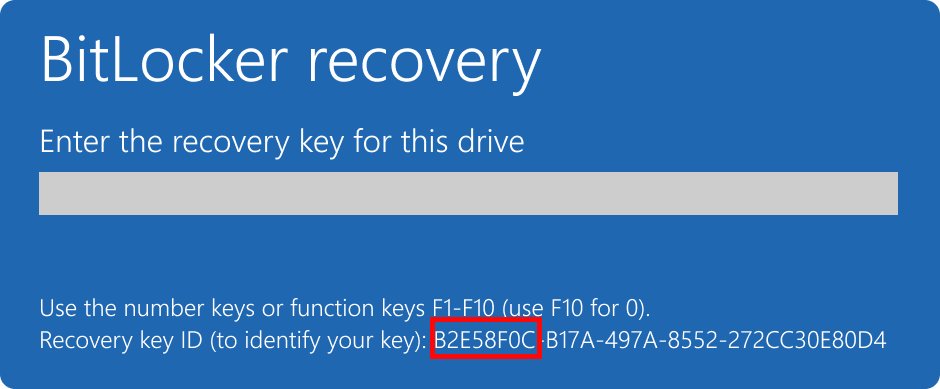
- Enter your BitLocker recovery key if the PC asks for it.
- Follow the on-screen prompts to start the reset, then leave the PC alone until it finishes.
The screen can stay black for 15 minutes or more, and the PC can restart itself. Restarting it manually during this time can make the reset fail. On a PC that still starts, the same Reset this PC options are in Settings > System > Recovery.
Windows 11 advanced startup from boot
The route you can use depends on how far the PC gets and what you prepared before it failed.
| Your situation | How to open Advanced Startup | What you get |
|---|---|---|
| Windows failed to start several times | Wait. Windows opens Windows RE on its own after repeated failed starts | The full menu, including Reset this PC |
| The logo appears but Windows never loads | Force two shutdowns at the logo, then turn the PC on a third time | The full menu, including Reset this PC |
| Your device has a recovery button | Use the button or key combination your manufacturer set, listed in the device manual | Windows RE |
| You made a USB recovery drive earlier | Start the PC from the USB drive | Recover from a drive, which removes your files |
| You have another working PC | Make Windows installation media on it, start the broken PC from the media, then select Repair my PC > Next | Repair tools, and a clean reinstall if Reset this PC is not offered |
If the setup screen does not appear when you start from a USB drive, the PC might not be set to boot from it. Your manufacturer's website lists how to change the boot order, and you can also boot into Windows RE from USB once it does.
What is advanced startup in Windows 11
Advanced Startup opens the Windows Recovery Environment (Windows RE), a set of built-in tools for fixing a PC that has trouble starting.
Reset this PC is the third step in Microsoft's order for a PC that will not start, after Point-in-time restore and Uninstall updates. When the cause is damaged boot files, Startup Repair and bootrec can get Windows starting with no reset at all.
| Tool | What it does | Effect on your files | Where to find it |
|---|---|---|---|
| Point-in-time restore | Rolls the whole PC back to a recent automatic restore point, on Windows 11 version 24H2 or later | Changes made after that point are lost | Troubleshoot > Point-in-time restore |
| Uninstall Updates | Removes a recent Windows update | Files and apps stay | Troubleshoot > Advanced options > Uninstall updates |
| Startup Repair | Scans for missing system files, corrupted boot configuration data, a damaged MBR, incompatible drivers and registry errors | Repair only, no reinstall | Troubleshoot > Advanced options > Startup Repair > Restart |
| System Restore | Rolls back system files and settings | Personal files stay | Troubleshoot > Advanced options |
| Startup Settings | Starts Windows in Safe Mode and other limited modes | No change | Troubleshoot > Advanced options > Startup Settings > Restart |
| Reset this PC | Reinstalls Windows | Your choice to keep or remove them; apps and settings go either way | Troubleshoot > Reset this PC |
| Cloud rebuild | Reinstalls Windows and drivers from Windows Update | Everything is removed | Troubleshoot > Cloud rebuild |
| Command Prompt | Opens a command line for advanced troubleshooting | Depends on the commands you run | Troubleshoot > Advanced options |
| UEFI Firmware Settings | Restarts into firmware settings such as boot order | No change | Troubleshoot > Advanced options |
Windows 11 reset advanced options: Keep my files or Remove everything
Pick Keep my files unless you are giving the PC away or want a completely clean start. Neither option keeps your installed apps.
| Option | What it removes | What stays | Extra setting |
|---|---|---|---|
| Keep my files | Apps and settings | Documents, photos and other personal files | Restore preinstalled apps reapplies the PC manufacturer's customizations |
| Remove everything | Personal files, apps and settings | Nothing on the PC | Clean data makes removed files harder to recover, but takes longer and does not meet government or industry erasure standards |
Cloud download vs Local reinstall in Windows 11 advanced startup
On a PC that will not boot, damaged local files are a real possibility, so Cloud download is often the safer pick if you can get online. Cloud download is not supported on LTSC editions.
| Option | Where Windows comes from | Use it when | Trade-off |
|---|---|---|---|
| Cloud download | A fresh copy downloaded from Microsoft, with updates | Local files are corrupted or missing | Needs a working internet connection in Windows RE |
| Local reinstall | Files already on the PC | Your connection is slow or missing | May not include the latest updates |
Windows RE connects through an Ethernet cable automatically. Otherwise, you can connect manually to certain Wi-Fi networks, and reuse of saved Wi-Fi networks is currently limited to the Windows Insider Program. A hardware or firmware Wi-Fi switch that is off can also block Wi-Fi in Windows RE.
Find the BitLocker recovery key when Windows 11 won't boot
Encrypted PCs need a 48-digit BitLocker recovery key for most Windows RE tools. Since this PC will not start, look the key up from a phone or another computer.
- Write down the first 8 digits of the recovery key ID shown on the BitLocker screen.
- On another device, open
https://aka.ms/myrecoverykeyand sign in with your Microsoft account. - Find the key whose ID matches, then type that key into the PC.
- For a work or school device, open
https://aka.ms/aadrecoverykey, select Devices, expand your device and select View BitLocker Keys. - If neither account has it, check any printout you saved or a USB flash drive you used when BitLocker was turned on.
Microsoft Support cannot retrieve or recreate a lost key. Without the key, your remaining option is a reset that removes all your files, and a managed device should go to your IT department first.
No bootable devices found in Windows 11
This message comes from the PC's firmware before Windows starts. The startup process only moves on when the firmware detects a valid system disk, so Windows RE on that disk cannot load until the disk is found.
- Disconnect all external peripherals, including USB drives, then restart the PC.
- Check whether the hard disk light works and whether the NumLock light toggles when you press NumLock. If neither responds, the PC is stuck in the firmware stage and might have a hardware issue.
- If you can still reach Advanced Startup, select Troubleshoot > Advanced options > UEFI Firmware Settings to check the boot order.
- If you cannot reach it, start the PC from Windows installation media and select Repair my PC > Next.
- Select Troubleshoot > Advanced options > Startup Repair to repair the boot files.
- If Windows still does not start, reinstall from the media. If the firmware never sees the disk at all, contact your PC manufacturer about the hardware.
Reset Windows 11 with a USB recovery drive
A recovery drive works when Windows RE on the disk will not load, but only if you made the drive earlier for this PC. It does not offer Keep my files, and it does not contain your personal files.
- Connect the recovery drive and start the PC from it. The boot method varies by manufacturer, so check the device manual.
- When Windows RE loads, select Recover from a drive.
- Choose Just remove my files or Fully clean the drive.
- Select Recover to start.
With no recovery drive, use another working PC and a USB drive of at least 8 GB to create installation media, then reinstall Windows 11 from it. Your PC manufacturer's recovery media is the better pick if it offers one, because it includes hardware-specific drivers and factory apps.
Cloud rebuild in Windows 11 advanced startup
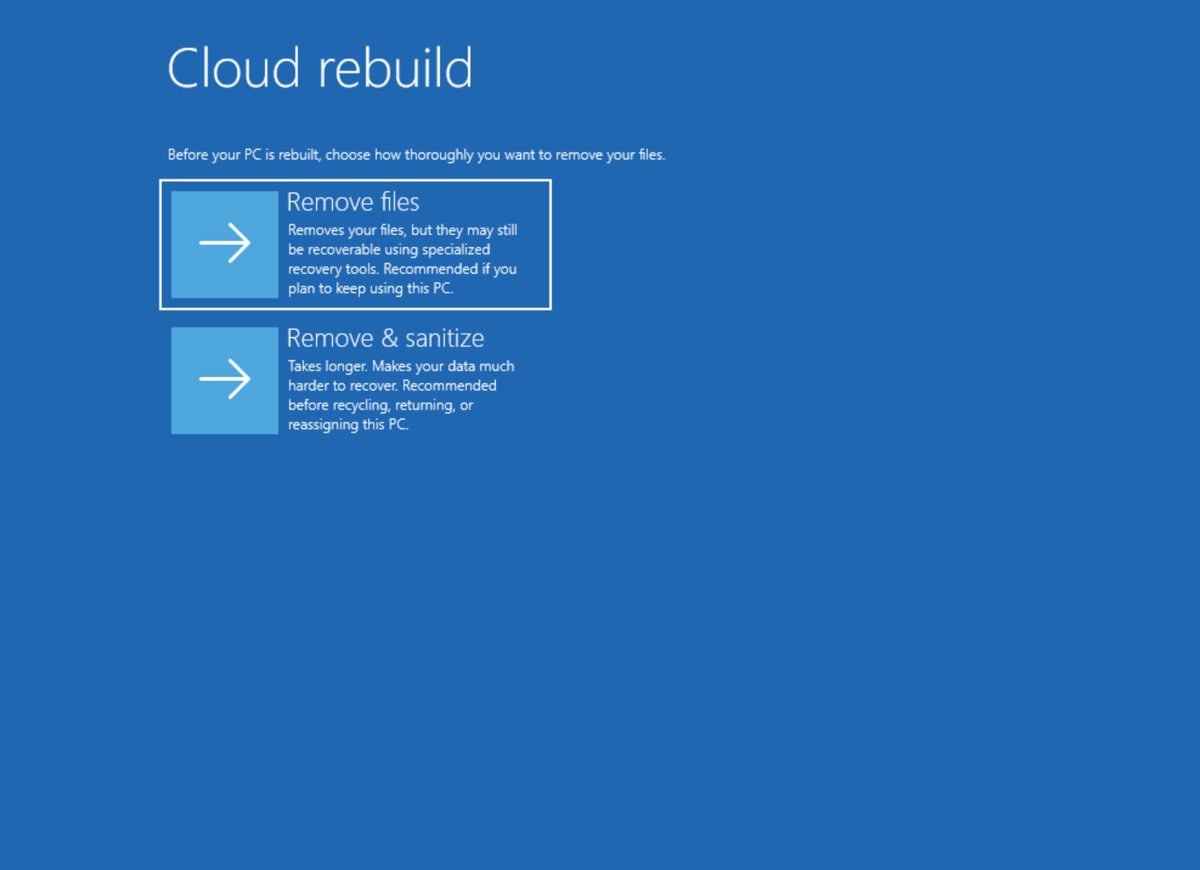
Cloud rebuild is the next step when Reset this PC does not fix the problem. It removes all personal files, apps and settings, downloads what it needs and needs no USB drive. It requires the October 2026 Windows non-security update or later, so a PC without that update may not show it.
- On the Choose an option screen, select Troubleshoot > Cloud rebuild.
- Connect to a network. Ethernet connects automatically, and for Wi-Fi you select the network and enter its password.
- Choose Remove files, or Remove & sanitize if you plan to recycle, return or give away the PC.
- Follow the on-screen steps, keeping the PC plugged in until it finishes.
- Set up the PC like a new one when Windows starts.
Windows 11 advanced startup not working
The Automatic Repair screen does not appear
The forced shutdown came too late, or Windows RE cannot load from the disk.
- Press and hold the power button as soon as the logo appears, before Windows finishes loading.
- Repeat the forced shutdown a second time, then turn the PC on and wait.
- If Windows RE still does not open, start the PC from a recovery drive or from Windows installation media.
Reset this PC is missing from the Troubleshoot menu
The PC started from external media. Keep my files and Remove everything are not available in that mode.
- Remove the USB drive and restart the PC.
- Force Automatic Repair with two interrupted starts so Windows RE loads from the disk.
- If it still cannot load, use Recover from a drive or reinstall from installation media.
The PC is stuck in a restart loop at Automatic Repair
Startup files or a recent update can stop Windows from loading again after each repair.
- Select Advanced options > Troubleshoot > Advanced options > Startup Repair.
- If that fails and the problem began after an update, select Uninstall updates from the same menu.
- If Windows still will not start, return to Troubleshoot and select Reset this PC.
The reset fails or stops partway
Windows RE supports only a limited rollback if a problem occurs during the reset, and the local files can be damaged.
- Run the reset again and choose Cloud download in place of Local reinstall.
- Work through these Reset this PC errors if it fails the same way.
- If the reset keeps failing, use Cloud rebuild or reinstall from media, which removes your files.
What happens after you reset Windows 11 from advanced startup
- Let the PC finish its restarts until Windows setup or the sign-in screen appears.
- After Keep my files, sign in and open File Explorer to check your documents and photos.
- After Remove everything, go through setup and create or sign in to an account like a new PC.
- Connect to the internet. Windows usually activates automatically after going online.
- Reinstall your apps, because both reset options remove them.
- Open Settings > System > About to check that the Windows edition matches your license.
Reset Windows 11 from Advanced Startup FAQ
How do I get to Advanced Boot Options in Windows 11?
When Windows will not start, force two shutdowns at the logo and turn the PC on a third time, then select Advanced options at the Automatic Repair screen. From a working desktop, hold Shift while you select Power > Restart.
How do I restart my computer from Advanced Startup?
Select Troubleshoot > Advanced options > Startup Settings > Restart. When the Startup Settings screen appears after the reboot, press Enter to boot Windows normally. You can also press a number or function key there to pick Safe Mode.
How do I restore my computer to factory settings in Windows 11?
Use Reset this PC. From a working PC, go to Settings > System > Recovery and select Reset PC. When the PC will not boot, open Advanced Startup and select Troubleshoot > Reset this PC, then choose whether to keep your files.
How do I reset Windows 11 from startup?
Interrupt startup twice with the power button to reach the Automatic Repair screen, then select Advanced options > Troubleshoot > Reset this PC. Choose whether to keep your files and how to get Windows. An encrypted PC also asks for its BitLocker recovery key.
Does resetting from Advanced Startup delete my files?
Only if you choose Remove everything. Keep my files reinstalls Windows and keeps your documents and photos, while removing your apps and settings. Back up what you can first, because a reset can still fail and recovery media removes personal files.
How long does a Windows 11 reset take from Advanced Startup?
Microsoft says recovery typically takes 30 minutes to 2 hours, depending on the method. Clean data and Remove & sanitize take longer. The screen can go black for 15 minutes or more, so do not restart the PC yourself during that time.
How do I reset Windows 11 back to initial setup?
Choose Remove everything in Reset this PC, or use Cloud rebuild. Both remove your personal files, apps and settings, so Windows starts again from setup like a new PC. Back up your files first, because this cannot be undone.