To restart an iPhone 11, press and hold either volume button and the side button until the power-off slider appears, drag the slider, wait 30 seconds, then hold the side button until the Apple logo appears.
If the screen is frozen, use the force restart below instead. This guide covers both button sequences, how to restart without the buttons, and what to do when an iPhone 11 will not restart.
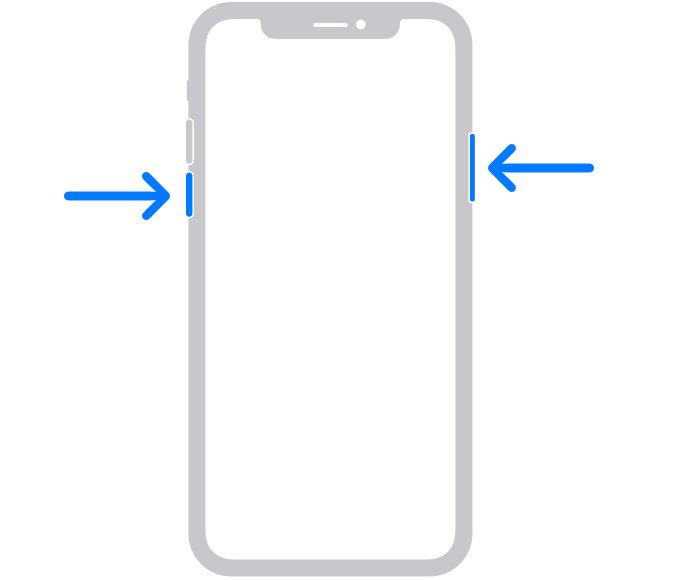
How to restart your iPhone 11
Use this normal restart when the iPhone 11 still responds to touch. Nothing on the phone is deleted.
- Press and hold either volume button and the side button on the right edge at the same time.
- Release the buttons when the power-off slider appears.
- Drag the slider to the right.
- Wait 30 seconds for the iPhone to turn off.
- Press and hold the side button until the Apple logo appears.
Understanding the difference: Restart vs. reboot
Restart and reboot mean the same thing: the iPhone turns off and starts again. Apple's two procedures are a restart and a force restart, and many guides call the second one a hard reset.
| Your situation | Do this | What happens to your data |
|---|---|---|
| An app or feature misbehaves but the screen responds | Normal restart with the power-off slider | Nothing is deleted |
| The screen is frozen or black | Force restart (hard reset) | Nothing is deleted |
| One app is frozen but the phone works | Close that app, then open it again | Nothing is deleted; unsaved work in that app can be lost |
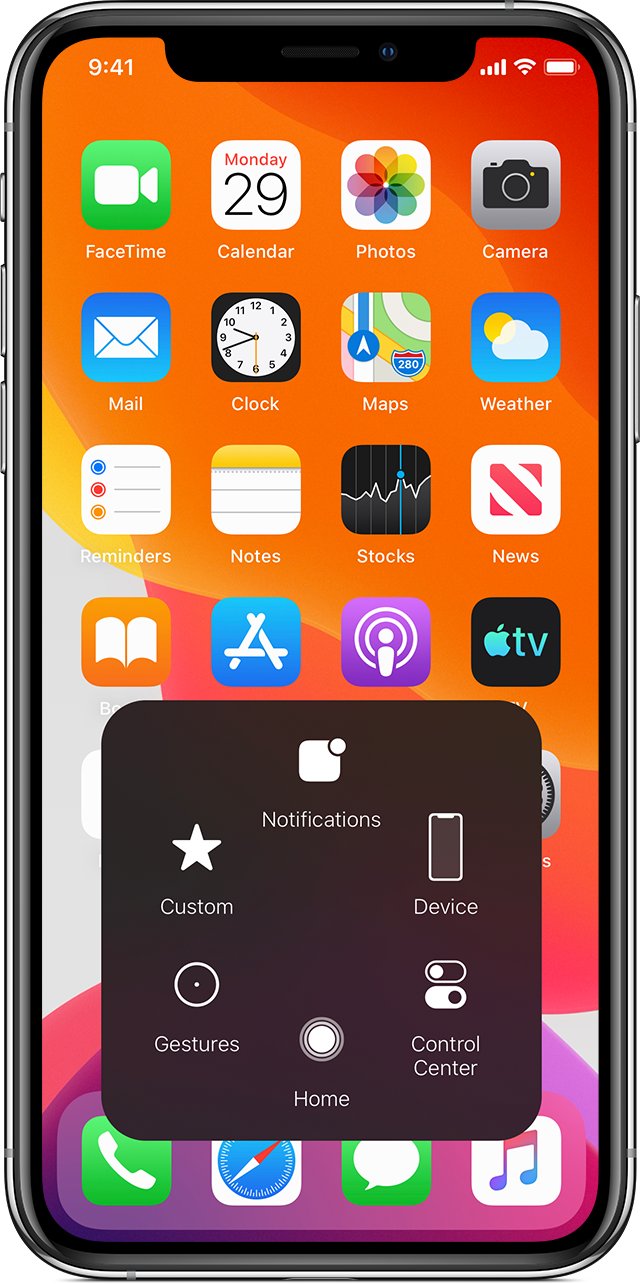
| Settings problems continue after a restart | Reset All Settings | Settings return to defaults; photos, messages, apps and documents stay |
| The Apple logo stays for several minutes with no progress bar | Recovery mode with a computer, then Update | Update keeps your personal data; Restore erases it |
| You are selling the iPhone or starting fresh | Erase All Content and Settings | Everything on the iPhone is erased |
If you do need to wipe the phone, you can factory reset the iPhone from Settings. A restart or force restart never does this.
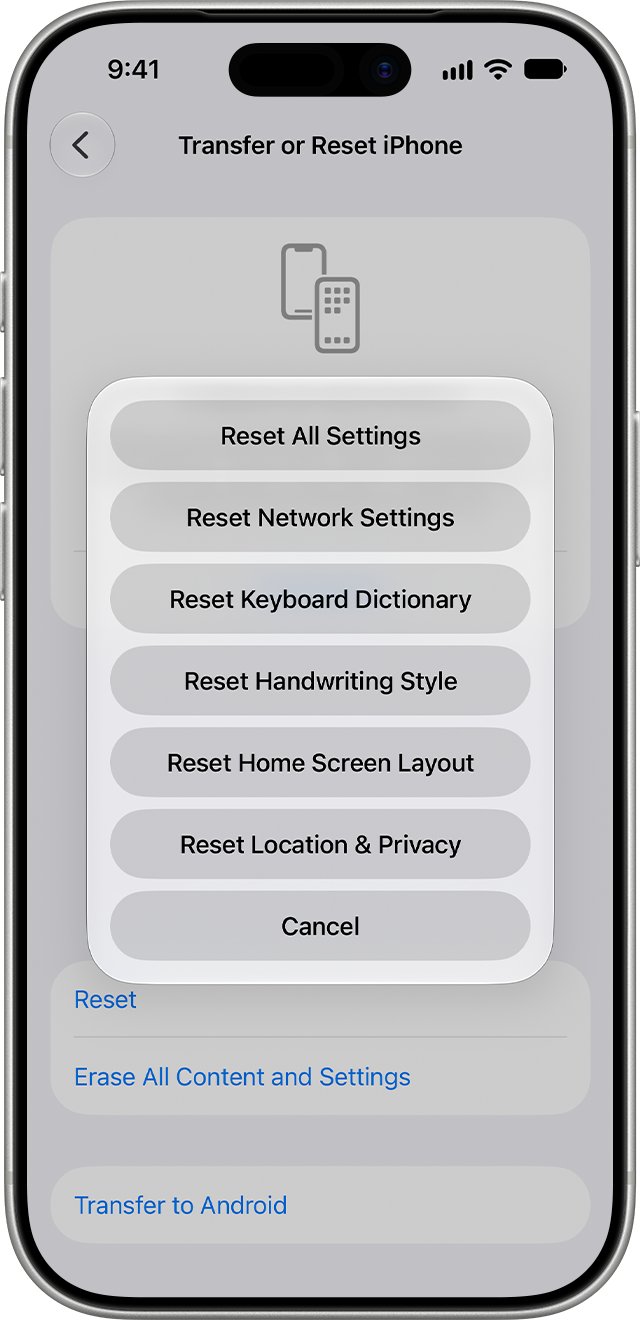
How to reboot (hard reset) your iPhone 11
Apple calls this a force restart. It is for an iPhone 11 that is frozen, unresponsive or showing a black screen, and it does not erase anything.
- Press and quickly release the volume up button.
- Press and quickly release the volume down button.
- Press and hold the side button.
- Keep holding until the Apple logo appears, which might take longer than 10 seconds.
- Release the button and let the iPhone finish starting.
The same sequence applies to iPhone 8 and later. Older phones use different buttons, so check the force restart steps for other iPhone models if you own one of those too.
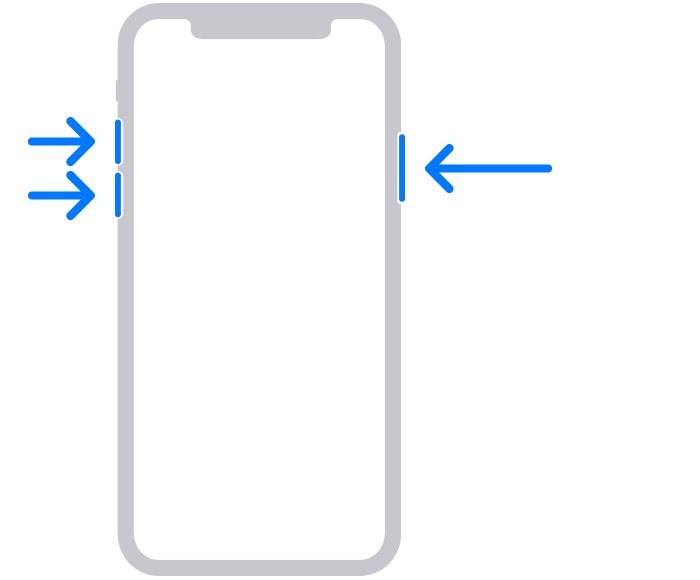
How to restart iPhone 11 without buttons
Both routes need a working touchscreen. Use them when a volume button or the side button is hard to press or does not respond.
Restart iPhone 11 with AssistiveTouch
AssistiveTouch puts a button on the screen, and Apple lists restarting the device among its functions.
- Open Settings > Accessibility > Touch > AssistiveTouch.
- Turn on AssistiveTouch, then tap the onscreen button to open its menu.
- Select the restart option in the menu.
- If it is not visible, tap Customize Top Level Menu in the AssistiveTouch settings and assign it to a button.
Turn off iPhone 11 in Settings
This turns the phone off without the volume buttons, but you still need the side button to turn it back on.
- Open Settings > General.
- Scroll down and tap Shut Down.
- Drag the slider to the right.
- Wait 30 seconds, then press and hold the side button until the Apple logo appears.
Does reboot mean restart on an iPhone?
| Term you see | What it means on iPhone 11 | Does it erase data? |
|---|---|---|
| Restart | Turn the phone off with the slider, then turn it on again | No |
| Reboot | Another word for restart; some guides use it for a force restart | No |
| Force restart | Apple's button sequence for a frozen or unresponsive phone | No |
| Hard reset | A common name for a force restart, not a term Apple uses for this procedure | No |
| Shut down | Turn the phone off and leave it off until you start it again | No |
| Factory reset | Erase All Content and Settings, which returns the phone to its setup screen | Yes |
Pros of restarting/rebooting your iPhone 11
| Benefit | What it means for you |
|---|---|
| Your data stays put | Photos, messages and apps remain on the phone after either kind of restart |
| It needs no computer | You need only the buttons or the Settings app, unless the phone needs recovery mode |
| It can clear a frozen screen | A force restart works when the touchscreen no longer responds |
| It is Apple's early troubleshooting step | Apple suggests a restart for problems such as a grayed-out Wi-Fi setting and AirPlay faults |
| It reaches further than closing apps | Apple says closing all your apps does not improve overall performance, so use a restart for a fault that goes beyond one app |
Cons of restarting/rebooting your iPhone 11
| Drawback | What to do about it |
|---|---|
| Face ID will not unlock the phone until you enter the passcode | Know your passcode before you restart, since Apple requires it after any restart |
| The phone is unavailable while it is off | Wait until you finish any call or upload before you start |
| Work open in an app can be lost | Save anything you are editing first, especially before a force restart |
| It cannot fix a hardware fault | Apple says a broken or stuck button can mean the phone needs service |
| It may not fix a deeper software fault | Use recovery mode and Update if the Apple logo or Connect to computer screen stays |
How to tell if your iPhone 11 restarted
A completed restart has a clear sign: the iPhone asks for the passcode instead of accepting Face ID.
- Watch for the Apple logo, which shows the iPhone is starting.
- Wait for the Lock Screen to appear.
- Enter your passcode when the iPhone asks for it, because Face ID is not available right after a restart.
- Check that the app or feature that caused the problem now works.
iPhone 11 won't restart
Match what you see on the screen to the fix below. If a frozen phone ignores the button sequence, you can fix a force restart that fails separately.
The power-off slider does not appear
The iPhone is frozen, so the normal restart cannot run.
- Press and quickly release volume up, then volume down.
- Press and hold the side button until the Apple logo appears, which can take longer than 10 seconds.
The screen stays black
The battery may be too low to start the iPhone.
- Charge the iPhone for one hour, then try the force restart again.
- If a low-charge battery appears, check the iPhone hardware and charge it for 30 minutes or until it starts.
- Get service if it still won't turn on or respond.
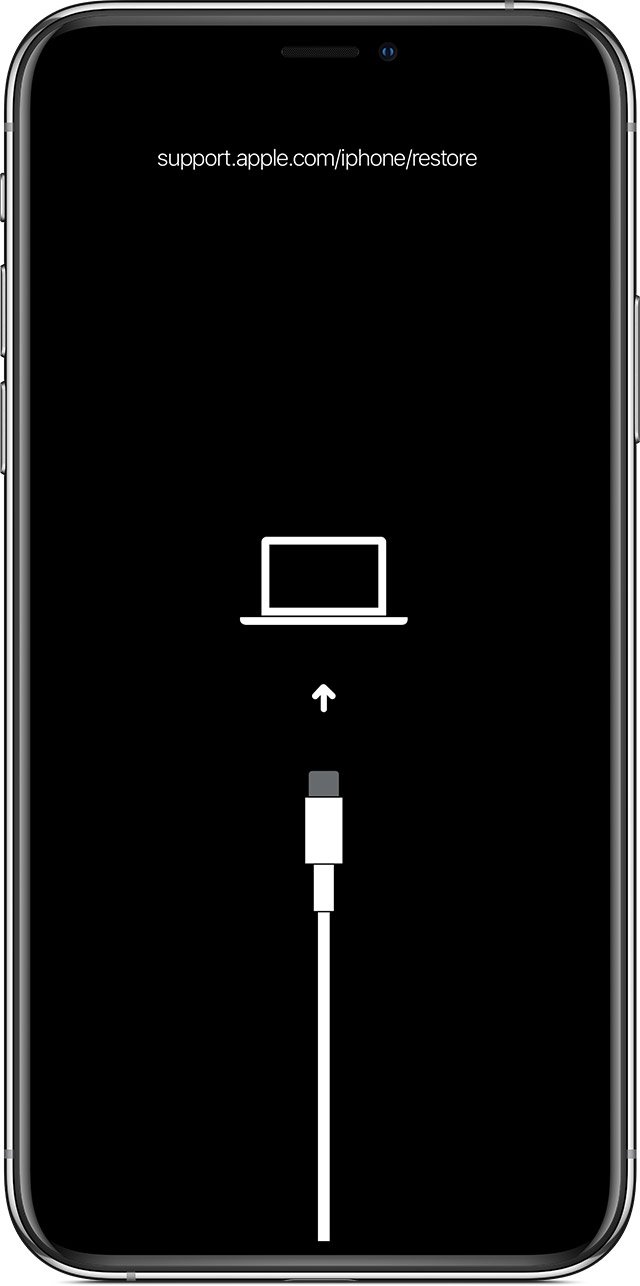
The Apple logo stays for several minutes
Apple points to recovery mode when the logo shows for several minutes with no progress bar.
- Update your Mac, or get the latest Apple Devices app on your PC.
- Connect the iPhone with a USB cable and open Finder or the Apple Devices app.
- Press and quickly release Volume Up, then Volume Down, then hold the side button until the Connect to computer screen appears.
- Choose Update first, since Restore erases all your data.
The Restore screen appears
The iPhone needs a restart while it is connected, and it may need iOS reinstalled.
- Connect the iPhone to your computer with its cable and keep it connected.
- Force restart the iPhone with the sequence above.
- If the Restore screen returns, open Finder or the Apple Devices app.
- Click Update, not Restore, to reinstall iOS and keep your personal data.
A button is broken or stuck
The force restart and recovery mode both depend on the physical buttons.
- Use AssistiveTouch to restart if the touchscreen still works.
- Contact Apple for service if you cannot restart or use recovery mode.
iPhone 11 reboot and restart FAQs
Does reboot mean restart?
Yes. To reboot a device is to restart it: it turns off and starts again. On an iPhone 11, some guides use reboot for a force restart, but neither action erases your photos, messages or apps.
Is reboot and restart the same?
Yes, they describe the same result. The difference on an iPhone 11 is the method: a normal restart uses the power-off slider, while a force restart uses a button sequence for a phone that is frozen or unresponsive.
What is reboot and restart on an iPhone?
Both turn the iPhone off and start it again. Apple's own instructions use restart and force restart. A restart does not change your settings or delete your content, unlike Reset All Settings or a factory reset.
Does reboot mean restart or shut down?
Reboot means restart: the device turns off and then starts again. A shutdown leaves the iPhone off until you hold the side button to turn it on, though a normal iPhone restart is a shutdown followed by that step.
Is rebooting a computer restarting it?
Yes. Rebooting a computer means restarting it, just as it does on a phone. On a Windows PC, you can reboot Windows 11 from the Start menu rather than using button combinations.
Will restarting an iPhone 11 delete anything?
No. A normal restart and a force restart keep your photos, messages, apps and settings. Only actions such as Erase All Content and Settings, or Restore in recovery mode, erase your data.
Why does my iPhone 11 ask for a passcode after a restart?
Apple requires the passcode whenever the iPhone has just been turned on or restarted. Face ID becomes available again after you enter it, so keep your passcode to hand before you restart the phone.
How long does an iPhone 11 force restart take?
Hold the side button until the Apple logo appears, which Apple says might take longer than 10 seconds. If nothing happens, charge the iPhone for one hour and try the same sequence again.
Which button is the side button on iPhone 11?
The side button is on the right side of the iPhone 11. Hold it with either volume button for a normal restart, or hold it after pressing volume up and volume down for a force restart.